A drag and drop file upload zone is an ordinary <div> with two listeners. Cancel the browser's default on dragover, then read event.dataTransfer.files in drop. Skip the first step and the drop event never fires. The browser opens the file in the tab instead.
Try it. Drag one or more files from your desktop onto the box.
<!doctype html>
<html lang="en">
<head>
<meta charset="utf-8">
<meta name="viewport" content="width=device-width, initial-scale=1">
<title>Drop zone</title>
<style>
  body { margin: 0; padding: 16px; font-family: system-ui, sans-serif; background: #f4f5f7; color: #1d2330; }
  #zone {
    border: 2px dashed #9aa3b2; border-radius: 12px; background: #fff;
    padding: 36px 16px; text-align: center; color: #4b5563;
  }
  #zone.over { border-color: #2563eb; background: #eff6ff; color: #1d4ed8; }
  ul { list-style: none; padding: 0; margin: 14px 0 0; font-size: 14px; }
  li { display: flex; justify-content: space-between; gap: 12px; padding: 8px 10px; background: #fff; border-radius: 8px; margin-bottom: 6px; }
  li span:first-child { overflow: hidden; text-overflow: ellipsis; white-space: nowrap; }
  li span:last-child { color: #6b7280; flex-shrink: 0; }
</style>
</head>
<body>
<div id="zone">Drop files here</div>
<ul id="list"></ul>

<script>
  const zone = document.getElementById('zone');
  const list = document.getElementById('list');

  // Without preventDefault on dragover, the drop event never fires
  zone.addEventListener('dragover', (e) => {
    e.preventDefault();
    zone.classList.add('over');
  });
  zone.addEventListener('dragleave', () => zone.classList.remove('over'));

  zone.addEventListener('drop', (e) => {
    e.preventDefault();  // stop the browser from opening the file
    zone.classList.remove('over');
    list.innerHTML = '';
    for (const file of e.dataTransfer.files) {
      const li = document.createElement('li');
      li.innerHTML = '<span></span><span></span>';
      li.children[0].textContent = file.name;
      li.children[1].textContent = (file.size / 1024).toFixed(1) + ' KB';
      list.append(li);
    }
  });

  // A file dropped just outside the zone would also open, so block it on the page
  window.addEventListener('dragover', (e) => e.preventDefault());
  window.addEventListener('drop', (e) => e.preventDefault());
</script>
</body>
</html>
The files never leave your computer in these examples. Dropping a file gives your script a File object inside the browser: a name, a size, a type and the contents. Sending it to a server is a separate step, covered near the end.
The three events a drop zone needs
A file dragged over a page fires a series of drag events on whatever element sits under the pointer. A drop zone listens to three of them.
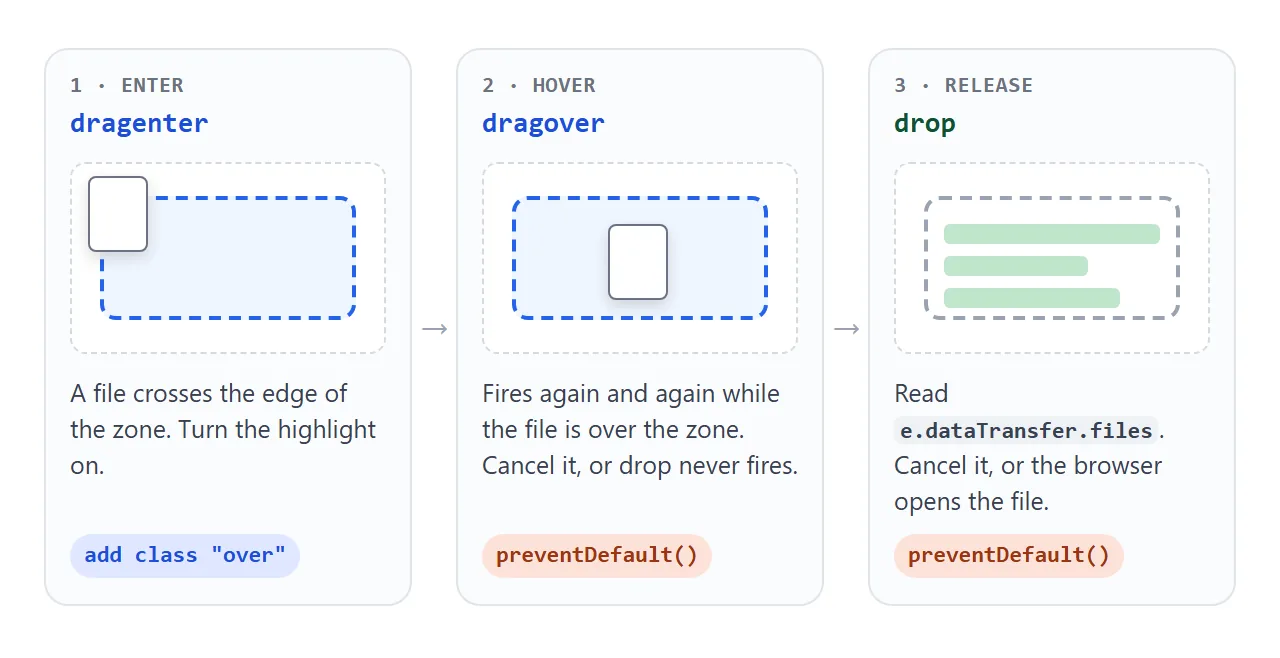
dragenterfires once when the file crosses into the zone. Use it to turn a highlight on.dragoverfires repeatedly while the file stays over the zone. Calle.preventDefault()here. That is what tells the browser the zone accepts a drop.dropfires when the user lets go. Calle.preventDefault()again, then loop overe.dataTransfer.files.
dataTransfer.files is a FileList. It works with for...of, and each item has name, size in bytes, type such as image/png, and lastModified.
One detail catches people: during dragenter and dragover, the file list is empty. The browser protects the data until the drop. If you want to know that files are on the way, check e.dataTransfer.types.includes('Files').
Why the browser opens the file instead
A browser's default reaction to a dropped file is to open it, the same way it would open the file from a menu. Your page is replaced by the image or PDF, and your code never gets a turn.
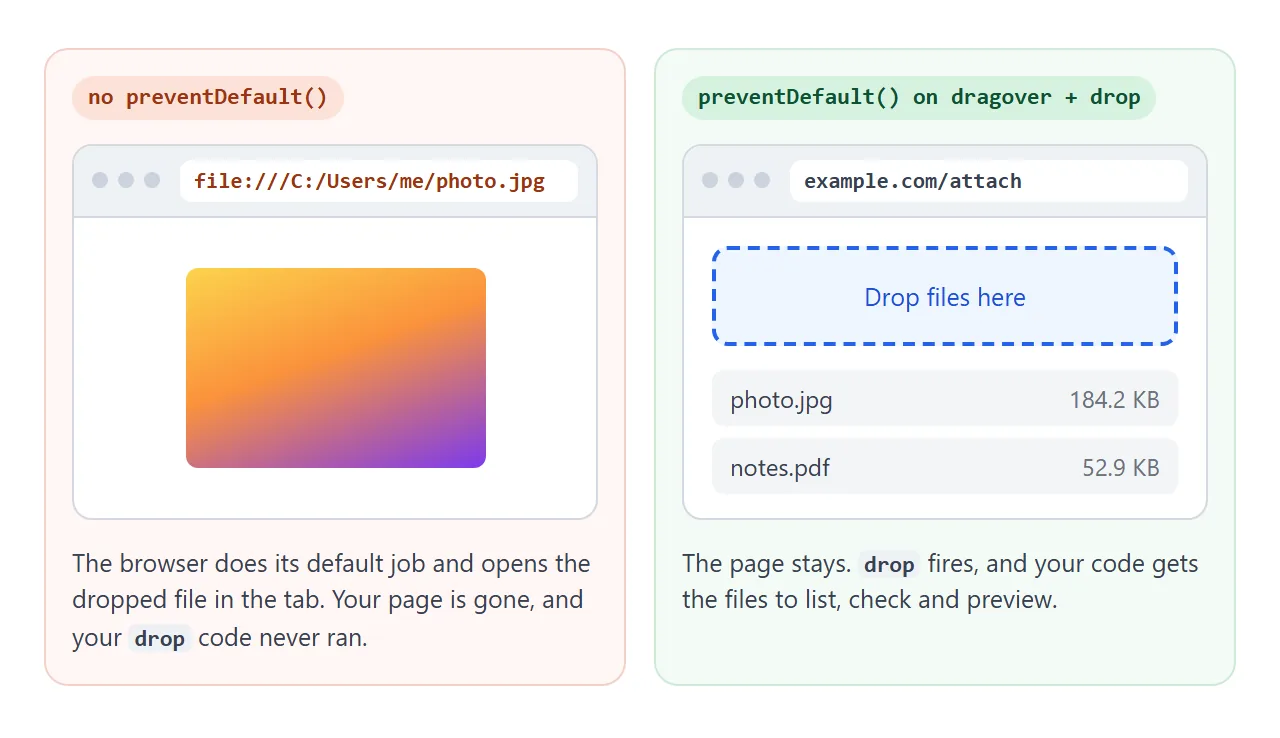
Cancelling dragover makes the zone a valid target, and cancelling drop stops the file from opening. A file that lands just outside the zone will still open, so block the default on the whole page as well:
window.addEventListener('dragover', (e) => e.preventDefault());
window.addEventListener('drop', (e) => e.preventDefault());
Stop the highlight from flickering
A highlight tells the user the drop will land. The obvious code adds a class on dragenter and removes it on dragleave. It flickers as soon as the zone has anything inside it, such as a label or an icon.
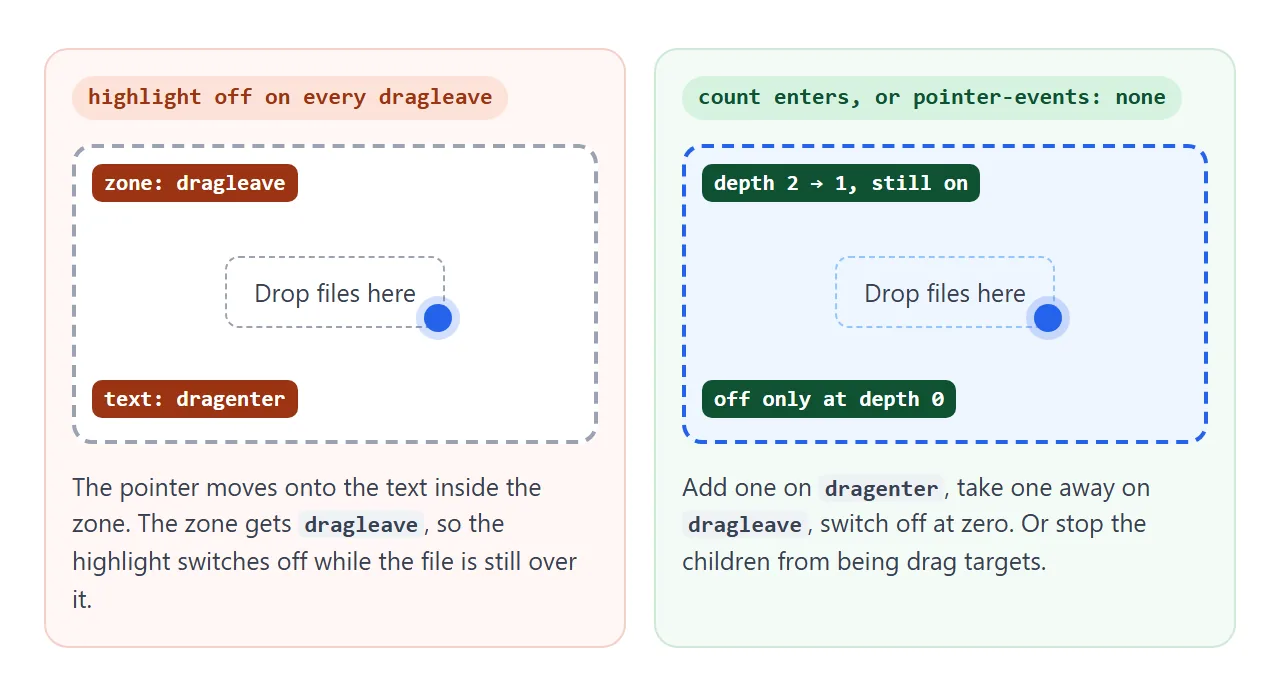
Drag events fire on the element directly under the pointer. Moving from the zone onto its text fires dragenter on the text and dragleave on the zone, even though the file never left. Two fixes work:
// Fix 1: count enters and leaves, switch off at zero
let depth = 0;
zone.addEventListener('dragenter', (e) => { e.preventDefault(); depth++; zone.classList.add('over'); });
zone.addEventListener('dragleave', () => { if (--depth === 0) zone.classList.remove('over'); });
zone.addEventListener('drop', () => { depth = 0; zone.classList.remove('over'); });
/* Fix 2: children are never drag targets */
#zone * { pointer-events: none; }
The second fix is shorter, but it also stops links or buttons inside the zone from being clicked. Use the counter when the zone holds anything interactive.
Check type and size, then preview
The next example accepts images only, up to 2 MB each, and shows a thumbnail for each accepted file. Anything else is listed with the reason it was turned away.
<!doctype html>
<html lang="en">
<head>
<meta charset="utf-8">
<meta name="viewport" content="width=device-width, initial-scale=1">
<title>Image previews with checks</title>
<style>
  body { margin: 0; padding: 16px; font-family: system-ui, sans-serif; background: #f4f5f7; color: #1d2330; }
  #zone {
    border: 2px dashed #9aa3b2; border-radius: 12px; background: #fff;
    padding: 28px 16px; text-align: center; color: #4b5563; font-size: 15px;
  }
  #zone small { display: block; margin-top: 6px; color: #6b7280; }
  #zone.over { border-color: #2563eb; background: #eff6ff; color: #1d4ed8; }
  #grid { display: grid; grid-template-columns: repeat(auto-fill, minmax(96px, 1fr)); gap: 8px; margin-top: 14px; }
  figure { margin: 0; background: #fff; border-radius: 8px; overflow: hidden; font-size: 12px; }
  figure img { display: block; width: 100%; aspect-ratio: 1; object-fit: cover; background: #e5e7eb; }
  figcaption { padding: 4px 6px; overflow: hidden; text-overflow: ellipsis; white-space: nowrap; }
  #rejected { list-style: none; padding: 0; margin: 12px 0 0; font-size: 13px; color: #9a3412; }
  #rejected li { background: #fff7f5; border: 1px solid #f3d1c8; border-radius: 8px; padding: 6px 10px; margin-bottom: 6px; }
</style>
</head>
<body>
<div id="zone">Drop images here<small>PNG, JPEG, GIF, WebP or SVG · up to 2 MB each</small></div>
<div id="grid"></div>
<ul id="rejected"></ul>

<script>
  const MAX_BYTES = 2 * 1024 * 1024;
  const zone = document.getElementById('zone');
  const grid = document.getElementById('grid');
  const rejected = document.getElementById('rejected');

  // Count enter/leave pairs so moving over the text inside the zone does not flicker
  let depth = 0;
  zone.addEventListener('dragenter', (e) => { e.preventDefault(); depth++; zone.classList.add('over'); });
  zone.addEventListener('dragleave', () => { if (--depth === 0) zone.classList.remove('over'); });
  zone.addEventListener('dragover', (e) => e.preventDefault());

  zone.addEventListener('drop', (e) => {
    e.preventDefault();
    depth = 0;
    zone.classList.remove('over');
    for (const file of e.dataTransfer.files) check(file);
  });

  function check(file) {
    // file.type comes from the file name, so treat it as a hint, not proof
    if (!file.type.startsWith('image/')) return reject(file, 'not an image');
    if (file.size > MAX_BYTES) return reject(file, 'larger than 2 MB');

    const fig = document.createElement('figure');
    const img = document.createElement('img');
    img.src = URL.createObjectURL(file);  // a local address for the file, nothing is sent
    img.alt = file.name;
    const cap = document.createElement('figcaption');
    cap.textContent = file.name;
    fig.append(img, cap);
    grid.append(fig);
  }

  function reject(file, reason) {
    const li = document.createElement('li');
    li.textContent = file.name + ': ' + reason;
    rejected.append(li);
  }

  window.addEventListener('dragover', (e) => e.preventDefault());
  window.addEventListener('drop', (e) => e.preventDefault());
</script>
</body>
</html>
Type. file.type is a hint, not proof. The browser usually works it out from the file name, and it can be an empty string. A renamed file passes a type check it should fail, so the server has to check again.
Size. file.size is known the moment the file is dropped, before anything is read. Check it first, so you never start reading a file you are going to refuse.
There are two ways to show an image preview in the browser:
URL.createObjectURL(file) |
FileReader.readAsDataURL(file) |
|
|---|---|---|
| What you get | A short blob: address that points at the file |
The whole file written out as a base64 data: text |
| When it is ready | Straight away | Later, in the reader's load event |
| Cleanup | Call URL.revokeObjectURL(url) when the preview is removed |
None; it is an ordinary string |
| Good for | Image and video previews | When you need the file as text, for example to store it |
For a preview, createObjectURL is the simpler choice. A data URL is the same format described in base64 images in HTML, and for a large photo it is a very long string.
Add a click and keyboard fallback
Dragging needs a mouse and two windows side by side. Keyboard users cannot drag at all. On a phone, dragging a file from another app into a browser is not always possible. A drop zone should also open the normal file picker.
<div id="zone" role="button" tabindex="0">Drop files here or choose files</div>
<input id="picker" type="file" multiple accept="image/*,application/pdf" hidden>
zone.addEventListener('click', () => picker.click());
zone.addEventListener('keydown', (e) => {
  if (e.key === 'Enter' || e.key === ' ') { e.preventDefault(); picker.click(); }
});
picker.addEventListener('change', () => {
  addFiles(picker.files);   // the same function the drop handler calls
  picker.value = '';        // lets the same file be picked again
});
tabindex="0" puts the zone in the tab order, and role="button" tells screen readers it can be pressed.
multiple lets the picker return several files, and accept narrows what the picker shows. Both paths feed one addFiles function, so the checks run the same way however the file arrived.
A finished uploader, running locally
This version combines everything: highlight, click and keyboard fallback, type and size checks, a thumbnail or file-type badge, a status per file, a remove button and a running total.
<!doctype html>
<html lang="en">
<head>
<meta charset="utf-8">
<meta name="viewport" content="width=device-width, initial-scale=1">
<title>File uploader UI</title>
<style>
  body { margin: 0; padding: 16px; font-family: system-ui, sans-serif; background: #f4f5f7; color: #1d2330; }
  .box { max-width: 520px; margin: 0 auto; background: #fff; border-radius: 14px; padding: 16px; box-shadow: 0 4px 16px rgba(0,0,0,.08); }
  h2 { font-size: 16px; margin: 0 0 12px; }
  #zone {
    border: 2px dashed #9aa3b2; border-radius: 12px; padding: 26px 14px;
    text-align: center; color: #4b5563; cursor: pointer; font-size: 15px;
  }
  #zone b { color: #2563eb; }
  #zone small { display: block; margin-top: 6px; color: #6b7280; font-size: 12.5px; }
  #zone.over { border-color: #2563eb; background: #eff6ff; }
  #zone:focus-visible { outline: 3px solid #93c5fd; outline-offset: 2px; }
  #zone * { pointer-events: none; }  /* children never fire dragleave */
  ul { list-style: none; padding: 0; margin: 12px 0 0; }
  li { display: flex; align-items: center; gap: 10px; padding: 8px; border: 1px solid #e5e7eb; border-radius: 10px; margin-bottom: 6px; }
  .thumb { width: 40px; height: 40px; border-radius: 6px; flex-shrink: 0; object-fit: cover; background: #eef1f5;
           display: grid; place-items: center; font: 700 10px ui-monospace, monospace; color: #6b7280; }
  .info { flex: 1; min-width: 0; font-size: 13.5px; }
  .name { overflow: hidden; text-overflow: ellipsis; white-space: nowrap; }
  .meta { font-size: 12px; color: #6b7280; margin-top: 2px; }
  .ok { color: #0f5132; } .bad { color: #9a3412; }
  .remove { border: 0; background: #f3f4f6; border-radius: 8px; width: 32px; height: 32px; font-size: 18px; cursor: pointer; color: #374151; flex-shrink: 0; }
  .remove:hover { background: #fee2e2; color: #9a3412; }
  #summary { font-size: 13px; color: #374151; margin-top: 10px; }
  .note { font-size: 12px; color: #6b7280; margin-top: 6px; }
</style>
</head>
<body>
<div class="box">
  <h2>Attach files</h2>
  <div id="zone" role="button" tabindex="0" aria-label="Choose files or drop them here">
    Drop files here or <b>choose files</b>
    <small>Images or PDF · up to 5 MB each</small>
  </div>
  <!-- the fallback: click, tap or keyboard opens the normal file picker -->
  <input id="picker" type="file" multiple accept="image/*,application/pdf" hidden>
  <ul id="list"></ul>
  <div id="summary">No files yet.</div>
  <div class="note">Files stay in this page. Nothing is sent to a server.</div>
</div>

<script>
  const MAX_BYTES = 5 * 1024 * 1024;
  const zone = document.getElementById('zone');
  const picker = document.getElementById('picker');
  const list = document.getElementById('list');
  const summary = document.getElementById('summary');
  let files = [];  // { file, url, error }

  // Click, tap, Enter or Space opens the file picker
  zone.addEventListener('click', () => picker.click());
  zone.addEventListener('keydown', (e) => {
    if (e.key === 'Enter' || e.key === ' ') { e.preventDefault(); picker.click(); }
  });
  picker.addEventListener('change', () => {
    add(picker.files);
    picker.value = '';  // so picking the same file again still fires change
  });

  // Drag and drop feeds the same add() function
  zone.addEventListener('dragover', (e) => { e.preventDefault(); zone.classList.add('over'); });
  zone.addEventListener('dragleave', () => zone.classList.remove('over'));
  zone.addEventListener('drop', (e) => {
    e.preventDefault();
    zone.classList.remove('over');
    add(e.dataTransfer.files);
  });
  window.addEventListener('dragover', (e) => e.preventDefault());
  window.addEventListener('drop', (e) => e.preventDefault());

  function add(fileList) {
    for (const file of fileList) {
      const same = files.some((f) => f.file.name === file.name && f.file.size === file.size);
      if (same) continue;
      const isImage = file.type.startsWith('image/');
      let error = '';
      if (!isImage && file.type !== 'application/pdf') error = 'Type not allowed';
      else if (file.size > MAX_BYTES) error = 'Larger than 5 MB';
      files.push({ file, error, url: isImage && !error ? URL.createObjectURL(file) : '' });
    }
    render();
  }

  function remove(i) {
    if (files[i].url) URL.revokeObjectURL(files[i].url);  // free the preview
    files.splice(i, 1);
    render();
  }

  function render() {
    list.innerHTML = '';
    files.forEach((f, i) => {
      const li = document.createElement('li');
      const thumb = document.createElement(f.url ? 'img' : 'div');
      thumb.className = 'thumb';
      if (f.url) { thumb.src = f.url; thumb.alt = ''; }
      else thumb.textContent = (f.file.name.split('.').pop() || 'FILE').slice(0, 4).toUpperCase();

      const info = document.createElement('div');
      info.className = 'info';
      info.innerHTML = '<div class="name"></div><div class="meta"></div>';
      info.children[0].textContent = f.file.name;
      info.children[1].innerHTML = size(f.file.size) + ' · ' +
        (f.error ? '<span class="bad">' + f.error + '</span>' : '<span class="ok">Ready</span>');

      const btn = document.createElement('button');
      btn.className = 'remove';
      btn.type = 'button';
      btn.textContent = '×';
      btn.setAttribute('aria-label', 'Remove ' + f.file.name);
      btn.addEventListener('click', () => remove(i));

      li.append(thumb, info, btn);
      list.append(li);
    });
    const ready = files.filter((f) => !f.error);
    const total = ready.reduce((sum, f) => sum + f.file.size, 0);
    summary.textContent = files.length
      ? ready.length + ' ready (' + size(total) + '), ' + (files.length - ready.length) + ' rejected'
      : 'No files yet.';
  }

  function size(bytes) {
    if (bytes < 1024) return bytes + ' B';
    if (bytes < 1024 * 1024) return (bytes / 1024).toFixed(1) + ' KB';
    return (bytes / 1024 / 1024).toFixed(1) + ' MB';
  }
</script>
</body>
</html>
- One list of files. Dropped and picked files go into the same array, and the list is redrawn from it.
- Duplicates are skipped by comparing name and size.
- Remove takes the file out of the array and calls
URL.revokeObjectURLon its preview. - Status reads Ready, Type not allowed or Larger than 5 MB. Ready means the file passed the checks in this page. It has not been sent.
For the checks the browser can run before a form is submitted, see HTML form validation.
Sending the files to a server
Everything above happens inside the browser. To actually upload, your code sends the files to an address on a server you control, which receives and stores them. The usual way is a FormData object and fetch:
async function send(files) {
  const form = new FormData();
  for (const file of files) form.append('files', file);
  // '/upload' is your own server endpoint
  const res = await fetch('/upload', { method: 'POST', body: form });
  if (!res.ok) throw new Error('Upload failed: ' + res.status);
}
Do not set a Content-Type header yourself. The browser writes it for FormData, including the boundary that separates the files.
The server needs its own size limit and type check, because anything checked in the page can be bypassed. The live examples on this page do not include this step.
When it does not work
| What you see | Cause | Fix |
|---|---|---|
| The browser opens the file in the tab | preventDefault() is missing on dragover or drop |
Cancel both on the zone, and on window for drops just outside it |
The drop listener never runs |
dragover was not cancelled, so the zone is not a drop target |
e.preventDefault() in dragover |
dataTransfer.files is empty in dragover |
The data is protected until the drop | Read files in drop; check types for 'Files' before that |
| The highlight flickers over text or icons | dragleave fires on the zone when the pointer moves onto a child |
Count enters and leaves, or pointer-events: none on children |
| Drop works, click does nothing | No file input fallback | Hidden <input type="file" multiple> opened with .click() |
| Picking the same file twice does nothing | The input value did not change, so no change event |
Set picker.value = '' after reading the files |
| A large file freezes the preview or fails later | The file is read or sent before its size is checked | Check file.size first; prefer createObjectURL for previews; set a server limit too |
| Wrong file types get through | accept only filters the picker, not drops |
Check file.type or the extension in code, and again on the server |
If the zone works and the upload itself stalls or fails, the problem is on the sending side. A file that won't upload goes through those causes in order.
Share it as a link
A drop zone has to be tried to be judged. A screenshot cannot take a file, and an .html attachment may open as plain code on the other person's machine.
To send the working version, paste the page into a NOS document and choose Create share link. HTML to link walks through it.
The page renders as written and its scripts run, so the people you send it to can drop their own files and see the previews, all inside their browser. If you change the code later, the same link shows the new version.