FileReader reads a file the user picked, in the browser, without uploading it. Make a reader, set onload, then call one read method. When the load event fires, reader.result holds the file as text, as a data: URL, or as raw bytes.
Try it. Pick a text or CSV file, or press the sample button if you have none at hand.
<!doctype html>
<html lang="en">
<head>
<meta charset="utf-8">
<meta name="viewport" content="width=device-width, initial-scale=1">
<title>FileReader readAsText</title>
<style>
  body { margin: 0; padding: 16px; font-family: system-ui, sans-serif; background: #f4f5f7; color: #1d2330; }
  .bar { display: flex; flex-wrap: wrap; gap: 8px; align-items: center; }
  input[type=file] { max-width: 100%; }
  button { font: inherit; padding: 6px 12px; border-radius: 8px; border: 1px solid #c9ced8; background: #fff; cursor: pointer; }
  #info { margin: 12px 0 6px; font-size: 14px; }
  #info.err { color: #b42318; }
  pre { margin: 0; height: 170px; overflow: auto; padding: 10px 12px; background: #fff; border: 1px solid #e1e4ea;
        border-radius: 8px; font: 13px/1.45 ui-monospace, Consolas, monospace; white-space: pre-wrap; word-break: break-word; }
</style>
</head>
<body>
<div class="bar">
  <input type="file" id="pick" accept=".txt,.csv,.json,.md,.html,text/*">
  <button id="sample" type="button">Use a sample file</button>
</div>
<p id="info">Pick a text file. Nothing is uploaded; the file is read in this page.</p>
<pre id="out"></pre>

<script>
  const pick = document.getElementById('pick');
  const info = document.getElementById('info');
  const out = document.getElementById('out');

  function read(file) {
    const reader = new FileReader();

    // The result exists only once the load event fires
    reader.onload = () => {
      info.className = '';
      info.textContent = `${file.name}: ${file.size} bytes, ${reader.result.length} characters`;
      out.textContent = reader.result;  // textContent shows the file as text, never runs it as HTML
    };

    reader.onerror = () => {
      info.className = 'err';
      info.textContent = `Could not read ${file.name}: ${reader.error.name}`;
    };

    reader.readAsText(file);  // decodes as UTF-8 unless you pass an encoding
  }

  pick.addEventListener('change', () => {
    if (pick.files.length) read(pick.files[0]);
  });

  // A File made in code, for trying the demo without a file of your own
  document.getElementById('sample').addEventListener('click', () => {
    read(new File(['name,city\nAna,Lisbon\nJoão,Porto\n'], 'sample.csv', { type: 'text/csv' }));
  });
</script>
</body>
</html>
The sample line João,Porto shows a detail worth knowing early. The file is 33 bytes but the text is 32 characters, because ã takes two bytes in UTF-8. file.size counts bytes; result.length counts characters.
The code in four lines
const reader = new FileReader();
reader.onload = () => show(reader.result);
reader.onerror = () => alert(reader.error.name);
reader.readAsText(file);
file comes from input.files[0] in a change listener, or from event.dataTransfer.files in a drop. Building the drop zone itself is covered in drag and drop file upload.
Set the handlers before the read call. The order does not change when load fires, but it keeps the code readable top to bottom.
Why reader.result is null
The read methods do not return the file. They start reading and return at once, with undefined. The rest of your function keeps running while the browser reads in the background.
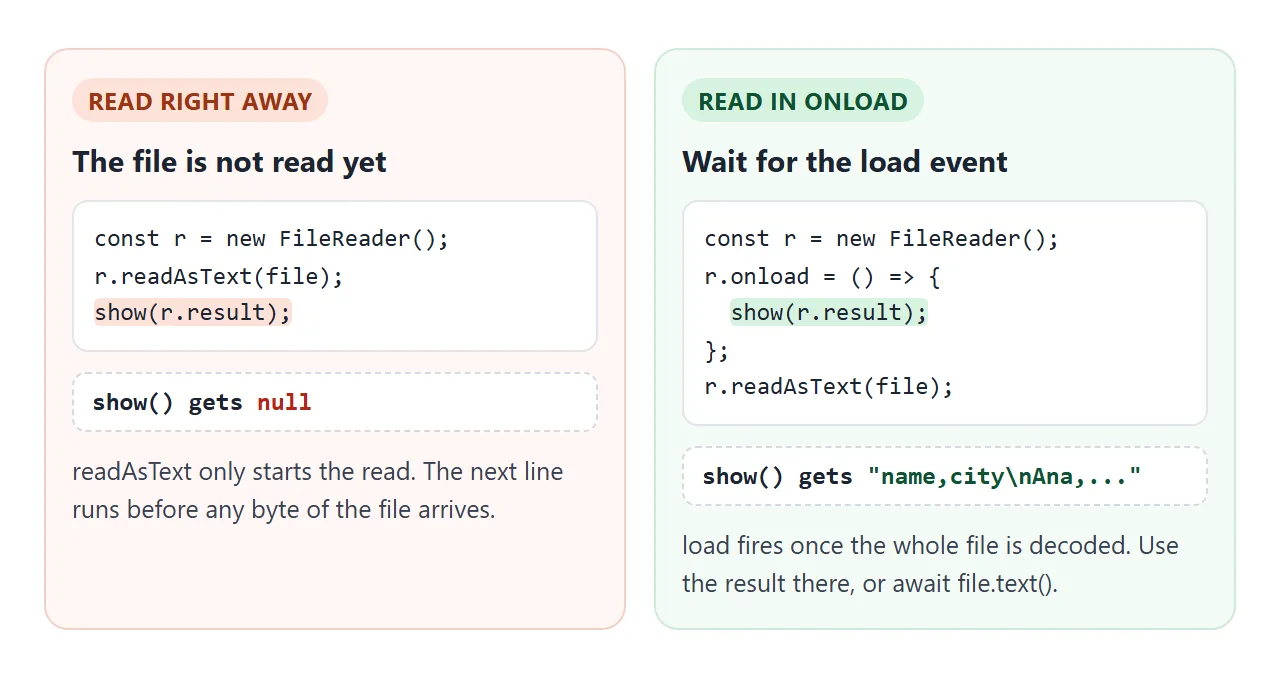
So reader.result is null on the line after readAsText. It is set just before load fires. Anything that needs the contents, such as showing text or parsing rows, goes inside onload or a function called from it.
readAsText, readAsDataURL, readAsArrayBuffer
The three methods read the same bytes and hand back three kinds of value. Pick the one that matches what you will do next.
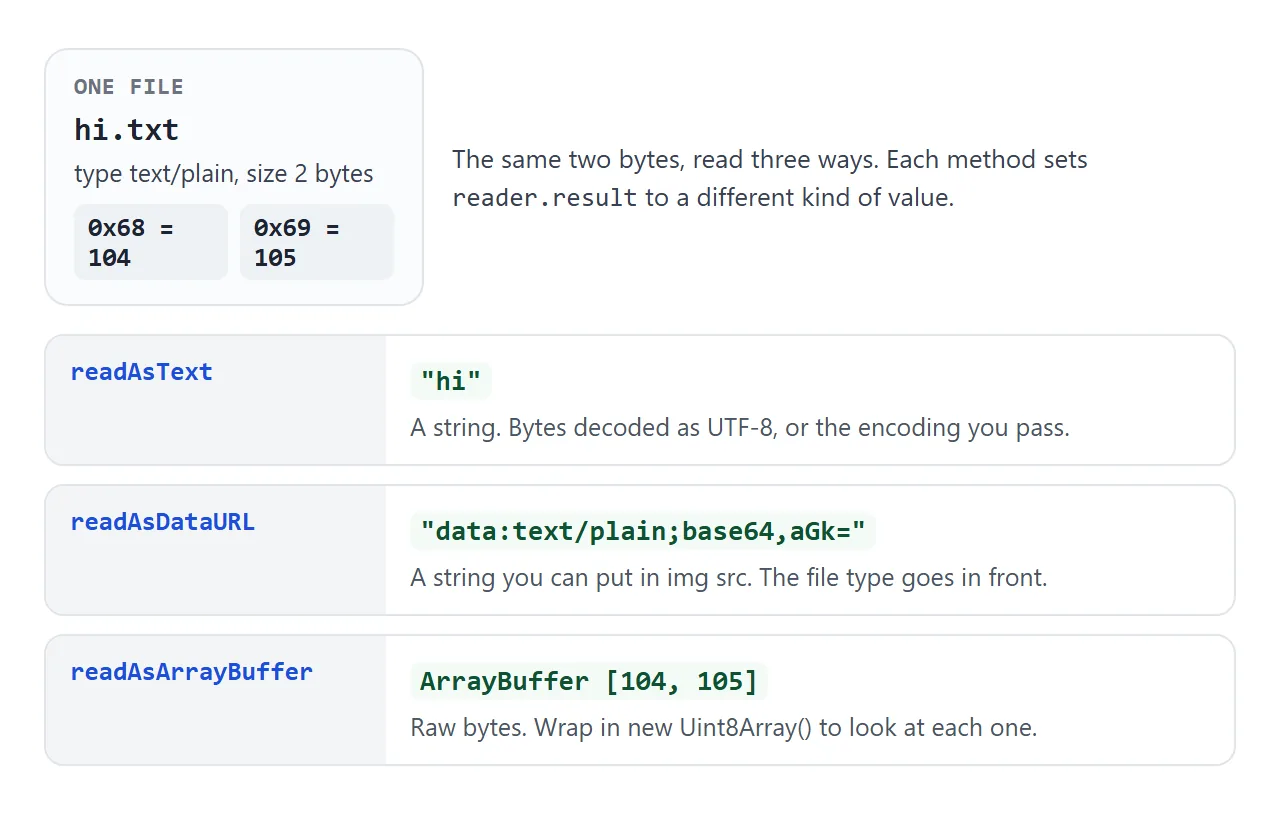
| Method | reader.result | Use it for |
|---|---|---|
readAsText(file) |
A string | .txt, .csv, .json, .md, .html |
readAsText(file, 'windows-1252') |
A string, decoded with that encoding | Old files that are not UTF-8 |
readAsDataURL(file) |
A data: string with base64 |
An image src, or storing a file as text |
readAsArrayBuffer(file) |
An ArrayBuffer of bytes |
Checking file headers, binary formats |
A file with no type gets a generic type in front of the data:
data:application/octet-stream;base64,aGk=
There is also readAsBinaryString, kept for older code. MDN points to readAsArrayBuffer instead.
onload, onerror and the other events
A reader moves through three readyState values and fires events on the way.
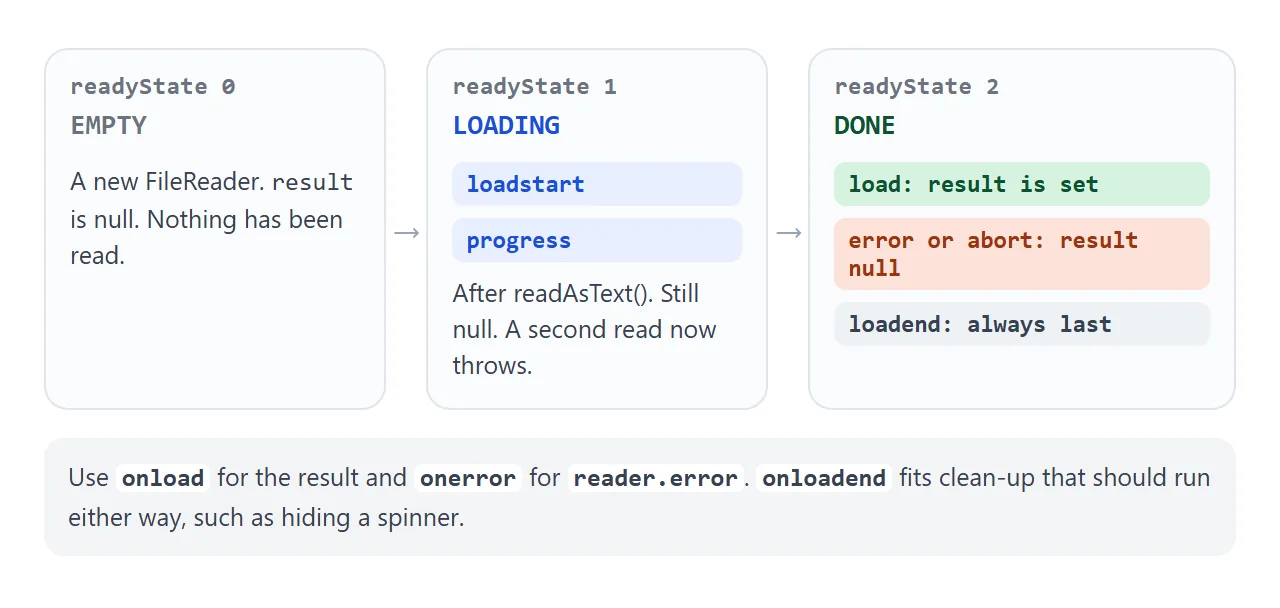
load- the read worked.reader.resultis ready.error- the read failed.reader.erroris aDOMException; itsnamesays why.progress- fires while a file is read.event.loadedandevent.totalare in bytes, enough for a progress bar on a large file.abort- your code calledreader.abort().loadend- fires after load, error or abort. Good for hiding a spinner.
Errors are rare but real. In our test, a file deleted after it was picked failed with NotFoundError in all three browser engines.
file.text() and the promise versions
Every File is a Blob, and Blob has promise methods that do the same jobs with less code:
const text = await file.text();          // like readAsText, always UTF-8
const bytes = await file.arrayBuffer();  // like readAsArrayBuffer
| FileReader | file.text() / file.arrayBuffer() | |
|---|---|---|
| Style | Events: onload, onerror |
A promise you can await |
| Choose the text encoding | Yes, second argument | No, always UTF-8 |
| Data URL | readAsDataURL |
No direct method |
| Progress events | Yes | No |
| Errors | onerror |
The promise rejects; use try/catch |
For UTF-8 text, await file.text() is the short way. If await is new to you, async and await explains it. FileReader earns its place for other encodings, data URLs and progress.
To use FileReader with await anyway, wrap it once:
function readText(file, encoding) {
  return new Promise((resolve, reject) => {
    const r = new FileReader();
    r.onload = () => resolve(r.result);
    r.onerror = () => reject(r.error);
    r.readAsText(file, encoding);
  });
}
Previewing an image: data URL or object URL
For an image preview you need something to put in img.src. readAsDataURL gives a data: string. URL.createObjectURL(file) gives a short blob: address. Both show the same picture.
<!doctype html>
<html lang="en">
<head>
<meta charset="utf-8">
<meta name="viewport" content="width=device-width, initial-scale=1">
<title>Image preview: readAsDataURL vs createObjectURL</title>
<style>
  body { margin: 0; padding: 16px; font-family: system-ui, sans-serif; background: #f4f5f7; color: #1d2330; }
  .bar { display: flex; flex-wrap: wrap; gap: 8px; align-items: center; }
  input[type=file] { max-width: 100%; }
  button { font: inherit; padding: 6px 12px; border-radius: 8px; border: 1px solid #c9ced8; background: #fff; cursor: pointer; }
  #sig { margin: 12px 0; font-size: 14px; }
  #sig code { font: 13px ui-monospace, Consolas, monospace; background: #fff; padding: 1px 5px; border-radius: 4px; }
  .grid { display: grid; grid-template-columns: 1fr 1fr; gap: 10px; }
  figure { margin: 0; padding: 10px; background: #fff; border: 1px solid #e1e4ea; border-radius: 10px; min-width: 0; }
  figcaption { font: 600 13px ui-monospace, Consolas, monospace; margin-bottom: 8px; }
  .box { height: 150px; display: grid; place-items: center; background: #eef1f5; border-radius: 6px; overflow: hidden; }
  img { max-width: 100%; max-height: 150px; }
  small { display: block; margin-top: 8px; font-size: 12px; color: #4b5563; overflow-wrap: anywhere; }
</style>
</head>
<body>
<div class="bar">
  <input type="file" id="pick" accept="image/*">
  <button id="sample" type="button">Use a sample image</button>
</div>
<p id="sig">Pick an image. The first bytes of the file are checked too.</p>
<div class="grid">
  <figure><figcaption>readAsDataURL</figcaption><div class="box"><img id="a" alt=""></div><small id="aSrc">src: none yet</small></figure>
  <figure><figcaption>createObjectURL</figcaption><div class="box"><img id="b" alt=""></div><small id="bSrc">src: none yet</small></figure>
</div>

<script>
  const pick = document.getElementById('pick');
  let lastUrl = null;

  function show(file) {
    // 1. FileReader: the whole file becomes a base64 data: string
    const reader = new FileReader();
    reader.onload = () => {
      document.getElementById('a').src = reader.result;
      document.getElementById('aSrc').textContent =
        `src: ${reader.result.slice(0, 30)}... (${reader.result.length} characters)`;
    };
    reader.readAsDataURL(file);

    // 2. Object URL: a short blob: address, ready at once. Free the previous one.
    if (lastUrl) URL.revokeObjectURL(lastUrl);
    lastUrl = URL.createObjectURL(file);
    document.getElementById('b').src = lastUrl;
    document.getElementById('bSrc').textContent = `src: ${lastUrl} (${lastUrl.length} characters)`;

    // 3. readAsArrayBuffer: look at the real bytes, not the file name
    const bytes = new FileReader();
    bytes.onload = () => {
      const head = [...new Uint8Array(bytes.result)]
        .map(b => b.toString(16).padStart(2, '0').toUpperCase()).join(' ');
      let kind = 'not a PNG, JPEG or GIF';
      if (head.startsWith('89 50 4E 47')) kind = 'PNG';
      else if (head.startsWith('FF D8 FF')) kind = 'JPEG';
      else if (head.startsWith('47 49 46 38')) kind = 'GIF';
      document.getElementById('sig').innerHTML =
        `<b>${file.size}</b> bytes. First bytes <code>${head}</code>: ${kind}`;
    };
    bytes.readAsArrayBuffer(file.slice(0, 4));  // read only the first 4 bytes
  }

  pick.addEventListener('change', () => {
    if (pick.files.length) show(pick.files[0]);
  });

  // Draw a small picture on a canvas and turn it into a PNG File
  document.getElementById('sample').addEventListener('click', () => {
    const c = document.createElement('canvas');
    c.width = 240; c.height = 160;
    const g = c.getContext('2d');
    const grad = g.createLinearGradient(0, 0, 240, 160);
    grad.addColorStop(0, '#2563eb'); grad.addColorStop(1, '#16a34a');
    g.fillStyle = grad; g.fillRect(0, 0, 240, 160);
    g.fillStyle = '#fff'; g.font = 'bold 28px system-ui, sans-serif'; g.fillText('sample.png', 34, 90);
    c.toBlob(blob => show(new File([blob], 'sample.png', { type: 'image/png' })), 'image/png');
  });
</script>
</body>
</html>
With the 47,721-byte sample PNG, the data URL was 63,650 characters long. Base64 writes every 3 bytes as 4 characters. The blob URL stayed at 46 characters. For previews on screen, the object URL is the lighter choice.
A data URL wins when the image must be kept as text: saved inside an HTML file, or put in JSON. Blob URLs covers object URLs, including when to call revokeObjectURL.
The demo also reads the first 4 bytes with file.slice(0, 4) and readAsArrayBuffer.
Real PNG files start with 89 50 4E 47, JPEG with FF D8 FF. A text file renamed to .png fails this check, while file.type still says image/png, because the browser takes it from the name.
Choosing the text encoding
readAsText decodes as UTF-8 unless you pass an encoding label. Some older Windows programs save text in Windows-1252, where é is one byte. Read as UTF-8, that byte turns into the replacement character �.
reader.readAsText(file, 'windows-1252');
Two behaviours we measured, the same in Chrome, Firefox and Safari's engine:
- A byte order mark wins. If the file starts with the UTF-8 mark (
EF BB BF), it is read as UTF-8 whatever label you pass, and the mark is dropped from the text. - Unknown labels fall back to UTF-8. A typo such as
'windows1252'gives no error, just UTF-8 decoding.
Nothing in the file says which encoding it uses without a mark, so the demo below lets the reader switch and re-read.
Reading a CSV into a table
The finished example reads a CSV with readAsText, splits it into rows and cells, and builds a table. The encoding menu re-reads the same file.
<!doctype html>
<html lang="en">
<head>
<meta charset="utf-8">
<meta name="viewport" content="width=device-width, initial-scale=1">
<title>Read a CSV file into a table</title>
<style>
  body { margin: 0; padding: 16px; font-family: system-ui, sans-serif; background: #f4f5f7; color: #1d2330; }
  .bar { display: flex; flex-wrap: wrap; gap: 8px; align-items: center; font-size: 14px; }
  input[type=file] { max-width: 100%; }
  button, select { font: inherit; padding: 6px 10px; border-radius: 8px; border: 1px solid #c9ced8; background: #fff; }
  button { cursor: pointer; }
  #info { margin: 12px 0 8px; font-size: 14px; }
  #info.err { color: #b42318; }
  .wrap { max-height: 250px; overflow: auto; background: #fff; border: 1px solid #e1e4ea; border-radius: 8px; }
  table { border-collapse: collapse; font-size: 14px; min-width: 100%; }
  th, td { padding: 7px 10px; border-bottom: 1px solid #eef0f3; text-align: left; white-space: nowrap; }
  th { position: sticky; top: 0; background: #eef1f5; }
</style>
</head>
<body>
<div class="bar">
  <input type="file" id="pick" accept=".csv,text/csv">
  <button id="sample" type="button">Use a sample CSV</button>
  <label>Encoding
    <select id="enc">
      <option value="utf-8">UTF-8</option>
      <option value="windows-1252">Windows-1252</option>
    </select>
  </label>
</div>
<p id="info">Pick a .csv file, or use the sample.</p>
<div class="wrap"><table id="table"></table></div>

<script>
  const pick = document.getElementById('pick');
  const enc = document.getElementById('enc');
  const info = document.getElementById('info');
  const table = document.getElementById('table');
  let current = null;  // the File on screen, so a new encoding can re-read it

  // Split CSV text into rows of cells. Handles "quoted, cells" and "" inside quotes.
  function parseCSV(text, sep) {
    const rows = [[]];
    let cell = '', quoted = false;
    for (let i = 0; i < text.length; i++) {
      const ch = text[i];
      if (quoted) {
        if (ch === '"' && text[i + 1] === '"') { cell += '"'; i++; }
        else if (ch === '"') quoted = false;
        else cell += ch;
      } else if (ch === '"') quoted = true;
      else if (ch === sep) { rows.at(-1).push(cell); cell = ''; }
      else if (ch === '\n') { rows.at(-1).push(cell); cell = ''; rows.push([]); }
      else if (ch !== '\r') cell += ch;
    }
    rows.at(-1).push(cell);
    return rows.filter(r => r.some(c => c !== ''));  // drop blank lines
  }

  function render(rows) {
    table.replaceChildren();
    rows.forEach((cells, n) => {
      const tr = table.insertRow();
      for (const c of cells) {
        const cellEl = document.createElement(n === 0 ? 'th' : 'td');
        cellEl.textContent = c;  // text only, so a cell cannot inject HTML
        tr.append(cellEl);
      }
    });
  }

  function read(file) {
    current = file;
    const reader = new FileReader();
    reader.onload = () => {
      const text = reader.result;
      const first = text.split('\n')[0];
      // Spreadsheets set to some European locales save with ; instead of ,
      const sep = (first.split(';').length > first.split(',').length) ? ';' : ',';
      const rows = parseCSV(text, sep);
      render(rows);
      info.className = '';
      info.textContent = `${file.name}: ${Math.max(rows.length - 1, 0)} rows, ` +
        `${rows[0] ? rows[0].length : 0} columns, separator "${sep}", read as ${enc.value}`;
    };
    reader.onerror = () => {
      info.className = 'err';
      info.textContent = `Could not read ${file.name}: ${reader.error.name}`;
    };
    reader.readAsText(file, enc.value);  // the second argument picks the text encoding
  }

  pick.addEventListener('change', () => { if (pick.files.length) read(pick.files[0]); });
  enc.addEventListener('change', () => { if (current) read(current); });

  document.getElementById('sample').addEventListener('click', () => {
    const csv = 'Name,City,Order,Note\n' +
      'Ana,Lisbon,12.50,First order\n' +
      'João,Porto,8.00,"Paid, then refunded"\n' +
      'Zoë,Café Street,30.25,"She said ""thanks"""\n';
    read(new File([csv], 'orders.csv', { type: 'text/csv' }));
  });
</script>
</body>
</html>
- Quoted cells:
"Paid, then refunded"keeps its comma, and""inside quotes becomes one". Splitting on commas alone breaks these rows. - Separator: the first line is checked for
;versus,. Spreadsheets set to some European locales save with semicolons. - Line ends:
\ris skipped, so Windows (\r\n) and\nline ends both work. - Safe output: each cell goes in with
textContent, so a cell that contains HTML shows as text.
For files that open wrong in a spreadsheet app, see opening a CSV file. To publish a finished table rather than parse one, see HTML table from CSV.
When it does not work
| What you see | Cause | Fix |
|---|---|---|
reader.result is null |
Read on the line after the read call | Use it inside onload |
| InvalidStateError | A second read started on a busy reader | One FileReader per file |
é or � in the text |
Wrong encoding | Pass the right label to readAsText |
[object ArrayBuffer] on screen |
Used readAsArrayBuffer for text |
Use readAsText, or decode with TextDecoder |
| Image preview is blank | Set src to the File object itself |
Use the data URL or an object URL |
onerror with NotFoundError |
The file moved or was deleted after picking | Ask the user to pick it again |
Share it as a link
A file reader is easier to show than to describe. The person you send it to can pick their own file and watch it turn into a table or a preview, and the file never leaves their device.
To send a working version, paste the page into a NOS document and choose Create share link. HTML to link walks through it. The page renders as written and its scripts run, so the file picker works for whoever opens it.
If you change the code later, the same link shows the new version.