UIEvent is the browser interface for simple user-interface events. It is the parent of MouseEvent, KeyboardEvent, FocusEvent, InputEvent and WheelEvent, and it adds two fields: detail and view.
This page uses the web-platform meaning, because that is what a plain HTML file runs. People who type "react uievent" usually mean React.UIEvent, the type of the object a React handler receives. That is covered below too.
Try it first. Click, double-click, type, and scroll the small box. Each row appears when that event fires.
<!doctype html>
<html lang="en">
<head>
<meta charset="utf-8">
<meta name="viewport" content="width=device-width, initial-scale=1">
<title>Which events are UIEvents?</title>
<style>
  * { box-sizing: border-box; }
  body { margin: 0; padding: 12px; font: 14px/1.4 system-ui, sans-serif; color: #1d2330; background: #fff; }
  .tools { display: flex; flex-wrap: wrap; gap: 8px; align-items: stretch; margin-bottom: 10px; }
  button, input { font: inherit; padding: 8px 10px; border: 1px solid #c9ced8; border-radius: 8px; background: #f4f5f7; }
  input { background: #fff; min-width: 0; flex: 1 1 120px; }
  .box { width: 120px; height: 40px; overflow: auto; border: 1px solid #c9ced8; border-radius: 8px; font-size: 12px; }
  .box div { height: 120px; padding: 4px 6px; }
  table { width: 100%; border-collapse: collapse; font-size: 13px; }
  th, td { text-align: left; padding: 4px 6px; border-bottom: 1px solid #e5e7eb; }
  th { color: #6b7280; font-weight: 600; }
  td:first-child { font-family: ui-monospace, Consolas, monospace; }
  .yes { color: #0f5132; font-weight: 700; }
  .no { color: #9a3412; font-weight: 700; }
  p { margin: 8px 0 0; font-size: 12.5px; color: #4b5563; }
</style>
</head>
<body>
<div class="tools">
  <button id="btn">Click me</button>
  <input id="txt" placeholder="Type here">
  <div class="box" id="box" tabindex="0"><div>Scroll or wheel here</div></div>
</div>
<table>
  <thead><tr><th>Event</th><th>Object</th><th>UIEvent?</th><th>detail</th><th>view</th></tr></thead>
  <tbody id="rows"></tbody>
</table>
<p>Each row appears when that event fires. Resize the window to see <b>resize</b>.</p>

<script>
  const rows = document.getElementById('rows');
  const types = ['click', 'dblclick', 'mousedown', 'keydown', 'focusin', 'input', 'wheel', 'scroll'];
  const seen = {};

  function show(e) {
    let tr = seen[e.type];
    if (!tr) {
      tr = seen[e.type] = rows.insertRow();
      for (let i = 0; i < 5; i++) tr.insertCell();
    }
    const isUI = e instanceof UIEvent;
    tr.cells[0].textContent = e.type;
    tr.cells[1].textContent = e.constructor.name;
    tr.cells[2].textContent = isUI ? 'yes' : 'no';
    tr.cells[2].className = isUI ? 'yes' : 'no';
    tr.cells[3].textContent = isUI ? e.detail : '-';
    tr.cells[4].textContent = isUI ? (e.view === window ? 'window' : String(e.view)) : '-';
  }

  // capture on document so non-bubbling events (scroll, focus) are seen too
  types.forEach((t) => document.addEventListener(t, show, true));
  window.addEventListener('resize', show);
</script>
</body>
</html>
Click rows show PointerEvent and keyboard rows show KeyboardEvent. They all say "yes" because those interfaces inherit from UIEvent. The scroll row says "no" in some browsers, which is the catch explained further down.
Which events are UIEvents
MDN lists these interfaces as inheriting from UIEvent. Every event object of those types therefore has detail and view.
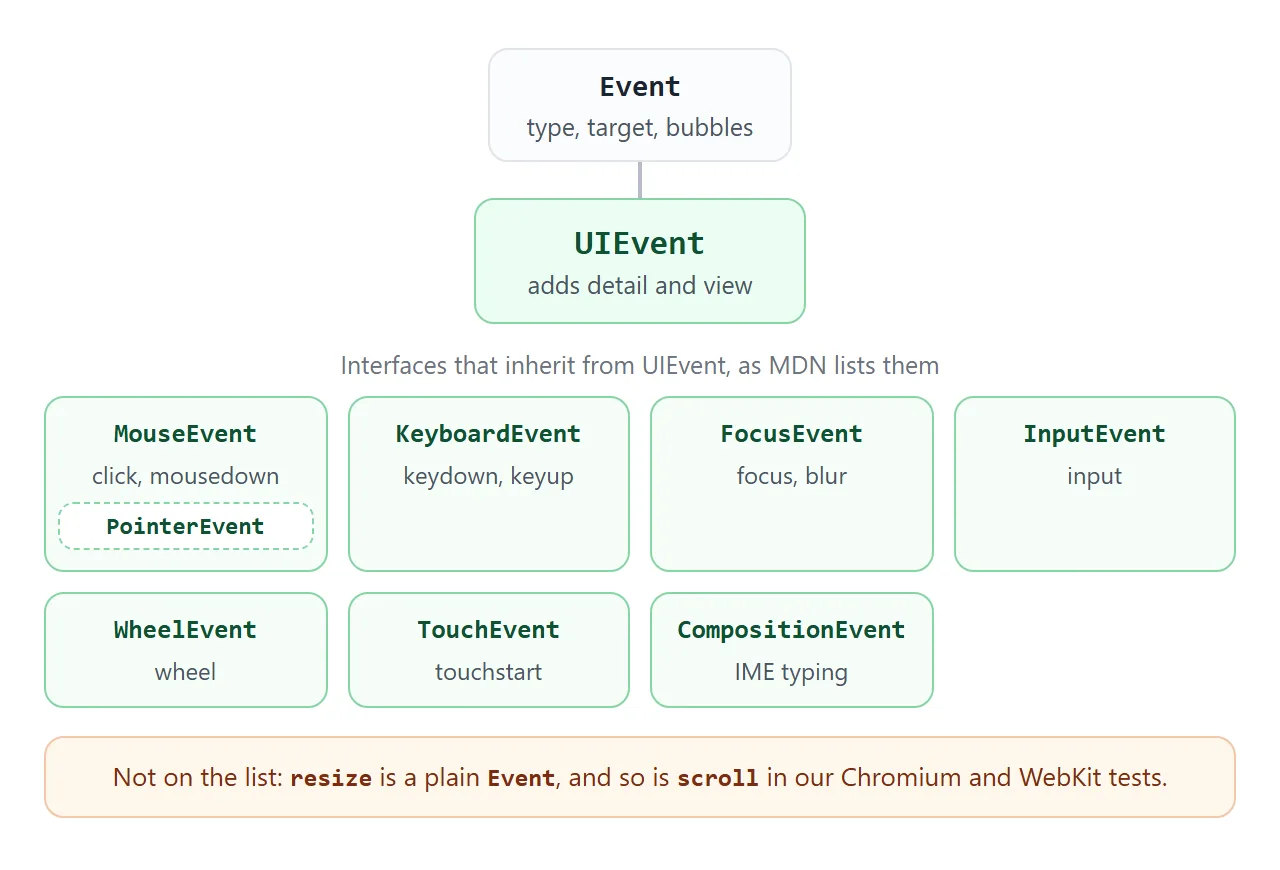
PointerEvent inherits from MouseEvent, so a pointer event has the fields too. In our test a click arrived as a PointerEvent in Chromium, Firefox and WebKit.
| Event | Object we saw | detail |
|---|---|---|
click |
PointerEvent | 1 for a single click |
dblclick |
MouseEvent | 2 |
keydown |
KeyboardEvent | 0 |
focusin |
FocusEvent | 0 |
input |
InputEvent | 0 |
wheel |
WheelEvent | 0 |
MDN's page for the old UIEvent.which property marks it as deprecated. For new code, use KeyboardEvent.key or code for keys, and MouseEvent.button for mouse buttons.
detail: the click count
For click and dblclick, detail is the current click count. For mousedown and mouseup, MDN says it is 1 plus the current click count. On every other UIEvent it is zero.
That makes a triple-click check one line:
el.addEventListener('click', (e) => {
  if (e.detail === 3) selectWholeParagraph();  // third click in a row
});
Try a triple click below. The second box builds a UIEvent by hand.
<!doctype html>
<html lang="en">
<head>
<meta charset="utf-8">
<meta name="viewport" content="width=device-width, initial-scale=1">
<title>UIEvent detail and the constructor</title>
<style>
  * { box-sizing: border-box; }
  body { margin: 0; padding: 12px; font: 14px/1.45 system-ui, sans-serif; color: #1d2330; background: #fff; }
  h2 { font-size: 14px; margin: 0 0 6px; }
  .pad {
    padding: 22px 12px; text-align: center; border-radius: 12px; cursor: pointer;
    background: #eef2ff; border: 1px solid #c7d2fe; user-select: none; -webkit-user-select: none;
  }
  .pad b { font-size: 22px; display: block; }
  .out { font: 13px/1.5 ui-monospace, Consolas, monospace; background: #f4f5f7; border-radius: 8px; padding: 8px 10px; margin: 8px 0 18px; min-height: 3.2em; white-space: pre-wrap; }
  button { font: inherit; padding: 8px 12px; border: 1px solid #c9ced8; border-radius: 8px; background: #f4f5f7; }
</style>
</head>
<body>
<h2>1. Click count from e.detail</h2>
<div class="pad" id="pad"><b id="n">0</b>Click, double-click, triple-click</div>
<div class="out" id="out1">Waiting for a click.</div>

<h2>2. Build your own UIEvent</h2>
<button id="make">Dispatch new UIEvent('hello')</button>
<div class="out" id="out2">Nothing dispatched yet.</div>

<script>
  const pad = document.getElementById('pad');
  const n = document.getElementById('n');
  const out1 = document.getElementById('out1');
  let down = '-';

  // mousedown reports 1 + the click count so far; click reports the count itself
  pad.addEventListener('mousedown', (e) => { down = e.detail; });
  pad.addEventListener('click', (e) => {
    n.textContent = e.detail;
    out1.textContent = 'mousedown detail: ' + down + '\nclick detail:     ' + e.detail;
  });

  // new UIEvent(type, { detail, view }) - the page makes it, so it is not trusted
  const target = document.getElementById('out2');
  target.addEventListener('hello', (e) => {
    target.textContent = 'type: ' + e.type + '\ndetail: ' + e.detail +
      '\nview === window: ' + (e.view === window) + '\nisTrusted: ' + e.isTrusted;
  });
  document.getElementById('make').addEventListener('click', () => {
    target.dispatchEvent(new UIEvent('hello', { detail: 7, view: window }));
  });
</script>
</body>
</html>
view, and building your own UIEvent
view is the window the event happened in. In a normal page it is the same as window, which the demo checks with e.view === window.
In our Chromium test, view was null on input events, while Firefox and WebKit gave the window. Treat view as optional on input.
You can make your own with the constructor. Both options are optional, detail defaults to 0 and view to null:
const ev = new UIEvent('hello', { detail: 7, view: window });
box.dispatchEvent(ev);
Events built this way are not trusted. ev.isTrusted is false, and MDN notes that only trusted events trigger default actions. Use a hand-made event to run your own listeners.
React UIEvent: what your handler receives
React does not pass the browser event directly. Its docs call the object a React event object, sometimes a "synthetic event". It copies the standard fields and keeps the original in nativeEvent.
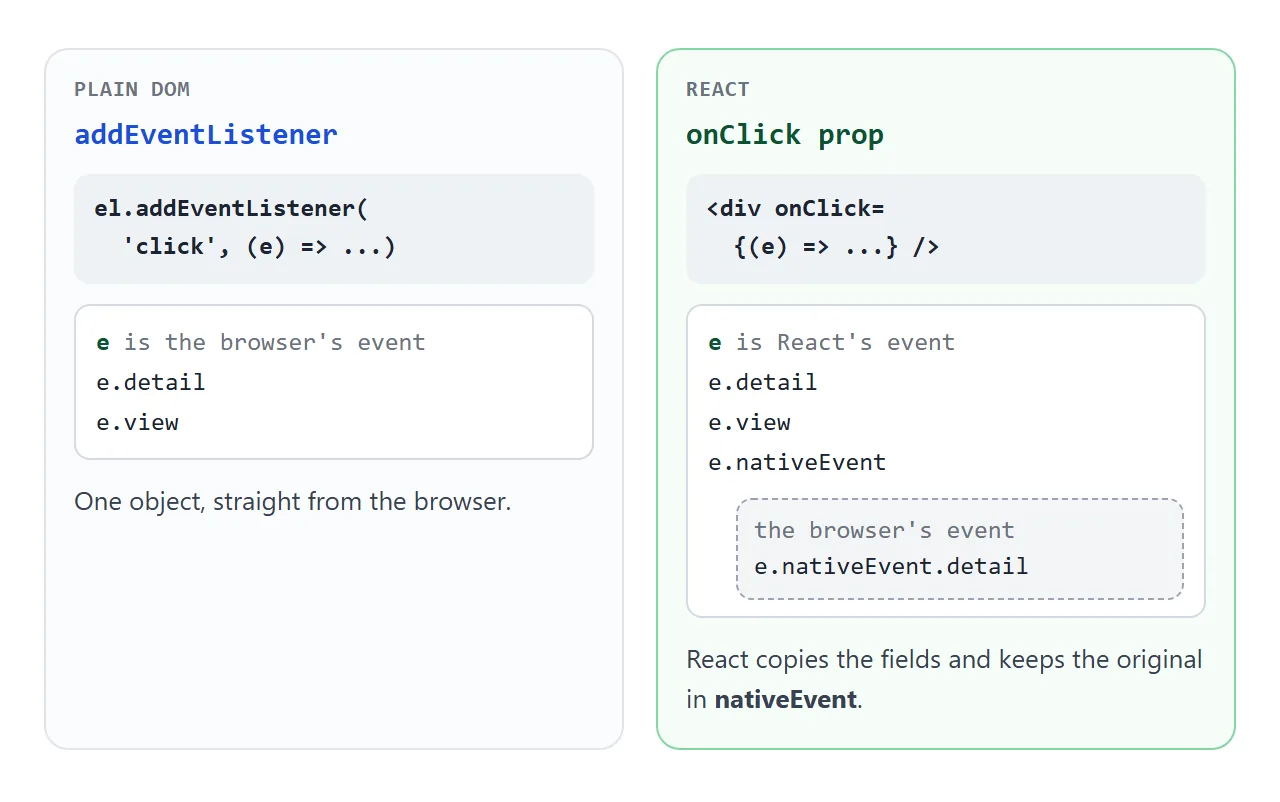
React's docs describe a "UIEvent handler" for generic UI events, with onScroll as the example, and say its event object has the extra properties detail and view. In the typings, the mouse, keyboard and wheel event types extend it.
The demo below loads React 18.3.1 from unpkg and writes components with React.createElement, so it runs as one HTML file with no build step.
<!doctype html>
<html lang="en">
<head>
<meta charset="utf-8">
<meta name="viewport" content="width=device-width, initial-scale=1">
<title>React UIEvent handlers</title>
<style>
  * { box-sizing: border-box; }
  body { margin: 0; padding: 12px; font: 14px/1.45 system-ui, sans-serif; color: #1d2330; background: #fff; }
  .row { display: flex; flex-wrap: wrap; gap: 10px; margin-bottom: 10px; }
  .pad, .scroller {
    flex: 1 1 150px; border-radius: 10px; border: 1px solid #c9ced8; background: #eef2ff;
    padding: 14px 10px; text-align: center; user-select: none; -webkit-user-select: none; cursor: pointer;
  }
  .scroller { background: #fff; height: 78px; overflow: auto; text-align: left; cursor: auto; padding: 0; }
  .scroller div { height: 240px; padding: 8px 10px; }
  pre { margin: 0; padding: 8px 10px; background: #f4f5f7; border-radius: 8px; font: 12.5px/1.5 ui-monospace, Consolas, monospace; white-space: pre-wrap; min-height: 9.2em; }
  h2 { font-size: 13px; margin: 0 0 6px; color: #4b5563; }
</style>
</head>
<body>
<div id="root"></div>

<script src="https://unpkg.com/react@18.3.1/umd/react.production.min.js"></script>
<script src="https://unpkg.com/react-dom@18.3.1/umd/react-dom.production.min.js"></script>
<script>
  const h = React.createElement;

  function App() {
    const [info, setInfo] = React.useState('Click the pad, press a key in the box, or scroll the list.');

    // one function for every handler: it only reads UIEvent fields
    function report(e) {
      setInfo(
        'handler event: ' + e.type +
        '\ne.detail: ' + e.detail +
        '\ne.view: ' + (e.view === window ? 'window' : String(e.view)) +
        '\nnativeEvent: ' + e.nativeEvent.constructor.name +
        '\nnative is a UIEvent: ' + (e.nativeEvent instanceof UIEvent)
      );
    }

    return h('div', null,
      h('div', { className: 'row' },
        h('div', { className: 'pad', onClick: report }, 'onClick'),
        h('input', { placeholder: 'onKeyDown: type here', onKeyDown: report, style: { flex: '1 1 150px', font: 'inherit', padding: '8px' } })
      ),
      h('div', { className: 'row' },
        h('div', { className: 'scroller', onScroll: report }, h('div', null, 'onScroll: scroll this list'))
      ),
      h('h2', null, 'What the handler received'),
      h('pre', null, info)
    );
  }

  ReactDOM.createRoot(document.getElementById('root')).render(h(App));
</script>
</body>
</html>
React 19 no longer ships UMD builds, according to the React 19 upgrade guide, which suggests an ESM CDN such as esm.sh for script-tag use. This page's demo pins 18.3.1, which has the UMD file.
In a project with a build step, you type the handler yourself. This is TypeScript and needs a compiler, so it does not run in a plain HTML file:
import type { UIEvent } from 'react';

function onScroll(e: UIEvent<HTMLDivElement>) {
  console.log(e.detail, e.view);   // detail: number, view: AbstractView
  console.log(e.nativeEvent);      // the browser's own event
}

// <div onScroll={onScroll}>...</div>
In the DefinitelyTyped React typings, the type is declared like this, and onScroll takes a handler of it:
interface UIEvent<T = Element, E = NativeUIEvent> extends SyntheticEvent<T, E> {
  detail: number;
  view: AbstractView;
}
Importing it shadows the global DOM UIEvent in that file, so write React.UIEvent if you need both.
The scroll and resize catch
The types say detail is a number. At runtime that only holds if the browser really sent a UIEvent. MDN calls both scroll and resize generic Event objects.
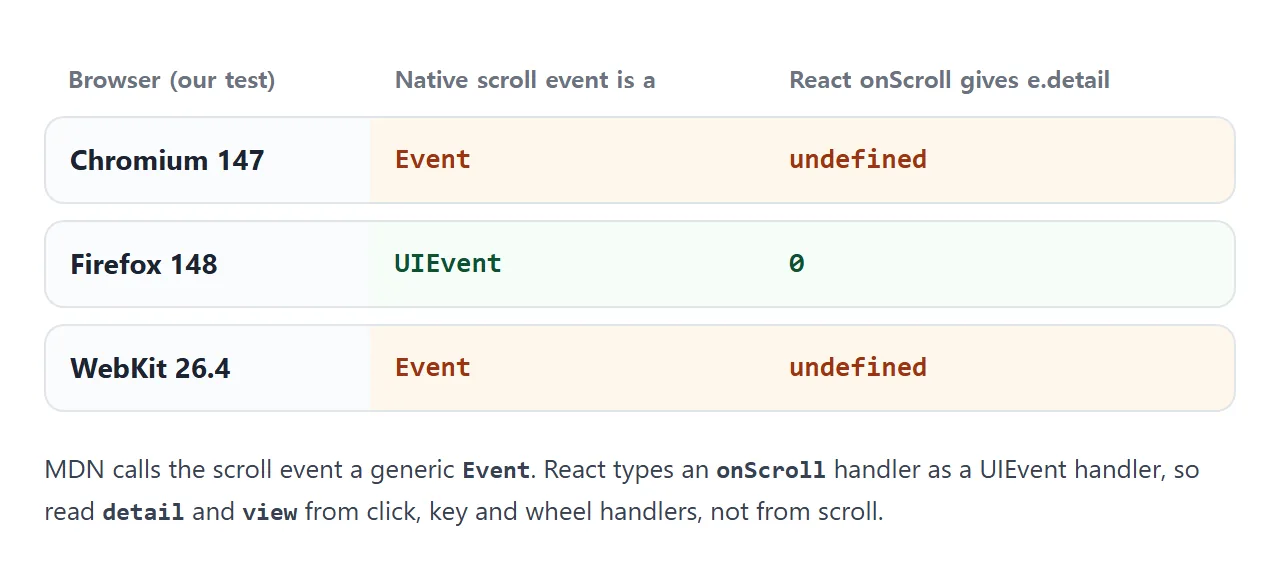
In the demo above, scroll the list in a Chromium or WebKit browser and e.detail reads undefined. Firefox sent a UIEvent and showed 0.
So read detail and view from click, key, focus, input and wheel handlers, and leave scroll and resize alone. resize fires only on window; for one element, use ResizeObserver.
When it does not work
| What you see | Cause | Fix |
|---|---|---|
e.detail is undefined in onScroll |
The native scroll event is a plain Event in that browser | Do not read detail on scroll |
e.view is null in an input handler |
Some browsers leave view empty on input events | Use window directly |
Code reads e.which |
MDN marks it deprecated | Use key, code or button |
| A resize listener on a div never fires | resize fires only on window |
Use ResizeObserver |
| A hand-made event triggers no default action | Events from new UIEvent are not trusted |
Call the method directly |
| TypeScript: handler on a React prop is mistyped | The DOM UIEvent type was used for a React prop | Type it as React.UIEvent |
React is not defined in a plain HTML file |
The React script did not load or came after yours | Load React first, then your code |
Share it as a link
A UIEvent is easier to understand by firing one than by reading a table, and a screenshot of the log cannot be clicked. For related events, see pointer events in JavaScript and addEventListener.
To send the working version, paste the page into a NOS document and choose Create share link. HTML to link walks through it.
The page renders as written and its scripts run, including the React one loaded from unpkg, so the people you send it to can click and scroll it themselves. If you change the code later, the same link shows the new version.