In web pages, an event is a signal the browser fires when something happens: a click, a key press, a form send, a finished page load. HTML events here means these browser events, not an event invitation page (for that, see event landing page).
You react to an event with a handler, a function the browser calls.
Start with the shortest way: put the handler in an HTML attribute. Click, type and pick an option below.
<!doctype html>
<html lang="en">
<head>
<meta charset="utf-8">
<meta name="viewport" content="width=device-width, initial-scale=1">
<title>HTML events</title>
<style>
  body { margin: 0; padding: 16px; font-family: system-ui, sans-serif; background: #f4f5f7; color: #1d2330; }
  .row { display: flex; flex-wrap: wrap; gap: 10px; align-items: center; margin-bottom: 12px; }
  button, input, select { font: inherit; padding: 8px 12px; border: 1px solid #c9ced8; border-radius: 8px; background: #fff; }
  button { cursor: pointer; background: #2563eb; border-color: #2563eb; color: #fff; }
  input { width: 170px; max-width: 100%; box-sizing: border-box; }
  #log { margin: 0; padding: 10px 12px; min-height: 96px; background: #fff; border: 1px solid #e1e4ea; border-radius: 8px;
         font: 13px/1.6 ui-monospace, Consolas, monospace; list-style: none; }
  #log li:first-child { font-weight: 700; color: #0f5132; }
</style>
</head>
<body>
<div class="row">
  <!-- each on... attribute holds JavaScript that runs when that event fires -->
  <button onclick="log('click on ' + event.target.tagName)">Click me</button>
  <input placeholder="Type here" oninput="log('input: ' + this.value)">
  <select onchange="log('change: ' + this.value)">
    <option>red</option><option>green</option><option>blue</option>
  </select>
</div>
<ul id="log"><li>Events appear here, newest first.</li></ul>

<script>
  const list = document.getElementById('log');
  function log(text) {
    const li = document.createElement('li');
    li.textContent = text;
    list.prepend(li);
    while (list.children.length > 5) list.lastChild.remove();  // keep the last five
  }
</script>
</body>
</html>
Each on... attribute holds JavaScript. Inside it, event is the event object and this is the element. The rest of this guide covers what the browser sends, the other way to attach handlers, and the mistakes to avoid.
How an event reaches your code
An event has three steps. Something happens, the browser creates an event object that describes it, and your handler runs if you attached one for that type.
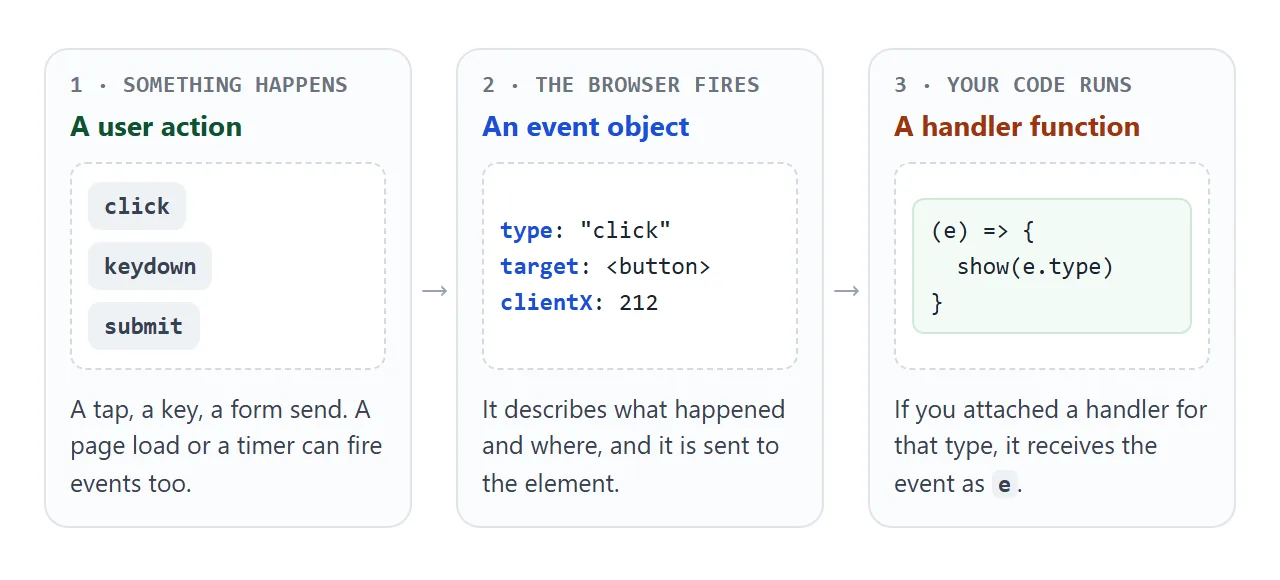
Events are not only for people. MDN notes that an event can come from a user action, from an API reporting the progress of an asynchronous task, or from your own code, for example by calling element.click().
Event attributes or addEventListener
There are two places a handler can live. The attribute sits in the HTML. The listener is attached from a script.
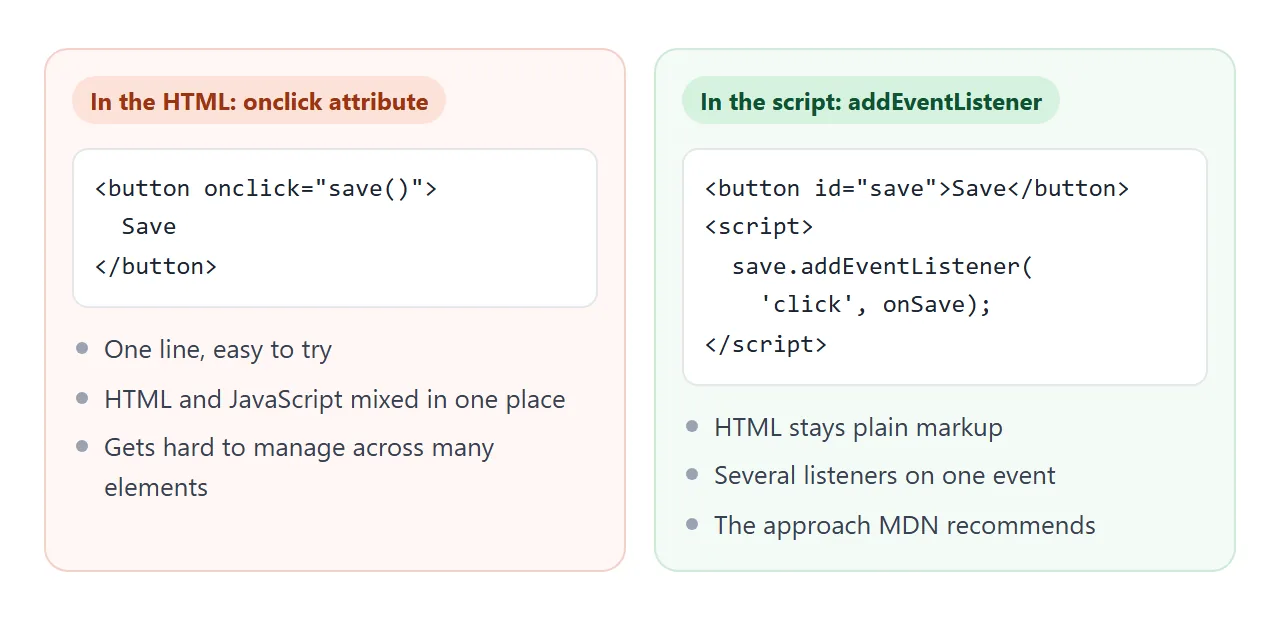
MDN's events guide recommends addEventListener and advises against inline attributes. The attribute mixes HTML with JavaScript and becomes hard to manage across many elements. Assigning to el.onclick has a limit of its own: you cannot add more than one handler for the same event.
onclick="..." |
addEventListener |
|
|---|---|---|
| Written in | The HTML tag | A <script> |
| Several handlers per event | No | Yes |
| Good for | A quick test | Pages you will keep editing |
addEventListener in JavaScript covers its options, bubbling phases and removing listeners.
The events you will use most
These are the events used in this guide.
| Event | Fires when | Worth knowing |
|---|---|---|
click |
A button is pressed and released, or tapped | Also fires for Space or Enter on a focused button |
input |
A field value changes as the user edits | Runs on every keystroke in a text field |
change |
A value is committed | Text fields: when focus leaves. Checkbox, select: at once |
submit |
A form is submitted | Fires on the <form>, not on the button |
keydown |
A key is pressed | Bubbles; read e.key for which key |
DOMContentLoaded |
The HTML is fully parsed | Does not wait for images |
Two details save debugging time. The submit event is not sent when a script calls form.submit(); form.requestSubmit() does send it. And DOMContentLoaded is not the same as load, which waits for the whole page, images included.
The order events fire in
One action often fires several events. A mouse click is a good case: click comes after mousedown and mouseup, in that order. Typing and leaving a field shows the input and change difference.
<!doctype html>
<html lang="en">
<head>
<meta charset="utf-8">
<meta name="viewport" content="width=device-width, initial-scale=1">
<title>Event order</title>
<style>
  body { margin: 0; padding: 16px; font-family: system-ui, sans-serif; background: #f4f5f7; color: #1d2330; }
  .row { display: flex; flex-wrap: wrap; gap: 10px; align-items: center; margin-bottom: 12px; }
  button, input { font: inherit; padding: 8px 12px; border: 1px solid #c9ced8; border-radius: 8px; background: #fff; }
  #target { background: #2563eb; border-color: #2563eb; color: #fff; cursor: pointer; }
  input[type=text] { width: 160px; max-width: 100%; box-sizing: border-box; }
  label { display: inline-flex; align-items: center; gap: 6px; }
  #log { margin: 0 0 8px; padding: 10px 12px; height: 210px; overflow-y: auto; background: #fff; border: 1px solid #e1e4ea;
         border-radius: 8px; font: 13px/1.65 ui-monospace, Consolas, monospace; list-style: none; }
  #log li span { color: #6b7280; }
  .t-click, .t-change { color: #0f5132; font-weight: 700; }
  #clear { background: #fff; color: #1d2330; }
</style>
</head>
<body>
<div class="row">
  <button id="target">Click me</button>
  <input type="text" id="field" placeholder="Type here">
  <label><input type="checkbox" id="box"> tick me</label>
</div>
<ol id="log"></ol>
<button id="clear">Clear log</button>

<script>
  const log = document.getElementById('log');
  const types = ['mousedown', 'mouseup', 'click', 'keydown', 'input', 'change'];
  let n = 0;

  // attach the same logger to three elements, once per event type
  for (const id of ['target', 'field', 'box']) {
    const el = document.getElementById(id);
    for (const type of types) {
      el.addEventListener(type, (e) => {
        const li = document.createElement('li');
        li.className = 't-' + e.type;
        li.innerHTML = ++n + '. ' + e.type + ' <span>on #' + e.currentTarget.id + '</span>';
        log.append(li);
        log.scrollTop = log.scrollHeight;
      });
    }
  }
  document.getElementById('clear').addEventListener('click', () => { log.innerHTML = ''; n = 0; });
</script>
</body>
</html>
Try this: type two letters, then click the checkbox. The field logs one input per key, and its single change appears only when focus moves away.
The event object, preventDefault and delegation
Every handler receives an event object. Three parts are worth learning first.
e.targetis the element the event happened on, such as the button you clicked.e.currentTargetis the element whose handler is running now. It changes as the event bubbles up through parents.e.preventDefault()cancels the browser's default action for that event, such as following a link or sending a form.
stopPropagation() is a different tool. It stops the event travelling further up the page, but it does not cancel the default action.
Bubbling gives you event delegation: instead of a listener on every child, put one on the parent and check e.target. Items added later are covered too, because their events also bubble up.
list.addEventListener('click', (e) => {
  const item = e.target.closest('li');
  if (item) console.log('clicked', item.textContent);
});
The mistake that runs the handler on page load
A frequent first bug is adding parentheses. save() is a call, so the function runs while the page loads, and what it returns is what gets attached.
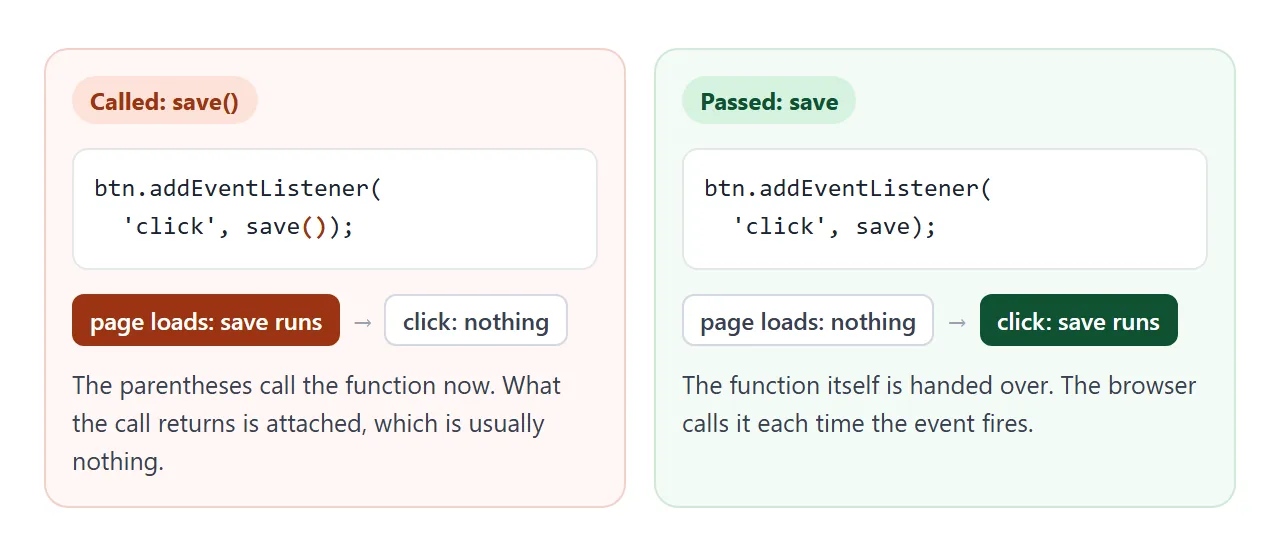
The fix is to pass the function without parentheses. If you need to give it arguments, wrap it: () => save(5).
A finished example: a feedback form
This form uses five events together: click on rating buttons through one delegated listener, input for a live counter, change for a checkbox, keydown for a Ctrl+Enter shortcut, and submit.
<!doctype html>
<html lang="en">
<head>
<meta charset="utf-8">
<meta name="viewport" content="width=device-width, initial-scale=1">
<title>Feedback form with events</title>
<style>
  body { margin: 0; padding: 16px; font-family: system-ui, sans-serif; background: #f4f5f7; color: #1d2330; }
  form { max-width: 420px; background: #fff; border: 1px solid #e1e4ea; border-radius: 12px; padding: 16px; }
  h2 { margin: 0 0 10px; font-size: 17px; }
  .stars { display: flex; gap: 6px; margin-bottom: 12px; }
  .stars button { width: 40px; height: 40px; border: 1px solid #c9ced8; border-radius: 8px; background: #fff; font: inherit; cursor: pointer; }
  .stars button[aria-pressed="true"] { background: #2563eb; border-color: #2563eb; color: #fff; }
  textarea { width: 100%; box-sizing: border-box; height: 80px; padding: 8px; font: inherit; border: 1px solid #c9ced8; border-radius: 8px; resize: vertical; }
  .meta { display: flex; justify-content: space-between; font-size: 13px; color: #6b7280; margin: 4px 0 10px; }
  .meta.warn { color: #9a3412; }
  .send { margin-top: 10px; padding: 9px 16px; font: inherit; border: 0; border-radius: 8px; background: #0f5132; color: #fff; cursor: pointer; }
  pre { margin: 12px 0 0; padding: 10px; background: #f4f5f7; border-radius: 8px; font: 12.5px/1.5 ui-monospace, Consolas, monospace; white-space: pre-wrap; min-height: 20px; }
</style>
</head>
<body>
<form id="form">
  <h2>How was it?</h2>
  <!-- one click listener on the parent handles all five buttons -->
  <div class="stars" id="stars" role="group" aria-label="Rating">
    <button type="button" data-rating="1" aria-pressed="false">1</button>
    <button type="button" data-rating="2" aria-pressed="false">2</button>
    <button type="button" data-rating="3" aria-pressed="false">3</button>
    <button type="button" data-rating="4" aria-pressed="false">4</button>
    <button type="button" data-rating="5" aria-pressed="false">5</button>
  </div>
  <input type="hidden" name="rating" id="rating" value="">
  <textarea name="comment" id="comment" maxlength="120" placeholder="Comment (Ctrl+Enter sends)" required></textarea>
  <div class="meta" id="meta"><span id="count">0 / 120</span><label><input type="checkbox" name="contact" id="contact"> You may contact me</label></div>
  <button class="send" type="submit">Send</button>
  <pre id="out">Nothing sent yet.</pre>
</form>

<script>
  const form = document.getElementById('form');
  const comment = document.getElementById('comment');

  // 1. click: delegation - e.target is the button that was pressed
  document.getElementById('stars').addEventListener('click', (e) => {
    const btn = e.target.closest('button[data-rating]');
    if (!btn) return;
    document.getElementById('rating').value = btn.dataset.rating;
    for (const b of e.currentTarget.children) b.setAttribute('aria-pressed', b === btn);
  });

  // 2. input: runs on every keystroke
  comment.addEventListener('input', () => {
    document.getElementById('count').textContent = comment.value.length + ' / 120';
  });

  // 3. change: runs when the checkbox is toggled
  document.getElementById('contact').addEventListener('change', (e) => {
    document.getElementById('meta').classList.toggle('warn', e.target.checked);
  });

  // 4. keydown: Ctrl+Enter (or Cmd+Enter) sends
  comment.addEventListener('keydown', (e) => {
    if (e.key === 'Enter' && (e.ctrlKey || e.metaKey)) {
      e.preventDefault();
      form.requestSubmit();  // fires the submit event, like clicking Send
    }
  });

  // 5. submit: stop the page reload and show the data instead
  form.addEventListener('submit', (e) => {
    e.preventDefault();
    const data = Object.fromEntries(new FormData(form));
    document.getElementById('out').textContent = JSON.stringify(data, null, 2);
  });
</script>
</body>
</html>
What each part does:
- Delegation: one
clicklistener on the button row finds the pressed button withe.target.closest(). - Live counter: the
inputlistener updates the count after every keystroke. - Shortcut:
keydowncheckse.keyande.ctrlKey, then callsform.requestSubmit(), which fires the samesubmitevent as the button. - Submit:
preventDefault()stops the page from reloading, andFormDatareads the fields. Form submit in HTML goes deeper.
When it does not work
| What you see | Cause | Fix |
|---|---|---|
| The handler runs once on load, never on click | Parentheses: handler() was passed |
Pass handler, or () => handler() |
A console error about null |
The script ran before the element existed | Put the script at the end of body, or use defer |
| Nothing happens on click | The handler name has a typo, or the script has an earlier error | Open the console and read the first error |
| The form reloads the page | submit was not cancelled |
Call e.preventDefault() in the handler |
A submit listener never runs |
The listener is on the button, or the form failed validation | Listen on the <form>; check required fields |
| A new item has no click handler | The listener was added to each item at load | Delegate from the parent list |
Enter does not click a div |
Only elements with a default key action do that | Use a real <button> |
If the script does not run at all, HTML JavaScript not working goes through the causes one by one.
Share it as a link
Events only show their worth when someone clicks. A screenshot of the form cannot be tried, and an .html attachment may open as plain code on a phone.
To send the working version, paste the page into a NOS document and choose Create share link. HTML to link walks through it.
The page renders as written and its scripts run, so the people you send it to can click the buttons and type in the form themselves. If you change the code later, the same link shows the new version.