A keyboard shortcut in JavaScript is a keydown listener on document that checks which key was pressed and runs a function. For example, e.key === 'd' toggles dark mode.
Add a check for text fields and a Cmd or Ctrl check, and the basics are done.
Try it first. Click inside the example so it has keyboard focus, then press the keys.
<!doctype html>
<html lang="en">
<head>
<meta charset="utf-8">
<meta name="viewport" content="width=device-width, initial-scale=1">
<title>Keyboard shortcuts</title>
<style>
  body { margin: 0; padding: 18px; font-family: system-ui, sans-serif; background: #f4f5f7; color: #1d2330; }
  body.dark { background: #1d2330; color: #f4f5f7; }
  kbd { font: 600 13px ui-monospace, Consolas, monospace; padding: 1px 6px; border: 1px solid #b8bec9; border-bottom-width: 2px; border-radius: 5px; background: #fff; color: #1d2330; }
  input { width: 100%; max-width: 320px; box-sizing: border-box; font: inherit; padding: 8px 10px; margin: 10px 0; }
  button { font: inherit; padding: 7px 12px; margin: 4px 6px 0 0; }
  #out { margin-top: 12px; min-height: 1.4em; font-weight: 600; }
</style>
</head>
<body>
<p>Click here first, then press <kbd>D</kbd> for dark mode or <kbd id="mod">Ctrl</kbd>+<kbd>S</kbd> to save.</p>
<input placeholder="Type a d here: no dark mode">
<div>
  <button id="darkBtn">Dark mode (D)</button>
  <button id="saveBtn">Save</button>
</div>
<div id="out"></div>

<script>
  const isMac = /Mac|iPhone|iPad/.test(navigator.platform);
  document.getElementById('mod').textContent = isMac ? 'Cmd' : 'Ctrl';
  const out = document.getElementById('out');

  function toggleDark() { document.body.classList.toggle('dark'); out.textContent = 'Dark mode toggled'; }
  function save() { out.textContent = 'Saved at ' + new Date().toLocaleTimeString(); }

  document.addEventListener('keydown', (e) => {
    // Ctrl+S on Windows and Linux, Cmd+S on a Mac
    const mod = isMac ? e.metaKey : e.ctrlKey;
    if (mod && e.key.toLowerCase() === 's') {
      e.preventDefault();  // stop the browser's own "Save page" dialog
      save();
      return;
    }
    // single-key shortcuts must not fire while the user is typing
    if (e.target.closest('input, textarea, select, [contenteditable]')) return;
    if (!mod && !e.altKey && e.key.toLowerCase() === 'd') toggleDark();
  });

  // buttons do the same thing, for phones and mouse users
  document.getElementById('darkBtn').addEventListener('click', toggleDark);
  document.getElementById('saveBtn').addEventListener('click', save);
</script>
</body>
</html>
The whole listener is short:
document.addEventListener('keydown', (e) => {
  const mod = isMac ? e.metaKey : e.ctrlKey;
  if (mod && e.key.toLowerCase() === 's') {
    e.preventDefault();  // no "Save page" dialog
    save();
    return;
  }
  if (e.target.closest('input, textarea, select, [contenteditable]')) return;
  if (!mod && !e.altKey && e.key.toLowerCase() === 'd') toggleDark();
});
Why keydown? It fires before the browser acts on the key, so preventDefault() can still stop the default action. It also fires for keys that type nothing, such as Escape and the arrows.
The older keypress event is deprecated. For the listener basics, see addEventListener.
e.key or e.code: which one to compare
Every keyboard event carries two names for the key. e.key is the character the key produces. e.code is the physical key, named after its position on a US keyboard.
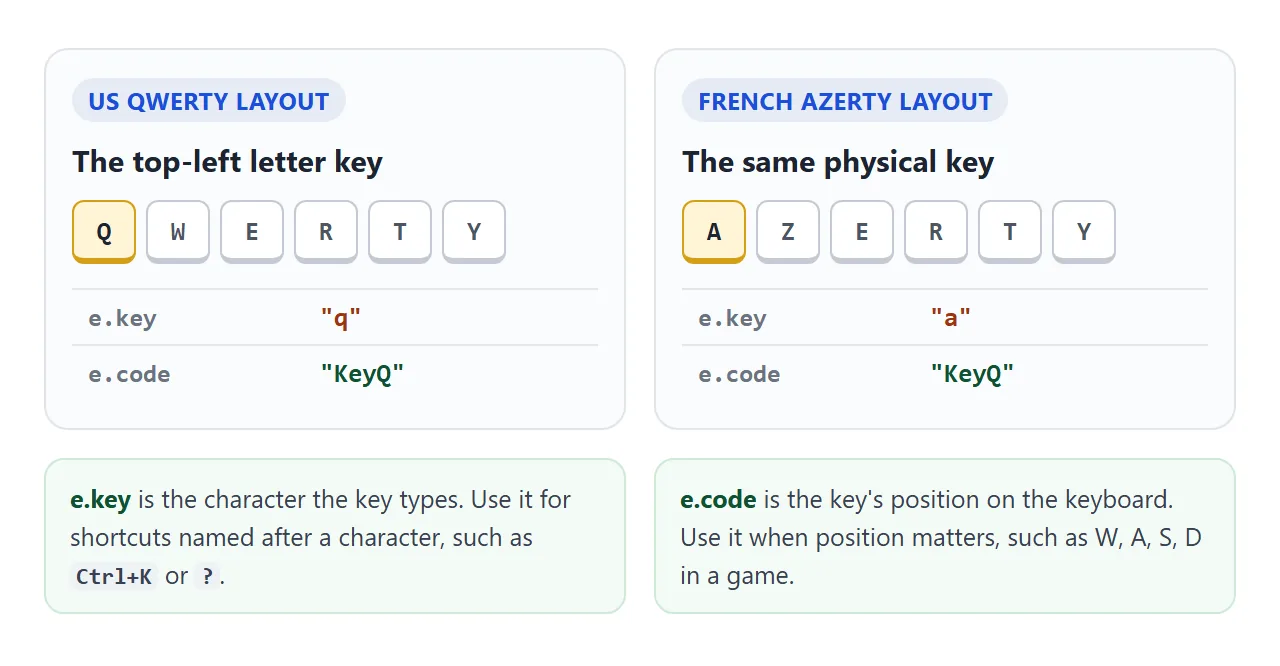
Press a few keys here and watch both values. Try Shift, and try holding a key down.
<!doctype html>
<html lang="en">
<head>
<meta charset="utf-8">
<meta name="viewport" content="width=device-width, initial-scale=1">
<title>e.key vs e.code</title>
<style>
  body { margin: 0; padding: 16px; font-family: system-ui, sans-serif; background: #f4f5f7; color: #1d2330; }
  p { margin: 0 0 10px; }
  input { width: 100%; max-width: 340px; box-sizing: border-box; font: inherit; padding: 8px 10px; }
  table { border-collapse: collapse; margin-top: 12px; width: 100%; max-width: 360px; background: #fff; }
  td { border: 1px solid #dde1e7; padding: 6px 10px; font-size: 14px; }
  td:first-child { color: #5b6472; width: 42%; }
  td:last-child { font: 600 14px ui-monospace, Consolas, monospace; }
  #combo { color: #0f5132; }
</style>
</head>
<body>
<p>Click the box and press any key, with or without Shift, Ctrl, Alt or Cmd.</p>
<input id="box" placeholder="Press keys here" autocomplete="off">
<table>
  <tr><td>e.key</td><td id="key">-</td></tr>
  <tr><td>e.code</td><td id="code">-</td></tr>
  <tr><td>Modifiers</td><td id="mods">-</td></tr>
  <tr><td>e.repeat</td><td id="repeat">-</td></tr>
  <tr><td>Shortcut name</td><td id="combo">-</td></tr>
</table>

<script>
  const $ = (id) => document.getElementById(id);

  // Turn an event into a name such as "Ctrl+Shift+K"
  function comboName(e) {
    const parts = [];
    if (e.ctrlKey) parts.push('Ctrl');
    if (e.metaKey) parts.push('Meta');
    if (e.altKey) parts.push('Alt');
    if (e.shiftKey) parts.push('Shift');
    const k = e.key.length === 1 ? e.key.toUpperCase() : e.key;
    if (!['Control', 'Meta', 'Alt', 'Shift'].includes(e.key)) parts.push(k);
    return parts.join('+');
  }

  $('box').addEventListener('keydown', (e) => {
    $('key').textContent = JSON.stringify(e.key);
    $('code').textContent = JSON.stringify(e.code);
    $('mods').textContent = ['ctrlKey', 'metaKey', 'altKey', 'shiftKey']
      .filter((m) => e[m]).join(' ') || 'none';
    $('repeat').textContent = e.repeat;
    $('combo').textContent = comboName(e);
  });
</script>
</body>
</html>
e.key |
e.code |
|
|---|---|---|
| What it is | The character typed, or a name such as "Enter" | The physical key, such as "KeyK" |
| Follows the keyboard layout | Yes | No |
| Changes with Shift or Caps Lock | Yes: "k" becomes "K" | No |
| Use it for | Ctrl+K, ?, / | W, A, S, D in a game |
Two habits avoid surprises. Lowercase e.key before comparing, because Caps Lock turns "k" into "K". And compare the final character for shifted symbols: on a US keyboard, Shift+/ arrives as e.key === '?', which also works on layouts where ? sits somewhere else.
e.repeat is true while a key is held down and the operating system repeats it. Return early on repeats for actions that should run once per press.
Modifier keys, and Cmd on a Mac
Each event has four booleans: ctrlKey, shiftKey, altKey and metaKey. On a Mac, the Command key sets metaKey. Mac apps use Command where Windows and Linux apps use Ctrl, so Ctrl+K on Windows should be Cmd+K on a Mac.
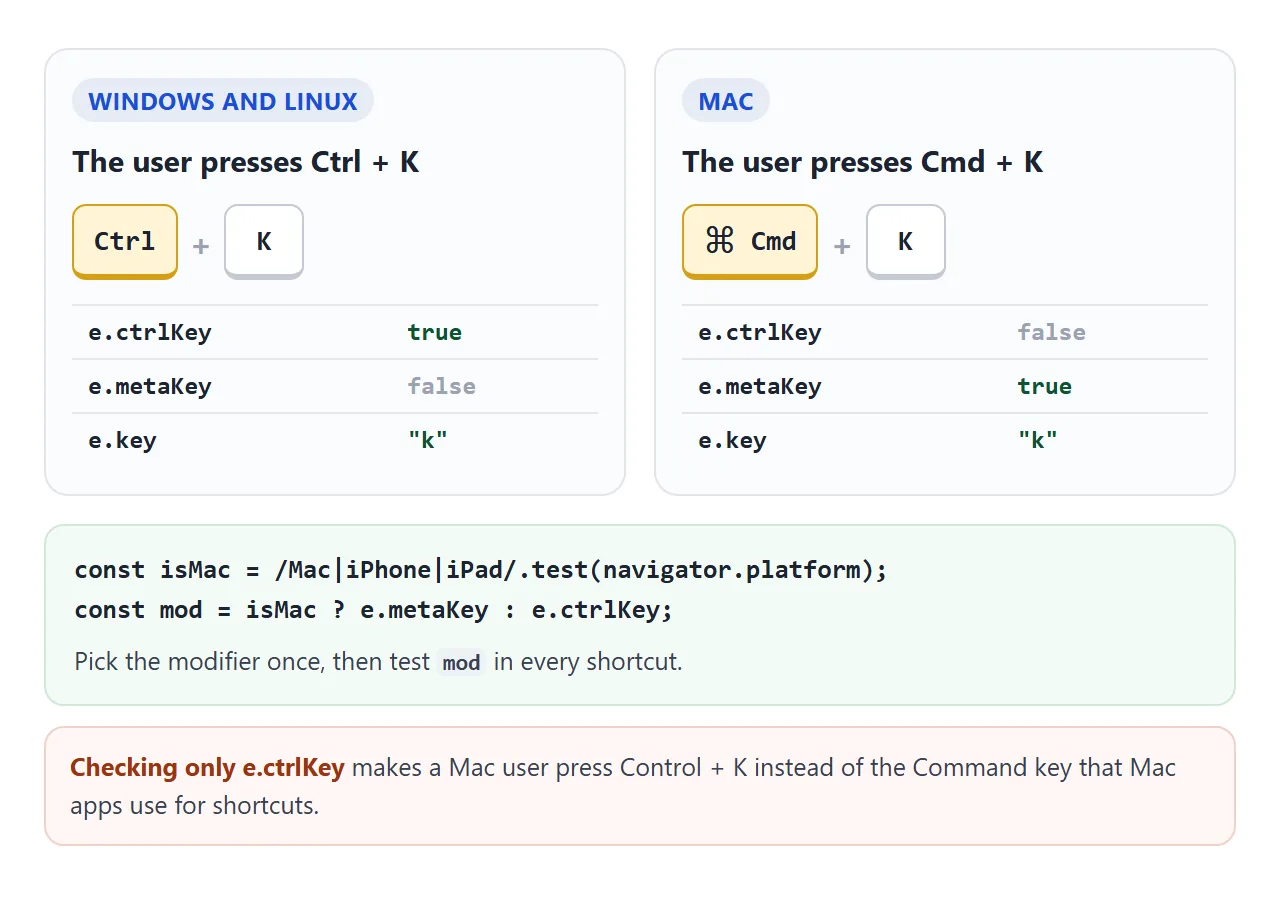
const isMac = /Mac|iPhone|iPad/.test(navigator.platform);
const mod = isMac ? e.metaKey : e.ctrlKey;
MDN lists navigator.platform as deprecated, but browsers still provide it, and it is a common way to spot a Mac.
Show the right label too: the examples on this page write Cmd or Ctrl in their hints based on the same check. For drawing the keys themselves, see the kbd tag.
Check the modifiers you do not want as well. Without !e.altKey, a plain d shortcut also fires for Alt+D.
Do not fire while the user is typing
Key events bubble. A d typed into a search box reaches the document listener just like a d pressed anywhere else. Without a guard, typing a word that contains your shortcut letter triggers it.
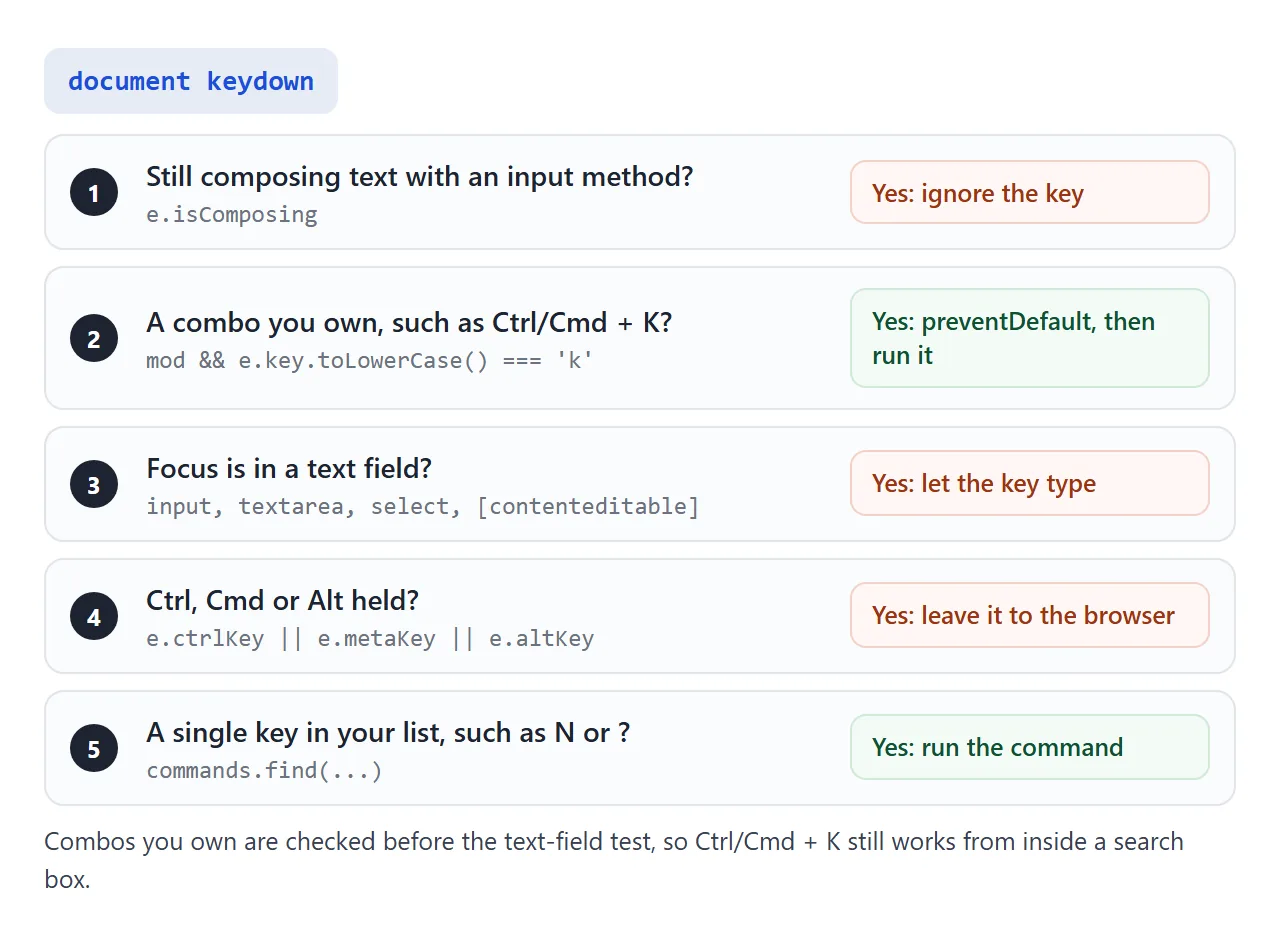
The guard looks at where the event started:
if (e.target.closest('input, textarea, select, [contenteditable]')) return;
Put combinations that use Cmd or Ctrl before this line. Then Cmd+K still opens the palette from inside a text box, while single keys type normally.
Also skip events with e.isComposing set. People typing Japanese, Chinese and other languages through an input method press keys, including Enter, to build each word. Those presses are not shortcuts.
preventDefault and the browser's own shortcuts
Some combinations already do something. Ctrl+S opens the save dialog, Ctrl+P prints, and Ctrl+K in Chrome and Firefox moves focus to the search or address bar. Calling e.preventDefault() in your keydown listener stops that default action, so only your code runs.
Call it only when you handle the key. A listener that blocks every key breaks typing, scrolling with the arrows and Tab navigation.
Some combinations never reach the page at all. The browser or the operating system handles them first. In Chrome, Ctrl+N, Ctrl+T and Ctrl+W are examples: they open a window, open a tab or close the tab, and no preventDefault() can stop them.
A command palette on Ctrl/Cmd+K
A command palette is a search box of actions. The user presses Ctrl+K (Cmd+K on a Mac), types part of a name and presses Enter. This finished example has a palette, single-key shortcuts and a help dialog, all driven by one list.
<!doctype html>
<html lang="en">
<head>
<meta charset="utf-8">
<meta name="viewport" content="width=device-width, initial-scale=1">
<title>Command palette</title>
<style>
  body { margin: 0; padding: 16px; font-family: system-ui, sans-serif; background: #f4f5f7; color: #1d2330; }
  body.dark { background: #1d2330; color: #f4f5f7; }
  kbd { font: 600 12px ui-monospace, Consolas, monospace; padding: 1px 6px; border: 1px solid #b8bec9; border-bottom-width: 2px; border-radius: 5px; background: #fff; color: #1d2330; }
  .bar button { font: inherit; padding: 7px 12px; margin: 0 6px 6px 0; }
  #notes { list-style: none; padding: 0; margin: 10px 0 0; }
  #notes li { background: #fff; color: #1d2330; border-radius: 8px; padding: 8px 10px; margin-bottom: 6px; box-shadow: 0 2px 6px rgba(0,0,0,.08); }
  dialog { width: min(380px, calc(100% - 32px)); box-sizing: border-box; border: 0; border-radius: 12px; padding: 12px; box-shadow: 0 18px 50px rgba(0,0,0,.3); }
  dialog::backdrop { background: rgba(20, 24, 32, .45); }
  #q { width: 100%; box-sizing: border-box; font: inherit; padding: 9px 10px; border: 1px solid #cfd4dc; border-radius: 8px; }
  #list { list-style: none; padding: 0; margin: 8px 0 0; }
  #list li { display: flex; justify-content: space-between; padding: 8px 10px; border-radius: 7px; cursor: pointer; }
  #list li.active { background: #e3edff; }
  #help h2 { font-size: 16px; margin: 2px 0 10px; }
  #help table { width: 100%; border-collapse: collapse; font-size: 14px; }
  #help td { padding: 6px 4px; border-top: 1px solid #eceef2; }
  #help td:last-child { text-align: right; white-space: nowrap; }
  #help button { font: inherit; margin-top: 10px; padding: 6px 12px; }
</style>
</head>
<body>
<p>Click here, then press <kbd class="mod">Ctrl</kbd>+<kbd>K</kbd> for commands or <kbd>?</kbd> for help.</p>
<div class="bar">
  <button id="openPalette">Commands</button>
  <button id="openHelp">Shortcuts</button>
</div>
<ul id="notes"></ul>

<dialog id="palette" aria-label="Command palette">
  <input id="q" placeholder="Type a command" autocomplete="off">
  <ul id="list"></ul>
</dialog>

<dialog id="help" aria-labelledby="helpTitle">
  <h2 id="helpTitle">Keyboard shortcuts</h2>
  <table id="helpRows"></table>
  <form method="dialog"><button>Close</button></form>
</dialog>

<script>
  const isMac = /Mac|iPhone|iPad/.test(navigator.platform);
  const modName = isMac ? 'Cmd' : 'Ctrl';
  document.querySelectorAll('.mod').forEach((k) => (k.textContent = modName));
  const $ = (id) => document.getElementById(id);

  // One list drives the shortcuts, the palette and the help dialog
  const commands = [
    { name: 'Add a note', key: 'N', run: () => addNote() },
    { name: 'Toggle dark mode', key: 'D', run: () => document.body.classList.toggle('dark') },
    { name: 'Clear notes', key: '', run: () => ($('notes').innerHTML = '') },
    { name: 'Show keyboard shortcuts', key: '?', run: () => $('help').showModal() },
  ];

  let count = 0;
  function addNote() {
    const li = document.createElement('li');
    li.textContent = 'Note ' + ++count;
    $('notes').append(li);
  }

  // Global shortcuts
  document.addEventListener('keydown', (e) => {
    if (e.isComposing) return;  // the user is typing with an input method
    const mod = isMac ? e.metaKey : e.ctrlKey;
    if (mod && e.key.toLowerCase() === 'k') {
      e.preventDefault();  // the browser also uses Ctrl+K
      openPalette();
      return;
    }
    if (e.target.closest('input, textarea, select, [contenteditable]')) return;
    if (document.querySelector('dialog[open]')) return;
    if (e.ctrlKey || e.metaKey || e.altKey) return;  // leave browser shortcuts alone
    const cmd = commands.find((c) => c.key && c.key === e.key.toUpperCase());
    if (cmd) { e.preventDefault(); cmd.run(); }
  });

  // Command palette
  let matches = [], active = 0;
  function render() {
    const text = $('q').value.trim().toLowerCase();
    matches = commands.filter((c) => c.name.toLowerCase().includes(text));
    active = Math.min(active, Math.max(matches.length - 1, 0));
    $('list').innerHTML = '';
    matches.forEach((c, i) => {
      const li = document.createElement('li');
      li.className = i === active ? 'active' : '';
      li.append(Object.assign(document.createElement('span'), { textContent: c.name }));
      if (c.key) li.append(Object.assign(document.createElement('kbd'), { textContent: c.key }));
      li.addEventListener('click', () => runCommand(c));
      $('list').append(li);
    });
  }
  function openPalette() {
    if ($('help').open) $('help').close();
    if (!$('palette').open) $('palette').showModal();
    $('q').value = ''; active = 0; render(); $('q').focus();
  }
  function runCommand(c) {
    $('palette').close();
    c.run();
  }
  $('q').addEventListener('input', () => { active = 0; render(); });
  $('q').addEventListener('keydown', (e) => {
    if (e.isComposing) return;
    if (e.key === 'ArrowDown' || e.key === 'ArrowUp') {
      e.preventDefault();  // keep the caret where it is
      const step = e.key === 'ArrowDown' ? 1 : -1;
      active = (active + step + matches.length) % matches.length;
      render();
    } else if (e.key === 'Enter' && matches[active]) {
      runCommand(matches[active]);
    }
  });

  // Help dialog, built from the same list
  const rows = [[modName + '+K', 'Open commands'], ['Esc', 'Close a dialog']]
    .concat(commands.filter((c) => c.key).map((c) => [c.key, c.name]));
  rows.forEach(([keys, name]) => {
    const tr = $('helpRows').insertRow();
    tr.insertCell().textContent = name;
    const cell = tr.insertCell();
    keys.split('+').forEach((k, i) => {
      if (i) cell.append('+');
      cell.append(Object.assign(document.createElement('kbd'), { textContent: k }));
    });
  });

  $('openPalette').addEventListener('click', openPalette);
  $('openHelp').addEventListener('click', () => $('help').showModal());
</script>
</body>
</html>
How it fits together:
- One list of commands. Each entry has a name, an optional key and a function. The keydown listener, the palette and the help dialog all read it, so a new command appears in all three.
- A dialog element.
showModal()puts the palette above the page, and Escape closes it without extra code. HTML modal form covers the dialog element in detail. - Arrow keys inside the input. A second keydown listener on the palette input moves the highlight.
preventDefault()there stops the caret from jumping to the start or end of the text. - Global shortcuts pause. While any dialog is open, single-key shortcuts return early.
A shortcut help dialog
Shortcuts nobody knows about go unused.
A common pattern is a list of shortcuts that opens with ? and is also linked from a visible button. GitHub, for example, opens its shortcut list with ?.
In the example, the table inside the help dialog is built from the same command list, so it cannot fall out of date.
The ? check compares e.key only. Shift is part of typing ? on a US keyboard, so the listener allows Shift and rejects only Ctrl, Cmd and Alt.
Make shortcuts accessible
Shortcuts should add speed, not replace buttons. Every action in the examples also has a button, which helps phone users, mouse users and anyone who never learns the keys.
- Single-key shortcuts can clash with speech input. WCAG 2.1 success criterion 2.1.4 (Character Key Shortcuts) asks for a way to turn them off or remap them, or for them to work only while the related control has focus.
- aria-keyshortcuts on a button tells assistive technology which shortcut it has, for example
aria-keyshortcuts="Control+K". It announces the shortcut only; you still write the listener. - Focus must be somewhere on the page for key events to arrive. For making custom elements focusable, see tabindex.
When it does not work
| What you see | Cause | Fix |
|---|---|---|
| Nothing happens in an embedded example | The frame does not have keyboard focus | Click inside it first |
| The shortcut fires while typing | No text-field guard | Return early when e.target is inside an input |
| Works on Windows, not on a Mac | Only e.ctrlKey is checked |
Use e.metaKey on a Mac |
| Stops working with Caps Lock on | e.key is "K", not "k" |
Lowercase e.key first |
| The browser's own action also runs | No preventDefault() |
Call it in keydown when the combo matches |
| Ctrl+W or Ctrl+T closes or opens a tab anyway | The browser reserves that combination | Choose a different combination |
| The action runs over and over while held | Key repeat | Return early when e.repeat is true |
| Enter runs a command while typing Japanese or Chinese | Input method composition | Return early when e.isComposing is true |
Share it as a link
Shortcuts are hard to show in a screenshot: the point is pressing the keys. An .html attachment may open as plain code, or not at all, on a phone.
To send the working page, paste it into a NOS document and choose Create share link. HTML to link walks through it.
The page renders as written and its scripts run, so the people you send it to can press Ctrl+K and try every shortcut themselves. If you change the code later, the same link shows the new version.