To make a custom context menu in HTML, listen for the contextmenu event, call preventDefault() to stop the browser's own menu, and show your menu element at the event's clientX and clientY.
HTML has no element that does this by itself, so a few lines of JavaScript are needed.
Right-click inside the box below. On a trackpad, use a two-finger click.
<!doctype html>
<html lang="en">
<head>
<meta charset="utf-8">
<meta name="viewport" content="width=device-width, initial-scale=1">
<title>Custom context menu</title>
<style>
  body { margin: 0; padding: 16px; font-family: system-ui, sans-serif; background: #f4f5f7; }
  .area {
    height: 200px; border: 2px dashed #b8c0cc; border-radius: 12px;
    display: grid; place-items: center; color: #4b5563; background: #fff;
  }
  .menu {
    position: fixed; margin: 0; padding: 4px; min-width: 150px;
    background: #fff; border: 1px solid #d9dde3; border-radius: 8px;
    box-shadow: 0 8px 24px rgba(0, 0, 0, .16);
  }
  .menu button {
    display: block; width: 100%; padding: 8px 12px; border: 0; border-radius: 5px;
    background: none; font: inherit; text-align: left; cursor: pointer;
  }
  .menu button:hover, .menu button:focus { background: #e8f0fe; outline: none; }
  #out { margin: 10px 2px 0; color: #374151; }
</style>
</head>
<body>
<div class="area" id="area">Right-click anywhere in this box</div>
<p id="out">Nothing picked yet.</p>

<div class="menu" id="menu" role="menu" hidden>
  <button role="menuitem">Copy</button>
  <button role="menuitem">Rename</button>
  <button role="menuitem">Delete</button>
</div>

<script>
  const area = document.getElementById('area');
  const menu = document.getElementById('menu');
  const out = document.getElementById('out');

  area.addEventListener('contextmenu', (e) => {
    e.preventDefault();  // stop the browser's own menu
    menu.hidden = false;
    // flip left or up if the menu would leave the viewport
    let x = e.clientX, y = e.clientY;
    if (x + menu.offsetWidth > innerWidth) x -= menu.offsetWidth;
    if (y + menu.offsetHeight > innerHeight) y -= menu.offsetHeight;
    menu.style.left = Math.max(0, x) + 'px';
    menu.style.top = Math.max(0, y) + 'px';
  });

  const close = () => { menu.hidden = true; };

  // close on a press outside the menu, and on Escape
  document.addEventListener('pointerdown', (e) => {
    if (!menu.contains(e.target)) close();
  });
  document.addEventListener('keydown', (e) => {
    if (e.key === 'Escape') close();
  });

  menu.addEventListener('click', (e) => {
    const item = e.target.closest('button');
    if (!item) return;
    out.textContent = 'You picked: ' + item.textContent;
    close();
  });
</script>
</body>
</html>
The rest of this page covers what that first version leaves out: the screen edges, the keyboard, and touch screens.
How the contextmenu event works
The browser fires contextmenu when the user asks for a context menu. A right-click is the common way, but not the only one. The event bubbles, and it can be cancelled.
area.addEventListener('contextmenu', (e) => {
  e.preventDefault();          // no browser menu
  menu.hidden = false;
  menu.style.left = e.clientX + 'px';
  menu.style.top = e.clientY + 'px';
});
Three details make this work:
preventDefault()stops the built-in menu. Without it, both menus appear.position: fixedon the menu, becauseclientXandclientYare measured from the viewport, not the page. Withposition: absolute, the menu drifts once the page scrolls. CSS position explains the difference.- The listener sits on one element, not on
document. Right-click keeps working on the rest of the page, where people use it to open links in a new tab or check spelling.
Keep the menu inside the viewport
A menu placed at the cursor runs off the screen when the user right-clicks near the right or bottom edge.
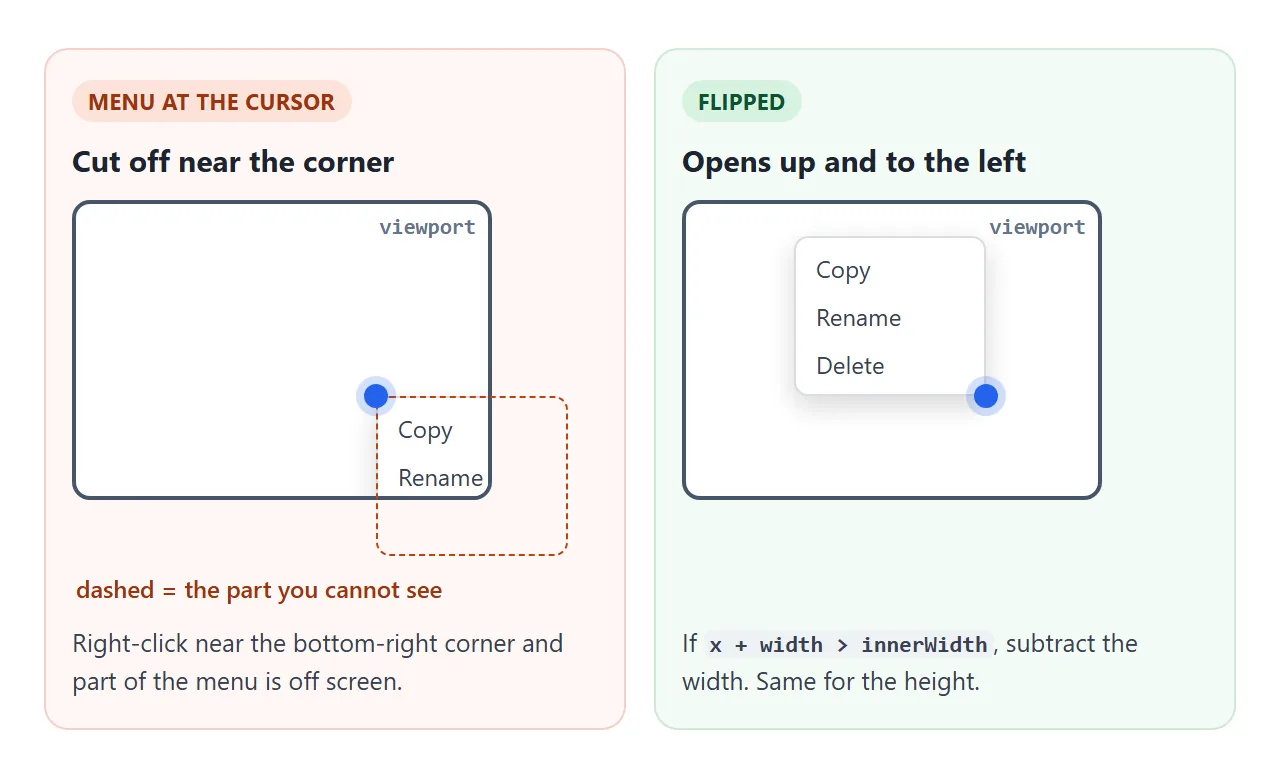
Measure the menu after it becomes visible, then flip it:
let x = e.clientX, y = e.clientY;
if (x + menu.offsetWidth > innerWidth) x -= menu.offsetWidth;
if (y + menu.offsetHeight > innerHeight) y -= menu.offsetHeight;
menu.style.left = Math.max(0, x) + 'px';
menu.style.top = Math.max(0, y) + 'px';
The order matters. offsetWidth is 0 while the menu is hidden, so set hidden = false first and measure second. Math.max(0, ...) covers a menu taller than the space above the cursor.
Close it: Escape, a click outside, a pick
An open menu should close when the user presses Escape, presses anywhere outside it, or picks an item. The first demo does all three with two document listeners:
document.addEventListener('pointerdown', (e) => {
  if (!menu.contains(e.target)) close();
});
document.addEventListener('keydown', (e) => {
  if (e.key === 'Escape') close();
});
pointerdown closes the menu as soon as the button goes down, before the click lands on something else. Closing on window resize and scroll is also worth adding, because the menu no longer matches what is under it.
The popover attribute gives you the first two for free. A popover closes itself on Escape and on a press outside, and it is drawn above the rest of the page.
<!doctype html>
<html lang="en">
<head>
<meta charset="utf-8">
<meta name="viewport" content="width=device-width, initial-scale=1">
<title>Context menu with popover</title>
<style>
  body { margin: 0; padding: 16px; font-family: system-ui, sans-serif; background: #f4f5f7; }
  .area {
    height: 200px; border: 2px dashed #b8c0cc; border-radius: 12px;
    display: grid; place-items: center; color: #4b5563; background: #fff;
  }
  .menu {
    position: fixed; inset: auto;  /* undo the centred popover default */
    margin: 0; padding: 4px; min-width: 150px;
    background: #fff; border: 1px solid #d9dde3; border-radius: 8px;
    box-shadow: 0 8px 24px rgba(0, 0, 0, .16);
  }
  .menu button {
    display: block; width: 100%; padding: 8px 12px; border: 0; border-radius: 5px;
    background: none; font: inherit; text-align: left; cursor: pointer;
  }
  .menu button:hover, .menu button:focus { background: #e8f0fe; outline: none; }
  #out { margin: 10px 2px 0; color: #374151; }
</style>
</head>
<body>
<div class="area" id="area">Right-click here (popover version)</div>
<p id="out">Nothing picked yet.</p>

<!-- popover (auto) closes itself on Escape and on a click outside -->
<div class="menu" id="menu" popover role="menu">
  <button role="menuitem">Copy</button>
  <button role="menuitem">Rename</button>
  <button role="menuitem">Delete</button>
</div>

<script>
  const area = document.getElementById('area');
  const menu = document.getElementById('menu');
  const out = document.getElementById('out');

  area.addEventListener('contextmenu', (e) => {
    e.preventDefault();
    if (!menu.matches(':popover-open')) menu.showPopover();
    let x = e.clientX, y = e.clientY;
    if (x + menu.offsetWidth > innerWidth) x -= menu.offsetWidth;
    if (y + menu.offsetHeight > innerHeight) y -= menu.offsetHeight;
    menu.style.left = Math.max(0, x) + 'px';
    menu.style.top = Math.max(0, y) + 'px';
  });

  menu.addEventListener('click', (e) => {
    const item = e.target.closest('button');
    if (!item) return;
    out.textContent = 'You picked: ' + item.textContent;
    menu.hidePopover();
  });
</script>
</body>
</html>
Two CSS lines are needed, because a popover is centred by default: inset: auto and margin: 0. After that, left and top work as before.
hidden + your own listeners |
popover attribute |
|
|---|---|---|
| Escape closes it | You write it | Built in |
| Click outside closes it | You write it | Built in |
| Above other content | Needs a high z-index |
Drawn in the top layer |
| Position | left / top |
left / top, after resetting inset |
| Open it | menu.hidden = false |
menu.showPopover() |
Open it from the keyboard: Shift+F10 and the Menu key
Keyboard users have two ways to ask for a context menu: the Menu key, on keyboards that have one, and Shift+F10 on Windows. Both fire contextmenu on the element that has focus.
Two things follow. The element must be able to take focus, so a div or li needs tabindex="0" (tabindex covers the values). And the event's clientX and clientY are not a mouse position, so place the menu next to the focused element instead.
let viaKey = false;
document.addEventListener('keydown', (e) => {
  viaKey = e.key === 'ContextMenu' || (e.shiftKey && e.key === 'F10');
}, true);
In the contextmenu listener, if viaKey is true, read getBoundingClientRect() and open the menu under the row.
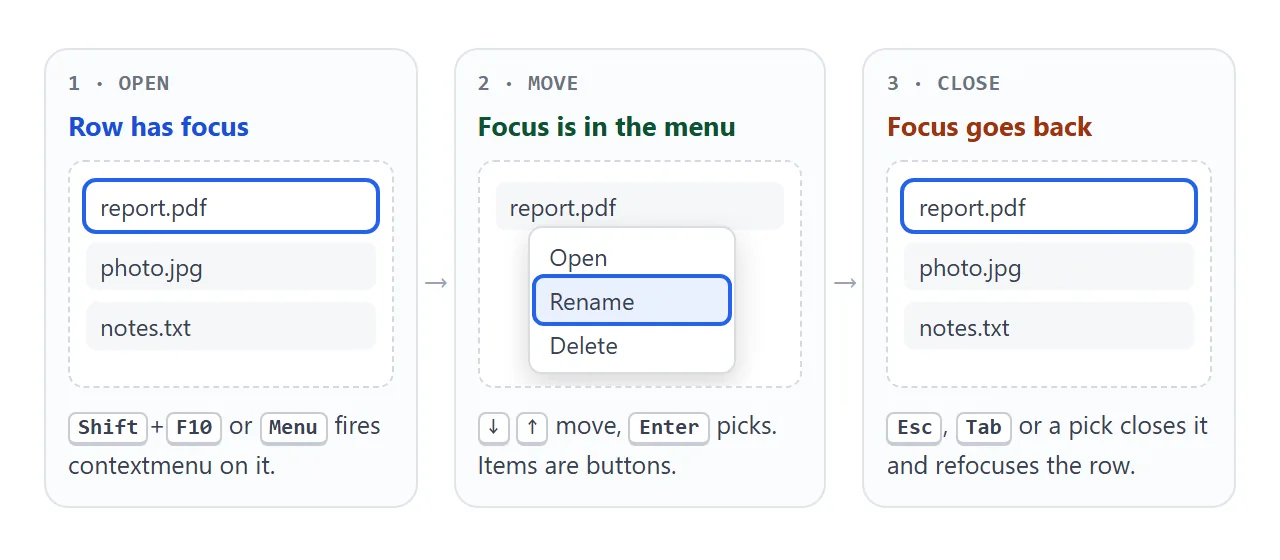
Once the menu is open, the keyboard has to reach it:
- Move focus in. Focus the first item when the menu opens.
- Arrow keys. ArrowDown and ArrowUp move between items and wrap at the ends. Home and End jump to the first and last.
- Buttons as items. Enter and Space then pick an item with no extra code.
- Give focus back. On Escape or a pick, focus the row the menu came from, so the user is not dropped at the top of the page.
The items use role="menuitem" inside a role="menu", the WAI-ARIA menu pattern that screen readers announce. Those roles promise arrow-key movement, so add both or neither.
Long press on touch screens
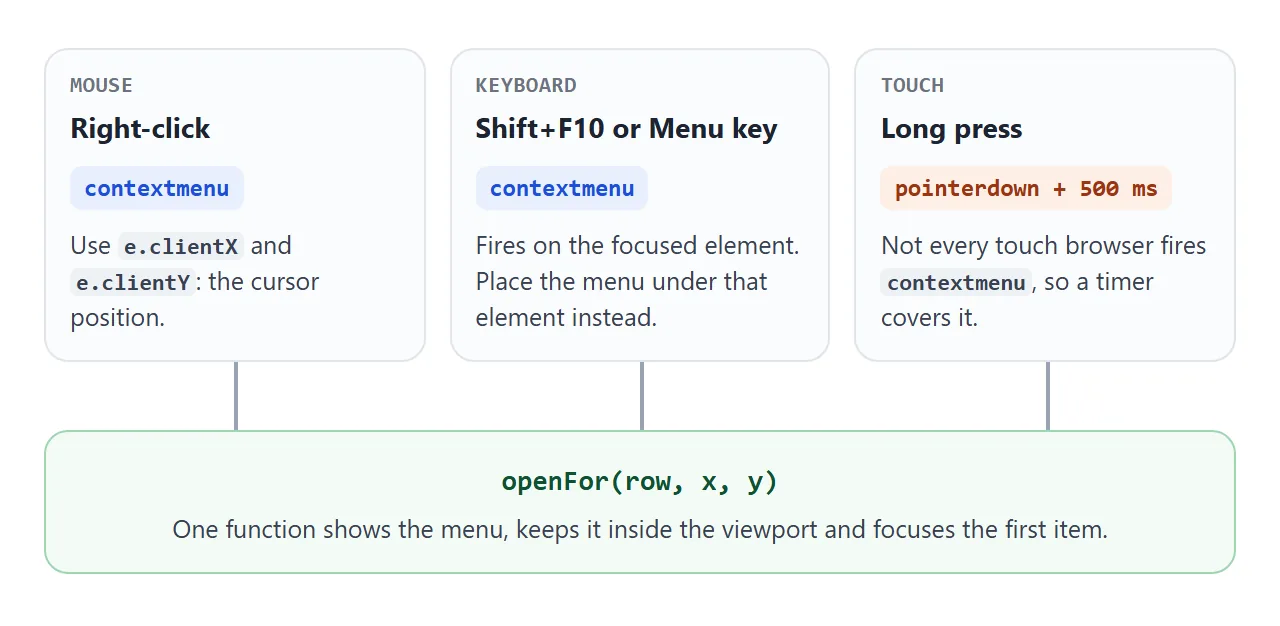
A phone has no right button. Whether a long press fires contextmenu depends on the browser, so a timer makes the menu open on all of them:
row.addEventListener('pointerdown', (e) => {
  if (e.pointerType !== 'touch') return;
  sx = e.clientX; sy = e.clientY;
  timer = setTimeout(() => openFor(row, sx, sy), 500);
});
Cancel the timer on pointerup and pointercancel, and on pointermove once the finger has travelled more than 10 pixels. A finger that moves is scrolling, not pressing.
The demo waits 500 ms. If the browser also fires contextmenu, openFor just runs a second time and the menu stays open.
Add user-select: none to the pressed element so the long press does not start selecting text, and -webkit-touch-callout: none for the press-and-hold popup that Safari on iPhone shows for links and images. Making text not highlightable goes into both.
For more about touch input, see touch events in JavaScript.
A finished example: a file list
This version puts it all together. Each file row opens the same menu by right-click, by long press, or by Shift+F10 and the Menu key.
<!doctype html>
<html lang="en">
<head>
<meta charset="utf-8">
<meta name="viewport" content="width=device-width, initial-scale=1">
<title>Context menu: mouse, keyboard and touch</title>
<style>
  body { margin: 0; padding: 16px; font-family: system-ui, sans-serif; background: #f4f5f7; }
  ul.files { list-style: none; margin: 0; padding: 0; background: #fff; border-radius: 12px; border: 1px solid #e1e4ea; }
  .row {
    padding: 13px 16px; border-bottom: 1px solid #eef0f3; cursor: default;
    user-select: none; -webkit-user-select: none;
    -webkit-touch-callout: none;  /* no iOS callout on long press */
  }
  .row:last-child { border-bottom: 0; }
  .row:focus-visible { outline: 2px solid #2563eb; outline-offset: -2px; }
  .row small { color: #6b7280; }
  .hint { color: #4b5563; font-size: 14px; margin: 0 0 10px; }
  .menu {
    position: fixed; margin: 0; padding: 4px; min-width: 160px;
    background: #fff; border: 1px solid #d9dde3; border-radius: 8px;
    box-shadow: 0 8px 24px rgba(0, 0, 0, .16);
  }
  .menu button {
    display: block; width: 100%; padding: 9px 12px; border: 0; border-radius: 5px;
    background: none; font: inherit; text-align: left; cursor: pointer;
  }
  .menu button:hover, .menu button:focus { background: #e8f0fe; outline: none; }
  #out { margin: 12px 2px 0; color: #374151; }
</style>
</head>
<body>
<p class="hint">Right-click a file, long-press it on a phone, or Tab to it and press Shift+F10 or the Menu key.</p>
<ul class="files">
  <li class="row" tabindex="0" aria-haspopup="menu" data-name="report.pdf">report.pdf <small>2.1 MB</small></li>
  <li class="row" tabindex="0" aria-haspopup="menu" data-name="photo.jpg">photo.jpg <small>840 KB</small></li>
  <li class="row" tabindex="0" aria-haspopup="menu" data-name="notes.txt">notes.txt <small>3 KB</small></li>
</ul>
<p id="out">Nothing picked yet.</p>

<div class="menu" id="menu" role="menu" hidden>
  <button role="menuitem" tabindex="-1">Open</button>
  <button role="menuitem" tabindex="-1">Rename</button>
  <button role="menuitem" tabindex="-1">Delete</button>
</div>

<script>
  const menu = document.getElementById('menu');
  const items = [...menu.querySelectorAll('[role=menuitem]')];
  const out = document.getElementById('out');
  let target = null;    // the row the menu belongs to
  let viaKey = false;   // opened with Shift+F10 or the Menu key?

  function openFor(row, x, y) {
    target = row;
    menu.hidden = false;
    if (x + menu.offsetWidth > innerWidth) x -= menu.offsetWidth;    // flip left
    if (y + menu.offsetHeight > innerHeight) y -= menu.offsetHeight; // flip up
    menu.style.left = Math.max(0, x) + 'px';
    menu.style.top = Math.max(0, y) + 'px';
    items[0].focus();
  }

  function close(returnFocus) {
    if (menu.hidden) return;
    menu.hidden = true;
    if (returnFocus) target.focus();  // back to the row it came from
  }

  document.addEventListener('keydown', (e) => {
    viaKey = e.key === 'ContextMenu' || (e.shiftKey && e.key === 'F10');
  }, true);

  document.querySelectorAll('.row').forEach((row) => {
    row.addEventListener('contextmenu', (e) => {
      e.preventDefault();
      if (viaKey) {  // keyboard: open under the row, not at the event's x/y
        const r = row.getBoundingClientRect();
        openFor(row, r.left + 16, r.bottom);
      } else {
        openFor(row, e.clientX, e.clientY);
      }
    });

    // long press, for touch browsers that do not fire contextmenu
    let timer = 0, sx = 0, sy = 0;
    row.addEventListener('pointerdown', (e) => {
      if (e.pointerType !== 'touch') return;
      sx = e.clientX; sy = e.clientY;
      timer = setTimeout(() => openFor(row, sx, sy), 500);
    });
    row.addEventListener('pointermove', (e) => {
      if (Math.hypot(e.clientX - sx, e.clientY - sy) > 10) clearTimeout(timer);  // a scroll, not a press
    });
    row.addEventListener('pointerup', () => clearTimeout(timer));
    row.addEventListener('pointercancel', () => clearTimeout(timer));
  });

  // arrow keys inside the menu
  menu.addEventListener('keydown', (e) => {
    const i = items.indexOf(document.activeElement);
    const n = items.length;
    if (e.key === 'ArrowDown') items[(i + 1) % n].focus();
    else if (e.key === 'ArrowUp') items[(i - 1 + n) % n].focus();
    else if (e.key === 'Home') items[0].focus();
    else if (e.key === 'End') items[n - 1].focus();
    else if (e.key === 'Escape') close(true);
    else if (e.key === 'Tab') { close(true); return; }
    else return;
    e.preventDefault();
  });

  menu.addEventListener('click', (e) => {
    const item = e.target.closest('button');
    if (!item) return;
    out.textContent = item.textContent + ' → ' + target.dataset.name;
    close(true);
  });

  // close on a press outside, and when the page moves under the menu
  document.addEventListener('pointerdown', (e) => {
    if (!menu.contains(e.target)) { viaKey = false; close(false); }
  });
  addEventListener('resize', () => close(false));
  addEventListener('scroll', () => close(false), true);
  addEventListener('blur', () => close(false));
</script>
</body>
</html>
- One
openFor(row, x, y)function stores which row the menu belongs to, flips the menu at the edges and focuses the first item. - One
close(returnFocus)function hides the menu. Escape, Tab and a pick give focus back to the row. A press outside, scrolling and resizing do not. - The picked action reads the stored row, so "Rename" knows which file it is for.
If you only need a menu that opens from a button, a dropdown menu is simpler. A context menu adds value when the actions belong to the thing under the cursor.
When it does not work
| What you see | Cause | Fix |
|---|---|---|
| Both menus appear | preventDefault() is missing |
Call it first in the listener |
| The menu is in the wrong place after scrolling | The menu is position: absolute |
Use position: fixed with clientX |
| The menu is cut off at the edge | No edge check | Subtract offsetWidth or offsetHeight |
| The flip does nothing | Measured while hidden, so the size was 0 | Show the menu, then measure |
| Right-click is gone on the whole page | The listener is on document |
Put it on the element only |
| Shift+F10 does nothing | The element cannot take focus | Add tabindex="0" |
| Nothing on a phone | The browser does not fire contextmenu on long press |
Add the pointerdown timer |
| A long press selects text | Text selection on the row | user-select: none on the row |
| A popover menu sits in the middle | Default popover centring | inset: auto and margin: 0 |
Share it as a link
A context menu is hard to show in a screenshot. The point is what happens on a right-click, a long press or Shift+F10, and a picture shows none of that.
To send the working version, paste the page into a NOS document and choose Create share link. HTML to link walks through it.
The page renders as written and its scripts run, so the people you send it to can right-click and long-press the rows themselves. If you change the code later, the same link shows the new version.