In this guide, "battery" means the Battery Status API: JavaScript in a web page reads the charge level and charging state of the device running the browser. The call is navigator.getBattery().
It is not the HTML file that the Windows command powercfg /batteryreport writes. This page is about the live reading from JavaScript instead.
Try it first. The card shows this device's battery, or the reason the browser did not give it.
<!doctype html>
<html lang="en">
<head>
<meta charset="utf-8">
<meta name="viewport" content="width=device-width, initial-scale=1">
<title>Battery report</title>
<style>
  body { margin: 0; padding: 16px; font-family: system-ui, sans-serif; background: #f4f5f7; color: #1d2330; }
  .card { max-width: 380px; margin: 0 auto; padding: 16px 18px; border-radius: 12px; background: #fff; box-shadow: 0 4px 16px rgba(0, 0, 0, .1); }
  .bar { height: 22px; border-radius: 6px; background: #e5e7eb; overflow: hidden; }
  #fill { height: 100%; width: 0; background: #16a34a; transition: width .3s; }
  .big { font-size: 34px; font-weight: 700; margin: 10px 0 2px; }
  dl { margin: 8px 0 0; display: grid; grid-template-columns: 110px 1fr; gap: 4px 8px; font-size: 15px; }
  dt { color: #6b7280; }
  dd { margin: 0; }
  #msg { margin-top: 12px; font-size: 14px; color: #9a3412; min-height: 18px; }
  #last { margin-top: 6px; font: 13px ui-monospace, Consolas, monospace; color: #374151; }
</style>
</head>
<body>
<div class="card">
  <div class="bar"><div id="fill"></div></div>
  <div class="big" id="pct">--%</div>
  <dl>
    <dt>Power</dt><dd id="power">-</dd>
    <dt>Time left</dt><dd id="time">-</dd>
  </dl>
  <div id="last">last event: none yet</div>
  <div id="msg"></div>
</div>

<script>
  const $ = (id) => document.getElementById(id);

  function show(b) {
    const pct = Math.round(b.level * 100);   // level is 0.0 to 1.0
    $('fill').style.width = pct + '%';
    $('pct').textContent = pct + '%';
    $('power').textContent = b.charging ? 'Charging' : 'On battery';
    const secs = b.charging ? b.chargingTime : b.dischargingTime;
    $('time').textContent = !Number.isFinite(secs) ? 'unknown'   // Infinity means unknown
      : (b.charging && secs === 0) ? 'full'                      // 0 while charging means full
      : Math.round(secs / 60) + ' min';
  }

  if (!navigator.getBattery) {
    $('msg').textContent = 'This browser does not offer navigator.getBattery().';
  } else {
    navigator.getBattery().then((battery) => {
      show(battery);
      // one listener per change event
      ['levelchange', 'chargingchange', 'chargingtimechange', 'dischargingtimechange']
        .forEach((name) => battery.addEventListener(name, () => {
          show(battery);
          $('last').textContent = 'last event: ' + name;
        }));
    }).catch((err) => {
      $('msg').textContent = 'getBattery() failed: ' + err.name;   // e.g. NotAllowedError
    });
  }
</script>
</body>
</html>
If you see a message instead of numbers, that is the error path of the same code working. Some browsers do not offer the API, and a Permissions Policy can block it.
How the code works: a Promise and a BatteryManager
getBattery() does not return the battery directly. It returns a Promise that fulfills with a BatteryManager object. You read values from that object, and you listen on it for changes.
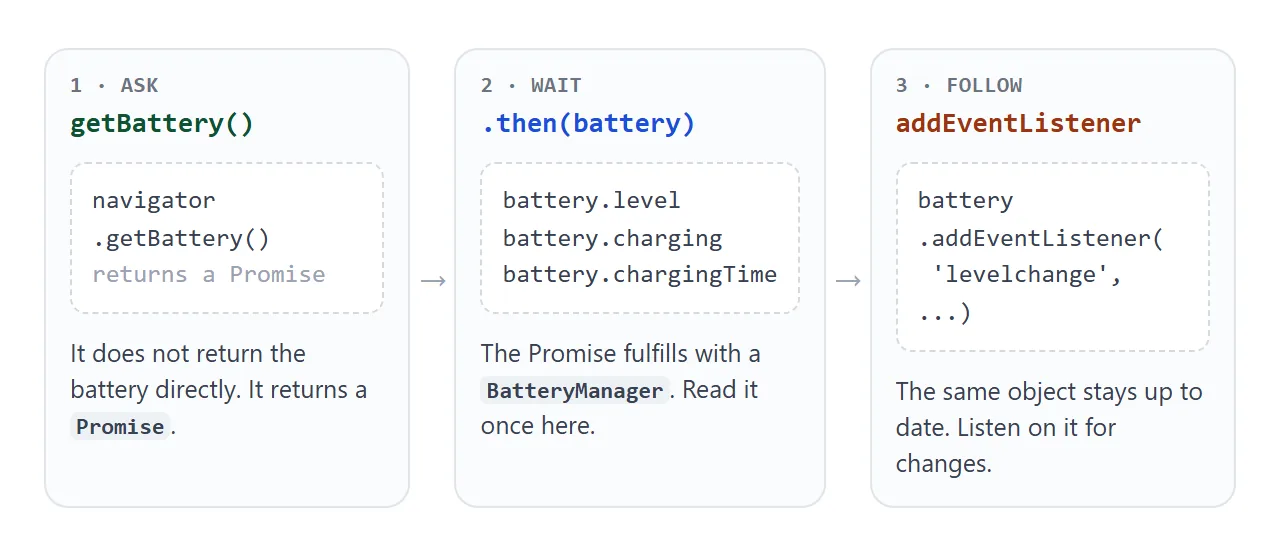
navigator.getBattery().then((battery) => {
  console.log(battery.level, battery.charging);
});
The async form is the same thing: const battery = await navigator.getBattery();. The async and await guide explains the pattern.
What each value means
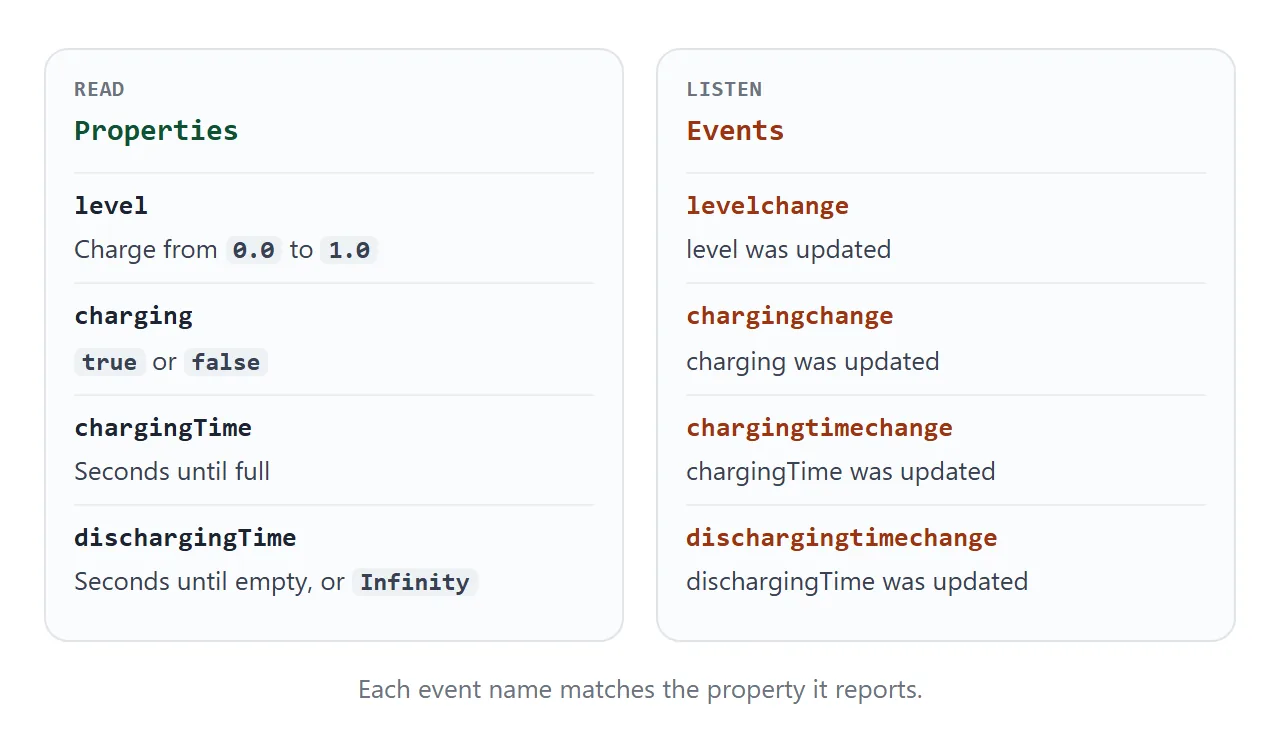
The object has four read-only properties. Each one has a matching event.
| Property | Holds | Special values |
|---|---|---|
level |
Charge from 0.0 to 1.0 | 1.0 when the battery is full or cannot be reported |
charging |
true or false | Reported as true when the browser cannot report |
chargingTime |
Seconds until full | 0 when full, Infinity when discharging |
dischargingTime |
Seconds until empty | Infinity when charging or unknown |
When the browser has nothing to report, the defaults pretend there is a full battery that is plugged in. A desktop computer with no battery therefore usually reads as 100 percent and charging.
Keep the report live with events
Reading the values once gives a snapshot. To keep the page current, listen on the same object. The events are levelchange, chargingchange, chargingtimechange and dischargingtimechange. You attach them with addEventListener, like any other event.
You may not have a battery to drain while you build. This example sends the same event names from a fake battery, so you can move the slider and watch the handler run.
<!doctype html>
<html lang="en">
<head>
<meta charset="utf-8">
<meta name="viewport" content="width=device-width, initial-scale=1">
<title>Simulated battery events</title>
<style>
  body { margin: 0; padding: 16px; font-family: system-ui, sans-serif; background: #f4f5f7; color: #1d2330; }
  .card { max-width: 400px; margin: 0 auto; padding: 16px 18px; border-radius: 12px; background: #fff; box-shadow: 0 4px 16px rgba(0, 0, 0, .1); }
  h3 { margin: 0 0 10px; font-size: 15px; color: #6b7280; font-weight: 600; }
  label { display: block; margin: 10px 0 4px; font-size: 14px; }
  input[type=range] { width: 100%; }
  #log { margin: 12px 0 0; padding: 10px; border-radius: 8px; background: #0f172a; color: #e2e8f0;
         font: 13px/1.5 ui-monospace, Consolas, monospace; height: 150px; overflow: auto; white-space: pre-wrap; }
  .hint { font-size: 13px; color: #6b7280; margin: 8px 0 0; }
</style>
</head>
<body>
<div class="card">
  <h3>A fake battery that sends the real event names</h3>
  <label for="lvl">Level: <b id="lvlText">80%</b></label>
  <input type="range" id="lvl" min="0" max="100" value="80">
  <label><input type="checkbox" id="chg"> Plugged in (charging)</label>
  <pre id="log">waiting for events...</pre>
  <p class="hint">watch() below does not know this battery is fake.</p>
</div>

<script>
  // A stand-in with the same shape as the object getBattery() resolves with.
  class FakeBattery extends EventTarget {
    level = 0.8;
    charging = false;
    chargingTime = Infinity;
    dischargingTime = 7200;
    set(level, charging) {
      if (level !== this.level) { this.level = level; this.dispatchEvent(new Event('levelchange')); }
      if (charging !== this.charging) {
        this.charging = charging;
        this.chargingTime = charging ? 1800 : Infinity;
        this.dischargingTime = charging ? Infinity : 7200;
        this.dispatchEvent(new Event('chargingchange'));
      }
    }
  }

  // The same code works for navigator.getBattery() and for the fake.
  function watch(battery, print) {
    ['levelchange', 'chargingchange'].forEach((name) =>
      battery.addEventListener(name, () =>
        print(name + ' -> ' + Math.round(battery.level * 100) + '%, charging=' + battery.charging)));
  }

  const log = document.getElementById('log');
  const lvl = document.getElementById('lvl');
  const chg = document.getElementById('chg');
  let first = true;
  const print = (line) => {
    if (first) { log.textContent = ''; first = false; }
    log.textContent += line + '\n';
    log.scrollTop = log.scrollHeight;
  };

  const battery = new FakeBattery();
  watch(battery, print);

  function push() {
    document.getElementById('lvlText').textContent = lvl.value + '%';
    battery.set(Number(lvl.value) / 100, chg.checked);
  }
  lvl.addEventListener('input', push);
  chg.addEventListener('change', push);
</script>
</body>
</html>
The fake object is only for testing. In a real page you pass the object from getBattery() to watch() instead.
Why it fails or returns nothing
The call can fail in a few separate ways, and each has its own signal.
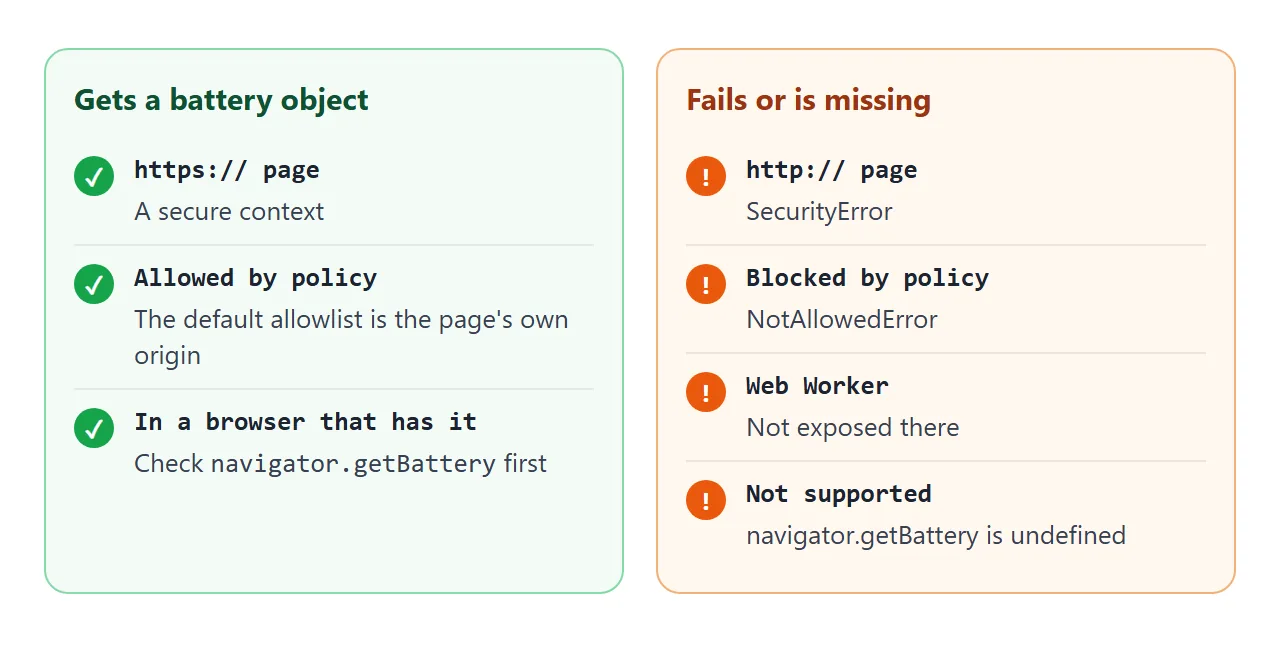
- Missing function. The browser does not offer the API. MDN marks it as limited availability, so test
navigator.getBatteryfirst. - SecurityError. The page is not a secure context, for example plain
http://. See HTTPS. - NotAllowedError. A Permissions Policy blocked the feature. The specification's default allowlist is the page's own origin.
- Web Workers. The API is not exposed there. Call it from the page itself.
Browsers also round the time values for privacy, and the specification warns that precise battery data can help identify a device. Treat what you read as approximate.
A finished example: low-battery saver mode
A common use is to save power. This page turns off its animation when the level is 20 percent or lower and the device is on battery.
<!doctype html>
<html lang="en">
<head>
<meta charset="utf-8">
<meta name="viewport" content="width=device-width, initial-scale=1">
<title>Low-battery saver mode</title>
<style>
  body { margin: 0; padding: 16px; font-family: system-ui, sans-serif; background: #f4f5f7; color: #1d2330; }
  .page { max-width: 400px; margin: 0 auto; padding: 16px 18px; border-radius: 12px; background: #fff; box-shadow: 0 4px 16px rgba(0, 0, 0, .1); }
  .top { display: flex; justify-content: space-between; align-items: center; gap: 10px; }
  #badge { font-size: 14px; font-weight: 600; padding: 4px 10px; border-radius: 999px; background: #dcfce7; color: #166534; }
  .saver #badge { background: #ffedd5; color: #9a3412; }
  .spinner { width: 46px; height: 46px; margin: 16px auto 8px; border-radius: 50%;
             border: 6px solid #dbeafe; border-top-color: #2563eb; animation: spin 1s linear infinite; }
  .saver .spinner { animation: none; border-color: #e5e7eb; }
  .saver { background: #f3f4f6; }
  #mode { text-align: center; font-size: 14px; margin: 0 0 12px; }
  fieldset { border: 1px dashed #cbd5e1; border-radius: 8px; margin: 0; padding: 8px 12px 12px; }
  legend { font-size: 13px; color: #6b7280; padding: 0 6px; }
  label { display: block; margin: 8px 0 2px; font-size: 14px; }
  input[type=range] { width: 100%; }
  #src { margin: 10px 0 0; font-size: 13px; color: #6b7280; }
  @keyframes spin { to { transform: rotate(360deg); } }
</style>
</head>
<body>
<div class="page" id="page">
  <div class="top"><b>My dashboard</b><span id="badge">Full features</span></div>
  <div class="spinner"></div>
  <p id="mode">Animations on</p>

  <fieldset>
    <legend>Test controls</legend>
    <label for="lvl">Level: <b id="lvlText">100%</b></label>
    <input type="range" id="lvl" min="0" max="100" value="100">
    <label><input type="checkbox" id="chg" checked> Plugged in</label>
  </fieldset>
  <p id="src">Source: test controls</p>
</div>

<script>
  const $ = (id) => document.getElementById(id);
  const LOW = 0.2;                       // saver mode below 20%...
  const state = { level: 1, charging: true };

  function render() {
    const saver = state.level <= LOW && !state.charging;   // ...and only on battery
    $('page').classList.toggle('saver', saver);
    $('badge').textContent = saver ? 'Saver mode' : 'Full features';
    $('mode').textContent = saver ? 'Animations off to save power' : 'Animations on';
    $('lvlText').textContent = Math.round(state.level * 100) + '%';
    $('lvl').value = Math.round(state.level * 100);
    $('chg').checked = state.charging;
  }

  // The sliders always work, so you can test on any device.
  $('lvl').addEventListener('input', () => { state.level = $('lvl').value / 100; $('src').textContent = 'Source: test controls'; render(); });
  $('chg').addEventListener('change', () => { state.charging = $('chg').checked; $('src').textContent = 'Source: test controls'; render(); });

  // If the browser has a battery to report, follow it too.
  if (navigator.getBattery) {
    navigator.getBattery().then((b) => {
      const sync = () => {
        state.level = b.level;
        state.charging = b.charging;
        $('src').textContent = 'Source: this device\'s battery';
        render();
      };
      sync();
      b.addEventListener('levelchange', sync);
      b.addEventListener('chargingchange', sync);
    }).catch(() => { /* blocked: stay on the test controls */ });
  }
  render();
</script>
</body>
</html>
- Rule: saver mode needs both
level <= 0.2andcharging === false. Checking only the level would dim the page while it is plugged in. - One render function: both the sliders and the real events update one
stateobject and callrender(). - Safe fallback: a
catch()keeps the page working on the test controls when the call is blocked.
When it does not work
| What you see | Cause | Fix |
|---|---|---|
getBattery is not a function |
The browser has no Battery Status API | Check navigator.getBattery first |
SecurityError |
The page is on plain http | Serve it over https |
NotAllowedError |
A Permissions Policy blocked it | Allow the battery feature in the Permissions Policy |
| Always 100% and charging | No battery, or the browser cannot report one | Treat it as unknown, not as a real reading |
Time left shows Infinity |
Charging, or the browser cannot tell | Test with Number.isFinite() |
| Values never update | Listener added to the wrong object | Listen on the battery from the Promise |
Share it as a link
A battery page is about the device that opens it. A screenshot shows your battery, not the viewer's, and an .html attachment may open as plain code on a phone. Opening an HTML file on a phone covers why.
To send the working version, paste the page into a NOS document and choose Create share link. HTML to link walks through it.
The page renders as written and its scripts run, so the people you send it to can try it on their own device. If you change the code later, the same link shows the new version.
Whether a given browser then reports a battery is up to that browser, which is why the examples above keep a fallback message and test controls.