An HTML table is built from three tags. <tr> is a table row. Inside each row, <td> is a table data cell that holds a value, and <th> is a table header cell that labels a column or a row.
<table>
  <tr><th scope="col">Item</th><th scope="col">Price</th></tr>
  <tr><td>Pens</td><td>4.80</td></tr>
</table>
Try it below. Add rows and columns, and switch the first row or first column to header cells. The markup under the table is the exact HTML being rendered.
<!doctype html>
<html lang="en">
<head>
<meta charset="utf-8">
<meta name="viewport" content="width=device-width, initial-scale=1">
<title>Table builder: tr, th and td</title>
<style>
body { margin: 0; padding: 14px; font-family: system-ui, sans-serif; background: #f4f5f7; color: #1d2330; }
.bar { display: flex; flex-wrap: wrap; gap: 8px 14px; align-items: center; margin-bottom: 12px; font-size: 14px; }
.bar button { font: inherit; width: 30px; height: 30px; border: 1px solid #c9ced8; border-radius: 6px; background: #fff; cursor: pointer; }
.bar label { display: inline-flex; gap: 5px; align-items: center; }
.wrap { overflow-x: auto; background: #fff; border-radius: 10px; padding: 10px; }
table { border-collapse: collapse; }
th, td { border: 1px solid #c9ced8; padding: 6px 10px; }
th { background: #eef2f7; }
pre { margin: 12px 0 0; padding: 12px; background: #1d2330; color: #e6e9ef; border-radius: 10px;
font: 12.5px/1.45 ui-monospace, Consolas, monospace; overflow: auto; max-height: 280px; }
</style>
</head>
<body>
<div class="bar">
<span>Rows <button id="rowMinus">-</button> <b id="rowN"></b> <button id="rowPlus">+</button></span>
<span>Columns <button id="colMinus">-</button> <b id="colN"></b> <button id="colPlus">+</button></span>
<label><input type="checkbox" id="headRow" checked> First row is <th scope="col"></label>
<label><input type="checkbox" id="headCol"> First column is <th scope="row"></label>
</div>
<div class="wrap" id="out"></div>
<pre id="code"></pre>
<script>
let rows = 3, cols = 3;
// Build the table markup as a string, one <tr> per row
function buildHTML() {
const headRow = document.getElementById('headRow').checked;
const headCol = document.getElementById('headCol').checked;
let html = '<table>\n';
for (let r = 0; r < rows; r++) {
html += ' <tr>\n';
for (let c = 0; c < cols; c++) {
let cell;
if (r === 0 && headRow) cell = '<th scope="col">Head ' + (c + 1) + '</th>';
else if (c === 0 && headCol) cell = '<th scope="row">Row ' + r + '</th>';
else cell = '<td>' + 'ABCDEFG'[c] + r + '</td>';
html += ' ' + cell + '\n';
}
html += ' </tr>\n';
}
return html + '</table>';
}
function render() {
const html = buildHTML();
document.getElementById('out').innerHTML = html; // the live table
document.getElementById('code').textContent = html; // the same markup as text
document.getElementById('rowN').textContent = rows;
document.getElementById('colN').textContent = cols;
}
const clamp = (n) => Math.min(7, Math.max(1, n));
document.getElementById('rowPlus').addEventListener('click', () => { rows = clamp(rows + 1); render(); });
document.getElementById('rowMinus').addEventListener('click', () => { rows = clamp(rows - 1); render(); });
document.getElementById('colPlus').addEventListener('click', () => { cols = clamp(cols + 1); render(); });
document.getElementById('colMinus').addEventListener('click', () => { cols = clamp(cols - 1); render(); });
document.getElementById('headRow').addEventListener('change', render);
document.getElementById('headCol').addEventListener('change', render);
render();
</script>
</body>
</html>
What tr, td and th each do
Cells never sit loose in a table. Each row is one <tr>, and the cells of that row go inside it, left to right. The number of cells in a row decides how many columns it fills.
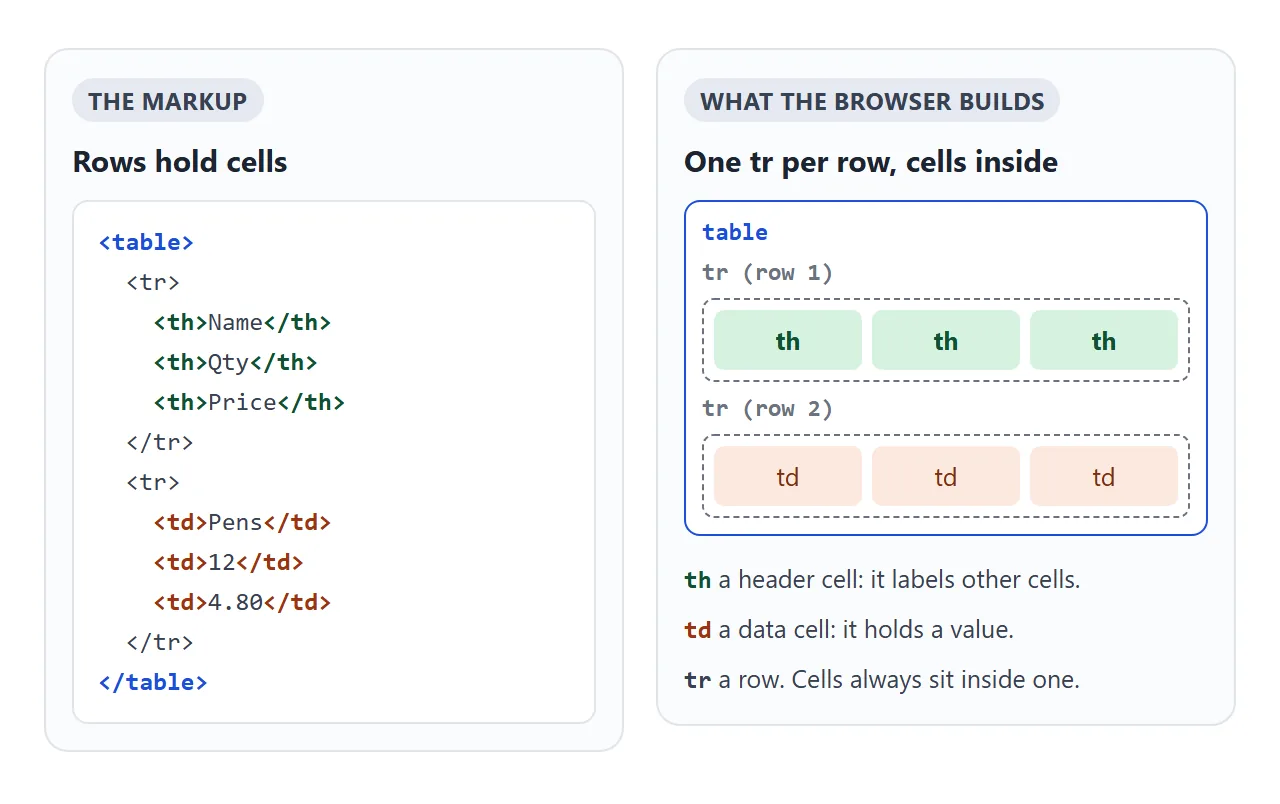
| Tag | Stands for | Holds | Default look |
|---|---|---|---|
<tr> |
table row | th and td cells | none of its own |
<td> |
table data | a value | normal weight, aligned to the start |
<th> |
table header | a label for other cells | bold, centered |
You will often see <tr> wrapped in <thead>, <tbody> or <tfoot>. Those group rows. They are optional in the source, and if you leave out <tbody>, the browser adds one around your rows anyway.
th vs td: more than bold text
The visible difference is small: a <th> is bold and centered. The bigger difference is meaning. A <th> tells the browser, and anything reading the page for someone, that this cell is a label and not a value.
Hover or tap a price below. With <th> and scope, each price has two headers: the drink and the size. Switch the headers to <td> and the price is just a number next to other numbers.
<!doctype html>
<html lang="en">
<head>
<meta charset="utf-8">
<meta name="viewport" content="width=device-width, initial-scale=1">
<title>th vs td, and what scope changes</title>
<style>
body { margin: 0; padding: 14px; font-family: system-ui, sans-serif; background: #f4f5f7; color: #1d2330; font-size: 15px; }
.bar { display: flex; flex-wrap: wrap; gap: 8px; margin-bottom: 12px; }
.bar button { font: inherit; font-size: 14px; padding: 7px 12px; border: 1px solid #c9ced8; border-radius: 99px; background: #fff; cursor: pointer; }
.bar button[aria-pressed="true"] { background: #1d2330; color: #fff; border-color: #1d2330; }
.wrap { overflow-x: auto; background: #fff; border-radius: 10px; padding: 10px; }
/* only borders are added: font-weight and text-align are the browser defaults */
table { border-collapse: collapse; }
th, td { border: 1px solid #c9ced8; padding: 6px 10px; min-width: 60px; }
td:hover, td.on { background: #fff4cc; }
.hl { background: #dcfce7; }
#info { margin-top: 12px; padding: 12px; border-radius: 10px; background: #fff; min-height: 64px; line-height: 1.5; }
code { font: 13px ui-monospace, Consolas, monospace; background: #eef1f5; padding: 1px 4px; border-radius: 4px; }
</style>
</head>
<body>
<div class="bar">
<button id="useTh" aria-pressed="true">Headers: <th></button>
<button id="useScope" aria-pressed="true">scope: on</button>
</div>
<div class="wrap"><table id="t"></table></div>
<div id="info">Hover or tap a price cell.</div>
<script>
const cols = ['Small', 'Medium', 'Large'];
const rows = [['Latte', '3.20', '3.90', '4.50'], ['Mocha', '3.60', '4.30', '4.90'], ['Tea', '2.40', '2.80', '3.10']];
let useTh = true, useScope = true;
// Header cells are <th> (optionally with scope) or plain <td>
function head(text, scope) {
if (!useTh) return '<td>' + text + '</td>';
return useScope ? '<th scope="' + scope + '">' + text + '</th>' : '<th>' + text + '</th>';
}
function render() {
let html = '<tr><td></td>'; // empty corner cell
cols.forEach((c) => html += head(c, 'col'));
html += '</tr>';
rows.forEach((r) => {
html += '<tr>' + head(r[0], 'row');
r.slice(1).forEach((v) => html += '<td class="num">' + v + '</td>');
html += '</tr>';
});
document.getElementById('t').innerHTML = html;
document.getElementById('info').textContent = 'Hover or tap a price cell.';
}
// Find the headers of a cell the way scope describes them:
// scope="row" in the same row, scope="col" in the same column
function headersOf(cell) {
const tr = cell.parentElement, col = cell.cellIndex, found = [];
const rowHead = [...tr.cells].find((c) => c.matches('th[scope="row"]'));
if (rowHead) found.push(rowHead);
for (const row of cell.closest('table').rows) {
const c = row.cells[col];
if (c && c.matches('th[scope="col"]')) found.push(c);
}
return found;
}
function show(cell) {
document.querySelectorAll('.hl, .on').forEach((el) => el.classList.remove('hl', 'on'));
if (!cell.classList.contains('num')) return;
cell.classList.add('on');
const hs = headersOf(cell);
hs.forEach((h) => h.classList.add('hl'));
const info = document.getElementById('info');
if (hs.length) {
info.innerHTML = 'Cell <code>' + cell.textContent + '</code> is read with its headers: <b>' +
hs.map((h) => h.textContent).join(' + ') + '</b>.';
} else if (useTh) {
info.innerHTML = 'No scope. The <code><th></code> cells are headers, but which ones apply to <code>' +
cell.textContent + '</code> is left for the browser to work out from the layout.';
} else {
info.innerHTML = 'No <code><th></code> at all. <code>' + cell.textContent +
'</code> has no header cells, only neighbours. The bold and centering are gone too.';
}
}
const t = document.getElementById('t');
t.addEventListener('pointerover', (e) => { const c = e.target.closest('td'); if (c) show(c); });
t.addEventListener('click', (e) => { const c = e.target.closest('td'); if (c) show(c); });
function toggle(id, fn) {
document.getElementById(id).addEventListener('click', (e) => { fn(); e.currentTarget.setAttribute('aria-pressed', e.currentTarget.getAttribute('aria-pressed') !== 'true'); label(); render(); });
}
function label() {
document.getElementById('useTh').innerHTML = 'Headers: ' + (useTh ? '<th>' : '<td>');
document.getElementById('useScope').textContent = 'scope: ' + (useScope ? 'on' : 'off');
document.getElementById('useScope').disabled = !useTh;
}
toggle('useTh', () => useTh = !useTh);
toggle('useScope', () => useScope = !useScope);
render();
</script>
</body>
</html>
So do not use <th> just to make text bold, and do not use <td> for a real header because you dislike the bold. Pick the tag by what the cell is, then change the look with CSS.
scope="col" and scope="row"
scope goes on a <th> and says which way its label reaches. scope="col" covers the cells below it in the same column. scope="row" covers the cells to its right in the same row.
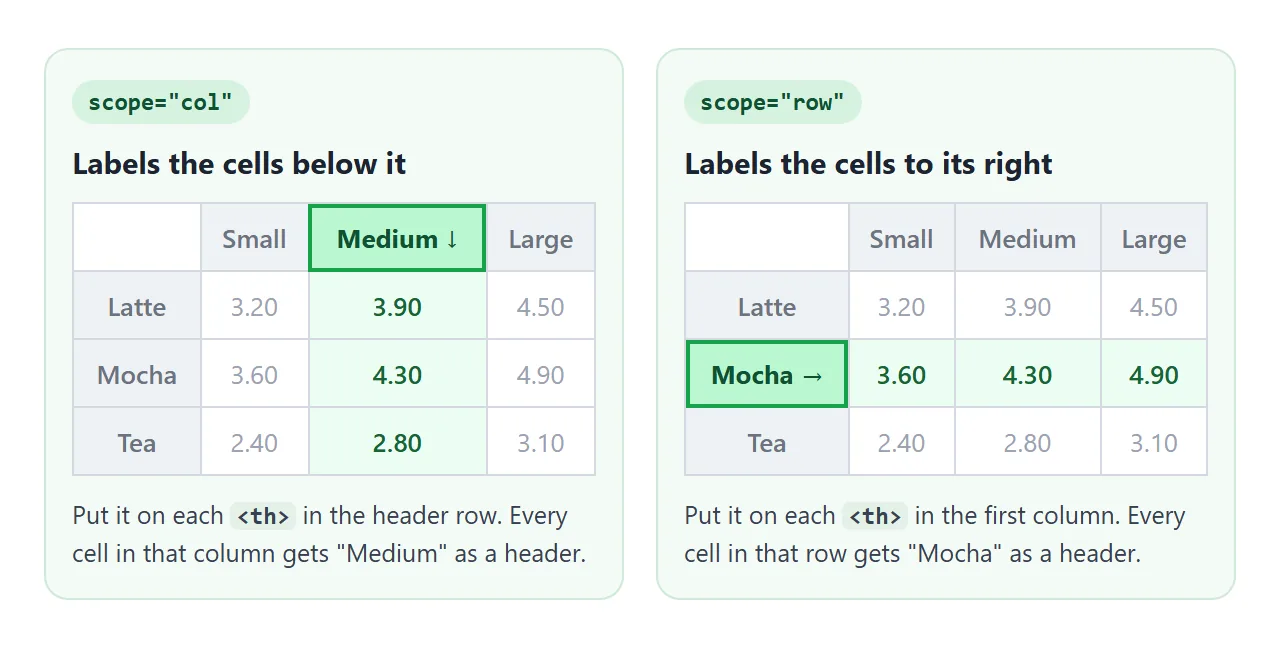
A table with headers across the top and down the left side uses both. The first cell of each body row becomes a <th scope="row">, and the corner cell can stay an empty <td>:
<tr>
  <td></td>
  <th scope="col">Small</th>
  <th scope="col">Medium</th>
</tr>
<tr>
  <th scope="row">Latte</th>
  <td>3.20</td>
  <td>3.90</td>
</tr>
Without scope, the HTML specification has rules for working out which cells a header applies to from its position. scope states the answer so nothing depends on that guess.
Two more values exist, colgroup and rowgroup, for a header that sits above a group of columns or rows.
Spans and the headers attribute
A cell can stretch over more than one slot. colspan="3" makes a cell three columns wide, and rowspan="2" makes it two rows tall. Each span replaces cells, so you remove as many <td> elements as the span swallows.
Counting which cells to remove is the tricky part. Rowspan and colspan walks through it with examples.
When headers are nested or spanned, scope is not always enough. Then give each <th> an id, and list the ids that label a data cell in its headers attribute, separated by spaces:
<th id="q1">Q1</th>
<th id="north" scope="row">North</th>
<td headers="north q1">1,204</td>
For a plain grid with one header row and one header column, scope is enough. Save headers for tables where a cell really has several layers of labels.
Padding, alignment and vertical-align
The default styles are sparse. Browsers give each cell 1px of padding and leave 2px of spacing between cells. That is why a bare table looks cramped. Add the space in CSS:
table { border-collapse: collapse; }
th, td {
  padding: 8px 12px;
  border: 1px solid #ccc;
  text-align: left;     /* th defaults to center */
  vertical-align: top;  /* cells default to middle */
}
td.num {
  text-align: right;
  font-variant-numeric: tabular-nums; /* digits line up */
}
vertical-align: middle surprises people most. When one cell in a row wraps onto three lines, the short cells beside it center themselves, and the row reads unevenly. vertical-align: top fixes it.
Numbers read best right-aligned with equal-width digits, so the ones, tens and hundreds line up down the column. The old align, valign and cellpadding attributes are obsolete; the CSS above replaces them. For the borders themselves, see border-collapse.
Empty cells and cell width
Every row should add up to the same number of columns. If a row is short, the browser does not fill the gap. The missing slot at the end is simply not drawn, so the grid gets a hole.
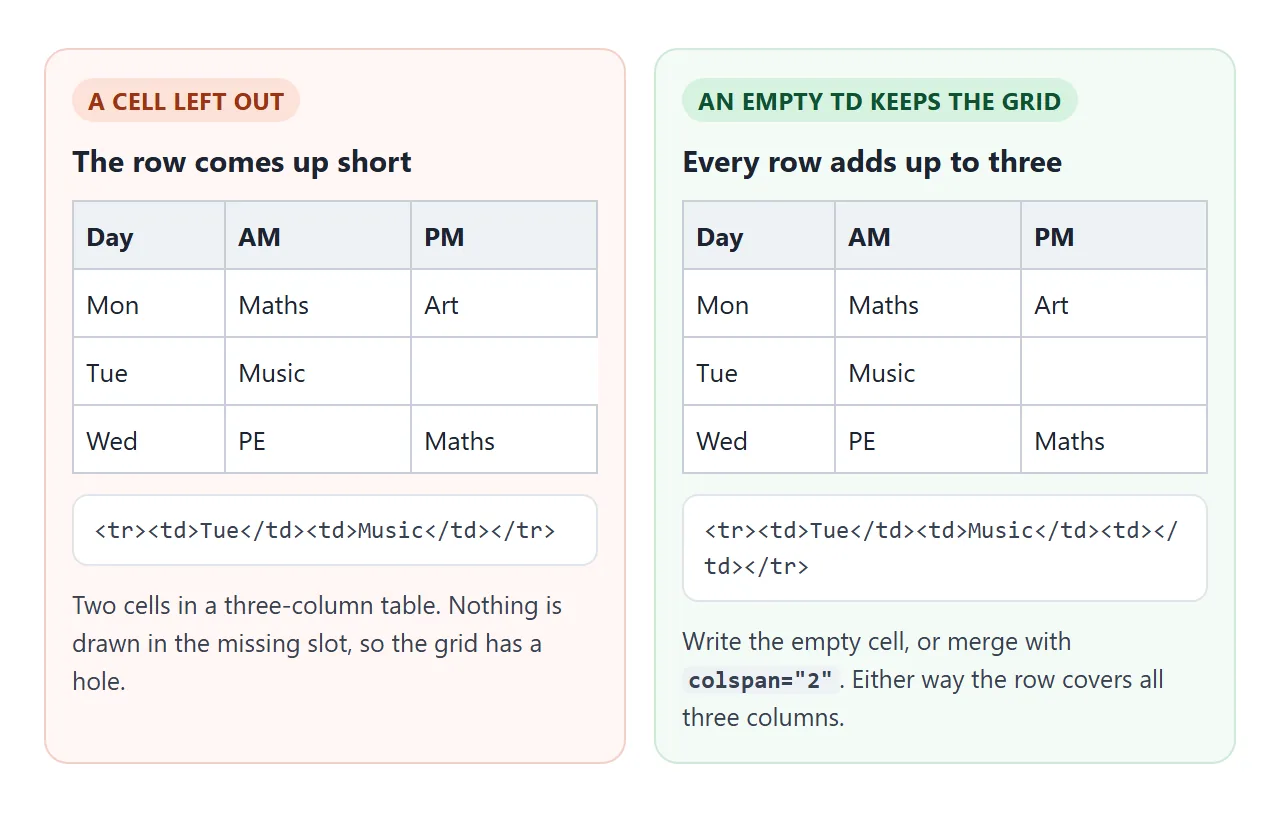
When there is nothing to show, write an empty <td></td>. It is still a cell, so it keeps its borders and background and holds the column in place. In the timetable below, the free periods are empty cells.
Widths are set with CSS, not the obsolete width attribute. In the default table layout, the browser treats your width as a starting point. A long word or a wide value can push the column wider than you asked.
Column width covers how to make widths stick, and word wrap in tables covers long text.
A finished example: a timetable
This timetable uses everything above. Days are <th scope="col">, times are <th scope="row">, lunch is one cell with colspan="5", and the totals row has right-aligned numbers.
<!doctype html>
<html lang="en">
<head>
<meta charset="utf-8">
<meta name="viewport" content="width=device-width, initial-scale=1">
<title>Class timetable</title>
<style>
  body { margin: 0; padding: 14px; font-family: system-ui, sans-serif; background: #f4f5f7; color: #1d2330; }
  .wrap { overflow-x: auto; background: #fff; border-radius: 12px; padding: 12px; }
  table { border-collapse: collapse; width: 100%; min-width: 520px; font-size: 14px; }
  caption { text-align: left; font-weight: 700; font-size: 16px; padding-bottom: 10px; }
  th, td { border: 1px solid #dde1e8; padding: 8px 10px; }
  td { vertical-align: top; }                   /* default is middle */
  thead th { background: #1d2330; color: #fff; }
  tbody th { text-align: left; background: #f4f6f9; white-space: nowrap;
             font-variant-numeric: tabular-nums; }  /* times line up */
  td small { display: block; color: #6b7280; }
  .lunch { text-align: center; background: #fff8e1; color: #8a5a00; font-weight: 600; }
  tfoot th { text-align: left; }
  tfoot td { text-align: right; font-weight: 700; font-variant-numeric: tabular-nums; }
</style>
</head>
<body>
<div class="wrap">
<table>
  <caption>Class 3B, week 12</caption>
  <thead>
    <tr>
      <td></td>
      <th scope="col">Mon</th>
      <th scope="col">Tue</th>
      <th scope="col">Wed</th>
      <th scope="col">Thu</th>
      <th scope="col">Fri</th>
    </tr>
  </thead>
  <tbody>
    <tr>
      <th scope="row">09:00</th>
      <td>Maths<small>Room 12</small></td>
      <td>English<small>Room 4</small></td>
      <td>Science<small>Lab 2</small></td>
      <td>Maths<small>Room 12</small></td>
      <td>Art<small>Studio</small></td>
    </tr>
    <tr>
      <th scope="row">10:00</th>
      <td>History</td>
      <td>Maths<small>Room 12</small></td>
      <td>English<small>Room 4</small></td>
      <td>Music</td>
      <td>Science<small>Lab 2</small></td>
    </tr>
    <tr>
      <th scope="row">11:00</th>
      <td>PE</td>
      <td>Science<small>Lab 1</small></td>
      <td></td><!-- free period: the empty cell keeps the column -->
      <td>English<small>Room 4</small></td>
      <td>Maths<small>Room 12</small></td>
    </tr>
    <tr>
      <th scope="row">12:00</th>
      <td colspan="5" class="lunch">Lunch</td>
    </tr>
    <tr>
      <th scope="row">13:00</th>
      <td>Geography</td>
      <td>Art<small>Studio</small></td>
      <td>Maths<small>Room 12</small></td>
      <td>PE</td>
      <td></td>
    </tr>
  </tbody>
  <tfoot>
    <tr>
      <th scope="row">Lessons</th>
      <td>4</td>
      <td>4</td>
      <td>3</td>
      <td>4</td>
      <td>3</td>
    </tr>
  </tfoot>
</table>
</div>
</body>
</html>
- Caption:
<caption>names the table and sits above it. - Top-aligned cells: lessons with a room line do not push their neighbours to the middle.
- Scrolls on a phone: the table has a minimum width and sits in a box with
overflow-x: auto, so it scrolls sideways instead of squashing. Responsive tables has more options.
When it does not work
| What you see | Cause | Fix |
|---|---|---|
| All cells end up in one long row | The <td> cells are not inside <tr> elements, so the parser put them in one row |
Wrap each row's cells in its own <tr> |
| A gap at the end of one row | That row has fewer cells than the others | Add an empty <td></td> or use colspan |
| The table has an extra column on one side | One row has more cells than the rest, often from a span that was not counted | Count columns per row, including spans |
| Bold text is read out as a header | <th> used only for bold |
Use <td> and set font-weight in CSS |
| Short cells float to the middle of a tall row | vertical-align defaults to middle |
td { vertical-align: top; } |
| Text wraps into a tall, narrow column | The column is narrower than the content | Give the column a width, or white-space: nowrap on short values |
| A width on a td is ignored | Content is wider, or another cell in the column sets a different width | Set widths per column; see column width |
Share it as a link
A table like the builder or the timetable is easier to check in a browser than in a screenshot. Hover states, horizontal scrolling on a phone and copied values only work in the real page.
To send it, paste the page into a NOS document and choose Create share link. HTML to link walks through it.
The page renders as written and its scripts run, so the people you send it to can try the table themselves. If you change the code later, the same link shows the new version.