<thead>, <tbody> and <tfoot> split an HTML table into a head, a body and a foot. thead holds the column names, tbody holds the data rows, and tfoot holds totals.
They change little on screen by themselves, but CSS, JavaScript, printing and screen readers all use them.
The first thing to know is that the browser adds a tbody even when you do not write one. Try the selectors below on a table written without it.
<!doctype html>
<html lang="en">
<head>
<meta charset="utf-8">
<meta name="viewport" content="width=device-width, initial-scale=1">
<title>The implicit tbody</title>
<style>
body { margin: 0; padding: 14px; font-family: system-ui, sans-serif; background: #f4f5f7; color: #1d2330; }
h3 { margin: 0 0 6px; font-size: 14px; }
.grid { display: grid; grid-template-columns: 1fr 1fr; gap: 12px; }
@media (max-width: 520px) { .grid { grid-template-columns: 1fr; } }
.panel { background: #fff; border: 1px solid #e1e4ea; border-radius: 10px; padding: 12px; }
pre { margin: 0; font: 12.5px/1.5 ui-monospace, Consolas, monospace; white-space: pre-wrap; }
table { border-collapse: collapse; width: 100%; font-size: 14px; }
th, td { border: 1px solid #d5d9e0; padding: 5px 8px; text-align: left; }
tr.hit td, tr.hit th { background: #d1fae5; }
.buttons { display: flex; flex-wrap: wrap; gap: 6px; margin: 12px 0 8px; }
button { font: 600 13px ui-monospace, Consolas, monospace; padding: 7px 10px; border: 1px solid #c9cdd4; border-radius: 8px; background: #fff; cursor: pointer; }
button.on { background: #1d2330; color: #fff; border-color: #1d2330; }
#result { font-size: 14px; min-height: 20px; }
#result b.zero { color: #b45309; }
#result b.some { color: #047857; }
</style>
</head>
<body>
<div class="grid">
<div class="panel">
<h3>The table, written without <tbody></h3>
<table id="t">
<tr><th>Fruit</th><th>Price</th></tr>
<tr><td>Apple</td><td>1.20</td></tr>
<tr><td>Pear</td><td>0.90</td></tr>
<tr><td>Plum</td><td>2.10</td></tr>
</table>
</div>
<div class="panel">
<h3>What the browser built (live DOM)</h3>
<pre id="dom"></pre>
</div>
</div>
<div class="buttons">
<button data-sel="#t > tr">table > tr</button>
<button data-sel="#t > tbody > tr">table > tbody > tr</button>
<button data-sel="#t tr">table tr</button>
</div>
<div id="result">Pick a selector to see which rows it matches.</div>
<script>
const table = document.getElementById('t');
// Print the element tree the parser actually made
function tree(el, depth) {
let out = ' '.repeat(depth) + '<' + el.tagName.toLowerCase() + '>\n';
for (const child of el.children) {
if (child.tagName === 'TD' || child.tagName === 'TH') continue; // keep it short
out += tree(child, depth + 1);
}
return out;
}
document.getElementById('dom').textContent = tree(table, 0);
document.querySelectorAll('button').forEach((btn) => {
btn.addEventListener('click', () => {
document.querySelectorAll('button').forEach((b) => b.classList.toggle('on', b === btn));
table.querySelectorAll('tr').forEach((tr) => tr.classList.remove('hit'));
const rows = document.querySelectorAll(btn.dataset.sel);
rows.forEach((tr) => tr.classList.add('hit'));
const label = btn.textContent;
document.getElementById('result').innerHTML =
'<code>' + label.replace(/</g, '<') + '</code> matches <b class="' +
(rows.length ? 'some' : 'zero') + '">' + rows.length + ' rows</b>';
});
});
</script>
</body>
</html>
table > tr finds nothing, because no row is a direct child of the table any more. Every rule and script that assumed the source structure misses the rows.
The three table sections and their order
A full table is written in this order:
<table>
  <caption>Orders</caption>
  <thead>
    <tr><th>Item</th><th>Amount</th></tr>
  </thead>
  <tbody>
    <tr><td>Chair</td><td>140</td></tr>
    <tr><td>Lamp</td><td>58</td></tr>
  </tbody>
  <tfoot>
    <tr><th>Total</th><td>198</td></tr>
  </tfoot>
</table>
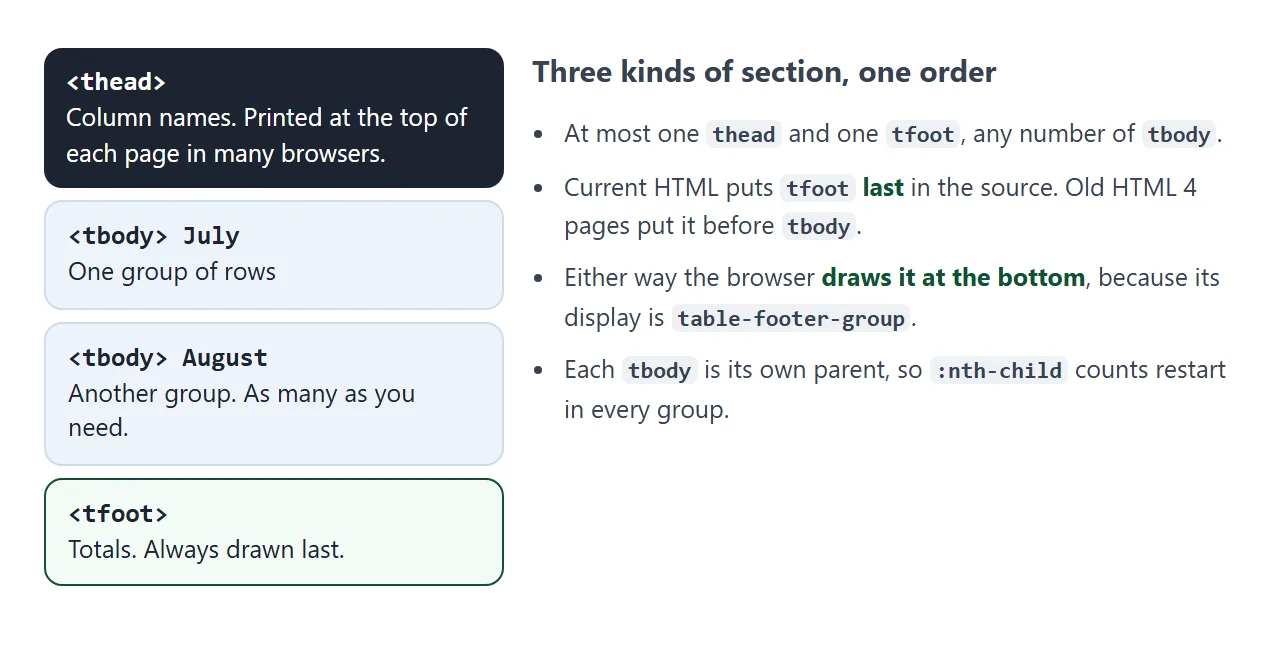
| Element | Holds | How many |
|---|---|---|
thead |
Column names | None or one |
tbody |
Data rows | Any number |
tfoot |
Totals, notes | None or one |
To build one from scratch:
- Wrap the header row in
<thead>and use<th>cells for the names. - Wrap the data rows in
<tbody>, one per group if the rows have groups. - Add a
<tfoot>last for sums or summary rows. - Point CSS and JavaScript at the sections, such as
tbody trandtable.tBodies.
Current HTML places tfoot after the bodies. HTML 4 required it before them, so you will still see that order in older pages. The browser draws the footer at the bottom either way.
Why the browser adds a tbody
When the HTML parser meets a <tr> directly inside <table>, it creates a tbody and puts the row in it. This only happens while parsing HTML source. It is why the DOM inspector shows a tbody you never typed.
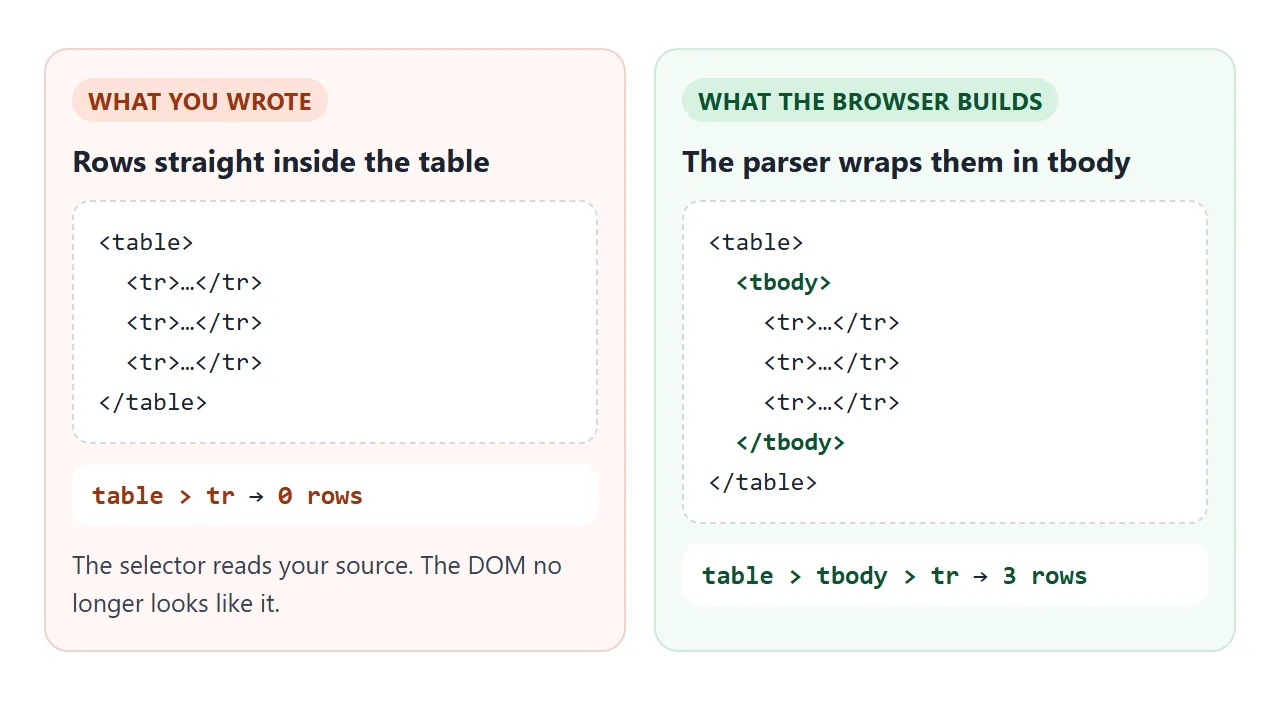
The simplest defence is to write tbody yourself. The source then matches the DOM and nobody is surprised. Descendant selectors such as table tr also match in both cases, which is why they seem to work until someone writes a child selector.
Grouping rows with several tbody elements
A table can hold as many tbody elements as you like. Each one becomes a group: a month, a category, a team. A heading row at the top of each group, with <th scope="rowgroup">, tells screen readers what the group is.
Untick items below. The total in the tfoot updates, and it only ever reads rows from the bodies.
<!doctype html>
<html lang="en">
<head>
<meta charset="utf-8">
<meta name="viewport" content="width=device-width, initial-scale=1">
<title>Grouped rows with several tbody elements</title>
<style>
  body { margin: 0; padding: 14px; font-family: system-ui, sans-serif; background: #f4f5f7; color: #1d2330; }
  table { border-collapse: collapse; width: 100%; max-width: 560px; background: #fff; font-size: 14px; }
  th, td { padding: 7px 10px; text-align: left; }
  td.num, th.num { text-align: right; font-variant-numeric: tabular-nums; }
  thead th { background: #1d2330; color: #fff; }
  /* Each tbody is one group: a gap and a line mark where it starts */
  tbody { border-top: 3px solid #f4f5f7; }
  tbody th[scope="rowgroup"] { background: #e8ecf2; font-size: 13px; }
  tbody td { border-bottom: 1px solid #eef0f3; }
  tr.off td { color: #9aa3b2; text-decoration: line-through; }
  tfoot td, tfoot th { border-top: 2px solid #1d2330; font-weight: 700; }
  label { cursor: pointer; }
</style>
</head>
<body>
<table id="budget">
  <thead>
    <tr><th>Item</th><th class="num">Cost</th></tr>
  </thead>
  <tbody>
    <tr><th scope="rowgroup" colspan="2">Hardware</th></tr>
    <tr><td><label><input type="checkbox" checked> Laptop</label></td><td class="num">1200</td></tr>
    <tr><td><label><input type="checkbox" checked> Monitor</label></td><td class="num">300</td></tr>
  </tbody>
  <tbody>
    <tr><th scope="rowgroup" colspan="2">Software</th></tr>
    <tr><td><label><input type="checkbox" checked> Design app</label></td><td class="num">240</td></tr>
    <tr><td><label><input type="checkbox" checked> Backup plan</label></td><td class="num">60</td></tr>
    <tr><td><label><input type="checkbox"> Font licence</label></td><td class="num">90</td></tr>
  </tbody>
  <tbody>
    <tr><th scope="rowgroup" colspan="2">Services</th></tr>
    <tr><td><label><input type="checkbox" checked> Setup visit</label></td><td class="num">150</td></tr>
  </tbody>
  <tfoot>
    <tr><th scope="row">Total (<span id="count"></span>)</th><td class="num" id="total"></td></tr>
  </tfoot>
</table>

<script>
  const table = document.getElementById('budget');

  function recalc() {
    let sum = 0, picked = 0, all = 0;
    // table.tBodies holds only the tbody groups, so thead and tfoot are skipped
    for (const body of table.tBodies) {
      for (const row of body.rows) {
        const box = row.querySelector('input');
        if (!box) continue;              // the group heading row
        all++;
        row.classList.toggle('off', !box.checked);
        if (box.checked) { sum += Number(row.cells[1].textContent); picked++; }
      }
    }
    document.getElementById('total').textContent = sum;
    document.getElementById('count').textContent = picked + ' of ' + all + ' items';
  }

  table.addEventListener('change', recalc);
  recalc();
</script>
</body>
</html>
table.tBodies returns just the bodies, and each one has its own rows list. A loop over them never touches the header or the total row, so the sum cannot count itself.
for (const body of table.tBodies) {
  for (const row of body.rows) { /* data rows only */ }
}
Styling each section differently
Because the sections are separate elements, one selector styles each part: thead th for the header, tbody td for the data and tfoot td for totals.
Each tbody is also its own parent, so :nth-child counts restart in every group. tbody tr:nth-child(even) stripes each group from its own first row. Zebra striping covers the choices there.
Borders on tbody or tr only appear with border-collapse: collapse. In the default separate model, rows and row groups have no borders, so put them on the cells. Border collapse explains how the two models draw lines.
Adding rows with JavaScript
The parser adds a tbody for you. Scripts do not. table.appendChild(tr) puts the row straight into the table, after the tfoot, where tbody tr rules and tBodies loops cannot see it.
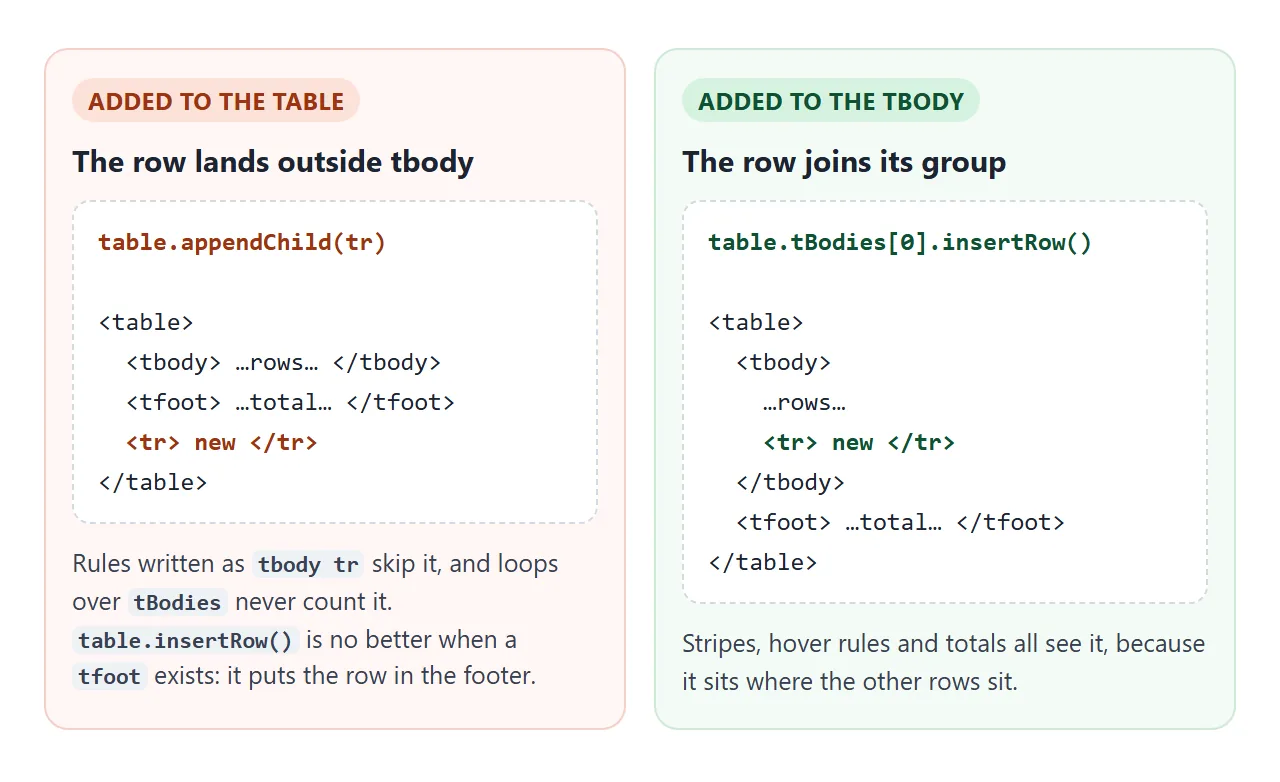
table.insertRow() is not a safe shortcut either. When there is a tfoot, the table's last row is the footer row, and insertRow() adds the new row to that same section. Name the body instead:
const row = table.tBodies[0].insertRow();
row.insertCell().textContent = 'Stapler';
A sticky thead over a scrolling tbody
To keep the column names in view, make a wrapper scroll and put position: sticky on the th cells, not on thead or tr. The same trick with bottom: 0 keeps the totals row visible.
<!doctype html>
<html lang="en">
<head>
<meta charset="utf-8">
<meta name="viewport" content="width=device-width, initial-scale=1">
<title>Scrolling table with sticky header and totals</title>
<style>
  body { margin: 0; padding: 14px; font-family: system-ui, sans-serif; background: #f4f5f7; color: #1d2330; }
  .wrap { max-height: 300px; overflow: auto; background: #fff; border: 1px solid #d5d9e0; border-radius: 10px; }
  table { border-collapse: separate; border-spacing: 0; width: 100%; font-size: 14px; }
  th, td { padding: 7px 10px; text-align: left; white-space: nowrap; }
  .num { text-align: right; font-variant-numeric: tabular-nums; }

  /* Sticky goes on the cells, inside the element that scrolls */
  thead th { position: sticky; top: 0; z-index: 1; background: #1d2330; color: #fff; }
  tfoot td, tfoot th { position: sticky; bottom: 0; background: #fff; border-top: 2px solid #1d2330; font-weight: 700; }

  /* Group heading row, then zebra that restarts in every tbody */
  tbody th[scope="rowgroup"] { background: #e8ecf2; font-size: 13px; }
  tbody tr:nth-child(odd) td { background: #f6f8fb; }  /* row 1 is the heading */

  form { display: flex; flex-wrap: wrap; gap: 6px; margin-top: 10px; font-size: 14px; }
  input, select, button { font: inherit; padding: 6px 8px; border: 1px solid #c9cdd4; border-radius: 8px; }
  input[type="number"] { width: 80px; }
  button { background: #1d2330; color: #fff; border-color: #1d2330; cursor: pointer; }
</style>
</head>
<body>
<div class="wrap">
  <table id="orders">
    <thead>
      <tr><th>Order</th><th class="num">Qty</th><th class="num">Amount</th></tr>
    </thead>
    <tbody>
      <tr><th scope="rowgroup" colspan="3">July</th></tr>
      <tr><td>Desk lamp</td><td class="num">2</td><td class="num">58</td></tr>
      <tr><td>Chair</td><td class="num">1</td><td class="num">140</td></tr>
      <tr><td>Notebook</td><td class="num">10</td><td class="num">35</td></tr>
      <tr><td>Cable pack</td><td class="num">3</td><td class="num">27</td></tr>
    </tbody>
    <tbody>
      <tr><th scope="rowgroup" colspan="3">August</th></tr>
      <tr><td>Monitor arm</td><td class="num">1</td><td class="num">89</td></tr>
      <tr><td>Keyboard</td><td class="num">2</td><td class="num">130</td></tr>
      <tr><td>Desk mat</td><td class="num">4</td><td class="num">48</td></tr>
    </tbody>
    <tbody>
      <tr><th scope="rowgroup" colspan="3">September</th></tr>
      <tr><td>Webcam</td><td class="num">1</td><td class="num">75</td></tr>
      <tr><td>Headset</td><td class="num">2</td><td class="num">118</td></tr>
      <tr><td>Stand</td><td class="num">1</td><td class="num">42</td></tr>
      <tr><td>Pens</td><td class="num">20</td><td class="num">16</td></tr>
    </tbody>
    <tfoot>
      <tr><th scope="row">Total</th><td class="num" id="qty"></td><td class="num" id="amount"></td></tr>
    </tfoot>
  </table>
</div>

<form id="add">
  <select id="month"><option value="0">July</option><option value="1">August</option><option value="2" selected>September</option></select>
  <input id="item" placeholder="Item" required size="10">
  <input id="cost" type="number" min="0" placeholder="Amount" required>
  <button>Add row</button>
</form>

<script>
  const table = document.getElementById('orders');

  function totals() {
    let qty = 0, amount = 0;
    for (const body of table.tBodies) {
      for (const row of body.rows) {
        if (row.cells.length < 3) continue;  // group heading
        qty += Number(row.cells[1].textContent);
        amount += Number(row.cells[2].textContent);
      }
    }
    document.getElementById('qty').textContent = qty;
    document.getElementById('amount').textContent = amount;
  }

  document.getElementById('add').addEventListener('submit', (e) => {
    e.preventDefault();
    // Add to the chosen tbody, never to the table itself
    const body = table.tBodies[document.getElementById('month').value];
    const row = body.insertRow();          // appends at the end of that group
    row.insertCell().textContent = document.getElementById('item').value;
    const q = row.insertCell(); q.className = 'num'; q.textContent = 1;
    const c = row.insertCell(); c.className = 'num'; c.textContent = document.getElementById('cost').value;
    totals();
    e.target.reset();
  });

  totals();
</script>
</body>
</html>
.wrap { max-height: 300px; overflow: auto; }
thead th { position: sticky; top: 0; background: #1d2330; }
tfoot td, tfoot th { position: sticky; bottom: 0; background: #fff; }
Give the sticky cells a background, or the rows scroll visibly underneath them.
An older approach sets tbody { display: block; overflow: auto; }. It scrolls, but the body stops being part of the table layout, so its columns no longer line up with the header.
The full treatment is in HTML sticky table header and keeping the header visible. For tables that are too wide rather than too long, see table overflow scroll.
Printing long tables
On paper, thead does something sticky cannot. When a table runs over several printed pages, many browsers repeat the thead at the top of each page and the tfoot at the bottom. This follows from their display values, table-header-group and table-footer-group.
Remove the scroll box in the print styles, or only the rows visible in it get printed:
@media print {
  .wrap { max-height: none; overflow: visible; }
  tr { break-inside: avoid; }
}
When it does not work
| What you see | Cause | Fix |
|---|---|---|
A CSS rule or querySelectorAll misses every row |
The browser added a tbody, and the selector is table > tr |
Write tbody in the source and select tbody > tr |
| The header scrolls away | sticky is set on thead or tr instead of the cells |
Put it on thead th |
Sticky is on th and still scrolls away |
The scrolling element is not the wrapper, or an ancestor sets overflow |
Give the wrapper overflow: auto and a max-height |
| The footer is not where the source has it | tfoot is always drawn after the bodies |
Expected. Put it last in the source to match |
| Two lines where header meets body | Borders on both the th bottom and the first td top |
Keep one of them, or use border-collapse: collapse |
Borders on tbody or tr do not show |
The table uses border-collapse: separate |
Use collapse, or put the border on the cells |
| New rows lose stripes and are left out of totals | Rows were appended to the table, not to a tbody |
Use table.tBodies[0].insertRow() |
| New rows appear inside the totals | table.insertRow() added them to the tfoot |
Insert into a tbody by name |
Share it as a link
A grouped table with live totals is easier to check by using it than by reading a screenshot. The person you send it to can untick rows, scroll and watch the footer change.
To send the working version, paste the page into a NOS document and choose Create share link. HTML to link walks through it.
The page renders as written and its scripts run, so the table behaves the same for them. If you change the code later, the same link shows the new version.