In short
- A good first HTML and CSS project is one small page you can finish in a sitting: a profile card, a recipe page or a single product page.
- Call it done when it works at phone width, every link goes somewhere, images have alt text, and the code passes the free W3C validator.
- If your CSS lives in a separate
style.css, it can vanish once the page goes online. Upload both files together, or move the CSS into a<style>block so the page is one file. - Share a link, not a file. Fix mistakes on the same page so the link you already sent keeps working.
We built a beginner profile card for a made-up web design student, Maya Ortiz. It is the classic first project: a name, a short line about her, three skill tags and a button. We wrote it the way most courses teach, with the HTML in one file and the CSS in another. Then we put it online with NOS and opened the link on a phone-size screen. The styles were gone. Here is what broke, how we fixed it, and how we fixed a typo after the link was already out.
What are good HTML CSS project ideas for beginners?
Most "project ideas" lists give you 10 to 25 pages to build. Pick one that fits on a single screen and uses only a few new skills. Good first picks:
- Profile card. Practices centering, rounded corners, a circle avatar and a hover color. This is the one we built.
- Recipe page. Practices headings, ordered and unordered lists, and one image with alt text.
- Single product page. Practices a two-column layout that stacks into one column on a phone.
- Event flyer. Practices big type, colors and a date that people need to find fast.
Skip the full multi-page website until you have shipped one small page. A small page you finish teaches more than a big site you abandon halfway.
How to make the profile card project
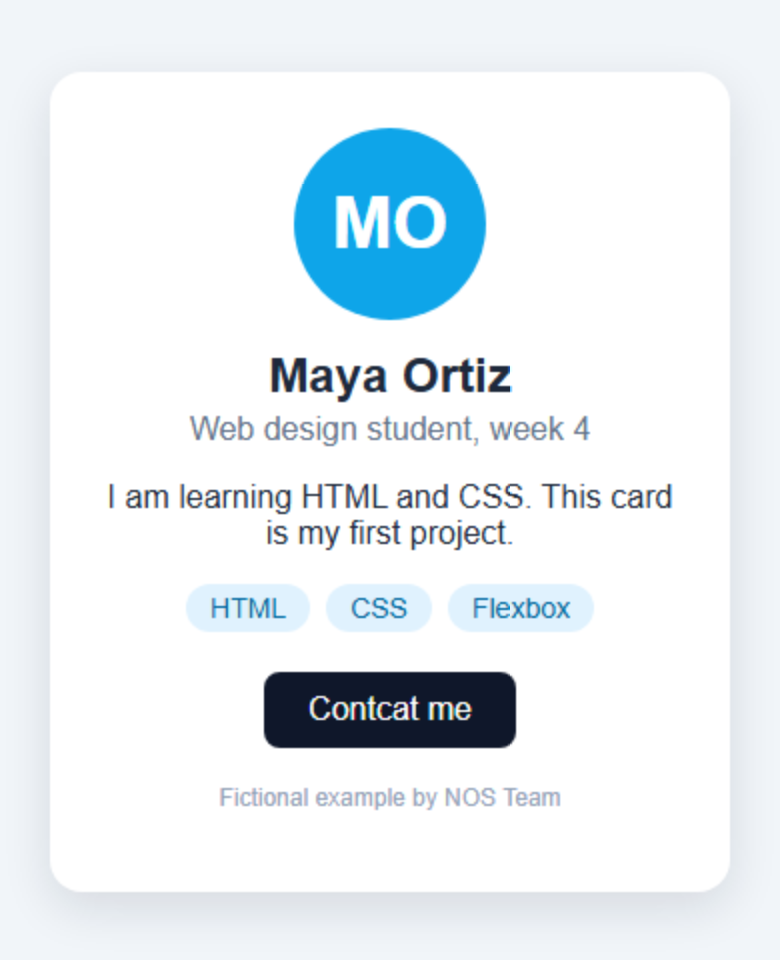
Our card has one <main> box. Inside it sit a round avatar with initials, an <h1> name, a role line, one sentence, a list of skills and a link styled as a button. The CSS does four jobs. Flexbox centers the card on the screen. border-radius: 50% turns the avatar square into a circle. The skill list becomes a row of pill tags with display: flex and gap. A :hover rule changes the button color. You can grab our finished profile card file and change the name and colors.
Two lines beginners often forget. Add <meta name="viewport" content="width=device-width, initial-scale=1.0"> in the head, or phones will draw the page zoomed out. Give the card a max-width instead of a fixed width, so it shrinks on small screens.
Why is my CSS not linking to my HTML?
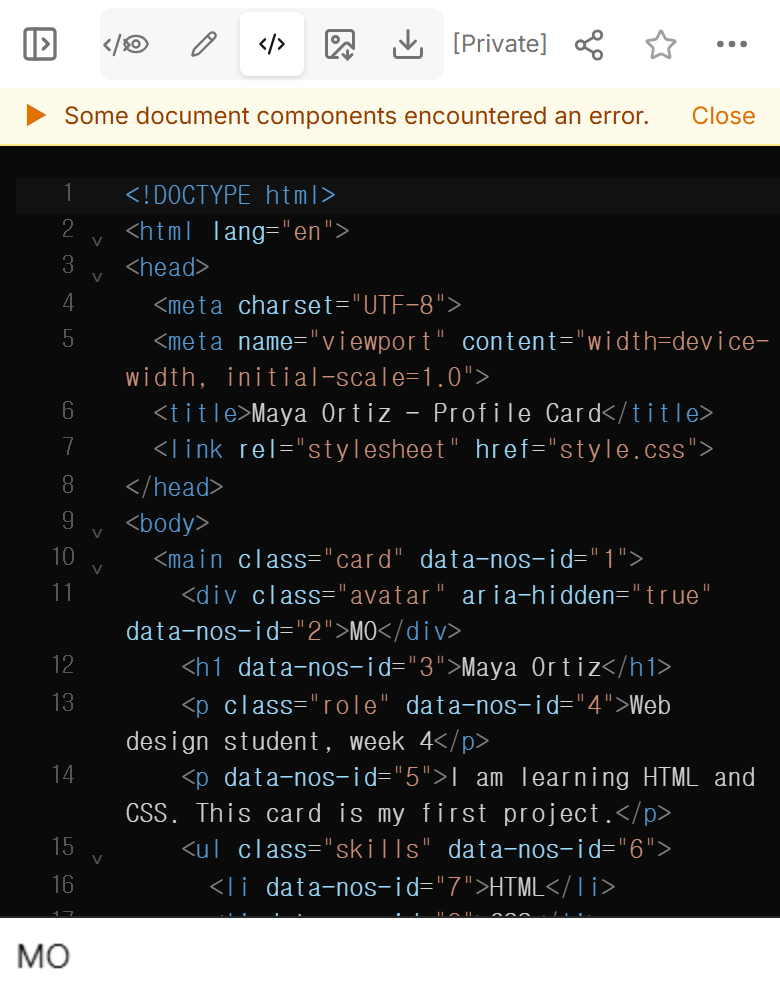
On our computer, the card looked right. The HTML file pointed to its stylesheet with <link rel="stylesheet" href="style.css">, and style.css sat in the same folder. Then we added only the HTML file to a new NOS page. Code view showed our code with a yellow notice, "Some document components encountered an error." The preview under it was plain black text on white.
We opened the share link at phone width to be sure. Same result: a bulleted list, a blue underlined link, no card.
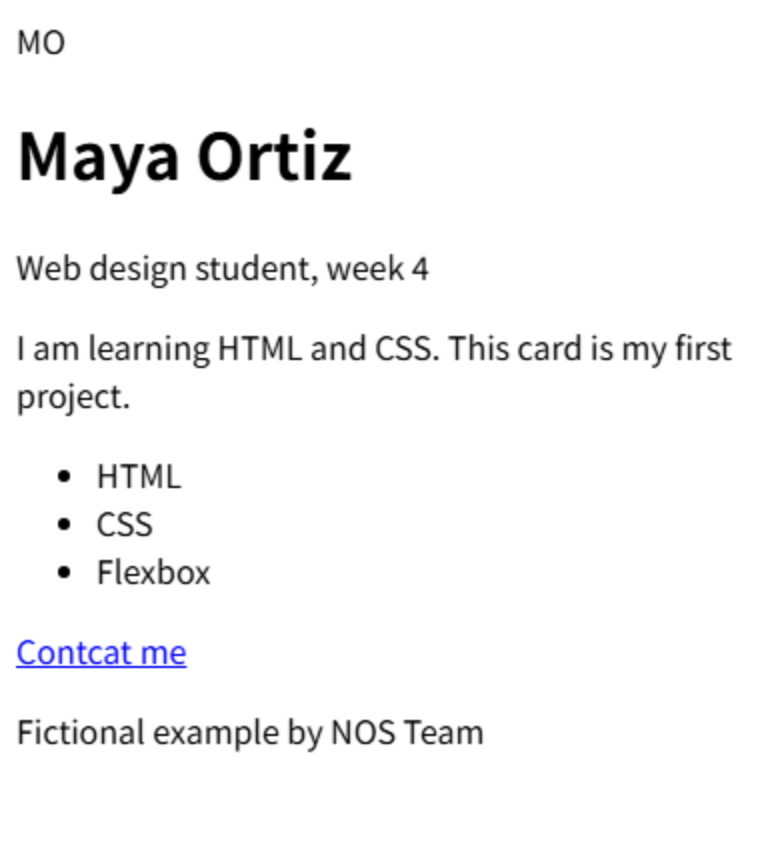
The browser looks for style.css next to the page. When only the HTML file goes online, there is nothing there to find. The same thing happens when you email the HTML file alone. It also happens when the file name doesn't match: Style.css and style.css are two different files on most web servers, and css/style.css is not the same path as style.css.
How to link CSS to HTML so it works online
You have two fixes. Keep the separate file and upload it next to the HTML, at the exact path your href names. Or put the CSS inside the page. For a one-page project, putting it inside is simpler, because one file can't lose its other half.
We took the inside route in NOS Code view. We deleted the <link> line and pasted the contents of style.css in its place, between <style> and </style>. The error notice went away, and the preview under the code turned into the card.
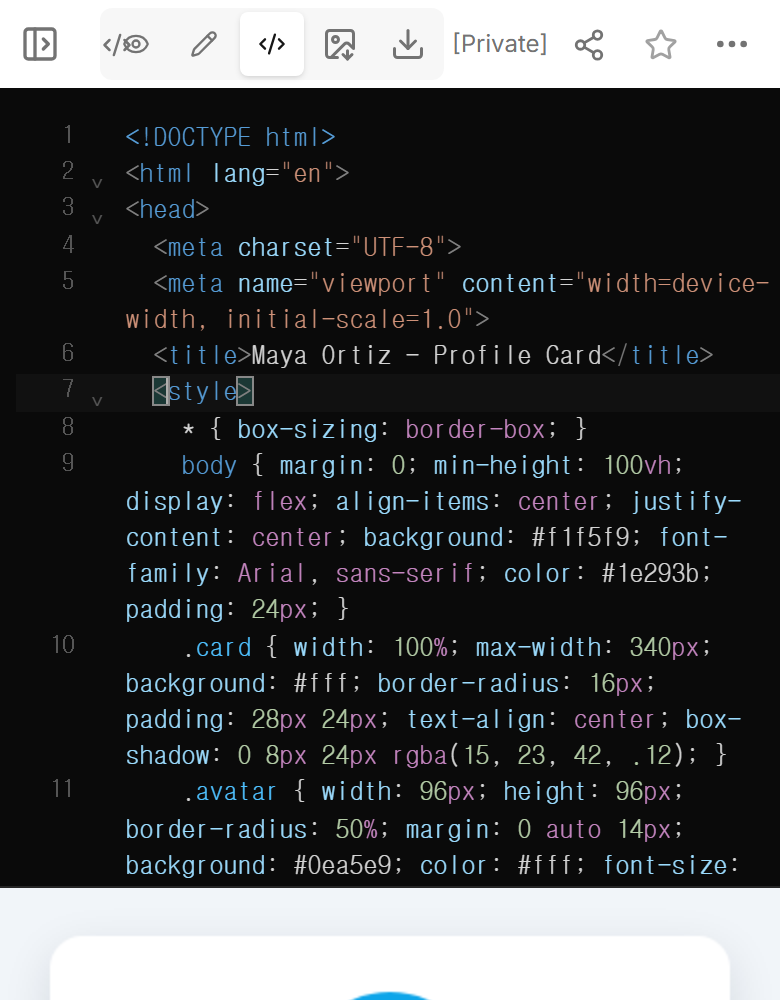
One slip worth knowing about: our first try left a stray < in front of <style>. We caught it by reading the line again, not by looking at the preview. After any paste, read the first and last line of what you pasted.
How do I share an HTML CSS project with a link?
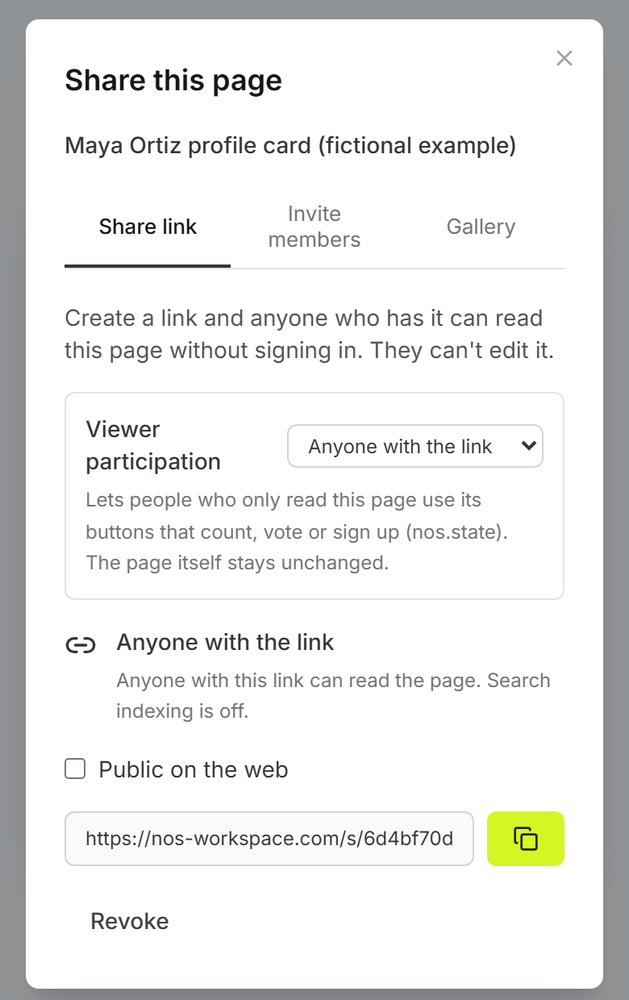
In NOS, the Share button opens a panel with one link for the page. The panel says anyone who has the link can read the page without signing in, and they can't edit it. We left "Public on the web" unchecked, and the panel notes that search indexing is off.
This time the share link showed the finished card at phone width: centered, round avatar, pill tags, dark button.
If your course uses Google Classroom, the steps for turning in a link are in how to submit an HTML file in Google Classroom.
How to fix a typo after you have shared the link
The button said "Contcat me." We fixed it without opening the code. Edit mode lets you click text on the page and type. We clicked the button text, deleted the word, typed "Contact me" and pressed Done. The button in our capture is blue because the pointer was resting on it, which shows the :hover rule working.
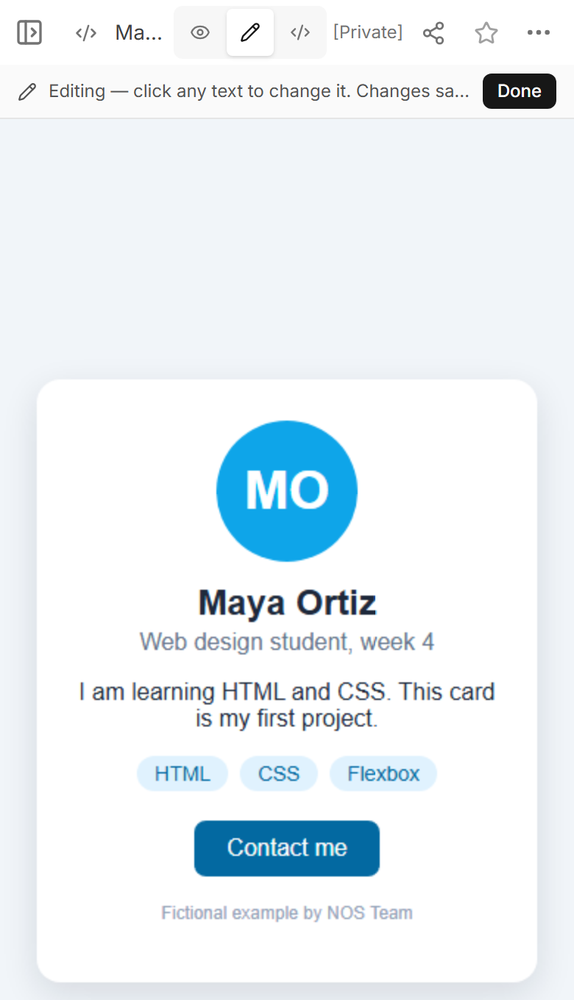
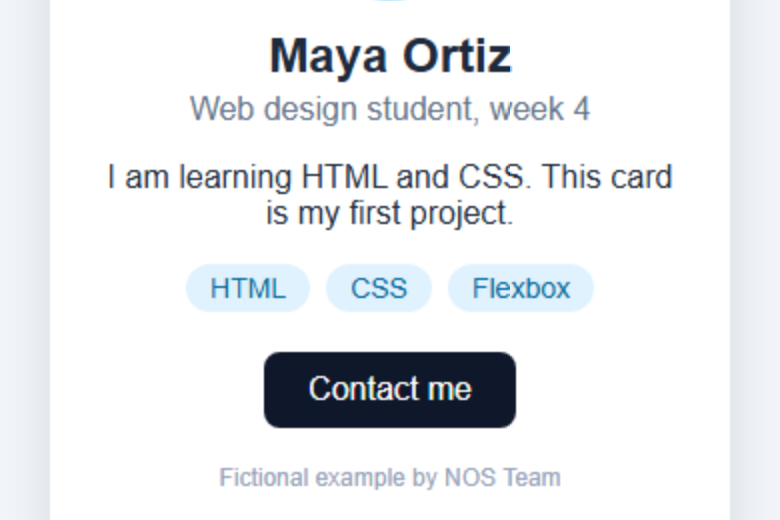
Then we reloaded the share link we had opened before. It showed the corrected button. Nobody needs a new link.
How do you know a beginner project is finished?
Run this check before you hand it in:
- Try it at phone size. Open it about 390 pixels wide and look for text or boxes cut off at the right edge.
- Click every link. Our button pointed to
#contact, a spot that doesn't exist. A real project would use amailto:address or a section with that id. - Describe images. Each
<img>has alt text that says what is in it. Purely decorative parts, like our initials circle, getaria-hidden="true". - Validate the HTML. Paste your HTML into the W3C Markup Validation Service and fix what it lists. Our fixed card came back with no errors and no warnings.
- Proofread. Read every word on the page once. We shipped "Contcat" past two checks.
Is HTML and CSS enough to create a website?
For a page people read, yes. A profile, a portfolio, a menu or a flyer needs nothing else. You need JavaScript when the page has to react: a quiz that scores answers, a menu that opens, a dark mode switch. You need a server when the page has to store what visitors type, like a sign-up form or a comment box.
When not to do this
- Your teacher grades file structure. If the assignment asks for a separate
style.cssor a GitHub repository, keep the files separate and host them together. GitHub Pages is the usual choice, and our guide on hosting HTML on GitHub Pages walks through it. - You are building many pages. Ten pages that share one stylesheet are easier to keep in one folder on a host that serves the whole folder.
- The page must save input. A contact form that emails you, a login or a database needs a back end. A shared static page can't do that.
Where NOS fits
NOS turns one HTML file into a page with a share link. You can change words in Edit mode, change code in Code view, and the link you already sent shows the new version. It is a fast way to put a one-page HTML and CSS project in front of a teacher, a classmate or a mentor. Plans are on the NOS pricing page. If you want a fuller page about yourself next, try the about me page template.