An about me page for a student is one short page in a fixed order: your name, one line on what you study, three sentences about you, a few things you have made, and how to reach you.
On Quora, someone asks "What is the best (free or cheap) site builder to create a simple, one-page website for personal use?" A builder is one answer. Another is to ask an AI for the page, paste it into NOS and send one link.
Here is the kind of page you can get. Replace the made-up facts with your own.
<!doctype html>
<html lang="en">
<head>
<meta charset="utf-8">
<meta name="viewport" content="width=device-width, initial-scale=1">
<title>Jonas Verhoeven - About me</title>
<style>
  * { box-sizing: border-box; }
  body { margin: 0; background: #f6f5f1; color: #222831; font-family: Georgia, "Times New Roman", serif; line-height: 1.6; }
  .page { max-width: 640px; margin: 0 auto; padding: 32px 20px 40px; }
  .top { display: flex; gap: 18px; align-items: center; }
  .avatar { flex: none; width: 84px; height: 84px; }
  h1 { margin: 0; font-size: 32px; line-height: 1.15; }
  .line { margin: 4px 0 0; font: 17px/1.4 system-ui, sans-serif; color: #4a5560; }
  h2 { margin: 30px 0 8px; font: 700 13px/1 system-ui, sans-serif; letter-spacing: .12em; text-transform: uppercase; color: #2a6f5b; }
  p { margin: 0 0 12px; font-size: 18px; }
  .item { padding: 12px 0; border-top: 1px solid #dcd9cf; }
  .item:first-of-type { border-top: 0; }
  .item b { display: block; font: 700 17px/1.3 system-ui, sans-serif; }
  .item span { font-size: 16px; color: #4a5560; }
  .skills { display: flex; flex-wrap: wrap; gap: 8px; padding: 0; margin: 0; list-style: none; }
  .skills li { padding: 5px 12px; border-radius: 999px; background: #e3efe9; color: #1d4d3f; font: 15px system-ui, sans-serif; }
  .contact a { color: #2a6f5b; font-size: 18px; }
</style>
</head>
<body>
<main class="page">

  <!-- EDIT HERE: replace every line below with your own facts -->
  <header class="top">
    <svg class="avatar" viewBox="0 0 84 84" role="img" aria-label="Initials JV">
      <circle cx="42" cy="42" r="42" fill="#2a6f5b"/>
      <text x="42" y="53" text-anchor="middle" font-family="Georgia, serif" font-size="32" fill="#f6f5f1">JV</text>
    </svg>
    <div>
      <h1>Jonas Verhoeven</h1>
      <p class="line">Second-year Environmental Science student at Northfield University</p>
    </div>
  </header>

  <h2>About</h2>
  <p>I study how cities handle rainwater, and I like turning messy numbers into one clear chart. I grew up near a river that flooded every spring, which is why I picked this subject.</p>
  <p>This year I am looking for a summer placement where I can work with real data.</p>

  <h2>What I have done</h2>
  <div class="item"><b>Rain gauge project</b><span>Built a simple gauge with three classmates and charted a month of readings.</span></div>
  <div class="item"><b>Campus green roof survey</b><span>Measured plant cover on four roofs and wrote the one-page summary.</span></div>
  <div class="item"><b>Student science blog</b><span>Wrote six short posts that explain lab results to first-years.</span></div>

  <h2>Skills</h2>
  <ul class="skills">
    <li>Spreadsheets</li><li>Field notes</li><li>Charts</li><li>Plain-English writing</li>
  </ul>

  <h2>Contact</h2>
  <p class="contact"><a href="mailto:jonas@example.com">jonas@example.com</a></p>

</main>
</body>
</html>
Make it with AI
Open ChatGPT, Claude or Gemini and paste a prompt like this. Replace the words in capitals with your own facts. The layout is the same five blocks as the example.
Make one complete HTML file: a plain "About me" page
for NAME, a STUDENT or GRADUATE of SUBJECT at SCHOOL.
Layout, top to bottom, in one column:
1. My name as the main heading, and one line under
   it saying what I study and where.
2. "About": three sentences in the first person.
3. "What I have done": three items, a title and one
   sentence each.
4. "Skills": a short list.
5. "Contact": my email as a mailto link.
Rules: readable on a phone, one font, two colours,
large text. Keep all CSS inside the file. No images
from other sites, no forms. Draw my initials in a
circle with SVG. Use only the facts below. Do not
invent dates, grades or employers. If a fact is
missing, write TODO.
Facts: PASTE YOUR FACTS HERE
The last rules matter most. Without them an AI can make up a prize or a job title to fill a gap.
The layout, block by block
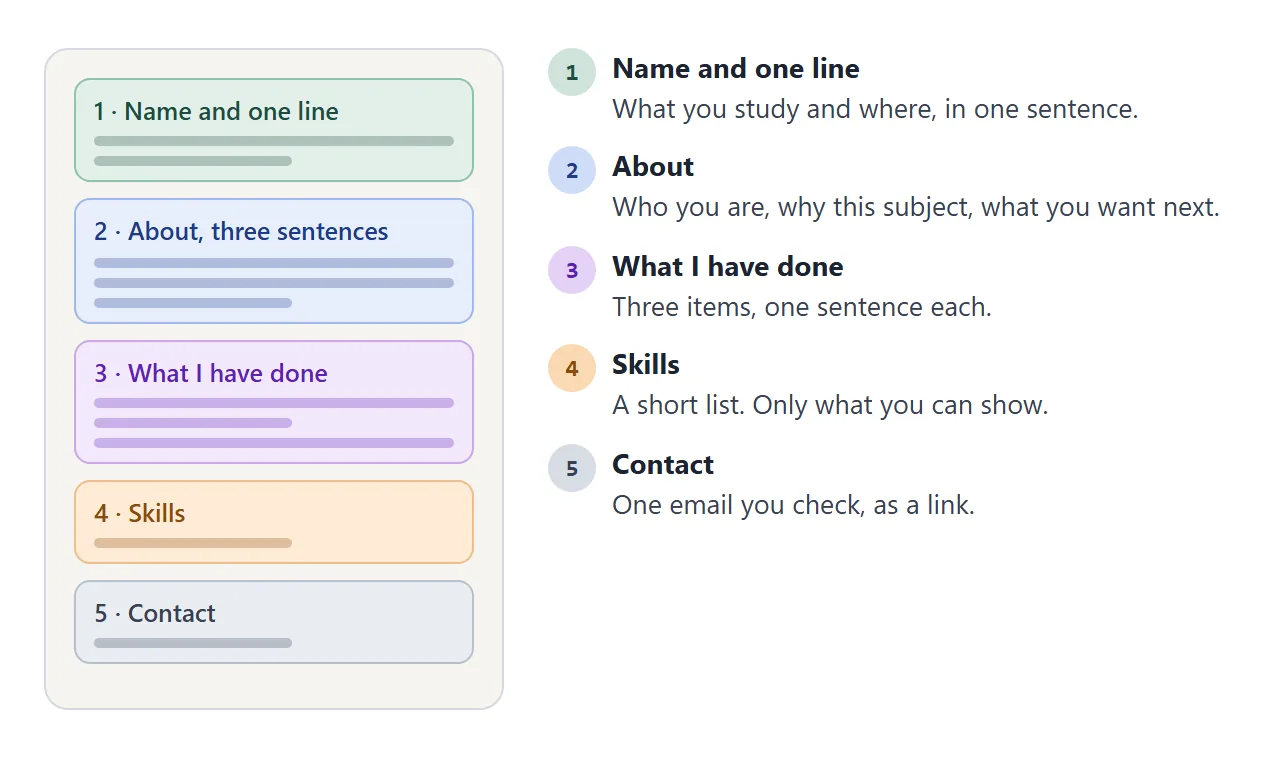
| Block | What goes in it | Length |
|---|---|---|
| Name and one line | What you study and where | One sentence |
| About | Who you are, why this subject, what you want next | Three sentences |
| What I have done | Projects, jobs, clubs | Three items |
| Skills | Only what you can show | A short list |
| Contact | One email you check, as a link | One line |
Before you use the result, check four things:
- Facts: read every line. Search the page for TODO and fill each gap.
- Email: click the link and see that it opens a new message to the right address.
- Phone width: shrink the browser window and look for text running off the side.
- Private details: remove anything you would not put on a notice board.
If something is off, reply in the same chat with one change at a time. For more on what reviewers look for in a longer page, see Student portfolio.
Send it as a link
- Copy the whole HTML block from the chat, from the first line to the last.
- Paste it into a NOS document. The page appears as written.
- Choose Create share link and copy the link. HTML to link walks through it.
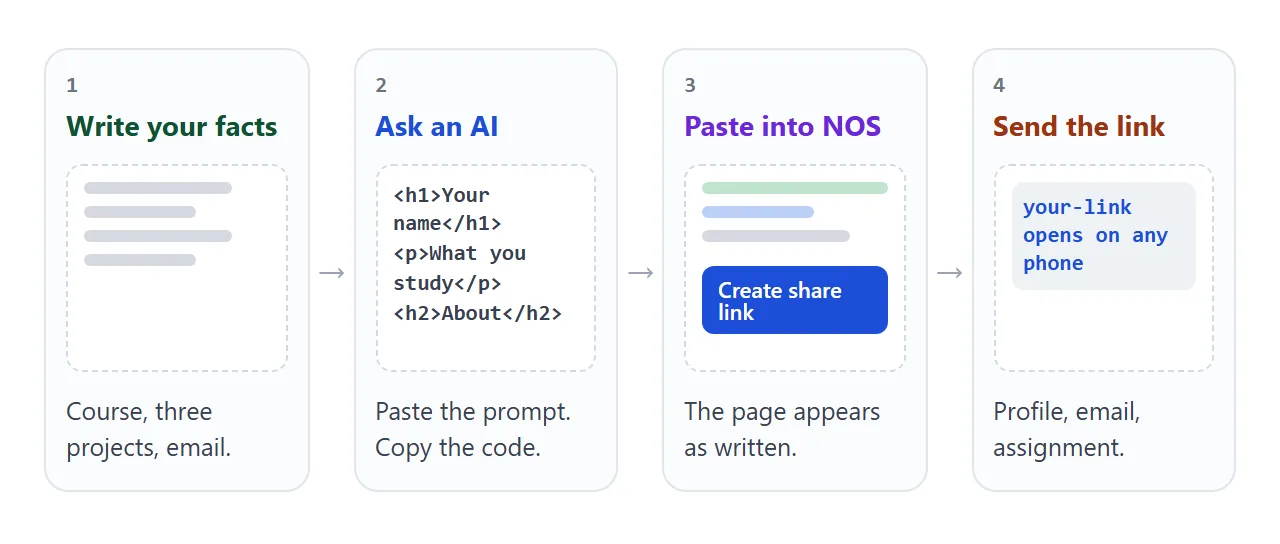
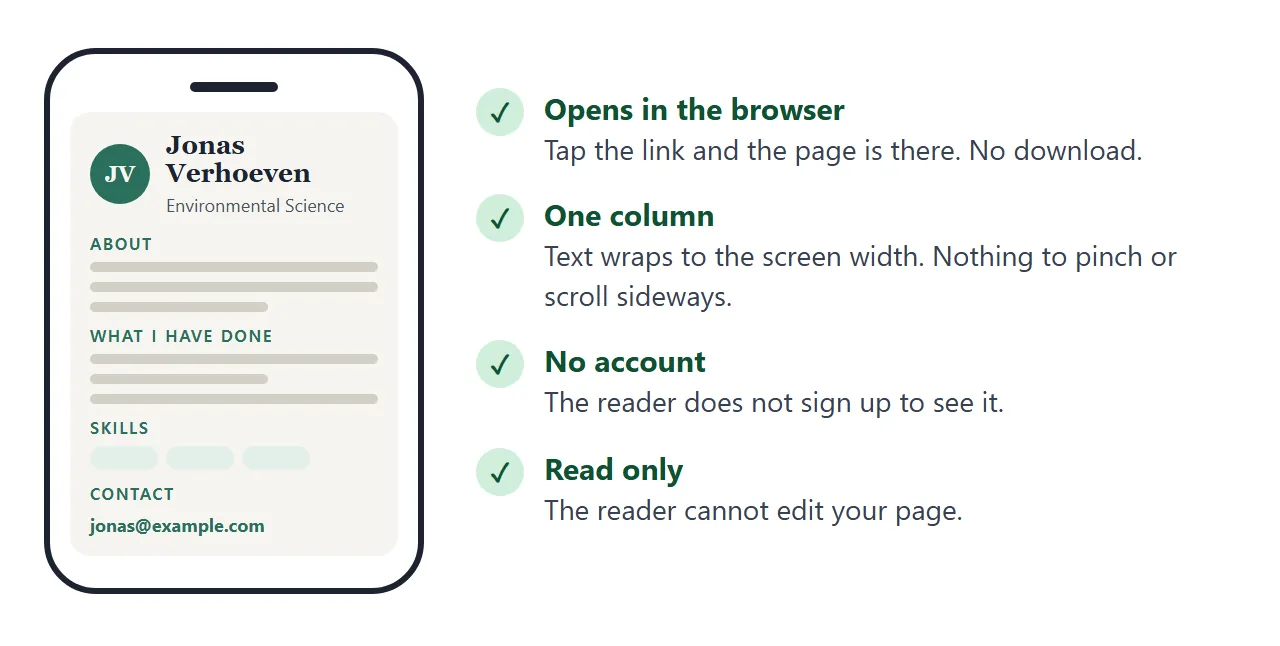
Whoever opens the link sees your page in a browser, on a phone too. They need no account and cannot edit it. If you change the code later, the same link shows the new version.
Where to put the link
A link is plain text, so it goes wherever you already send things. Two routes below depend on your school or your account, so check them on your own screen.
- Google Classroom: on the assignment, under Your work, click Add or create, choose Link, enter the URL and click Add. That is how Google describes it as of October 2026.
- LinkedIn: the About section is a text box. For a web address, open Contact info in your introduction, click edit and choose Add website. LinkedIn says up to three website links show, as of October 2026.
- Paper: put the link in a QR code on a printed CV or poster. QR code link covers making one.
For an email or a message, paste the link where you would attach a file. Link a portfolio in a resume shows where it fits on a CV.
Ways to share it, compared
| Way | What the reader needs | If you fix a typo |
|---|---|---|
| HTML file attached to an email | Download it, then open it in a browser | Send a new file |
| Screenshot of the page | An image viewer | Take a new screenshot; links cannot be tapped |
| NOS share link in an email or message | Tap the link | Edit once, same link |
| Link in a Classroom assignment | Access to the assignment | Edit once, same link |
| Website field on a LinkedIn profile | A LinkedIn profile view | Edit once, same link |
Every link row has one page that everyone looks at. Why links beat attachments goes into the reasons.
A version for a new graduate
A graduate has a different job to do. The page should say what you want next and show a short work history.
The version below adds a "Looking for" box and a Short and Full switch for the bio, because a profile box and a cover note rarely want the same length.
<!doctype html>
<html lang="en">
<head>
<meta charset="utf-8">
<meta name="viewport" content="width=device-width, initial-scale=1">
<title>Lena Fairweather - About me</title>
<style>
  * { box-sizing: border-box; }
  body { margin: 0; background: #fff; color: #1f2430; font-family: system-ui, -apple-system, "Segoe UI", sans-serif; line-height: 1.6; }
  .page { max-width: 680px; margin: 0 auto; padding: 32px 20px 40px; }
  .badge { display: inline-block; padding: 4px 12px; border-radius: 999px; background: #fdebd6; color: #8a4a0b; font-size: 14px; font-weight: 600; }
  h1 { margin: 12px 0 4px; font-size: 34px; line-height: 1.15; }
  .line { margin: 0; font-size: 18px; color: #4b5563; }
  h2 { margin: 30px 0 10px; font-size: 13px; letter-spacing: .12em; text-transform: uppercase; color: #b45309; }
  p { margin: 0 0 12px; font-size: 17px; }
  .switch { display: inline-flex; border: 1px solid #d1d5db; border-radius: 10px; overflow: hidden; margin-bottom: 12px; }
  .switch button { font: 600 14px system-ui, sans-serif; padding: 8px 14px; border: 0; background: #fff; color: #374151; cursor: pointer; }
  .switch button[aria-pressed="true"] { background: #1f2430; color: #fff; }
  .row { display: grid; grid-template-columns: 110px minmax(0, 1fr); gap: 4px 16px; padding: 12px 0; border-top: 1px solid #e5e7eb; }
  .row:first-of-type { border-top: 0; }
  .when { font-size: 14px; color: #6b7280; }
  .row b { display: block; }
  .row span { color: #4b5563; font-size: 16px; }
  .want { padding: 14px 16px; border-radius: 12px; background: #f3f6fb; border: 1px solid #dbe4f3; font-size: 17px; }
  .contact a { color: #1d4ed8; font-size: 17px; }
  @media (max-width: 480px) { .row { grid-template-columns: 1fr; } }
</style>
</head>
<body>
<main class="page">

  <!-- EDIT HERE: swap in your own facts; keep both versions of the bio -->
  <span class="badge">Graduated 2026</span>
  <h1>Lena Fairweather</h1>
  <p class="line">BA Graphic Communication, Eastbrook College</p>

  <h2>About</h2>
  <div class="switch" role="group" aria-label="Bio length">
    <button type="button" id="b-short" aria-pressed="true">Short</button>
    <button type="button" id="b-long" aria-pressed="false">Full</button>
  </div>
  <p id="bio-short">Graphic communication graduate who lays out clear, calm printed material. Looking for a junior production role.</p>
  <div id="bio-long" hidden>
    <p>I trained as a graphic designer and found that what I enjoy most is making a messy document easy to read. My degree project was a set of train timetables redrawn for people who read them in a hurry.</p>
    <p>I work carefully, I check the proofs twice, and I like being the person who catches the typo before it prints.</p>
  </div>

  <h2>Looking for</h2>
  <div class="want">A junior production or layout role in a small studio or publisher, starting in autumn 2026.</div>

  <h2>Education and work</h2>
  <div class="row"><div class="when">2023 - 2026</div><div><b>BA Graphic Communication</b><span>Eastbrook College. Degree project: redrawn train timetables.</span></div></div>
  <div class="row"><div class="when">Summer 2025</div><div><b>Production assistant, Larkin Print</b><span>Checked proofs and prepared files for the press.</span></div></div>
  <div class="row"><div class="when">2024 - 2025</div><div><b>Poster editor, student film society</b><span>Designed six screening posters on a fixed budget.</span></div></div>

  <h2>Contact</h2>
  <p class="contact"><a href="mailto:lena@example.com">lena@example.com</a></p>

</main>

<script>
  // Show either the short or the full bio
  var short = document.getElementById('b-short');
  var long = document.getElementById('b-long');
  var shortBio = document.getElementById('bio-short');
  var longBio = document.getElementById('bio-long');

  function show(isLong) {
    shortBio.hidden = isLong;
    longBio.hidden = !isLong;
    short.setAttribute('aria-pressed', String(!isLong));
    long.setAttribute('aria-pressed', String(isLong));
  }
  short.addEventListener('click', function () { show(false); });
  long.addEventListener('click', function () { show(true); });
</script>
</body>
</html>
To get it, add two lines to the prompt: "add a Looking for box under About" and "give me a short bio and a full bio with a Short and Full switch".
For the search side of an about page, the markup and the head tags, read HTML about page.
When it does not work
| What you see | Cause | Fix |
|---|---|---|
| The chat shows code, not a page | You are reading the code block | Copy it into NOS and it renders |
| The page is cut off at the end | The copy missed the last lines | Copy again to the closing html line |
| A prize or job you never had | The AI guessed to fill a gap | Delete it, or put TODO in your next prompt |
| A photo does not show | Images from other sites are blocked | Ask for initials or shapes drawn inside the page |
| A contact form does not send | Sending a form to a server is blocked | Show an email link instead |
| The text is tiny on a phone | The page was made for a wide screen | Ask the chat for large text in one column |
| The old version still shows | You edited the chat, not the NOS document | Make the change in the NOS document |