To host HTML on GitHub Pages, commit the file to a repository, turn Pages on for that branch in the repository settings, and the page is served at a github.io address.

The switch itself takes under a minute. The host HTML GitHub Pages route needs three things: a repository, a published branch, and a file named index.html at its root.
What decides whether this suits you is the machinery around it. A commit for every correction, and a build that runs before readers see the change.
What the host HTML GitHub Pages setup involves
| Step | Where it happens | Takes |
|---|---|---|
| Create the repository | GitHub | Once |
| Commit index.html | Your machine or the web editor | Once |
| Enable Pages for a branch | Repository settings, Pages section | Once |
| Wait for the build | Automatic after each push | Every change |
| Publish a correction | A commit and a push | Every change |
Rows one to three are setup and you pay them once. Rows four and five repeat for the life of the page, and that is the part worth thinking about before you start.
The address you get
The shape of the address depends on the repository name, and this catches people out on the first link they send.
- A repository called
reportsunder the accountacmepublishes atacme.github.io/reports/. - A repository named exactly
acme.github.iopublishes atacme.github.io/with no repository segment. - A file called
q3.htmlrather thanindex.htmlis reachable, but the reader has to have the filename in the link.
Renaming the repository changes the address. Decide the name before you circulate the link rather than after.
Why files disappear after publishing
GitHub Pages runs Jekyll over the repository before serving it. For a plain HTML page this processing does nothing useful, and it has one behaviour that removes files.
Underscored names are skipped. A folder called _assets or a file called _chart.js is treated as a Jekyll internal and is not published. The page then loads with no styling and a clean-looking 404 in the console.
The fix is a single empty file named .nojekyll at the root of the published folder. That turns the processing off and publishes the directory as it stands.
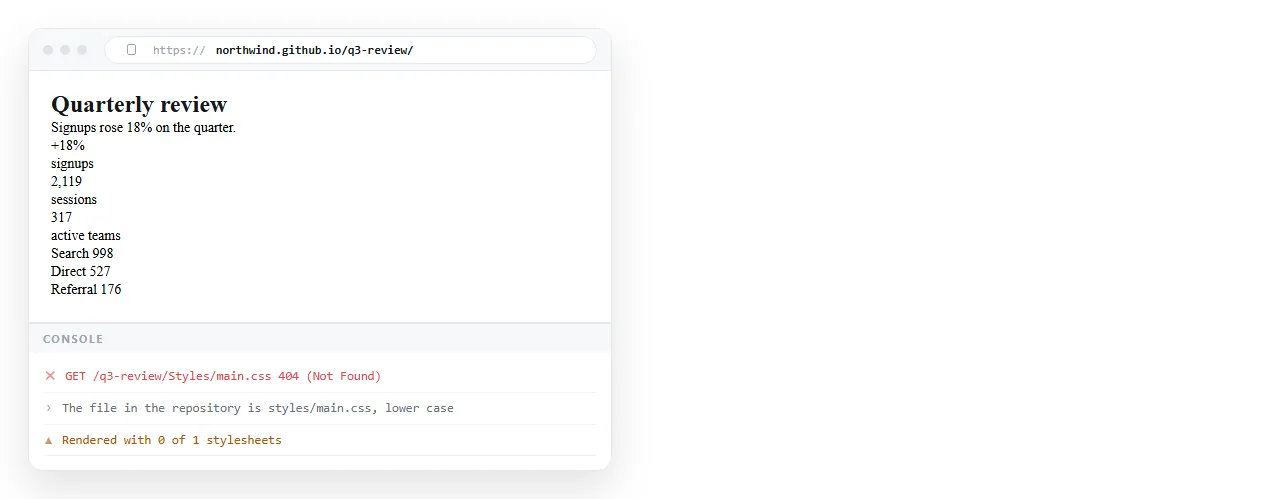
The second common cause is case. The server matches filenames exactly, so Chart.css referenced as chart.css works on a Windows desktop and fails once published.
Check the page travels first
Diagnosing a broken asset through a live URL is slower than catching it locally, so run this before the first commit.
- Open the file in the HTML file opener, which has never seen your project folder.
- Confirm that fonts, images and charts all appear.
- If they do not, the page depends on neighbours. Self-contained HTML covers folding them in.
- If images alone are missing, it is usually a path that does not survive the move.
A page that renders correctly in a window with no knowledge of your project will render correctly for readers.
Visibility is not inherited from the repository
This deserves its own line because the assumption runs the other way. A Pages site is publicly readable. A private repository does not make the published page private.
If the HTML contains client figures, internal names or anything you would not put on the open web, publishing it to Pages puts it on the open web at a guessable address.
Publishing from a private repository also requires a paid GitHub plan, which is a separate matter from who can read the result.
When a repository is more than the page needs
GitHub Pages is built for projects: source in version control, several contributors, a review trail. If that is what you have, it is a good fit and the setup is proportionate.
If what you have is one page that someone will read once and comment on, the machinery is larger than the task.

| Task | GitHub Pages | Document that renders HTML |
|---|---|---|
| Publish the first version | Repo, commit, enable Pages | Paste the HTML |
| Fix one number | Commit, push, wait for build | Click it and type |
| Who can read it | Anyone with the address | Whoever holds an unlisted link |
| Who can correct it | People with repository access | Anyone you share the document with |
| History of changes | Full commit history | Document history |
Commit history is a real advantage and is the strongest reason to choose this route for anything that matters over time.
The paste route, for one-off pages
Paste the HTML into a NOS document and it renders as written, dark theme, charts and scripts included, as a page of its own. Then Share, Share link, Create link.
The link is unlisted by default, meaning it opens for whoever holds it and is listed nowhere. Public on the web is a deliberate tick, not a default.

Editing the page does not move the address, so there is no build to wait for and no second link to send.
Turning HTML into a link is that route on its own page, and static host versus document compares the two models in detail.
Choosing between them.
- GitHub Pages when the page is part of a project already in Git, or when documentation ships alongside code.
- GitHub Pages when a public address and a commit history are both requirements.
- A document when it is one page, the readers are named people, and the content still has corrections ahead of it.
- A document when the HTML came from an AI chat and you want the words editable without regenerating the file.
The free NOS plan covers three documents, which is enough to test the difference on a page you already have.