Choose the kind of quiz before the tool
“Interactive quiz” covers very different jobs. If everyone is in one room and you want to run questions from the front, a live hosted game fits: players answer at the same moment and see results together. If you need formats like putting items in order, fill-in-the-blank, or short typed answers, or you want responses tracked for you, a dedicated quiz builder is the natural pick. If the assignment calls for a printed sheet or an uploaded file, make that file.
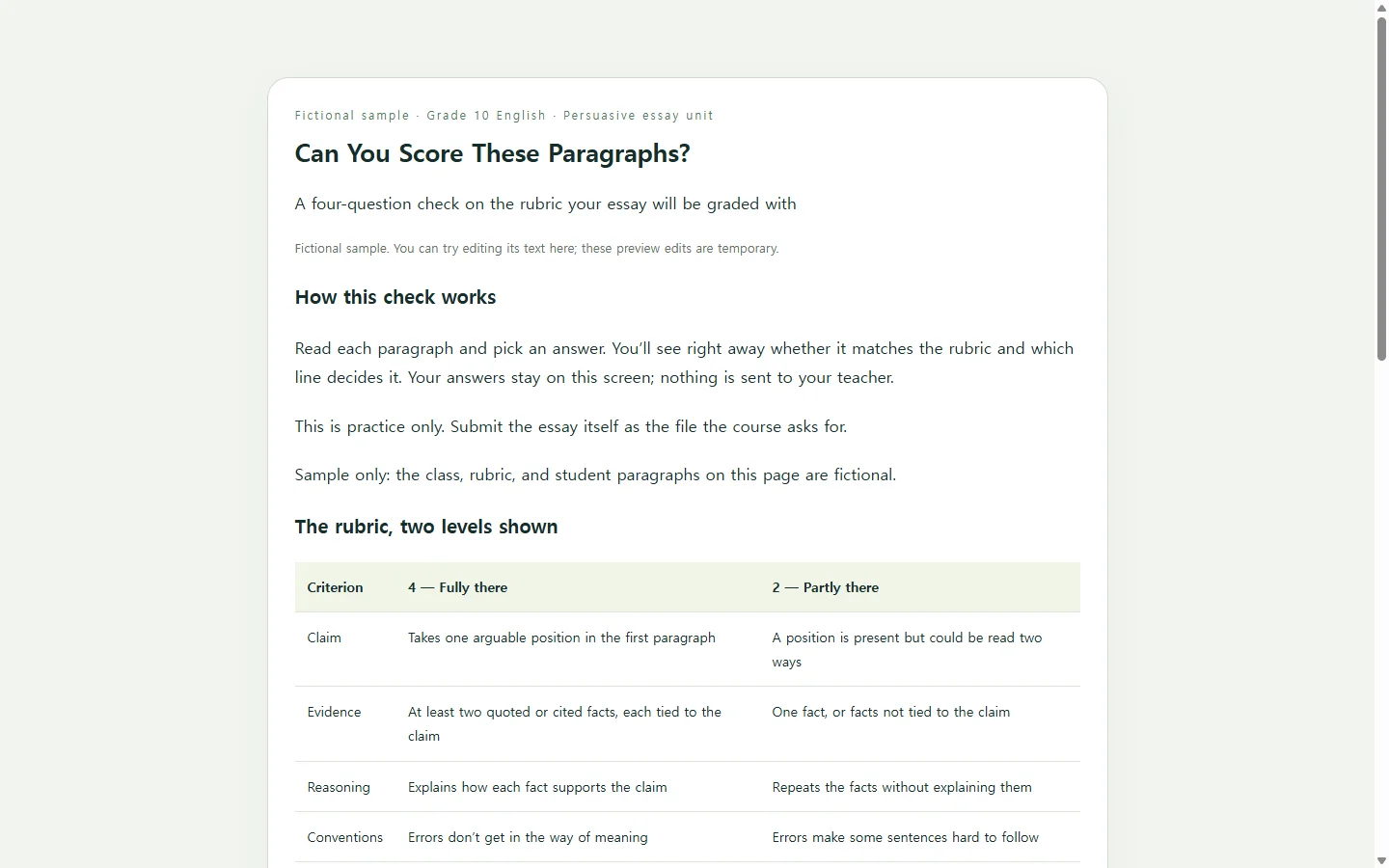
This article covers a fourth case: a self-paced page people open on their own time, where the feedback does the teaching. It doesn’t collect answers or grades. That simplicity is the point, and also the limit.
The example: a rubric self-check before an essay is due
One useful version is a quiz on your own grading rubric. Teaching guidance on rubrics recommends training students to use the rubric, which also helps you judge whether it is clear to them. A short quiz does both. Students read sample paragraphs, decide which rubric line fits, and get an explanation tied to the rubric’s exact wording. The questions they miss point to the lines that need clearer wording.
The sample below is for a fictional 10th-grade persuasive essay unit; the class, rubric, and student paragraphs are invented for illustration. Two choices in it are worth copying. Every explanation names the rubric phrase that decides the answer, so students learn where to look instead of memorizing a verdict. And the last question is built around a mix-up worth testing: a paragraph with three spelling errors still scores a 4, because this rubric asks whether errors get in the way of meaning, not how many there are.
Write the explanations before you build anything
For each question, write two sentences: why the right answer is right, and why the most tempting wrong answer is wrong. Use words the student can check against something on the page. Rubric guidance warns against vague criteria such as “interesting” or “creative,” and the same habit improves feedback. “This needs stronger evidence” teaches less than “There’s no quoted or cited fact here, only the writer’s opinion.”
If you want the page to check answers exactly, keep to multiple choice with one correct answer. Typed answers are harder to mark automatically, and a page that marks a reasonable answer wrong teaches the wrong lesson. Four to six questions are usually enough for a check like this; size it to the time you’d ask students to spend.
Let AI build the page from your material
The page itself is an HTML file: one document a web browser opens, with the text, the layout, and the small script that reacts to taps all inside it. You don’t need to write it yourself. An AI chat model can draft it, as long as you supply the facts and spell out how the quiz should behave.
The prompt below does that. Replace each bracketed item with your own material, and paste in your real rubric or source text rather than letting the model fill gaps. It asks for real buttons, feedback that doesn’t rely on color alone, and a layout that holds up on a narrow phone screen.
When the file comes back, take the quiz yourself on a phone. Choose a wrong answer on each question and read the explanation the way a student would. Then try it on a laptop using only the Tab and Enter keys. If an explanation doesn’t match your rubric, correct your source text and ask again.
Share it, then fix the wording without changing the link
Once the page works, students need a way to open it. In NOS, you keep the HTML page in your workspace and publish a sharing link, and students can open it without creating an account. Post that link with your class announcement. If the essay itself has to be uploaded as a PDF or Word file, nothing about that changes. The quiz is practice; the submission still goes wherever the course says.
The useful part comes after the first class tries it. Say several students tell you the second question confused them, and rereading it you notice your explanation never shows what “could be read two ways” looks like. In NOS you can edit that explanation’s text directly on the page, without asking the AI to regenerate the whole file. The sharing link stays the same after the edit, so the announcement students already have now opens the clearer wording.
Direct editing covers the words on the page. Changing which answer counts as correct, adding a question, or changing the scoring means changing the script, so ask the AI for a revised file for those. And if a quiz explanation needed rewording, the matching line in the rubric itself probably does too.
A prompt to adapt
Build a self-paced interactive quiz as a single HTML file.

Purpose: a practice check for [WHO TAKES IT, e.g., 10th-grade students] on [TOPIC, e.g., the rubric for our persuasive essay], taken on their own phones before [DEADLINE OR EVENT].

Source material. Use only this; do not add facts, names, numbers, or rubric lines:
[PASTE YOUR RUBRIC, NOTES, OR SOURCE TEXT]

Questions. Keep my wording and fix only typos:
[FOR EACH QUESTION: the question text, 2-4 answer options, which option is correct, 1-2 sentences on why it is right, and 1 sentence on why the most tempting wrong option is wrong]
If any question is missing a correct answer or an explanation, stop and list what is missing instead of writing it yourself.

Behavior:
- Exactly one correct answer per question.
- When an option is chosen, lock that question, label the choice "Correct" or "Not quite" in visible text, highlight the right option, and show the explanation.
- Show progress (e.g., 2 of 4) and a final score, with a "Try again" button that resets every question.
- Answers stay on the page. No forms, no submissions, no saving to storage, no external libraries, fonts, images, or network requests of any kind.

Accessibility and mobile:
- Use real <button> elements for options. Everything must work with a keyboard alone, with a clearly visible focus outline.
- Announce feedback to screen readers through an aria-live region, and move focus sensibly after answering.
- Never rely on color alone; pair every color change with text or an icon.
- Body text at least 16px, strong contrast, single-column layout, tap targets at least 44px tall, and no horizontal scrolling at 320px wide.

At the top, show the title "[QUIZ TITLE]" and the line "[ONE-LINE INSTRUCTION FOR TAKERS]". At the bottom, show "[OPTIONAL NOTE, e.g., This is practice only. Submit your essay as the file the course requires.]"

Output: one complete HTML file with all CSS and JavaScript inline, and nothing else.