An interactive timeline in HTML is one file with a list of events and a few lines of script, so each event opens when someone taps it.
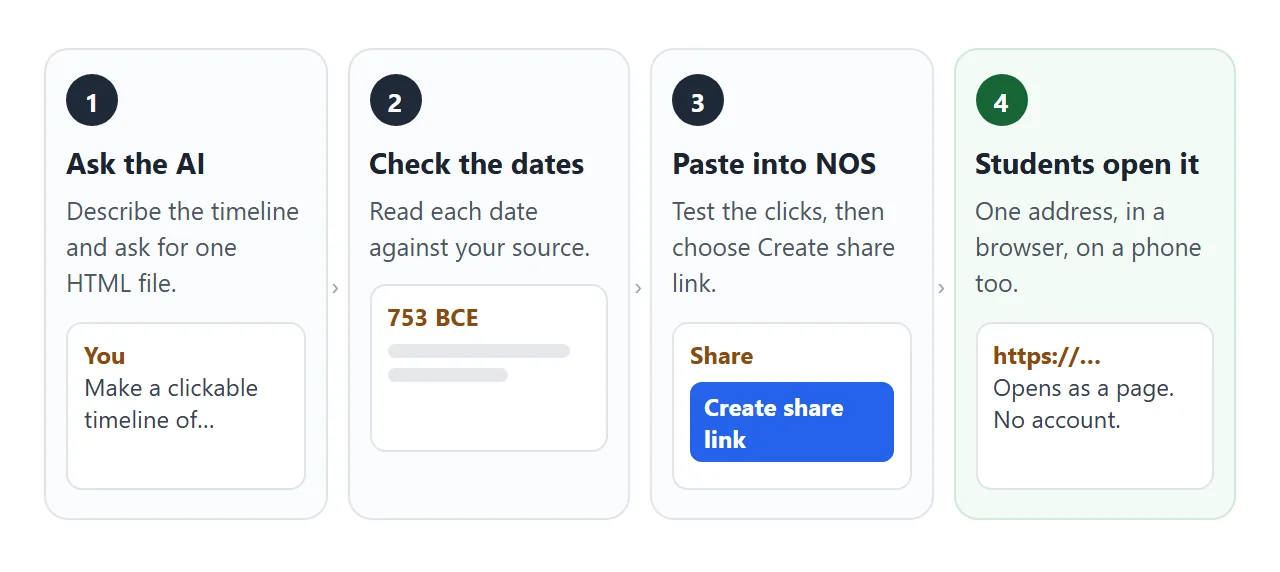
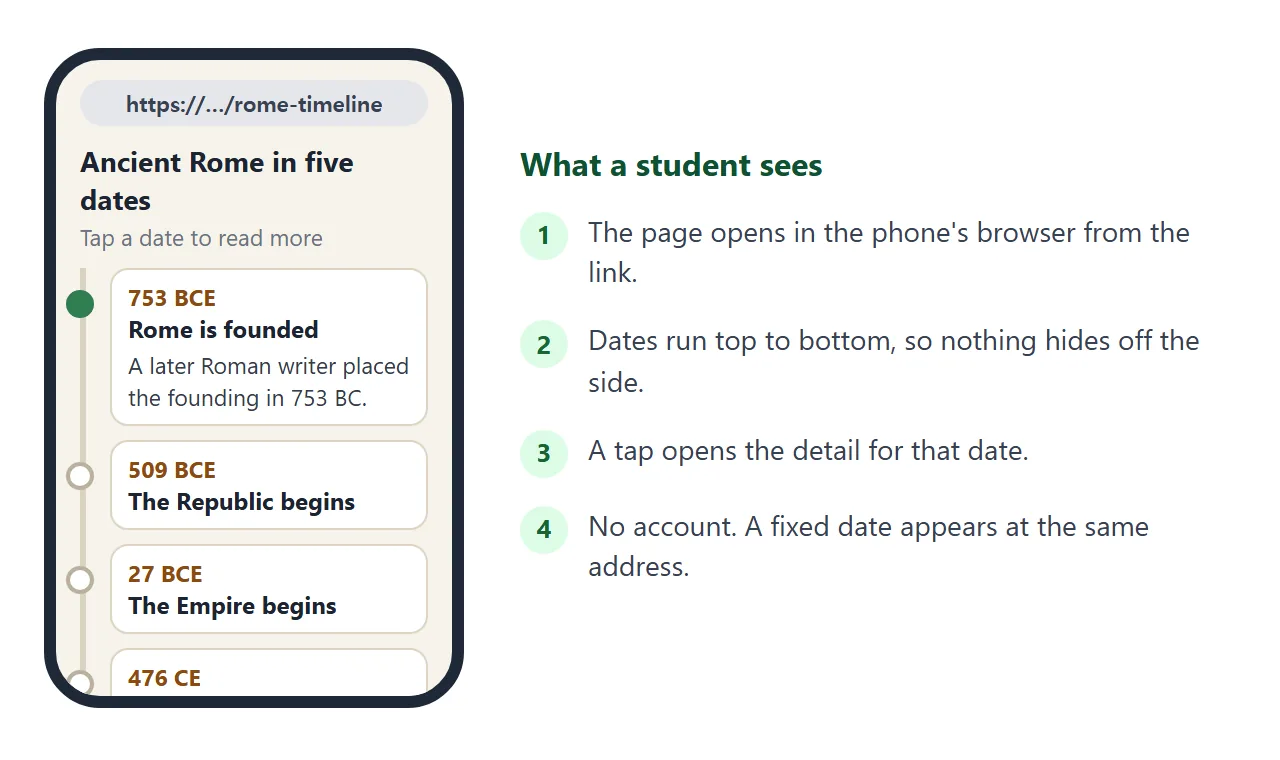
Ask an AI to write it, check the dates, then publish it as a link. Students open the link in a browser, on a phone too.
Try this one. Tap a date to open the event.
<!doctype html>
<html lang="en">
<head>
<meta charset="utf-8">
<meta name="viewport" content="width=device-width, initial-scale=1">
<title>Ancient Rome in five dates</title>
<style>
  * { box-sizing: border-box; }
  body { margin: 0; padding: 16px; font-family: system-ui, sans-serif; background: #f6f3ec; color: #1f2430; }
  main { max-width: 560px; margin: 0 auto; }
  h1 { font-size: 22px; margin: 0 0 4px; }
  .sub { margin: 0 0 12px; font-size: 14px; color: #5a6070; }
  .prog { display: flex; align-items: center; gap: 10px; margin: 0 0 16px; font-size: 13px; color: #5a6070; }
  .bar { flex: 1; height: 8px; border-radius: 4px; background: #e3ddcf; overflow: hidden; }
  .bar i { display: block; height: 100%; width: 0; background: #2f7d4f; transition: width .25s; }
  ol { list-style: none; margin: 0; padding: 0 0 0 22px; border-left: 3px solid #d9d2c1; }
  li { position: relative; margin: 0 0 12px; }
  li::before {
    content: ""; position: absolute; left: -33px; top: 16px; width: 15px; height: 15px;
    border-radius: 50%; background: #fff; border: 3px solid #b9b19c;
  }
  li.read::before { background: #2f7d4f; border-color: #2f7d4f; }
  .ev {
    display: block; width: 100%; text-align: left; font: inherit; padding: 12px 14px;
    border: 1px solid #ddd5c3; border-radius: 12px; background: #fff; cursor: pointer;
    min-height: 48px;
  }
  .ev:focus-visible { outline: 3px solid #2563eb; outline-offset: 2px; }
  .when { display: block; font-size: 13px; font-weight: 700; color: #8a4b12; letter-spacing: .3px; }
  .what { display: block; font-size: 17px; font-weight: 700; margin-top: 2px; }
  .more { margin: 8px 0 0; font-size: 15px; line-height: 1.5; color: #353b4a; }
  .more[hidden] { display: none; }
</style>
</head>
<body>
<main>
  <h1>Ancient Rome in five dates</h1>
  <p class="sub">Tap a date to read what happened.</p>
  <div class="prog"><span id="count">0 of 5 read</span><div class="bar"><i id="fill"></i></div></div>
  <ol id="tl"></ol>
</main>

<script>
  // Edit this list to build your own timeline: when, what, more
  const events = [
    { when: '753 BCE', what: 'Rome is founded (traditional date)', more: 'A later Roman writer placed the founding of the city in 753 BC. Archaeology shows people living around Rome from about 1000 BC.' },
    { when: '509 BCE', what: 'The Republic begins', more: 'The last of the seven kings was deposed. Yearly elected magistrates and assemblies took over.' },
    { when: '27 BCE', what: 'The Empire begins', more: 'Octavian took the name Augustus. Historians usually take this as the start of the Roman Empire.' },
    { when: '476 CE', what: 'The Western Empire ends', more: 'The last western emperor was deposed. This is the most commonly cited end date; some historians use 480 CE.' },
    { when: '1453 CE', what: 'The Eastern Empire ends', more: 'Constantinople fell to Ottoman forces, more than nine centuries after the west ended.' }
  ];

  const list = document.getElementById('tl');
  const count = document.getElementById('count');
  const fill = document.getElementById('fill');
  let read = 0;

  events.forEach((e) => {
    const li = document.createElement('li');
    const btn = document.createElement('button');
    btn.className = 'ev';
    btn.setAttribute('aria-expanded', 'false');
    btn.innerHTML = '<span class="when"></span><span class="what"></span>';
    btn.querySelector('.when').textContent = e.when;
    btn.querySelector('.what').textContent = e.what;
    const more = document.createElement('p');
    more.className = 'more';
    more.hidden = true;
    more.textContent = e.more;

    btn.addEventListener('click', () => {
      const open = more.hidden;          // is it about to open?
      more.hidden = !open;
      btn.setAttribute('aria-expanded', String(open));
      if (open && !li.classList.contains('read')) {
        li.classList.add('read');
        read += 1;
        count.textContent = read + ' of ' + events.length + ' read';
        fill.style.width = (read / events.length * 100) + '%';
      }
    });

    li.append(btn, more);
    list.append(li);
  });
</script>
</body>
</html>
The events sit in a vertical list, so there is no sideways scrolling on a phone. Each event is a full-width button. A timeline built for a team roadmap uses the same vertical idea.
Make it with AI
You do not need to write code. Describe the page in plain words and ask for one file. Paste this into ChatGPT, Claude or Gemini and change the topic.
Make a single-file HTML page with an interactive timeline for
students aged 14. Topic: Ancient Rome, five events from the
founding of Rome to the end of the Eastern Roman Empire.
Show the events in a vertical list, oldest at the top. Each event
has a date, a title and a short explanation that opens when tapped.
Put the events in one JavaScript list at the top so I can edit
them. Big tap targets, readable on a phone. No external images,
fonts or scripts. Return only the HTML.
Check these things in the result before you copy it:
- Every date and the order. Google says Gemini can hallucinate and present inaccurate information as factual. Compare each date with a source you trust.
- Dates with a hedge. Some dates are traditional or debated. The founding of Rome is a traditional date, and sources differ on the end of the Western Empire. Ask for that to be said on the page.
- A viewport tag. The page needs one to fit a phone screen. The viewport meta tag explains why.
- No outside parts. If you see a link to an outside script or image, ask again for a version without them.
Fix a date by clicking it
An AI can state a wrong date as smoothly as a right one. Swapped digits, such as 467 for 476, are easy to miss. This page shows the fix. Two dates are wrong. Click a date, type the right one and press Save.
<!doctype html>
<html lang="en">
<head>
<meta charset="utf-8">
<meta name="viewport" content="width=device-width, initial-scale=1">
<title>Check the dates</title>
<style>
  * { box-sizing: border-box; }
  body { margin: 0; padding: 16px; font-family: system-ui, sans-serif; background: #f6f3ec; color: #1f2430; }
  main { max-width: 560px; margin: 0 auto; }
  h1 { font-size: 21px; margin: 0 0 4px; }
  .sub { margin: 0 0 12px; font-size: 14px; color: #5a6070; line-height: 1.45; }
  ol { list-style: none; margin: 0; padding: 0 0 0 22px; border-left: 3px solid #d9d2c1; }
  li { position: relative; margin: 0 0 10px; padding: 10px 12px; background: #fff; border: 1px solid #ddd5c3; border-radius: 12px; }
  li::before {
    content: ""; position: absolute; left: -33px; top: 16px; width: 15px; height: 15px;
    border-radius: 50%; background: #fff; border: 3px solid #b9b19c;
  }
  li.fixed::before { background: #2f7d4f; border-color: #2f7d4f; }
  li.edited::before { background: #ea7a1a; border-color: #ea7a1a; }
  .what { display: block; font-size: 16px; font-weight: 700; margin-top: 4px; }
  .date {
    font: inherit; font-size: 14px; font-weight: 700; color: #8a4b12; background: #fbf1e3;
    border: 1px dashed #d9a15f; border-radius: 8px; padding: 6px 10px; min-height: 40px; cursor: pointer;
  }
  .date:focus-visible, input:focus-visible, .btn:focus-visible { outline: 3px solid #2563eb; outline-offset: 2px; }
  li.fixed .date { background: #e8f5ec; border: 1px solid #9fd0b0; color: #1d6a3e; }
  .row { display: flex; gap: 8px; flex-wrap: wrap; align-items: center; }
  input { font: inherit; font-size: 16px; width: 130px; padding: 8px 10px; border: 2px solid #2563eb; border-radius: 8px; }
  .btn { font: inherit; font-size: 14px; font-weight: 700; border: 0; border-radius: 8px; padding: 9px 14px; min-height: 40px; background: #2563eb; color: #fff; cursor: pointer; }
  .btn.alt { background: #e6e9f0; color: #1f2430; }
  .state { font-size: 12.5px; margin-top: 4px; color: #6b7080; }
  .panel { margin-top: 14px; padding: 12px 14px; background: #fff; border-radius: 12px; border: 1px solid #ddd5c3; }
  .panel h2 { font-size: 14px; margin: 0 0 6px; }
  .panel p { margin: 0 0 8px; font-size: 13.5px; color: #4a5060; line-height: 1.45; }
  textarea { width: 100%; font: 13px/1.45 ui-monospace, Consolas, monospace; padding: 8px; border: 1px solid #ccd; border-radius: 8px; min-height: 84px; resize: vertical; }
  #status { font-weight: 700; margin: 0 0 8px; font-size: 14px; }
</style>
</head>
<body>
<main>
  <h1>Check the dates</h1>
  <p class="sub">The AI made two mistakes. Compare with your source and click a date to correct it.</p>
  <p id="status"></p>
  <ol id="tl"></ol>

  <div class="panel">
    <h2>Fixes made on this screen</h2>
    <p>They are not saved. Send them to the AI, or change them in the code, to keep them.</p>
    <textarea id="msg" readonly aria-label="Message for the AI">No changes yet.</textarea>
    <button class="btn alt" id="reset" type="button" style="margin-top:8px">Start over</button>
  </div>
</main>

<script>
  // shown = what the page says now, right = your source (used only to tick a fixed date)
  const start = [
    { what: 'Rome is founded (traditional date)', shown: '753 BCE', right: '753 BCE' },
    { what: 'The Republic begins', shown: '509 BCE', right: '509 BCE' },
    { what: 'The Empire begins', shown: '27 BCE', right: '27 BCE' },
    { what: 'The Western Empire ends', shown: '467 CE', right: '476 CE' },
    { what: 'The Eastern Empire ends', shown: '1435 CE', right: '1453 CE' }
  ];
  let data;
  const list = document.getElementById('tl');
  const msg = document.getElementById('msg');
  const status = document.getElementById('status');

  function load() { data = start.map((e) => ({ ...e, was: e.shown, edited: false })); draw(); }

  function summary() {
    const lines = data.filter((e) => e.edited).map((e) =>
      'Change the date of "' + e.what + '" from ' + e.was + ' to ' + e.shown + '.');
    msg.value = lines.length ? lines.join('\n') : 'No changes yet.';
    const wrong = data.filter((e) => e.shown !== e.right).length;
    status.textContent = wrong ? wrong + ' date' + (wrong > 1 ? 's' : '') + ' still different from your source' : 'All dates match your source.';
    status.style.color = wrong ? '#9a3412' : '#1d6a3e';
  }

  function draw() {
    list.innerHTML = '';
    data.forEach((e) => {
      const li = document.createElement('li');
      if (e.edited) li.classList.add(e.shown === e.right ? 'fixed' : 'edited');
      const btn = document.createElement('button');
      btn.type = 'button';
      btn.className = 'date';
      btn.textContent = e.shown;
      btn.setAttribute('aria-label', 'Date ' + e.shown + ', click to correct');
      btn.addEventListener('click', () => edit(li, e, btn));
      const what = document.createElement('span');
      what.className = 'what';
      what.textContent = e.what;
      li.append(btn, what);
      if (e.edited) {
        const s = document.createElement('div');
        s.className = 'state';
        s.textContent = 'Was ' + e.was;
        li.append(s);
      }
      list.append(li);
    });
    summary();
  }

  function edit(li, e, btn) {
    const row = document.createElement('div');
    row.className = 'row';
    const input = document.createElement('input');
    input.value = e.shown;
    input.setAttribute('aria-label', 'Correct date');
    const save = document.createElement('button');
    save.type = 'button'; save.className = 'btn'; save.textContent = 'Save';
    const cancel = document.createElement('button');
    cancel.type = 'button'; cancel.className = 'btn alt'; cancel.textContent = 'Cancel';
    row.append(input, save, cancel);
    btn.replaceWith(row);
    input.focus(); input.select();

    function commit() {
      const v = input.value.trim();
      if (v && v !== e.shown) { e.shown = v; e.edited = e.shown !== e.was; }
      draw();
    }
    save.addEventListener('click', commit);
    cancel.addEventListener('click', draw);
    input.addEventListener('keydown', (k) => {
      if (k.key === 'Enter') commit();
      if (k.key === 'Escape') draw();
    });
  }

  document.getElementById('reset').addEventListener('click', load);
  load();
</script>
</body>
</html>
The corrections on this screen are not saved. Close the page and the wrong dates come back. That is the same for students: whatever a visitor changes stays on their own screen and never reaches your page.
To make a fix last, use one of two routes:
- Send the message to the AI. The panel above writes a sentence such as Change the date of "The Western Empire ends" from 467 CE to 476 CE. Paste it into the same chat and copy the new page.
- Change it in the code. In your NOS document, find the date in the events list and type over it. It is plain text between quotes.
Send it as a link
Open a NOS document and paste the HTML in. The page renders as written and its scripts run, so you can tap every event yourself. Then choose Create share link and copy the address. HTML to link walks through it.
Anyone with that address can open the page in a browser, a phone included, without an account. They can read it and tap through it, but they cannot edit it. If you change the code later, the same link shows the new version.
Add the link in Google Classroom
Google's help page for creating an assignment lists the attach options: Drive, Upload and Link, described as attaching a link to your assignment. The page is Create an assignment. Google can change its menus, so check the page if yours looks different.
- Open the class, go to Classwork, and choose Create, then Assignment.
- Enter a title and instructions.
- Under the attach options, choose Link.
- Paste the NOS address and add it.
For email, sharing an HTML file by email covers the same idea. A printed handout can carry the address too, see a QR code you can change later.
File or link
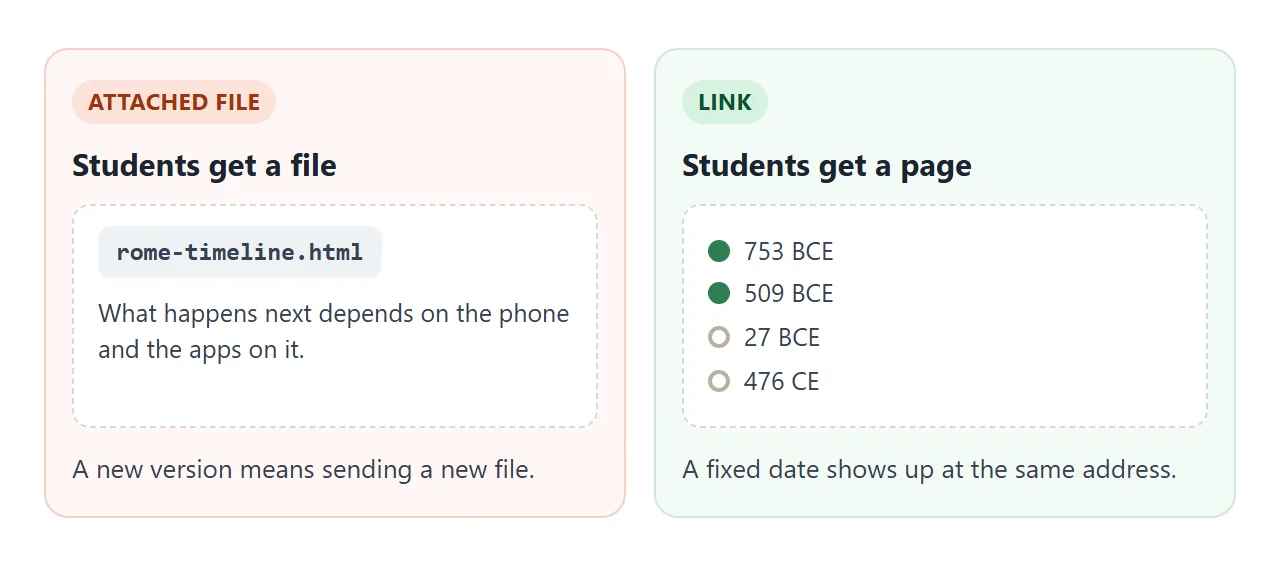
You can also send the .html file itself. Compare the routes.
| Attach the .html file | Share a link | |
|---|---|---|
| What students get | A file | A web page |
| Opens as a page | Depends on the phone and its apps | Yes, in a browser |
| Fix a date later | Send a new file | Edit once, same link |
Opening an HTML file on a phone covers what can go wrong with a file. Links versus attachments compares the two more widely.
When it does not work
| Symptom | Cause | Fix |
|---|---|---|
| Taps do nothing | The AI left out the script, or the code has an error | Test in NOS and ask the AI to fix the click |
| The page is tiny on a phone | The viewport tag is missing | Ask for a mobile friendly version |
| The timeline scrolls sideways | It was laid out horizontally | Ask for a vertical list |
| Pictures are missing | The AI used an outside image | Ask for inline SVG or colours only |
| A date is wrong after you fixed it | You fixed it on screen, not in the code | Change it in the code or ask the AI |
| Students say the page will not open at school | A school may block some sites on managed devices | Ask your school IT to allow the address |
If your class needs a score, an HTML quiz is the next step. A page that only opens and closes sections can also be built without JavaScript.