In short
Write for the person experiencing the problem, not for the team debugging it.
For every open item, show who is affected, what happens, a usable workaround, and the current fix status.
Put recently fixed items below the open list so readers can tell whether their case changed.
When one status changes, update the summary, item label, details, and date together.
We built a fictional known issues page for Acorn Desk, saved it in NOS, and opened its reader link at phone width. The page listed two current problems and one recently fixed problem. We then changed one issue from “Workaround available” to “Fix rolling out” and reopened the same reader address.
The test exposed a maintenance trap. The issue card showed the new state, but the hand-written summary still said there was one workaround available. A public page can be technically updated and still contradict itself.
What should a known issues page include?
Start with information a user can act on. Each current issue in the example answers four questions:
- Who is affected? Name the relevant task, page, file type, or account condition.
- What happens? Describe the visible symptom without guessing at a cause.
- What can I do now? Give a workaround only when the page can state its limits clearly.
- What is the fix status? Use a specific state such as Investigating, Workaround available, Fix rolling out, or Fixed.
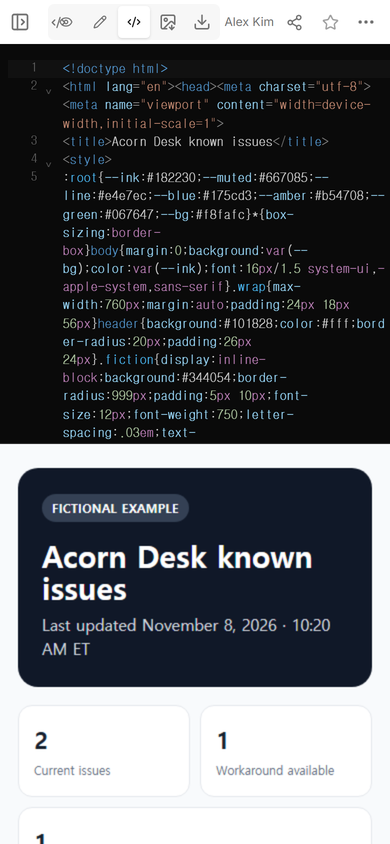
The complete fictional page is available as an HTML example you can adapt. Its names, dates, products, and problems are invented for this guide.
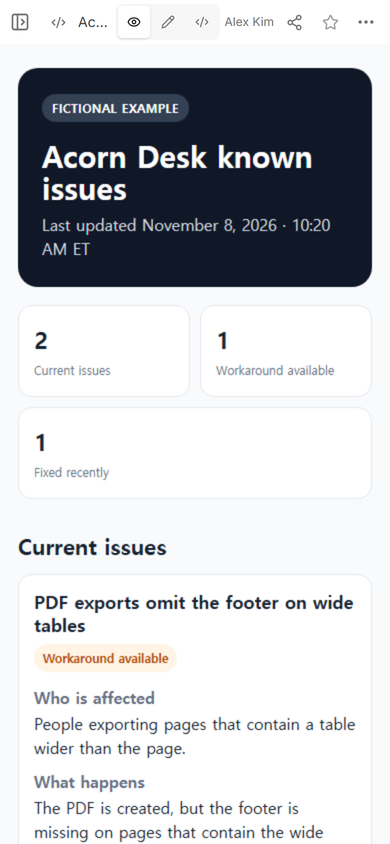
View mode made the hierarchy easy to check: a clear fictional label, a short summary, current issues first, and fixed items later. The first open card names the symptom before presenting the status label.
How do you publish a known issues page without exposing the working page?
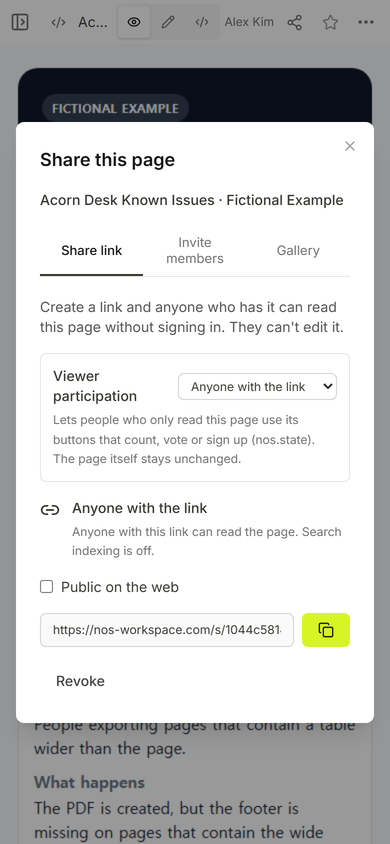
Use a reader address for the audience and keep the editing address with the owner. In the Share panel used for this example, anyone with the link could read the page without signing in, while the panel stated that readers could not edit it.
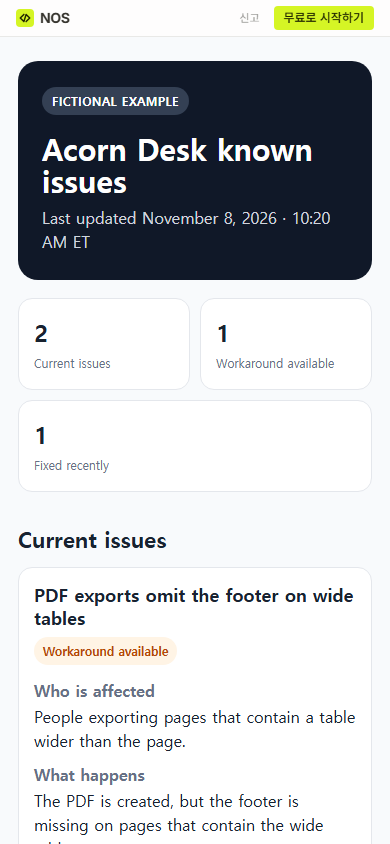
Open the reader address before sending it. The phone-width check showed the fictional label, issue counts, first problem, impact, and workaround without revealing the editing controls.
Useful check: read the public page as someone who has only the symptom. If that person must understand your team structure before finding the workaround, reorganize the page.
How should you update the page when a fix moves forward?
Open the existing page instead of making another address. We used ordinary Edit mode on the first issue and selected its status label.
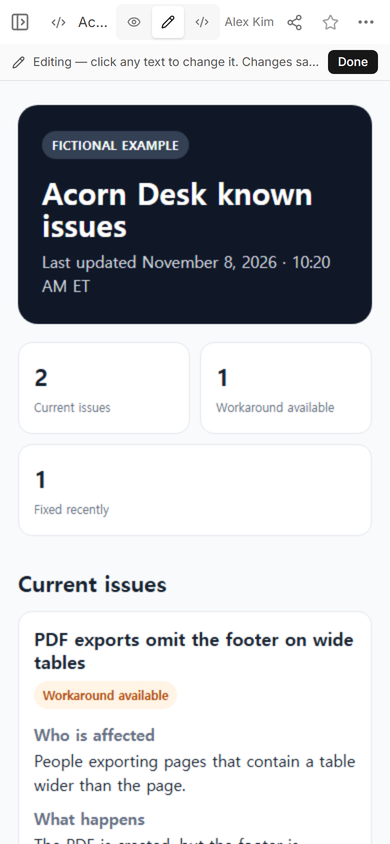
We replaced “Workaround available” with “Fix rolling out,” chose Done, and returned to View. The original editing safeguards remained in place during the change.
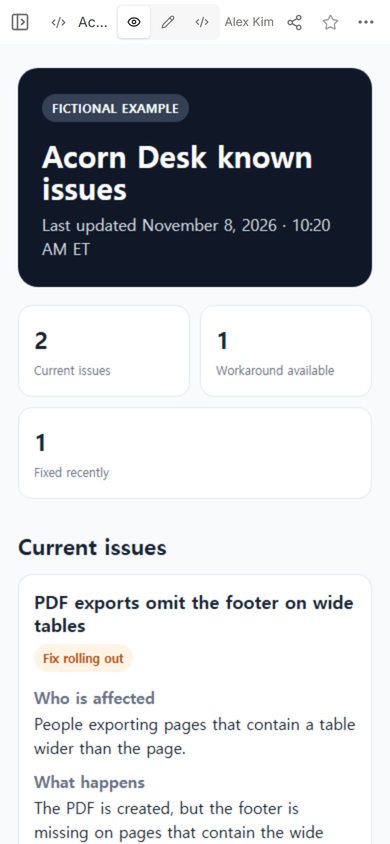
Reopening the same reader address showed the revised label. The address did not need to be replaced.
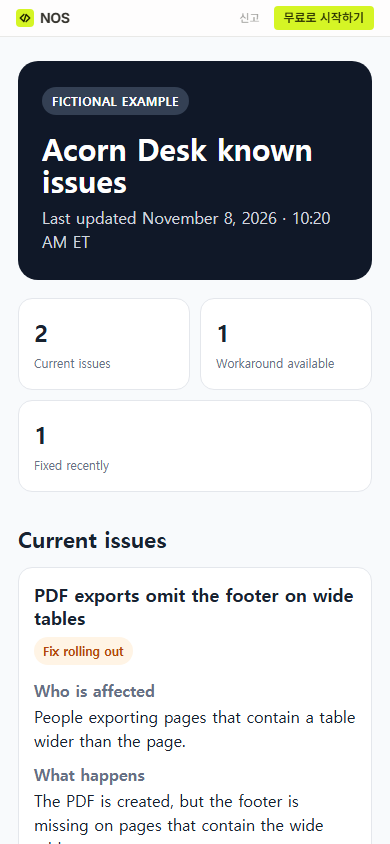
What we had to fix next: the summary still counted one “Workaround available” item. When a state changes, review every place that repeats it: the summary count, issue badge, detail text, last-updated line, and recently fixed section.
What is the difference between a known issues page and a status page?
A known issues page helps a user recognize a continuing defect or limitation and find a workaround. A status page communicates current service health and active interruptions. If the whole service is unavailable, follow the separate guidance on how to host a status page.
The public page should not become the team’s investigation record. Keep ownership, decisions, and closure evidence in an issue log. If a user needs to submit a reproducible problem, give them a bug report format. Once a correction is finished and shipped, a release note can explain the completed change.
When not to do this
Do not use a static known issues page as a replacement for urgent incident communication, private support, or a system of record. Do not post confidential customer details, security-sensitive reproduction information, or an unverified cause. When there is no safe workaround, say that plainly instead of inventing one to fill the field.
Where does NOS fit?
NOS can hold a self-contained HTML page, show it in Code and View, let the owner revise visible text in Edit, and create a reader link from Share. That made it possible to prepare the fictional page, change one status, and verify the change at the same reader address. The article and its image assets remain local preparation; they have not been added to the live Learn site.
Result: the example now gives users a current issue list, impact details, workarounds, fix states, and a short archive at one address. It also demonstrates why a final consistency pass belongs in every update.