In short
- Le Chat is now called Vibe, and Canvas lives in its Work mode. Turn it on under Tools, or type
/canvas. - Click the eye icon to see your HTML rendered. Use Copy to take the full code out.
- Canvas Share sends the whole chat. To share only the page, paste the code into a page that has its own link.
- Before you change a price, check whether the page has toggles or tabs. They often keep an extra copy of each number.
We built a one-page price list for a made-up dog walker, Fernbrook Dog Walking. It has three plans and a toggle between per-walk and weekly prices. That is the kind of page people ask Canvas for. We wrote the file ourselves in the same single-file shape Canvas gives you, because we did not use a Mistral account for this test. Then we put it on a NOS page, shared the link, raised one price, and opened the same link again.
The price change looked done on the first try. It was not. Here is the whole run, including the part that went wrong.
What is Mistral canvas mode?
Canvas is the editor panel in Mistral's chat. You ask for something, and the result opens next to the chat instead of inside a message. Mistral's docs list four things it can render: HTML, React components, Mermaid diagrams, and Marp slides.
The name on the door has changed. Mistral now calls the app Vibe, and its pricing page still says "Vibe (or Le Chat)." Chat and Work are being merged, and Canvas is documented under Work. Some older Le Chat help pages about Canvas now return "not found," so trust the Vibe docs over old screenshots.
To turn it on, click the + icon or type / in the message box. Pick Tools, then switch on Canvas. After that, it opens when Work thinks it helps. To force it, type /canvas or add "open in Canvas" to your request. A prompt like this works for a price page: "Make a one-page HTML price list for a dog walker with three plans and a per-walk / weekly toggle. Open in Canvas."
Getting the HTML out of Canvas
Canvas gives you three exits, and they do different jobs:
- Copy puts the raw content on your clipboard. For an HTML page, this is the one you want.
- Export saves the canvas as a file. Mistral's examples are slides as PowerPoint and tables as CSV or Excel.
- Share shares the full chat, Canvas included. Your prompts and every draft go with it.
Click the eye icon once before you copy. If the preview looks broken in Canvas, it will look broken everywhere else too. Fix it in the chat first.
There is one exception. If Work built a React "mini app" instead of plain HTML, the download icon gives you a ZIP of source files, such as index.js and styles.css. That is not one page you can paste. Ask for "a single HTML file with the CSS inside" if you want something you can paste anywhere.
Putting the page at its own link
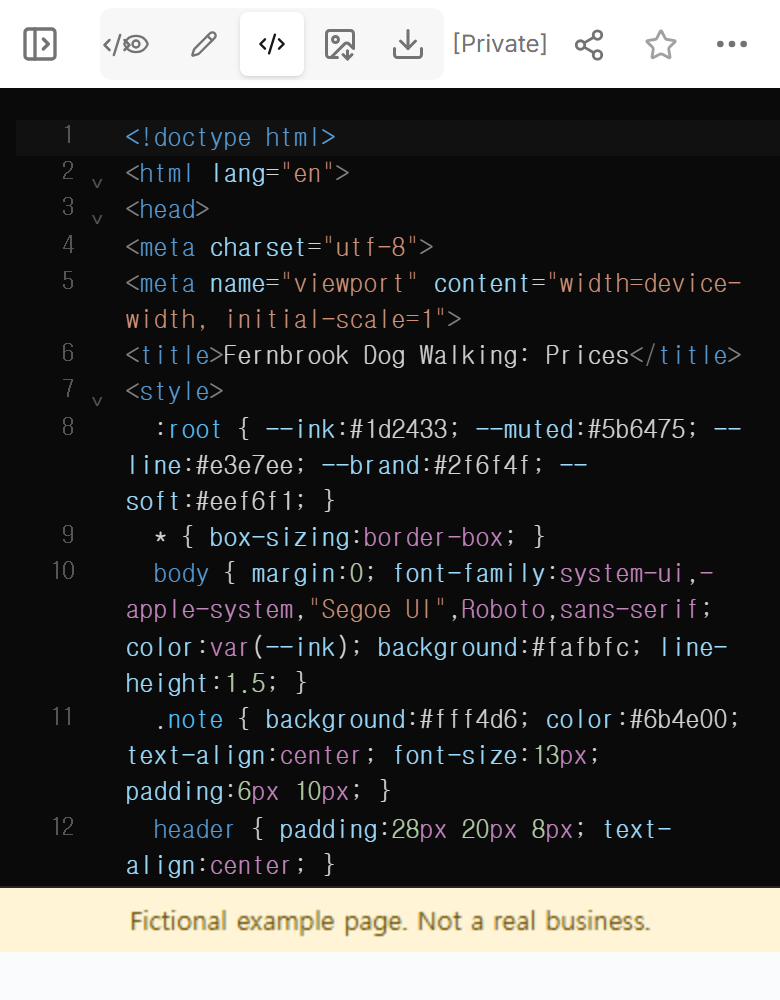
Create an HTML page in NOS and paste the code. The Code view shows exactly what you pasted, with a live preview under it.
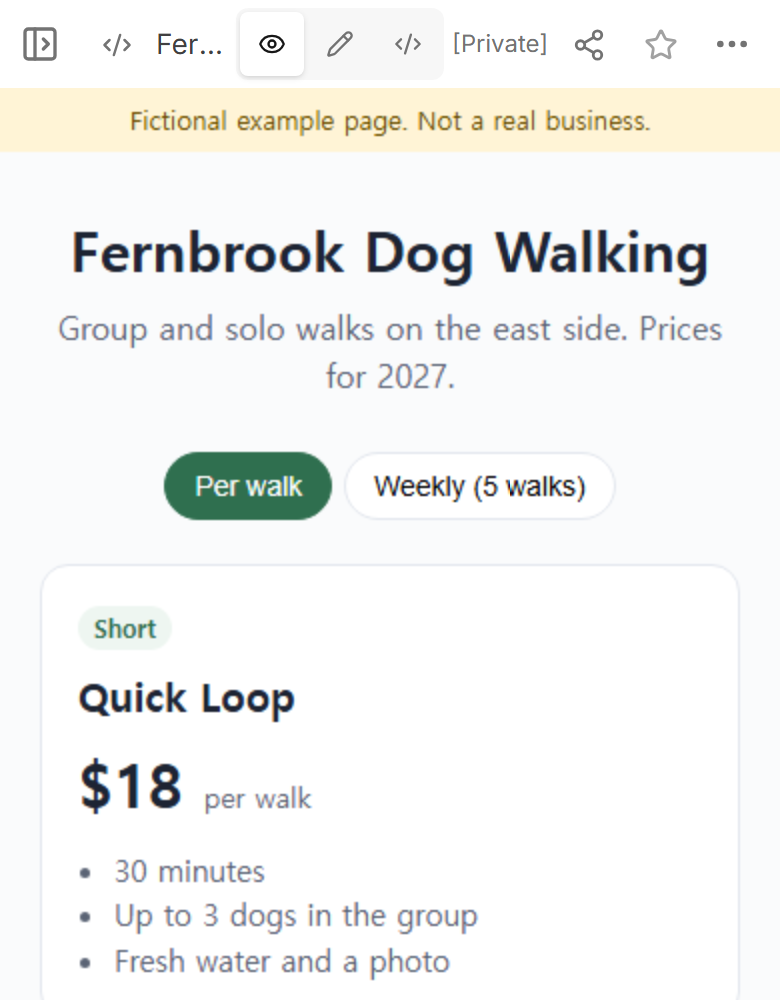
Switch to View to see the page the way a visitor will. Our toggle and plan cards worked as they did in the file.
Then click Share. Anyone with the link can read the page without signing in, and they cannot edit it. Search indexing is off unless you tick "Public on the web." Revoke turns the link off.
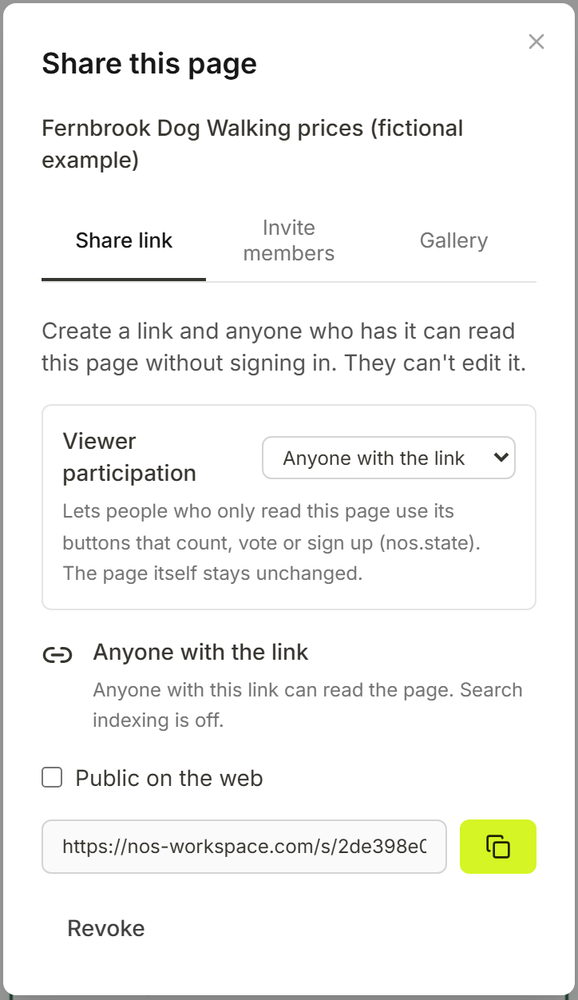
Unlike Canvas Share, this link shows the page only. Nobody sees the chat that made it.
Changing a price after you have sent the link
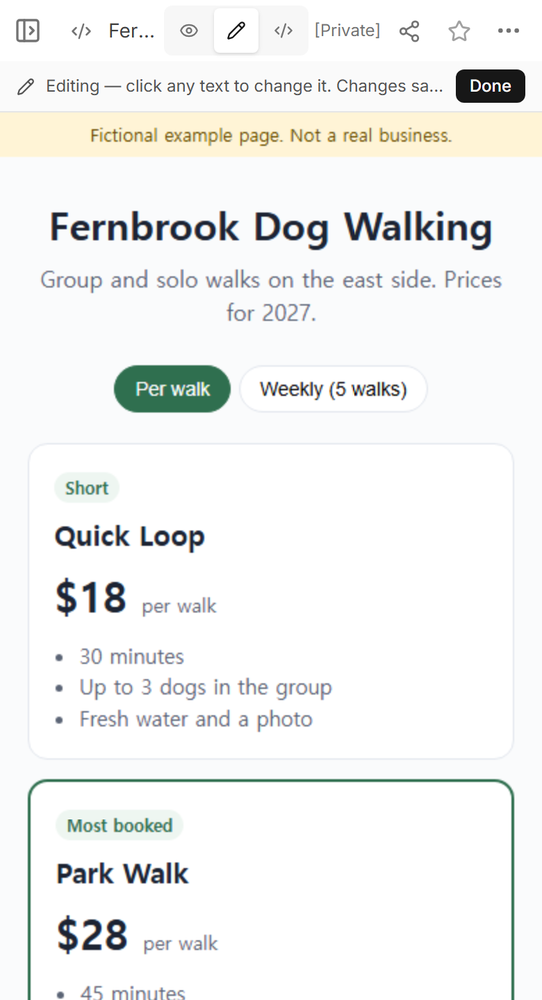
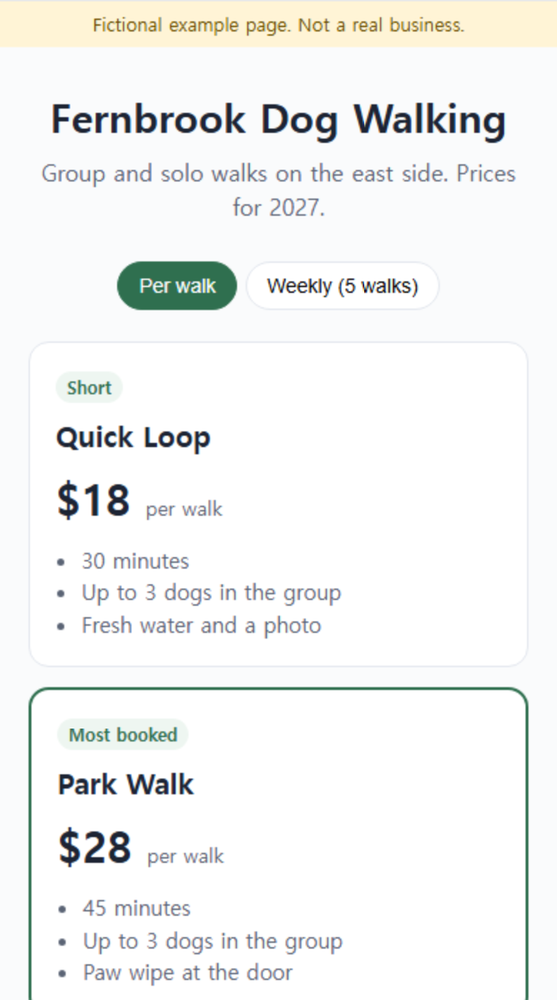
Next, we raised the Park Walk price from 26 to 28. In Edit mode you click the text on the page and type over it. We clicked the number, deleted the last two digits, typed 28, and pressed Done. A version marker appeared in the toolbar.
We opened the same share link on a phone-sized screen. It showed 28.
Where it broke: the toggle kept the old price
Then we tapped Weekly, and tapped Per walk again. The Park Walk price went back to 26.
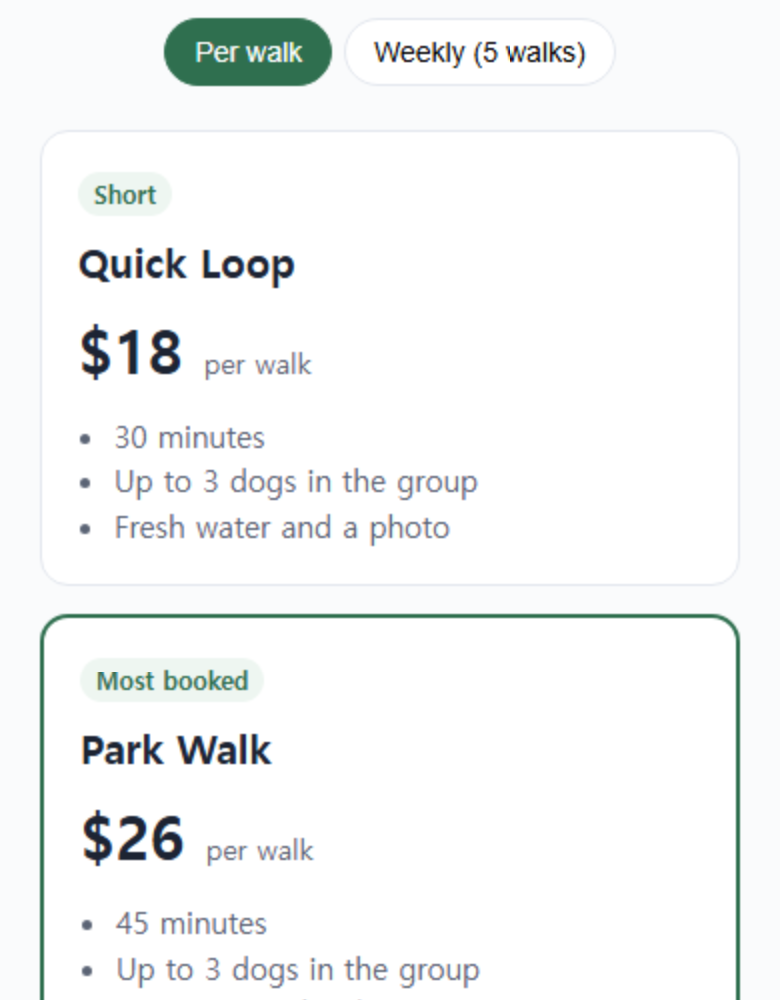
The cause is in the code. The toggle does not read the number you see. Each price line keeps its own copies, one for each mode, and the toggle writes those copies onto the page:
<p class="price" data-walk="…26" data-week="…120">…28 per walk</p>Edit mode changed the visible text. It did not touch the copies. So the page was right until someone touched the toggle. AI-made pages do this a lot: tabs, plan switchers, currency pickers, and calculators often store their numbers in attributes or in a list inside the page's JavaScript.
The fix: change the stored copy in Code view
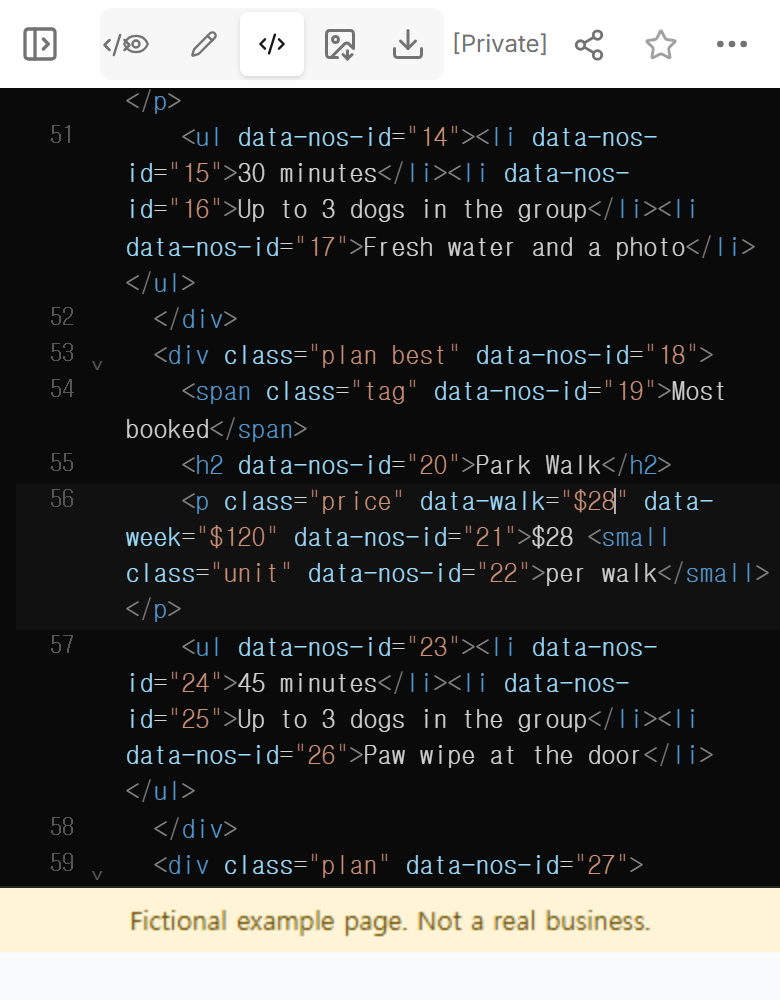
We opened Code view and scrolled to the Park Walk line. We changed data-walk to 28. There is no save button in Code view, and none was needed. When we reloaded the shared page, the file behind it had the new value.
Back on the same link, we ran the toggle test again. Weekly, then Per walk. The price stayed at 28.
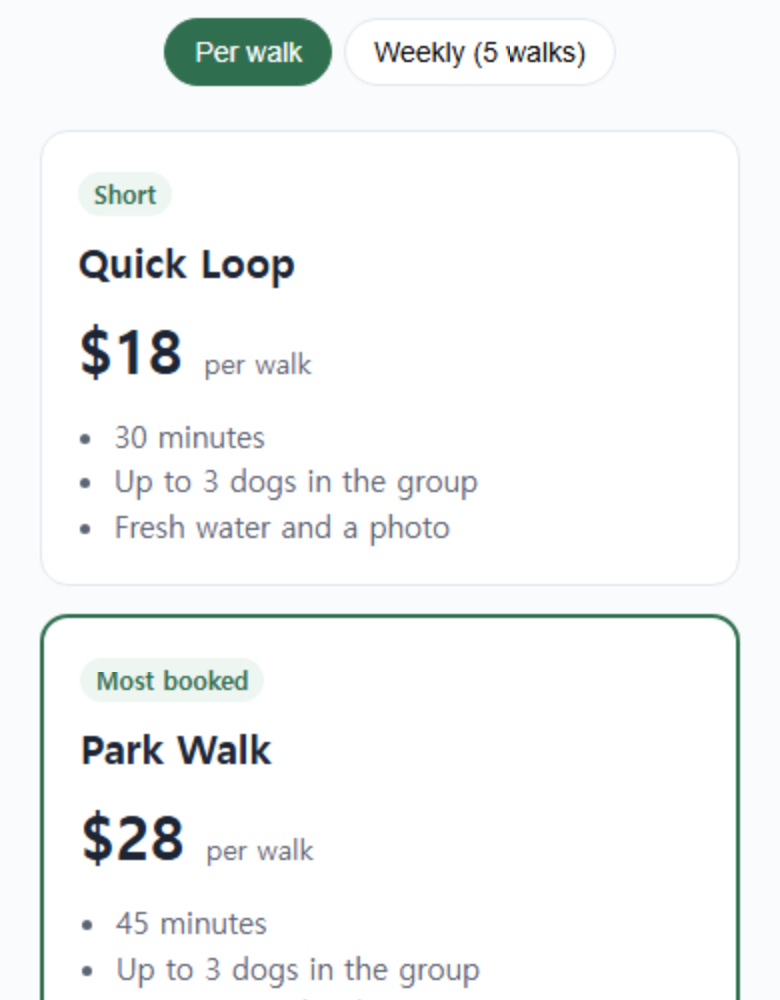
The rule we took from this: after any edit, click every button on the page once. If a number changes back, it has a stored copy. Find it in Code view by searching for the old value.
What is Mistral Vibe?
It is the new name for the app that used to be Le Chat. Work is its everyday mode for writing, files, and Canvas. Code is a separate mode for coding. The old Chat tab is being removed in stages, and its features now live in Work. If a guide tells you to look for "Le Chat Canvas," look in Vibe Work.
Is Le Chat free to use?
Yes, there is a free plan. Mistral's docs say Files and Canvas are on all plans, with usage limits set by your plan. Check Mistral's pricing page for the current limits, since they are not listed in the Canvas docs.
When not to do this
- The page needs to take orders or payments. A pasted HTML page can show prices. It cannot run a checkout or store customer details. Use a booking or payment tool and link to it from the page.
- Work gave you a React mini app. A ZIP of source files needs to be built into one page first. Mistral's own Share for mini apps sends the app only, without your chat, so it may be enough.
- You want feedback on the chat, not the page. Then Canvas Share is the right tool, because it sends the prompts and drafts together.
- Your prices change every day. A hand-edited page will fall behind. A sheet or a store system that updates itself is a better fit.
Where NOS fits
In NOS you paste an HTML page, get a link that opens without a login, and edit later in place, either on the page itself or in the code. The link stays the same, and the page keeps a version history. The Free plan allows 3 share links at once. See the NOS pricing page for the paid plans.
Related guides: editing AI-made HTML without code, keeping a price list at one link, and sharing a Gemini Canvas page. You can also download the Fernbrook example page and try the toggle test yourself.