In short
A one page project plan answers five things at a glance: the goal, the end date, who owns each step, what could go wrong, and what needs a decision. Everything else goes in other documents.
Put the end date at the top in big type. Keep milestones to five or six, each with one named owner, not a team.
Share it as a read-only link instead of a file. When the plan changes, edit the page and the same link shows the new version. Nobody has to find the latest attachment.
One catch: the same date often sits in two places, like a headline box and a milestone table. Change both, then open the link and read the whole page before you tell the team.
We wanted to see what this looks like with a real-sized plan, not a blank template. So we wrote a one page project plan for a fictional company, Pinecrest Outdoor Supply, moving its six-person support line to a cloud phone system. We put the HTML file on NOS, sent the read-only link, and then pretended the phone number transfer ran late. We moved the go-live date a week in the NOS editor and opened the same link again. One part of the page did not update the way we expected, and that turned out to be the most useful lesson.
What goes on a one page project plan
Most templates list the same headings. The hard part is deciding how much to write under each one. These are the blocks we used, in the order a teammate reads them:
- Title, owner, last updated. One person owns the page. The date tells readers if it is fresh.
- Status. A short label such as On track or At risk, plus the current phase.
- The end date. The one date everyone asks about. Give it its own box.
- Goal. One sentence. Ours: move the support line to a cloud phone system with no lost calls and the same number.
- In scope and not in scope. The "not" list stops scope creep. We parked sales phones and chat support there.
- Milestones. Five rows with a date, an outcome, and one owner each.
- Who does what. Names and their area. Add the person who approves money.
- Budget, done means, risks, decisions needed. Short lists. Every risk gets an action, and every open decision gets a date.
Leave out the task list, meeting notes, and the history of how you got here. If a block needs more than four bullets, link to a separate page. The plan should answer "when, who, and what's next" without anyone scrolling for long.
One page project plan example
Our plan is a single HTML file with the styles inside it. On a phone it stacks into one column. On a laptop, the scope and budget blocks sit side by side. You can download the fictional plan and swap in your own project.
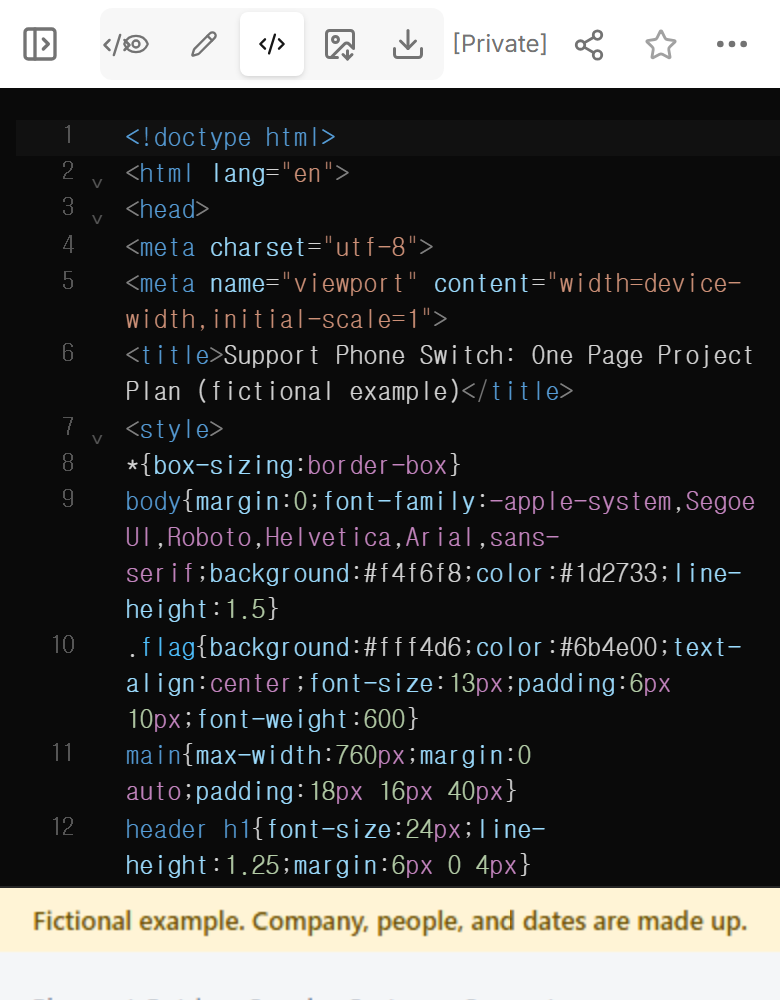
In NOS, the Code view shows the file on top and the live page below. That is where you paste or tweak the HTML if a chat assistant wrote it for you.
Share the plan as a link, not a file
An emailed PDF or Word file freezes the plan on the day you send it. A week later, three versions float around inboxes. A link points to one page that you keep current.
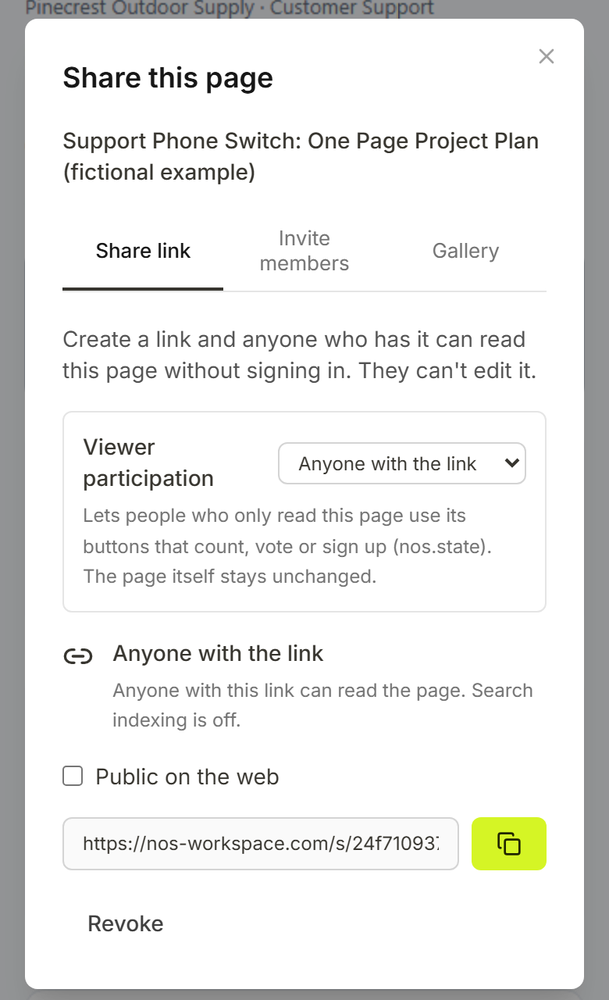
In NOS, the Share button opens a panel with a read-only link. Anyone with the link can read the page without signing in, and they can't edit it. The panel also notes that search engines won't index it. If the plan should stop being reachable, Revoke turns the link off.
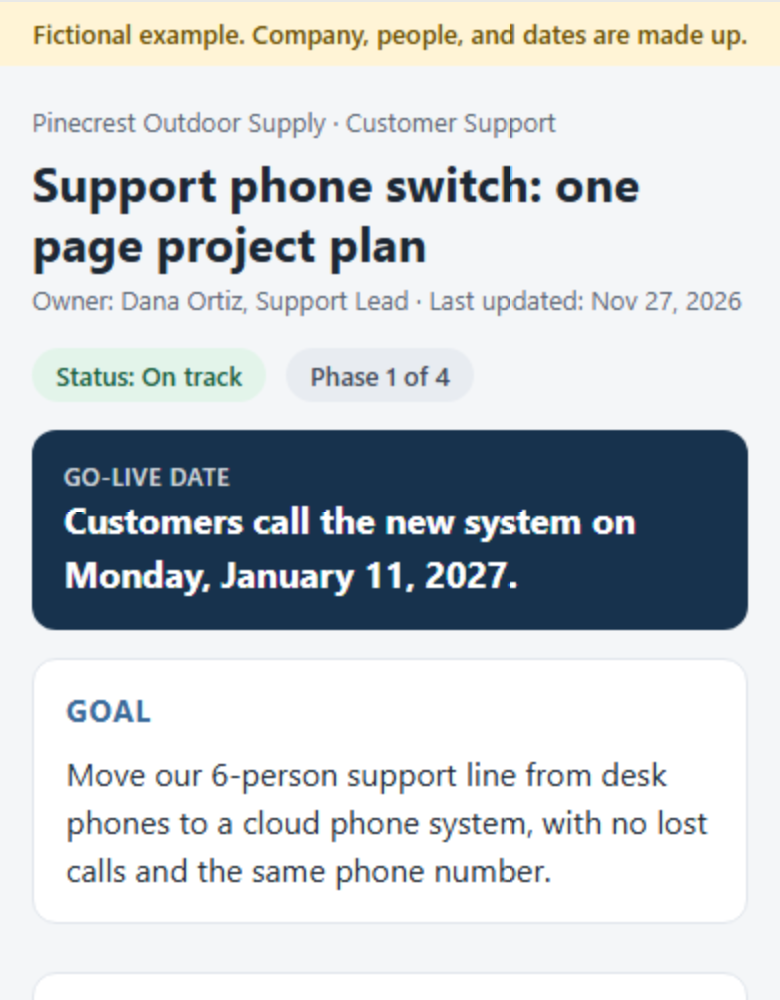
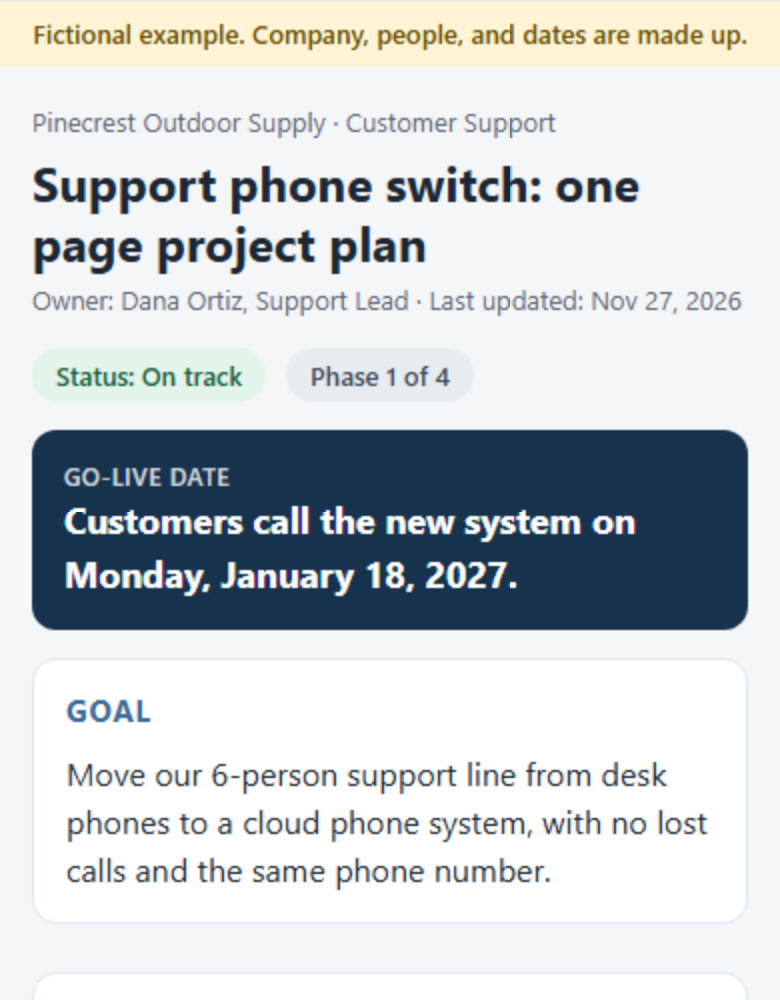
We opened the link in a phone-sized browser window, logged out. This is what the team sees: the go-live date first, then the goal.
When the date moves: edit the page, keep the link
Plans change. In our example, the number transfer risk came true, so go-live moved from January 11 to January 18. We opened the plan in NOS, chose Edit, clicked the go-live sentence, and typed the new date right on the page.
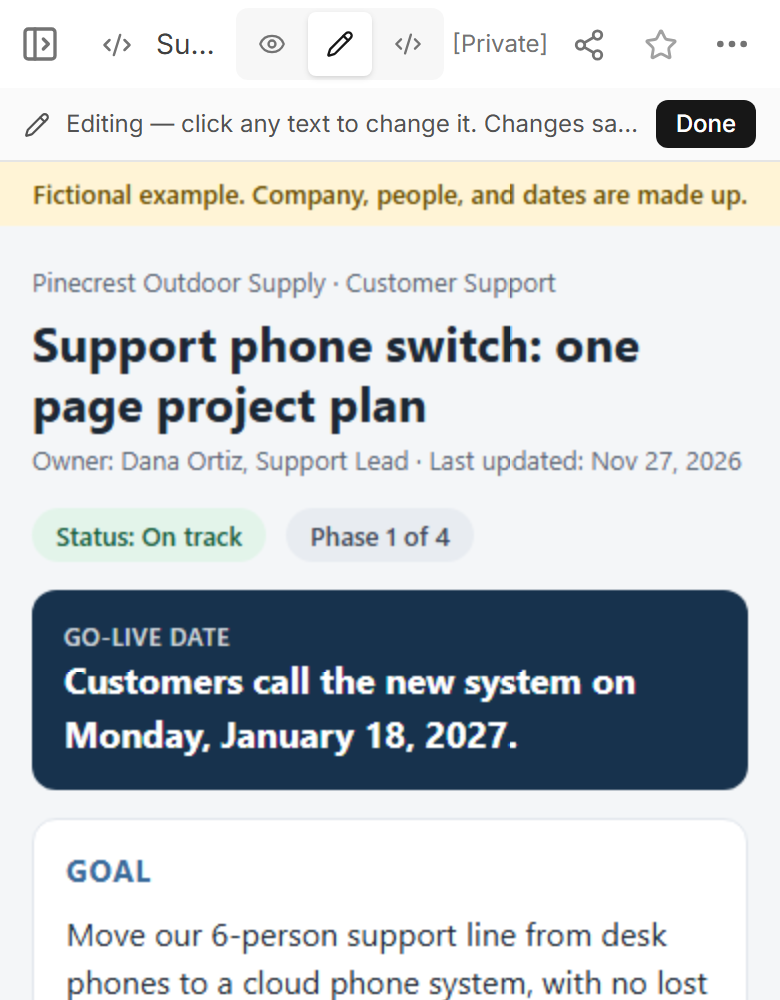
After Done, the View screen showed the new date, and NOS kept the earlier version in its history.
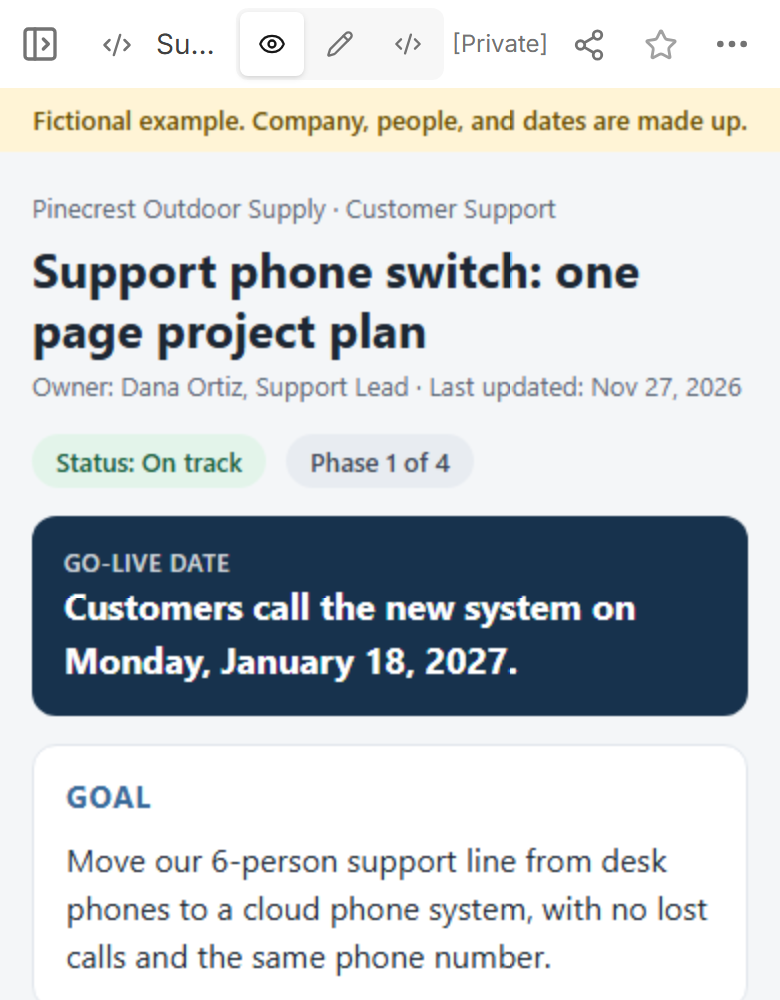
Then we scrolled down. The milestone table still said Jan 11 for go-live. The page now disagreed with itself. A teammate who skims the table would plan around the old date.
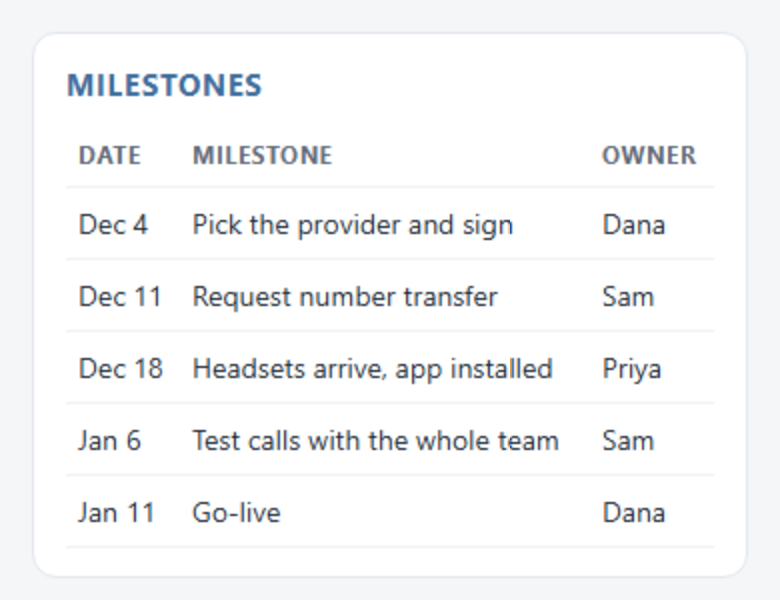
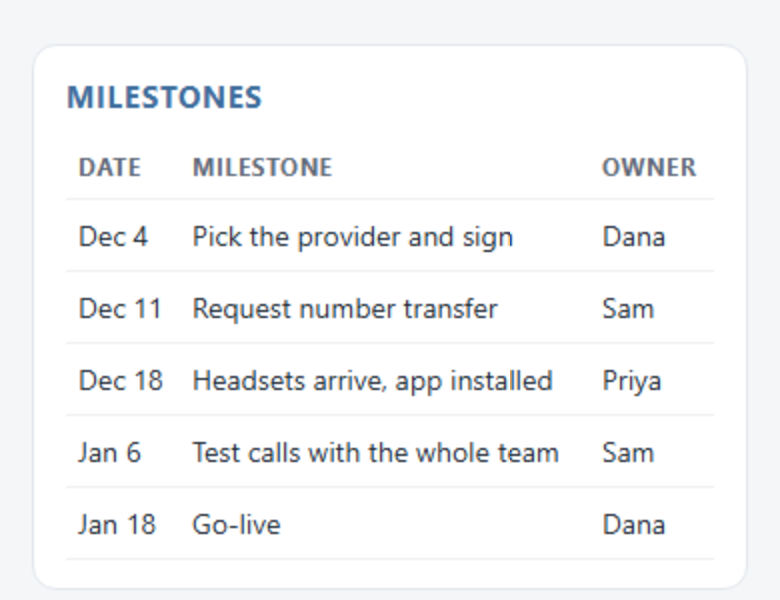
The fix took one more edit. In Edit mode we clicked the end of the "Jan 11" cell, deleted the two digits, typed 18, and selected Done again. A habit worth keeping: before you edit, list every spot where the date appears. In a typical plan that is the headline, the milestone table, and sometimes a risk or decision line.
Last, we reopened the original share link. No new link, no new message with an attachment. The top of the page showed January 18.
The milestone table on the shared page matched too.
We did not change the "Last updated" line in this test. On a real plan, update it in the same edit so readers can tell the page moved.
One page project plan template: Excel, Word, or a web page?
Google suggests Excel and Word versions of this template. Each format fits a different job:
- Excel or Google Sheets: good when the plan is really a schedule with many rows and you want to sort or count. Hard to read on a phone.
- Word or Google Docs: good for a plan that needs comments and sign-off before work starts. It turns into a file trail once you start emailing copies.
- A web page at a link: good when many people only need to read the current plan, often on a phone, and the owner keeps it up to date.
You can mix them. Keep the detailed schedule in a sheet and put the one-page summary at a link.
Project plan on a page vs The One Page Project Manager
"One page project manager," or OPPM, is a specific method from Clark A. Campbell's book The New One-Page Project Manager, written with Mick Campbell. It is a grid that ties tasks, timeline, cost, owners, and objectives together, and it gets updated as the project runs. The book frames it as an add-on to your existing project tools, not a replacement.
A plain one page project plan is looser. It has no fixed grid. If your company already uses OPPM, keep that form. If you just need everyone to see the same goal, date, and owners, the simpler page in this guide is enough.
When not to do this
- The project has dozens of dependent tasks. A one-pager hides the links between tasks. Use a real scheduling tool and share a summary.
- The plan holds private details. Salaries, vendor contract terms, or HR issues should not sit at a link anyone can forward.
- Several people need to edit at once. A read-only link is for readers. Shared editing needs a shared doc or a team workspace.
- Nobody will own the page. A link that is never updated is worse than a dated PDF, because people trust it.
Where NOS fits
NOS holds HTML pages and notes in one workspace. You upload or paste a page like this plan, fix words directly on screen, and share a read-only link that opens without a login. The Free plan allows 3 share links at once; paid plans and limits are on the pricing page. To go further, see our project timeline template for dependent dates, the weekly status report guide, and link vs attachment for when a file is still the better choice.