In short
Save the file to your phone, open the Files app (My Files on Samsung), tap the .html file, and pick Chrome. A simple one-file page usually shows up fine.
If the page shows up without its pictures, or its links to other pages fail, the file is reaching for files that were left behind. Chrome on Android can't follow those from a file you tapped.
When the page is meant for other people, skip the file. Paste the code into a host that renders HTML and send the link. Anyone on Android, iPhone, or a laptop opens it in one tap, and you can fix it later without sending a new file.
We made a one-page schedule for a fictional kids' soccer day, the kind of page a coach might get from an AI chat and want to send to every family. Then we put it at a link, opened that link in a phone-sized browser window, and changed the meeting spot after the link was out. Everything below follows that run. We did not test on a physical Android phone, so the Android steps come from the sources we link.
Can I open an HTML file on Android?
It can. Android has no built-in "web page file" app, but any browser can show one. The trick is getting the file to the browser. A tap on an email attachment may show the code as plain text or just start a download. Saving it first and opening it from a file manager is the route that works most often.
How to open an HTML file on Android in Chrome
- Save the file. In Gmail or a chat app, use Download or Save, not Open.
- Open your file manager. On most phones it is called Files. Look in the Downloads folder.
- Tap the .html file. If Android asks which app to use, choose Chrome.
- If Chrome is not in the list, tap the three-dot menu in the file manager and look for "Open with."
That covers a page where everything sits inside one file: text, styles, and any code. If an AI chat writes the page for you, ask for one file with everything inside. See this walkthrough for screenshots of the file manager route.
Why the page opens but looks broken
Some HTML files point to other files: a logo.png, a styles.css, or a page2.html. On a computer the browser finds them in the same folder. On Android, a file manager usually hands the browser a special content address instead of a folder path. A Mozilla engineer noted that this breaks relative links, and that Chrome shows the same problem (Mozilla bug 1406903).
So read the symptom. No pictures, no colors, or a "file not found" error after tapping a link inside the page all point to missing neighbor files. Ask the sender for a single-file version, or open the page from a link.
How to open an HTML file in Firefox on Android
Expect trouble. In 2021 the Firefox for Android team said the app "will not support loading file:// anymore," and the request to add it back was closed as not planned in December 2022 (Fenix issue 7546). If Firefox is your default browser, use Chrome for local files, or use a link.
How to open an HTML file on a Samsung phone
The steps match the Chrome route above. Samsung's file manager is called My Files. Open Downloads there, tap the file, and choose a browser. The broken-picture problem is the same on every brand.
How we turned the file into a link
A link avoids every step above for the people you send it to. Here is the route we took with the soccer day page.
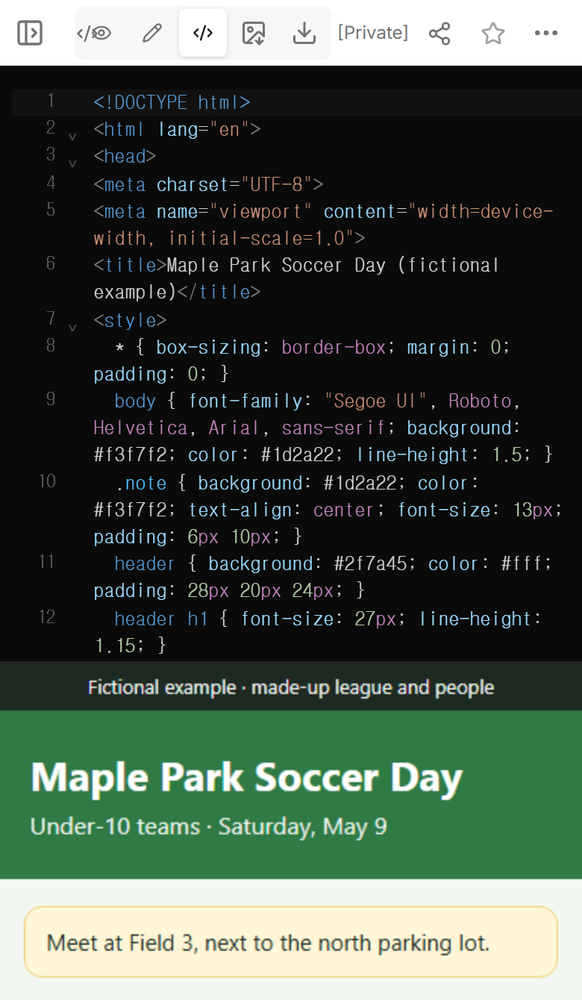
First, we pasted the whole file into the NOS Code screen. The code sits on top and the live page renders underneath, so you can see right away whether the paste was complete.
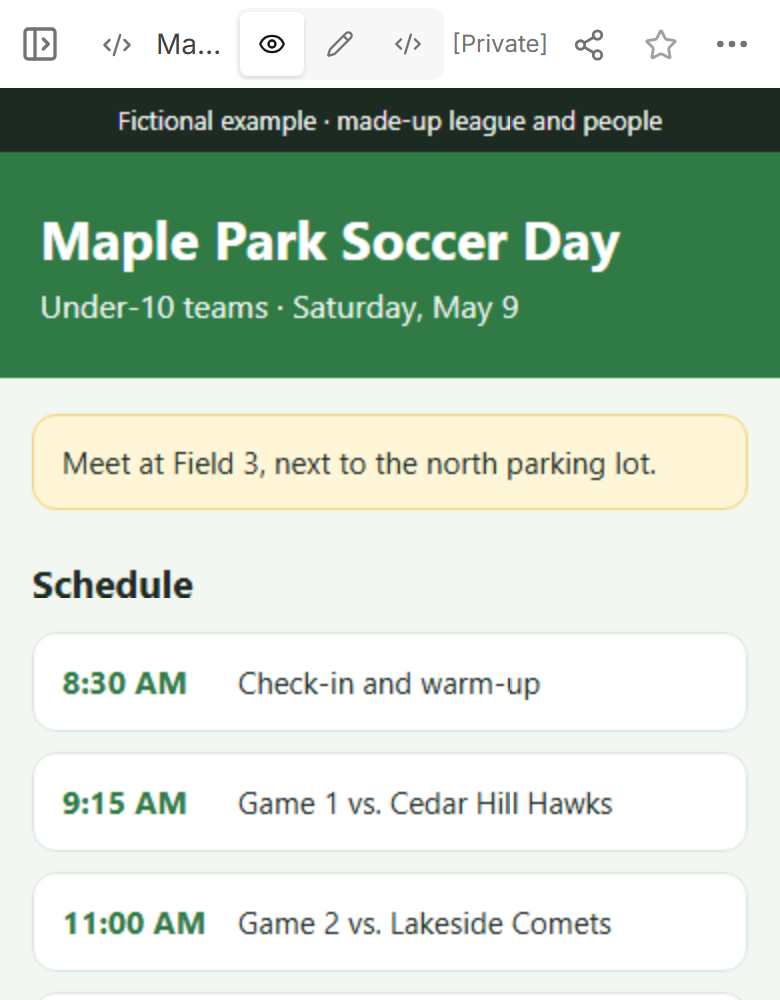
Next, we switched to View. This is what readers will see. Check the date, the times, and the meeting spot here, before anyone has the link.
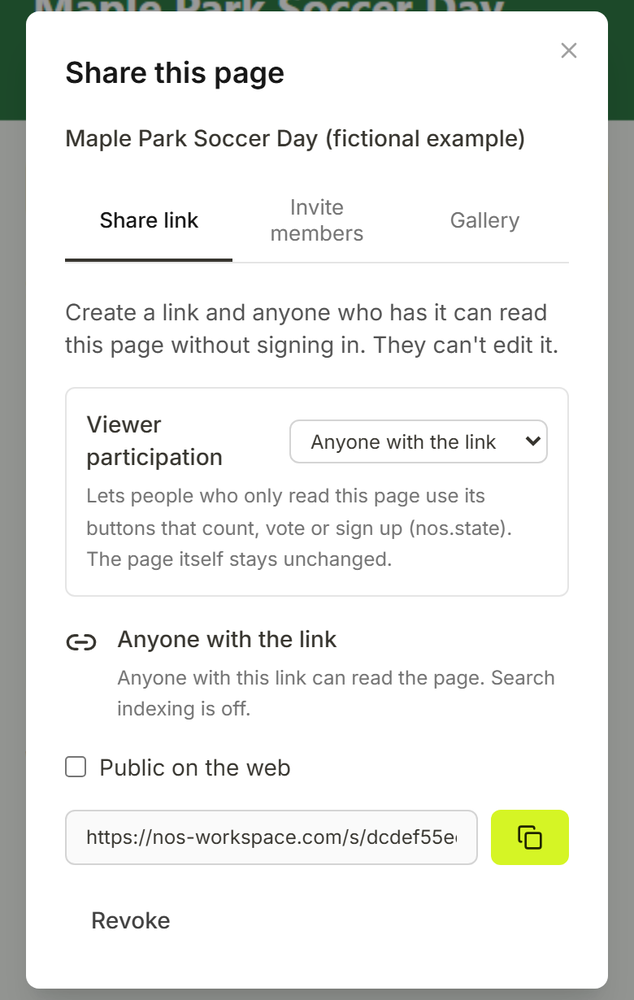
Then we opened Share. The panel says anyone with the link can read the page without signing in, and they can't edit it. It also notes that search indexing is off, and the "Public on the web" box stayed unticked.
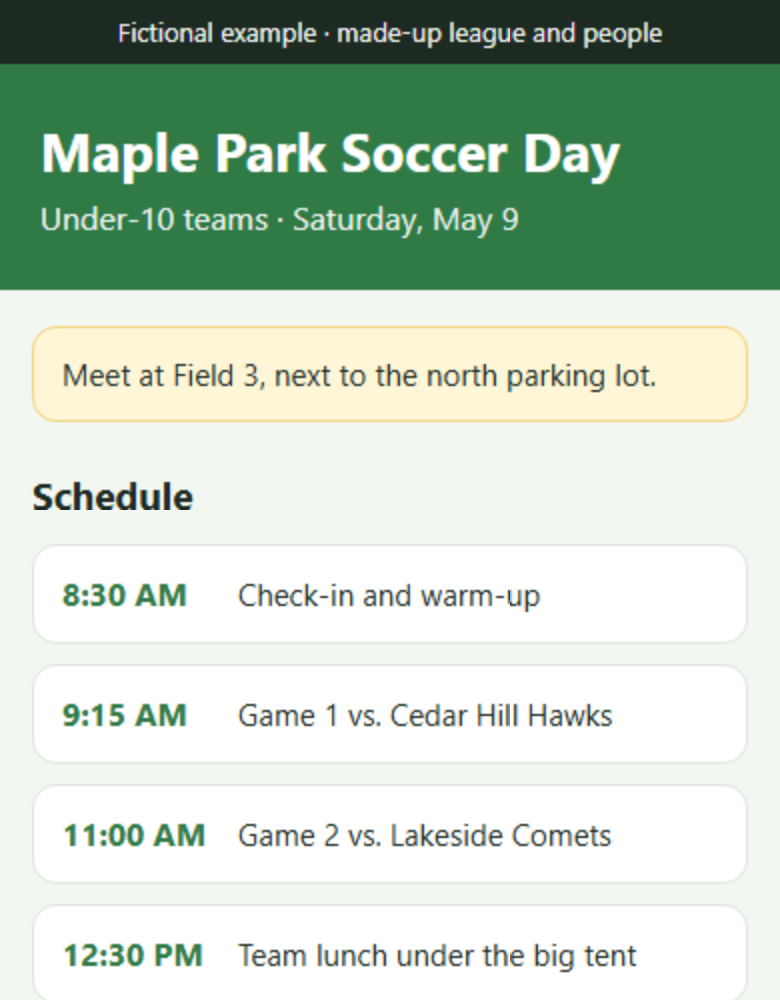
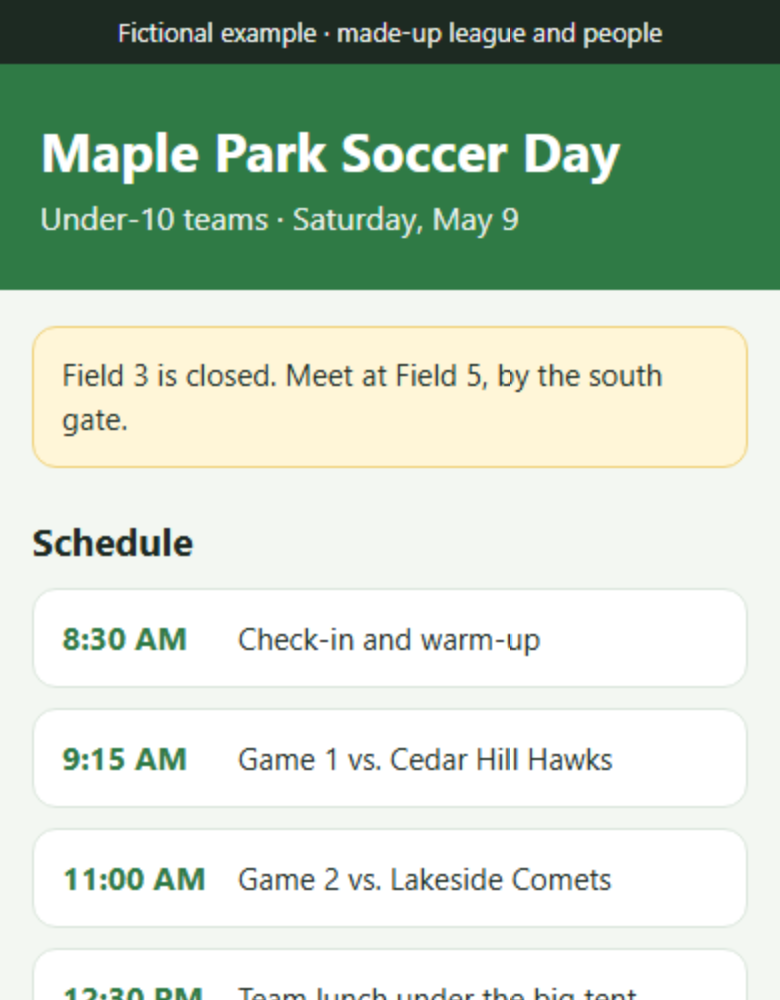
We opened that link in a browser window the size of a phone screen. The page fit the width with no zooming, because the file already had a mobile viewport line in its head.
Want to try the same steps? Download the example page and paste it into any host that renders HTML.
How to change the page after you've sent it
Plans change. In our run, the meeting field changed after the link was out. With a file, that means a new attachment and a group chat full of "which one is current?" With a link, you fix the page itself.
We opened Edit, clicked the yellow notice, and typed the new sentence over it. Clicking a box and selecting all replaces the whole sentence, so type the full new text, not just the changed word.
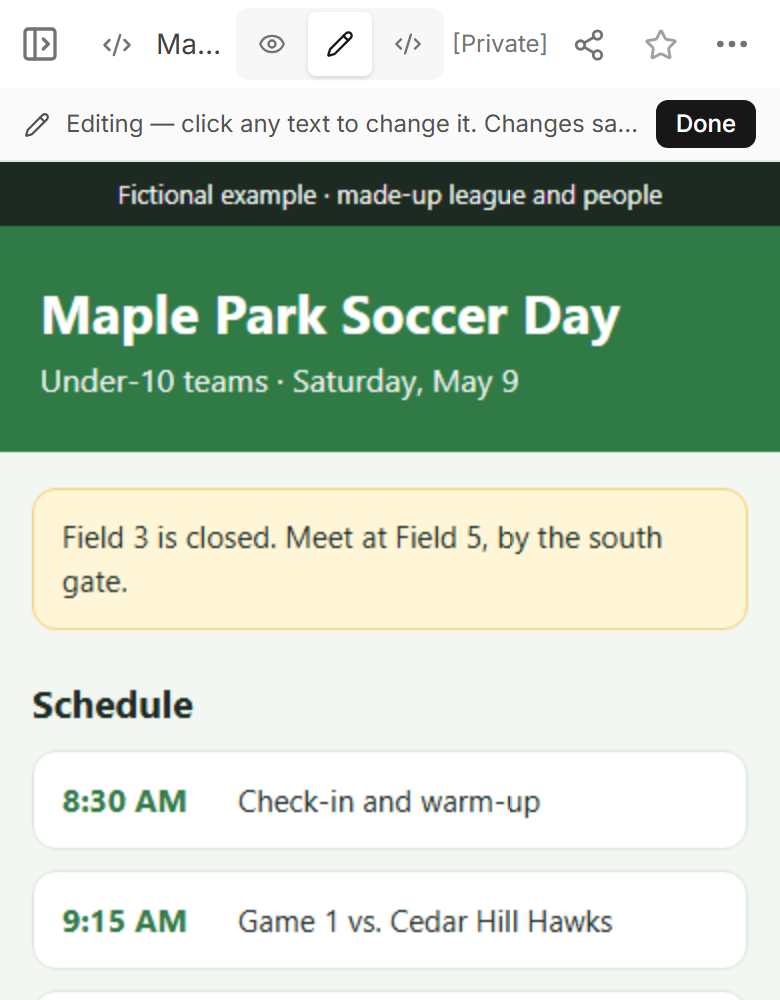
After Done, NOS saved it as version 2. We reopened the same link we had shared, and it showed the new field. Nobody needs a new file or a new link.
What tripped us up
- View mode and the share link look almost the same. Only the share link works for other people. Copy it from the Share panel, not from your address bar.
- The shared page shows a small NOS bar at the top. Leave room for it if your page has its own top banner.
- A page that pulls pictures from your computer has the same problem online as on Android. Put images inside the file or use web addresses for them before you paste.
When not to do this
- The file holds private data, like medical notes or bank details. Keep it as a file and open it on the phone only.
- It is a multi-page site with many linked files. Use a host that takes a whole folder, or ask for a single-page version.
- You just need to read it once, it is one file, and Chrome opens it. You're done. No link needed.
- The page has to save what visitors type, like sign-ups or payments. That needs a real web app with a server.
Where NOS fits
NOS is the tool we used for the link part of this test. You paste HTML on the Code screen, check it in View, and copy a read-only link from Share. Text fixes happen right on the page in Edit, and the link stays the same. Plans and limits are on the pricing page. For the iPhone side of the same problem, see opening an HTML file on iPhone, and for more on links, read turning HTML into a link.