Choose the format your week actually needs
Template collections offer daily, weekly, monthly and theme-based preschool layouts, often as PDF or Word files, and some are made specifically for toddlers or pre-K. When you need a paper copy on a clipboard, one of those is a fine starting point. If your director or program requires a specific form, or asks you to submit the plan as a PDF or Word file, use that form; nothing here replaces it.
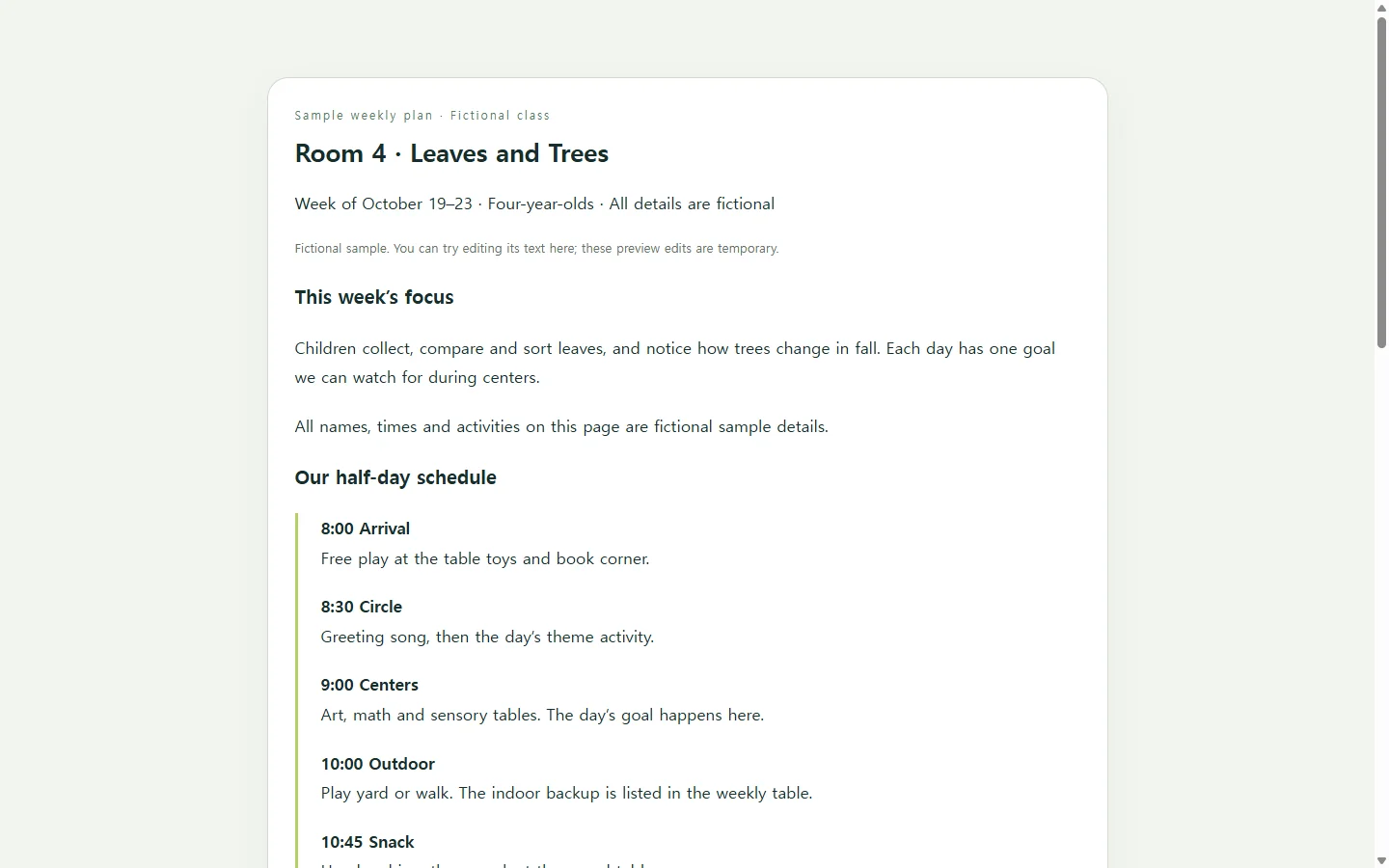
A page built around your own schedule fits a different situation: the plan sits on the classroom wall and on your co-teacher’s phone, and it tends to change once the week starts. That is the situation this guide follows.
A sample week, and what to borrow from it
The example below is invented: Room 4 is a fictional class of four-year-olds, and its theme, times and activities are sample details, not a recommended curriculum.
Three choices in it are worth borrowing. Each day has one goal written as something you could see a child do, such as “sorts leaves by size” instead of “learns about fall,” so both adults in the room are watching for the same thing. Materials sit in their own checklist, so whoever arrives first can prep without reading the whole week. And every outdoor block names an indoor backup, so a rainy morning means swapping one line instead of replanning the day.
One more habit: keep children’s full names, allergies and other health details off any page you share by link, and leave those in the records your program already keeps.
Build your own week with AI
Your part is the facts: your daily blocks and times, the theme, a goal for each day, the activities and the materials. The AI’s part is the layout, turning those notes into a page that reads clearly on a wall display or a phone.
The prompt asks for HTML, the code a web browser reads to display a page. It also asks for one self-contained file, so the layout and the content stay together.
Replace every bracketed part with your own week. If you leave something blank, the prompt tells the AI to show “[to add]” rather than invent an activity.
Before you use the result, read every line. Confirm that each activity is one you planned, that the times match your day, and that the table turns into one card per day on a narrow phone screen.
When Wednesday’s plan changes
Say rain cancels the sample class’s Wednesday leaf walk, and the backup, leaf rubbings at the art table, takes its place.
If you had sent the plan as a file, you would edit it and send a new copy, and your co-teacher would need to know which version is current. That works, and for a required submission it is the right path.
If the page lives in NOS, the change is smaller. NOS keeps HTML pages in a workspace, and you can click the outdoor line on the rendered page and type the new activity directly, without asking the AI to rebuild the plan for a one-line change.
The share link you gave your co-teacher on Monday stays the same after the edit, so when they open it Wednesday morning they see leaf rubbings, not the walk. They don’t need an account to open it.
On Friday afternoon, you can rewrite the theme, goals and activities on that same page, and the link you already shared carries next week’s plan. If you keep past plans, save this week’s text somewhere first.
A prompt to adapt
Build a weekly preschool lesson plan as one self-contained HTML file. Put all CSS inside the file. Do not use external scripts, fonts, images, forms or links.

Class: [class name], [age group, e.g. four-year-olds]
Week of: [dates, e.g. October 19–23]
Theme: [theme, e.g. Leaves and Trees]
Daily schedule: [blocks and times, e.g. 8:00 Arrival · 8:30 Circle · 9:00 Centers · 10:00 Outdoor · 10:45 Snack · 11:00 Story and goodbye]

For each day, Monday to Friday:
- Goal, written as something a child does: [e.g. Sorts leaves by size]
- Circle time: [activity]
- Centers or small group: [activity]
- Outdoor: [activity] / Indoor backup: [activity]

Materials to prepare: [list, e.g. three sorting trays labeled small, medium, large]
Things to notice this week: [2–3 observations, e.g. Listen for size words during Tuesday sorting]

Requirements:
- Use only the information above. Where something is missing, show “[to add]”. Do not invent activities, goals, times, names or materials.
- Do not include any child’s name, photo or health information.
- Order: a header with class, week and theme; the daily schedule; a week-at-a-glance table; a materials checklist; the things-to-notice notes.
- Use one h1 and an h2 for each section. Build the week as a real HTML table with header cells for days and columns.
- Body text at least 16px, text contrast at least 4.5:1, and never use color alone to carry meaning.
- On screens narrower than 640px, turn the table into one stacked card per day with no horizontal scrolling.
- Keep the design calm and plain, with clear spacing so each day is easy to scan.