In short
A useful pricing calculator does more than reveal one total.
Keep every selected input beside the line it changes, separate one-time work from recurring work, and explain when a quantity rule applies.
Test the smallest quantity, the discount boundary, and an option being turned off before you share the page.
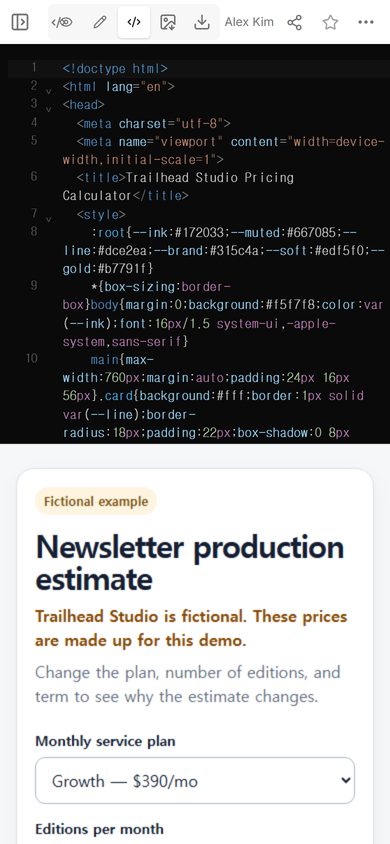
We built a fictional newsletter-production calculator to see whether a visitor could follow an estimate without guessing what happened behind the total. The page uses a service plan, editions per month, an estimate term, and an optional analytics item. It labels the example as fictional and states that its values are made up.
What should a pricing calculator website show?
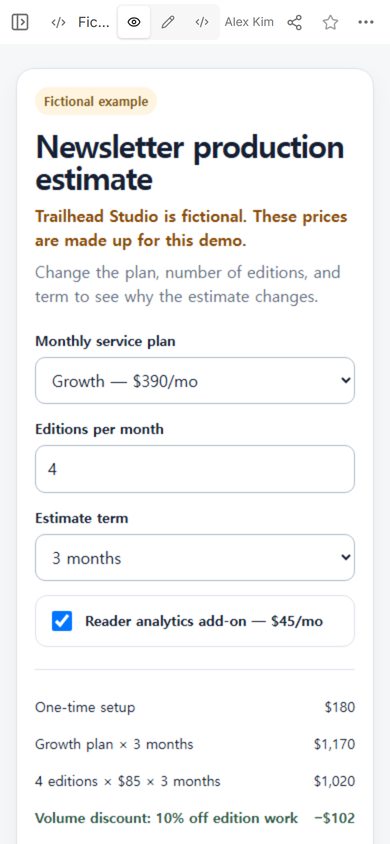
Start with the choices a reader can verify. Our example names the unit being counted, shows the recurring plan separately, and puts the optional item next to its control. The result area repeats those choices as calculation lines instead of replacing them with an unexplained final number.
The most important design decision was the boundary rule. Four or more editions qualify for a ten-percent reduction on edition work only. The service plan, setup, and optional analytics line do not enter that reduction. A reader can therefore see both the trigger and the smaller base to which it applies.
How do you share a pricing calculator as a website?
- Keep the page self-contained. Put the inputs, calculation rules, result labels, and narrow-screen styling in one complete file.
- Check the rendered page. Confirm that every default input appears again in the breakdown and that the total is present on load.
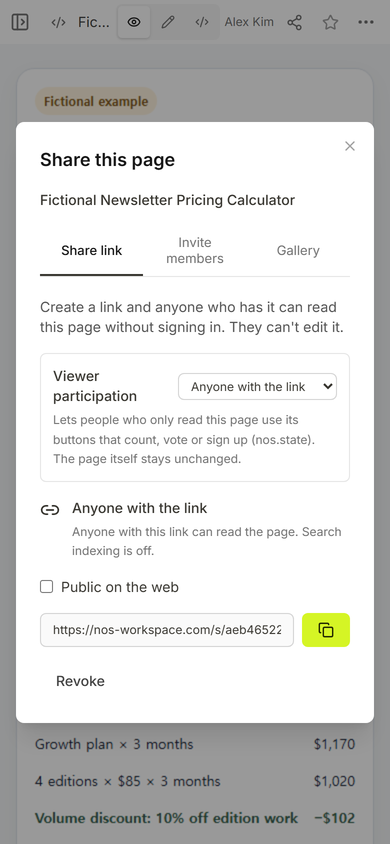
- Create the reader link. In NOS, open Share and use the address for people who will view the calculator.
- Open that address at phone width. Do not rely on the editing preview as the reader test.
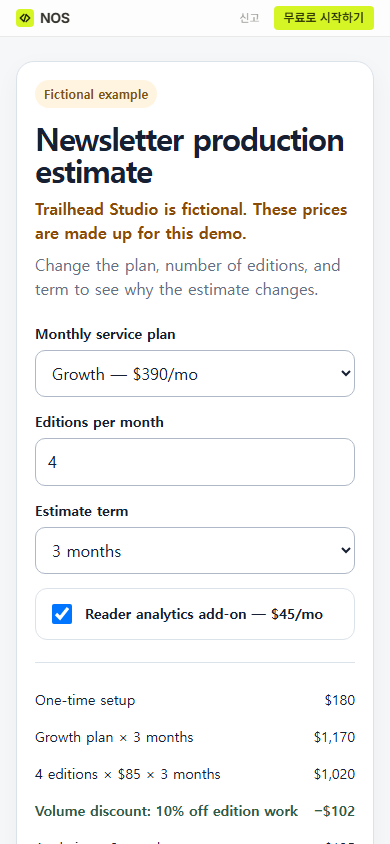
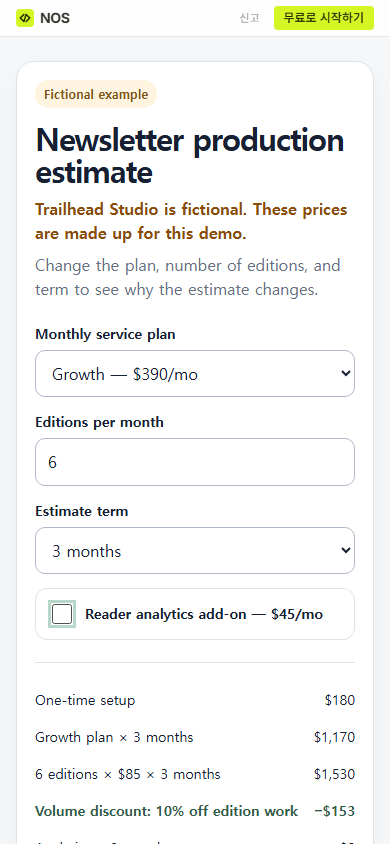
The public page opened with the fictional label, all four controls, and the start of the calculation record visible on a phone-width screen. Its plan and quantity matched the lines underneath.
How do you explain quantity discounts in a calculator?
Name three things: the qualifying quantity, the rate, and the part of the estimate that receives it. “Volume discount” alone leaves the visitor to infer all three. Our result instead identifies edition work as the base and keeps the unreduced plan on its own line.
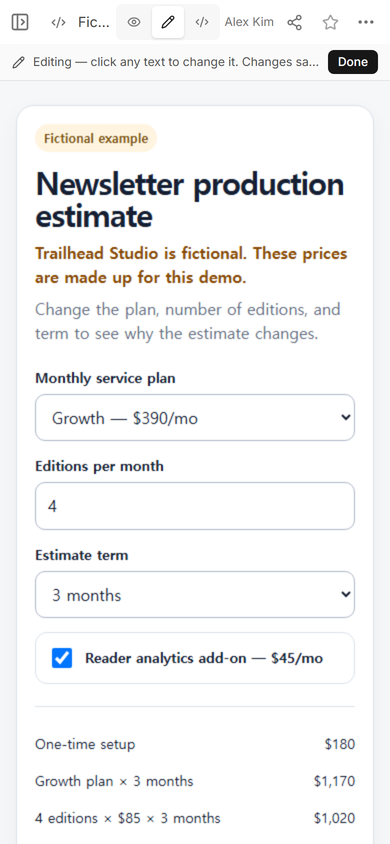
We also opened Edit on the same owned page. It showed the normal editing state and the existing calculator; we did not alter the security boundary or substitute a different preview.
Does the estimate still make sense when inputs change?
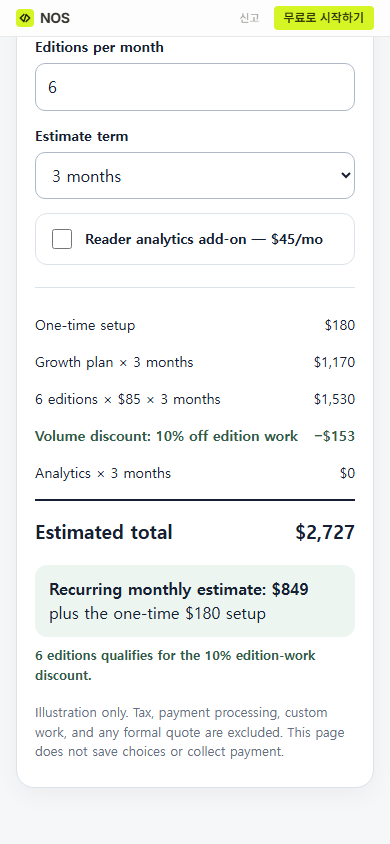
We changed editions per month from four to six on the public page and cleared the analytics option. The edition-work line changed to six units, the discount line changed with that larger base, and the analytics amount fell to zero.
Result: the final screen showed the revised total, the revised recurring amount, and a sentence confirming that six editions qualified for the stated edition-work reduction. The one-time setup remained separate from the recurring figure.
What should you test before sending the link?
- Below the boundary: confirm that the reduction disappears when quantity is lower than the qualifying level.
- At the boundary: confirm that the rule starts at the exact quantity named on the page.
- Optional items: turn each one off and make sure its charge is removed rather than merely hidden.
- Term changes: check that recurring lines use the chosen term while one-time lines stay one-time.
- Narrow screens: verify that labels, controls, and amounts do not require horizontal scrolling.
- Missing inputs: decide whether an empty field becomes zero or an error, then make that behavior obvious.
The first snag in our check was not the arithmetic. The total sits below the controls on a small screen, so one screenshot could not prove both the changed inputs and the final result. We kept one image on the controls and another on the breakdown. That separation helps when somebody reviews a calculator: capture the choice and the consequence, not just the total.
When not to do this
- Do not present a browser estimate as a formal quote, invoice, or accepted order.
- Do not use a static page when visitor choices must be saved, sent to a customer system, or used to take payment.
- Do not expose private rates or customer-specific terms on a link that anyone who receives it can open.
- Do not hide taxes, fees, or scope gaps inside the arithmetic. Mark them as excluded or unresolved beside the result.
Using NOS for the calculator page
NOS Workspace can render the prepared calculator, show it in View, and create a reader link from the Share panel. In the screen we checked, that panel described link readers as able to read without signing in and unable to edit. The calculator remains an explanatory page: it does not become a payment system, store a visitor’s selections, or issue a formal quote. See the current pricing page for plan information.
Continue from this example
Download the complete fictional calculator example, replace every made-up value with a verified rule, and check each boundary again. For the underlying calculator pattern, read how to share a calculator. For current price lists and fixed quotes, use HTML pricing sheets. If packages and selectable add-ons are the main task, the pricing sheet template is the closer starting point.