In short
Use one tab per grade instead of stacking every list into one long page.
Label required and optional items separately, and put quantity and acceptable substitutes beside each item.
Show the update date near the title so a reader can tell which version is open.
Test the actual public link on a phone, including the tabs and checkboxes, before you send it.
We made a fictional supply-list page for Lakeview Academy to test this pattern. It covers Grades 3, 4, and 5. Each grade has four required items and two optional items, with quantities and substitute notes where they matter. The page says it is fictional, and it contains no student names, family records, real email addresses, or customer information.
The work had one concrete finish line: a reader should be able to choose a grade, see what is required, check an item, and confirm when the list was last updated from a phone-width public page.
Build the supply list around the decision a family must make
Start with the information that changes what someone brings. In our example, “2 composition notebooks” sits beside “Quantity 2,” “Wide ruled,” and an acceptable substitute. That is more useful than a bare product name because the reader does not have to search another paragraph for the details.
We used this structure for every item:
- Item name: the thing to bring.
- Quantity: the number required, when it is more than one.
- Status: required or optional.
- Specification: only the detail that affects the choice, such as ruled paper or plug type.
- Substitute: an acceptable alternative, or a clear note that none is needed.
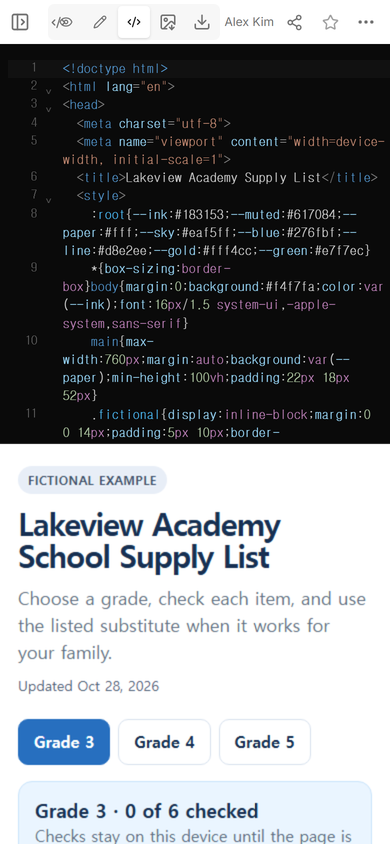
The complete page is one HTML file. Its code and the rendered list appear together in the NOS Code screen.
Download the complete fictional example
Separate grades before you separate categories
A long school-wide list makes a phone reader pass items for other grades before reaching the right section. We put the grade choice directly under the page title. After a grade is selected, that grade’s required items come first and optional items follow.
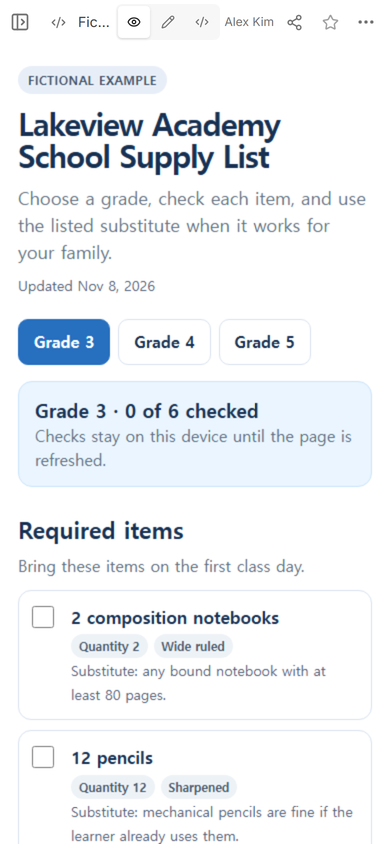
The initial View screen shows Grade 3, the last-updated line, and the start of the required list without hiding the grade selector.
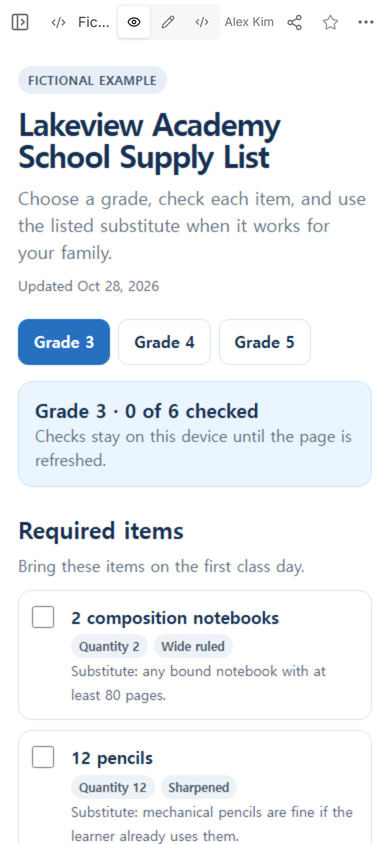
Do not use color alone to mark optional items. The example writes “Optional items” as a heading and repeats “Optional” on each relevant card. A substitute note stays under the item it belongs to, rather than in a general note at the bottom.
Create one public address and check its access rule
We opened Share after checking the list in View. The panel said that anyone with the link could read the page without signing in and could not edit it. It also showed the public address used for the phone checks.
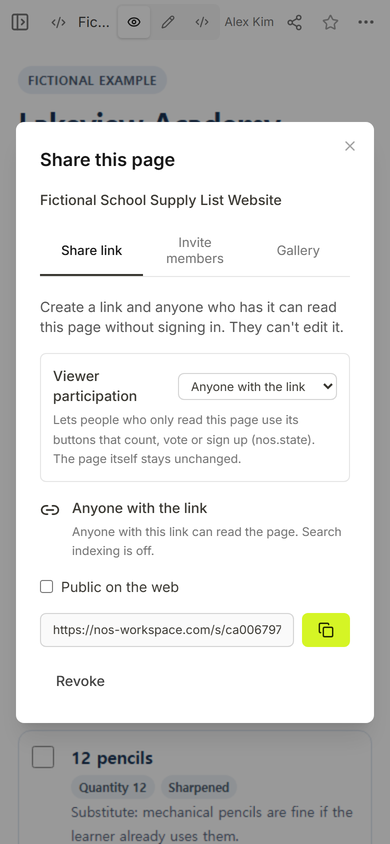
Send the reader address, not the workspace address. Keep the page free of private student or family information because the example’s reader link is open to anyone who has it.
Update the existing page instead of making another list
The first version showed “Updated Oct 28, 2026.” We opened the ordinary Edit screen on the existing page and selected that line. The normal editing controls were enough; we did not replace the page or change its security settings.
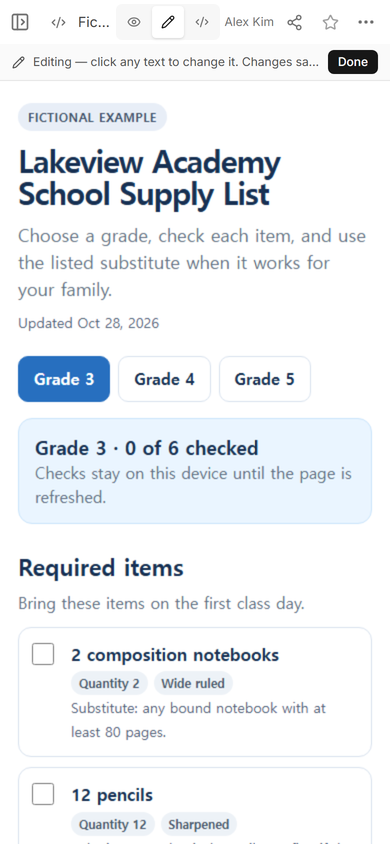
We replaced only the date with “Updated Nov 8, 2026” and chose Done. The existing NOS page then showed the new date while the title, grade tabs, and item list stayed in place.
What should you test on the public phone page?
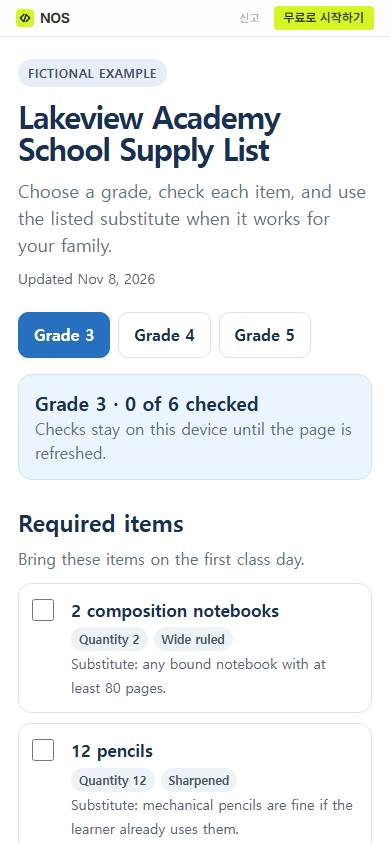
Open the public address at phone width after the edit. In our check, the same reader address showed “Updated Nov 8, 2026” with no sign-in form between the reader and the list.
Then use the controls, not just the first screen. We chose Grade 5 and checked the first required item. The summary changed from zero of six checked to one of six, and the selected binder card changed state.
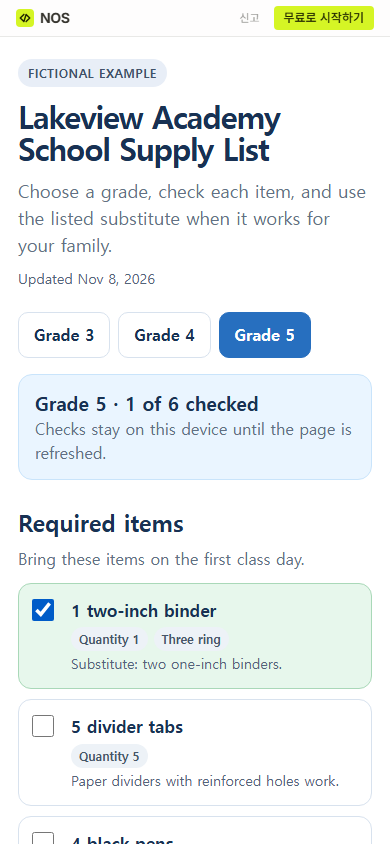
Result: the final public page kept three grade lists behind one address, displayed the revised update date, and let us select Grade 5 and check an item at 390 pixels wide. We did not measure family responses, completion rates, search traffic, or time saved.
Can a school supply list website collect completed lists?
Not in this example. Its checkboxes help the current reader mark progress in the open page; they do not submit a response to the school. If you need a verified acknowledgement, purchasing request, payment, or student-specific record, use the school’s approved system and its privacy process.
How do you handle substitutes and optional supplies?
Put the alternative directly under the item. “Substitute: two one-inch binders” is easier to apply than a page-wide sentence saying that some substitutes may be accepted. If there is no meaningful substitute, say what feature is required instead.
Keep optional supplies in their own section. Do not mix them into the required list with a small symbol that a hurried reader may miss. If the school can provide shared materials, say that beside the optional item only when the statement is true for the real class.
How often should the update date change?
Change it when the published list changes, not whenever someone opens the editor. A visible date helps readers compare a saved or printed copy with the current page, but it does not notify them. If a required item changes after the link was sent, use the school’s approved message channel to tell families what changed.
When not to do this
- Do not use a public page for student names, individual accommodations, family contact details, purchasing records, or payment information.
- Do not present browser checkboxes as proof that a family completed or submitted the list.
- Do not replace an official district portal or required accessible format when the school has already chosen one.
- Do not publish substitute claims, quantities, dates, or device specifications until the responsible school staff confirms them.
Using NOS for this page
NOS let us upload the one-file example, compare its code and rendered view, open ordinary Edit, and create the public reader address shown here. The public address displayed the saved date change and the working grade controls in our phone-width check. See the current pricing page for plan details rather than relying on an amount copied into this guide.
Related classroom pages
If you need a broader home for schedules and links, read how to make a one-page classroom website. For information presented during a family event and reopened later, see back-to-school night slides and a family link. A weekly action and date belong in a different format; the parent newsletter template covers that job.