In short
A shift schedule maker does not have to be an app. If one manager writes the schedule and the team just needs to read it, a single web page at a link does the job.
Put six things on it: the week's dates, shift times stated once, each day's shifts with a role and a name, total hours per person, a "last updated" line, and how swaps work.
Send one read-only link to the staff group chat. When something changes, edit the page. The link stays the same, so nobody reads an old screenshot.
A single swap touches three spots: the shift itself, both people's weekly hours, and the update line. After you save, open the link and check all three.
We made a week of shifts for a fictional restaurant, Harbor Street Noodle Bar, with seven staff and a manager named Dana. We put the page on NOS and made a read-only link for the team. Then we played out the most common change: Maya can't work Friday dinner, and Jordan takes it. We made the swap in the NOS editor and opened the same link again. Three of our four edits saved on the first try. The last one did not, and that is worth knowing before you rely on this.
How to make a work schedule for employees
Most results for this search are lists of scheduling apps. They skip the part you do by hand either way: deciding what the page shows. Here is the order we built ours in.
- Collect the limits first. Get availability and approved time off before you place a single name. If you have workers under 18, check the hours they are allowed to work.
- Define shift blocks once. Ours are lunch, 10:30 AM to 3:00 PM, and dinner, 4:30 PM to 10:00 PM. Write the times at the top so each shift only needs a name.
- Lay it out by day. Staff open the schedule on a phone, so each day is one card with the shifts stacked inside. Scrolling down feels natural on a small screen. Seven narrow columns do not.
- Give every slot a role. "Server: Maya" answers two questions at once. It also shows a missing dishwasher right away.
- Add the weekly hours. A two-column table of names and hours catches overtime before it happens. Ana and Luis are at 33.5 hours in our week, the highest on the team.
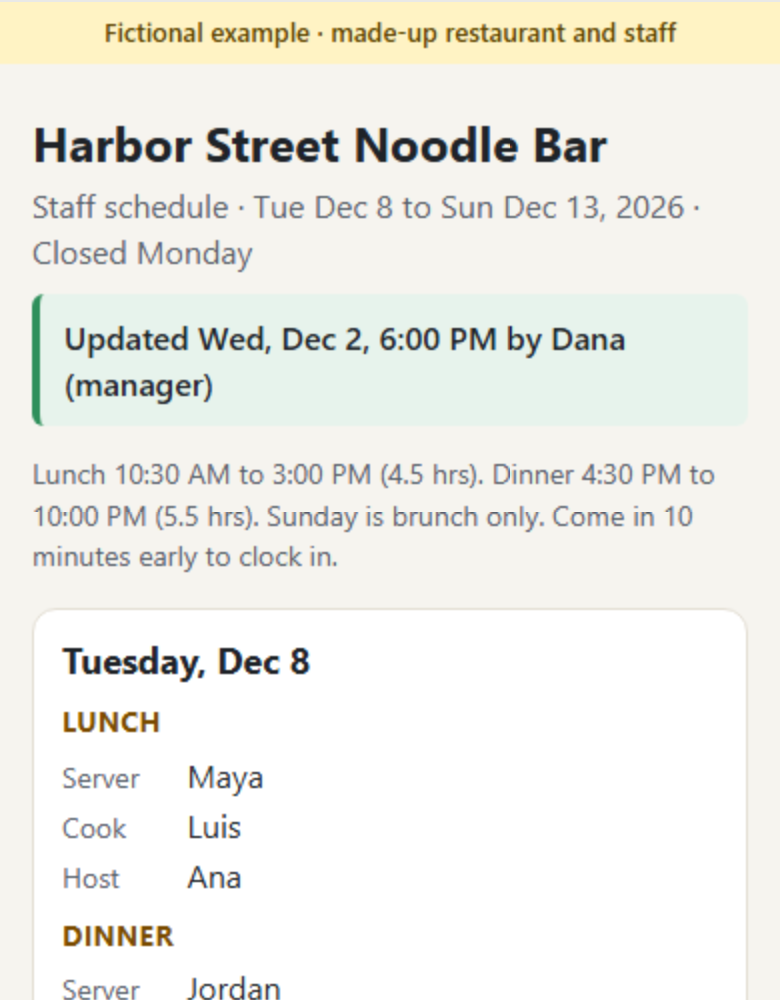
- Add an update line and a swap rule. A green line at the top names the last change and who made it. Our swap rule is short: find your cover, text Dana, and the swap counts once the page shows it.
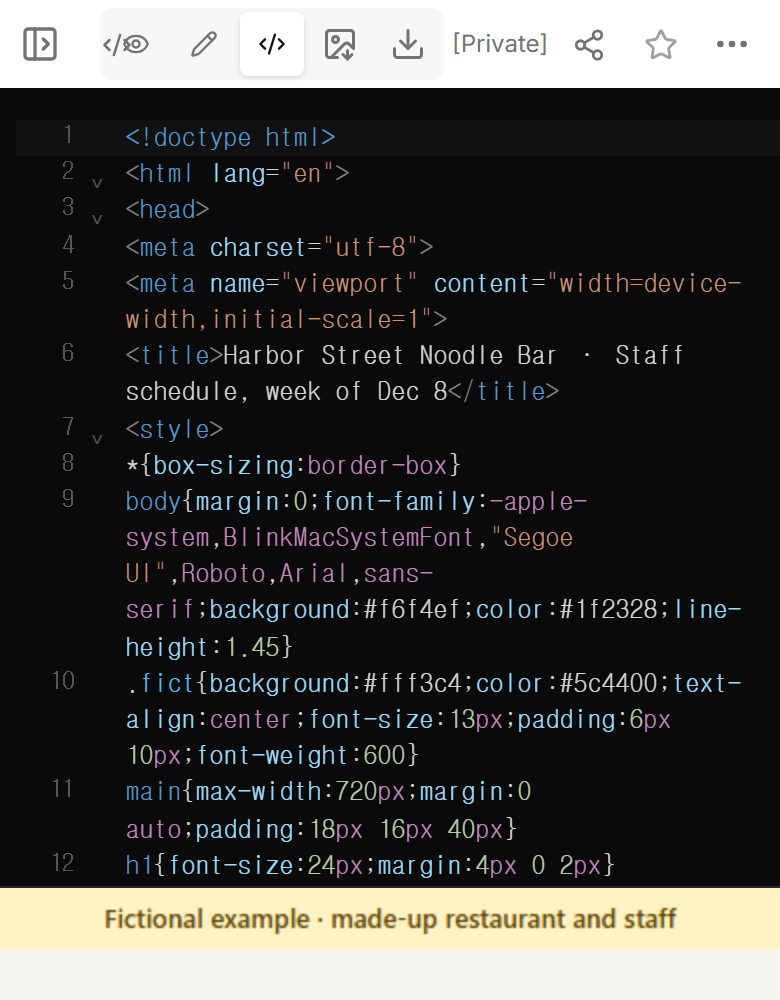
The whole schedule is one HTML file with its styles inside. You can download our fictional schedule and replace the names, days, and times with your own.
Share one link, not a screenshot
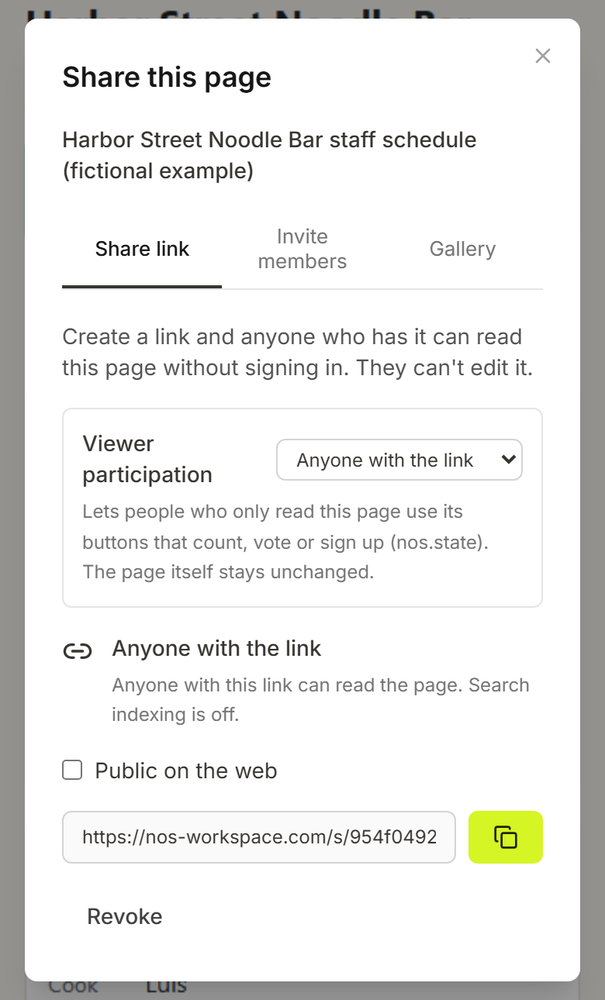
A screenshot in the group chat is frozen the moment you post it. A link always shows the page as it is now. In NOS, the Share button opens a panel with a read-only link. People who open it don't need an account, and they can't change anything. The panel also says search engines won't index it, and a Revoke button turns the link off.
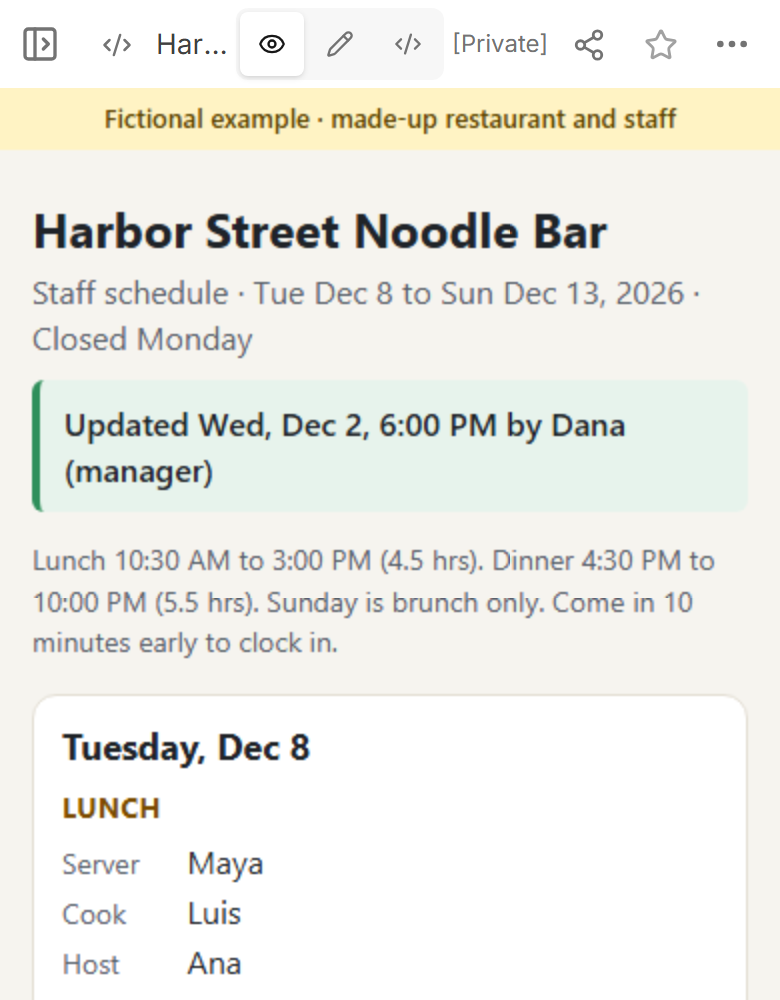
We opened the link in a phone-sized window while logged out, the way a server would from the group chat. The update line sits above the first day, so staff see it before any shift.
What one shift swap changes
Maya asked off Friday dinner, and Jordan agreed to cover. In NOS, the Edit button lets you click any text on the page and type over it. We clicked Maya's name in the Friday dinner card and typed Jordan.
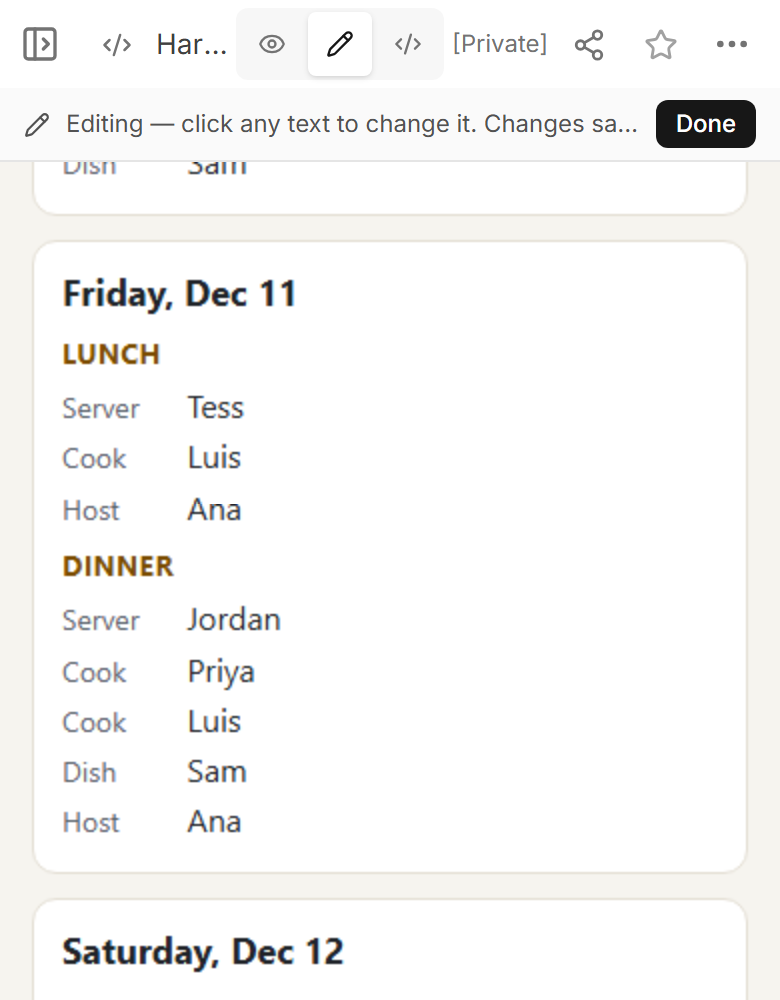
That fixes the shift, but the hours table is now wrong. Dinner is 5.5 hours, so Maya drops from 25.5 to 20 and Jordan goes from 25.5 to 31. Both numbers have to change. Skip this and the hours table quietly disagrees with the cards. Someone checking their hours will trust whichever one they read first.
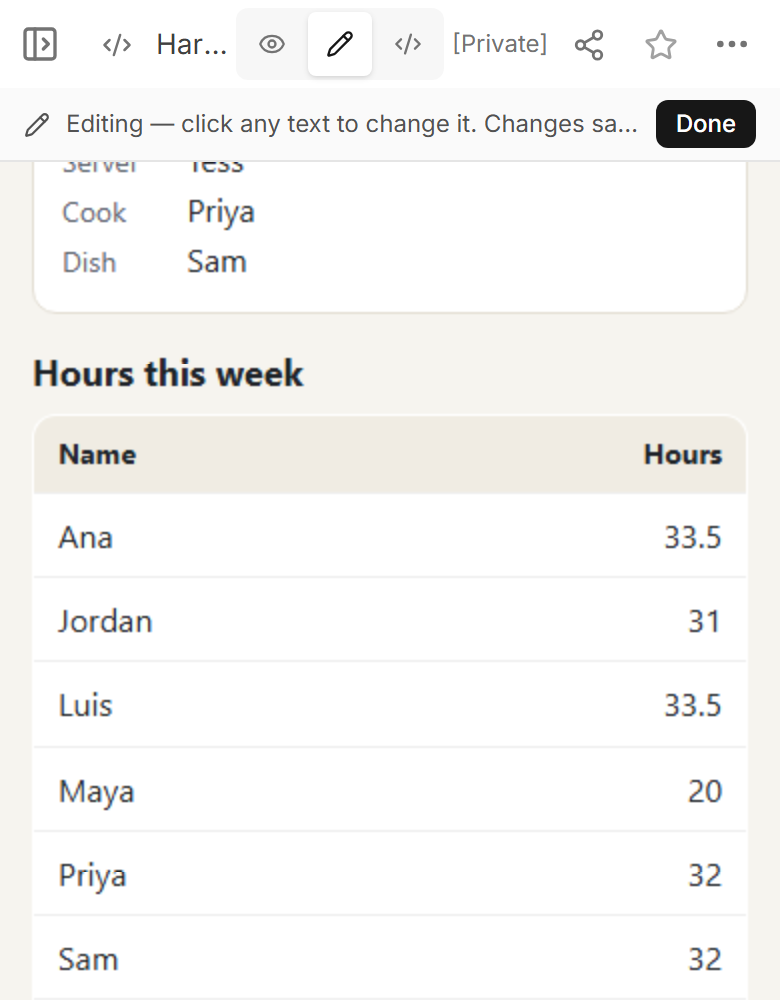
Last, we rewrote the green line to say what changed: "Updated Thu, Dec 3, 2:15 PM by Dana: Jordan covers Maya's Friday dinner." Then we clicked Done.
The edit that didn't stick
After Done, the page showed the old line again: "Updated Wed, Dec 2, 6:00 PM." The Friday card and both hour totals had saved. The update line, our last edit before Done, had not.
We opened Edit again, retyped the line, and this time paused before clicking Done. It saved. The same link we had already shared now shows the new line at the top and Jordan on Friday dinner.
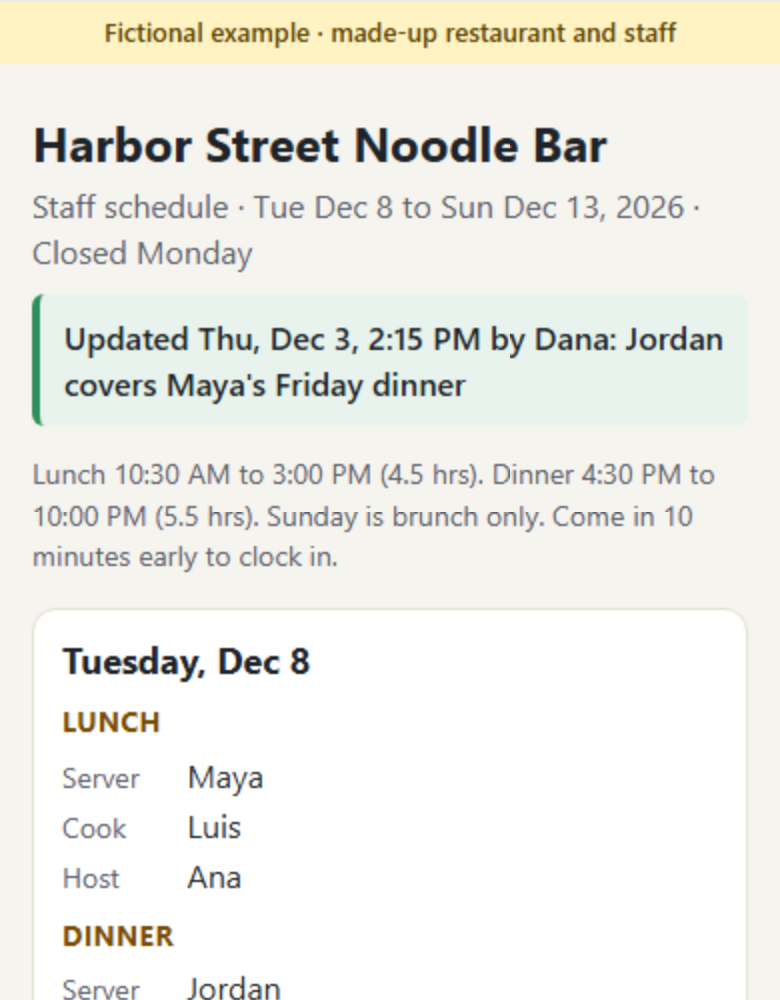
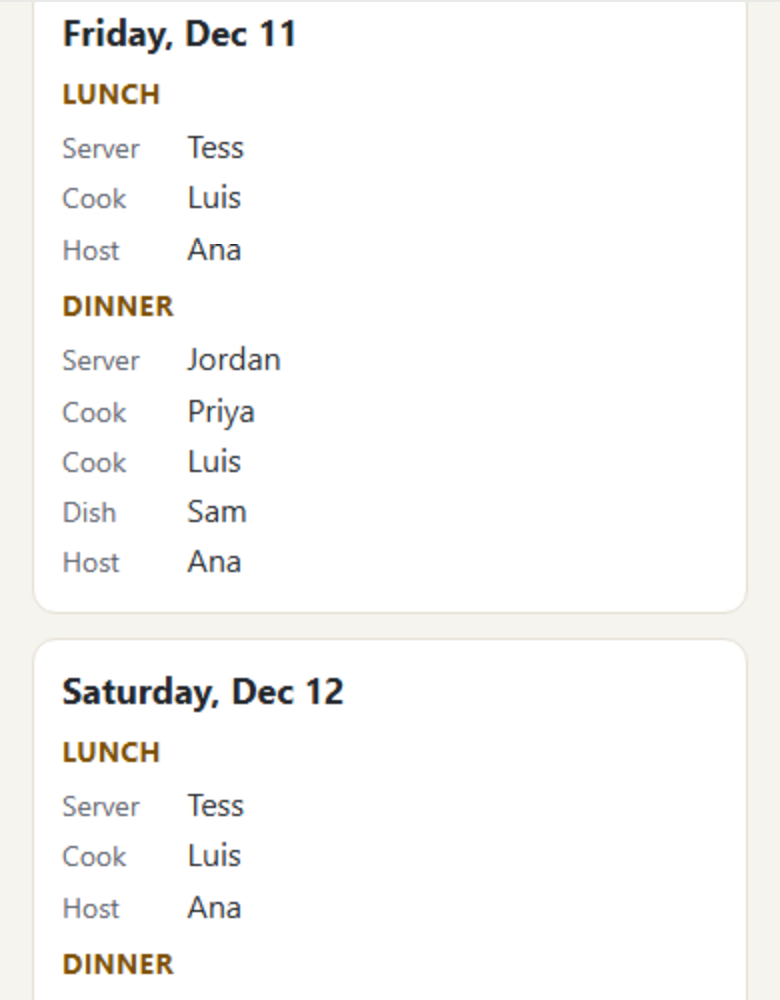
The habit that would have caught it: after Done, open the shared link yourself and read the top line before you text the team. If the line names the change you just made, everything below it saved too. Don't type your last edit and hit Done in one motion.
Shift schedule maker free: app, spreadsheet, or a page?
Google suggests "free," "excel," "app," and "ai" after this search. They solve different problems.
- Excel or Google Sheets. Good for building the week and adding up hours with formulas. Weak at sharing: a file goes stale once sent, and a shared sheet invites stray edits.
- A scheduling app. Homebase, When I Work, Sling, and others handle availability, swap requests, notifications, and clock-in. Staff use the app itself to see shifts and send requests.
- A web page at a link. Read-only, opens on any phone, no accounts for staff. The manager does every change by hand.
Many people mix them. Build the week in a sheet, then paste the final version into a page that staff read.
How to make a restaurant employee schedule
Restaurants add a few twists. Think in services, not hours of the day. Lunch and dinner need different headcounts, and Friday and Saturday dinner need more than Tuesday. Our Saturday dinner has two servers and two cooks. Tuesday dinner has one of each.
Leave room for prep. Restaurant365's scheduling guide suggests staggering start times so shifts overlap for prep and restocking. The same guide notes that some states and cities require schedules up to two weeks in advance. Check your local rules before you pick a posting day.
Put the call-out rule on the page. Ours tells staff to call before 9:00 AM for lunch and before 2:00 PM for dinner. That gives the manager time to find cover.
When not to do this
- Staff need to request swaps or time off themselves. A read-only page can't take requests. An app with approvals fits better.
- You need clock-in, timesheets, or payroll. A page shows the plan, not what happened.
- You need alerts. Nobody gets a notification when the page changes. You still have to tell people to look.
- Several managers edit the schedule. One owner keeps one page honest. Many editors need a shared tool with roles.
- The schedule holds private details. Phone numbers or medical notes don't belong on a link that anyone can forward.
Where NOS fits
NOS keeps HTML pages and notes in one workspace and shares any page as a read-only link. Viewers open it without an account, and editing the page keeps the same link. It also keeps a version history of the page. The Free plan allows 3 share links at once, so one link per weekly schedule fits if you reuse the same page each week. Paid plans are on the pricing page.
Related: volunteer schedule template, restaurant menu HTML, and why links beat attachments.