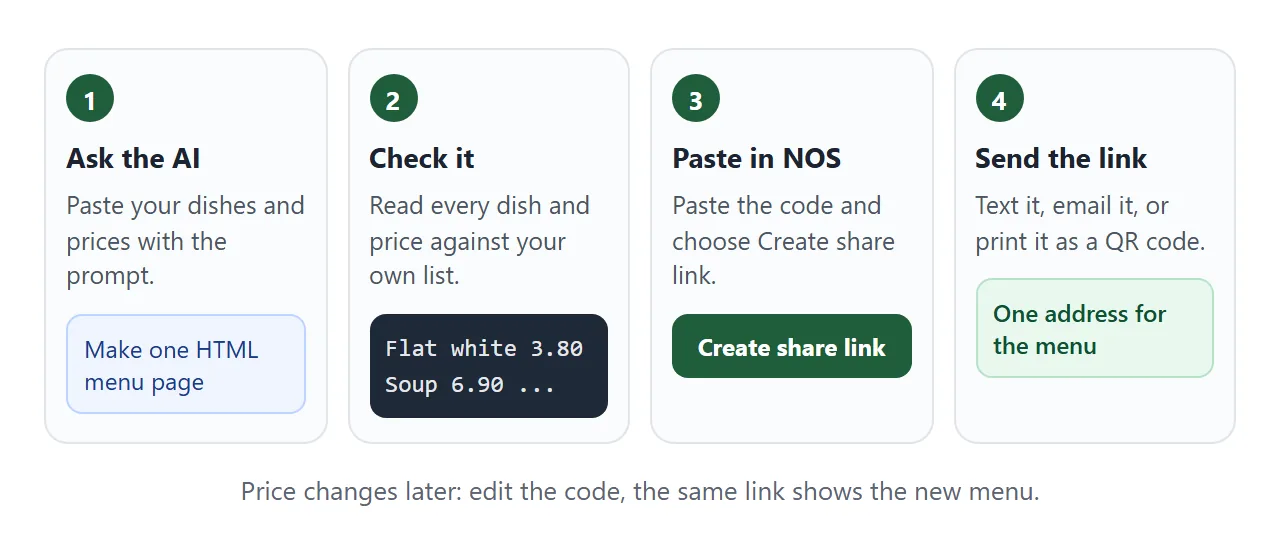
A restaurant menu in HTML is a single web page: section names, dishes, short descriptions and prices. You do not have to write it by hand. Give an AI chat your list, paste the code it returns into NOS, and send the link.
One Quora question asks, "Is there any free digital menu software out there?" If the menu only needs to be read, one page and one link can be enough, and that is what this guide builds.
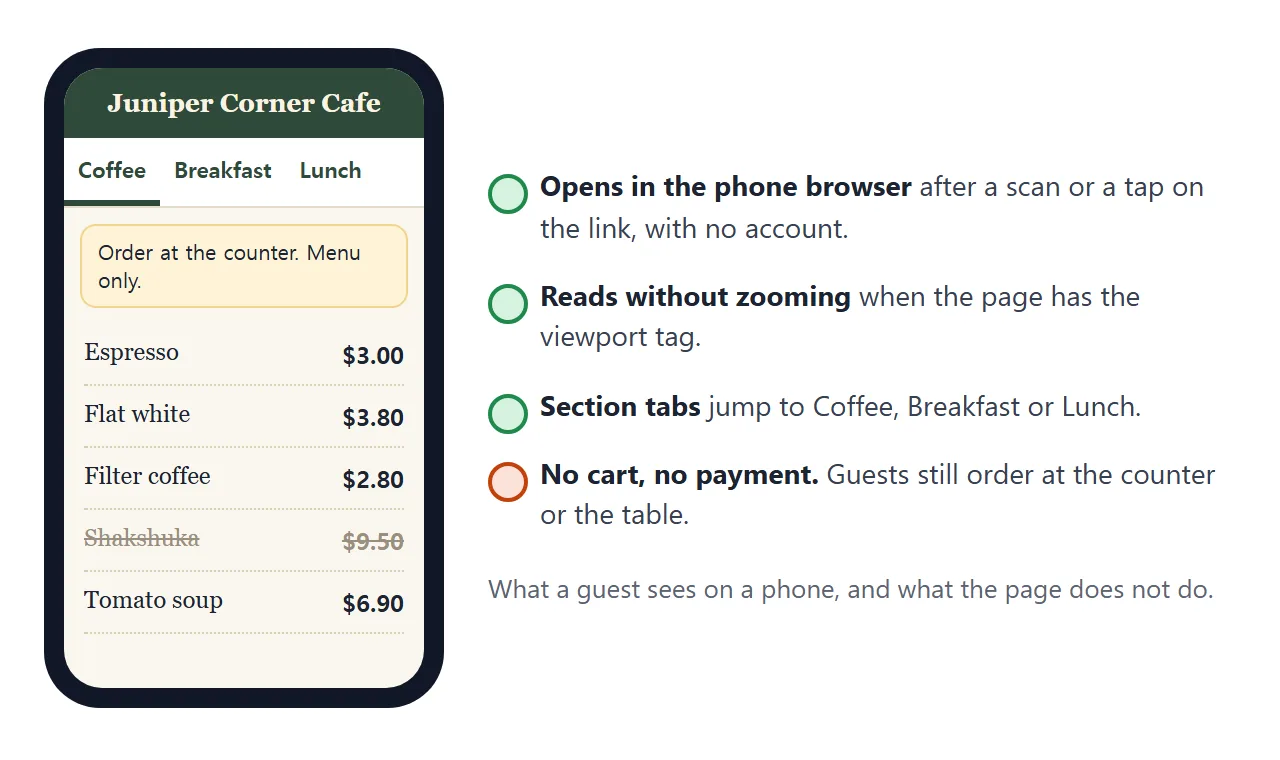
Start with the finished page. It is a café menu with made-up names and prices. Tap a section name to jump, then press Edit prices, tap a price and type.
<!doctype html>
<html lang="en">
<head>
<meta charset="utf-8">
<meta name="viewport" content="width=device-width, initial-scale=1">
<title>Juniper Corner Cafe - Menu</title>
<style>
* { box-sizing: border-box; }
html { scroll-behavior: smooth; }
body { margin: 0; font-family: Georgia, "Times New Roman", serif; background: #faf6ef; color: #2b2118; line-height: 1.45; }
header { background: #2f4a3a; color: #fbf3e2; padding: 22px 16px 18px; text-align: center; }
header h1 { margin: 0 0 2px; font-size: 26px; letter-spacing: .02em; }
header p { margin: 0; font: 14px system-ui, sans-serif; opacity: .9; }
nav { position: sticky; top: 0; z-index: 5; background: #fff; border-bottom: 1px solid #e4dccb; }
nav .in { display: flex; gap: 2px; overflow-x: auto; max-width: 640px; margin: 0 auto; padding: 0 6px; }
nav a { flex: none; padding: 12px 12px; font: 600 15px system-ui, sans-serif; color: #2f4a3a; text-decoration: none; border-bottom: 3px solid transparent; }
nav a:hover { border-bottom-color: #2f4a3a; }
main { max-width: 640px; margin: 0 auto; padding: 14px 14px 8px; }
section { scroll-margin-top: 56px; margin-bottom: 18px; }
h2 { margin: 6px 0 4px; font-size: 20px; color: #2f4a3a; border-bottom: 2px solid #d9cdb4; padding-bottom: 4px; }
.item { display: flex; gap: 12px; justify-content: space-between; align-items: baseline; padding: 9px 0; border-bottom: 1px dotted #d9cdb4; }
.item h3 { margin: 0; font-size: 16px; }
.item p { margin: 2px 0 0; font: 13px/1.4 system-ui, sans-serif; color: #6a5d4c; }
.tag { display: inline-block; margin-left: 4px; padding: 0 6px; border-radius: 99px; background: #e3efdf; color: #2f5a35; font: 700 11px system-ui, sans-serif; vertical-align: 1px; }
.price { flex: none; font: 700 16px system-ui, sans-serif; white-space: nowrap; border-radius: 6px; padding: 2px 6px; }
.price::before { content: "$"; }
.out h3, .out .price { text-decoration: line-through; color: #9a8f7e; }
.out p::after { content: " Sold out today."; font-weight: 700; color: #a4452c; }
.note { margin: 4px 0 14px; padding: 10px 12px; border-radius: 10px; background: #fff3d6; border: 1px solid #f0d58a; font: 14px system-ui, sans-serif; }
footer { max-width: 640px; margin: 0 auto; padding: 4px 14px 28px; font: 13px/1.5 system-ui, sans-serif; color: #6a5d4c; }
.owner { margin-top: 12px; padding-top: 12px; border-top: 1px dashed #cfc3aa; }
.owner button { font: 600 14px system-ui, sans-serif; padding: 9px 14px; border-radius: 8px; border: 1px solid #2f4a3a; background: #fff; color: #2f4a3a; cursor: pointer; }
.owner button[aria-pressed="true"] { background: #2f4a3a; color: #fff; }
body.editing .price { outline: 2px dashed #c0792a; background: #fff6e6; cursor: text; }
.owner small { display: block; margin-top: 8px; }
</style>
</head>
<body>
<header>
<h1>Juniper Corner Cafe</h1>
<p>Open 7:30 to 15:00 · Tuesday to Sunday</p>
</header>
<nav><div class="in">
<a href="#coffee">Coffee</a><a href="#breakfast">Breakfast</a><a href="#lunch">Lunch</a><a href="#sweets">Sweets</a>
</div></nav>
<main>
<p class="note">Order at the counter. This page is a menu only and does not take orders.</p>
<section id="coffee">
<h2>Coffee</h2>
<div class="item"><div><h3>Espresso</h3><p>Double shot.</p></div><span class="price">3.00</span></div>
<div class="item"><div><h3>Flat white</h3><p>Double shot, steamed milk.</p></div><span class="price">3.80</span></div>
<div class="item"><div><h3>Filter coffee</h3><p>Refills are 1.00.</p></div><span class="price">2.80</span></div>
<div class="item"><div><h3>Iced oat latte</h3><p>Oat milk, ice, one shot.</p></div><span class="price">4.40</span></div>
</section>
<section id="breakfast">
<h2>Breakfast</h2>
<div class="item"><div><h3>Porridge <span class="tag">V</span></h3><p>Oats, stewed apple, cinnamon.</p></div><span class="price">6.50</span></div>
<div class="item"><div><h3>Egg on toast</h3><p>Two eggs, sourdough, butter.</p></div><span class="price">7.20</span></div>
<div class="item out"><div><h3>Shakshuka <span class="tag">V</span></h3><p>Baked eggs in spiced tomato.</p></div><span class="price">9.50</span></div>
</section>
<section id="lunch">
<h2>Lunch</h2>
<div class="item"><div><h3>Tomato soup <span class="tag">V</span></h3><p>With a slice of bread.</p></div><span class="price">6.90</span></div>
<div class="item"><div><h3>Cheese toastie</h3><p>Two cheeses, pickle on the side.</p></div><span class="price">7.80</span></div>
<div class="item"><div><h3>Chicken salad</h3><p>Greens, grains, lemon dressing.</p></div><span class="price">10.50</span></div>
</section>
<section id="sweets">
<h2>Sweets</h2>
<div class="item"><div><h3>Lemon loaf <span class="tag">V</span></h3><p>A thick slice.</p></div><span class="price">3.60</span></div>
<div class="item"><div><h3>Brown butter cookie</h3><p>Baked each morning.</p></div><span class="price">2.50</span></div>
</section>
</main>
<footer>
Ask us about ingredients before you order.
<div class="owner">
<button id="edit" type="button" aria-pressed="false">Edit prices</button>
<small id="hint">Owner button for this demo. Remove this block before you send the link.</small>
</div>
</footer>
<script>
var btn = document.getElementById('edit');
var hint = document.getElementById('hint');
var prices = document.querySelectorAll('.price');
function setEditing(on) {
document.body.classList.toggle('editing', on);
btn.setAttribute('aria-pressed', on);
btn.textContent = on ? 'Done' : 'Edit prices';
hint.textContent = on
? 'Tap a price and type. Changes on this screen are for trying out; the saved menu is the code.'
: 'Owner button for this demo. Remove this block before you send the link.';
prices.forEach(function (p) {
p.contentEditable = on ? 'true' : 'false';
p.dataset.was = p.textContent;
});
}
btn.addEventListener('click', function () {
setEditing(btn.getAttribute('aria-pressed') !== 'true');
});
prices.forEach(function (p) {
// Enter ends the edit instead of adding a line
p.addEventListener('keydown', function (e) {
if (e.key === 'Enter') { e.preventDefault(); p.blur(); }
});
// Tidy the number, or put the old price back
p.addEventListener('blur', function () {
var n = parseFloat(p.textContent.replace(',', '.'));
p.textContent = isNaN(n) || n < 0 ? p.dataset.was : n.toFixed(2);
p.dataset.was = p.textContent;
});
});
</script>
</body>
</html>
The Edit prices button is only for trying things out. What you type on the page stays on that screen and is gone when the page reloads. The saved menu is the code, so changes you want to keep go there.
Make it with AI
ChatGPT, Claude and Gemini can all write this page. Paste the prompt below and replace the brackets with your own details.
Write one self-contained HTML file: a menu page for a small
restaurant, built for a phone first. Use only inline CSS and a
little JavaScript. No outside images, fonts or scripts.

Show the restaurant name and opening hours at the top, then a row
of tappable section names that jump to each section (sticky at
the top). Each dish has a name, a one-line description and a price.
Mark a dish as sold out by greying it and striking it through.
Add a line: "Order at the counter. This page does not take orders."

Keep all prices in plain text so I can change them. Do not add
dishes, prices or allergy claims I did not give you.

My details: [name, hours, then each section with its dishes,
descriptions and prices]
Read the result before you use it. Check that every dish is on the page and every price matches your own list. Look for dishes you never mentioned. If the AI wrote ingredient or allergy notes you did not supply, delete them.
For the page to fit a phone, it needs the viewport meta tag. MDN says that without it, mobile browsers may use a wider virtual viewport and shrink the page. Check that the AI included it.
Send it as a link
Paste the finished HTML into a NOS document and choose Create share link. HTML to link walks through it. The page renders as written, and its scripts run.
Anyone with the link opens it in a browser, phones included, with no account. They can read the page but not edit it. If you change the code later, editing the same document keeps the same link.
Make one document for the menu. A second share link is a new address, and anything you printed from the first still opens the first page.
Opening an HTML file on a phone explains why sending the file itself is a poor way to share a menu. A link opens the page directly.
Change a price later
This is the reason to use a link: the printed QR code or the link in your bio never changes, and the menu behind it can.
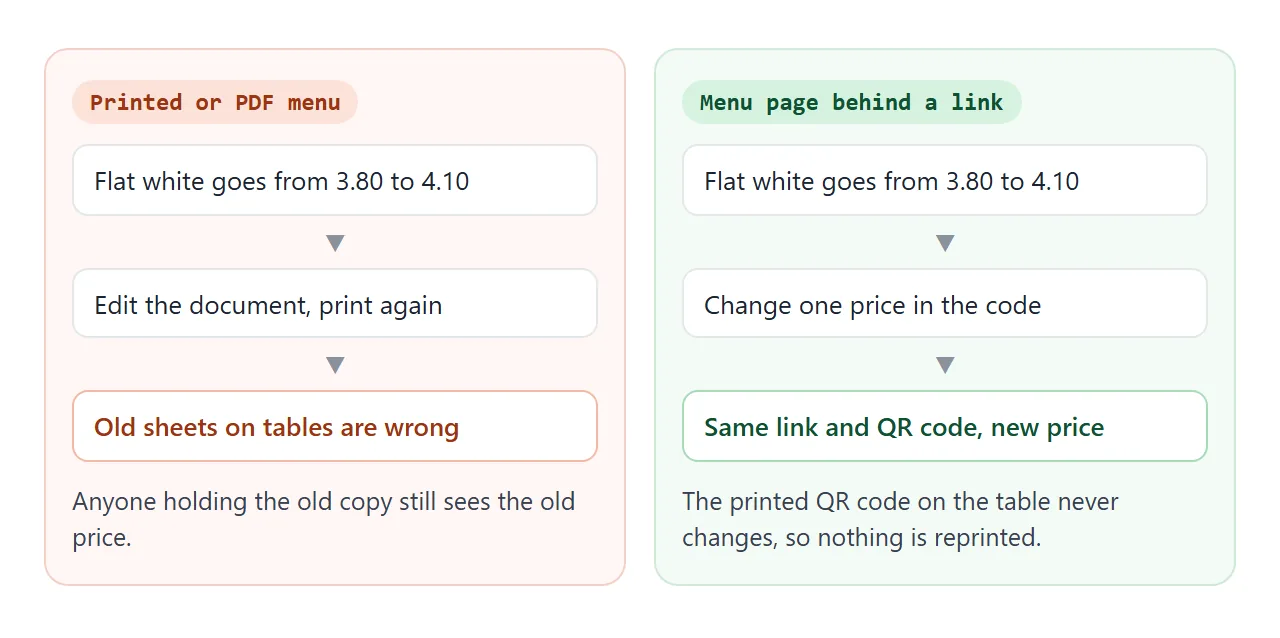
You have two ways to make the change. Edit the number in the code yourself, or paste the code back into your AI chat with a short message and ask for the full page back. The sheet below writes that message for you.
<!doctype html>
<html lang="en">
<head>
<meta charset="utf-8">
<meta name="viewport" content="width=device-width, initial-scale=1">
<title>Price change sheet</title>
<style>
  * { box-sizing: border-box; }
  body { margin: 0; font-family: system-ui, sans-serif; background: #f4f1ea; color: #231d15; line-height: 1.45; }
  main { max-width: 560px; margin: 0 auto; padding: 16px 14px 24px; }
  h1 { margin: 0 0 4px; font-size: 20px; }
  .lead { margin: 0 0 12px; font-size: 14px; color: #5f5444; }
  .tools { display: flex; gap: 8px; flex-wrap: wrap; margin-bottom: 10px; }
  button { font: 600 14px system-ui, sans-serif; padding: 9px 12px; border-radius: 8px; border: 1px solid #2f4a3a; background: #fff; color: #2f4a3a; cursor: pointer; }
  button.main { background: #2f4a3a; color: #fff; }
  table { width: 100%; border-collapse: collapse; background: #fff; border-radius: 10px; overflow: hidden; box-shadow: 0 1px 5px rgba(0,0,0,.07); }
  th, td { text-align: left; padding: 8px 10px; border-bottom: 1px solid #ece5d6; font-size: 15px; }
  th { font-size: 12px; text-transform: uppercase; letter-spacing: .04em; color: #6a5d4c; background: #faf6ef; }
  td.num, th.num { text-align: right; }
  td.was { color: #8a7e6c; }
  input { width: 84px; font: 700 15px system-ui, sans-serif; text-align: right; padding: 6px 8px; border: 1px solid #cfc3aa; border-radius: 6px; }
  tr.changed input { border-color: #c0792a; background: #fff6e6; }
  tr.changed td:first-child::after { content: " changed"; font-size: 12px; font-weight: 700; color: #c0792a; }
  h2 { margin: 18px 0 6px; font-size: 16px; }
  textarea { width: 100%; height: 130px; font: 14px/1.45 ui-monospace, Consolas, monospace; padding: 10px; border: 1px solid #cfc3aa; border-radius: 8px; background: #fff; resize: vertical; }
  .hint { margin: 6px 0 0; font-size: 13px; color: #5f5444; }
  #status { min-height: 18px; font-size: 13px; color: #2f5a35; }
</style>
</head>
<body>
<main>
  <h1>Price change sheet</h1>
  <p class="lead">Change a price in the box. The sheet lists what changed, ready to send to your AI chat.</p>

  <div class="tools">
    <button id="rise" type="button">Raise all by 5%</button>
    <button id="reset" type="button">Reset</button>
  </div>

  <table>
    <thead><tr><th>Item</th><th class="num">Was</th><th class="num">New</th></tr></thead>
    <tbody id="rows"></tbody>
  </table>

  <h2>Message for the AI chat</h2>
  <textarea id="msg" readonly></textarea>
  <button id="copy" class="main" type="button" style="margin-top:8px">Copy message</button>
  <div id="status" role="status"></div>
  <p class="hint">Paste your menu code first, then this message. Ask for the full page back.</p>
</main>

<script>
  var items = [
    ['Espresso', 3.00], ['Flat white', 3.80], ['Filter coffee', 2.80],
    ['Iced oat latte', 4.40], ['Porridge', 6.50], ['Egg on toast', 7.20],
    ['Tomato soup', 6.90], ['Cheese toastie', 7.80], ['Lemon loaf', 3.60]
  ];
  var rows = document.getElementById('rows');
  var msg = document.getElementById('msg');
  var inputs = [];

  items.forEach(function (it, i) {
    var tr = document.createElement('tr');
    tr.innerHTML = '<td></td><td class="num was"></td><td class="num"><input inputmode="decimal" aria-label="New price"></td>';
    tr.children[0].textContent = it[0];
    tr.children[1].textContent = it[1].toFixed(2);
    var input = tr.querySelector('input');
    input.value = it[1].toFixed(2);
    input.setAttribute('aria-label', 'New price for ' + it[0]);
    input.addEventListener('input', update);
    inputs.push(input);
    rows.appendChild(tr);
  });

  function value(input) {
    var n = parseFloat(input.value.replace(',', '.'));
    return isNaN(n) ? null : n;
  }

  function update() {
    var lines = [];
    inputs.forEach(function (input, i) {
      var n = value(input);
      var changed = n !== null && Math.abs(n - items[i][1]) > 0.001;
      input.parentNode.parentNode.classList.toggle('changed', changed);
      if (changed) lines.push('- ' + items[i][0] + ': ' + items[i][1].toFixed(2) + ' to ' + n.toFixed(2));
    });
    msg.value = lines.length
      ? 'Change these prices on the menu page above. Keep everything else the same and give me the full page.\n' + lines.join('\n')
      : 'No prices changed yet.';
  }

  document.getElementById('rise').addEventListener('click', function () {
    inputs.forEach(function (input, i) {
      // round to the nearest 5 cents
      input.value = (Math.round(items[i][1] * 1.05 / 0.05) * 0.05).toFixed(2);
    });
    update();
  });

  document.getElementById('reset').addEventListener('click', function () {
    inputs.forEach(function (input, i) { input.value = items[i][1].toFixed(2); });
    update();
  });

  document.getElementById('copy').addEventListener('click', function () {
    var status = document.getElementById('status');
    msg.select();
    var ok = false;
    try { ok = document.execCommand('copy'); } catch (e) {}
    status.textContent = ok ? 'Copied.' : 'Select the text and copy it yourself.';
  });

  update();
</script>
</body>
</html>
Whichever way you go, paste the new code into the same NOS document. Then open the link on your phone and check the prices that changed.
What this page does and does not do
A menu page is for reading. It does not have a cart, a payment step or a table number. A form on the page can work inside the page, but as of October 2026, NOS blocks a form from sending data to a server.
| Printed menu | PDF file | Menu page behind a link | |
|---|---|---|---|
| Price change | Reprint | New file, new copy to send | Edit the code, same link |
| Mark a dish sold out | Handwrite or cross out | New file | Edit and update |
| Takes orders or payments | No | No | No |
If you need orders, payments or a kitchen printout, that is a different kind of tool. Use the page for the menu and keep your usual way of taking orders. How to host a restaurant menu covers what to put first on the page.
Put the link on a table QR code
A QR code holds a link, not the menu. Scanning it opens whatever is at that link. Chrome Help describes a QR code option for the open page on a computer, with a Download button for the image.
The menu location differs by operating system, so check the Help page for your version. The iPhone User Guide has a topic named Scan a QR code for the Camera app, and settings can differ between phones.
Print the code with a white margin and a few words, such as "Scan for the menu". Add the link as text beside it for guests who do not scan.
QR code link covers sizing and placement, and Menu link covers one address for the menu.
Test the printed code with two phones, in the room light, from where a guest sits.
When it does not work
| What you see | Likely cause | Fix |
|---|---|---|
| The text is tiny on a phone | The page has no viewport tag | Add the viewport meta tag |
| A dish photo is missing | The image comes from another site | Use text or inline SVG instead |
| The link still shows the old price | A new share link was made instead of an edit | Update the original document |
| A price typed on the page vanished | Typing on the page is not saved | Change the price in the code |
| Guests ask where to order | The page does not say how | Add a line such as Order at the counter |
| The QR code will not scan | Too small, no margin or blurry print | Print it larger with a white margin |
| An invented dish is on the page | The AI added it | Delete it and check the list again |
Before you tell anyone, open the link yourself on a phone and read it from top to bottom.