Which kind of software documentation do your users need?
Software documentation is the written text or illustrations that come with a program or sit inside its source code. Common categories include requirements, architecture and design, technical documentation of code and APIs, end-user manuals and marketing material.
For a first guide, the useful split is between code documents and user documents. Code documents explain how the software is built. User documents describe how the program is used. For a software library the two can overlap, but for a general application they usually don't. If your readers run the tool rather than change its code, start with the user guide.
Write for the newcomer, the regular and the expert at once
User documentation is usually organized in one of three ways. A tutorial walks a new user through each step of a task. A thematic section focuses on one area of interest, which suits intermediate users. A reference lists commands or tasks so advanced users can find exactly what they need.
A common complaint is that documentation uses only one of these approaches and nearly ignores the other two. That suggests a practical shape for a small project: a short walkthrough, a handful of task topics and a reference table. Put them all on one page with clear headings so each reader can jump to their part.
Example: a one-page guide for a small command-line tool
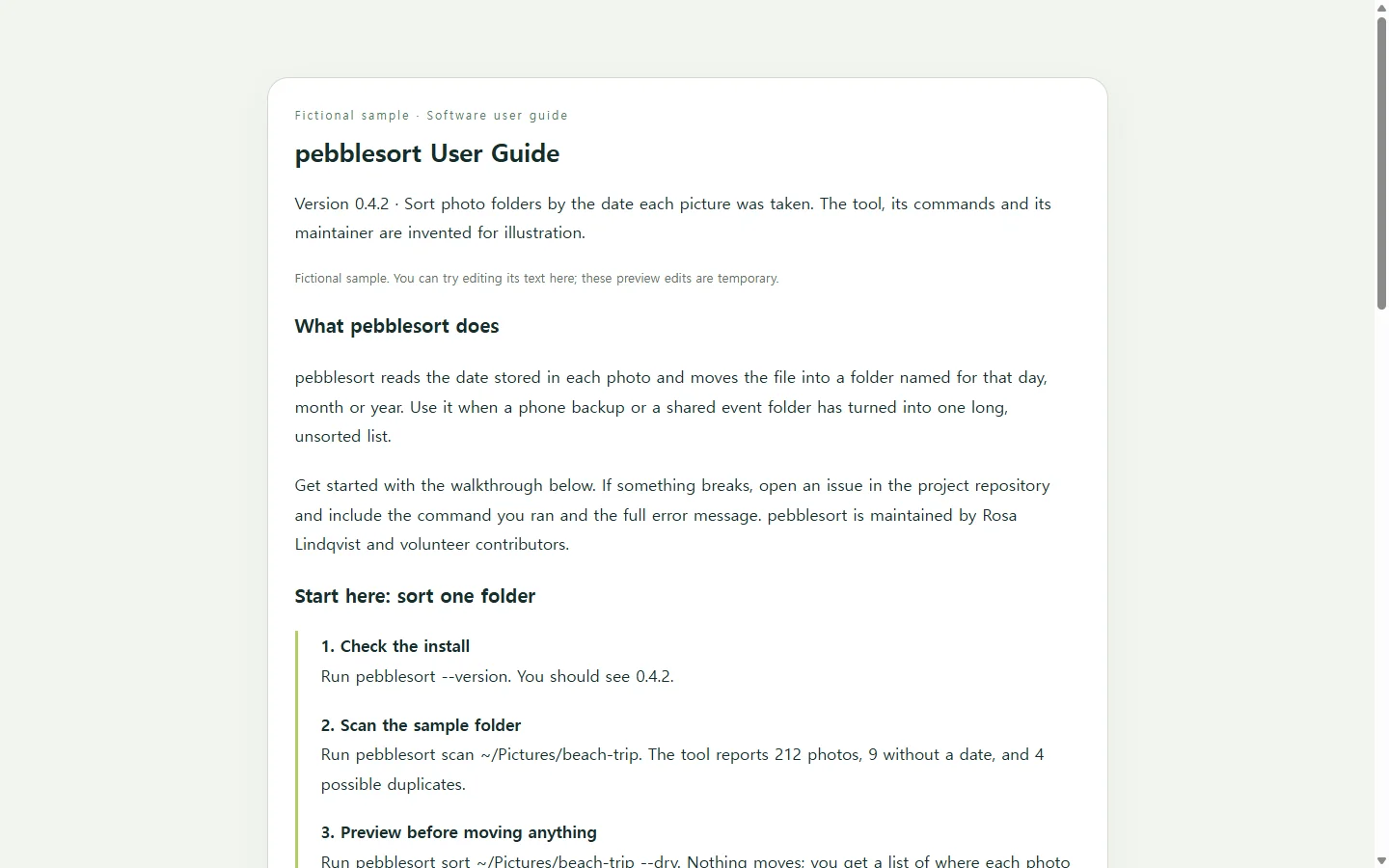
The sample below documents pebblesort, a command-line tool that files photos into folders by the date each one was taken. The tool, its commands, its maintainer and its version number are all invented for this example.
The opening answers the questions a README typically covers: what the project does, why it's useful, how to get started, where to get help and who maintains it. The walkthrough follows one sample folder from start to finish instead of switching examples halfway. The reference table lists each option with its default, so nobody has to guess what happens when they leave an option out.
This guide doesn't have to be a standalone page. A README is often the first thing a visitor sees in a repository, and it should stick to what someone needs to start using or contributing to the project. Longer documentation fits better in a wiki. Teams that treat docs as code keep them in version control and update them automatically, which helps keep them in sync with the codebase. Reference pages generated from code comments are easy to keep current, but only programmers can edit them. Choose based on who will maintain the words.
Build your own version, with AI if you want
You provide the facts: the real commands, options, defaults, error messages and a support contact. An AI model can handle the layout. Ask it for a single HTML file. HTML is the markup a browser reads to display headings, tables and code. It has standard ways to mark up computer code and to make data tables accessible, so ask for both by name. Before you share the result, check every command in it against your actual tool. A generated page can contain an option that sounds plausible but doesn't exist.
If a client contract or a course requires a PDF or Word document, deliver that format. A web page can sit alongside the required file, but it can't replace it.
When the next release renames an option
Say the next pebblesort release renames --dry to --preview. Your README links to the guide, and a teammate has pinned the same link in your team chat. If the page lives in your NOS workspace, you can change the option name directly in the rendered text instead of asking an AI to regenerate the whole page. The published link stays the same after the edit, so both the README link and the pinned message open the corrected guide.
Readers don't need an account to open the shared page. User documents should be straightforward and up to date, and a renamed option is exactly the kind of small change that goes stale fastest. Fixing it in the page people already have is quicker than sending out a new copy.
A prompt to adapt
Create a single, self-contained HTML file for the user guide of my software. Use only the facts I provide below. If something is missing, insert a clearly marked [TODO] instead of inventing commands, options, defaults or behavior.

Software name: [TOOL NAME]
What it does (one sentence): [PURPOSE]
Who uses it: [AUDIENCE, e.g. volunteers who sort event photos]
Install or setup steps: [STEPS]
One complete walkthrough with a sample input: [SAMPLE TASK, COMMANDS, EXPECTED OUTPUT]
Common tasks (3-5): [TASK: STEPS]
Options: [OPTION | WHAT IT DOES | DEFAULT]
Known errors and fixes: [ERROR MESSAGE: FIX]
Where to get help: [CONTACT OR ISSUE TRACKER]
Maintainer: [NAME OR TEAM]
Current version: [VERSION]

Structure, in this order:
1. A short intro that answers what it does, why it's useful, how to start, where to get help and who maintains it.
2. 'Start here': the walkthrough as numbered steps, using the same sample input throughout.
3. Task topics, one h3 per task.
4. An options reference table.
5. Troubleshooting.

Requirements:
- Semantic HTML: one h1, h2/h3 nested in order, <code> for inline commands and <pre><code> for command blocks.
- The options table has a <caption>, <th> header cells with scope attributes, and one row per option.
- A table of contents at the top that links to each h2 by id.
- Works on a 375px-wide phone screen: no horizontal page scrolling; wide tables and code blocks scroll inside their own container.
- Body text at least 16px, sufficient color contrast, visible focus styles on links.
- No JavaScript, forms, external fonts, trackers or network requests.
- Plain English, short sentences, addressed to the reader as 'you'.