Start with the questions a new reader asks first
One useful starting point comes from published guidance on README files, the short documents at the top of a code repository. That guidance says a README typically covers what the project does, why it's useful, how to get started, where to get help, and who maintains it.
Those five questions make a good backbone for a technical documentation template, even when your document is longer than a README. The same guidance says a README should contain only what developers need to get started and that longer documentation belongs elsewhere. That's a fair test for your template too: put setup first and link out to the deeper reference material.
On top of that backbone, add what your readers will actually check. Include a version and last-updated date so they know the page is current. List prerequisites before the first command. Build the troubleshooting section from errors people have actually hit.
A filled-in sample: Fernlog's setup guide
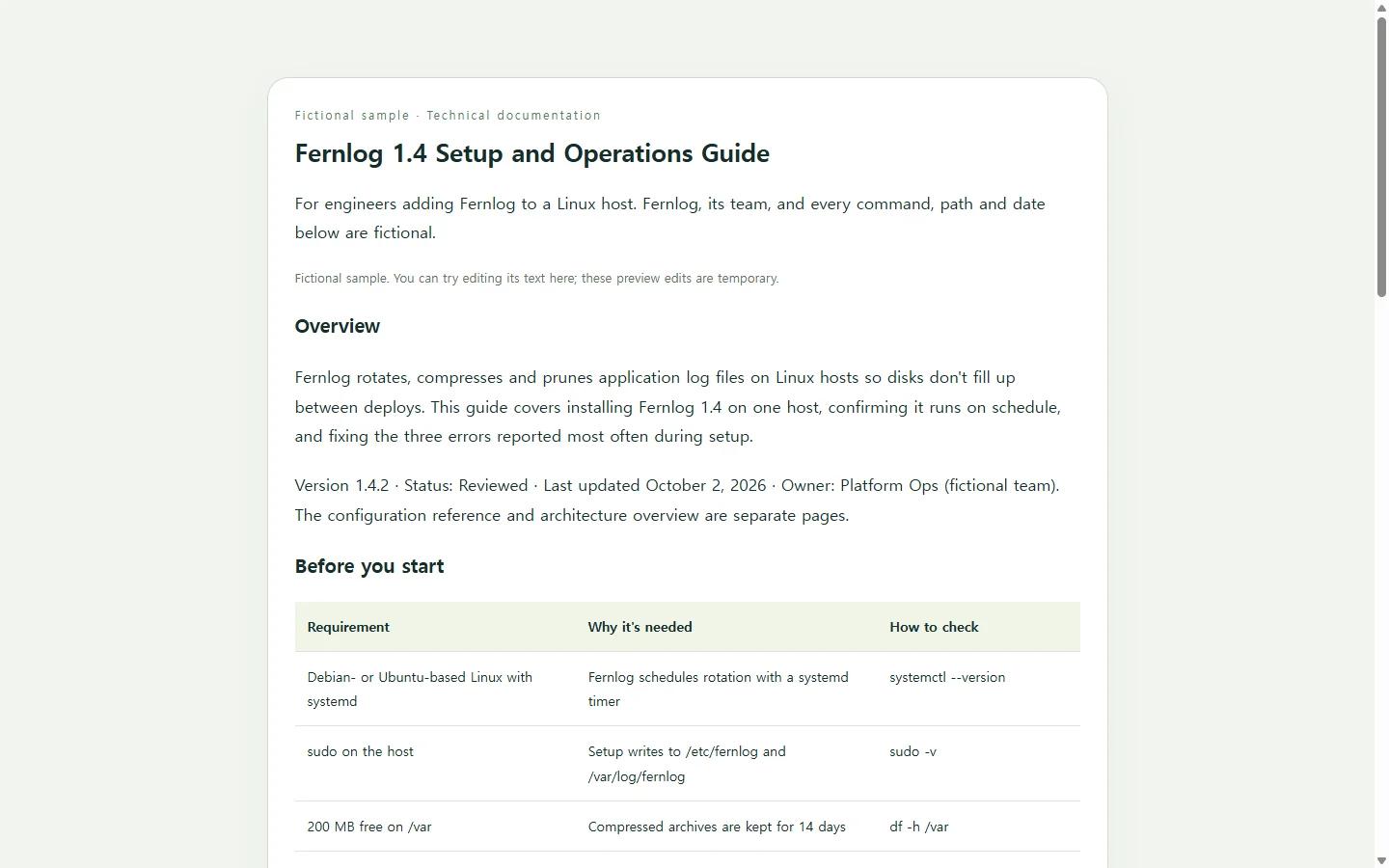
The sample below documents Fernlog, a fictional command-line tool that rotates and compresses log files on Linux servers. The tool, the team that owns it, and every command, path and date in it are made up for illustration.
Three choices are worth copying. Each install step pairs the command with the output you should see, so a reader can tell success from failure before moving on. Prerequisites sit in a table above the first command, so nobody learns halfway through that they need sudo on the host. And each troubleshooting row starts with the exact error text, because that's what the reader has on their screen when they come looking.
What the sample leaves out matters too. There's no architecture deep dive and no full configuration reference. Those go on their own pages, linked by name, so the setup guide stays short enough to follow in one sitting.
Pick the format your readers expect
If a client, auditor or contract asks for a PDF or DOCX, write the document in a word processor template and send the file they asked for. A web page doesn't replace a required attachment.
If the documentation lives next to the code, a README in the repository plus longer pages for reference keeps it close to the people who change that code.
A standalone web page fits when your readers are spread out, like a contractor, another team, or someone on call reading from a phone, and you want a single address to send them.
Build your own page with AI
You don't need AI to use this structure. It helps if you want a clean, readable page without writing the layout by hand. The result is HTML, the markup browsers use to structure headings, lists, tables and code. CSS handles how it looks, and it can sit inside the same file.
Gather the facts first: real commands, real error messages, and the actual owner. The AI should arrange what you give it, not guess version numbers or make up fixes. The prompt below tells it to mark gaps instead of filling them in.
Before you share the page, check it on a narrow screen. Long commands are a likely trouble spot, so the prompt asks for code blocks that scroll sideways instead of stretching the page.
When a command changes, fix the page and keep the link
Technical docs tend to go stale in small ways. Say Fernlog moves its config file and step two now points to the wrong path. If the guide went out as an attached file, fixing it means sending a new copy, and the old one stays in people's inboxes.
If you keep the page in NOS, you can click into the rendered text and change the path directly, without asking an AI to regenerate the whole page. The published sharing link stays the same after you edit, so the address pinned in your team channel or pasted into an onboarding checklist still points to the guide, now with the corrected path.
People you send it to can open the shared page without an account, which helps when the reader is a contractor or someone on another team. NOS also keeps HTML pages, notes and subpages together in a workspace, so the configuration reference can sit under the setup guide as a subpage instead of in a separate folder.
So start with the five questions, fill them in with your real commands and error messages, and when nobody needs the guide as a file, send one link you can keep correcting.
A prompt to adapt
Build a single self-contained HTML page for a technical setup guide. Use only the facts I provide below. If a field is empty or says TODO, show a visible "[TODO: confirm]" marker in that spot instead of inventing a value.

Tool name: [TOOL NAME, e.g. Fernlog]
One-sentence purpose: [WHAT IT DOES, e.g. rotates and compresses log files on Linux servers]
Version and last-updated date: [e.g. 1.4.2, October 2, 2026]
Status: [Draft / In review / Reviewed]
Audience: [WHO READS THIS, e.g. engineers adding the tool to a new host]
Prerequisites (one per line: requirement, why it's needed, how to check): [e.g. sudo on the host | install writes to /etc/fernlog | sudo -v]
Install steps (command, then the exact expected output, copied from a real run): [STEPS]
Verification command and expected result: [e.g. fernlog check -> config OK, timer active]
Known errors (exact error text | likely cause | fix): [ERRORS]
Where to get help, and who owns this doc: [TEAM OR ROLE, CHANNEL]
Related pages to mention by name only (no links): [e.g. Configuration reference, Architecture overview]

Content and layout:
- Top: title, the one-sentence purpose, then one small line with version, status and last-updated date.
- A short table of contents with in-page links to each section.
- Prerequisites as a table with a caption and column header cells.
- Install steps as a numbered list. Put each command and each expected output in its own labeled code block.
- Troubleshooting as a table with columns: Error message | Likely cause | Fix.
- Help and ownership at the end.
- Do not add sections, features, statistics or claims I did not provide.

Technical constraints:
- One HTML file with CSS in a <style> tag. No JavaScript. No external fonts, scripts, images or CDNs.
- No forms, download buttons, API calls, or links to files or pages that don't exist.
- Semantic structure: exactly one h1, h2 for each section, h3 only inside sections, headings in order without skipped levels.
- Code in <pre><code>, with whitespace preserved. Long lines scroll horizontally inside the code block instead of widening the page.
- Tables use <caption> and <th scope="col">. On screens narrower than 600px, each table scrolls horizontally inside its own wrapper.
- Readable on a 375px-wide phone: single column, body text at least 16px, no fixed widths.
- High contrast between text and background (aim for at least 4.5:1). Links get a visible focus style.
- Return only the complete HTML, with no explanation before or after it.