TypeScript is Microsoft's language that adds type annotations to JavaScript. Browsers cannot run it directly.
To use it in one HTML file with no build step, put your code in a <script type="text/typescript"> block. Load the official compiler from a CDN and let it turn the block into JavaScript that the page runs.
Try it. Change the price or the number of tickets, and the total updates. The code that does it is TypeScript.
<!doctype html>
<html lang="en">
<head>
<meta charset="utf-8">
<meta name="viewport" content="width=device-width, initial-scale=1">
<title>TypeScript in one HTML file</title>
<style>
  body { margin: 0; padding: 20px; font-family: system-ui, sans-serif; background: #f4f5f7; color: #1d2330; }
  .card { max-width: 360px; background: #fff; border-radius: 12px; padding: 16px 18px; box-shadow: 0 4px 16px rgba(0, 0, 0, .08); }
  label { display: block; margin: 8px 0 4px; font-size: 14px; }
  input { width: 100%; box-sizing: border-box; padding: 8px; font-size: 16px; border: 1px solid #cfd4dc; border-radius: 8px; }
  #out { margin-top: 12px; font-size: 18px; font-weight: 600; }
  small { color: #6b7280; }
</style>
<!-- 1. The TypeScript compiler, pinned to one version -->
<script src="https://cdn.jsdelivr.net/npm/typescript@6.0.3/lib/typescript.min.js"></script>
</head>
<body>
<div class="card">
  <label for="price">Price per ticket</label>
  <input id="price" type="number" value="12" min="0">
  <label for="qty">Tickets</label>
  <input id="qty" type="number" value="3" min="0">
  <div id="out"></div>
  <small id="ver"></small>
</div>

<!-- 2. Your TypeScript. The browser skips this block on its own. -->
<script type="text/typescript">
  type Order = { price: number; qty: number };

  function total(order: Order): string {
    return '$' + (order.price * order.qty).toFixed(2);
  }

  const price = document.getElementById('price') as HTMLInputElement;
  const qty = document.getElementById('qty') as HTMLInputElement;
  const out = document.getElementById('out')!;

  function update(): void {
    out.textContent = 'Total: ' + total({ price: price.valueAsNumber || 0, qty: qty.valueAsNumber || 0 });
  }
  price.addEventListener('input', update);
  qty.addEventListener('input', update);
  update();
</script>

<!-- 3. Compile each TypeScript block to JavaScript and run it -->
<script>
  for (const block of document.querySelectorAll('script[type="text/typescript"]')) {
    const js = ts.transpileModule(block.textContent, {
      compilerOptions: { target: ts.ScriptTarget.ES2020 }
    }).outputText;
    const run = document.createElement('script');
    run.textContent = js;
    document.body.append(run);
  }
  document.getElementById('ver').textContent = 'Compiled in this page by TypeScript ' + ts.version;
</script>
</body>
</html>
The page has three parts: the compiler, your TypeScript, and a short script that connects the two. Everything else is ordinary HTML.
Why the browser cannot run TypeScript
The TypeScript site describes the language as "JavaScript with syntax for types". The types are the part a browser does not know.
In a normal <script> tag, the colon in let n: number is not valid JavaScript, so the browser rejects the whole script with a SyntaxError. In Chrome the console shows Unexpected token ':'.
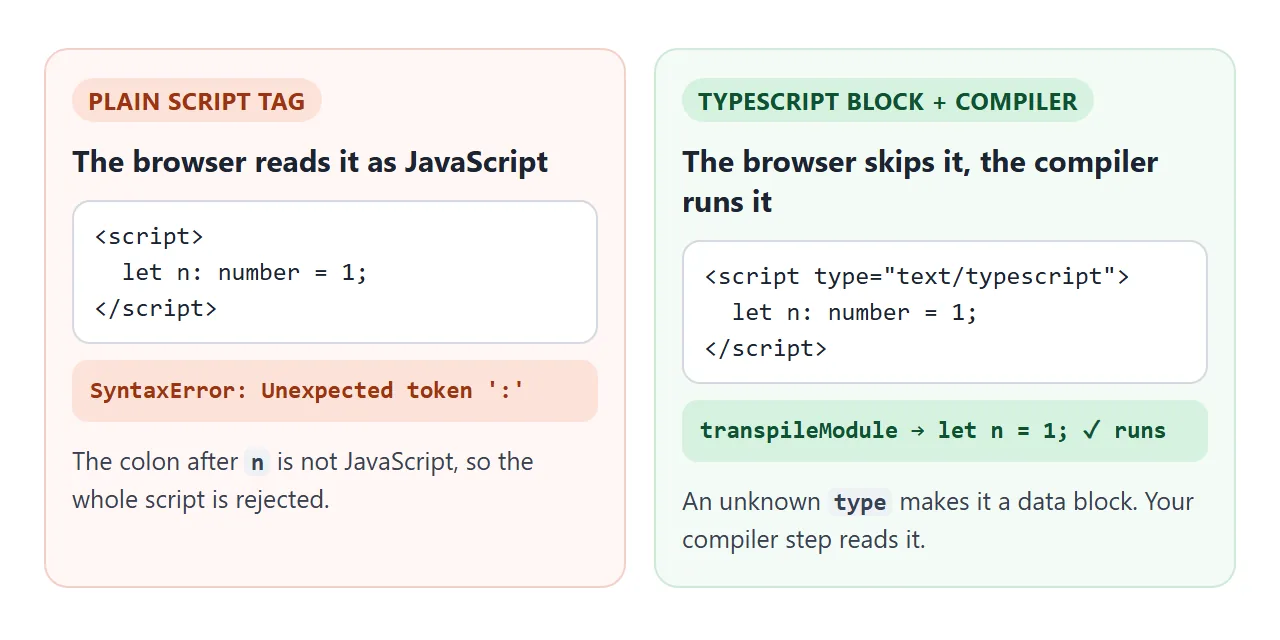
The fix uses a rule of the <script> element. When a <script> has a type the browser does not recognise as JavaScript, it treats the content as a data block and does not run it. Your own code reads it later.
How the page compiles and runs it
The basic example follows four steps:
- Load the compiler. One script tag pulls in
typescript.min.js, which defines a globaltsobject. - Write TypeScript in a data block. Use
type="text/typescript"so the browser skips it. - Compile and run it. Pass the block's text to
ts.transpileModule, then put the output in a new<script>element. - Check types elsewhere. The compile step removes types without checking them, as shown below.
This is the whole connecting script:
<script src="https://cdn.jsdelivr.net/npm/typescript@6.0.3/lib/typescript.min.js"></script>

<script>
  for (const block of document.querySelectorAll('script[type="text/typescript"]')) {
    const js = ts.transpileModule(block.textContent, {
      compilerOptions: { target: ts.ScriptTarget.ES2020 }
    }).outputText;
    const run = document.createElement('script');
    run.textContent = js;
    document.body.append(run);
  }
</script>
Put the compiler in the <head> and the connecting script after your TypeScript blocks. transpileModule is the compiler's string-in, string-out function: TypeScript text goes in, JavaScript text comes out.
Pin TypeScript 6, not "latest"
TypeScript 7.0 was released on July 8, 2026 as a native port of the compiler. Its announcement says it does not ship with an API, and its npm package has no lib/typescript.js file.
Asking jsDelivr for that file from version 7.0.2 returned a 404 when we tried, so the page gets no ts object. Always write the version in the address.
The 6.0 line still includes lib/typescript.js, so the examples pin typescript@6.0.3.
jsDelivr serves any npm file at a versioned address, and adding .min to a JavaScript file name returns a minified copy. The minified compiler measured 3.5 MB when we downloaded it, which is the price of compiling in the page.
Types are erased, not checked
The compiler deletes the types and keeps the logic. The TypeScript handbook puts it plainly: type annotations never change the runtime behavior of your program.
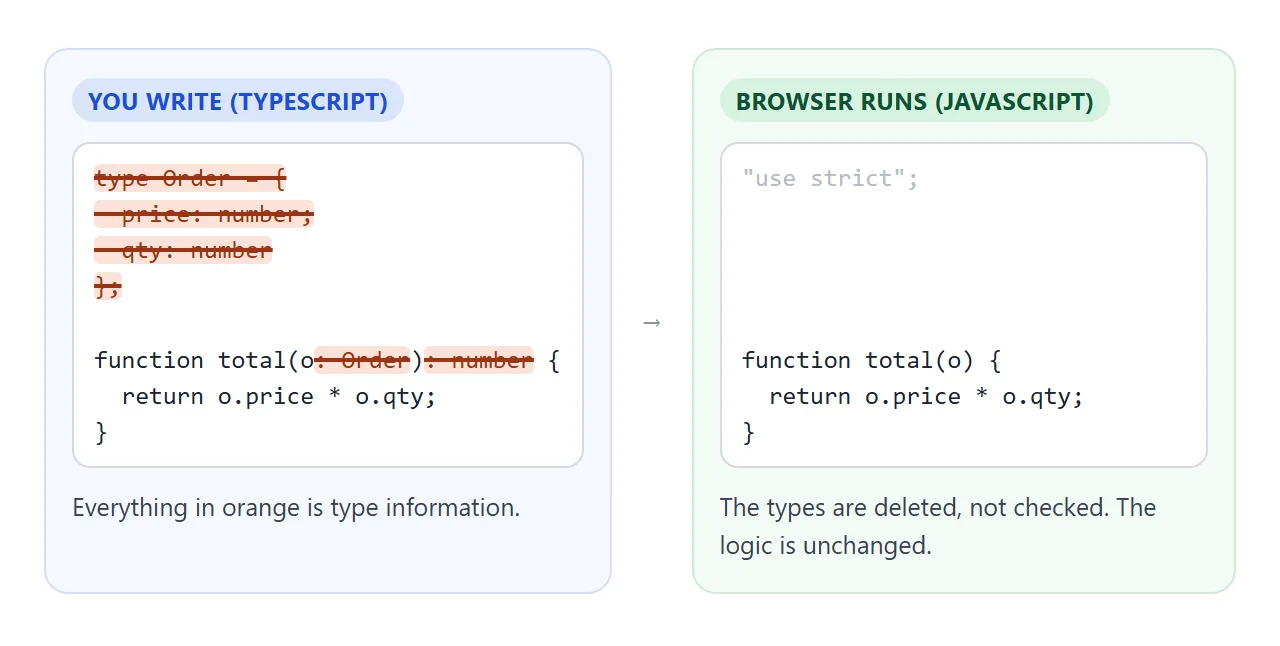
The surprise is that transpileModule does not check the types either. It works on one file at a time and cannot use the full type system.
The first sample below assigns a string to a number variable, and the code runs anyway: "3" + 1 prints 31.
<!doctype html>
<html lang="en">
<head>
<meta charset="utf-8">
<meta name="viewport" content="width=device-width, initial-scale=1">
<title>TypeScript to JavaScript, in the page</title>
<style>
  body { margin: 0; padding: 14px; font-family: system-ui, sans-serif; background: #f4f5f7; color: #1d2330; }
  .bar { display: flex; flex-wrap: wrap; gap: 6px; margin-bottom: 8px; }
  button { font: inherit; font-size: 14px; padding: 7px 11px; border-radius: 8px; border: 1px solid #cfd4dc; background: #fff; cursor: pointer; }
  button.go { background: #2563eb; border-color: #2563eb; color: #fff; }
  textarea, pre { width: 100%; box-sizing: border-box; margin: 0; padding: 10px; border-radius: 8px;
    font: 13px/1.45 ui-monospace, Consolas, monospace; }
  textarea { height: 150px; border: 1px solid #cfd4dc; resize: vertical; }
  pre { min-height: 40px; white-space: pre-wrap; background: #1d2330; color: #e5e7eb; }
  h3 { margin: 10px 0 4px; font-size: 13px; color: #4b5563; text-transform: uppercase; letter-spacing: .4px; }
  #log { background: #fff; color: #1d2330; border: 1px solid #cfd4dc; }
  .err { color: #b42318; }
</style>
<script src="https://cdn.jsdelivr.net/npm/typescript@6.0.3/lib/typescript.min.js"></script>
</head>
<body>
<div class="bar">
  <button data-sample="typeError">Type error</button>
  <button data-sample="syntaxError">Syntax error</button>
  <button data-sample="ok">Interface</button>
  <button class="go" id="run">Compile and run</button>
</div>
<textarea id="src" spellcheck="false" aria-label="TypeScript source"></textarea>
<h3>JavaScript the browser gets</h3>
<pre id="js"></pre>
<h3>Output</h3>
<pre id="log"></pre>

<script>
  const samples = {
    typeError: 'const count: number = "3";  // wrong type\nconsole.log(count + 1);',
    syntaxError: 'let total: number = ;\nconsole.log(total);',
    ok: 'interface User { name: string; age?: number }\n\nconst u: User = { name: "Ana" };\nconsole.log(`${u.name} is ${u.age ?? "unknown"}`);'
  };
  const src = document.getElementById('src');
  const jsBox = document.getElementById('js');
  const log = document.getElementById('log');

  function print(text, isError) {
    const line = document.createElement('div');
    line.textContent = text;
    if (isError) line.className = 'err';
    log.append(line);
  }

  function compileAndRun() {
    const result = ts.transpileModule(src.value, {
      compilerOptions: { target: ts.ScriptTarget.ES2020 },
      reportDiagnostics: true  // syntax errors only, no type checking
    });
    jsBox.textContent = result.outputText;
    log.textContent = '';
    if (result.diagnostics.length) {
      for (const d of result.diagnostics) {
        print('Syntax error: ' + ts.flattenDiagnosticMessageText(d.messageText, ' '), true);
      }
      return;
    }
    // Run the JavaScript in a new script, with a console that writes into the page
    window.pageConsole = { log: (...args) => print(args.join(' ')) };
    window.onerror = (msg) => { print(msg, true); return true; };
    const run = document.createElement('script');
    run.textContent = '(function (console) {\n' + result.outputText + '\n})(pageConsole);';
    document.body.append(run);
    run.remove();
  }

  document.querySelectorAll('[data-sample]').forEach((b) => b.addEventListener('click', () => {
    src.value = samples[b.dataset.sample];
    compileAndRun();
  }));
  document.getElementById('run').addEventListener('click', compileAndRun);
  src.value = samples.typeError;
  compileAndRun();
</script>
</body>
</html>
Syntax errors are different. The Syntax error sample has a missing value, and the compiler reports it instead of producing working code. Only type errors slip through.
To see type errors, write the code in an editor that understands TypeScript, or run tsc on your computer. A page that compiles in the browser trusts that you did.
A finished example: a trip cost splitter
Types pay off once the code has data with a shape. This page describes an expense with an interface, limits the payer to three names with a union type, and adds up who owes what.
<!doctype html>
<html lang="en">
<head>
<meta charset="utf-8">
<meta name="viewport" content="width=device-width, initial-scale=1">
<title>Trip cost splitter (TypeScript)</title>
<style>
  body { margin: 0; padding: 16px; font-family: system-ui, sans-serif; background: #f4f5f7; color: #1d2330; }
  .card { max-width: 440px; background: #fff; border-radius: 12px; padding: 14px 16px; box-shadow: 0 4px 16px rgba(0, 0, 0, .08); }
  h2 { margin: 0 0 10px; font-size: 18px; }
  form { display: flex; flex-wrap: wrap; gap: 6px; }
  input, select, button { font: inherit; font-size: 15px; padding: 7px 9px; border-radius: 8px; border: 1px solid #cfd4dc; }
  input[name="what"] { flex: 1 1 130px; min-width: 0; }
  input[name="amount"] { width: 90px; }
  button { background: #2563eb; border-color: #2563eb; color: #fff; cursor: pointer; }
  ul { list-style: none; padding: 0; margin: 12px 0; }
  li { display: flex; justify-content: space-between; padding: 6px 0; border-bottom: 1px solid #eef0f3; font-size: 15px; }
  .pos { color: #0f5132; } .neg { color: #9a3412; }
  #msg { color: #b42318; font-size: 14px; min-height: 18px; margin-top: 6px; }
  details { margin-top: 10px; font-size: 14px; }
  pre { white-space: pre-wrap; font: 12px/1.4 ui-monospace, Consolas, monospace; background: #1d2330; color: #e5e7eb; padding: 10px; border-radius: 8px; }
</style>
<script src="https://cdn.jsdelivr.net/npm/typescript@6.0.3/lib/typescript.min.js"></script>
</head>
<body>
<div class="card">
  <h2>Trip costs</h2>
  <form id="add">
    <select name="who" aria-label="Who paid"><option>Ana</option><option>Ben</option><option>Chloe</option></select>
    <input name="what" placeholder="What for" aria-label="What for">
    <input name="amount" type="number" step="0.01" placeholder="0.00" aria-label="Amount">
    <button>Add</button>
  </form>
  <div id="msg"></div>
  <ul id="expenses"></ul>
  <b>Who owes what</b>
  <ul id="balances"></ul>
  <details><summary>Show the JavaScript this page compiled</summary><pre id="js"></pre></details>
</div>

<script type="text/typescript">
  type Person = 'Ana' | 'Ben' | 'Chloe';
  interface Expense { who: Person; what: string; amount: number }

  const people: Person[] = ['Ana', 'Ben', 'Chloe'];
  const expenses: Expense[] = [
    { who: 'Ana', what: 'Train', amount: 84 },
    { who: 'Ben', what: 'Dinner', amount: 57 }
  ];

  // Positive: the group owes this person. Negative: they owe the group.
  function balances(list: Expense[]): Map<Person, number> {
    const share = list.reduce((sum, e) => sum + e.amount, 0) / people.length;
    const result = new Map<Person, number>(people.map((p) => [p, -share]));
    for (const e of list) result.set(e.who, result.get(e.who)! + e.amount);
    return result;
  }

  function row(left: string, right: string, cls = ''): HTMLLIElement {
    const li = document.createElement('li');
    li.innerHTML = '<span></span><span></span>';
    li.children[0].textContent = left;
    li.children[1].textContent = right;
    li.children[1].className = cls;
    return li;
  }

  function render(): void {
    const exp = document.getElementById('expenses')!;
    const bal = document.getElementById('balances')!;
    exp.replaceChildren(...expenses.map((e) => row(`${e.who}: ${e.what}`, e.amount.toFixed(2))));
    bal.replaceChildren(...[...balances(expenses)].map(([p, v]) =>
      row(p, (v >= 0 ? '+' : '') + v.toFixed(2), v >= 0 ? 'pos' : 'neg')));
  }

  const form = document.getElementById('add') as HTMLFormElement;
  form.addEventListener('submit', (ev) => {
    ev.preventDefault();
    const data = new FormData(form);
    const amount = Number(data.get('amount'));
    // Types vanish at runtime, so check what the user typed
    if (!(amount > 0)) {
      document.getElementById('msg')!.textContent = 'Enter an amount above 0.';
      return;
    }
    document.getElementById('msg')!.textContent = '';
    expenses.push({ who: data.get('who') as Person, what: String(data.get('what') || 'Other'), amount });
    form.reset();
    render();
  });
  render();
</script>

<script>
  // Compile the TypeScript block, show the result, and run it
  const block = document.querySelector('script[type="text/typescript"]');
  const js = ts.transpileModule(block.textContent, {
    compilerOptions: { target: ts.ScriptTarget.ES2020 }
  }).outputText;
  document.getElementById('js').textContent = js;
  const run = document.createElement('script');
  run.textContent = js;
  document.body.append(run);
</script>
</body>
</html>
- Shape the data:
interface Expenselists the three fields every expense has. - Limit the values:
type Personis a union of the three names, so an editor can flag a misspelled one. - Check user input at runtime: types are gone when the page runs, so the form still checks that the amount is above 0.
- Handle the form in the page: the submit listener calls
preventDefault()and reads the fields with FormData.
The usual route: compile first with tsc
The route in the TypeScript handbook compiles on your computer, so only JavaScript reaches the browser. It installs the compiler with npm and runs tsc on a file:
npm install -g typescript
tsc --noEmitOnError app.ts
That produces app.js, which a page loads with a normal script tag. By default tsc writes JavaScript even when there are type errors. --noEmitOnError stops it from writing the file until the errors are fixed.
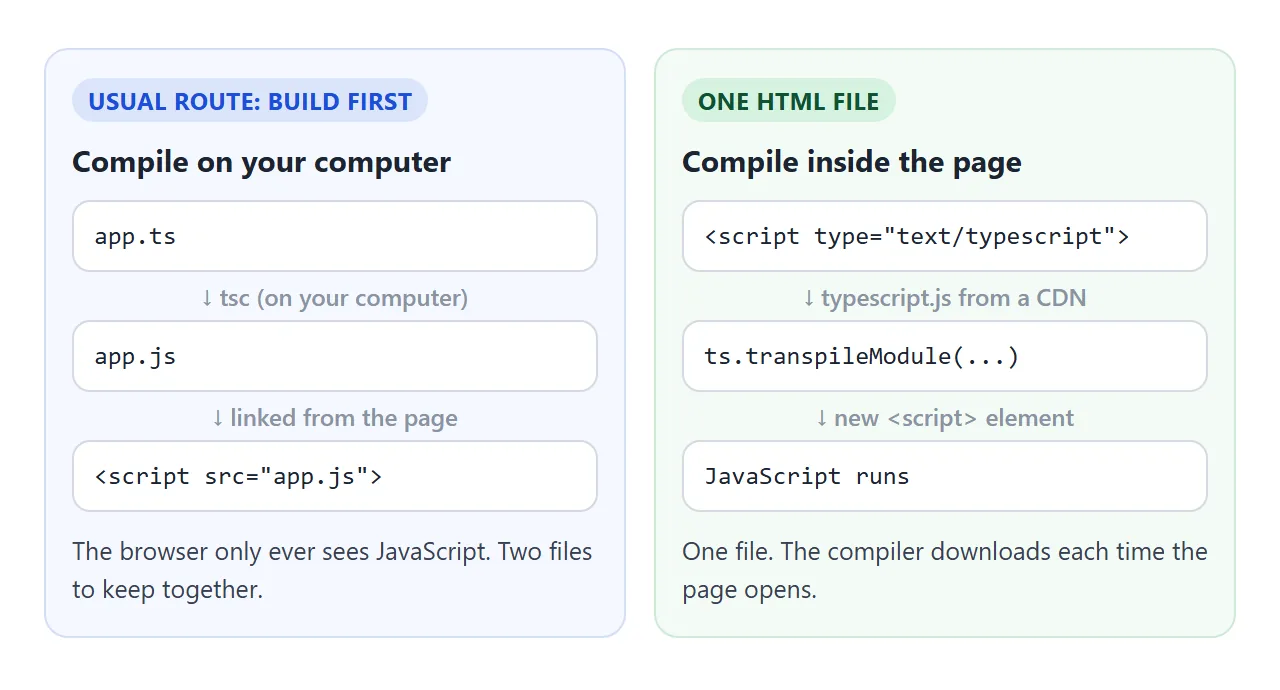
You can still end with one file. Paste the compiled JavaScript into a plain <script> tag and drop the compiler. The page then opens without downloading 3.5 MB first.
A third option skips compiling. Add // @ts-check to the top of a JavaScript file and describe types in JSDoc comments, such as /** @type {number} */. TypeScript-aware editors report type errors, and the browser runs the file as it is.
If you move to a full project build later, hosting a built front end covers the output folder.
When it does not work
| What you see | Cause | Fix |
|---|---|---|
A SyntaxError at the first type, such as Unexpected token ':' in Chrome |
TypeScript is inside a plain <script> tag |
Use type="text/typescript" and the compile step |
| Nothing happens, and no error | The TypeScript block is there but nothing compiles it | Add the connecting script after the block |
ts is not defined |
The compiler is missing, loads after your script, or is version 7 | Load typescript@6.0.3 in the <head> |
A SyntaxError that mentions export |
The block uses import or export |
Remove them and keep the code in one block |
| A wrong type runs without a warning | transpileModule does not check types |
Check in an editor or with tsc |
| The page is slow to start | The compiler downloads before your code runs | Paste the compiled JavaScript instead |
If the page still stays blank, HTML JavaScript not working goes through the causes in order. Loading a CSS library from a CDN in the same way is covered in adding Tailwind to an HTML file.
Share it as a link
A TypeScript page is easier to show working than to describe. An .html attachment may open as plain text on a phone. Opening an HTML file on a phone explains why.
To send the working version, paste the page into a NOS document and choose Create share link. HTML to link walks through it.
The page renders as written, its scripts run, and the compiler loads from jsDelivr, so anyone with the link can try it without an account. If you change the code later, the same link shows the new version.