“Check the kit and hand it over” sounds clear until a new colleague finds a missing charger. Should they lend the rest, substitute another charger, or stop the handoff?
Write that decision into the instruction. A useful work instruction pairs each action with the result the operator should see and what to do when the result is wrong. You can use AI to arrange the document, but the task expert needs to supply those decisions.
Blank template and worked example

Open the complete example · Blank PDF · Worked PDF
Download the HTML version to adapt the browser page. The worked material is fictional. Use the blank PDF for a printed activity or record; the browser preview switches between versions.
If the handoff exposes a problem that needs follow-up beyond this task, record its owner and resolution in an issue log.
Copy this one-task format
Use this structure in a document that your team can edit:
Task: [specific action and object]
Document ID/version: [ ]
Owner/approver: [ ]
Effective date/next review: [ ]
Use this instruction when: [starting condition]
Do not use it when: [boundary]
Before starting: [approved inputs, tools, access, or training]
For each numbered step, record:
Action → Expected result → If the result is wrong → Picture or reference, if needed.
Finish with Completion record, Where to get help, and Revision history.
A published collection of work-instruction formats includes numbered steps, expected results, and visual versions. The extra decision fields in this format are a proposal for making exceptions visible. They do not make a document suitable for every regulated or safety-critical task.
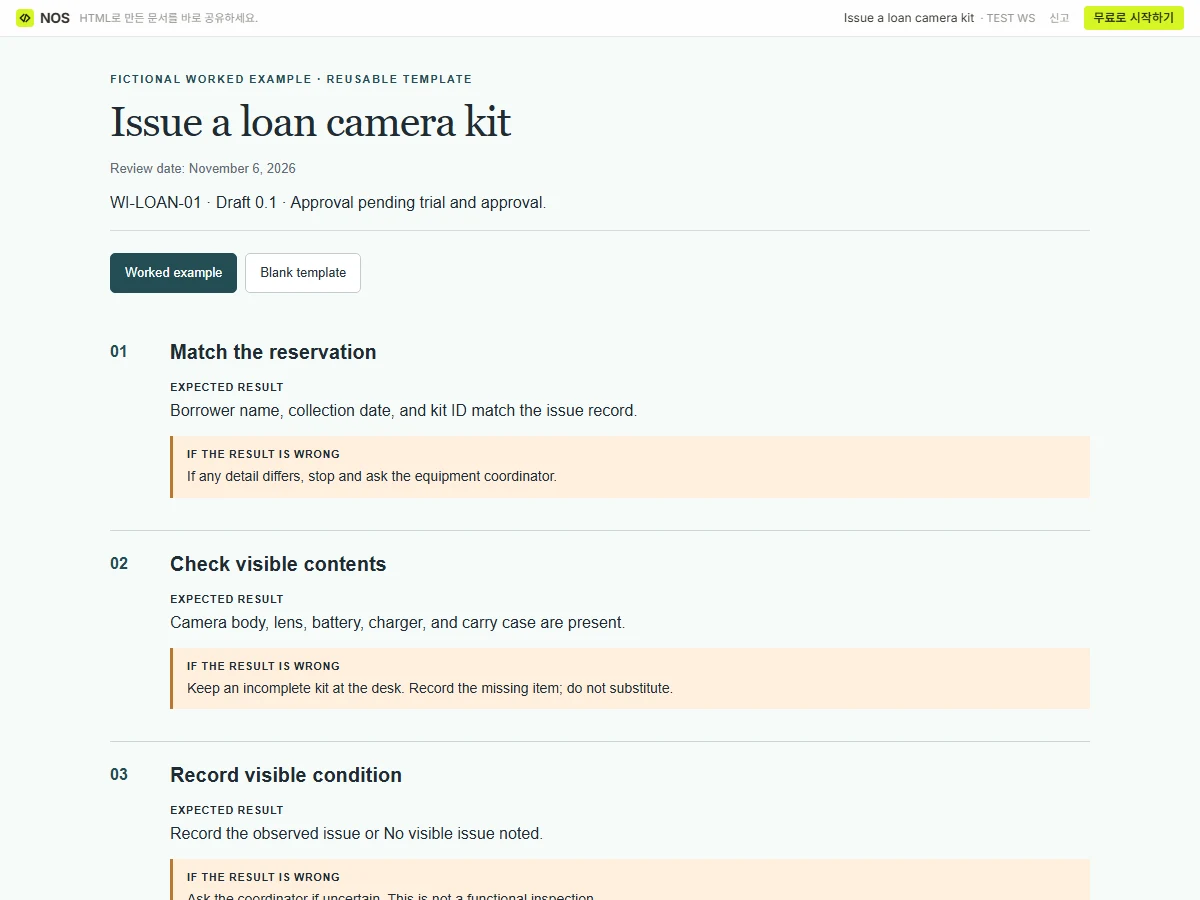
A complete example: issue a loan camera kit
This is a fictional office equipment-loan procedure. It describes a visual inventory check, not electrical inspection or equipment repair.
Task: Issue a reserved camera kit to a colleague.
ID/version: WI-LOAN-01, draft 0.1.
Owner: Equipment coordinator.
Approval: Pending trial and approval.
Starting condition: A reservation exists for the named borrower and collection date.
Boundary: Use only for the approved kit list. Do not substitute components under this draft.
Inputs: Reservation record, kit ID, approved contents list, equipment issue record.
1. Match the reservation to the borrower and kit.
Read the borrower’s name, collection date, and kit ID from the reservation. Compare them with the issue record. Expected result: all three match. If they do not, stop and ask the equipment coordinator to resolve the reservation.
2. Compare the visible contents with the approved list.
For this example, the list contains one camera body, one lens, one battery, one charger, and one carry case. Expected result: all five listed components are present. If any component is absent, keep the kit at the desk and record the missing item for the coordinator. Do not mark it complete.
3. Record the condition.
Note visible damage or missing protective covers in the issue record. Expected result: the condition field contains either the observed issue or “No visible issue noted.” If you are unsure how to describe something, ask the coordinator before completing the handoff. This step does not establish that the equipment is operational.
4. Confirm the return arrangement.
Read the return date and return location to the borrower. Expected result: the borrower confirms the arrangement and the issue record contains both details. If the borrower needs a different date, ask the coordinator to approve the change.
5. Complete the handoff record.
Record the actual issue date, kit ID, borrower confirmation, and issuing colleague. Expected result: the record is complete before the kit leaves the desk. If a required field is missing, finish it before handoff.
Completion: The borrower receives the matching kit and the completed issue record shows the return arrangement.
Help: Equipment coordinator through the team’s agreed contact route.
Revision note: Draft 0.1 adds an explicit stop when a component is missing.
Add a picture where a sentence leaves a choice
A photograph is useful when the operator needs to distinguish two similar parts or find an unfamiliar label. Place it beside that step, with a caption explaining what to look for.
For this example, a picture could show the kit ID label and the approved five-component arrangement. It should not imply that an attractive flat-lay proves the kit passed a functional test.
Use a real, approved photograph when documenting your actual equipment. If the picture shows a different kit revision, replace it before publishing the instruction.
Test the instruction with the person who will use it
Ask a colleague to follow the draft while the task expert observes. At each hesitation, record the missing decision or information. Avoid answering silently through gestures and then calling the document clear.
Try a normal handoff and a missing-component case. Check whether both lead to the intended outcome. Record what changed in the instruction after the trial.
The wider standard operating procedure can cover who manages reservations, exceptions, and overdue equipment. Keep this instruction focused on the actual handoff. If it grows into a department policy manual, move the surrounding process back to the procedure.
Turn your approved steps into a draft
Draft a work instruction for this single task: [task]. Operator: [role and assumed training]. Starting condition: [ ]. Approved inputs/tools: [ ]. Observed steps and decisions: [paste expert notes]. Known exceptions and stop conditions: [ ]. Document owner and approval process: [ ]. For every step, provide one action, its observable expected result, the response to an incorrect result, and any image needed. Preserve the supplied sequence. Flag gaps as “Expert decision required”; do not invent safety rules, machine settings, approvals, tolerances, or substitutions. Include document ID, version, status, scope, completion record, and revision history. Return an editable document draft plus a separate list of questions to resolve during a supervised trial. If requested, also format the approved content as a self-contained HTML instruction.
Resolve the questions before marking the instruction effective. A polished draft remains a draft until the responsible people approve its content.
Give the team the current reading copy
Open this example’s NOS share link.
Keep the approved master and revision record where your organization requires them. For an instruction your team is allowed to distribute as a web page, save the HTML reading copy in NOS.
If you correct a contact name after sharing it, you can edit the saved page and keep using the same reader link. Reopen that link to check the correction. Changes to the actual procedure still need your normal approval and communication process; a stable link is a way to distribute the reading copy.