Pick the tool by what the sheet has to do
Not every worksheet needs the same kind of tool. If the goal is vocabulary review, a puzzle-style generator may be all you need. When the look matters most and you’re happy to type each question yourself, a design template is a reasonable choice. Writing the sheet in a document gives you full control, but the formatting takes time. Asking AI to build the page makes the most sense when the questions themselves have to match your lesson: your number range, your examples, your directions.
One rule comes first. If your school or course requires a PDF or Word file, for an LMS upload, a sub folder or a printed packet, make that file. A web page can sit beside it for practice, but it shouldn’t replace a required submission.
What a lesson-matched sheet looks like
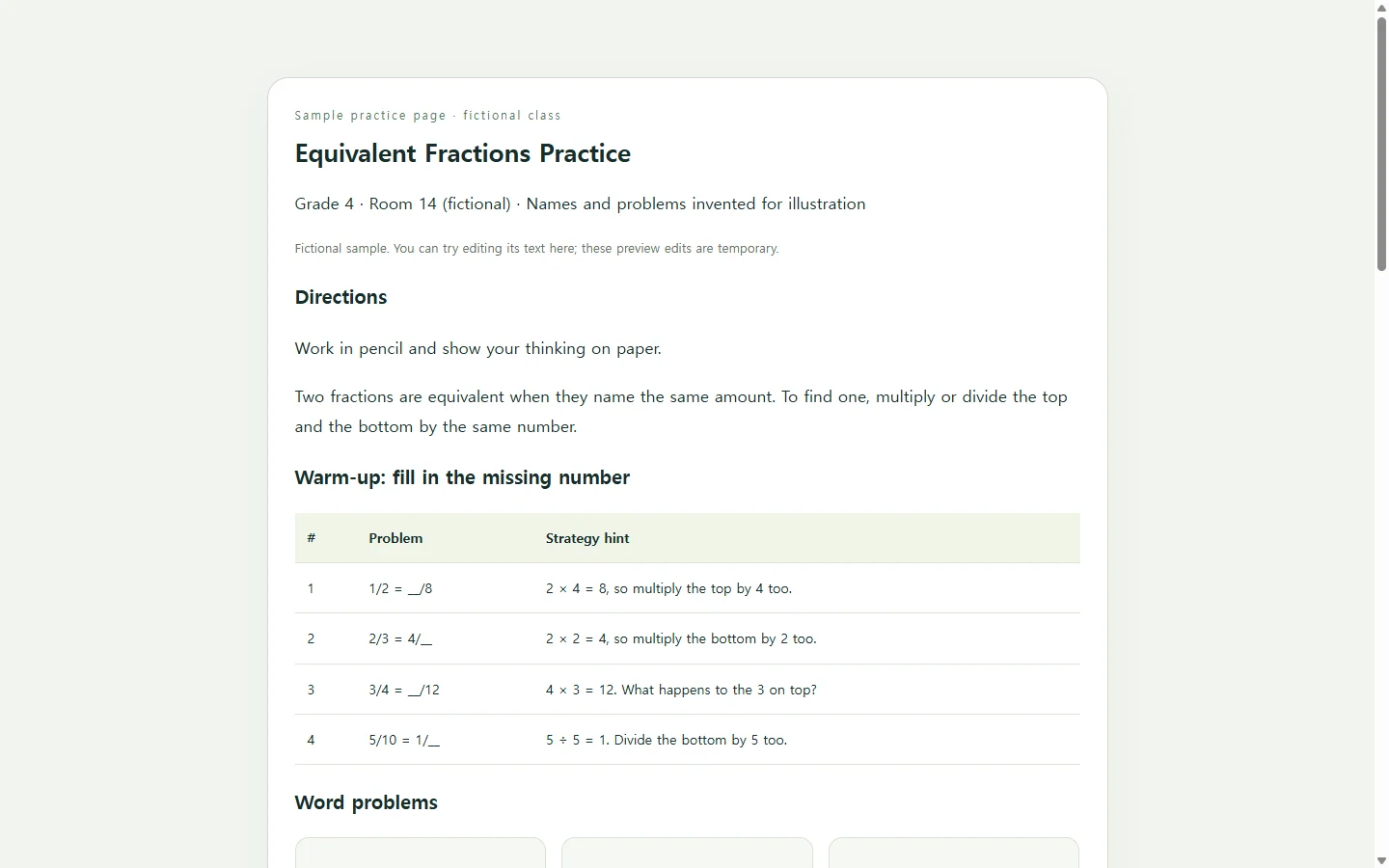
The sample below is a practice page on equivalent fractions for a fictional fourth-grade class, Room 14. The class, student names and problems are invented for illustration.
Two choices in it are worth borrowing. Each warm-up problem has a strategy hint beside it, so a student who’s stuck has a next move instead of a blank line. The word problems then reuse the same relationships in a story, comparing 2/8 of a pizza with 1/4 of a pizza the same size. That way students meet each idea twice, in two forms.
The page ends with a four-question self-check that tells the student whether an answer is right and why. That self-check is the reason the example is built as a web page rather than a print layout. You don’t need to read the code. In this workflow, HTML is simply the file the AI hands back, and you open it as a page.
Make it yours with one prompt
Before pasting the prompt, gather the facts the AI shouldn’t guess: the grade, the exact skill, the numbers you’ve taught, how many questions you want, and any names or settings for word problems. If you leave a placeholder empty, the AI may fill it with something that sounds right but doesn’t come from your class.
If you add a written question, such as ‘Explain how you know 3/6 equals 1/2,’ decide what a complete answer includes before you generate. Rubric guidance from one university teaching center advises replacing vague criteria such as ‘creative’ with objective indicators. That advice was written for rubrics, but the same habit gives a worksheet’s scoring note something a grader can actually check.
The prompt also asks for details that are easy to skip. Text should stay readable on a phone-width screen, every answer box should have a label, and feedback shouldn’t rely on color alone. At the end of its reply, the AI should list every answer so you can check the math before students do. The prompt asks for no downloads, sign-ins or connections to other services, and the sample page has none of them.
Build a one-page practice worksheet as a single self-contained HTML file.

Lesson details (use only what I give you; do not invent extra facts):
- Grade: [GRADE, e.g. 4th grade]
- Skill: [EXACT SKILL, e.g. finding equivalent fractions by multiplying or dividing the numerator and denominator by the same number]
- Already practiced: [NUMBER RANGE OR VOCABULARY, e.g. denominators 2, 3, 4, 5, 6, 8, 10, 12]
- Directions at the top: [YOUR DIRECTIONS, e.g. Work in pencil. Show your thinking on paper.]
- Warm-up: [NUMBER] fill-in-the-blank problems, each with a one-line strategy hint
- Word problems: [NUMBER] problems using only these names and settings: [NAMES / SETTINGS, e.g. Kai, Jordan, a class garden, a pizza]
- Written response: [ONE QUESTION, or none], plus a one-line scoring note that lists what a complete answer includes, using checkable criteria rather than words like ‘creative’
- Self-check: [NUMBER] multiple-choice questions with immediate feedback and a one-sentence explanation for each

Page requirements:
- One HTML file with inline CSS and JavaScript. No external libraries, fonts, images, APIs or trackers.
- No form submission, sign-in, data collection or saving of student answers.
- Use headings in a logical order, a visible <label> for every input, and buttons that work with the keyboard alone.
- Feedback must say ‘Correct’ or ‘Not yet’ in words, not only with color. Keep text contrast high.
- Body text at least 16px. The layout must stay readable at 360px wide with no sideways scrolling. Tap targets must be at least 44px tall.
- Put the answer key behind a ‘Show answers’ button.
- Add a print stylesheet that hides the buttons and the self-check.

After the code, list every question with its correct answer and a one-line check so I can verify the math myself.
After you share it: fix the words, keep the link
Say the page goes out to students and families on Monday evening. On Tuesday morning you notice that a word problem spells a name two different ways, or you want to add ‘Show your thinking on paper’ to the directions.
In NOS, you can correct that text directly on the rendered page. You don’t have to ask the AI to regenerate everything for a one-word fix. The share link you already sent stays the same after the edit, so anyone who opens it again sees the corrected version. Families can open the shared page without creating an account.
Keep one limit in mind: direct editing is for words. If you change the numbers in a self-check question, don’t count on the script’s stored answer to change with them. For that kind of change, ask the AI to rewrite the question and its answer together, then check the new answer list again.
If the lesson also needs a paper copy or a file upload, make that version too. The shared page is the copy you can keep correcting after it goes out.