First decide: paper, PDF, or a page students open
Worksheet tools that come up for this search follow a familiar flow. You add a title and a name and date line, pick activity types such as multiple choice, matching, fill in the blank or word scrambles, then print the result or download it as a PDF. If your worksheet will be photocopied, or your school asks you to upload a PDF or Word file, use that kind of tool or your usual word processor. Don't swap a required file for a web link.
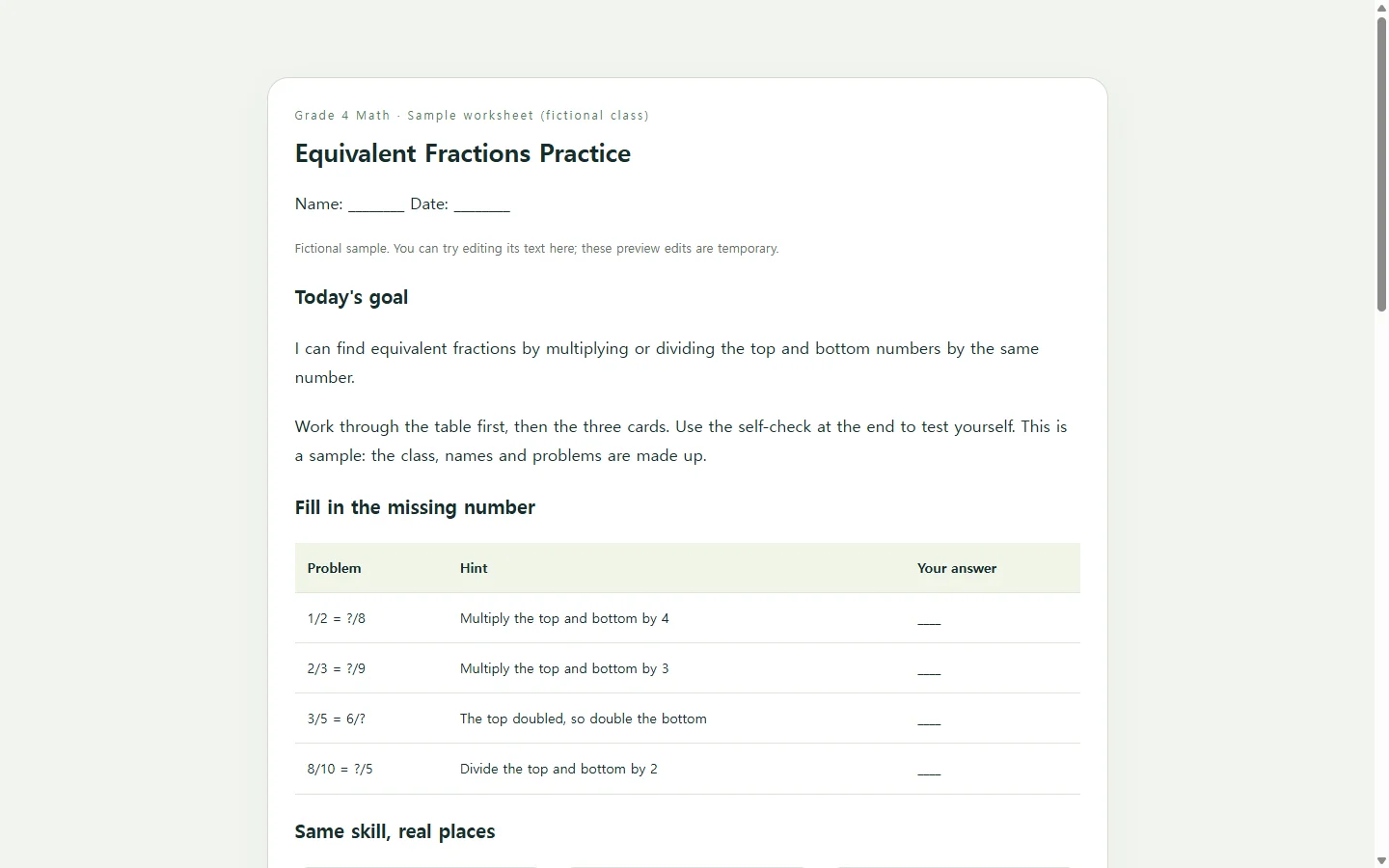
A web page fits a different situation: students open the worksheet on a laptop, tablet or phone, type their answers, and get instant feedback on a few practice questions. That's the version built below. You can also do both, printing the core problems and keeping the self-check online.
What the finished example does
The sample is a short equivalent-fractions practice page for a fourth-grade class. The class, the names and the problems are made up for this guide. Three parts of it are worth borrowing for your own topic.
The missing-number table puts a hint beside every problem. A student who freezes on 2/3 = ?/9 sees “multiply the top and bottom by 3” and has a first step, while a confident student can skip that column. If your class needs less support, delete the hints from the last rows so the help fades out.
The word-problem cards use the same skill in a kitchen, a garden and a pizza order. When the context changes but the math doesn't, you can quickly see whether students spot equivalence when it isn't written as a bare equation.
The checklist tells students what a complete explanation contains. Guidance on scoring guides warns against vague criteria such as “interesting” or “creative” and favors indicators that can be observed. Here that means naming the step used, like dividing both numbers by 2, or drawing equal-size parts. A fourth grader can check for either one before handing the page in.
The self-check quiz at the end gives each answer an explanation, so a wrong pick turns into something to reread instead of a dead end. It only reacts on the page. Nothing is graded or sent anywhere.
Build your version with an AI chat
Split the work before you open the chat. You supply the facts: grade, topic, learning goal, the exact problems, and the correct answer and explanation for each self-check question. The AI handles the part that eats time: layout, spacing, the answer buttons, and making the page readable on a phone. Check every answer the page displays against your own key before students see it.
Ask for HTML. HTML is the format web pages are written in, and a single HTML file can hold the text, the layout and the small script that runs the self-check. Paste the prompt below and replace each bracketed placeholder with your material. Then open the file it returns in a browser and narrow the window to phone width before you trust it.
If the AI fills a gap you left empty, for example by inventing a fifth problem, remove it or ask for a visible placeholder instead. The prompt already asks for that, but it's worth a second look.
After you share it: fix the wording, keep the link
Once the page works, you could hand out the file itself. But then students need a way to open it, and you need a way to change it. In NOS, the page stays in your workspace and you publish a sharing link. Students and families can open that link without creating an account.
Say you post the link Monday night and notice on Tuesday morning that the hint in row two reads “multiply by 4” instead of “multiply by 3.” You click that sentence on the page and retype the number without asking the AI to rebuild anything. The link stays the same. Students who open it from the class post see the corrected hint, and you don't have a second link competing with the first.
One limit matters for worksheets. Direct editing changes the text, and you shouldn't count on it updating the script behind the self-check. Fixing a typo in an explanation is a text change. If you change the numbers in a quiz question, the checker may still expect the old answer, so ask the AI to update that question instead.
Next week's topic can start from the same prompt with new problems. The fractions page stays at the link your students already have.
A prompt to adapt
Build a one-page student worksheet as a single self-contained HTML file.

Use only the content I give below. Do not add problems, answers, names, facts or images of your own.
- Grade and subject: [GRADE AND SUBJECT, e.g., 4th grade math]
- Title: [TITLE, e.g., Equivalent Fractions Practice]
- Learning goal shown under the title: [GOAL, e.g., I can find equivalent fractions by multiplying or dividing the top and bottom by the same number.]
- Student fields at the top: [FIELDS, e.g., Name, Date]
- Practice table, one row per problem, format PROBLEM | HINT: [ROWS, e.g., 2/3 = ?/9 | Multiply the top and bottom by 3]. Add an empty, labeled answer box to each row. Do not fill in or check these boxes.
- Word problems, one card each: [WORD PROBLEMS, e.g., A recipe needs 1/2 cup of oats. You only have a 1/4-cup scoop. How many scoops do you need?]
- Before-you-hand-it-in checklist: [CHECKLIST ITEMS]
- Self-check questions, format QUESTION | OPTIONS | CORRECT OPTION | ONE-SENTENCE EXPLANATION: [QUESTIONS, e.g., Which fraction equals 3/4? | 3/8, 6/8, 4/6, 6/4 | 6/8 | Multiply the top and bottom of 3/4 by 2.]

Requirements:
1. One HTML file with inline CSS and JavaScript. No external libraries, fonts, images, trackers or network requests.
2. No form submission, login, saving or sending of answers. Typed answers stay on the screen only.
3. Self-check: after a student picks an option and presses Check, show “Correct” or “Not yet” in words, then the explanation. Do not rely on color alone.
4. Accessibility: one h1, headings in order, a visible label for every input and checkbox, real button elements that work with the keyboard, visible focus outlines, strong text contrast, and body text at least 16px.
5. Mobile: single column below 600px wide and no horizontal page scrolling. If the table can't fit, let it scroll inside its own container. Buttons and checkboxes at least 44px tall.
6. Print: add print styles that hide the Check buttons and keep blank space for written answers.
7. If any placeholder above is empty, show a clearly marked [TO FILL] note on the page instead of inventing content.
8. Return only the complete HTML file.