Choose the route that fits how students will use it
Before picking a tool, decide where the finished sheet ends up. If students fill it in on paper, or your school wants a PDF or Word file in its learning platform, a design tool that downloads a file is the straightforward choice. The template galleries at the top of the search results let you customize a layout and download the result.
Editing one of those templates works well when its layout already fits your activity. It gets slow when you have to replace the topic, the questions and the art one box at a time. A third route is to describe the worksheet to an AI chat assistant and ask for a web page. That suits a teacher who doesn't want to wrestle with layout and whose students will read the sheet on a screen, or who wants one place to point everyone to.
The sample: a data-table sheet with made-up numbers
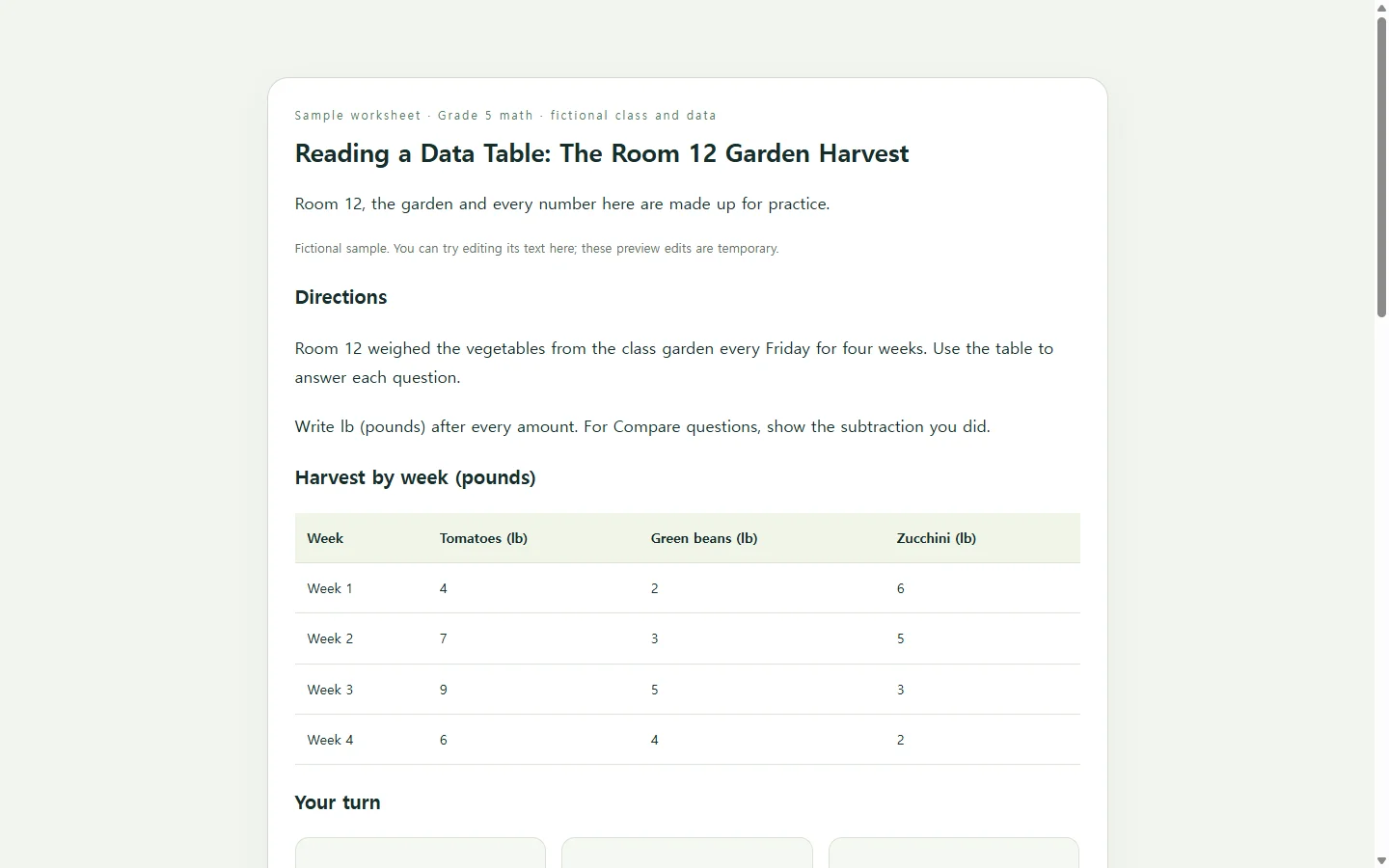
The example on this page is a grade 5 math worksheet built around a class garden. Room 12, its harvest and every number in the table are invented for practice; none of it describes a real class.
Three choices are worth copying. The data sits above the questions, so students can glance back without scrolling past their own answers. The questions climb from finding one value, to comparing two, to explaining a pattern in a full sentence. The sheet ends with a short self-check instead of a decorative footer.
That self-check borrows from how rubrics are built. A rubric is a scoring guide that spells out the parts of an assignment and what is expected for each, and students can use one to assess their own work. Teaching guidance on rubrics also warns against vague criteria such as “interesting” or “creative.” Every line on the sample checklist is something a student can confirm by looking, like writing the unit after each amount.
Build your own with the prompt
Gather the parts only you can supply: the skill, the grade, the actual data or passage, your directions, and how many questions of each kind. Let the AI handle layout and styling, but not the facts students practice on, which is why the prompt asks it to use your material exactly as given.
Ask for a single HTML page so the result opens in a browser. NOS keeps HTML pages like this in a workspace alongside your notes. You don't need to read the code. When it comes back, check two things: that every answer the AI marks correct matches your data, and that the page still reads cleanly at phone width. If the first version is close, reply with one specific change, such as moving the self-check under the last question, rather than starting over.
Build a one-page student worksheet as a single self-contained HTML file.

Skill: [SKILL, e.g. reading a data table]
Grade level: [GRADE, e.g. grade 5]
Material to use exactly as given (do not invent or change any facts or numbers): [PASTE YOUR TABLE, PASSAGE OR WORD LIST]
Directions students read first: [YOUR DIRECTIONS, e.g. Use the table to answer each question. Write lb after every amount.]
Questions: [NUMBER AND MIX, e.g. 2 find-a-value, 1 compare, 1 explain-in-a-sentence, plus 3 multiple-choice practice questions]
Self-check lines students can verify by looking: [3-4 CRITERIA, e.g. I wrote the unit after every amount]

Requirements:
- Order: title, name and date lines, directions, the material, questions, self-check.
- Use headings in order, a real <table> with header cells, and a visible label for every answer box.
- Body text at least 16px, strong color contrast, and never use color alone to show right, wrong or importance.
- At phone width nothing is cut off; a wide table scrolls sideways inside its own box.
- Multiple-choice practice questions may show right or wrong with a one-sentence explanation after a student picks. Work out the correct answers from my material and list them in an HTML comment at the top so I can verify them.
- No submit buttons, forms, logins, saved answers, download or export buttons, external scripts, fonts or images.
- When printed from the browser, hide interactive buttons and keep answer lines visible.
Return only the HTML.
After you share it, fix the words in place
Say you share the garden worksheet as a link, then notice a typo in the directions or a question students keep misreading. In NOS you can edit the rendered text directly, without asking the AI to regenerate the whole sheet. The published link stays the same after the edit, so the link students already have opens the corrected version. They don't need an account to open it.
One caution: direct editing is for words; don't count on it to update the page's logic. If you change a number in the table, recheck the practice check's answers yourself or ask the AI to update them, because the interactive answer key may not follow the new number.
If the assignment must come back as a PDF or on paper, keep that route for submission. The shared page then serves as the version everyone reads, and you can keep correcting it without sending anyone a new file. When the next unit comes, the garden sheet sits in the same workspace as a model you can describe in your next prompt.