In short
Put the instruction page at a share link, then encode that link in the QR code.
Keep the page address unchanged when you revise the steps.
Show a revision label near the top so the person at the equipment can tell which instruction is open.
Before production, print the code at its final size and test the printed label on the devices that will scan it.
A printed manual can fall behind the equipment beside it. A QR code helps only when it opens one clear task and the page behind the code can be corrected without replacing the label.
NOS Team tried that workflow with a fictional OM-7 Air Meter. We made a phone-sized pre-use guide, created one public share link, generated a QR image for that exact link, and then clarified the cap inspection on the existing page. The public address stayed the same while the page at that address moved from Revision A to Revision B.
How do you make an instruction manual QR code?
Start with the instruction readers need at the place where they will scan. Our example covers one result: checking and starting a fictional meter until its display reads READY. It does not try to hold a product history, every repair, or a full training course.
The page includes the product name, the task, a visible revision, four steps, a stop condition, and the result that confirms the task is complete. You can download the complete fictional manual example and replace its details with your own reviewed instructions.
1. Put the complete page in Code
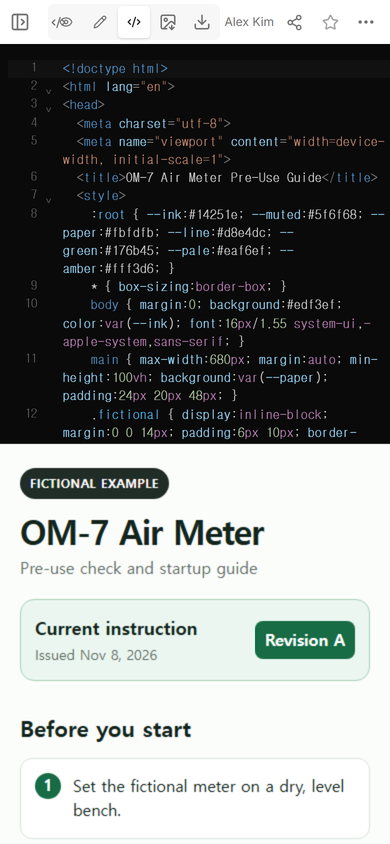
We opened the existing example page in NOS and used Code for the full HTML. The preview below the editor made it possible to compare the source with the page the reader would see.
2. Read the manual in View
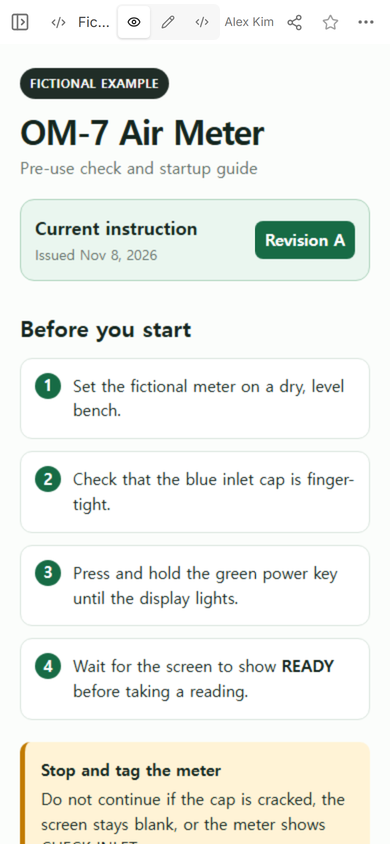
View showed the first version at phone width. Revision A appeared before the steps, followed by the cap check, startup action, READY result, and a stop box. The reader did not need to search a long document to find the pre-use procedure.
3. Create the address that the label will carry
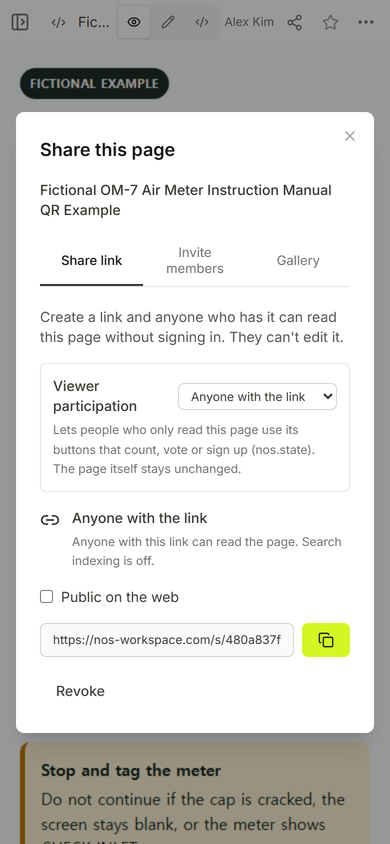
We opened Share and used the link shown under “Anyone with the link.” The panel said that a person with this link could read the page without signing in and could not edit it. That is the address we encoded, not the workspace editing address.
We generated a QR image from that share address and decoded the finished image. The decoded text matched the share address exactly. This confirms what the image contains; it does not replace a physical print test.
4. Open the reader version before printing
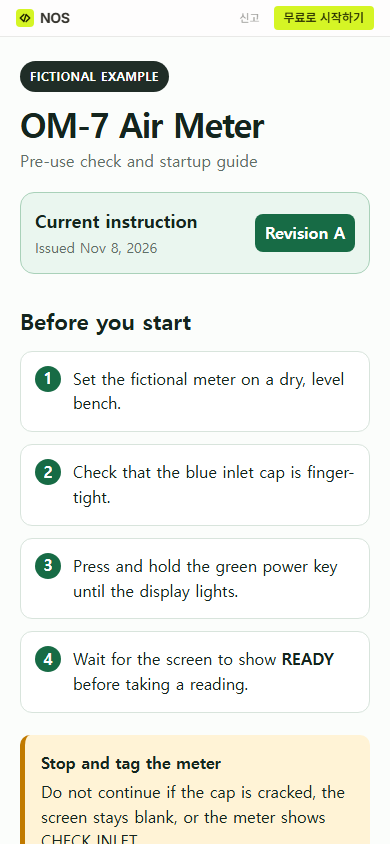
The public link opened Revision A without the editing controls. On a narrow screen, the fictional label, task name, revision, and steps stayed readable in one column.
What should an equipment QR manual contain?
A person standing at a machine needs a decision, not a document archive. For a single operating task, include:
- The exact task: “Pre-use check and startup” is narrower than “User manual.”
- A visible revision: put it near the title instead of burying it in a footer.
- Steps in working order: begin with the condition the operator can see or check.
- A stop condition: state what blocks the next step and what the reader should not do.
- A finished state: name the visible result that tells the reader the task is complete.
The fictional OM-7 page uses all five. Its final state is a READY display with a secure inlet cap. Its stop box covers a cracked or poorly seated cap, a blank screen, and a CHECK INLET message. Those details belong to this fictional example only; real instructions must come from the person responsible for the equipment and its safety review.
Can you update the manual without replacing the QR code?
Yes, when you edit the page that already owns the shared address. Do not create a replacement page just to fix a sentence. A new page can produce a different address, which would leave the printed code pointing at the old copy.
We first opened Edit on Revision A to check the reader-facing layout and where the revision appeared.
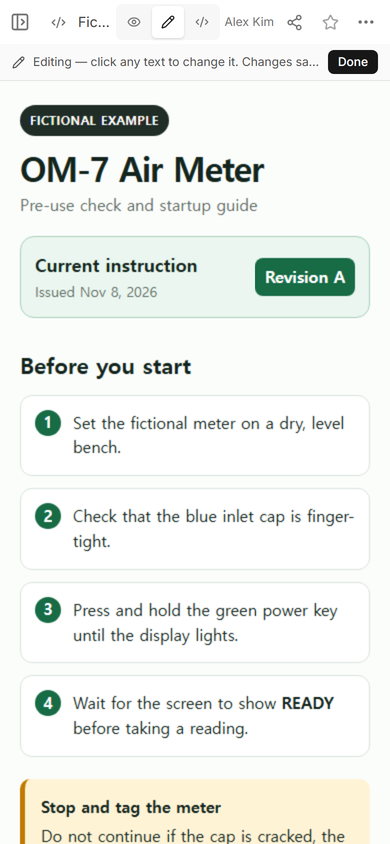
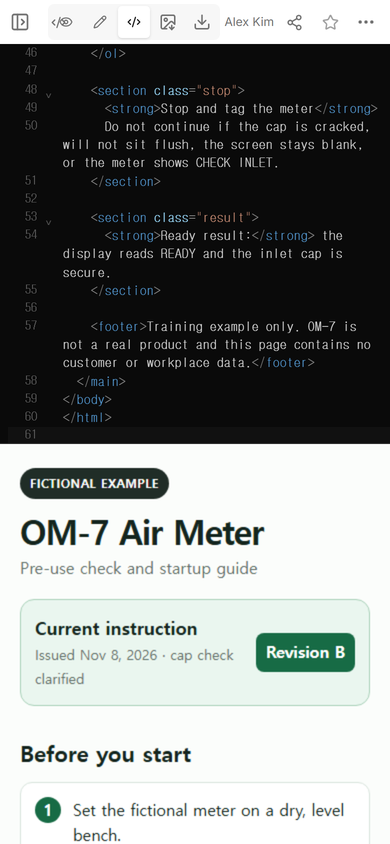
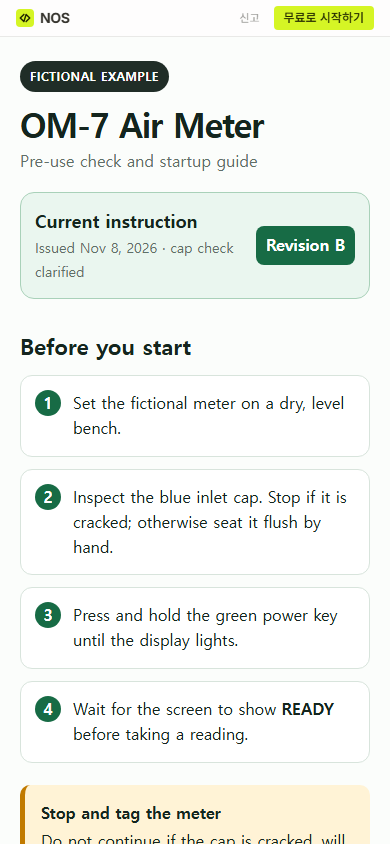
For the actual revision, we used Code on that same page. Revision A became Revision B. The cap step changed from a finger-tight check to a specific inspection: stop for a crack; otherwise seat the cap flush by hand. The stop box was updated to match.
We then reopened the original public address. It showed Revision B and the clarified cap instruction. The link used for the QR image was still the same link.
How do you keep the printed code tied to the latest manual?
Control three things separately: the printed label, the shared address, and the page content. The label holds the QR pattern. The pattern holds the shared address. The address opens the page that you revise.
Record the page owner and review date outside the public manual. When a step changes, revise the existing page, update the visible revision label, and open the public address again. Compare the changed instruction with the approved source before treating the revision as current.
Do not make the revision badge decorative. If the text changes but the badge does not, the reader cannot distinguish an intentional update from an unnoticed edit. In our example, the cap step and stop condition changed together, and the badge moved from A to B.
How should you test an instruction manual QR code?
First verify the digital path: the QR image should decode to the intended public address, and the address should open the reader page rather than an editor or sign-in screen. We completed those checks for the fictional example.
Then verify the physical label. Print it at the final size, on the intended material, and scan that print with the devices people will use. Keep a clear border around the code. DENSO WAVE’s official QR Code guidance calls for a quiet zone four modules wide on every side. Do not place a border, text, or artwork inside that clear area.
We did not perform a physical print or phone-camera scan in this example, so the generated image is preparation, not production approval. The physical test remains required before attaching a code to real equipment.
When not to do this
- Do not use a public page for restricted procedures, personal records, access codes, or information that should require authentication.
- Do not make a QR page the only location for a warning that must remain visible when a phone, camera, connection, or page is unavailable.
- Do not publish equipment instructions that have not been reviewed by the person responsible for the equipment and its safety requirements.
- Do not replace the existing page during a routine revision unless you are also prepared to replace every printed code.
Where NOS fits
NOS Workspace was the page layer in this example: we placed the complete HTML in Code, checked it in View, created a reader link in Share, and revised the existing page while keeping that reader address. For a starting layout, use the user manual template; for printing choices and labels, read the QR code link guide; and when the page is ready, the HTML-to-link tool covers the handoff from HTML to a browser address. Current plan details belong on the pricing page.