In short
Inside your company, sharing a Copilot Page is easy: select Share at the top right, then Copy link or Copy component. The link opens that one page in Loop.
Outside your company, it usually breaks. Microsoft's admin docs say guests can't open a shared Copilot Page directly from its link. The only exception needs cross-tenant guest access and the guest adding the link to their own Loop workspace.
To show a page to a client or vendor, take the content out. Create, then PDF gives a frozen copy. An HTML page at a read-only link gives a copy you can still fix after you send it.
Before you send anything outside, check that your company allows it. Meeting notes often hold things the other side shouldn't read.
We had a common job in mind: a kickoff call with an outside vendor, a Copilot Page with the summary, and a vendor who needs to see it. We did not have a Copilot Page to test with, so the Microsoft side of this guide comes from Microsoft's own help pages, linked below. For the outside half, we wrote the recap as one HTML file for a fictional bakery and its packaging supplier. We put it on NOS, sent ourselves the read-only link, changed the ship date after the link was out, and opened the same link again.
How to share Copilot Pages inside your organization
Microsoft's support page lists two choices under the Share button in the upper right corner of a page:
- Copy link. Paste it in Teams, Outlook, or another Microsoft 365 app. Colleagues get access to that single page only, and it opens in Loop.
- Copy component. Paste the page as a live component into a Teams chat, an Outlook email, OneNote, and other Microsoft 365 apps.
The link can be a company link or a link for specific people. Which ones you see depends on your organization's sharing settings, not on you. You can give edit or read-only access per page.
Why a guest can't open your Copilot Page link
Copilot Pages are saved in a storage area owned by your work account, inside your company's Microsoft 365. Microsoft's permissions overview for admins states it plainly: external users (guests) can't access shared Copilot Pages directly via link.
There is one narrow path. If the guest pastes your link into their own Loop workspace, and both companies have set up cross-tenant guest access, the page opens inside Loop for them. That takes IT work on both sides. For a vendor you met last week, it is rarely worth it.
Admins can also switch off guest sharing for these pages completely. If your share menu looks smaller than the help pages describe, that is usually why.
Can you export Copilot Pages to Word or PDF?
Yes. Both start from the Create button in the upper right corner of the page:
- Create, then Document. Copilot turns the page into a Word file. Select Open Word to open it in Word for the web. See Microsoft's Word steps.
- Create, then PDF. Copilot makes a PDF version of the page. See the PDF steps.
Microsoft's Word page also notes that turning a page into a PowerPoint deck is currently unavailable. There is no HTML option in the menu.
A PDF is fine when the content is final. Meeting recaps rarely are. A date moves, an owner changes, and now two versions of the PDF are sitting in someone's inbox.
Turn the page into one HTML file you can link to
A single HTML file is a web page in one file. It opens in any browser, on a phone too, and nobody needs a Microsoft account to read it. Two ways to get there from a Copilot Page:
- Export to Word with Create, then Document. Then, in the desktop Word app, save it as a web page, or follow our Word to HTML guide.
- Paste the page text into a Copilot chat or any AI chat and ask for one self-contained HTML file with the styles inside. Our note on whether Copilot can create HTML files covers where the result lands.
We did not run either path inside Copilot for this guide. Our recap was written straight into HTML. Whichever path you take, read the result line by line before it leaves the building. Remove internal side comments, budget notes, and the names of people who were not in the meeting.
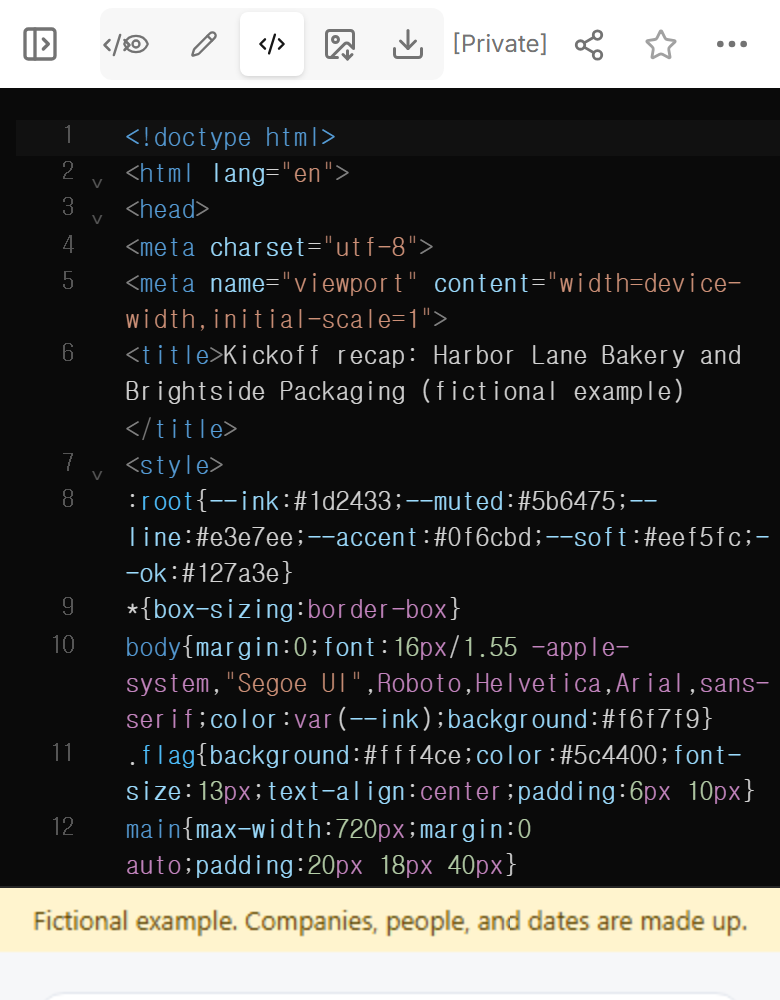
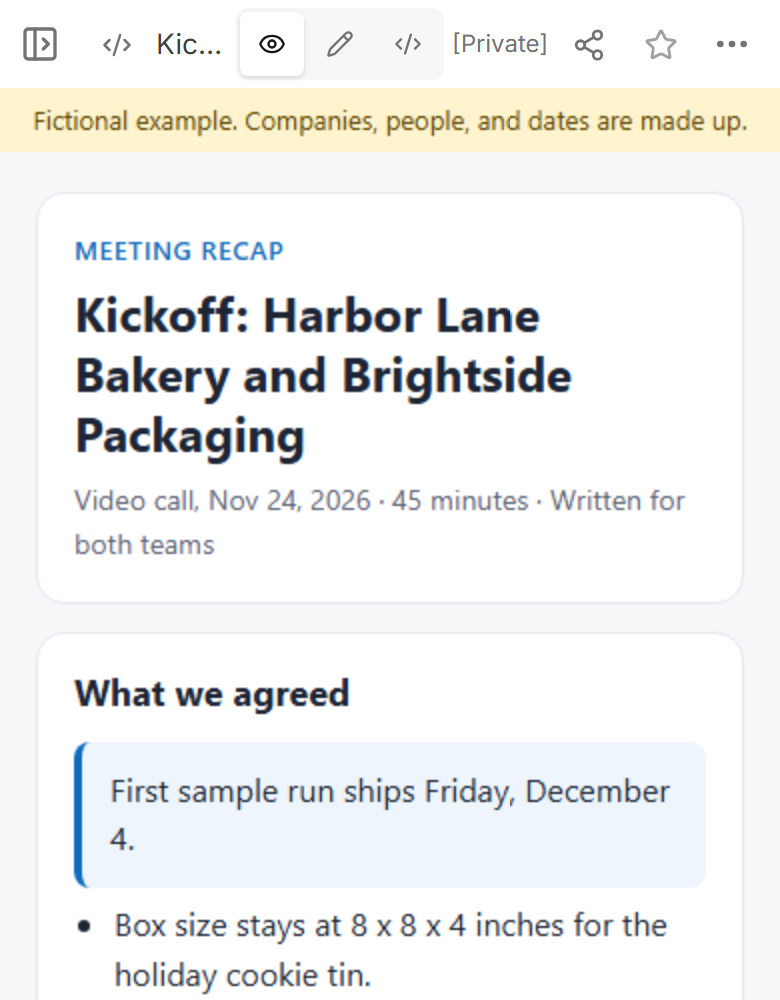
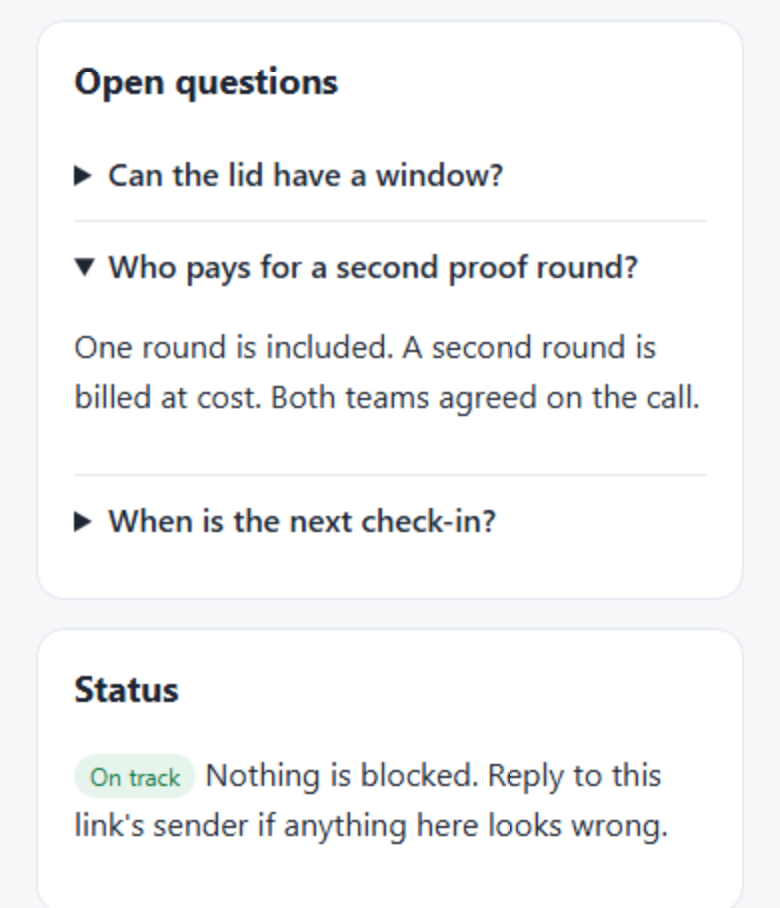
Our recap had four parts: what was agreed, an action table with owners and due dates, open questions that expand on tap, and a status line. A yellow strip at the top says the companies are made up.
Send it to the vendor as a read-only link
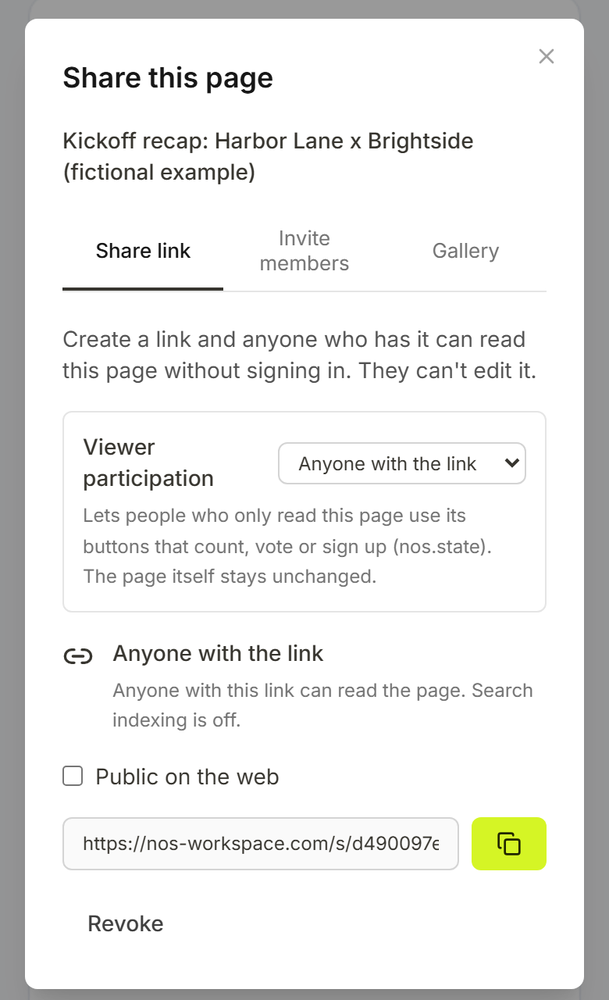
In NOS, the Share button opens a panel with a Share link tab. The panel says it directly: anyone who has the link can read the page without signing in, and they can't edit it. Search indexing is off. Public on the web stays unchecked unless you tick it.
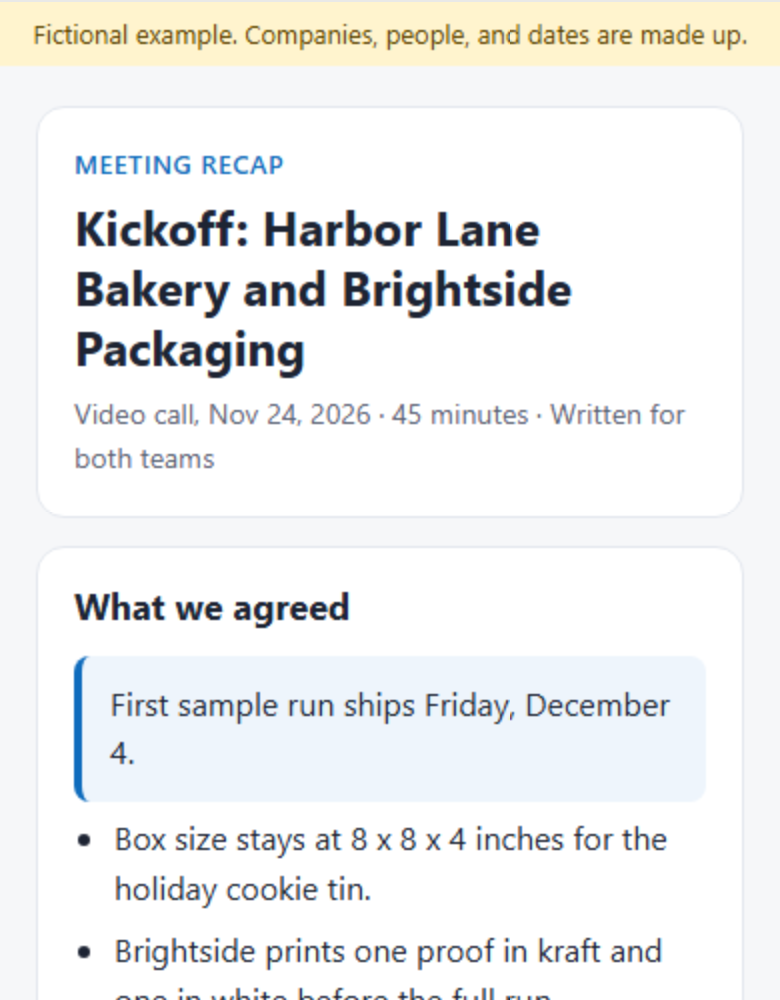
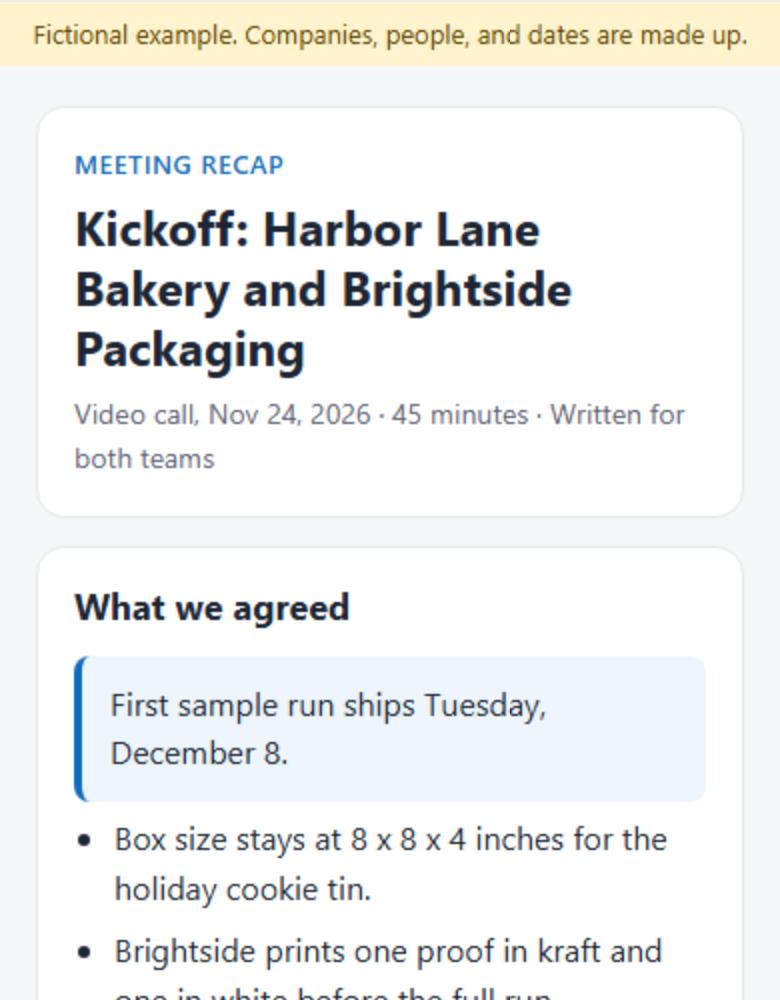
We opened the link in a phone-sized browser window with no login. The recap showed in full, with the fictional notice at the top.
The date changed after the link went out
This is the part a PDF can't do. Say the vendor writes back that the sample run will ship Tuesday, December 8, not Friday the 4th. In NOS we selected Edit, clicked the ship-date sentence in the blue box, selected its text, and typed the new date. The rest of the page stayed as it was.
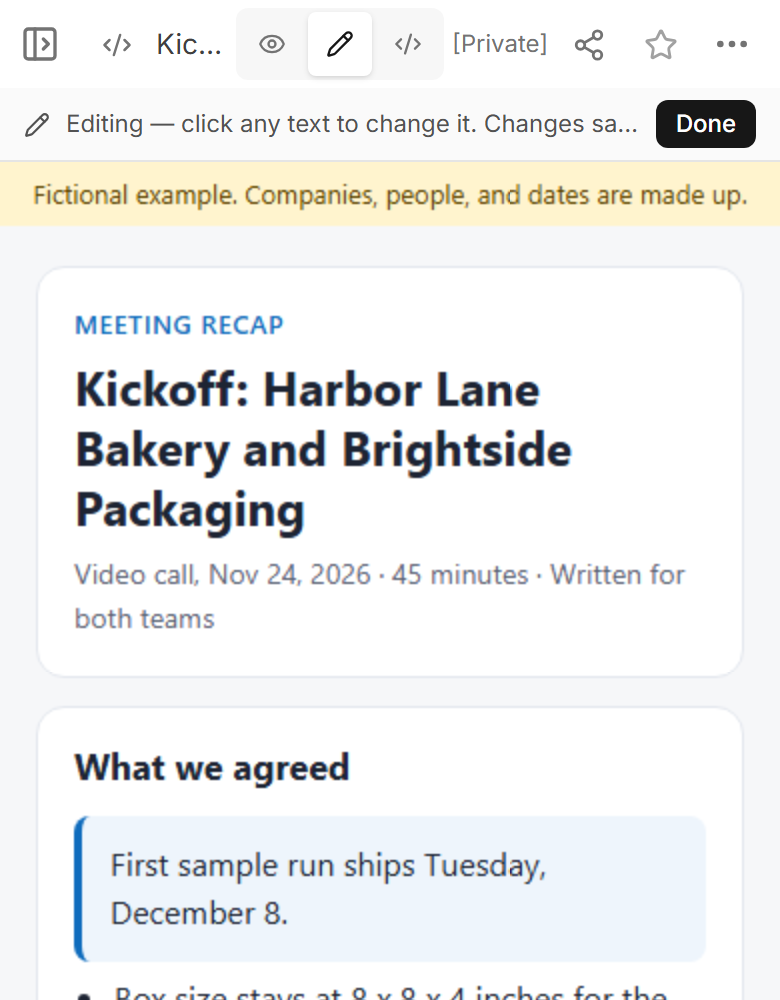
Changes save only when you select Done. After that, the page went back to View mode and a version button marked v2 appeared in the top bar, so the old wording is still there if you need it.
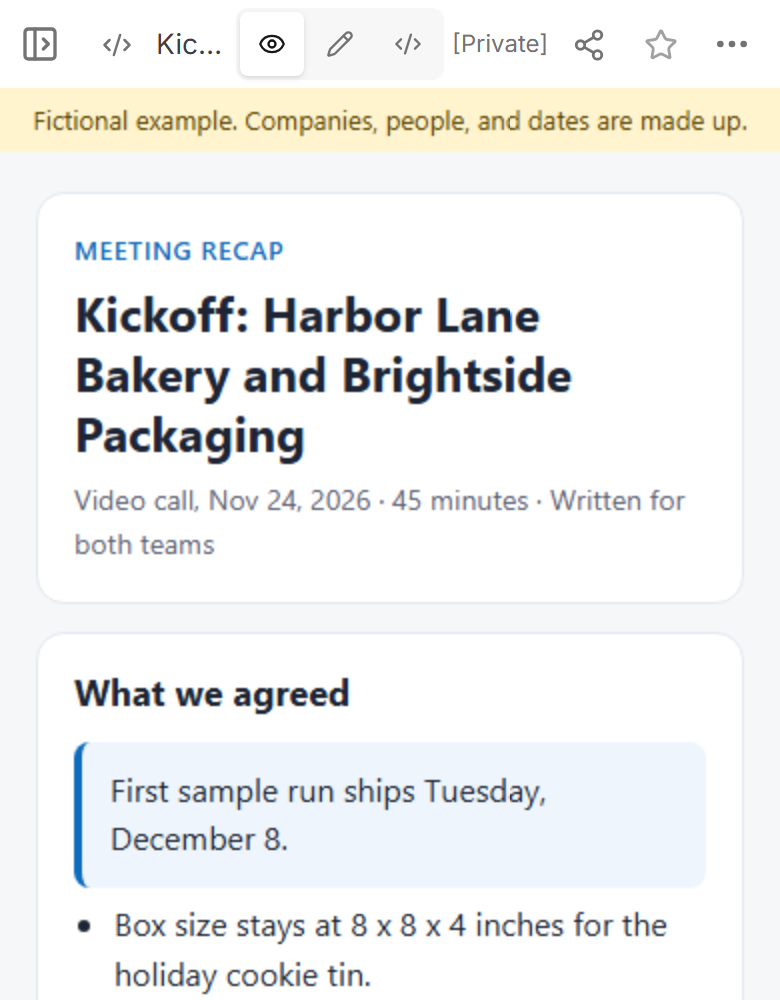
Then we opened the link we had copied before the edit. Same address, new date. Nobody had to be sent a new file.
The open questions still worked on the shared copy. Tapping one opened its answer, the same as in the original file.
What we would do the same way next time
- Put each date in one place. The action table says "See date above" instead of repeating the ship date. When the date moved, one edit fixed the whole page.
- Label the copy. A line at the top saying where the page came from and who it is for saves an awkward email later. Ours says the content is fictional.
- Keep the Copilot Page as the source. Your team keeps working in the Copilot Page. The outside copy is for reading. Decide who updates it, or it drifts.
Copilot Pages vs Loop: where does a shared link open?
A Copilot Page link opens in Loop. Microsoft stores Copilot Pages in the same kind of storage that Loop uses, and admins see it labeled Loop. That is why the guest workaround above runs through a Loop workspace. For people outside your company, Loop is the wall, so a plain web page is the easier door.
Which way to share: a quick guide
- Colleague in your company: Share, then Copy link. Nothing else needed.
- Colleague who wants it in a chat or email: Copy component.
- Outside person, final content: Create, then PDF, and attach it.
- Outside person, content that may change: an HTML copy at a read-only link you can edit later.
- Long-term partner who edits with you: ask IT about guest access. Don't build a workaround.
When not to do this
- The content is confidential. A read-only link works for anyone who has it. If only named people may read it, keep it in Microsoft 365 and ask IT for proper guest access.
- Your company says no. Many companies limit what leaves Microsoft 365, and sensitivity labels may apply to the page. Check your policy before you copy anything out.
- The other side must edit too. A read-only page is one-way. Shared editing needs guest access or a tool both companies use.
- It is a one-time handoff. If the content won't change, Create, then PDF is simpler.
Where NOS fits
NOS is a workspace for HTML pages and notes. You paste or upload a page, view it, edit the words on screen, and share a read-only link that opens without a login. The Free plan keeps up to 3 share links active at once, and the pricing page lists the paid plans. For more on this kind of page, see our guide to meeting notes at one address and how to share an HTML file in Teams.
Download the fictional recap HTML we used and change the names and dates to your own.