In short
A software onboarding guide should lead a new user from the sign-in screen to one finished practice task. Name the safe practice record, the exact result, and the point where the user should stop and ask for help.
Keep the first path short. Link to the full user guide after the first task works.
NOS Team built a fictional onboarding page for ParcelDesk, an invented delivery-support tool. The page guides one new user through a training ticket: sign in with a training account, find ticket TR-104, save a practice status, check the result, and send a useful help message if the screen differs. No real customer, company, or account data appears in the example.
What should a software onboarding guide include?
Start with the smallest result that proves the user can move through the software safely. For this example, “explore the dashboard” was too vague. “Close a ticket” was too risky because it sounded like a live record. The final goal is specific and reversible: update one named training ticket and confirm that it remains in the training queue.
- Entry condition: which account and environment to use.
- First task: one record, action, and save point.
- Done state: the status and note the user should see afterward.
- Stop rule: what must never be attempted in practice.
- Help route: what context to send when the screen does not match.
How do you write the first-login section?
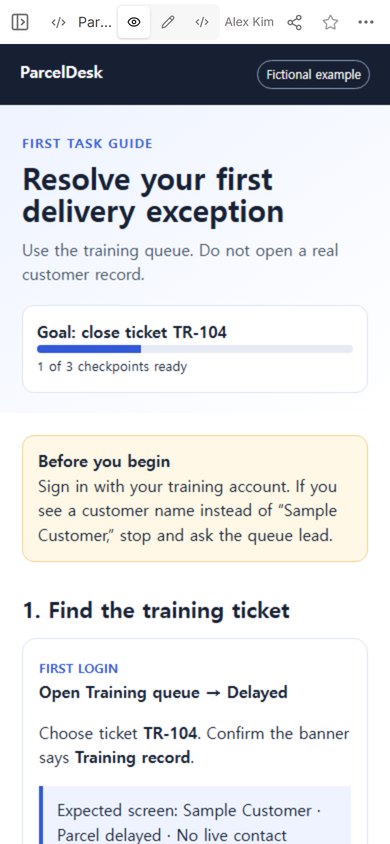
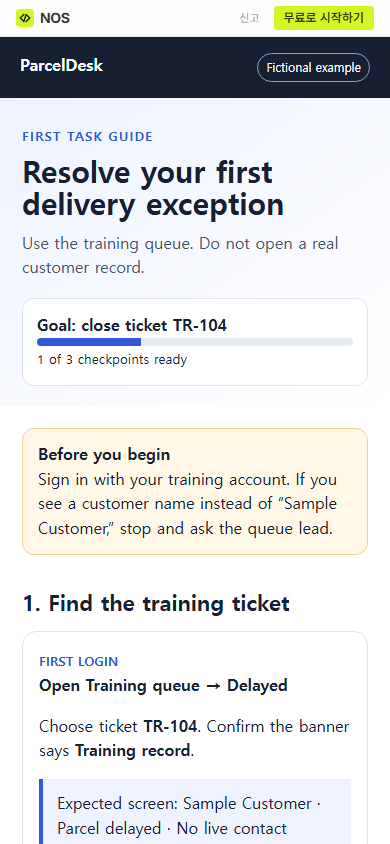
Do not describe every menu visible after sign-in. Tell the reader where to begin and how to confirm that the account is safe for practice. The ParcelDesk example says to open Training queue → Delayed, choose TR-104, and look for the words Training record. If a customer name appears instead of “Sample Customer,” the guide tells the reader to stop.
This check belongs before the task, not in a warning at the end. A new user needs it at the point where choosing the wrong record could matter.
How do you choose the first real task?
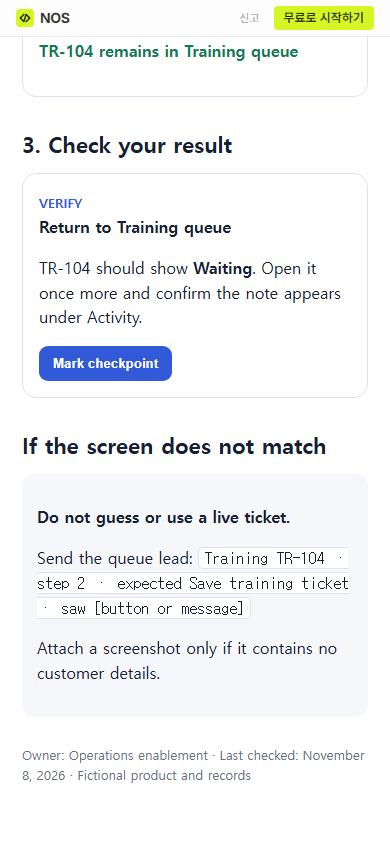
Pick a task that uses the normal path without touching live data. Give it a fixed training record and a visible result. In the fictional walkthrough, the reader selects “Carrier scan pending,” adds a supplied note, changes the training ticket to Waiting, and saves it. The verification step sends the reader back to the queue and asks them to reopen TR-104.
A tour says where buttons are. A first-task path explains why the user presses them and what must be true afterward. Keep reference material outside this short path unless the task cannot be completed without it.
What should the help step say?
“Ask your manager” gives the helper too little context. The example provides a compact message pattern: training record, step number, expected control, and what appeared instead. It also tells the user not to attach a screenshot if it contains customer details.
Write the escalation line for the person who will receive it. If your team uses a support queue, name the queue. If the software shows an error code, ask the user to include that code. Do not ask for passwords, access tokens, or customer data.
How do you turn the guide into one page?
- Write the entry check, first task, done state, stop rule, and help route.
- Build one phone-friendly HTML page and label all fictional records clearly.
- Open Code in NOS and place the complete page there.
- Use View to read the guide in the same order as a new user.
- Open Share and copy the reader address, then open that address at phone width.
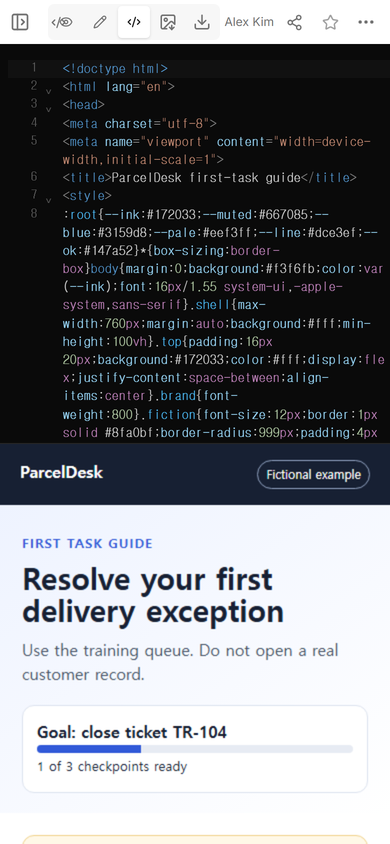
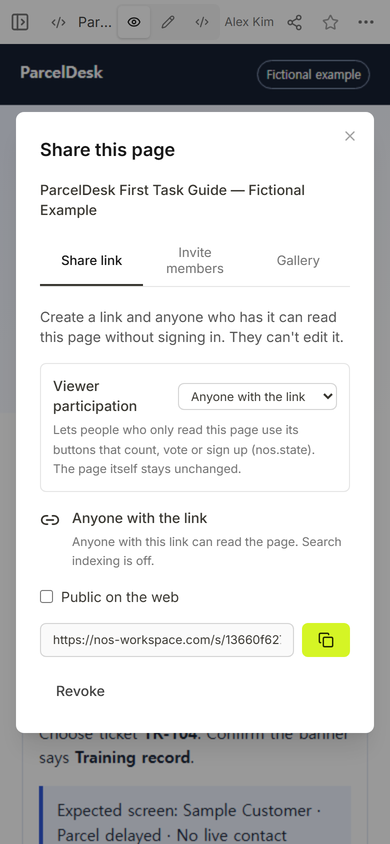
The complete fictional example is stored with this local article draft and mapped as a future article asset. It is not yet a public article download.
How should you revise an onboarding page?
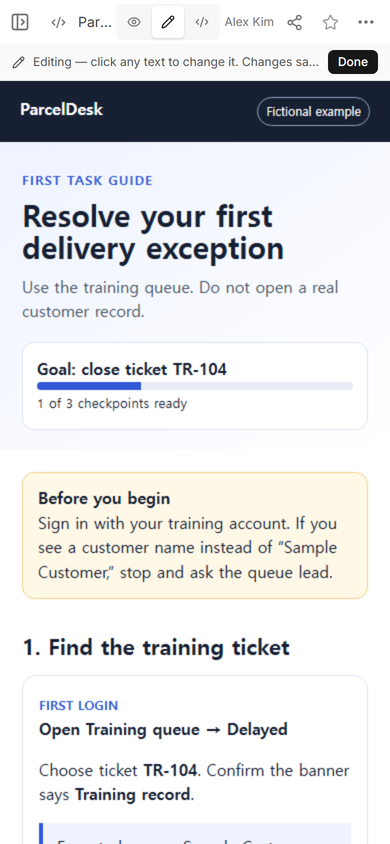
Use Edit for a short visible label and Code for a precise multi-sentence correction. During this run, a phone-width inline selection did not capture the intended sentence and appended the replacement text. We discarded that result and restored the original HTML on the same example page. The practical lesson is simple: reopen the reader link after every change and read the changed paragraph, not just the top of the page.
When not to do this
- Do not use a public onboarding page for passwords, private customer records, internal security details, or live access links.
- Do not treat a static guide as proof that someone completed required training. Use the system that records completion when a record is required.
- Do not compress a complex role into one first task. Give the first success its own page, then connect it to the wider training plan and reference guide.
Using NOS for a software onboarding guide
NOS Workspace can hold the finished HTML, show the page in View, open visible text in Edit, and create a reader address from Share. In this test, the public address opened the fictional guide at phone width. For a broader reference after the first task, use the user guide template. To separate tutorials from exact rules, continue with software documentation. For a group of onboarding pages, see HTML for onboarding documents, or start a page with the HTML-to-link tool. Check the current pricing page if plan details matter to your rollout.