A user guide for an internal tool does not need a template with twelve headings. It needs the handful of tasks colleagues keep asking you about, each as a short numbered list.
Put the date and your name at the top. Here is that page, ready to copy.
<!doctype html>
<html lang="en">
<head>
<meta charset="utf-8">
<meta name="viewport" content="width=device-width, initial-scale=1">
<title>Fernhill Requests - user guide</title>
<style>
* { box-sizing: border-box; }
body { margin: 0; background: #f5f6f8; color: #1d2330; font-family: system-ui, -apple-system, "Segoe UI", sans-serif; line-height: 1.6; }
.page { max-width: 680px; margin: 0 auto; padding: 28px 18px 40px; }
.tag { display: inline-block; padding: 3px 11px; border-radius: 999px; background: #dbeafe; color: #1e40af; font-size: 13px; font-weight: 600; }
h1 { margin: 10px 0 6px; font-size: 30px; line-height: 1.2; }
.meta { margin: 0 0 18px; font-size: 14px; color: #5b6472; }
.intro { margin: 0 0 18px; font-size: 17px; }
.toc { background: #fff; border: 1px solid #dfe3ea; border-radius: 12px; padding: 14px 18px; margin-bottom: 8px; }
.toc b { display: block; font-size: 13px; letter-spacing: .08em; text-transform: uppercase; color: #5b6472; margin-bottom: 4px; }
.toc ol { margin: 0; padding-left: 20px; }
.toc a { color: #1d4ed8; font-size: 16px; }
h2 { margin: 30px 0 8px; font-size: 21px; line-height: 1.3; }
.why { margin: 0 0 10px; color: #4b5563; font-size: 16px; }
ol.steps { margin: 0; padding: 0; list-style: none; counter-reset: s; }
ol.steps li { counter-increment: s; position: relative; padding: 10px 12px 10px 48px; margin-bottom: 8px; background: #fff; border: 1px solid #dfe3ea; border-radius: 10px; font-size: 16px; }
ol.steps li::before { content: counter(s); position: absolute; left: 12px; top: 10px; width: 26px; height: 26px; border-radius: 50%; background: #1d4ed8; color: #fff; font-weight: 700; font-size: 14px; text-align: center; line-height: 26px; }
.ui { font-weight: 700; background: #eef2ff; border-radius: 4px; padding: 0 5px; }
.note { margin: 10px 0 0; padding: 10px 14px; border-left: 4px solid #f59e0b; background: #fffbeb; border-radius: 0 8px 8px 0; font-size: 15px; }
details { background: #fff; border: 1px solid #dfe3ea; border-radius: 10px; margin-bottom: 8px; }
summary { cursor: pointer; padding: 11px 14px; font-weight: 600; font-size: 16px; }
details p { margin: 0; padding: 0 14px 12px; font-size: 16px; color: #374151; }
.help { margin-top: 28px; padding: 14px 18px; border-radius: 12px; background: #ecfdf5; border: 1px solid #a7f3d0; font-size: 16px; }
.top { display: inline-block; margin-top: 6px; font-size: 14px; color: #1d4ed8; }
</style>
</head>
<body>
<main class="page" id="top">
<!-- EDIT HERE: change the tool name, the date, your name and every step below -->
<span class="tag">User guide</span>
<h1>Fernhill Requests: the three jobs you will do</h1>
<p class="meta">Last updated 1 Oct 2026 · Written by Priya N., Facilities team · Covers the web version</p>
<p class="intro">Fernhill Requests is where we ask for desks, access and repairs. This page covers the tasks people ask me about most. Each one is five steps or fewer.</p>
<nav class="toc" aria-label="Contents">
<b>Tasks</b>
<ol>
<li><a href="#t1">Send a new request</a></li>
<li><a href="#t2">Check where a request is</a></li>
<li><a href="#t3">Cancel a request</a></li>
<li><a href="#fix">If something looks wrong</a></li>
</ol>
</nav>
<h2 id="t1">1. Send a new request</h2>
<p class="why">Use this for anything that needs the Facilities team to act.</p>
<ol class="steps">
<li>Open Fernhill Requests and click <span class="ui">New request</span>.</li>
<li>Pick a category. Choose <span class="ui">Desk move</span> for seating changes.</li>
<li>Write one sentence on what you need and by when.</li>
<li>Add your cost centre code if the form asks for it.</li>
<li>Click <span class="ui">Submit</span>. You get a reference such as FR-1042.</li>
</ol>
<p class="note">Write the date you need it by. Requests without one go to the end of the queue.</p>
<h2 id="t2">2. Check where a request is</h2>
<p class="why">Do this before you message anyone to chase it.</p>
<ol class="steps">
<li>Click <span class="ui">My requests</span> in the left menu.</li>
<li>Find your reference number in the list.</li>
<li>Read the <span class="ui">Status</span> column: Open, In progress or Done.</li>
</ol>
<h2 id="t3">3. Cancel a request</h2>
<p class="why">Cancel it yourself so nobody works on something you no longer need.</p>
<ol class="steps">
<li>Open the request from <span class="ui">My requests</span>.</li>
<li>Click <span class="ui">Cancel request</span> at the top right.</li>
<li>Type a short reason and confirm.</li>
</ol>
<h2 id="fix">If something looks wrong</h2>
<details>
<summary>I cannot see the New request button</summary>
<p>Your account may not have the Requester role yet. Ask your manager to request it, then sign out and back in.</p>
</details>
<details>
<summary>The form will not submit</summary>
<p>Look for a field marked in red. The cost centre code is the usual one. It has six digits and no spaces.</p>
</details>
<details>
<summary>My request has said In progress for over a week</summary>
<p>Add a comment on the request with the date you need it by. The team reads comments first.</p>
</details>
<div class="help"><b>Still stuck?</b> Email facilities@example.com with your reference number, or find Priya N. on the third floor.</div>
<a class="top" href="#top">Back to top</a>
<!-- END EDIT -->
</main>
</body>
</html>
The tool and the people are invented. Everything between the two EDIT comments is yours to replace: the tool name, the tasks, the steps and the contact line. The layout stays.
What goes on the page
A guide that gets used has six parts, in this order. You can cut any of them, but the order helps a reader who arrives with a question.
- Title and one line on what it covers. Name the tool and say which version or which team the guide is for.
- Last updated and who wrote it. A date tells a reader whether to trust the steps, and a name tells them who to ask.
- Contents. Task names that jump to the task. Write them the way a colleague would say them, such as "Cancel a request".
- The tasks. One heading each, a single sentence on when to use it, then five steps or fewer.
- If something looks wrong. The three or four problems you have already answered by message, with the fix.
- Who to ask. One person or one address.
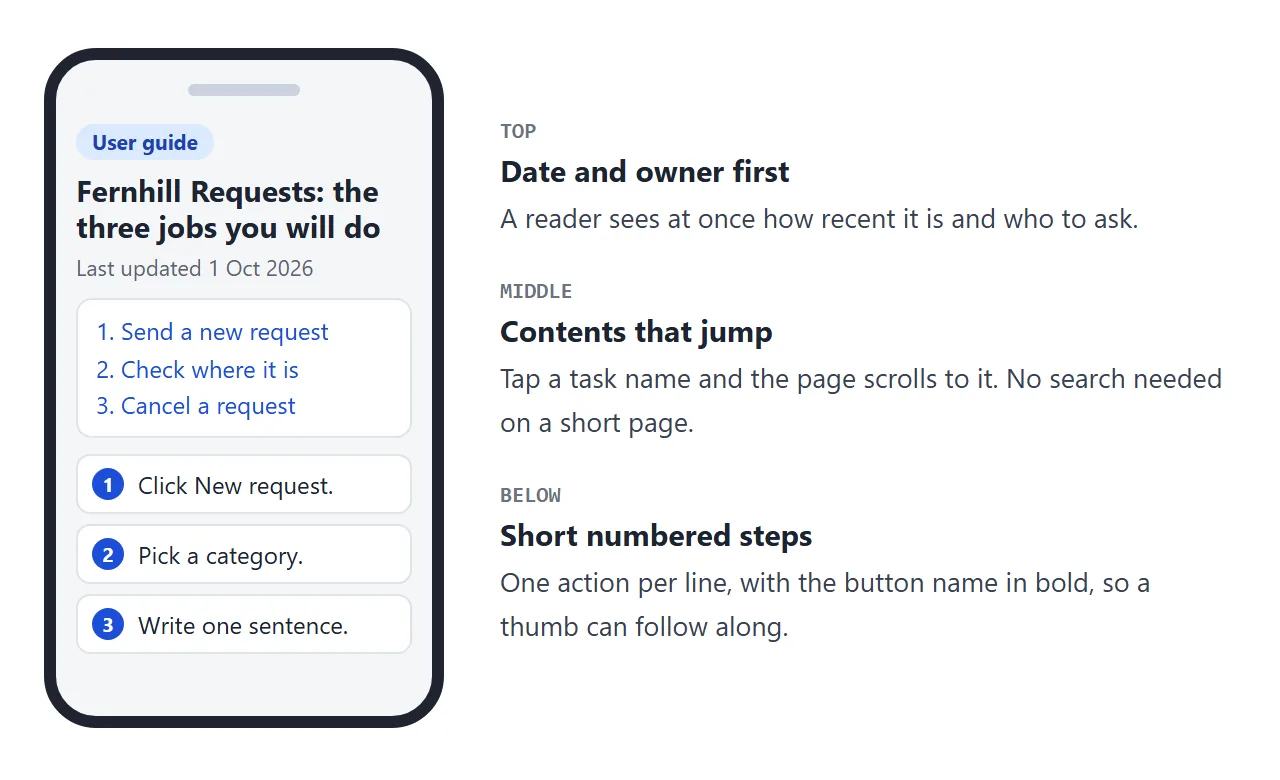
Put the button names in bold exactly as they appear on screen. A reader who is looking at the tool is matching words, not reading prose.
Make it with AI
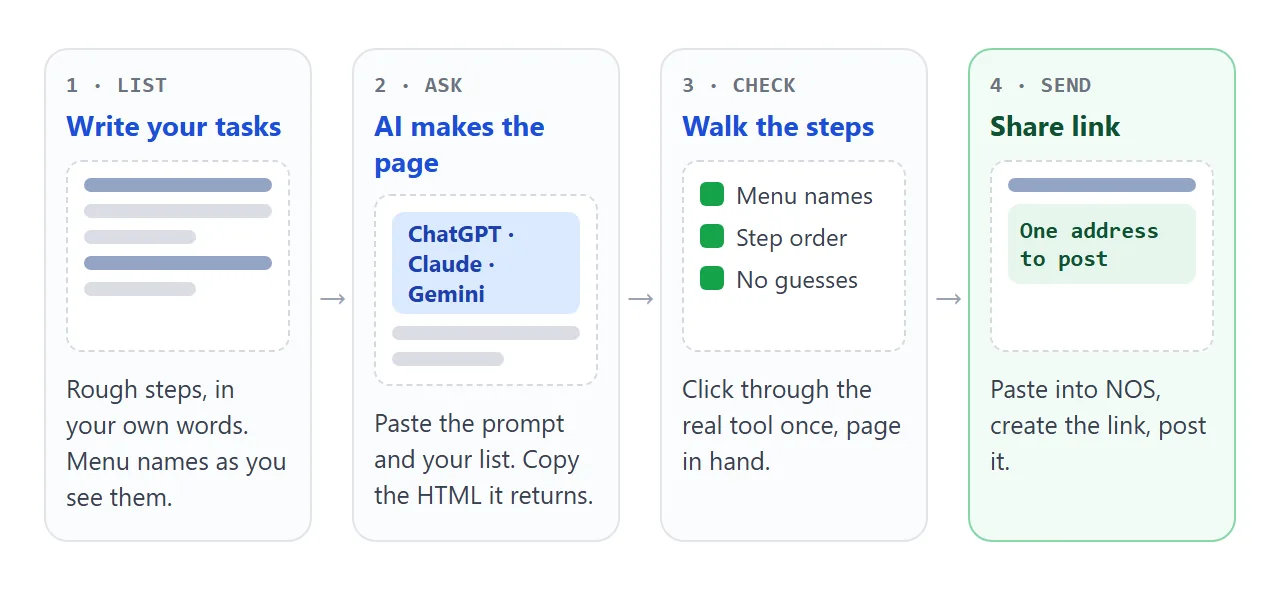
You do not have to build the page by hand. Write your rough list of tasks, then ask an AI chat to turn it into the page above. Paste this into ChatGPT, Claude or Gemini, and put your own list under it.
Make one self-contained HTML page: a user guide for [tool name],
written for colleagues in [team]. Keep it to one file with inline CSS.
It must work on a phone. No external images, fonts or scripts.

Layout: a title and one line on what it covers; "Last updated
[date], written by [name]"; a clickable contents list; one section per
task with a one-sentence "use this when", then numbered steps (five or
fewer, button names in bold); an "If something looks wrong" section using
details and summary; and a "Who to ask" line.

Use only the steps I give you. If a step is missing or unclear, write
TODO there. Do not invent menu names, settings or fixes.

My tasks and steps:
[paste your rough list here]
Check three things before you go on. First, every button and menu name against the real tool, because an AI will fill a gap with a plausible one.
Second, every TODO is gone. Third, the page contains nothing you would not post on a noticeboard.
Send it as a link
Copy the HTML the AI gave you, paste it into a NOS document, and choose Create share link. HTML to link walks through the steps. The page renders as written, the contents list jumps, and the fix questions open and close.
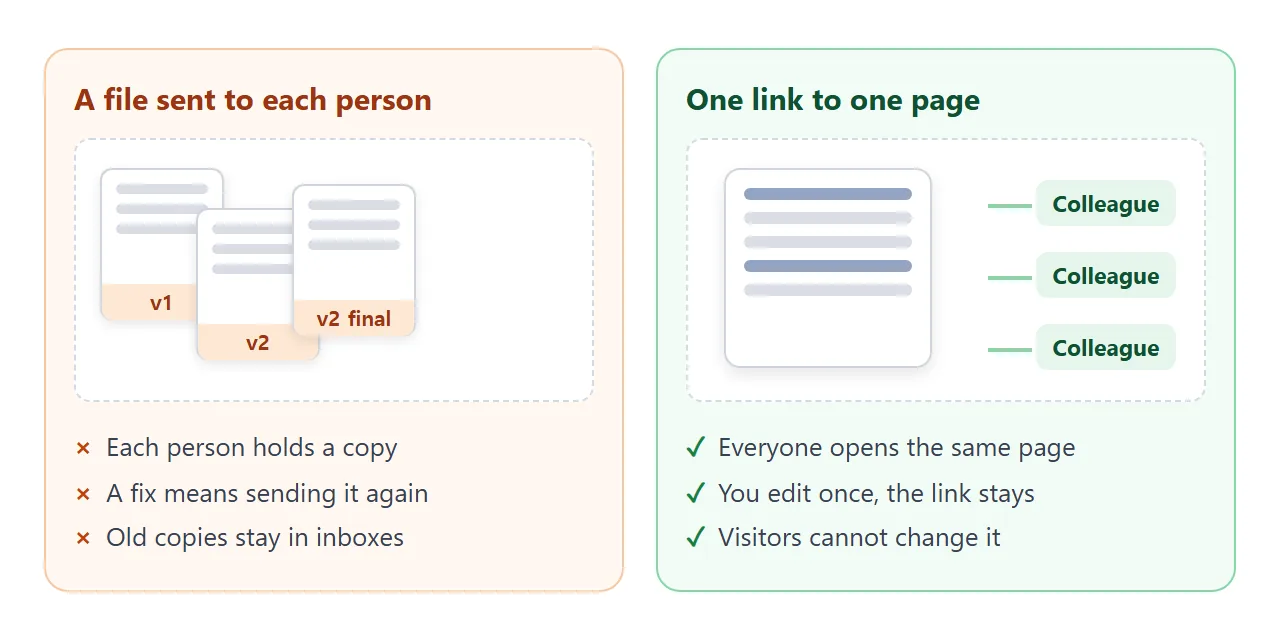
Anyone with the link can open it in a browser, on a laptop or a phone, without an account. They cannot edit it. When you correct a step, change the code in your document and the same link shows the new version.
Then post the link where people already ask. In Slack, pasting the address into a message is enough to share it. Slack expands many links into a preview, and may not when the page lacks the data it looks for (as of October 2026).
Say what the page is in one line either way. For Teams and email, see sharing an HTML page in Teams and email versus a link.
Link, shared doc or attachment
A guide could live in a few places. They suit different jobs, so compare them for yours.
| Attached file | Shared document | Link to a page | |
|---|---|---|---|
| Who holds the current version | Whoever you last sent it to | The one document | The one page |
| Can readers change it | Their own copy only | Only if given Editor access | No, they only read |
| Fix a wrong step | Send it again | Edit the document | Edit your page, same link |
| Opens on a phone | In whichever app handles that file type | In the document app or browser | In the phone browser |
| Layout you control | Depends on the app | Document styles | Whatever the page shows |
In Google Docs, a Viewer can view and download, a Commenter can also comment, and an Editor can edit and share (as of October 2026, per Google's help page).
A shared document is a good fit when several people write the guide together. A page suits one owner and many readers.
Keep it current, and make it searchable
A guide goes stale when the tool changes. Change the date line whenever you change a step, so a reader can tell. Fix the page when a colleague tells you something moved, rather than answering them in a message nobody else sees.
Once you pass ten tasks, a plain list stops working. This second page adds a search box and topic buttons, so a reader types the word they have in mind and the list narrows.
<!doctype html>
<html lang="en">
<head>
<meta charset="utf-8">
<meta name="viewport" content="width=device-width, initial-scale=1">
<title>Stockroom Sheet - quick guide</title>
<style>
* { box-sizing: border-box; }
body { margin: 0; background: #fff; color: #1f2430; font-family: system-ui, -apple-system, "Segoe UI", sans-serif; line-height: 1.55; }
.page { max-width: 680px; margin: 0 auto; padding: 24px 18px 36px; }
h1 { margin: 0 0 4px; font-size: 27px; line-height: 1.2; }
.meta { margin: 0 0 16px; font-size: 14px; color: #5b6472; }
.search { width: 100%; padding: 11px 14px; font: inherit; font-size: 17px; border: 2px solid #cbd2dc; border-radius: 10px; }
.search:focus { outline: none; border-color: #0f766e; }
.chips { display: flex; flex-wrap: wrap; gap: 8px; margin: 12px 0 14px; }
.chips button { font: 600 14px system-ui, sans-serif; padding: 7px 14px; border-radius: 999px; border: 1px solid #cbd2dc; background: #fff; color: #374151; cursor: pointer; }
.chips button[aria-pressed="true"] { background: #0f766e; border-color: #0f766e; color: #fff; }
.count { font-size: 14px; color: #5b6472; margin: 0 0 8px; }
.card { border: 1px solid #dfe3ea; border-radius: 10px; margin-bottom: 8px; background: #fafbfc; }
.card[hidden] { display: none; }
.card summary { cursor: pointer; padding: 11px 14px; font-weight: 600; font-size: 16px; display: flex; gap: 10px; align-items: baseline; justify-content: space-between; }
.card summary span { flex: none; font-size: 12px; font-weight: 600; color: #0f766e; background: #ccfbf1; padding: 2px 9px; border-radius: 999px; }
.card ol { margin: 0; padding: 0 14px 12px 38px; font-size: 16px; }
.empty { display: none; padding: 14px; border: 1px dashed #cbd2dc; border-radius: 10px; color: #4b5563; }
.empty.show { display: block; }
</style>
</head>
<body>
<main class="page">
<!-- EDIT HERE: change the title, the tasks and the data-topic words. Each task is one card. -->
<h1>Stockroom Sheet: quick guide</h1>
<p class="meta">Last updated 1 Oct 2026 · Maintained by Tomas R., Purchasing</p>
<input class="search" id="q" type="search" placeholder="Type what you want to do, e.g. count" aria-label="Search the guide">
<div class="chips" id="chips">
<button type="button" data-topic="all" aria-pressed="true">All</button>
<button type="button" data-topic="stock" aria-pressed="false">Stock</button>
<button type="button" data-topic="orders" aria-pressed="false">Orders</button>
<button type="button" data-topic="reports" aria-pressed="false">Reports</button>
</div>
<p class="count" id="count" aria-live="polite"></p>
<details class="card" data-topic="stock" open>
<summary>Count what is on the shelf <span>Stock</span></summary>
<ol><li>Open the <b>Count</b> tab.</li><li>Pick the shelf from the list.</li><li>Type the number you can see, not the number the sheet shows.</li><li>Press Enter to move to the next item.</li></ol>
</details>
<details class="card" data-topic="stock">
<summary>Mark an item as damaged <span>Stock</span></summary>
<ol><li>Find the item in the <b>Count</b> tab.</li><li>Put the damaged number in the Damaged column.</li><li>Add a note saying what happened.</li></ol>
</details>
<details class="card" data-topic="orders">
<summary>Reorder something that is low <span>Orders</span></summary>
<ol><li>Open the <b>Low stock</b> tab.</li><li>Tick the rows you want.</li><li>Click <b>Make order</b> and check the quantities.</li><li>Send the order list to Tomas R.</li></ol>
</details>
<details class="card" data-topic="orders">
<summary>Undo an order made by mistake <span>Orders</span></summary>
<ol><li>Open the <b>Orders</b> tab.</li><li>Find the order by its date.</li><li>Click <b>Void</b> before the order is sent.</li></ol>
</details>
<details class="card" data-topic="reports">
<summary>Print the weekly stock report <span>Reports</span></summary>
<ol><li>Open the <b>Reports</b> tab.</li><li>Choose <b>Weekly</b> and the week you want.</li><li>Click <b>Print</b>. Choose landscape.</li></ol>
</details>
<p class="empty" id="empty">Nothing matches. Try one word, such as count, order or print, or ask Tomas R. at tomas@example.com.</p>
<!-- END EDIT -->
</main>
<script>
// Show only the cards that match the typed words and the chosen topic.
var q = document.getElementById('q');
var cards = Array.prototype.slice.call(document.querySelectorAll('.card'));
var chips = Array.prototype.slice.call(document.querySelectorAll('#chips button'));
var topic = 'all';
function apply() {
var words = q.value.toLowerCase().split(/\s+/).filter(Boolean);
var shown = 0;
cards.forEach(function (c) {
var text = c.textContent.toLowerCase();
var ok = (topic === 'all' || c.dataset.topic === topic) &&
words.every(function (w) { return text.indexOf(w) !== -1; });
c.hidden = !ok;
if (ok) shown++;
});
document.getElementById('count').textContent = shown + ' of ' + cards.length + ' tasks';
document.getElementById('empty').className = shown ? 'empty' : 'empty show';
}
q.addEventListener('input', apply);
chips.forEach(function (b) {
b.addEventListener('click', function () {
topic = b.dataset.topic;
chips.forEach(function (x) { x.setAttribute('aria-pressed', x === b ? 'true' : 'false'); });
apply();
});
});
apply();
</script>
</body>
</html>
The search runs inside the page, so it needs nothing from a server and works on the shared link.
When it does not work
| What you see | Cause | Fix |
|---|---|---|
| The AI's steps do not match the tool | It guessed menu names it could not see | Replace them from the real tool, and ask for TODO when unsure |
| Colleagues still ask you the same question | The guide has no entry for it, or they cannot find it | Add the task, and name it the way they ask it |
| Screenshots do not show on the shared page | Images loaded from other sites are blocked | Describe the step in words, or leave the image out |
| Nobody opens the link | It was posted once and buried | Pin it, or put it in your reply to each repeat question |
| The page looks wide on a phone | The AI left out the viewport tag | Ask it to add a viewport meta tag |
| A reader asks to fix a typo | They cannot edit the shared link | Change the code in your own document, and the link updates |
For a longer manual with many sections, writing a user manual covers organising by problem, and HTML for onboarding docs covers the same page for new starters.