In short
A tutoring flyer should tell a parent five things fast: the subject and grade levels, which times you have free, where you meet, what it costs, and how to book.
The free times are the part that goes stale. Once a family books Wednesday, every paper copy still says Wednesday is open. So print the stable facts and a QR code, and keep your open slots on a page the QR opens.
When a slot fills, mark it "Taken" on that page and add one line at the top saying what changed. The printed QR keeps working because the link stays the same.
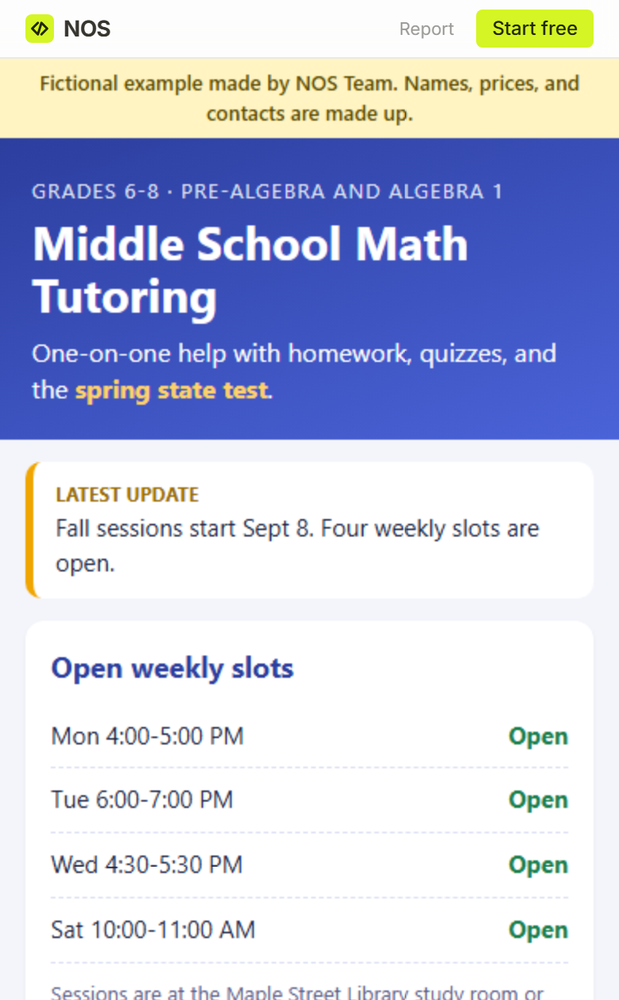
We made a flyer page for a made-up middle school math tutor, Sam Ortiz, who meets students at a library or by video. It listed four weekly slots. We put the page on NOS and opened the share link at phone size. Then a family "booked" the Wednesday slot, so we marked it taken in the editor and opened the same link again. The tutor, library, prices, and contact details are fictional.
You can open the finished example flyer or download the HTML file and edit it as a free template.
What to include on a tutoring flyer
Most template sites focus on fonts, pencils, and bright colors. Parents skim past all that. They want to know if you can help their child, when, and for how much. Answer these and you will get fewer "is this still available?" texts.
- Subject and grade levels. "Pre-algebra and Algebra 1, grades 6-8" beats "Math help." A parent can tell in one line whether it fits.
- The problem you solve. Homework gaps, test nerves, a state test in spring. Name it the way a parent would say it.
- Open time slots. Day and hour, each marked open or taken. This is the line parents check first and the one that changes most.
- Where you meet. Home visits, a library room, or video. Parents of younger kids often care about this more than the price.
- Rates and the first step. Price per session, any package, and whether the first meeting is free.
- Who you are. One line of real experience. Add a background check if you have one.
- One way to reach you. A text number or email, plus how fast you reply.
Leave out reviews unless the family said yes to being quoted. Never list a student's name or school on a public flyer.
How to make a tutoring flyer
- Decide your weekly slots first. Pick the hours you can keep all term. Four real slots look better than "flexible hours," which makes parents ask anyway.
- Build one phone-width page. Parents will scan the code in a hallway or a library lobby. Use one column, big times, and the booking button near the bottom where thumbs reach. Our example is a single HTML file with no images to load.
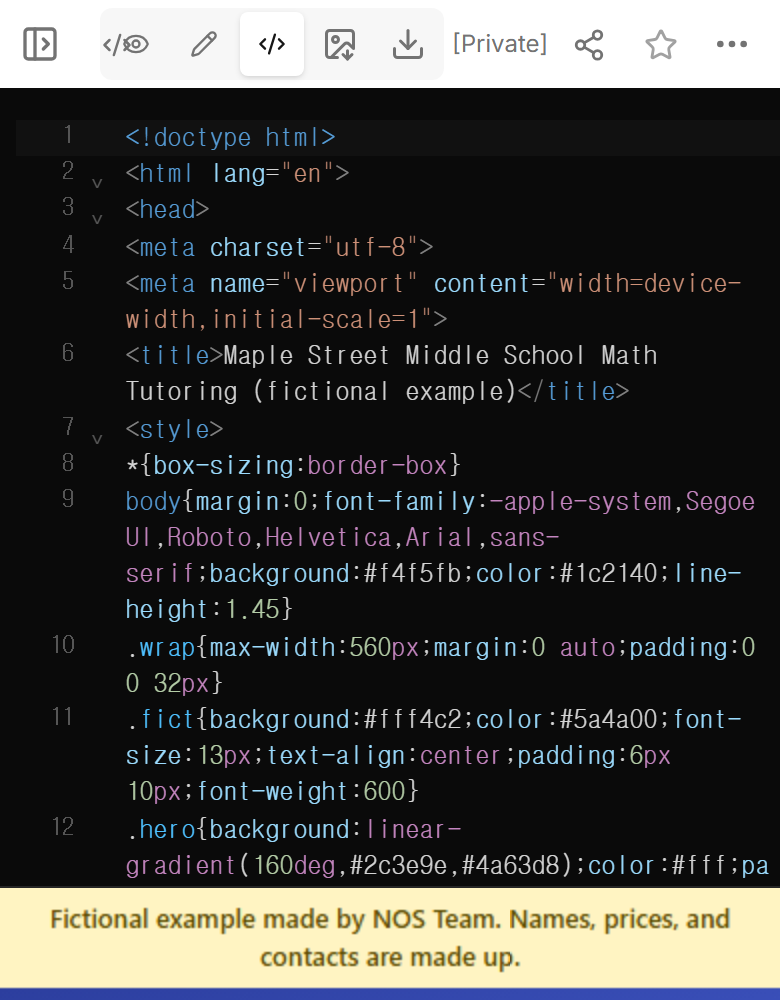
- Put it on a NOS page. Create a page and paste in the HTML. Code view shows what you pasted on top and the flyer underneath.
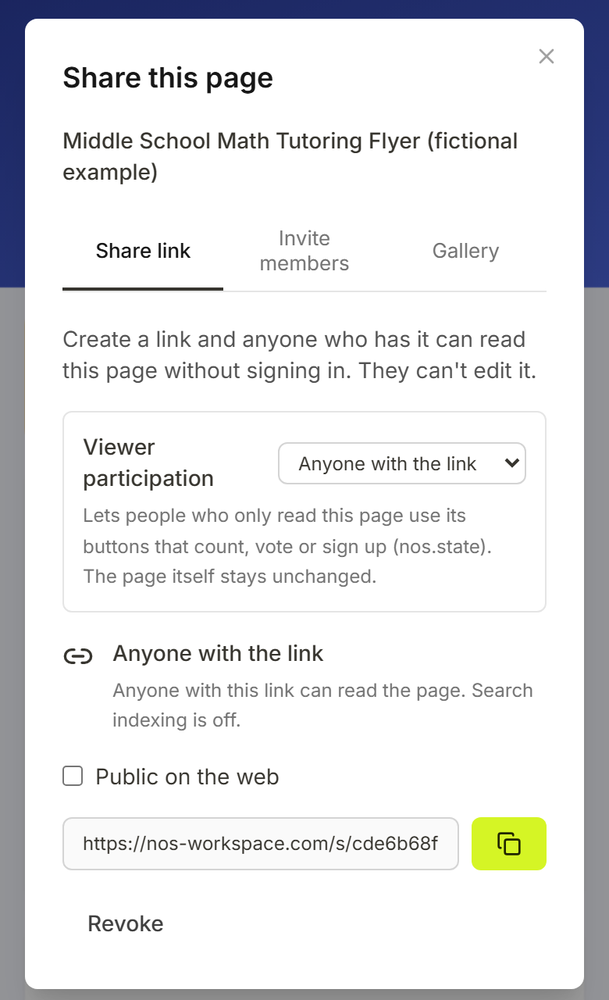
- Get the share link. Click Share. The panel explains that people holding the link can view the page with no sign-in and no way to change it. Search indexing stays off unless you tick "Public on the web," so parents need the link or the QR to find it.
- Check it on a phone screen. This is what a parent sees after scanning. The update line and all four slots should show without much scrolling.
- Turn the share link into a QR code. Print it large on the flyer and on any tear-off tabs. Our guide on turning an HTML page into a QR code covers print size and testing.
Marking a slot as taken
In our example, a family took the Wednesday 4:30 slot a few days after the flyers went up. The page now had two wrong facts: the update line said four slots were open, and Wednesday still said "Open." We fixed both in Edit mode, where you click text on the page and type over it.
Start with the update line. We clicked at the end of the old message, deleted it, and typed "Wed 4:30 is now taken. Three slots left as of Sept 10." The date tells a parent the list is current, not left over from August.
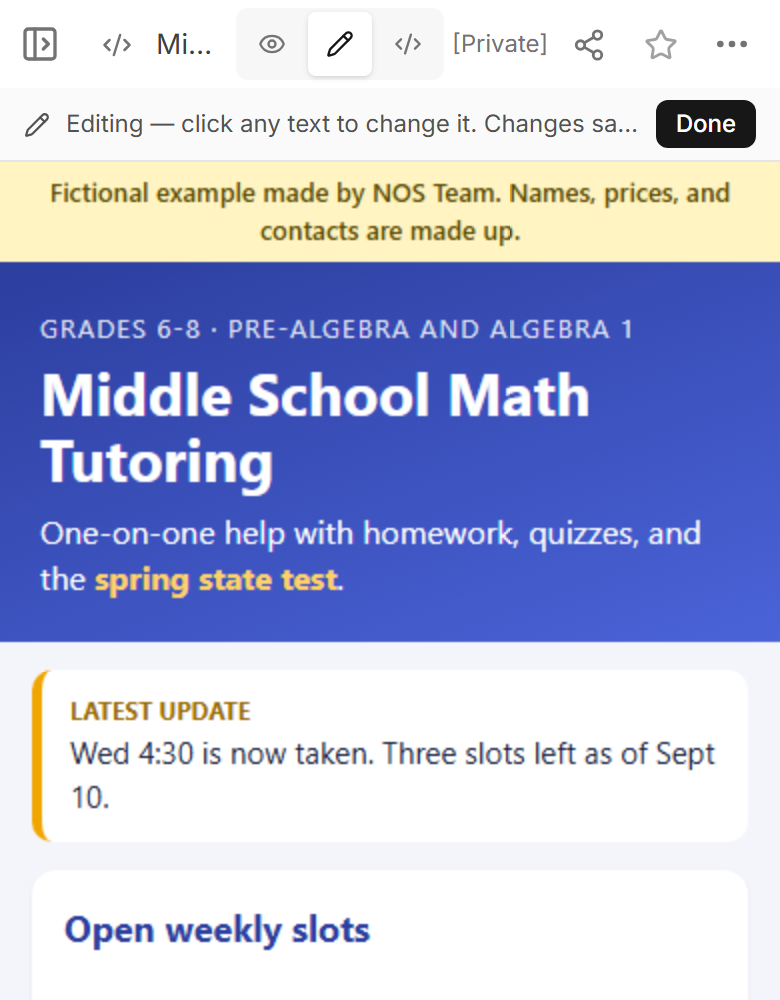
Then the slot itself. We replaced "Open" next to Wednesday with "Taken" and pressed Done. We kept the row instead of deleting it. A parent who saw Wednesday on paper finds it on the page and sees the answer right there.
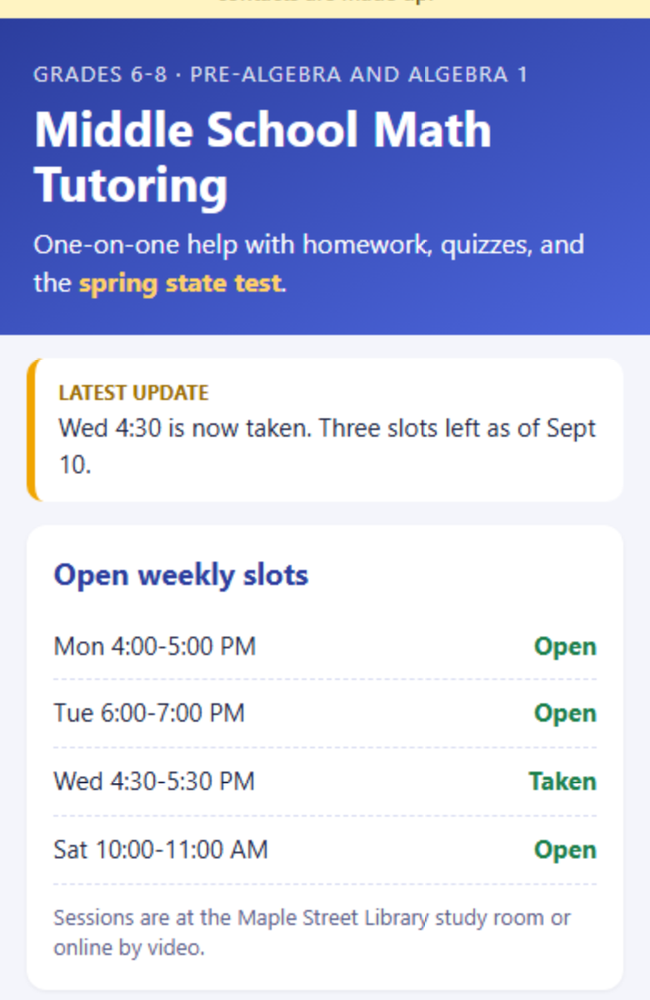
We opened the original share link again at phone size. The new line and the "Taken" mark were both there, at the same address. A QR printed from that link would now open the updated list.
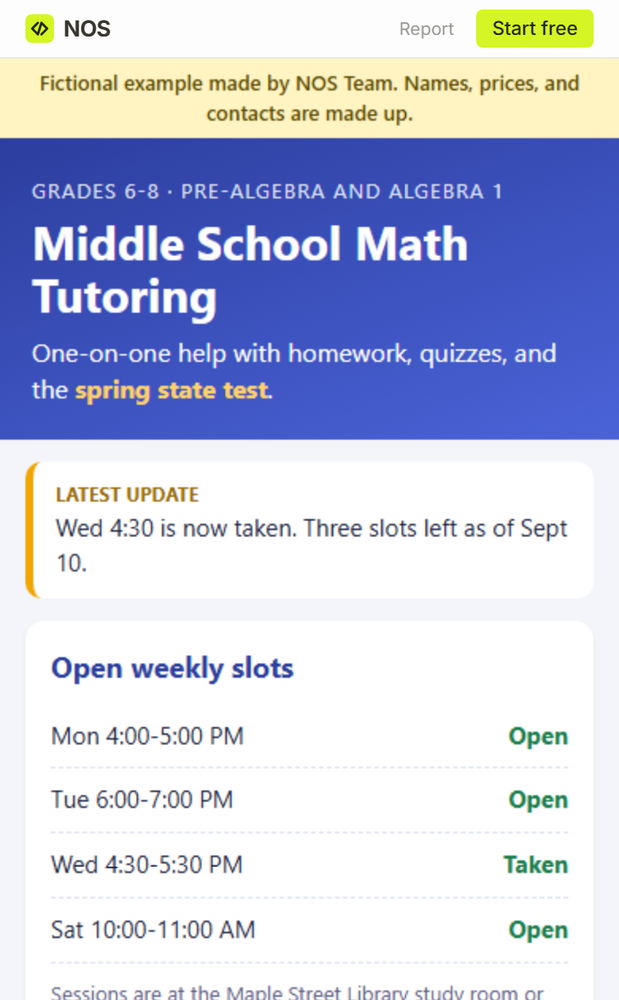
One habit helps here. Update the page the same day you confirm a booking. If you wait a week, another family may text you for a slot that is already gone.
Where to post tutoring flyers
Post where parents wait, and ask before you pin anything up.
- Public libraries. Many have a community board. If you meet students at the library, it is the most natural spot.
- Schools. Ask the front office or counselor. Many districts have rules about outside ads, so get a yes first.
- Places kids already go. Rec centers, youth sports fields, music schools, and pediatric offices with a board.
- Coffee shops and grocery stores. Boards there turn over fast. Check back every week or two and replace torn copies.
Tear-off tabs still work. Put the QR on the main sheet and your number on each tab, so a parent can grab one without a phone in hand.
How much to charge for tutoring
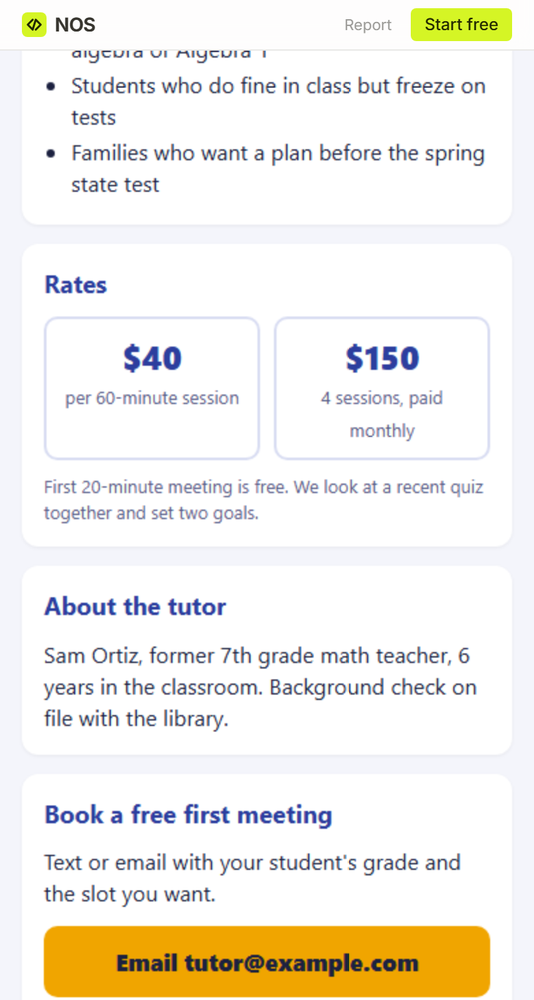
Start with what others charge near you for the same subject and grade. Look at local listings and ask a school counselor what families usually pay. Then adjust for your background. A former teacher can charge more than a high school student. Test prep and higher grades usually cost more than homework help.
Show your price on the flyer. Leaving it off sends parents to message you just to ask. A monthly package priced a bit under four single sessions, as in our example, rewards families who commit. The numbers in the example are invented, so set your own from local rates.
How to advertise tutoring services locally
Paper flyers are only one channel. Use the same link in all of them, so the open slots are right wherever a parent finds you.
- Local parent groups and Nextdoor. Post a short note with the link instead of a photo of the flyer. A photo keeps the old slots forever.
- Word of mouth. Text the link to current families and ask them to pass it on. A link is easier to forward than a description.
- Your email signature and bio links. Add the same link. If you also want a card to hand out, see how to make a free digital business card.
Once sessions start, plan each one with a simple tutoring lesson plan template.
When not to do this
- You need parents to book and pay on the page. This flyer only shows information. Point the button to your calendar booking or payment tool, and keep student details there.
- You tutor through a company or marketplace. If the agency sets your schedule and rates, send parents to your profile there. Another page with different times will confuse them.
- Your slots never change. If you keep the same two students all year and only want one more, a plain printed flyer is fine.
- You would list anything about current students. Names, schools, grades, or progress don't belong on a page anyone with the link can open.
Where NOS fits
NOS hosts an HTML file as a page you can edit in place and share as one link. Paste the file, fix words in Edit mode or the markup in Code view, and the same link shows the latest version. Parents don't need an account to open it. The Free plan gives you 3 share links at once; paid plans are on the pricing page. To learn how a QR code points to a page, read what a QR code link is.