document.getElementById('name')는 id 속성이 정확히 name인 요소 하나를 반환합니다. # 없이 ID를 전달합니다. 요소 자체를 가져오므로 입력된 내용을 읽고, 텍스트를 변경하고, 스타일을 변경하거나 클래스를 전환할 수 있습니다.
일치하는 요소가 없으면 null를 반환합니다.
먼저 시도해 보세요. 각 버튼은 ID로 찾은 요소에 대해 한 줄을 실행하고 그 아래에 해당 줄을 인쇄합니다.
<!doctype html>
<html lang="en">
<head>
<meta charset="utf-8">
<meta name="viewport" content="width=device-width, initial-scale=1">
<title>getElementById: read and change elements</title>
<style>
  body { margin: 0; padding: 14px; font-family: system-ui, sans-serif; background: #f4f5f7; color: #1d2330; }
  .card { background: #fff; border-radius: 12px; padding: 14px; box-shadow: 0 4px 14px rgba(0, 0, 0, .08); }
  label { font-size: 13px; color: #5b6270; }
  input { display: block; width: 100%; box-sizing: border-box; margin: 4px 0 10px; padding: 8px 10px;
          font: inherit; border: 1px solid #c9cdd4; border-radius: 8px; }
  #greeting { margin: 0; padding: 10px; border-radius: 8px; background: #eef1f5; font-weight: 600; }
  #greeting.highlight { background: #fde68a; }
  .buttons { display: flex; flex-wrap: wrap; gap: 6px; margin: 12px 0; }
  button { font: inherit; font-size: 13px; padding: 7px 10px; border: 0; border-radius: 8px;
           background: #1d4ed8; color: #fff; cursor: pointer; }
  #code { margin: 0; padding: 10px; border-radius: 8px; background: #1d2330; color: #d1fae5;
          font: 12.5px/1.5 ui-monospace, Consolas, monospace; white-space: pre-wrap; min-height: 38px; }
</style>
</head>
<body>
<div class="card">
  <label for="name">Your name</label>
  <input id="name" value="Sam">
  <p id="greeting">Hello!</p>

  <div class="buttons">
    <button id="read">Read .value</button>
    <button id="text">Set .textContent</button>
    <button id="style">Set .style</button>
    <button id="toggle">Toggle a class</button>
    <button id="clear">Clear .value</button>
  </div>

  <pre id="code">Press a button to see the line it runs.</pre>
</div>

<script>
  // Grab each element once, by its id (no '#')
  const nameInput = document.getElementById('name');
  const greeting = document.getElementById('greeting');
  const code = document.getElementById('code');

  // Show the line that ran and what it returned
  function show(line, result) {
    code.textContent = line + (result === undefined ? '' : '\n// → ' + result);
  }

  document.getElementById('read').addEventListener('click', () => {
    show("document.getElementById('name').value", JSON.stringify(nameInput.value));
  });

  document.getElementById('text').addEventListener('click', () => {
    greeting.textContent = 'Hello, ' + nameInput.value + '!';
    show("greeting.textContent = 'Hello, ' + nameInput.value + '!';");
  });

  document.getElementById('style').addEventListener('click', () => {
    const next = greeting.style.color ? '' : '#b91c1c';  // toggle red on and off
    greeting.style.color = next;
    show("greeting.style.color = '" + next + "';");
  });

  document.getElementById('toggle').addEventListener('click', () => {
    const on = greeting.classList.toggle('highlight');
    show("greeting.classList.toggle('highlight');", on);
  });

  document.getElementById('clear').addEventListener('click', () => {
    nameInput.value = '';
    nameInput.focus();
    show("nameInput.value = '';");
  });
</script>
</body>
</html>
반환 값은 브라우저가 화면에 그리는 것과 동일한 요소 개체입니다. 속성을 변경하면 페이지가 즉시 업데이트됩니다. 다시 저장할 사본이 없습니다.
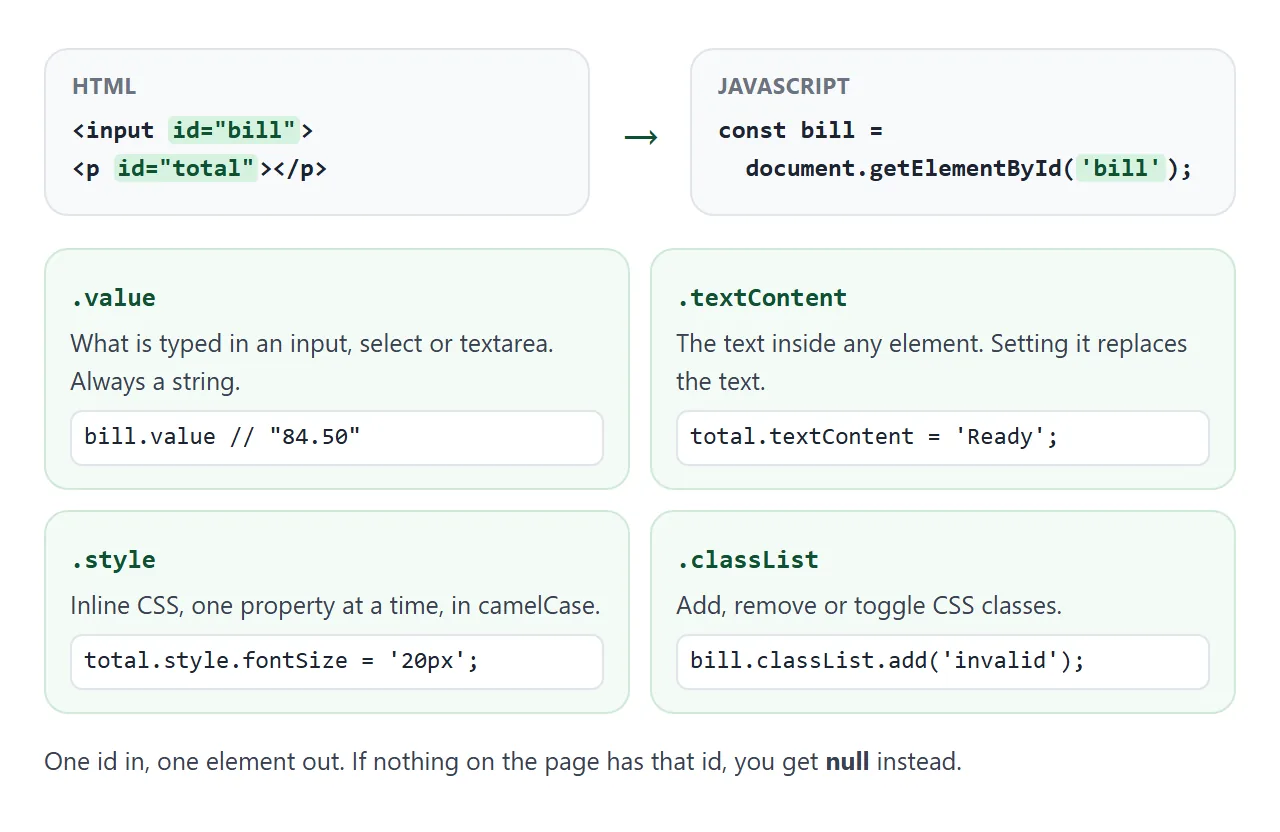
결과를 const에 한 번 저장하고 재사용하세요. 매번 getElementById를 다시 호출하면 작동하지만 명명된 변수가 읽기 더 쉽습니다.
.value 읽기 및 텍스트, 스타일, 클래스 변경
양식 필드는 현재 콘텐츠를 .value에 유지합니다. 여기에는 <input>, <textarea> 및 <select>가 포함됩니다.
const bill = document.getElementById('bill');
console.log(bill.value);   // what the user typed, as a string
bill.value = '0';          // replace it
.value는 type="number"에서도 항상 문자열입니다. '10' + 5는 '105'를 제공하므로 계산 전에 Number()로 래핑합니다.
HTML의 value 속성은 시작 컨텐츠만 설정합니다. 사용자가 입력하면 .value에 새 텍스트가 포함되고 속성은 그대로 유지됩니다.
대부분의 요소는 양식 필드가 아닙니다. 테이블에서는 모든 요소에 작동하는 세 가지 속성 옆에 .value를 표시합니다.
| 재산 | 다음 용도로 사용하세요. | 예 |
|---|---|---|
.value |
입력 내용, 텍스트 영역, 선택 | bill.value |
.textContent |
모든 요소 내부의 일반 텍스트 | total.textContent = '12.50' |
.style |
인라인 CSS 속성 1개 | total.style.color = 'red' |
.classList |
클래스 추가 및 제거 | bill.classList.toggle('invalid') |
- **
.textContent**는 사용자가 제공한 내용을 텍스트로 처리합니다. 문자열의<b>는 사용자가 입력하는 모든 항목에 대해 원하는 문자로 표시됩니다. - **
.style**는font-size가 아닌fontSize라는 camelCase 이름을 사용합니다. 스타일시트의 규칙이 아닌 인라인 스타일만 읽습니다. - **
.classList**는 CSS의 모양을 유지합니다. 스타일시트에서.invalid를 한 번 정의하고 JavaScript에서 전환합니다.
많은 style 라인보다 classList를 선호합니다. 디자인은 한 곳에 고정되어 나중에 쉽게 변경할 수 있습니다.
getElementById가 null을 반환하는 이유
null는 회선이 실행될 때 해당 ID가 존재하지 않음을 의미합니다. 가장 일반적인 이유는 타이밍입니다. <head>의 스크립트는 본문이 빌드되기 전에 브라우저가 페이지를 읽는 동안 실행됩니다.
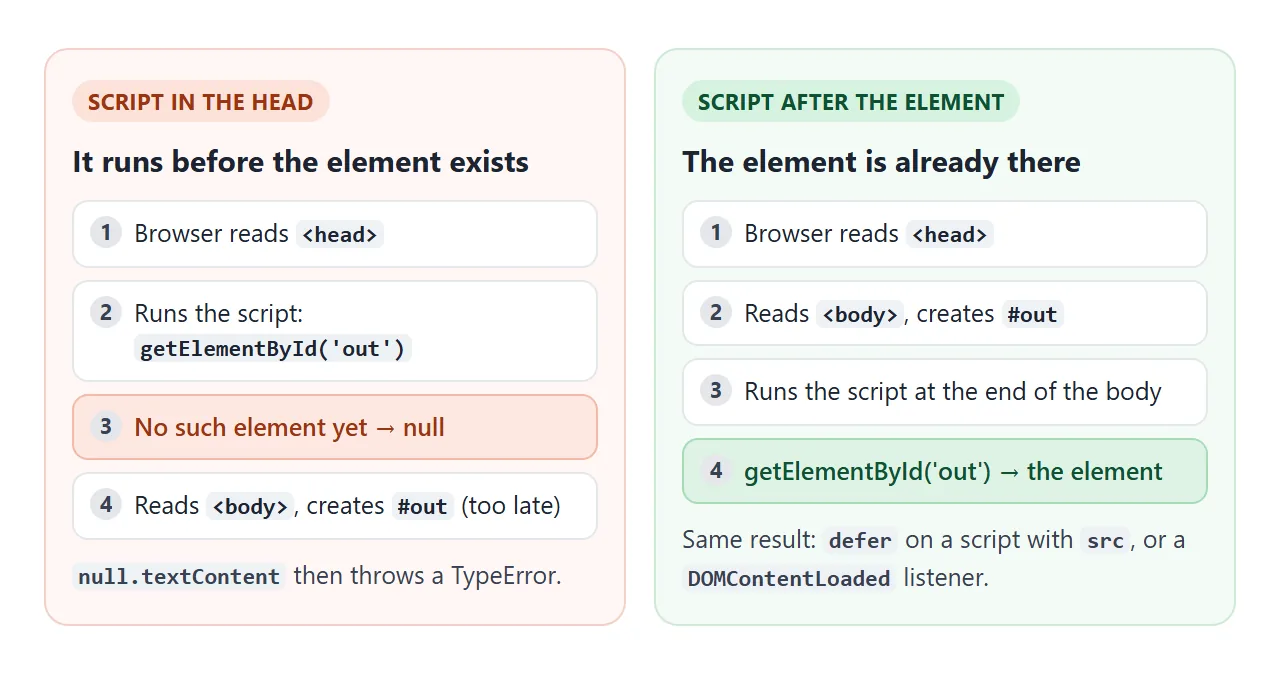
결과에 닿는 다음 줄에서는 TypeError가 발생합니다.
Chrome에서는 속성을 읽을 때 널 속성을 읽을 수 없습니다라고 표시되고, 속성을 할당하면 널 속성을 설정할 수 없습니다라는 메시지가 표시됩니다. 다른 브라우저에서는 다르게 표현하지만 동일한 문제입니다.
이 페이지는 네 곳에서 동일한 조회를 실행하고 오류를 포착하므로 어떤 것이 실패하는지 확인할 수 있습니다.
<!doctype html>
<html lang="en">
<head>
<meta charset="utf-8">
<meta name="viewport" content="width=device-width, initial-scale=1">
<title>Why getElementById returns null</title>
<style>
body { margin: 0; padding: 14px; font-family: system-ui, sans-serif; background: #f4f5f7; color: #1d2330; }
#target { margin: 0 0 12px; padding: 10px; border-radius: 8px; background: #fff; border: 1px dashed #9aa3b2; font-size: 14px; }
.row { background: #fff; border-radius: 10px; padding: 10px 12px; margin-bottom: 8px;
border-left: 5px solid #9aa3b2; font-size: 13px; }
.row.bad { border-left-color: #c2410c; background: #fff7f5; }
.row.good { border-left-color: #15803d; background: #f4fbf6; }
.row b { display: block; margin-bottom: 3px; }
.row code { font: 12px/1.45 ui-monospace, Consolas, monospace; word-break: break-word; }
</style>
<script>
// Each test reports here. The list is drawn once the page has a place for it.
const results = [];
function report(where, el, error) {
results.push({ where, el, error });
const out = document.getElementById('out');
if (out) draw(out);
}
function draw(out) {
out.innerHTML = '';
results.sort((a, b) => a.where.localeCompare(b.where)); // show 1-4 in order
for (const r of results) {
const row = document.createElement('div');
row.className = 'row ' + (r.el ? 'good' : 'bad');
const title = document.createElement('b');
title.textContent = r.where;
const line = document.createElement('code');
line.textContent = r.el
? 'Found <' + r.el.tagName.toLowerCase() + ' id="target">'
: 'null → ' + r.error;
row.append(title, line);
out.append(row);
}
}
</script>
<!-- 1. Plain script in the head: the element does not exist yet -->
<script>
try {
const el = document.getElementById('target');
el.textContent = 'changed'; // throws, because el is null
report('1. <script> in <head>', el);
} catch (e) {
report('1. <script> in <head>', null, e.name + ': ' + e.message);
}
</script>
<!-- 2. defer on an inline script is ignored: still null -->
<script defer>
try {
const el = document.getElementById('target');
el.textContent = 'changed';
report('2. <script defer> in <head>, inline', el);
} catch (e) {
report('2. <script defer> in <head>, inline', null, e.name + ': ' + e.message);
}
</script>
<!-- 3. Wait for the page to be parsed -->
<script>
document.addEventListener('DOMContentLoaded', () => {
const el = document.getElementById('target');
report('3. <head> + DOMContentLoaded', el);
});
</script>
</head>
<body>
<p id="target">I am <p id="target">, written after the head scripts.</p>
<div id="out"></div>
<!-- 4. Script placed after the element -->
<script>
report('4. <script> after the element', document.getElementById('target'));
</script>
</body>
</html>
세 가지 수정 사항이 있습니다.
- 스크립트를
<body>의 끝(사용하는 요소 뒤)으로 이동하세요. - **
defer**를 외부 스크립트<script src="app.js" defer></script>에 추가합니다. 페이지가 구문 분석된 후에 실행됩니다. - **인라인 코드가 헤드에 유지되어야 하는 경우
DOMContentLoaded**를 기다립니다.
데모의 사례 2를 참고하세요. defer는 src가 없는 인라인 스크립트에서 아무 작업도 수행하지 않으므로 여전히 null이 됩니다. 더 넓은 스크립트 문제 목록은 HTML JavaScript가 작동하지 않음에 있습니다.
ID 자체의 오류
타이밍이 적절하고 결과가 여전히 null인 경우 인수를 문자별로 확인하세요.
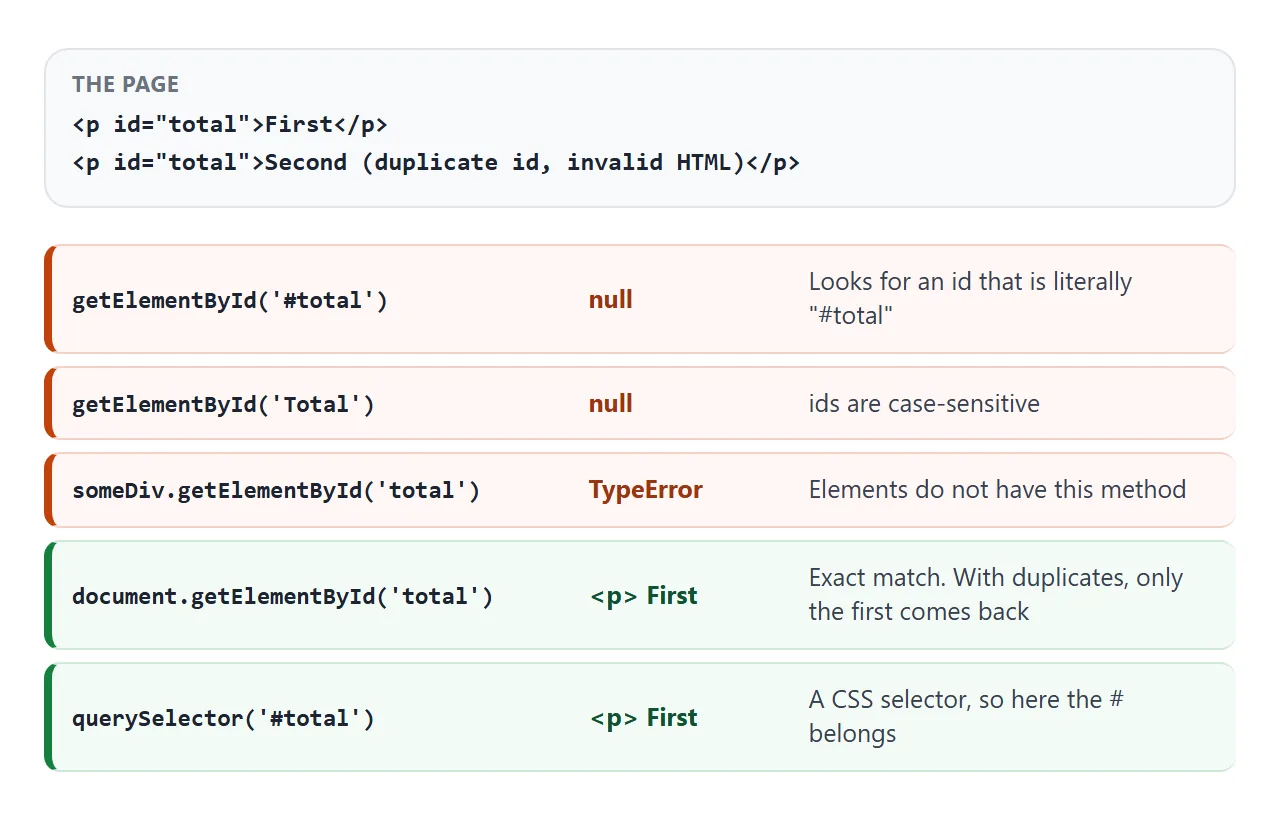
- 인수에
#가 있습니다.getElementById('#total')는 문자 그대로#로 시작하는 ID를 검색합니다.#는 CSS 선택자에만 속합니다. - 대소문자.
Total와total는 다른 ID입니다. - ID가 중복되었습니다. 페이지의 첫 번째 요소만 다시 나타납니다. 두 번째 코드는 절대 변경되지 않습니다. 이는 "절반 작동" 코드처럼 보입니다.
- 잘못된 개체입니다. 이 메서드는
document에 있습니다.someDiv.getElementById는 요소에 함수가 없으므로 함수가 아닙니다.
getElementById 대 querySelector('#id')
일반 ID의 경우 두 줄 모두 동일한 요소를 반환합니다.
document.getElementById('total');
document.querySelector('#total');
차이점은 논쟁이다. getElementById는 원시 ID를 사용합니다. querySelector는 CSS 선택자를 사용하므로 #가 필요하며 클래스, 속성 또는 위치별로 찾을 수도 있습니다.
ID로 알려진 요소 하나를 가져올 때 getElementById를 선택하세요.
일부 ID는 유효한 HTML이지만 유효한 CSS가 아닙니다. 예를 들어 숫자로 시작하는 ID: querySelector('#2col')는 SyntaxError를 발생시키는 반면 getElementById('2col')는 작동합니다. ID 외에 다른 것이 필요한 경우 querySelector에 문의하세요.
완성된 예: 팁 계산기
위의 모든 것이 하나의 작은 도구에 있습니다. 모든 입력은 ID로 한 번 조회됩니다. input 수신기는 값을 읽고, 계산을 수행하고, textContent를 사용하여 결과를 씁니다.
<!doctype html>
<html lang="en">
<head>
<meta charset="utf-8">
<meta name="viewport" content="width=device-width, initial-scale=1">
<title>Tip calculator</title>
<style>
  body { margin: 0; padding: 14px; font-family: system-ui, sans-serif; background: #f4f5f7; color: #1d2330; }
  .calc { max-width: 380px; margin: 0 auto; background: #fff; border-radius: 14px; padding: 16px;
          box-shadow: 0 6px 20px rgba(0, 0, 0, .08); }
  h2 { margin: 0 0 12px; font-size: 18px; }
  label { display: block; font-size: 13px; color: #5b6270; margin-top: 10px; }
  input[type=number] { width: 100%; box-sizing: border-box; margin-top: 4px; padding: 9px 10px;
                       font: inherit; font-size: 16px; border: 1px solid #c9cdd4; border-radius: 8px; }
  input[type=number].invalid { border-color: #c2410c; background: #fff7f5; }
  input[type=range] { width: 100%; margin-top: 6px; }
  .out { margin-top: 14px; border-radius: 10px; background: #f4fbf6; padding: 12px; display: grid;
         grid-template-columns: 1fr auto; gap: 6px; font-size: 14px; }
  .out b { text-align: right; }
  .out .big { font-size: 20px; color: #0f5132; }
</style>
</head>
<body>
<div class="calc">
  <h2>Tip calculator</h2>

  <label for="bill">Bill</label>
  <input id="bill" type="number" min="0" step="0.01" value="84.50" inputmode="decimal">

  <label for="tip">Tip: <span id="tipLabel">15</span>%</label>
  <input id="tip" type="range" min="0" max="30" value="15">

  <label for="people">People</label>
  <input id="people" type="number" min="1" step="1" value="3" inputmode="numeric">

  <div class="out">
    <span>Tip</span><b id="tipAmount"></b>
    <span>Total</span><b id="total"></b>
    <span>Each person pays</span><b id="each" class="big"></b>
  </div>
</div>

<script>
  // Look up every element once
  const bill = document.getElementById('bill');
  const tip = document.getElementById('tip');
  const people = document.getElementById('people');
  const tipLabel = document.getElementById('tipLabel');
  const tipAmount = document.getElementById('tipAmount');
  const total = document.getElementById('total');
  const each = document.getElementById('each');

  const money = (n) => n.toFixed(2);

  function update() {
    // .value is always a string, so turn it into a number first
    const b = Number(bill.value);
    const pct = Number(tip.value);
    const n = Math.floor(Number(people.value));

    tipLabel.textContent = pct;

    const ok = bill.value !== '' && b >= 0 && n >= 1;
    bill.classList.toggle('invalid', !(bill.value !== '' && b >= 0));
    people.classList.toggle('invalid', !(n >= 1));
    if (!ok) {
      tipAmount.textContent = total.textContent = each.textContent = '-';
      return;
    }

    const t = b * pct / 100;
    tipAmount.textContent = money(t);
    total.textContent = money(b + t);
    each.textContent = money((b + t) / n);
  }

  // 'input' fires on every keystroke and every slider move
  for (const el of [bill, tip, people]) el.addEventListener('input', update);
  update();
</script>
</body>
</html>
- 문자열의 숫자: 곱하기 전의
Number(bill.value). - 라이브 업데이트:
change와 달리input이벤트는 모든 키와 모든 슬라이더 이동에서 발생합니다. - 잘못된 입력:
classList.toggle('invalid', ...)는 필드를 빨간색으로 표시하고 결과에 대시가 표시됩니다.
이러한 방식으로 작성된 더 많은 계산기를 보려면 HTML 계산기 코드를 참조하세요.
작동하지 않을 때
| 보이는 것(크롬 문구) | 원인 | 수정 |
|---|---|---|
Cannot read properties of null |
요소가 존재하기 전에 스크립트가 실행됩니다. | <body>, defer 및 src 또는 DOMContentLoaded 끝에 스크립트 |
| 항상 null, 스크립트 배치는 괜찮습니다. | 인수의 # |
베어 ID 전달: 'total' |
| 하나의 ID에만 Null | 대소문자 또는 오타가 HTML과 다름 | HTML에서 ID를 복사하세요. |
| 두 요소 중 첫 번째 요소만 변경됩니다. | 두 요소가 ID를 공유합니다. | ID를 고유하게 만들거나 querySelectorAll와 함께 클래스를 사용하세요. |
getElementById is not a function |
document가 아닌 요소에서 호출됨 |
document.getElementById 또는 el.querySelector('#id')를 사용하세요. |
.value는 undefined이거나 설정하면 아무것도 표시되지 않습니다. |
<div>, <p> 및 <span>에는 값이 없습니다. |
.textContent 사용 |
수학에서는 15 대신 '105'를 제공합니다. |
.value는 문자열입니다. |
Number()로 포장하세요 |
링크로 공유하세요
계산기는 설명하는 것보다 시도해 보는 것이 더 쉽습니다. 스크린샷은 입력을 받을 수 없으며 .html 첨부 파일은 전화기에서 코드로 열리는 경우가 많습니다.
작업 버전을 보내려면 페이지를 NOS 문서에 붙여넣고 공유 링크 만들기를 선택하세요. 링크할 HTML이 이를 안내합니다.
페이지는 작성된 대로 렌더링되고 해당 스크립트가 실행되므로 페이지를 받는 사람이 필드에 직접 입력할 수 있습니다. 나중에 코드를 변경하면 동일한 링크에 새 버전이 표시됩니다.