JavaScript로 날짜 형식을 지정하려면 로케일 및 옵션 개체와 함께 날짜를 toLocaleDateString 또는 Intl.DateTimeFormat에 전달하세요. date.toLocaleDateString('en-US', { dateStyle: 'long' })는 "2026년 9월 26일"을 반환합니다. 프로그램이 읽는 문자열의 경우 toISOString()를 사용하세요.
여기에서 옵션을 사용해 보세요. 로캘, 스타일, 시간대를 변경하면 결과 아래의 코드도 이에 따라 변경됩니다.
<!doctype html>
<html lang="en">
<head>
<meta charset="utf-8">
<meta name="viewport" content="width=device-width, initial-scale=1">
<title>Date format playground</title>
<style>
  body { margin: 0; padding: 16px; font-family: system-ui, sans-serif; background: #f4f5f7; color: #1d2330; }
  .grid { display: grid; grid-template-columns: repeat(auto-fit, minmax(150px, 1fr)); gap: 10px; }
  label { display: block; font-size: 12px; font-weight: 600; color: #4b5563; }
  input, select { width: 100%; box-sizing: border-box; margin-top: 4px; padding: 7px; font: inherit; font-size: 14px;
                  border: 1px solid #cfd4dc; border-radius: 8px; background: #fff; }
  .out { margin-top: 14px; background: #fff; border-radius: 12px; padding: 12px 14px; box-shadow: 0 2px 10px rgba(0,0,0,.06); }
  .big { font-size: 20px; font-weight: 600; margin: 4px 0 10px; overflow-wrap: anywhere; }
  .row { font-size: 13px; margin: 6px 0; overflow-wrap: anywhere; }
  .row b { display: inline-block; min-width: 118px; color: #6b7280; font-weight: 600; }
  pre { margin: 10px 0 0; background: #1d2330; color: #e5e7eb; padding: 10px 12px; border-radius: 8px;
        font-size: 12.5px; white-space: pre-wrap; overflow-wrap: anywhere; }
</style>
</head>
<body>
<div class="grid">
  <label>Date and time <input type="datetime-local" id="when" value="2026-09-26T14:30"></label>
  <label>Locale
    <select id="locale">
      <option value="">Your browser's default</option>
      <option>en-US</option><option>en-GB</option><option>de-DE</option>
      <option>fr-FR</option><option>ja-JP</option><option>ko-KR</option>
    </select>
  </label>
  <label>Style
    <select id="style">
      <option value="full">dateStyle: full</option>
      <option value="long" selected>dateStyle: long</option>
      <option value="medium">dateStyle: medium</option>
      <option value="short">dateStyle: short</option>
      <option value="both">dateStyle + timeStyle</option>
      <option value="parts">weekday, day, month name</option>
    </select>
  </label>
  <label>Time zone
    <select id="zone">
      <option value="">Your time zone</option>
      <option>UTC</option><option>America/New_York</option>
      <option>Europe/London</option><option>Asia/Tokyo</option>
    </select>
  </label>
</div>

<div class="out">
  <div class="big" id="result"></div>
  <div class="row"><b>toISOString()</b> <span id="iso"></span></div>
  <div class="row"><b>Your time zone</b> <span id="tz"></span></div>
  <pre id="code"></pre>
</div>

<script>
  const $ = (id) => document.getElementById(id);

  // each preset is an options object for Intl.DateTimeFormat
  const presets = {
    full: { dateStyle: 'full' },
    long: { dateStyle: 'long' },
    medium: { dateStyle: 'medium' },
    short: { dateStyle: 'short' },
    both: { dateStyle: 'medium', timeStyle: 'short' },
    parts: { weekday: 'long', day: 'numeric', month: 'long', year: 'numeric' },
  };

  function render() {
    const d = new Date($('when').value);  // "YYYY-MM-DDTHH:mm" is read as local time
    if (isNaN(d)) { $('result').textContent = 'Pick a date and time'; return; }

    const locale = $('locale').value || undefined;  // undefined = browser default
    const options = { ...presets[$('style').value] };
    if ($('zone').value) options.timeZone = $('zone').value;

    $('result').textContent = new Intl.DateTimeFormat(locale, options).format(d);
    $('iso').textContent = d.toISOString();
    $('tz').textContent = Intl.DateTimeFormat().resolvedOptions().timeZone;
    $('code').textContent =
      'const d = new Date("' + $('when').value + '");\n' +
      'new Intl.DateTimeFormat(' + (locale ? '"' + locale + '"' : 'undefined') + ', ' +
      JSON.stringify(options).replace(/"(\w+)":/g, '$1: ') + ').format(d);';
  }

  ['when', 'locale', 'style', 'zone'].forEach((id) => $(id).addEventListener('input', render));
  render();
</script>
</body>
</html>
이 가이드의 나머지 부분에서는 날짜가 실제로 보유하는 내용, 날짜가 휴일로 표시되는 이유, 각 형식 지정 방법을 사용하는 시기를 다룹니다.
Date 객체가 담고 있는 것
Date는 1970년 1월 1일 자정(UTC) 이후의 밀리초 단위의 숫자입니다. 시간대나 자체 형식이 없습니다. 그것을 보여주는 모든 방법은 그 순간의 시간대와 레이아웃을 선택합니다.
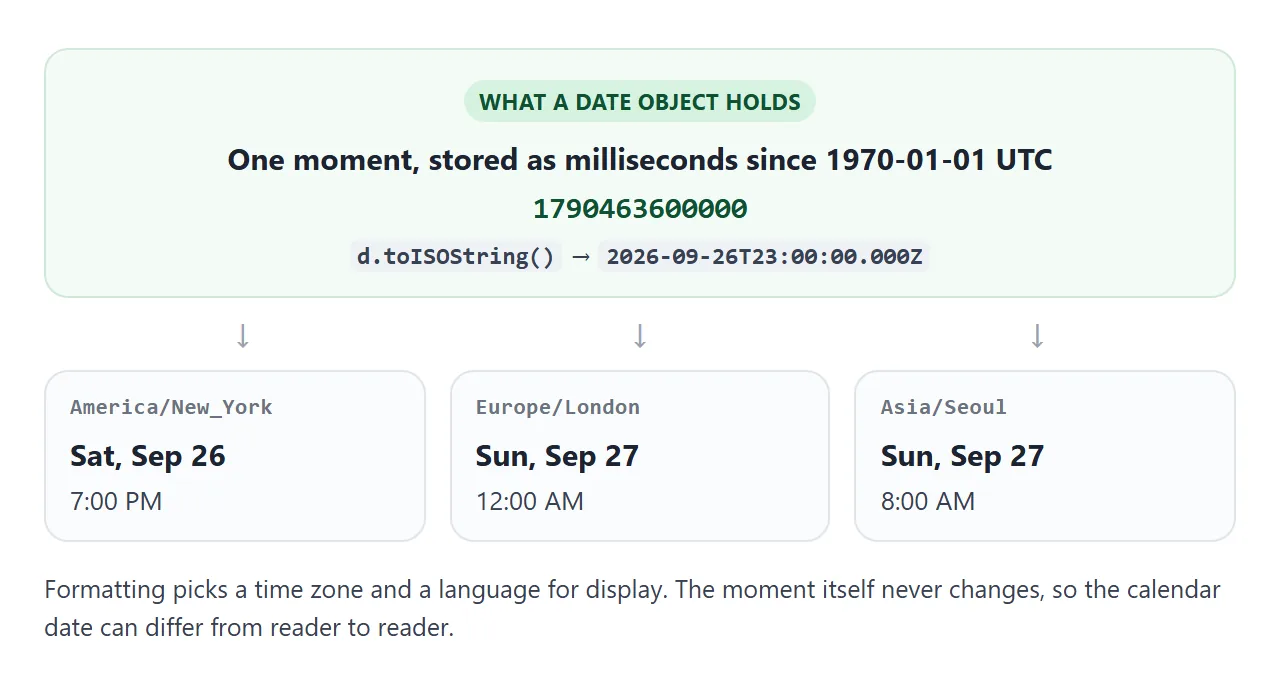
따라서 new Date()는 모든 곳에서 동시에 "지금"입니다. getDate() 및 toString()와 같은 방법은 장치의 시간대로 표시됩니다. getUTCDate() 및 toISOString()는 UTC로 표시됩니다. 둘 다 틀린 것은 아닙니다. 그들은 다른 질문에 대답합니다.
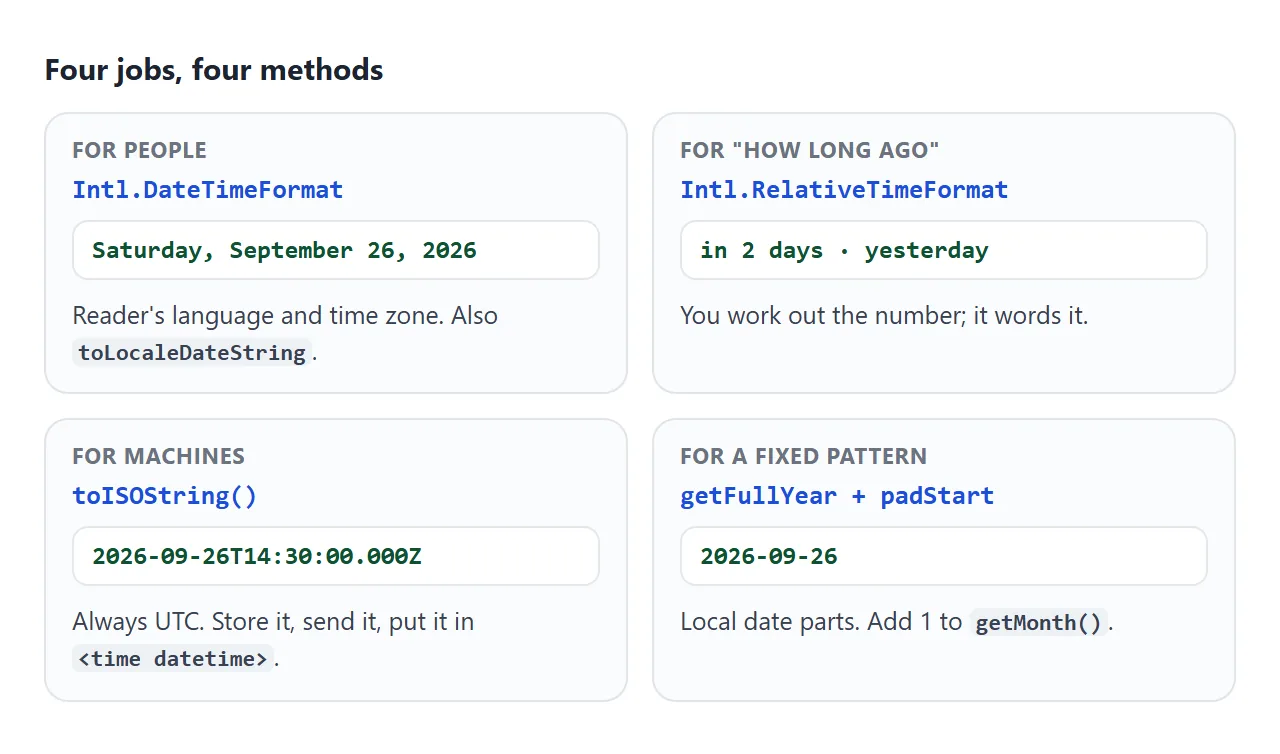
사람에 대한 형식 지정: toLocaleDateString 및 Intl.DateTimeFormat
둘 다 동일한 두 인수, 즉 'en-GB'와 같은 로케일과 옵션 객체를 사용합니다. 로케일을 그대로 두거나 undefined를 전달하면 독자의 브라우저 언어가 사용됩니다.
const d = new Date('2026-09-26T14:30');

d.toLocaleDateString('en-GB', { weekday: 'long', day: 'numeric', month: 'long', year: 'numeric' });
// "Saturday, 26 September 2026"

const fmt = new Intl.DateTimeFormat(undefined, { dateStyle: 'medium', timeStyle: 'short' });
fmt.format(d);  // reuse fmt for every date in a list
옵션 개체를 채우는 방법에는 두 가지가 있으며 혼합되지 않습니다.
| 옵션 | 예 | 당신에게 준다 |
|---|---|---|
dateStyle, timeStyle |
{ dateStyle: 'full' } |
전체, 로케일에 적합한 레이아웃: 전체, 긴, 중간 또는 짧은 |
| 개별 필드 | { weekday: 'short', month: 'long', day: 'numeric' } |
이름을 지정한 부분만 로케일 방식으로 배열 |
timeZone |
{ timeZone: 'Asia/Tokyo' } |
해당 구역에 표시되는 날짜입니다. 위의 두 종류 중 하나와 함께 작동합니다. |
hour12 |
{ hour: 'numeric', hour12: false } |
지역에 관계없이 24시간제 또는 12시간제 |
dateStyle를 weekday와 같은 필드와 결합하면 TypeError가 발생합니다. timeStyle를 toLocaleDateString로 전달하는 것도 마찬가지입니다. 날짜와 시간을 함께 사용하려면 toLocaleString 또는 Intl.DateTimeFormat를 사용하세요.
순서와 단어는 당신이 결정하는 것이 아니라 로케일이 결정합니다. en-US는 월을 먼저 표시하고, en-GB는 일을, ja-JP는 연도를 표시합니다. 정확한 조각이 필요한 경우 fmt.formatToParts(d)는 이를 재배열할 수 있는 배열로 반환합니다.
데이트가 하루 쉬는 이유
이 버그는 포맷이 아닌 구문 분석에서 발생합니다. 사양에서는 "2026-09-26"와 같은 날짜 전용 ISO 문자열을 자정 UTC로 읽습니다. 시간이 포함된 동일한 문자열 "2026-09-26T00:00"는 자정 현지 시간으로 읽혀집니다.
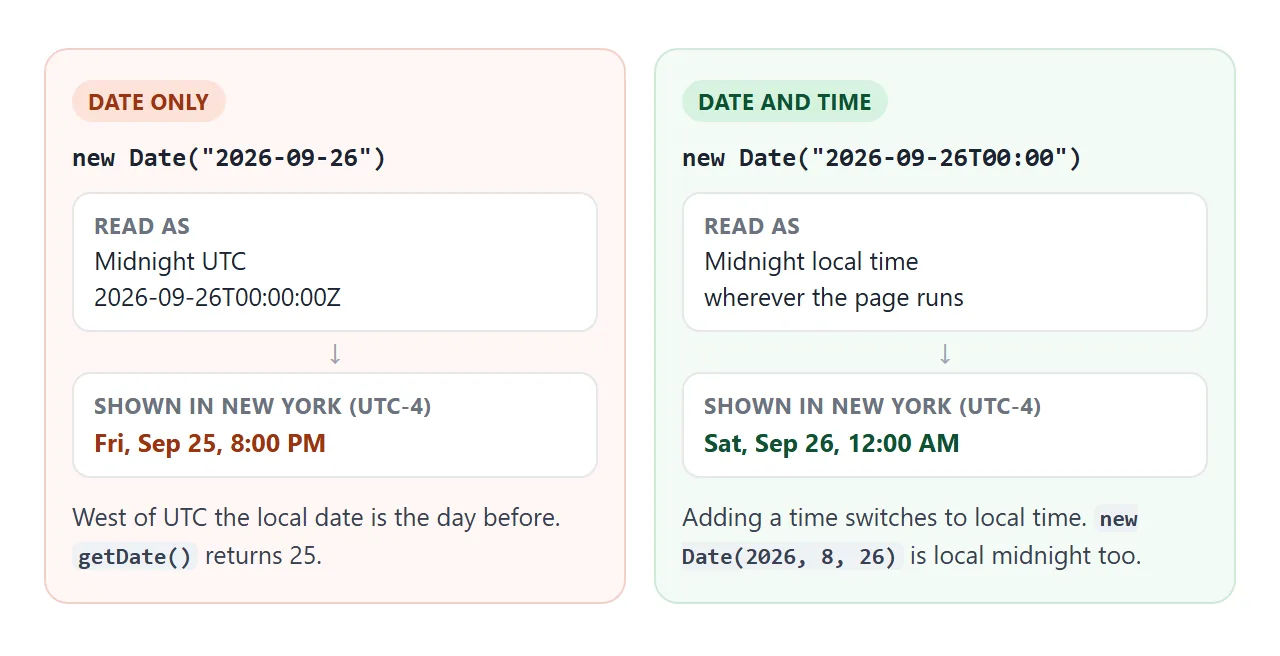
뉴욕에서는 UTC 자정이 전날 저녁 오후 8시이므로 toLocaleDateString()는 9월 25일을 인쇄합니다. UTC 동쪽에서는 괜찮아 보이기 때문에 버그가 한 곳에서는 테스트를 통과하고 다른 곳에서는 사용자에게 나타나는 경우가 많습니다.
아래 실습에서는 자신의 시간대에서 사례를 실행한 다음 다른 시간대에 대해 형식이 지정된 동일한 날짜 전용 값을 표시합니다.
<!doctype html>
<html lang="en">
<head>
<meta charset="utf-8">
<meta name="viewport" content="width=device-width, initial-scale=1">
<title>Date pitfalls lab</title>
<style>
  body { margin: 0; padding: 16px; font-family: system-ui, sans-serif; background: #f4f5f7; color: #1d2330; font-size: 14px; }
  .tz { margin-bottom: 10px; color: #4b5563; }
  .box { background: #fff; border-radius: 12px; padding: 12px 14px; margin-bottom: 12px; box-shadow: 0 2px 10px rgba(0,0,0,.06); }
  h3 { margin: 0 0 8px; font-size: 14px; }
  table { border-collapse: collapse; width: 100%; font-size: 13px; }
  td { padding: 5px 4px; border-top: 1px solid #eef0f3; vertical-align: top; overflow-wrap: anywhere; }
  td:first-child { font-family: ui-monospace, Consolas, monospace; font-size: 12px; width: 48%; }
  .bad { color: #b45309; font-weight: 600; }
  .good { color: #047857; font-weight: 600; }
  .try { display: flex; gap: 8px; flex-wrap: wrap; }
  input { flex: 1 1 160px; padding: 7px; font: inherit; border: 1px solid #cfd4dc; border-radius: 8px; }
  button { padding: 7px 10px; font: inherit; font-size: 13px; border: 1px solid #cfd4dc; border-radius: 8px; background: #fff; cursor: pointer; }
  #parsed { margin-top: 8px; font-family: ui-monospace, Consolas, monospace; font-size: 12.5px; overflow-wrap: anywhere; }
</style>
</head>
<body>
<div class="tz">Your time zone: <b id="zone"></b></div>

<div class="box">
  <h3>1. The same text, read two ways</h3>
  <table id="parse"></table>
</div>

<div class="box">
  <h3>2. The date-only string, shown in other time zones</h3>
  <table id="zones"></table>
</div>

<div class="box">
  <h3>3. getMonth() starts at 0</h3>
  <table id="month"></table>
</div>

<div class="box">
  <h3>4. Try your own string</h3>
  <div class="try">
    <input id="text" value="26/09/2026">
    <button data-v="2026-09-26">2026-09-26</button>
    <button data-v="2026-09-26T09:00">…T09:00</button>
    <button data-v="2026-09-26T09:00Z">…T09:00Z</button>
  </div>
  <div id="parsed"></div>
</div>

<script>
  const $ = (id) => document.getElementById(id);
  const row = (code, value, cls) =>
    '<tr><td>' + code + '</td><td class="' + (cls || '') + '">' + value + '</td></tr>';
  const day = (d, tz) => d.toLocaleDateString('en-US',
    { weekday: 'short', month: 'short', day: 'numeric', hour: 'numeric', minute: '2-digit', timeZone: tz });

  $('zone').textContent = Intl.DateTimeFormat().resolvedOptions().timeZone;

  // 1. date-only = UTC midnight, date + time = local time
  const utc = new Date('2026-09-26');
  const local = new Date('2026-09-26T00:00');
  const off = utc.getDate() !== 26;
  $('parse').innerHTML =
    row('new Date("2026-09-26")', day(utc) + (off ? ' (a day off here)' : ' (fine in your zone, see 2)'), off ? 'bad' : '') +
    row('new Date("2026-09-26T00:00")', day(local), 'good') +
    row('new Date(2026, 8, 26)', day(new Date(2026, 8, 26)), 'good') +
    row('utc.toLocaleDateString("en-US", { timeZone: "UTC" })', utc.toLocaleDateString('en-US', { timeZone: 'UTC' }), 'good');

  // 2. the same moment formatted for people in other zones
  $('zones').innerHTML = ['America/Los_Angeles', 'America/New_York', 'UTC', 'Europe/Berlin', 'Asia/Tokyo']
    .map((tz) => {
      const dom = new Intl.DateTimeFormat('en-US', { day: 'numeric', timeZone: tz }).format(utc);
      return row(tz, day(utc, tz), dom === '26' ? 'good' : 'bad');
    }).join('');

  // 3. months are 0-11, days are 1-31
  const d = new Date(2026, 8, 26);
  const pad = (n) => String(n).padStart(2, '0');
  $('month').innerHTML =
    row('d.getMonth()', d.getMonth() + ' (September)', 'bad') +
    row('d.getFullYear() + "-" + d.getMonth() + "-" + d.getDate()',
        d.getFullYear() + '-' + d.getMonth() + '-' + d.getDate(), 'bad') +
    row('`${y}-${pad(m + 1)}-${pad(day)}`',
        d.getFullYear() + '-' + pad(d.getMonth() + 1) + '-' + pad(d.getDate()), 'good');

  // 4. anything that is not an ISO string is up to the browser
  function parse() {
    const p = new Date($('text').value);
    $('parsed').innerHTML = isNaN(p)
      ? '<span class="bad">Invalid Date</span>'
      : '<span class="good">' + p.toString() + '</span><br>toISOString(): ' + p.toISOString();
  }
  $('text').addEventListener('input', parse);
  document.querySelectorAll('button[data-v]').forEach((b) =>
    b.addEventListener('click', () => { $('text').value = b.dataset.v; parse(); }));
  parse();
</script>
</body>
</html>
문자열의 의미에 따라 세 가지 수정 사항이 있습니다.
- 시간이 없는 달력 날짜입니다. 로컬로 빌드:
new Date(2026, 8, 26)또는 구문 분석하기 전에"T00:00"를 추가합니다. - UTC로 유지해야 합니다.
{ timeZone: 'UTC' }형식으로 표시하여 읽은 방식과 일치하도록 합니다. - 날짜 입력에서 나왔습니다. HTML 날짜 입력 기본값은 동일한 트랩이 있는
value와valueAsDate를 다룹니다.
"26/09/2026"와 같은 다른 모양의 문자열은 사양을 벗어납니다. 각 브라우저가 결정하고 결과는 Invalid Date가 될 수 있습니다. ISO 문자열만 구문 분석하거나 부분을 직접 분할하세요.
머신 포맷: toISOString
toISOString()는 항상 하나의 고정 형태인 2026-09-26T14:30:00.000Z로 UTC를 반환합니다. Z는 UTC를 의미합니다. 저장, 서버로 전송, 날짜를 텍스트로 비교하거나 정렬하는 데 사용합니다.
요점은 독자의 로케일에 의존하지 않는다는 것입니다. 또한 잘못된 날짜에 RangeError가 발생하므로 사용자로부터 입력이 오면 먼저 isNaN(d)를 확인하세요.
날짜 형식을 yyyy-mm-dd로 지정
현지 시간에 고정된 패턴의 경우 부품으로 구성하세요. getMonth()는 0부터 계산하므로 9월은 8입니다.
const pad = (n) => String(n).padStart(2, '0');
const ymd = (d) => `${d.getFullYear()}-${pad(d.getMonth() + 1)}-${pad(d.getDate())}`;

ymd(new Date(2026, 8, 26));  // "2026-09-26"
toISOString().slice(0, 10)는 동일한 모양을 제공하지만 UTC 날짜를 제공합니다. 이는 자정 근처에 다시 하나씩 사라지는 버그입니다. UTC를 원하는 경우 대신 도우미에서 getUTC... 메서드를 사용하세요.
"3일 전": Intl.RelativeTimeFormat
Intl.RelativeTimeFormat는 숫자와 단위를 의미합니다. 이는 격차를 측정하지 않습니다. 당신은 그것을 전달합니다.
const rtf = new Intl.RelativeTimeFormat('en', { numeric: 'auto' });
rtf.format(-3, 'day');  // "3 days ago"
rtf.format(1, 'day');   // "tomorrow"
rtf.format(2, 'week');  // "in 2 weeks"
전체 날짜의 경우 setHours(0, 0, 0, 0)를 사용하여 두 날짜를 모두 현지 자정으로 설정하고 빼고 86,400,000으로 나누고 반올림합니다. 반올림은 일광 절약 시간제 변경을 기준으로 23시간 및 25시간 일을 흡수합니다.
완성된 예: 이벤트 목록
이 목록은 ISO 타임스탬프를 가져와서 독자의 언어와 시간대로 각각 표시하고, 관련 레이블을 추가하고, <time datetime>로 모든 날짜를 표시합니다.
<!doctype html>
<html lang="en">
<head>
<meta charset="utf-8">
<meta name="viewport" content="width=device-width, initial-scale=1">
<title>Upcoming events</title>
<style>
  body { margin: 0; padding: 16px; font-family: system-ui, sans-serif; background: #f4f5f7; color: #1d2330; }
  header { display: flex; justify-content: space-between; align-items: center; gap: 10px; flex-wrap: wrap; margin-bottom: 12px; }
  h2 { margin: 0; font-size: 18px; }
  select { padding: 6px; font: inherit; font-size: 13px; border: 1px solid #cfd4dc; border-radius: 8px; background: #fff; }
  ul { list-style: none; margin: 0; padding: 0; }
  li { background: #fff; border-radius: 12px; padding: 12px 14px; margin-bottom: 10px;
       box-shadow: 0 2px 10px rgba(0,0,0,.06); display: flex; justify-content: space-between; gap: 12px; align-items: baseline; }
  .name { font-weight: 600; }
  time { display: block; font-size: 13px; color: #4b5563; margin-top: 3px; }
  .rel { font-size: 12px; font-weight: 600; white-space: nowrap; padding: 3px 8px; border-radius: 99px; background: #e0f2fe; color: #075985; }
  .rel.past { background: #eef0f3; color: #6b7280; }
  pre { margin: 6px 0 0; background: #1d2330; color: #e5e7eb; padding: 10px 12px; border-radius: 8px;
        font-size: 12px; white-space: pre-wrap; overflow-wrap: anywhere; }
</style>
</head>
<body>
<header>
  <h2>Upcoming events</h2>
  <select id="locale" aria-label="Locale">
    <option value="">Your browser's language</option>
    <option>en-US</option><option>en-GB</option><option>de-DE</option><option>ja-JP</option>
  </select>
</header>
<ul id="list"></ul>
<div style="font-size:12px;color:#6b7280">Markup of the first item:</div>
<pre id="markup"></pre>

<script>
  // Example data: offsets from today so the labels stay meaningful.
  // Real data would be ISO strings from a server, e.g. "2026-09-28T16:00:00Z".
  function at(daysFromToday, hour, minute) {
    const d = new Date();
    d.setDate(d.getDate() + daysFromToday);
    d.setHours(hour, minute, 0, 0);
    return d.toISOString();
  }
  const events = [
    { name: 'Team retro', start: at(-3, 15, 0) },
    { name: 'Product demo', start: at(0, 17, 30) },
    { name: 'Design review', start: at(1, 10, 0) },
    { name: 'Launch party', start: at(2, 18, 0) },
    { name: 'Quarterly planning', start: at(12, 9, 0) },
  ];

  // Whole calendar days between today and the event, in the reader's time zone
  function daysFromToday(date) {
    const a = new Date(); a.setHours(0, 0, 0, 0);
    const b = new Date(date); b.setHours(0, 0, 0, 0);
    return Math.round((b - a) / 86400000);
  }

  function render() {
    const locale = document.getElementById('locale').value || undefined;
    const when = new Intl.DateTimeFormat(locale, { dateStyle: 'medium', timeStyle: 'short' });
    const rel = new Intl.RelativeTimeFormat(locale, { numeric: 'auto' });  // "tomorrow", "in 2 days"

    const list = document.getElementById('list');
    list.innerHTML = '';
    for (const ev of events) {
      const d = new Date(ev.start);
      const days = daysFromToday(d);

      const li = document.createElement('li');
      const left = document.createElement('div');
      left.innerHTML = '<div class="name"></div><time></time>';
      left.querySelector('.name').textContent = ev.name;
      const t = left.querySelector('time');
      t.dateTime = d.toISOString();       // for machines: one exact moment
      t.textContent = when.format(d);     // for people: their locale and time zone

      const badge = document.createElement('span');
      badge.className = 'rel' + (days < 0 ? ' past' : '');
      badge.textContent = rel.format(days, 'day');

      li.append(left, badge);
      list.append(li);
    }
    document.getElementById('markup').textContent = list.querySelector('time').outerHTML;
  }

  document.getElementById('locale').addEventListener('input', render);
  render();
</script>
</body>
</html>
<time> 요소에는 두 가지 버전의 날짜가 포함됩니다. 태그 사이의 텍스트는 사람을 위한 것입니다. datetime 속성은 검색 엔진, 스크립트 및 보조 도구에 대해 toISOString() 결과와 같은 기계 판독 가능 값을 보유합니다.
<time datetime="2026-09-28T16:00:00.000Z">Sep 28, 2026, 6:00 PM</time>
대신 이러한 이벤트 중 하나까지 카운트다운하려면 HTML 카운트다운 타이머를 참조하세요. 일정에 따라 상대 레이블을 새로 고치기 위해 setTimeout 및 setInterval이 타이머를 다룹니다.
작동하지 않을 때
| 당신이 보는 것 | 원인 | 수정 |
|---|---|---|
| 날짜가 하루 빠르네요 | 날짜 전용 문자열이 UTC로 구문 분석되었습니다. | T00:00를 추가하거나, new Date(y, m, d)를 사용하거나, timeZone: 'UTC'로 형식을 지정하세요. |
| 월이 너무 낮거나 1월이 0입니다. | getMonth()는 0부터 계산됩니다. |
표시할 때 1을 추가합니다. 건물을 지을 때 1을 뺍니다. |
Invalid Date |
26/09/2026와 같은 비ISO 문자열 |
ISO 문자열만 구문 분석하거나 부분을 분할합니다. |
toISOString의 RangeError |
날짜가 잘못되었습니다. | 포맷하기 전에 isNaN(d)를 확인하세요. |
옵션에 대한 TypeError |
dateStyle와 weekday, month 또는 toLocaleDateString의 timeStyle와 혼합됨 |
한 종류의 옵션을 사용하십시오. 날짜 및 시간에는 Intl.DateTimeFormat를 사용하세요. |
| 다른 기기에서는 텍스트가 다름 | 로케일 또는 timeZone가 제공되지 않으므로 장치 설정이 적용됩니다. |
출력을 수정해야 하는 경우 둘 다 전달합니다. 테스트에서 예상되는 문자열을 하드 코딩하지 마십시오. |
| 저장 후 시간은 몇시간 쉬는 시간입니다 | 현지 시간이 오프셋 없이 저장되었습니다. | toISOString() 저장 및 디스플레이 형식 |
링크로 공유하세요
날짜 형식은 실행 위치에 따라 다르므로 컴퓨터의 스크린샷에는 해당 지역과 시간대만 표시됩니다. 라이브 페이지에는 각 사람의 고유한 내용이 표시됩니다.
작업 버전을 보내려면 페이지를 NOS 문서에 붙여넣고 공유 링크 만들기를 선택하세요. 링크할 HTML이 이를 안내합니다.
페이지는 작성된 대로 렌더링되고 해당 스크립트가 실행되므로 페이지를 여는 각 사람은 자신의 언어와 시간대로 날짜를 볼 수 있습니다. 나중에 코드를 변경하면 동일한 링크에 새 버전이 표시됩니다.