On HTML vs PDF accessibility the asymmetry is the whole answer: an HTML page is accessible by default and becomes inaccessible through mistakes, while a PDF is inaccessible by default and becomes accessible through deliberate work.
Both can meet the same standards. Only one gets there without a specialist step that teams under deadline routinely skip.
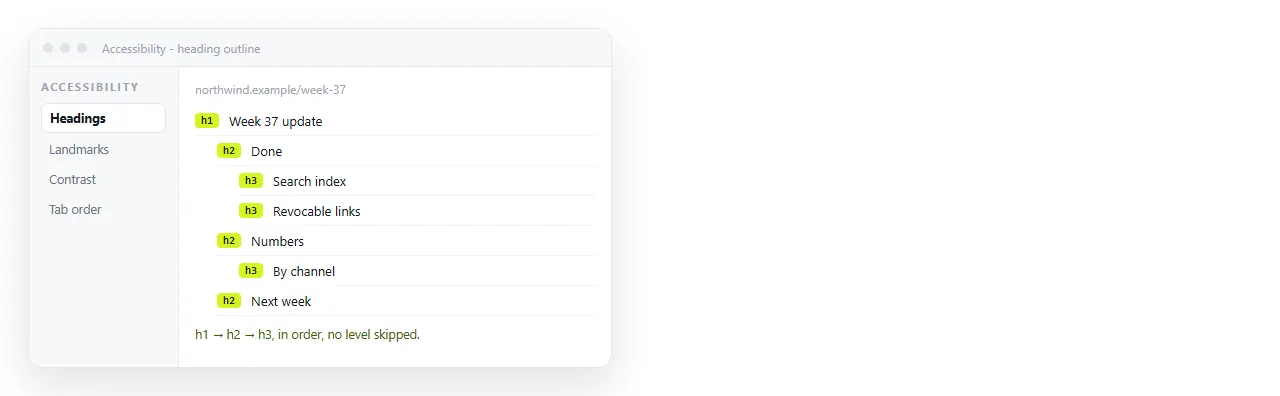
What each format gives a screen reader
| Need | HTML by default | PDF by default | PDF once tagged |
|---|---|---|---|
| Heading structure | Present from the markup | Absent, visual size only | Present |
| Reading order | Document order | Layout order, often wrong | Explicit and correct |
| Alt text on images | Present if the author wrote it | Absent | Present |
| Table row and column headers | Present from the markup | Flattened to positioned text | Present |
| Links announced as links | Yes | Often plain text | Yes |
| Language declaration | One attribute | Metadata, often missing | Set |
The middle column is what a typical exported PDF actually offers. The right column is achievable and takes real effort per document.
The costs that are not about screen readers
Accessibility is wider than assistive technology, and this is where PDF loses ground it cannot recover by tagging.
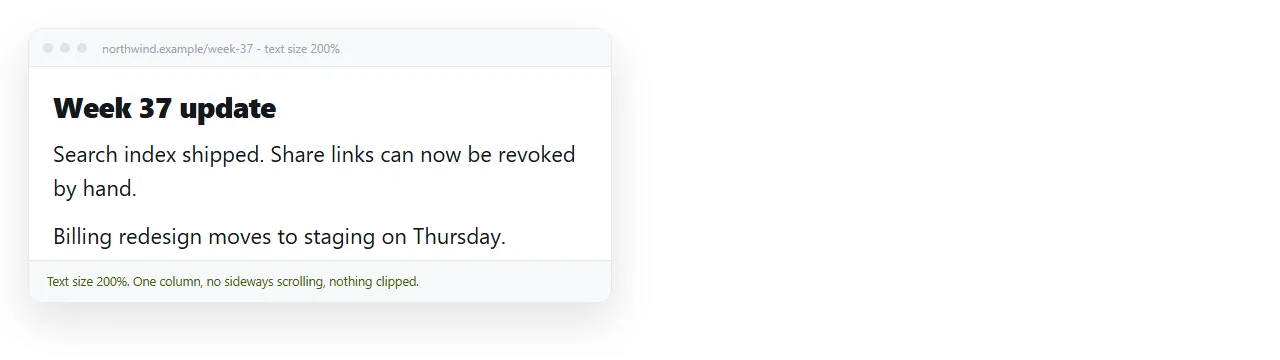
Reflow. A PDF has fixed page geometry. A reader who needs 200 percent text size gets horizontal scrolling instead of larger text.
Small screens. Most internal reading happens on a phone, where a page sized for A4 means zoom and pan on every paragraph.
Translation. Browser translation works on an HTML page. A PDF usually requires a separate conversion step.
Selection and copy. Copying a column out of a PDF table often produces scrambled text, because the structure was never there.
What an accessible HTML page requires
Not much, and none of it is exotic. The work is in not breaking the defaults.
- Real headings in order. One
<h1>, then<h2>and<h3>nested correctly. Do not use a styled<div>because it looked right. Semantic HTML covers the elements. - Alt text on meaningful images. Describe the information, not the picture. Decorative images take an empty alt attribute. Writing alt text has the rules.
- Table headers marked up. Use
<th>with a scope, so a row is announced with its column name. - A language attribute.
<html lang="en">tells the screen reader which pronunciation rules to use. - The viewport line.
<meta name="viewport" content="width=device-width,initial-scale=1">, or the page cannot reflow on a phone. - Visible focus. If you removed the focus outline for looks, keyboard users lost their place.
Six items. A page that has all six is ahead of most published PDFs without anyone running a remediation pass.
What an accessible PDF requires
The list is longer and the tools are specialised.
- Tag the document, then check the tag tree by hand.
- Set the reading order explicitly, because export order follows layout.
- Add alt text inside the PDF, separate from any alt text in the source.
- Mark table headers and merge cells correctly in the tag structure.
- Set document language and title metadata.
- Run a checker, then fix what it finds, then check again.
This is achievable and some organisations do it well. It is per document, which means it does not survive a weekly report cadence.
A policy that survives contact with deadlines
Publish HTML as the primary format. Offer PDF as an additional download when someone needs the fixed artefact.
That ordering gives screen readers, zoom, reflow and translation for free, and it keeps the PDF for the cases where a frozen page is genuinely required.
It also puts the remediation effort where it is cheapest. Fixing a heading level in HTML takes seconds and applies to every reader immediately.
Making the HTML version easy to publish
The reason teams default to PDF is usually distribution, not preference. Sending a file feels like the only option.
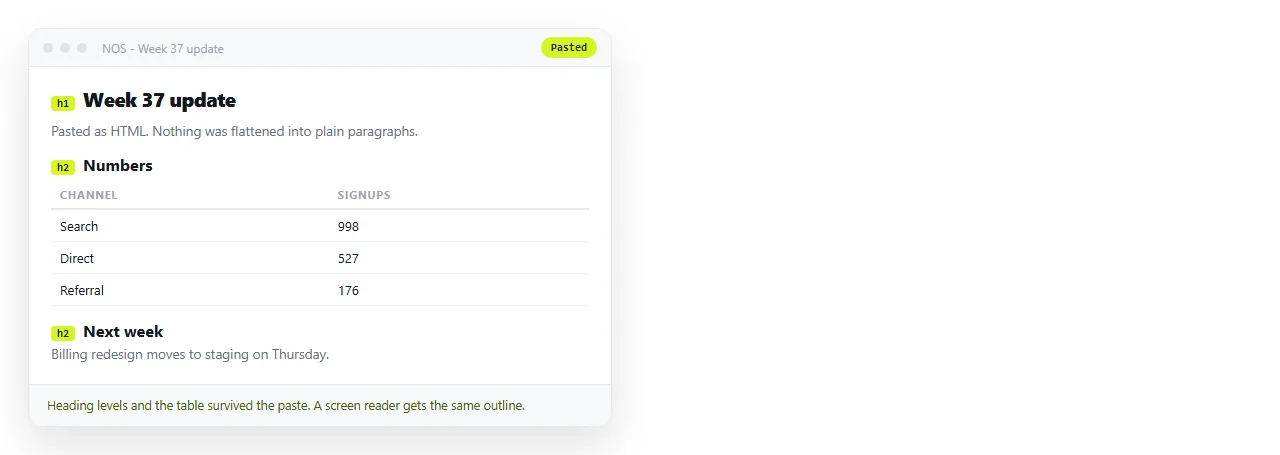
Paste the HTML into a NOS document instead and it renders exactly as written, with the heading structure and table markup preserved.
Take the address from Share, then Share link, then Create link. The link is unlisted by default, and Public on the web makes it findable when the page is meant to be.
Because the text stays editable at the same address, an accessibility fix flagged in review is applied once and everyone who holds the link gets it.
Checking before you publish
- Tab through the page with the keyboard. If you lose the focus ring, fix that first.
- Turn off images and read what is left. That approximates what alt text carries.
- Zoom to 200 percent. Anything that requires sideways scrolling is a reflow failure.
- Open the file in the HTML file opener to confirm it stands on its own.
For the general format comparison without the accessibility framing, see HTML vs PDF. For the same decision on a single deliverable, PDF versus an HTML page is shorter.