A back to top button is a link to #top fixed in a corner of the screen. That alone works in every browser, with JavaScript turned off. A short script then hides it until the reader scrolls down and makes the trip up smooth.
Try the plain version first. Scroll down inside the box, then press Top.
<!doctype html>
<html lang="en">
<head>
<meta charset="utf-8">
<meta name="viewport" content="width=device-width, initial-scale=1">
<title>Back to top link</title>
<style>
body { margin: 0; font-family: system-ui, sans-serif; color: #1d2330; background: #f4f5f7; }
header { padding: 16px 20px; background: #fff; border-bottom: 1px solid #e1e4ea; }
section { min-height: 220px; margin: 16px 20px; padding: 16px; border-radius: 12px; background: #fff; }
.to-top {
position: fixed; right: 16px; bottom: 16px; /* stays in the corner while the page scrolls */
padding: 10px 16px; border-radius: 999px;
background: #1d2330; color: #fff; font-weight: 600; text-decoration: none;
}
.to-top:focus-visible { outline: 3px solid #2563eb; outline-offset: 3px; }
</style>
</head>
<body>
<header id="top"><b>Scroll down inside this box</b>, then press the button.</header>
<section>Section 1</section>
<section>Section 2</section>
<section>Section 3</section>
<section>Section 4</section>
<section>Section 5</section>
<!-- A plain link. It works with JavaScript turned off. -->
<a class="to-top" href="#top"><span aria-hidden="true">↑</span> Top</a>
</body>
</html>
The simplest version: a link to #top
Two pieces of HTML and one CSS rule make a working button:
<header id="top">...</header>
...
<a class="to-top" href="#top">Back to top</a>
.to-top { position: fixed; right: 16px; bottom: 16px; }
position: fixed places the link relative to the browser window, so it stays in the corner while the page moves under it. Clicking it jumps to the element with id="top".
The HTML standard also treats #top as the top of the document when no element has that id. Add the id anyway.
The id gives keyboard focus a place to land, and it keeps the link working where only real elements count. Anchor links in general are covered in linking to a section on the same page.
The small script at the bottom of this example is only for preview boxes like the one above. The table at the end explains why. On your own site, leave it out.
Smooth scrolling: one CSS line or one method
The plain link jumps instantly. There are two standard ways to animate it.
CSS scroll-behavior |
window.scrollTo() |
|
|---|---|---|
| Code | html { scroll-behavior: smooth; } |
scrollTo({ top: 0, behavior: 'smooth' }) |
| Needs JavaScript | No | Yes |
| Affects | Every #link on the page, and script scrolls | Only this one call |
| Good for | The plain link version | A button that a script controls |
Either way, check the reduced motion setting. Some people turn it on because large movements on screen make them feel sick. Do not count on the browser to switch the animation off for you:
@media (prefers-reduced-motion: no-preference) {
  html { scroll-behavior: smooth; }
}
In JavaScript, read the same setting with matchMedia('(prefers-reduced-motion: reduce)') and pass behavior: 'auto' when it matches. 'auto' follows the CSS property, which is another reason to keep that property inside the media query.
Show the button only after scrolling down
At the top of the page, a back to top button has nothing to do. This version stays hidden until the page has scrolled 200px, then scrolls back smoothly and moves keyboard focus to the header.
<!doctype html>
<html lang="en">
<head>
<meta charset="utf-8">
<meta name="viewport" content="width=device-width, initial-scale=1">
<title>Back to top button that appears on scroll</title>
<style>
body { margin: 0; font-family: system-ui, sans-serif; color: #1d2330; background: #f4f5f7; }
header { padding: 16px 20px; background: #fff; border-bottom: 1px solid #e1e4ea; }
header:focus { outline: none; } /* focus lands here after the jump; no ring needed */
section { min-height: 220px; margin: 16px 20px; padding: 16px; border-radius: 12px; background: #fff; }
.to-top {
position: fixed; right: 16px; bottom: 16px; z-index: 10;
padding: 10px 16px; border: 0; border-radius: 999px;
background: #1d2330; color: #fff; font: 600 15px system-ui, sans-serif; cursor: pointer;
/* hidden: invisible AND out of the tab order */
visibility: hidden; opacity: 0; transform: translateY(10px);
transition: opacity .2s, transform .2s, visibility .2s;
}
.to-top.show { visibility: visible; opacity: 1; transform: none; }
.to-top:focus-visible { outline: 3px solid #2563eb; outline-offset: 3px; }
@media (prefers-reduced-motion: reduce) { .to-top { transition: none; } }
</style>
</head>
<body>
<header id="top" tabindex="-1"><b>Scroll down.</b> The button shows up after 200px.</header>
<section>Section 1</section>
<section>Section 2</section>
<section>Section 3</section>
<section>Section 4</section>
<section>Section 5</section>
<button class="to-top" id="toTop" type="button"><span aria-hidden="true">↑</span> Back to top</button>
<script>
const btn = document.getElementById('toTop');
const start = document.getElementById('top');
const reduce = matchMedia('(prefers-reduced-motion: reduce)');
// show the button once the page has scrolled 200px
addEventListener('scroll', () => {
btn.classList.toggle('show', scrollY > 200);
}, { passive: true });
btn.addEventListener('click', () => {
scrollTo({ top: 0, behavior: reduce.matches ? 'auto' : 'smooth' });
start.focus({ preventScroll: true }); // keyboard users continue from the top
});
</script>
</body>
</html>
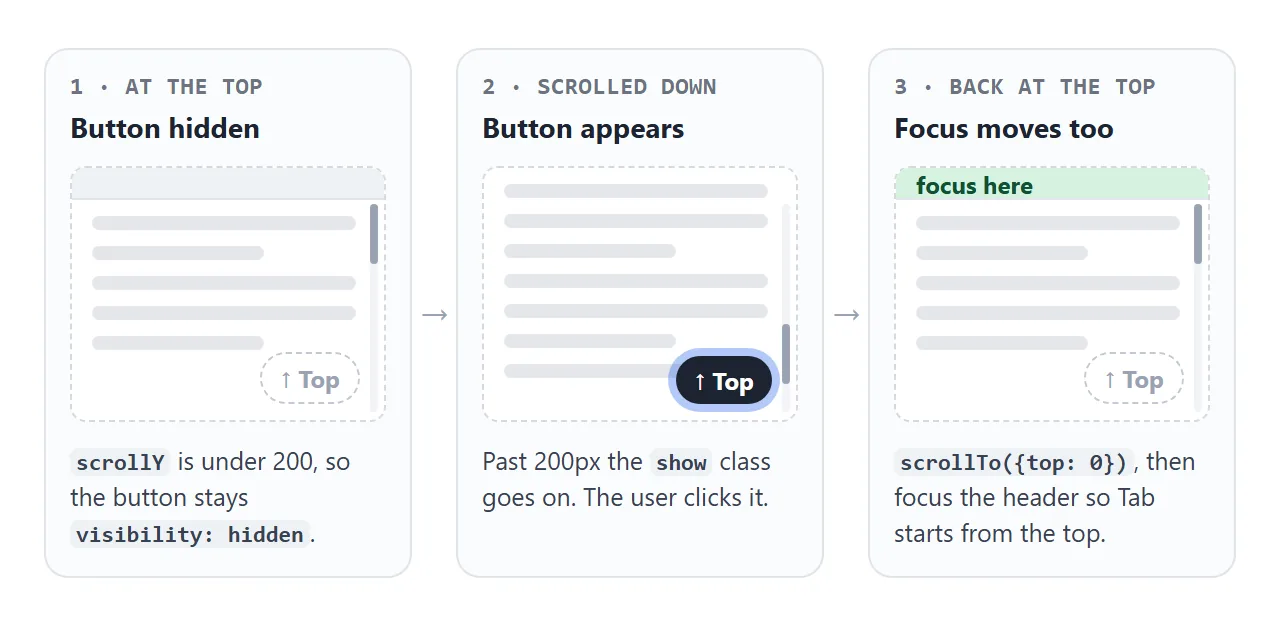
- Listen for scroll – toggle a
showclass whenscrollY > 200. Mark the listener{ passive: true }; it never cancels scrolling. - Hide it properly – use
visibility: hiddenas well asopacity: 0. With opacity alone the button is invisible but still reachable with Tab and still clickable. - Scroll and move focus – call
scrollTo, thenfocus({ preventScroll: true })on the header. It needstabindex="-1"to accept focus.
The last step matters for keyboard users. Without it, focus stays on the button at the bottom, and the next Tab continues from there instead of from the top.
Fixed in a corner, above everything else
right: 16px; bottom: 16px keeps the button out of the reading line on both phones and desktops. Leave a margin so it does not sit on the edge of a rounded phone screen.
Give it a z-index higher than the content it floats over. A sticky header, a cookie banner or a chat widget with a larger z-index will cover it, and clicks will land on that element instead.
Also check its ancestors. If any parent has transform, filter or perspective set, position: fixed is measured against that parent instead of the window. The button then scrolls away with it.
Make it accessible
- Use a real element. An
<a href="#top">or a<button type="button">works with Tab, Enter and screen readers. A clickable<div>does not. - Name icon-only buttons. If the button shows only an arrow, add
aria-label="Back to top"and hide the arrow witharia-hidden="true". aria-label covers when it is needed. - Keep the focus ring. Style
:focus-visiblewith a clear outline instead of removing it. - Make it big enough to tap. Around 44px square is comfortable for a finger.
A finished example with a progress ring
This version is an icon button with a ring that fills as you read. It uses the same show, scroll and focus code, plus one calculation on every scroll.
<!doctype html>
<html lang="en">
<head>
<meta charset="utf-8">
<meta name="viewport" content="width=device-width, initial-scale=1">
<title>Back to top button with a progress ring</title>
<style>
body { margin: 0; font-family: system-ui, sans-serif; color: #1d2330; background: #f4f5f7; }
header { padding: 16px 20px; background: #fff; border-bottom: 1px solid #e1e4ea; }
header:focus { outline: none; }
article { max-width: 560px; margin: 0 auto; padding: 4px 20px 40px; line-height: 1.6; }
article p { margin: 0 0 14px; }
.to-top {
position: fixed; right: 16px; bottom: 16px; z-index: 10;
width: 56px; height: 56px; padding: 0; border: 0; border-radius: 50%;
background: #fff; color: #1d2330; cursor: pointer;
box-shadow: 0 6px 18px rgba(0, 0, 0, .18);
display: grid; place-items: center;
visibility: hidden; opacity: 0; transform: scale(.8);
transition: opacity .2s, transform .2s, visibility .2s;
}
.to-top.show { visibility: visible; opacity: 1; transform: none; }
.to-top:hover { background: #eef1f5; }
.to-top:focus-visible { outline: 3px solid #2563eb; outline-offset: 3px; }
.to-top svg { position: absolute; inset: 0; transform: rotate(-90deg); } /* ring starts at 12 o'clock */
.track { fill: none; stroke: #e1e4ea; stroke-width: 4; }
.bar { fill: none; stroke: #16a34a; stroke-width: 4; stroke-linecap: round; }
.arrow { font-size: 22px; line-height: 1; }
@media (prefers-reduced-motion: reduce) { .to-top { transition: none; } }
</style>
</head>
<body>
<header id="top" tabindex="-1"><b>Scroll down.</b> The ring shows how far you are.</header>
<article id="text"></article>
<button class="to-top" id="toTop" type="button" aria-label="Back to top">
<svg viewBox="0 0 56 56" width="56" height="56" aria-hidden="true">
<circle class="track" cx="28" cy="28" r="24"/>
<circle class="bar" id="bar" cx="28" cy="28" r="24"/>
</svg>
<span class="arrow" aria-hidden="true">↑</span>
</button>
<script>
// filler text so the page has something to scroll
const text = document.getElementById('text');
for (let i = 1; i <= 12; i++) {
text.insertAdjacentHTML('beforeend', '<p><b>Paragraph ' + i + '.</b> A long page, so the ring has a distance to measure. Keep scrolling and watch it fill.</p>');
}
const btn = document.getElementById('toTop');
const bar = document.getElementById('bar');
const start = document.getElementById('top');
const reduce = matchMedia('(prefers-reduced-motion: reduce)');
const length = 2 * Math.PI * 24; // circumference of r=24
bar.style.strokeDasharray = length;
function update() {
const max = document.documentElement.scrollHeight - innerHeight;
const progress = max > 0 ? Math.min(scrollY / max, 1) : 0;
bar.style.strokeDashoffset = length * (1 - progress); // 0% = empty, 100% = full
btn.classList.toggle('show', scrollY > 200);
}
addEventListener('scroll', update, { passive: true });
addEventListener('resize', update);
update();
btn.addEventListener('click', () => {
scrollTo({ top: 0, behavior: reduce.matches ? 'auto' : 'smooth' });
start.focus({ preventScroll: true });
});
</script>
</body>
</html>
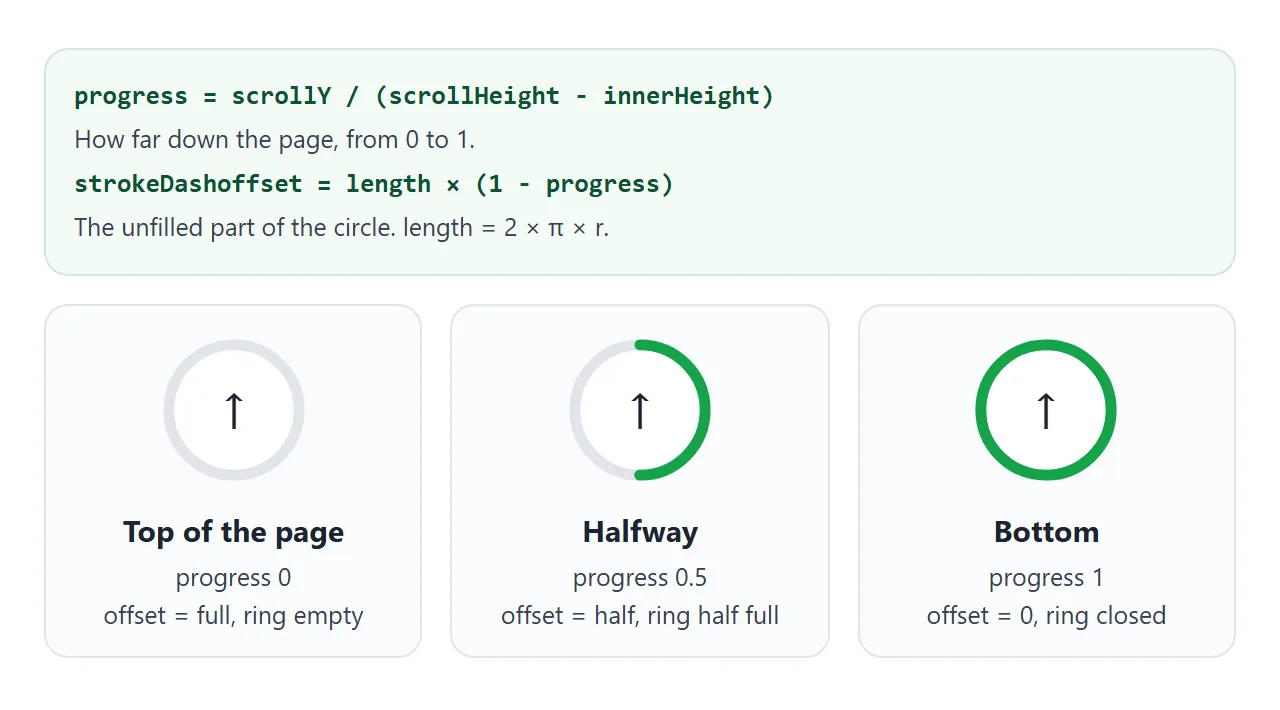
const max = document.documentElement.scrollHeight - innerHeight;
const progress = Math.min(scrollY / max, 1);
bar.style.strokeDashoffset = length * (1 - progress);
The ring is an SVG circle with stroke-dasharray set to its circumference. stroke-dashoffset hides part of that stroke, so an offset equal to the full length shows nothing and an offset of 0 shows the whole circle.
The SVG is rotated -90 degrees so the ring starts at 12 o'clock. A flat bar works the same way; see the HTML progress bar guide.
When it does not work
| What you see | Cause | Fix |
|---|---|---|
| Clicks do nothing, or hit something else | Another element with a higher z-index covers the button |
Raise the button's z-index, or move it clear of the banner or widget |
| The button scrolls away with the page | A parent has transform, filter or perspective |
Move the button out of that parent, for example to the end of body |
scrollTo runs and nothing moves, and the button never appears |
The page scrolls inside a container such as .app { overflow: auto }, so the window never scrolls |
Call app.scrollTo() and listen for scroll on app |
| The link does nothing | href="#header" points at an id that does not exist, or differs in case |
Match the id exactly, or use #top with id="top" |
| It jumps instantly instead of gliding | Reduced motion is on in the system settings, or smooth scrolling is not set up | Expected when reduced motion is on; otherwise add behavior: 'smooth' or the CSS property |
| In a preview box or iframe, the link loads another page | A srcdoc page resolves #top against the parent page's address |
Handle the click in JavaScript, or add <base href="about:srcdoc"> to the previewed page |
| An invisible button still takes Tab focus | Hidden with opacity: 0 only |
Add visibility: hidden |
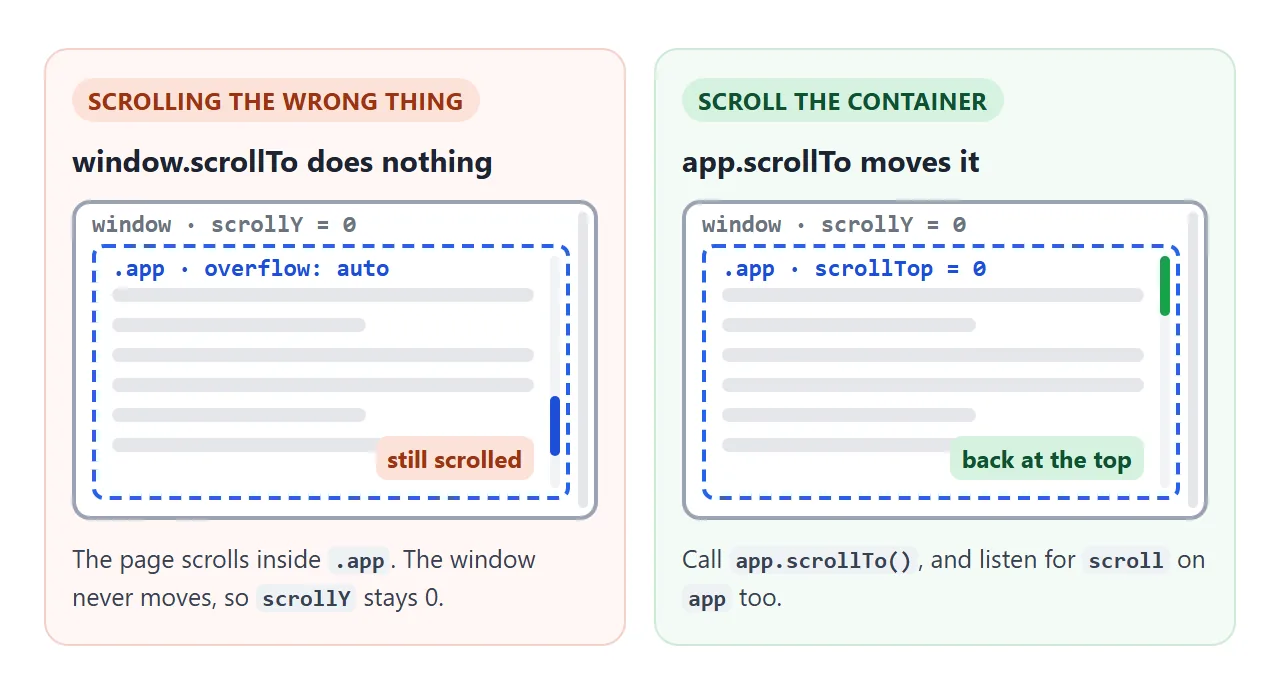
The container case is easy to miss. Layouts that set height: 100vh and overflow: auto on a wrapper move the scrolling from the window into that wrapper.
window.scrollY then stays at 0, so the button never shows and window.scrollTo has nothing to move. srcdoc explains the preview box case.
Share it as a link
Scrolling behaviour is hard to show in a screenshot. A still image cannot show the button appearing, the smooth trip up, or the ring filling.
To send the working version, paste the page into a NOS document and choose Create share link. HTML to link walks through it.
The page renders as written and its scripts run, so the people you send it to can scroll and press the button themselves. If you change the code later, the same link shows the new version.