You can paste HTML into Canvas: open the Rich Content Editor, switch to the HTML view and paste. But Canvas keeps only the tags on its allowlist, and a page from ChatGPT, Claude or Gemini usually depends on tags that are not on it.
A teacher in the Instructure Community describes the same wall: Canvas "restricts direct pasting of elements like CSS styles and JavaScript into the page HTML code". The route that keeps an AI-made page working is a link to it.
Here is the kind of page this is about, a three-question check with a score. It uses a form, radio inputs, a button and a script. None of those tags is on the Canvas allowlist.
<!doctype html>
<html lang="en">
<head>
<meta charset="utf-8">
<meta name="viewport" content="width=device-width, initial-scale=1">
<title>Water cycle quick check</title>
<style>
  * { box-sizing: border-box; }
  body { margin: 0; padding: 16px; font-family: system-ui, sans-serif; background: #f4f6fb; color: #1d2330; }
  .wrap { max-width: 560px; margin: 0 auto; }
  h1 { font-size: 20px; margin: 0 0 4px; }
  .sub { margin: 0 0 14px; color: #5b6475; font-size: 14px; }
  fieldset { border: 1px solid #dfe3ec; border-radius: 12px; background: #fff; margin: 0 0 10px; padding: 12px 14px; }
  legend { font-weight: 700; font-size: 15px; padding: 0 4px; }
  label { display: block; padding: 9px 10px; margin: 4px 0; border-radius: 8px; border: 1px solid #e6e9f0; cursor: pointer; font-size: 15px; }
  label:hover { background: #f1f5ff; }
  input { margin-right: 8px; }
  .ok { background: #e8f6ee; border-color: #8fd0a9; }
  .no { background: #fdeee6; border-color: #f0b192; }
  .why { margin: 6px 2px 2px; font-size: 13.5px; color: #3a4252; display: none; }
  .bar { display: flex; align-items: center; gap: 10px; flex-wrap: wrap; margin-top: 12px; }
  button { font: inherit; font-weight: 600; padding: 10px 16px; border-radius: 8px; border: 0; background: #2563eb; color: #fff; cursor: pointer; }
  button.alt { background: #e6e9f0; color: #1d2330; }
  #score { font-weight: 700; font-size: 16px; }
</style>
</head>
<body>
<div class="wrap">
  <h1>Water cycle: quick check</h1>
  <p class="sub">Three questions. Pick an answer for each, then press Check.</p>

  <form id="quiz">
    <fieldset data-answer="b">
      <legend>1. What turns liquid water into vapor?</legend>
      <label><input type="radio" name="q1" value="a">Condensation</label>
      <label><input type="radio" name="q1" value="b">Evaporation</label>
      <label><input type="radio" name="q1" value="c">Precipitation</label>
      <div class="why">Evaporation: heat from the sun turns surface water into vapor.</div>
    </fieldset>

    <fieldset data-answer="c">
      <legend>2. Clouds form when vapor...</legend>
      <label><input type="radio" name="q2" value="a">warms up and sinks</label>
      <label><input type="radio" name="q2" value="b">freezes on the ground</label>
      <label><input type="radio" name="q2" value="c">cools and condenses into droplets</label>
      <div class="why">Cooling vapor condenses into tiny droplets, and many droplets make a cloud.</div>
    </fieldset>

    <fieldset data-answer="a">
      <legend>3. Rain, snow and hail are all called...</legend>
      <label><input type="radio" name="q3" value="a">precipitation</label>
      <label><input type="radio" name="q3" value="b">transpiration</label>
      <label><input type="radio" name="q3" value="c">collection</label>
      <div class="why">Precipitation is water falling from clouds in any form.</div>
    </fieldset>

    <div class="bar">
      <button type="submit">Check answers</button>
      <button type="reset" class="alt" id="again">Try again</button>
      <span id="score" aria-live="polite"></span>
    </div>
  </form>
</div>

<script>
  const form = document.getElementById('quiz');
  const score = document.getElementById('score');

  form.addEventListener('submit', (e) => {
    e.preventDefault();  // stay on the page; nothing is sent anywhere
    let right = 0;
    form.querySelectorAll('fieldset').forEach((box) => {
      const picked = box.querySelector('input:checked');
      box.querySelectorAll('label').forEach((l) => l.classList.remove('ok', 'no'));
      if (picked) {
        const good = picked.value === box.dataset.answer;
        picked.parentElement.classList.add(good ? 'ok' : 'no');
        if (good) right++;
      }
      box.querySelector('.why').style.display = 'block';
    });
    score.textContent = 'Score: ' + right + ' / 3';
  });

  form.addEventListener('reset', () => {
    score.textContent = '';
    form.querySelectorAll('label').forEach((l) => l.classList.remove('ok', 'no'));
    form.querySelectorAll('.why').forEach((w) => (w.style.display = 'none'));
  });
</script>
</body>
</html>
Why the Canvas editor drops your page
The HTML view exists for custom code. Instructure's guide says that Canvas only supports certain HTML elements for security reasons, that this also applies to pasted content, and that tags not on the list may be stripped when you save.
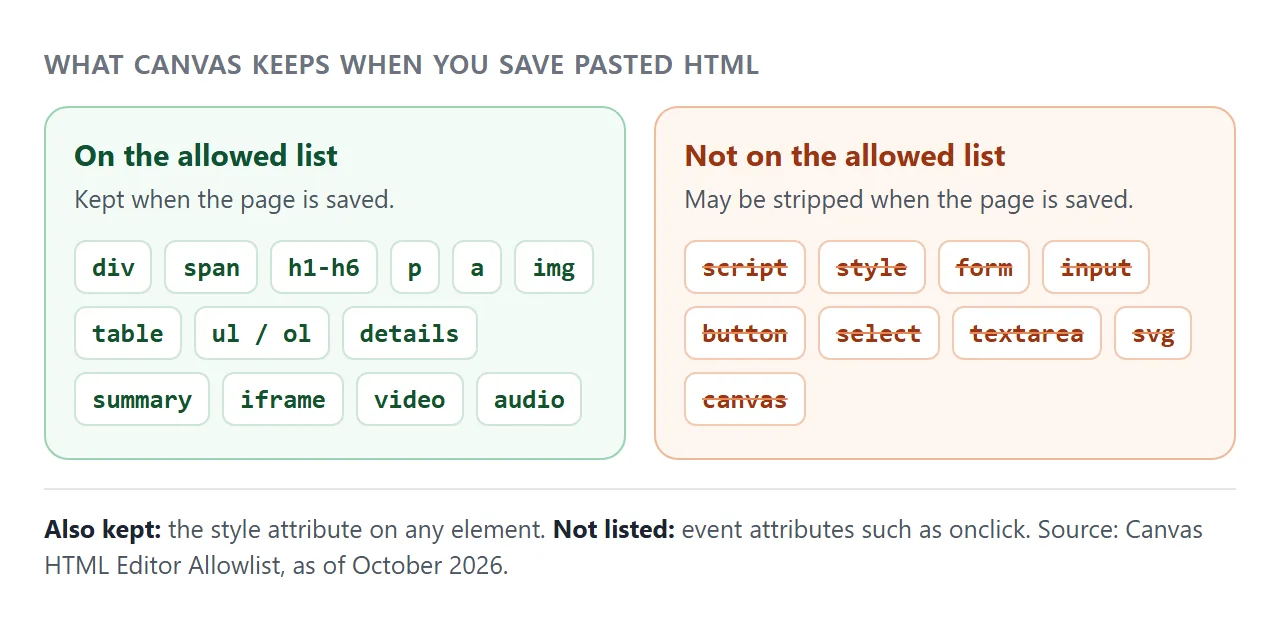
Read the list and the gaps are easy to see. There is no script, style, form, input, button, svg or canvas tag. The style attribute is allowed on any element, but event attributes such as onclick are not listed.
Layout is limited too. The position property is allowed only as static, relative or absolute, so a fixed or sticky header is removed. Pages also remove the object and embed tags.
Plain content survives well: headings, tables, images, lists, links and the iframe tag. The details and summary tags are on the list as well, so a click-to-reveal answer can work without any script.
Some teachers get around this by uploading the HTML file to Canvas and framing it with an iframe. Instructure's community shows that such a frame can be refused, and a reply there points to a setting controlled by the school administrator or the browser.
Make it with AI
Ask for a page that needs nothing outside itself. This prompt works in ChatGPT, Claude or Gemini. Change the topic and the grade in the brackets.
Make one self-contained HTML file: a 5-question quick check
on [topic] for [grade] students.
- Put HTML, CSS and JavaScript together in this one file.
- No external images, fonts or libraries.
- Multiple choice, all questions on one page.
- A "Check answers" button that shows the score, marks each
  answer right or wrong, and gives one sentence of explanation.
- A "Try again" button that clears everything.
- Big tap targets, readable on a phone (add the viewport meta tag).
- Do not send data anywhere and do not store anything in the browser.
Reply with the code in one block.
Then check the result before anyone else sees it:
- Click everything. Answer wrong on purpose, then right, then press Try again.
- Read every question and answer. The AI can write a wrong answer key, and only you can catch it.
- Open it on your phone. Text should be readable and the buttons easy to tap.
- Remember the code is readable. The answers sit in the page code, so a student who looks can find them. That is fine for practice, not for a graded test.
If the AI sends a form to a server, ask for the result to show on the page instead. Sending a form to a server is blocked in NOS.
Send it as a link
Paste the code into a NOS document and check that it runs. Then choose Create share link and copy the address. HTML to link walks through it.
Whoever opens the link sees the working page in their browser, on a phone too, with no account. They cannot edit it. Scripts run, and a form handled inside the page, like the quiz above, works.
If you fix a typo or change a question later, edit the code in NOS. The same link then shows the new version, so you do not touch Canvas again. For more on sharing AI output, see sharing AI-generated HTML.
Here is a second page, a sort activity that replaces paper cards. It works on a phone too, because it uses taps and not dragging.
<!doctype html>
<html lang="en">
<head>
<meta charset="utf-8">
<meta name="viewport" content="width=device-width, initial-scale=1">
<title>Sort the materials</title>
<style>
  * { box-sizing: border-box; }
  body { margin: 0; padding: 16px; font-family: system-ui, sans-serif; background: #f4f6fb; color: #1d2330; }
  .wrap { max-width: 560px; margin: 0 auto; }
  h1 { font-size: 20px; margin: 0 0 4px; }
  .sub { margin: 0 0 12px; color: #5b6475; font-size: 14px; }
  #hand { min-height: 52px; display: flex; flex-wrap: wrap; gap: 8px; padding: 10px; border: 1px dashed #b8c0d0; border-radius: 12px; background: #fff; }
  .chip { font: inherit; font-size: 15px; padding: 9px 14px; border-radius: 999px; border: 1px solid #c9d1e0; background: #fff; cursor: pointer; }
  .chip.sel { background: #2563eb; color: #fff; border-color: #2563eb; }
  .chip.good { background: #e8f6ee; border-color: #8fd0a9; color: #1d2330; }
  .chip.bad { background: #fdeee6; border-color: #f0b192; color: #1d2330; }
  .cols { display: grid; grid-template-columns: 1fr 1fr; gap: 10px; margin-top: 12px; }
  .col { border: 1px solid #dfe3ec; border-radius: 12px; background: #fff; padding: 10px; min-height: 150px; cursor: pointer; }
  .col h2 { margin: 0 0 8px; font-size: 15px; }
  .col .chips { display: flex; flex-wrap: wrap; gap: 6px; }
  .col.target { outline: 2px solid #2563eb; }
  .bar { display: flex; align-items: center; gap: 10px; flex-wrap: wrap; margin-top: 12px; }
  .bar button { font: inherit; font-weight: 600; padding: 10px 16px; border-radius: 8px; border: 0; background: #2563eb; color: #fff; cursor: pointer; }
  .bar button.alt { background: #e6e9f0; color: #1d2330; }
  #msg { font-weight: 700; }
</style>
</head>
<body>
<div class="wrap">
  <h1>Sort the materials</h1>
  <p class="sub">Tap a word, then tap the box it belongs in. Tap a placed word to take it back.</p>

  <div id="hand" aria-label="Words to sort"></div>

  <div class="cols">
    <div class="col" data-kind="conductor"><h2>Conductor</h2><div class="chips"></div></div>
    <div class="col" data-kind="insulator"><h2>Insulator</h2><div class="chips"></div></div>
  </div>

  <div class="bar">
    <button id="check">Check</button>
    <button id="reset" class="alt">Start over</button>
    <span id="msg" aria-live="polite"></span>
  </div>
</div>

<script>
  // word -> correct box. Edit this list to make your own sort.
  const items = {
    copper: 'conductor', rubber: 'insulator', iron: 'conductor',
    wood: 'insulator', aluminum: 'conductor', plastic: 'insulator',
  };
  const hand = document.getElementById('hand');
  const msg = document.getElementById('msg');
  let selected = null;

  function chip(word) {
    const b = document.createElement('button');
    b.className = 'chip';
    b.textContent = word;
    b.dataset.word = word;
    b.addEventListener('click', (e) => {
      e.stopPropagation();
      if (b.parentElement.id !== 'hand') { hand.appendChild(b); clearMarks(); return; }  // take it back
      if (selected) selected.classList.remove('sel');
      selected = (selected === b) ? null : b;
      if (selected) b.classList.add('sel');
    });
    return b;
  }

  function clearMarks() {
    msg.textContent = '';
    document.querySelectorAll('.chip').forEach((c) => c.classList.remove('good', 'bad'));
  }

  function build() {
    hand.innerHTML = '';
    document.querySelectorAll('.col .chips').forEach((c) => (c.innerHTML = ''));
    Object.keys(items).forEach((w) => hand.appendChild(chip(w)));
    selected = null;
    msg.textContent = '';
  }

  document.querySelectorAll('.col').forEach((col) => {
    col.addEventListener('click', () => {
      if (!selected) return;
      col.querySelector('.chips').appendChild(selected);
      selected.classList.remove('sel');
      selected = null;
      clearMarks();
    });
  });

  document.getElementById('check').addEventListener('click', () => {
    if (hand.children.length) { msg.textContent = 'Place every word first.'; return; }
    let right = 0;
    document.querySelectorAll('.col').forEach((col) => {
      col.querySelectorAll('.chip').forEach((c) => {
        const ok = items[c.dataset.word] === col.dataset.kind;
        c.classList.add(ok ? 'good' : 'bad');
        if (ok) right++;
      });
    });
    msg.textContent = right + ' of ' + Object.keys(items).length + ' correct';
  });

  document.getElementById('reset').addEventListener('click', build);
  build();
</script>
</body>
</html>
Put the link in Canvas
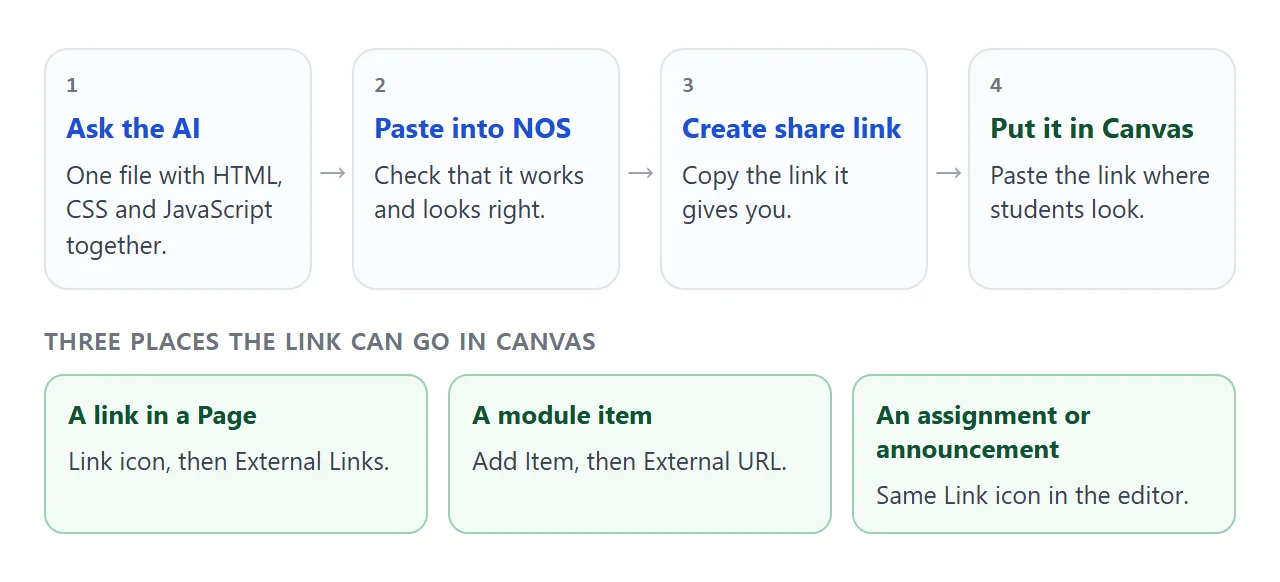
There are two common routes, both from Instructure's own guides.
- In a Page, assignment or announcement: select some text, click the Link icon, choose External Links, paste the address and click Done. After you save, external links open in a new browser tab.
- As a module item: in Modules click Add Item, choose External URL, paste the address and give it a name. Tick Load in a new tab and Canvas shows the page outside Canvas.
With the box unticked, Canvas tries to show the page in a frame, and Instructure notes that some sites have disabled embedding. If a module item shows a blank frame, tick the box.
If the item is a module requirement and the box is ticked, Canvas still registers the progress, so the student can move on.
A NOS link is a plain web address, so it can go anywhere a link can go. For Google Sites, see Google Sites embed.
Link or embed: what you gain and lose
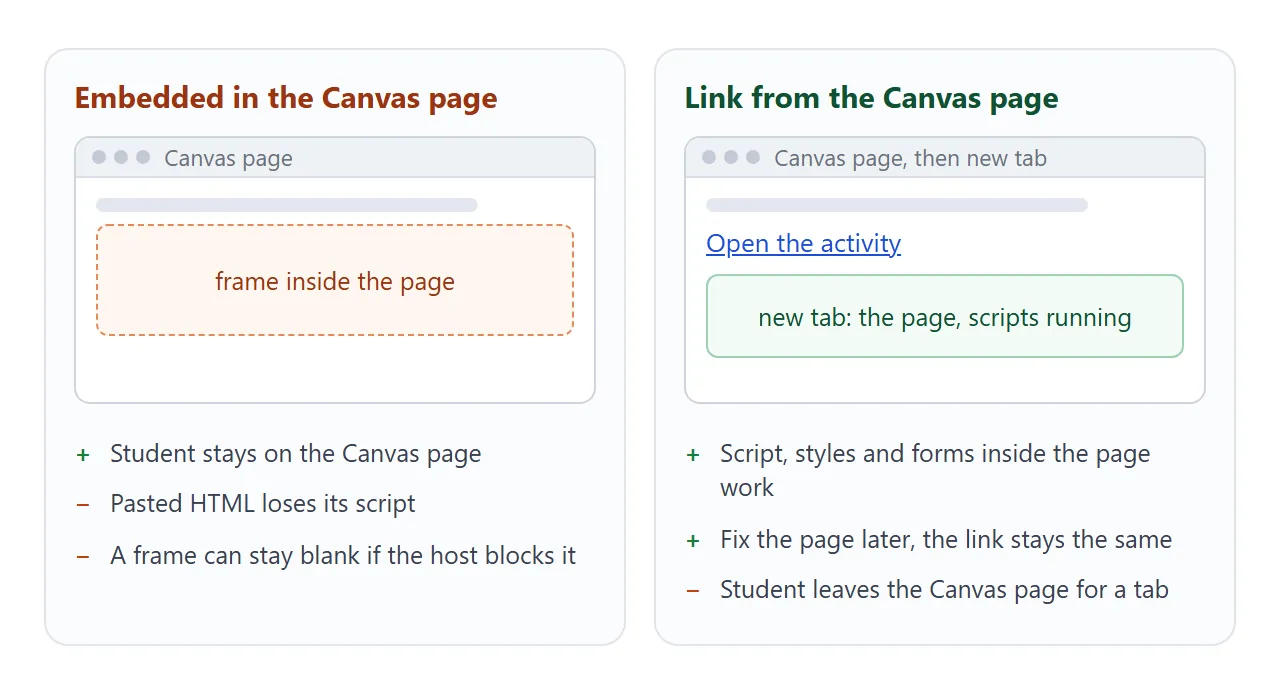
| Way | Do the scripts run? | Where the student sees it | Worth knowing |
|---|---|---|---|
| Paste into the HTML view | No, script is not on the allowlist | Inside the Canvas page | Text, tables, images and details survive |
| Upload the file, frame it | Depends on your school settings | Inside the Canvas page | The frame can be refused |
| Link to a NOS page | Yes | A new browser tab | Edit once, the link stays the same |
What you give up with the link is real, so decide with it in mind:
- The student leaves the Canvas page and works in a tab.
- Canvas cannot see inside the page. A score shows on screen only, and does not go to the gradebook.
- NOS does not show you who opened the link.
- Anyone who has the link can open it, so it is not limited to your class.
When it does not work
| What you see | Cause | Fix |
|---|---|---|
| Buttons do nothing after saving | script, input and button are not on the allowlist | Link to the page instead of pasting it |
| The page looks like plain text | A style block is not allowed, only the style attribute | Use the link route, or inline styles for a simple page |
| A fixed header is gone or misplaced | fixed and sticky positions are removed | Use the link route |
| Embed code is ignored on a Page | Pages remove object and embed | Use a link |
| A framed page stays blank | The host or your school settings block frames | Tick Load in a new tab on the module item |
| Score is missing in the gradebook | A linked page cannot send scores to Canvas | Use a Canvas quiz for graded work |
| The link opens but a picture is missing | Images from other sites are blocked in NOS | Ask the AI for inline SVG or CSS shapes |
For a blank frame in general, iframe not working lists the usual causes, and sandbox attribute explains what the sandbox tokens allow. Canvas rules can change, so check the allowlist page again if something differs. This article was checked in October 2026.