"Capacitor" here means the JavaScript runtime at capacitorjs.com, not the electronic part. It puts a web app inside an iOS or Android app, and the web app is an index.html plus whatever it loads. So a single HTML file can be the whole app.
The page below loads Capacitor's core script from unpkg and asks where it is running. In a browser the answer is web.
<!doctype html>
<html lang="en">
<head>
<meta charset="utf-8">
<meta name="viewport" content="width=device-width, initial-scale=1">
<title>Capacitor: where am I running?</title>
<!-- Capacitor's core runtime as one plain script. It sets window.Capacitor. -->
<script src="https://unpkg.com/@capacitor/core@8.5.2/dist/capacitor.js"></script>
<style>
  body { margin: 0; padding: 18px; font-family: system-ui, sans-serif; background: #f4f5f7; color: #1d2330; }
  h1 { font-size: 18px; margin: 0 0 12px; }
  table { border-collapse: collapse; width: 100%; background: #fff; border-radius: 10px; overflow: hidden; }
  td { padding: 10px 12px; border-bottom: 1px solid #e5e7eb; font-size: 14px; }
  td:last-child { font-family: ui-monospace, Consolas, monospace; font-weight: 700; text-align: right; }
  tr:last-child td { border-bottom: 0; }
  .ok { color: #0f5132; } .no { color: #9a3412; }
  p { font-size: 13px; color: #4b5563; line-height: 1.5; }
</style>
</head>
<body>
<h1>Where is this page running?</h1>
<table id="t"></table>
<p id="msg"></p>

<script>
  const C = window.Capacitor;               // undefined if the script above did not load
  const rows = [];
  if (C) {
    rows.push(['Capacitor.getPlatform()', C.getPlatform()]);              // web, ios or android
    rows.push(['Capacitor.isNativePlatform()', String(C.isNativePlatform())]);
    rows.push(['isPluginAvailable("CapacitorHttp")', String(C.isPluginAvailable('CapacitorHttp'))]);
    rows.push(['isPluginAvailable("Camera")', String(C.isPluginAvailable('Camera'))]);
    document.getElementById('msg').textContent =
      C.isNativePlatform() ? 'Running inside a native app.' : 'Running in a browser. The same file inside an iOS or Android app would report ios or android.';
  } else {
    rows.push(['window.Capacitor', 'undefined']);
    document.getElementById('msg').textContent = 'The Capacitor script did not load (offline or blocked).';
  }
  document.getElementById('t').innerHTML = rows.map(([k, v]) =>
    '<tr><td>' + k + '</td><td class="' + (v === 'true' || v === 'web' ? 'ok' : 'no') + '">' + v + '</td></tr>').join('');
</script>
</body>
</html>
The same file inside a Capacitor app would report ios or android. That one value is how a single page can behave differently in a browser and in an app.
What Capacitor does with your HTML
Capacitor does not translate your page into something else. The native app contains a Web View, and the Web View shows your index.html. The docs put it this way: if it works in the browser, it probably works in a mobile app when using Capacitor.
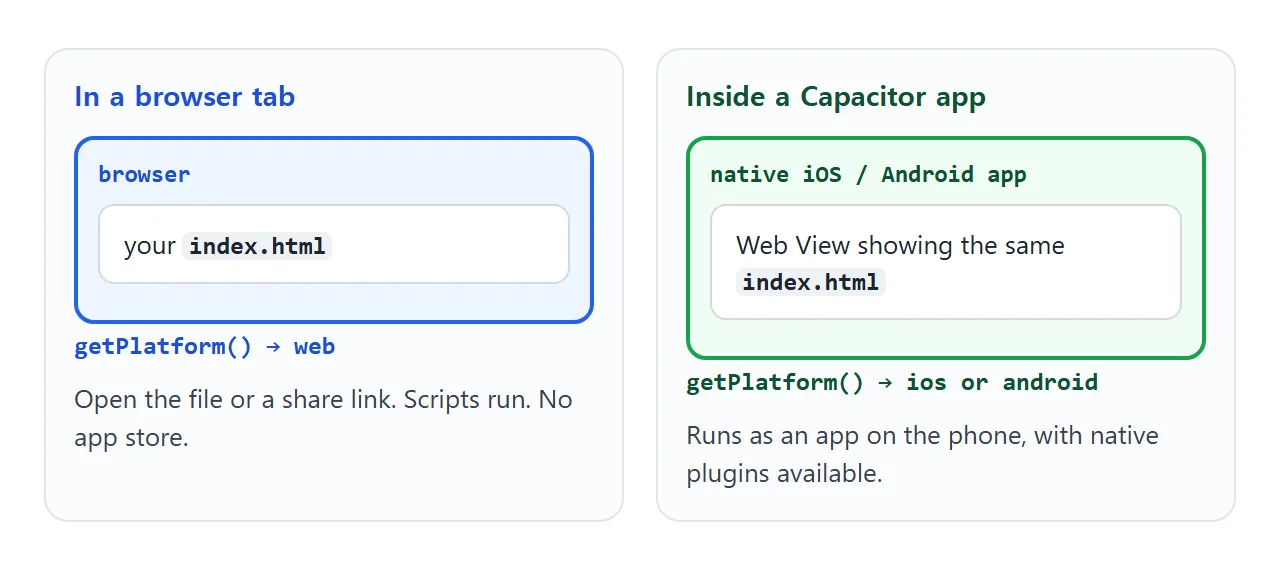
What the app adds is access to native features through plugins. Plugins let JavaScript call native APIs through one cross-platform interface. On the web, a plugin can also ship a web version.
Put the file in an app: the commands
Capacitor needs a folder of web files with an index.html at the root, and that file must have a <head> tag so Capacitor can inject itself. Here is the whole path for one file.
- Save the page as
www/index.html. - Install Capacitor in the folder that holds
www. - Run
npx cap initand give it an app name and a package ID. - Add the platforms you want.
- Run
npx cap sync, then open the native project.
npm i @capacitor/core
npm i -D @capacitor/cli
npx cap init
npm i @capacitor/android @capacitor/ios
npx cap add android
npx cap add ios
npx cap sync
npx cap open ios
The config file tells Capacitor which folder to copy. It can be capacitor.config.json, or capacitor.config.ts in a TypeScript project:
{
  "appId": "com.example.checklist",
  "appName": "Checklist",
  "webDir": "www"
}
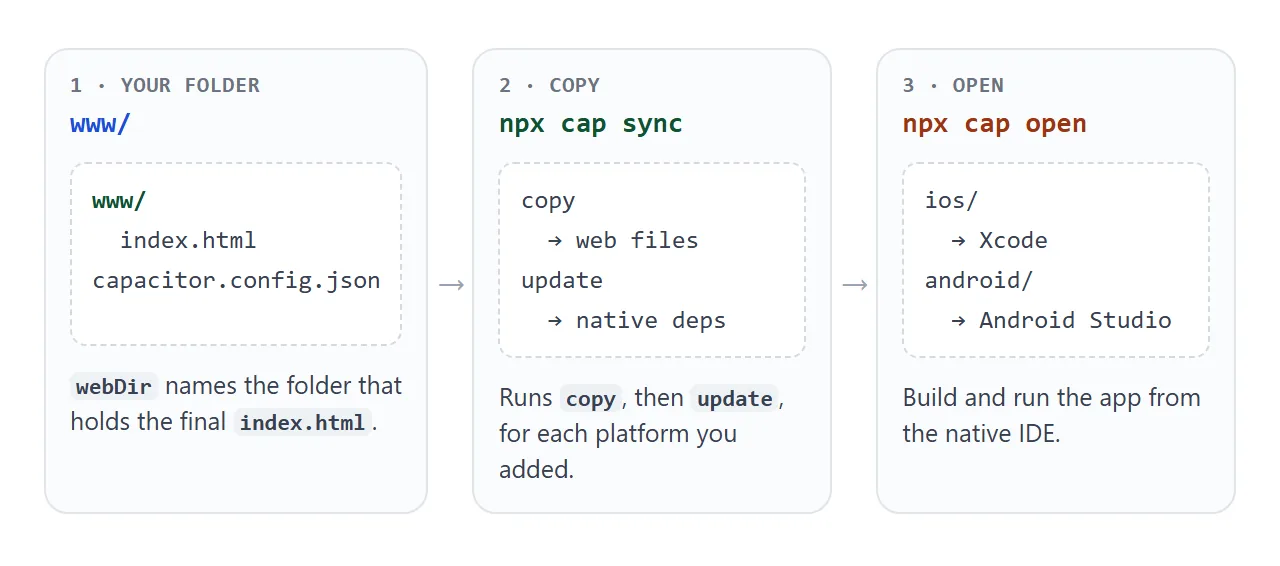
npx cap sync runs copy and then update. Run it again after every change to the HTML, or the app keeps showing the old copy.
I could only run the examples on this page in a browser. Building and running the native projects needs the tools in the next section.
What the real app needs on your computer
The docs for Capacitor 8 list the requirements. Node 22 or higher is needed for any Capacitor app. For iOS you need a Mac, with Xcode 26.0 as the minimum and the Xcode command line tools.
For Android you need Android Studio 2025.2.1 or newer and the Android SDK Platforms for API 24 or greater. Android Studio installs the right JDK for you. Check the environment setup page for the current numbers before you install.
One file, three platforms
Capacitor.getPlatform() returns web, ios or android. isNativePlatform() is true on the last two. isPluginAvailable() tells you whether a named plugin exists on the current platform.
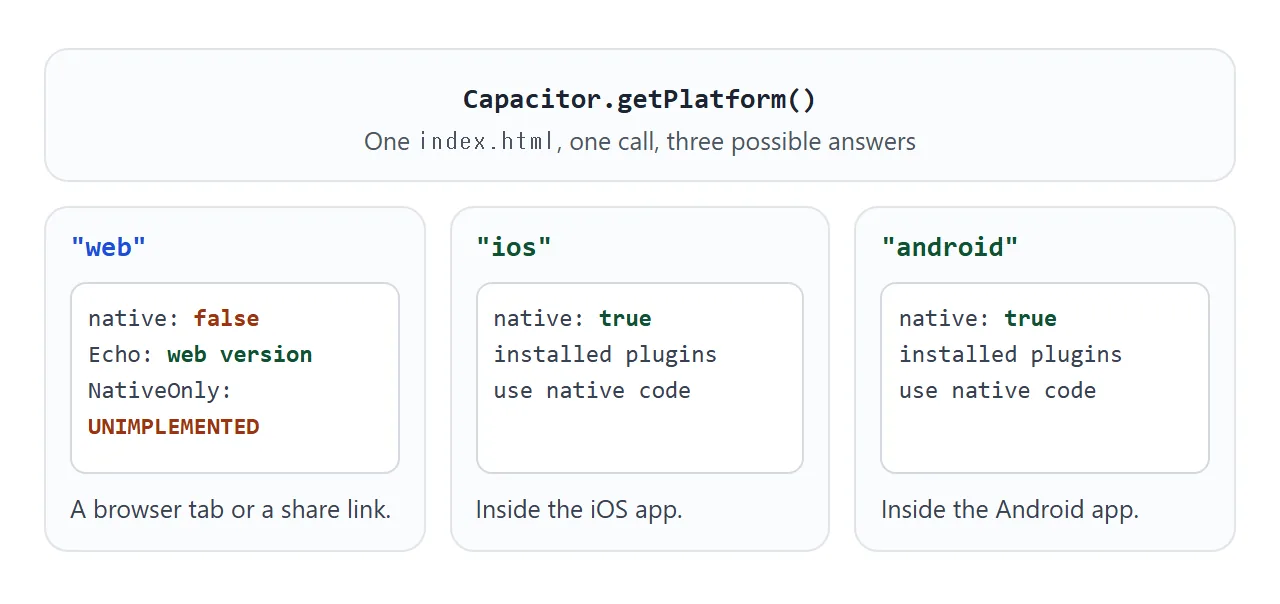
Plugins are registered with registerPlugin. Its second argument can hold a web implementation. Without one, calling the plugin on the web is rejected. Try both:
<!doctype html>
<html lang="en">
<head>
<meta charset="utf-8">
<meta name="viewport" content="width=device-width, initial-scale=1">
<title>Capacitor: a plugin with and without a web version</title>
<script src="https://unpkg.com/@capacitor/core@8.5.2/dist/capacitor.js"></script>
<style>
  body { margin: 0; padding: 18px; font-family: system-ui, sans-serif; background: #f4f5f7; color: #1d2330; }
  h1 { font-size: 18px; margin: 0 0 6px; }
  p { font-size: 13px; color: #4b5563; line-height: 1.5; margin: 0 0 12px; }
  .row { display: flex; gap: 8px; flex-wrap: wrap; margin-bottom: 12px; }
  button { font: 600 14px system-ui, sans-serif; padding: 10px 14px; border: 0; border-radius: 8px; background: #2563eb; color: #fff; cursor: pointer; }
  button.alt { background: #fff; color: #1d2330; border: 1px solid #cfd4dc; }
  pre { margin: 0; padding: 12px; background: #fff; border-radius: 10px; font: 12.5px/1.5 ui-monospace, Consolas, monospace; min-height: 120px; white-space: pre-wrap; word-break: break-word; }
</style>
</head>
<body>
<h1>Same call, different platform</h1>
<p>Two plugins. <b>Echo</b> has a web version. <b>NativeOnly</b> does not.</p>
<div class="row">
  <button id="echo">Call Echo.echo()</button>
  <button id="native" class="alt">Call NativeOnly.ping()</button>
</div>
<pre id="log">Press a button.</pre>

<script>
  const { registerPlugin } = window.Capacitor;

  // Second argument: what to use when the page runs on the web.
  const Echo = registerPlugin('Echo', {
    web: () => ({ echo: async (opts) => ({ value: opts.value }) }),
  });
  // No web entry: on the web, a call to this plugin is rejected.
  const NativeOnly = registerPlugin('NativeOnly');

  const log = document.getElementById('log');
  const say = (line) => { log.textContent = line; };

  document.getElementById('echo').addEventListener('click', async () => {
    try {
      const r = await Echo.echo({ value: 'hello from the web version' });
      say('Echo.echo() returned: ' + JSON.stringify(r) +
          '\nisPluginAvailable("Echo"): ' + window.Capacitor.isPluginAvailable('Echo'));
    } catch (err) { say('Echo failed: ' + err.message); }
  });

  document.getElementById('native').addEventListener('click', async () => {
    try {
      await NativeOnly.ping();
      say('NativeOnly.ping() worked.');
    } catch (err) {
      say('NativeOnly.ping() was rejected.\ncode: ' + err.code + '\nmessage: ' + err.message +
          '\nisPluginAvailable("NativeOnly"): ' + window.Capacitor.isPluginAvailable('NativeOnly'));
    }
  });
</script>
</body>
</html>
The Capacitor docs say plugins with web support run feature detection and throw if the browser lacks a Web API. Wrap plugin calls in try and catch so one missing feature does not stop the page.
Real plugins such as Camera are installed with npm, then npx cap sync. For a camera in a plain page with no app at all, see camera access with getUserMedia.
A finished example: a checklist that behaves like an app
This page is the kind of file you would drop into www/index.html. It has a header with the platform badge, a list you can add to, tick and remove, and a bottom tab bar. Try it at phone width.
<!doctype html>
<html lang="en">
<head>
<meta charset="utf-8">
<!-- viewport-fit=cover lets the page fill the whole screen; the env() padding below keeps content clear of notches -->
<meta name="viewport" content="width=device-width, initial-scale=1, viewport-fit=cover">
<title>Trip checklist</title>
<script src="https://unpkg.com/@capacitor/core@8.5.2/dist/capacitor.js"></script>
<style>
  * { box-sizing: border-box; }
  html, body { height: 100%; }
  body {
    margin: 0; font-family: system-ui, sans-serif; background: #f4f5f7; color: #1d2330;
    display: flex; flex-direction: column;
  }
  header {
    display: flex; align-items: center; justify-content: space-between;
    padding: calc(14px + env(safe-area-inset-top)) calc(16px + env(safe-area-inset-right)) 12px calc(16px + env(safe-area-inset-left));
    background: #1e3a8a; color: #fff;
  }
  header h1 { font-size: 18px; margin: 0; }
  .badge { font: 700 11px ui-monospace, Consolas, monospace; padding: 4px 8px; border-radius: 999px; background: #fff; color: #1e3a8a; }
  main { flex: 1; overflow: auto; padding: 14px calc(16px + env(safe-area-inset-right)) 14px calc(16px + env(safe-area-inset-left)); }
  .view { display: none; } .view.on { display: block; }
  form { display: flex; gap: 8px; margin-bottom: 12px; }
  input[type=text] { flex: 1; min-width: 0; font: 16px system-ui, sans-serif; padding: 10px 12px; border: 1px solid #cfd4dc; border-radius: 8px; }
  button { font: 600 14px system-ui, sans-serif; padding: 10px 14px; border: 0; border-radius: 8px; background: #2563eb; color: #fff; }
  ul { list-style: none; margin: 0; padding: 0; }
  li { display: flex; align-items: center; gap: 10px; background: #fff; border-radius: 10px; padding: 12px; margin-bottom: 8px; }
  li.done span { text-decoration: line-through; color: #6b7280; }
  li span { flex: 1; overflow-wrap: anywhere; }
  li input { width: 20px; height: 20px; }
  li button { background: transparent; color: #9a3412; padding: 4px 8px; font-size: 18px; }
  .empty { color: #6b7280; font-size: 14px; }
  dl { background: #fff; border-radius: 10px; padding: 4px 14px; margin: 0; }
  dt { font-size: 12px; color: #6b7280; margin-top: 10px; }
  dd { margin: 2px 0 10px; font: 700 14px ui-monospace, Consolas, monospace; }
  nav { display: flex; background: #fff; border-top: 1px solid #e5e7eb; padding-bottom: env(safe-area-inset-bottom); }
  nav button { flex: 1; background: transparent; color: #4b5563; border-radius: 0; padding: 14px 0; }
  nav button[aria-selected=true] { color: #2563eb; box-shadow: inset 0 -3px 0 #2563eb; }
</style>
</head>
<body>
<header><h1>Trip checklist</h1><span class="badge" id="badge">...</span></header>

<main>
  <section class="view on" id="tasks">
    <form id="form"><input type="text" id="text" placeholder="Add an item" aria-label="New item"><button>Add</button></form>
    <ul id="list"></ul>
    <p class="empty" id="empty">Nothing yet. Add your first item.</p>
  </section>
  <section class="view" id="about">
    <dl>
      <dt>Platform</dt><dd id="p1">-</dd>
      <dt>Native app?</dt><dd id="p2">-</dd>
      <dt>Items on the list</dt><dd id="p3">0</dd>
    </dl>
  </section>
</main>

<nav role="tablist">
  <button role="tab" aria-selected="true" data-view="tasks">Tasks</button>
  <button role="tab" aria-selected="false" data-view="about">About</button>
</nav>

<script>
  const C = window.Capacitor;
  const platform = C ? C.getPlatform() : 'no Capacitor';
  document.getElementById('badge').textContent = platform.toUpperCase();
  document.getElementById('p1').textContent = platform;
  document.getElementById('p2').textContent = C ? String(C.isNativePlatform()) : 'unknown';

  let items = [{ text: 'Passport', done: true }, { text: 'Phone charger', done: false }];
  const list = document.getElementById('list');

  function render() {
    list.innerHTML = '';
    items.forEach((it, i) => {
      const li = document.createElement('li');
      li.className = it.done ? 'done' : '';
      const cb = document.createElement('input');
      cb.type = 'checkbox'; cb.checked = it.done; cb.setAttribute('aria-label', 'Done: ' + it.text);
      cb.addEventListener('change', () => { it.done = cb.checked; render(); });
      const label = document.createElement('span'); label.textContent = it.text;
      const del = document.createElement('button');
      del.type = 'button'; del.textContent = '×'; del.setAttribute('aria-label', 'Remove ' + it.text);
      del.addEventListener('click', () => { items.splice(i, 1); render(); });
      li.append(cb, label, del); list.append(li);
    });
    document.getElementById('empty').style.display = items.length ? 'none' : 'block';
    document.getElementById('p3').textContent = items.length;
  }

  document.getElementById('form').addEventListener('submit', (e) => {
    e.preventDefault();
    const input = document.getElementById('text');
    const text = input.value.trim();
    if (text) { items.push({ text, done: false }); input.value = ''; render(); }
  });

  document.querySelectorAll('nav button').forEach((b) => b.addEventListener('click', () => {
    document.querySelectorAll('nav button').forEach((x) => x.setAttribute('aria-selected', String(x === b)));
    document.querySelectorAll('.view').forEach((v) => v.classList.toggle('on', v.id === b.dataset.view));
  }));

  render();
</script>
</body>
</html>
- Viewport:
viewport-fit=coverlets the page fill the screen. MDN recommends the safe area inset variables with it, so the header and tab bar useenv(safe-area-inset-*)padding. See the viewport meta tag. - Platform badge: it reads
Capacitor.getPlatform(), and says "no Capacitor" if the script did not load. - List state: it lives in a JavaScript array, so it resets on reload. Nothing is saved.
When it does not work
| What you see | Cause | Fix |
|---|---|---|
| window.Capacitor is undefined | The script did not load: offline, blocked, or a wrong address | Check the script URL and your connection |
| App shows an old version of the page | The web files were not copied after your edit | Run npx cap sync |
| App opens to a blank screen | No index.html in the folder named by webDir | Point webDir at the folder that holds it |
| Capacitor does not seem to be injected | The HTML has no head tag | Add a head element |
| A plugin call throws UNIMPLEMENTED | The plugin has no version for this platform | Register a web version or catch the error |
| isPluginAvailable is false for Camera | No plugin by that name is registered on the page | Install the plugin and sync |
| Header sits under the notch | No safe-area padding | Use viewport-fit=cover with env() padding |
| App loads a remote address | server.url is set | Remove it; the docs say it is meant for live reload |
Share it as a link
An app needs a build and an install, so it is a poor way to show a page to a friend. The HTML can go out as a link instead. Opening an HTML file on a phone explains why attachments often fail.
To send the working version, paste the page into a NOS document and choose Create share link. HTML to link walks through it.
The Capacitor script loads from unpkg, one of the CDN hosts NOS allows, so the badge shows WEB and plugins with no web version are rejected.
Scripts run, so people can tap through the checklist. If you change the code later, the same link shows the new version. For more on this pattern, read single HTML file apps.