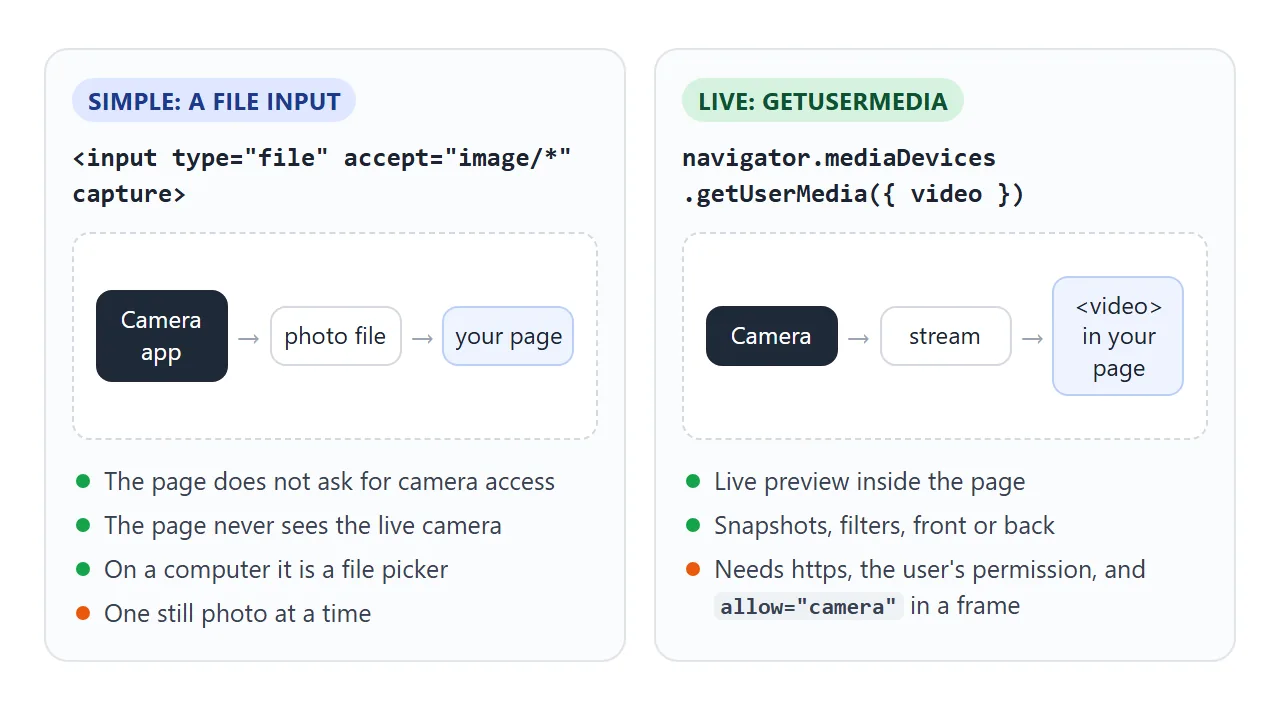
There are two ways to use the camera from a web page. The simple one is a file input: <input type="file" accept="image/*" capture="environment"> opens the camera on a phone and hands the page a photo.
The live one is JavaScript: getUserMedia() streams the camera into a <video> element.
Start with the simple one. On a phone, the button opens the camera. On a computer, it opens a file picker, so choose any picture.
<!doctype html>
<html lang="en">
<head>
<meta charset="utf-8">
<meta name="viewport" content="width=device-width, initial-scale=1">
<title>Camera with a file input</title>
<style>
  body { margin: 0; padding: 16px; font-family: system-ui, sans-serif; background: #f4f5f7; color: #1d2330; }
  .pick {
    display: inline-block; padding: 12px 18px; border-radius: 10px;
    background: #2563eb; color: #fff; font-weight: 600; cursor: pointer;
  }
  .pick input { display: block; width: 1px; height: 1px; opacity: 0; }  /* hidden, but still clickable via the label */
  .preview {
    margin-top: 14px; height: 230px; border-radius: 12px; background: #fff;
    border: 1px dashed #c8ced8; display: grid; place-items: center; overflow: hidden;
  }
  .preview img { max-width: 100%; max-height: 100%; object-fit: contain; }
  #info { margin: 10px 0 0; font-size: 14px; color: #4b5563; }
</style>
</head>
<body>
<label class="pick">
  Take or choose a photo
  <!-- capture="environment": phones open the back camera. Desktops show a file picker. -->
  <input type="file" id="file" accept="image/*" capture="environment">
</label>

<div class="preview" id="preview"><span>No photo yet</span></div>
<p id="info">On a phone this opens the camera. On a computer it opens a file picker.</p>

<script>
  const input = document.getElementById('file');
  const preview = document.getElementById('preview');
  const info = document.getElementById('info');
  let url = null;

  input.addEventListener('change', () => {
    const file = input.files[0];
    if (!file) return;
    if (url) URL.revokeObjectURL(url);  // free the previous photo
    url = URL.createObjectURL(file);    // a blob: address for the photo
    const img = new Image();
    img.src = url;
    img.alt = 'Selected photo';
    preview.replaceChildren(img);
    info.textContent = file.name + ' · ' + Math.round(file.size / 1024) + ' KB · ' + (file.type || 'unknown type');
  });
</script>
</body>
</html>
The simple way: a file input with capture
Three attributes do the work. type="file" makes a file picker. accept="image/*" asks for images. capture asks the browser to take a new photo with the camera instead of offering existing files.
<input type="file" accept="image/*" capture="environment">
capture="environment" means the camera facing away from the user, the back camera on a phone. capture="user" means the front camera. Browsers that do not support capture, which includes desktop browsers, show their normal file picker.
The page never touches the camera itself. The camera app takes the photo, and the page gets a File in input.files[0]. To show it, make a blob URL with URL.createObjectURL(file) and put it in an <img>.
To upload the photo, add the file to FormData and send it:
const data = new FormData();
data.append('photo', input.files[0]);
fetch('/upload', { method: 'POST', body: data });
A live preview with getUserMedia
For a preview inside the page, ask the browser for a camera stream and give it to a <video> element:
<video id="video" autoplay muted playsinline></video>
<button id="start">Start camera</button>
<script>
  document.getElementById('start').addEventListener('click', async () => {
    const stream = await navigator.mediaDevices.getUserMedia({ video: true });
    document.getElementById('video').srcObject = stream;
  });
</script>
autoplay starts the picture as soon as the stream arrives. muted keeps autoplay rules happy. playsinline keeps the video inside the page on an iPhone instead of opening it full screen.
Try it below. Pick a camera, press Start camera, then Stop.
<!doctype html>
<html lang="en">
<head>
<meta charset="utf-8">
<meta name="viewport" content="width=device-width, initial-scale=1">
<title>Live camera preview</title>
<style>
  body { margin: 0; padding: 14px; font-family: system-ui, sans-serif; background: #f4f5f7; color: #1d2330; }
  .bar { display: flex; flex-wrap: wrap; gap: 8px; align-items: center; }
  button, select { font: inherit; font-size: 14px; padding: 8px 12px; border-radius: 8px; border: 1px solid #c8ced8; background: #fff; }
  button.go { background: #2563eb; border-color: #2563eb; color: #fff; }
  video {
    display: block; width: 100%; max-width: 480px; aspect-ratio: 4 / 3; margin-top: 12px;
    border-radius: 12px; background: #1f2937; object-fit: cover;
  }
  video.mirror { transform: scaleX(-1); }  /* only the preview is flipped, not the stream */
  #status { margin: 10px 0 4px; font-size: 14px; }
  #status.err { color: #b42318; }
  #tracks { margin: 0; font: 13px ui-monospace, Consolas, monospace; color: #4b5563; }
  label { font-size: 14px; }
</style>
</head>
<body>
<div class="bar">
  <select id="facing" aria-label="Which camera">
    <option value="any">Any camera</option>
    <option value="user">Front (user)</option>
    <option value="environment">Back (environment)</option>
    <option value="exact">Back only (exact)</option>
  </select>
  <button class="go" id="start">Start camera</button>
  <button id="stop">Stop</button>
  <button id="sample">Use a sample stream</button>
  <label><input type="checkbox" id="mirror"> Mirror</label>
</div>

<video id="video" autoplay muted playsinline></video>
<p id="status">Press Start camera. The browser asks for permission first.</p>
<p id="tracks">Tracks: none</p>

<script>
  const video = document.getElementById('video');
  const status = document.getElementById('status');
  const tracks = document.getElementById('tracks');
  const facing = document.getElementById('facing');
  let stream = null, timer = null;

  // what each getUserMedia error name means
  const reasons = {
    NotAllowedError: 'Permission denied. The user or the browser blocked the camera.',
    SecurityError: 'Camera use is not allowed in this document, for example a sandboxed frame.',
    NotFoundError: 'No camera was found.',
    NotReadableError: 'The camera could not start. Another app may be using it.',
    OverconstrainedError: 'No camera matches the request',
  };

  function show(text, isError) {
    status.textContent = text;
    status.className = isError ? 'err' : '';
  }

  function listTracks() {
    const list = stream ? stream.getTracks() : [];
    tracks.textContent = list.length
      ? 'Tracks: ' + list.map((t) => t.kind + ' ' + t.readyState).join(', ')
      : 'Tracks: none';
  }

  function stop() {
    if (stream) stream.getTracks().forEach((t) => t.stop());  // turns the camera light off
    listTracks();  // shows "ended" before we forget the stream
    stream = null;
    video.srcObject = null;
    clearInterval(timer);
  }

  function constraints() {
    const v = facing.value;
    if (v === 'any') return { video: true };
    if (v === 'exact') return { video: { facingMode: { exact: 'environment' } } };
    return { video: { facingMode: v } };  // a preference, not a requirement
  }

  document.getElementById('start').addEventListener('click', async () => {
    stop();
    if (!navigator.mediaDevices) {
      show('navigator.mediaDevices is missing. Open the page over https or on localhost.', true);
      return;
    }
    show('Waiting for permission...');
    try {
      stream = await navigator.mediaDevices.getUserMedia(constraints());
      video.srcObject = stream;
      const s = stream.getVideoTracks()[0].getSettings();
      show('Camera on: ' + s.width + ' x ' + s.height + (s.facingMode ? ', ' + s.facingMode : ''));
    } catch (err) {
      const why = reasons[err.name] || err.message;
      const extra = err.name === 'OverconstrainedError' ? ' (' + err.constraint + ').' : '';
      show(err.name + ': ' + why + extra + ' Try the sample stream.', true);
    }
    listTracks();
  });

  document.getElementById('stop').addEventListener('click', () => {
    stop();
    show('Stopped. Every track is ended, so the camera light goes off.');
  });

  // Fallback: a moving canvas turned into a video stream, so the rest still works
  document.getElementById('sample').addEventListener('click', () => {
    stop();
    const c = document.createElement('canvas');
    c.width = 640; c.height = 480;
    const g = c.getContext('2d');
    let x = 0;
    timer = setInterval(() => {
      g.fillStyle = '#0ea5e9'; g.fillRect(0, 0, 640, 480);
      g.fillStyle = '#fde047'; g.beginPath(); g.arc(120 + x, 200, 70, 0, 7); g.fill();
      g.fillStyle = '#fff'; g.font = 'bold 44px system-ui'; g.fillText('SAMPLE', 40, 440);
      x = (x + 6) % 400;
    }, 33);
    stream = c.captureStream(30);
    video.srcObject = stream;
    show('Sample stream on. It behaves like a camera stream.');
    listTracks();
  });

  document.getElementById('mirror').addEventListener('change', (e) => {
    video.classList.toggle('mirror', e.target.checked);
  });
</script>
</body>
</html>
Inside this article, the example runs in an embedded frame without the camera permission. In Chromium, Start camera fails at once with SecurityError ("Invalid security origin"), or with NotFoundError on a computer that has no camera. No prompt appears.
Use a sample stream plays a moving canvas instead, so Stop and Mirror still work. Copy the code into your own page to see your camera.
Before getUserMedia returns a stream, five things must be true:
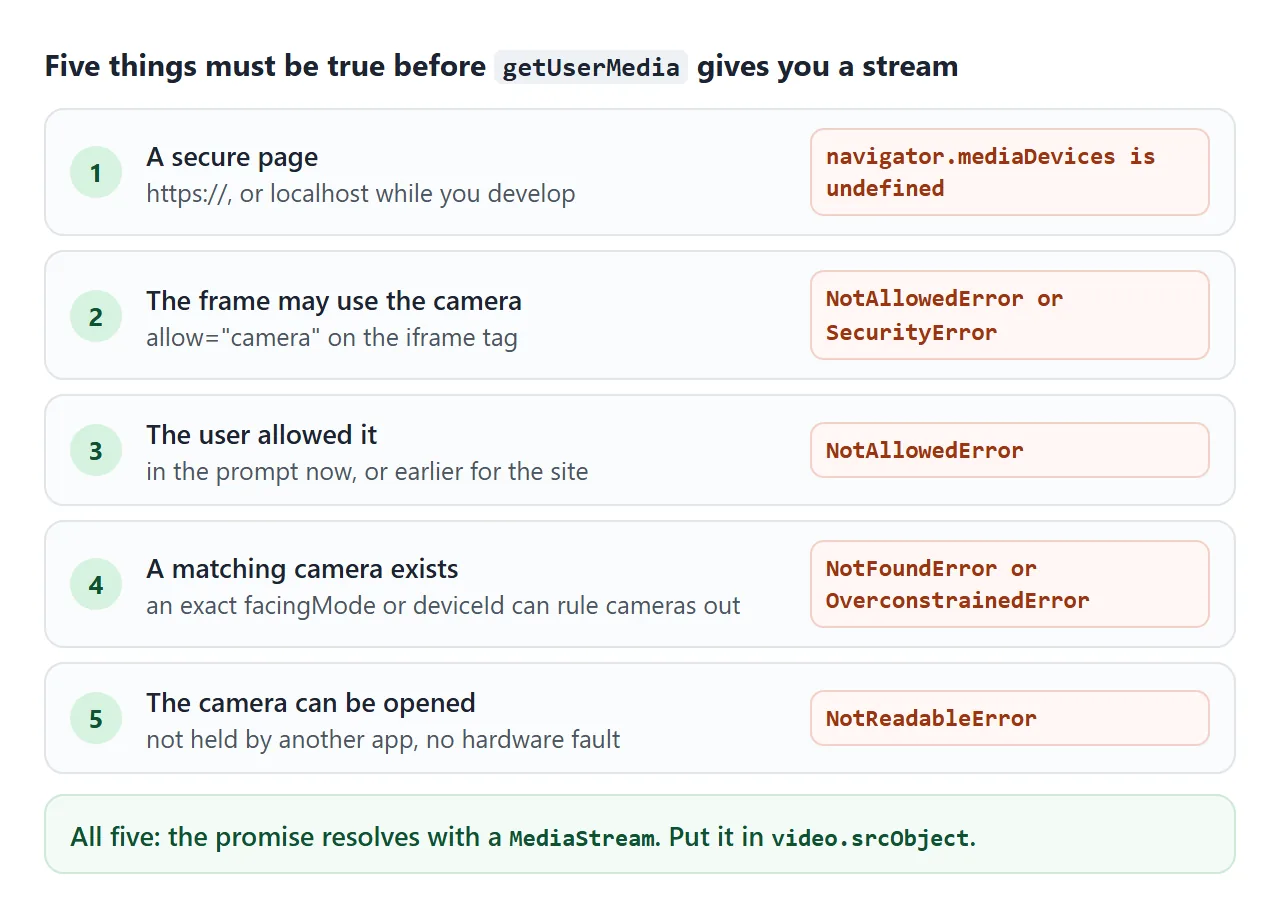
Ask on a button click rather than when the page loads. The prompt then comes right after the user asked for the camera, and makes sense to them.
Turn the camera off: stop every track
A stream is made of tracks, one per camera or microphone. The camera stays on, and its light stays lit, as long as a track is live.
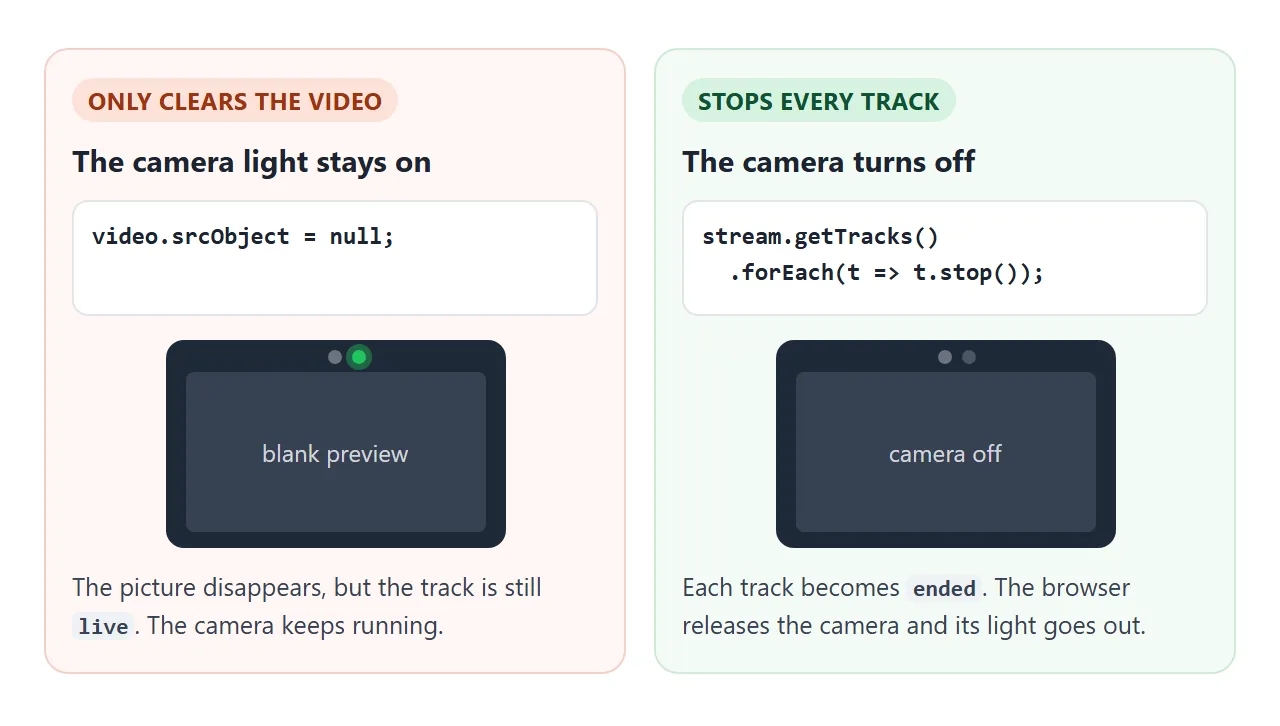
stream.getTracks().forEach((t) => t.stop());
video.srcObject = null;
In the example above, the line under the video shows each track's readyState. After Stop it reads ended. Stop the old stream before you start a new one too, for example when switching cameras.
Front or back camera: facingMode
On a phone, facingMode picks the camera. 'user' is the front camera, 'environment' the back one.
// a preference: any camera will do if there is no back camera
getUserMedia({ video: { facingMode: 'environment' } });

// a requirement: fails if there is no back camera
getUserMedia({ video: { facingMode: { exact: 'environment' } } });
Copy the example to your own page, open it on a laptop, and choose Back only (exact). It fails with OverconstrainedError, and err.constraint names facingMode. The plain version starts the laptop's one camera instead.
To list every camera, call navigator.mediaDevices.enumerateDevices() and keep the videoinput entries. Their label stays empty until the user has allowed the camera.
Mirroring. People expect a front camera preview to act like a mirror. Flip the preview with CSS, transform: scaleX(-1). That only changes the screen. A photo taken from the video is not flipped. Tick Mirror in the example and the word SAMPLE reads backwards.
Error names and what to tell the user
getUserMedia returns a promise. When it fails, err.name says why.
err.name |
What happened | What to show |
|---|---|---|
NotAllowedError |
The user refused, now or earlier. Or a frame lacks allow="camera" |
"Camera access is off for this site." Offer the file input |
SecurityError |
Camera use is not allowed in this document, such as a sandboxed frame | Open the page on its own, not in the frame |
NotFoundError |
No camera, or none matching the request | Offer the file input |
NotReadableError |
The camera exists but could not be opened. Often another app holds it | "Close other apps using the camera and try again." |
OverconstrainedError |
An exact requirement matched no camera. err.constraint names it |
Retry without exact |
TypeError |
navigator.mediaDevices is undefined on an insecure page |
Serve the page over HTTPS |
A refusal may be remembered for the site. The page cannot bring the prompt back. The user changes it in the browser's site settings. The geolocation guide has the same permission pattern.
Inside an iframe: allow="camera"
The camera is controlled by permissions policy. A frame from another origin needs allow="camera" on its <iframe> tag. The permission is set by the parent page. The framed page cannot give it to itself.
<iframe src="https://other.example/photo.html" allow="camera"></iframe>
In our test in Chromium, a frame from another origin without allow="camera" failed with NotAllowedError, and the same frame with it got the stream. A frame sandboxed without allow-same-origin failed with SecurityError even with allow="camera". See the sandbox attribute and the iframe guide.
A finished example: a snapshot tool
Taking a photo is one drawImage call. A canvas accepts a <video> as a source and copies the current frame.
<!doctype html>
<html lang="en">
<head>
<meta charset="utf-8">
<meta name="viewport" content="width=device-width, initial-scale=1">
<title>Camera snapshot tool</title>
<style>
  body { margin: 0; padding: 14px; font-family: system-ui, sans-serif; background: #f4f5f7; color: #1d2330; }
  .bar { display: flex; flex-wrap: wrap; gap: 8px; margin-bottom: 10px; }
  button { font: inherit; font-size: 14px; padding: 8px 12px; border-radius: 8px; border: 1px solid #c8ced8; background: #fff; }
  button.go { background: #2563eb; border-color: #2563eb; color: #fff; }
  button[aria-pressed="true"] { background: #1d2330; border-color: #1d2330; color: #fff; }
  button:disabled { opacity: .45; }
  .panes { display: grid; grid-template-columns: 1fr 1fr; gap: 10px; }
  video, canvas {
    display: block; width: 100%; aspect-ratio: 4 / 3; border-radius: 10px;
    background: #1f2937; object-fit: cover;
  }
  .cap { font-size: 12px; color: #6b7280; margin: 4px 0 0; }
  #status { font-size: 14px; margin: 10px 0 0; }
  #status.err { color: #b42318; }
  @media (max-width: 420px) { .panes { grid-template-columns: 1fr; } video, canvas { max-height: 150px; } }
</style>
</head>
<body>
<div class="bar">
  <button class="go" id="start">Start camera</button>
  <button id="sample">Use a sample picture</button>
  <button class="go" id="shoot" disabled>Take photo</button>
</div>
<div class="panes">
  <div><video id="video" autoplay muted playsinline></video><p class="cap">Live</p></div>
  <div><canvas id="photo" width="640" height="480"></canvas><p class="cap">Photo</p></div>
</div>
<div class="bar" style="margin-top:10px" id="filters">
  <button data-f="none" aria-pressed="true">Original</button>
  <button data-f="gray" aria-pressed="false">Gray</button>
  <button data-f="sepia" aria-pressed="false">Sepia</button>
  <button data-f="invert" aria-pressed="false">Invert</button>
  <button class="go" id="save" disabled>Download PNG</button>
</div>
<p id="status">Start the camera, or use the sample picture.</p>

<script>
  const video = document.getElementById('video');
  const photo = document.getElementById('photo');
  const ctx = photo.getContext('2d', { willReadFrequently: true });
  const status = document.getElementById('status');
  const shoot = document.getElementById('shoot');
  const save = document.getElementById('save');
  let stream = null, source = null, original = null;

  function show(text, isError) { status.textContent = text; status.className = isError ? 'err' : ''; }

  function stopCamera() {
    if (stream) stream.getTracks().forEach((t) => t.stop());
    stream = null;
    video.srcObject = null;
  }

  document.getElementById('start').addEventListener('click', async () => {
    try {
      stopCamera();
      stream = await navigator.mediaDevices.getUserMedia({ video: { facingMode: 'environment' } });
      video.srcObject = stream;
      source = video;
      shoot.disabled = false;
      show('Camera on. Press Take photo.');
    } catch (err) {
      show((err.name || 'Error') + ': the camera did not start. Use the sample picture instead.', true);
    }
  });

  // Fallback picture drawn on a canvas, so the photo tools work without a camera
  document.getElementById('sample').addEventListener('click', () => {
    stopCamera();
    const c = document.createElement('canvas');
    c.width = 640; c.height = 480;
    const g = c.getContext('2d');
    const sky = g.createLinearGradient(0, 0, 0, 480);
    sky.addColorStop(0, '#38bdf8'); sky.addColorStop(1, '#fef3c7');
    g.fillStyle = sky; g.fillRect(0, 0, 640, 480);
    g.fillStyle = '#f97316'; g.beginPath(); g.arc(470, 150, 70, 0, 7); g.fill();
    g.fillStyle = '#15803d'; g.beginPath(); g.moveTo(0, 480); g.lineTo(220, 230); g.lineTo(420, 480); g.fill();
    g.fillStyle = '#166534'; g.beginPath(); g.moveTo(260, 480); g.lineTo(470, 290); g.lineTo(640, 480); g.fill();
    source = c;
    video.poster = c.toDataURL();  // show it in the Live box
    shoot.disabled = false;
    show('Sample picture ready. Press Take photo.');
  });

  shoot.addEventListener('click', () => {
    const w = source.videoWidth || source.width;
    const h = source.videoHeight || source.height;
    if (!w) return show('The camera is still starting. Try again in a moment.');
    photo.width = w; photo.height = h;
    ctx.drawImage(source, 0, 0, w, h);  // copy the current frame
    original = ctx.getImageData(0, 0, w, h);
    setFilter('none');
    save.disabled = false;
    show('Photo taken: ' + w + ' x ' + h + '. Try a filter, then download.');
  });

  function setFilter(name) {
    document.querySelectorAll('#filters [data-f]').forEach((b) => b.setAttribute('aria-pressed', b.dataset.f === name));
    if (!original) return;
    const img = new ImageData(new Uint8ClampedArray(original.data), original.width, original.height);
    const d = img.data;
    for (let i = 0; i < d.length; i += 4) {
      const r = d[i], g = d[i + 1], b = d[i + 2];
      if (name === 'gray') { d[i] = d[i + 1] = d[i + 2] = 0.3 * r + 0.59 * g + 0.11 * b; }
      if (name === 'sepia') { d[i] = 0.39 * r + 0.77 * g + 0.19 * b; d[i + 1] = 0.35 * r + 0.69 * g + 0.17 * b; d[i + 2] = 0.27 * r + 0.53 * g + 0.13 * b; }
      if (name === 'invert') { d[i] = 255 - r; d[i + 1] = 255 - g; d[i + 2] = 255 - b; }
    }
    ctx.putImageData(img, 0, 0);
  }

  document.getElementById('filters').addEventListener('click', (e) => {
    if (e.target.dataset.f) setFilter(e.target.dataset.f);
  });

  save.addEventListener('click', () => {
    photo.toBlob((blob) => {
      const url = URL.createObjectURL(blob);
      const a = document.createElement('a');
      a.href = url;
      a.download = 'photo.png';
      a.click();
      setTimeout(() => URL.revokeObjectURL(url), 1000);
      show('Saved photo.png (' + Math.round(blob.size / 1024) + ' KB).');
    }, 'image/png');
  });
</script>
</body>
</html>
Take the photo: size the canvas to
video.videoWidthandvideoHeight, thenctx.drawImage(video, 0, 0). Both are 0 until the first frame arrives.Filter: read the pixels with
getImageData, change them, write them back withputImageData. A CSS filter on the video would change only the screen, not the saved file.Download:
canvas.toBlob()gives a PNG blob. A blob URL on a link withdownload="photo.png"saves it.
Canvas drawing basics are in drawing on a canvas. To play recorded files rather than a live camera, see the video tag.
When it does not work
| What you see | Cause | Fix |
|---|---|---|
navigator.mediaDevices is undefined |
The page is on http://, not HTTPS or localhost | Serve it over HTTPS |
No prompt, NotAllowedError at once |
The user blocked the camera earlier, or the frame lacks allow="camera" |
Site settings, or add allow="camera" to the iframe |
SecurityError in a frame |
The frame is sandboxed without an origin | Open the page directly, or offer the file input |
NotReadableError |
Another app or tab is using the camera | Close it and try again |
| The camera light stays on | The tracks were never stopped | stream.getTracks().forEach(t => t.stop()) |
| The photo is flipped compared with the preview | Only the preview is mirrored with CSS | Flip the canvas too, or do not mirror the preview |
| The phone opens the front camera | No facingMode in the request |
Ask for facingMode: 'environment' |
| The photo is blank | drawImage ran before the first frame |
Wait until video.videoWidth is above 0 |
Share it as a link
A camera page has to be tried on the device that has the camera, usually a phone. A screenshot shows nothing, and an .html attachment may open as plain code on a phone.
To send a working version, paste the page into a NOS document and choose Create share link. HTML to link walks through it.
The page renders as written and its scripts run. If you change the code later, the same link shows the new version.
Keep the file input and the sample picture in whatever you share. The file input works in any page. If the page ends up inside an embedded frame without the camera permission, the live stream cannot start, and readers can still try everything else.