The HTML <video> tag plays a video file in the page. Write <video controls src="clip.mp4"></video> and the browser draws a player with play, a progress bar, volume and full screen. Every other attribute changes how that player starts, loops and looks.
Try them below. Tick a box and the element is rebuilt from the HTML line underneath, so each attribute acts the way it would in your own page.
<!doctype html>
<html lang="en">
<head>
<meta charset="utf-8">
<meta name="viewport" content="width=device-width, initial-scale=1">
<title>Video tag attribute playground</title>
<style>
  body { margin: 0; padding: 14px; font-family: system-ui, sans-serif; background: #f4f5f7; color: #1d2330; }
  .stage { max-width: 480px; aspect-ratio: 16 / 9; background: #11151c; border-radius: 10px; overflow: hidden; }
  .stage video { display: block; width: 100%; height: 100%; }
  .opts { display: flex; flex-wrap: wrap; gap: 6px 14px; margin: 12px 0 8px; font-size: 14px; }
  .opts label { display: flex; align-items: center; gap: 5px; }
  code { display: block; padding: 8px 10px; border-radius: 8px; background: #fff; border: 1px solid #e1e4ea;
         font: 12.5px/1.45 ui-monospace, Consolas, monospace; overflow-wrap: anywhere; }
  #state { font-size: 13.5px; color: #4b5563; margin: 8px 0 0; }
</style>
</head>
<body>
<div class="stage" id="stage"></div>

<div class="opts" id="opts">
  <label><input type="checkbox" value="controls" checked> controls</label>
  <label><input type="checkbox" value="poster" checked> poster</label>
  <label><input type="checkbox" value="muted" checked> muted</label>
  <label><input type="checkbox" value="loop"> loop</label>
  <label><input type="checkbox" value="autoplay"> autoplay</label>
</div>
<code id="code"></code>
<p id="state">Recording a 4-second test clip in your browser...</p>

<script>
  // Test clip maker: records a few seconds of canvas drawing into a video file (a Blob).
  // On your own page you skip all of this and write src="clip.mp4".
  function makeClip(seconds, paint) {
    const canvas = document.createElement('canvas');
    canvas.width = 640; canvas.height = 360;
    const ctx = canvas.getContext('2d');
    const type = ['video/webm', 'video/mp4'].find((t) => MediaRecorder.isTypeSupported(t));
    const rec = new MediaRecorder(canvas.captureStream(30), { mimeType: type });
    const parts = [];
    rec.ondataavailable = (e) => parts.push(e.data);
    const start = performance.now();
    const timer = setInterval(() => paint(ctx, (performance.now() - start) / 1000), 33);
    paint(ctx, 0);
    rec.start();
    return new Promise((done) => {
      rec.onstop = () => { clearInterval(timer); done(URL.createObjectURL(new Blob(parts, { type }))); };
      setTimeout(() => rec.stop(), seconds * 1000);
    });
  }

  // One frame of the clip: a ball crossing the screen and a clock
  function paint(ctx, t) {
    ctx.fillStyle = `hsl(${200 + t * 25} 70% 45%)`;
    ctx.fillRect(0, 0, 640, 360);
    ctx.fillStyle = '#fff';
    ctx.beginPath(); ctx.arc(60 + t * 130, 180, 40, 0, 7); ctx.fill();
    ctx.font = 'bold 44px system-ui, sans-serif';
    ctx.fillText(t.toFixed(1) + ' s', 24, 64);
  }

  // The poster: a still image drawn once and turned into a data: URL
  function makePoster() {
    const c = document.createElement('canvas');
    c.width = 640; c.height = 360;
    const ctx = c.getContext('2d');
    ctx.fillStyle = '#1f2937'; ctx.fillRect(0, 0, 640, 360);
    ctx.fillStyle = '#fbbf24'; ctx.font = 'bold 56px system-ui, sans-serif';
    ctx.fillText('POSTER', 40, 200);
    ctx.fillStyle = '#d1d5db'; ctx.font = '26px system-ui, sans-serif';
    ctx.fillText('shown until playback starts', 40, 250);
    return c.toDataURL('image/png');
  }

  const stage = document.getElementById('stage');
  const code = document.getElementById('code');
  const state = document.getElementById('state');
  const boxes = document.querySelectorAll('#opts input');
  const poster = makePoster();
  let clip = '';

  // Rebuild the element from HTML, so each attribute acts exactly as it would in a page
  function render() {
    const on = [...boxes].filter((b) => b.checked).map((b) => b.value);
    const attrs = on.filter((a) => a !== 'poster').concat('playsinline');
    const tag = `<video ${attrs.join(' ')} preload="metadata"` +
      (on.includes('poster') ? ' poster="poster.png"' : '') + ' src="clip.webm"></video>';
    code.textContent = tag;
    if (!clip) return;
    stage.innerHTML = tag.replace('poster.png', poster).replace('clip.webm', clip);
    const video = stage.querySelector('video');
    const show = () => {
      const len = isFinite(video.duration) ? video.duration.toFixed(1) + ' s' : '? s';
      const what = video.ended ? 'ended' : video.paused ? 'paused' : 'playing';
      state.textContent = `${what} · ${video.currentTime.toFixed(1)} of ${len} · ` +
        (video.muted ? 'muted' : 'sound on') + (video.loop ? ' · loops' : '');
    };
    ['play', 'pause', 'ended', 'timeupdate', 'loadedmetadata', 'volumechange'].forEach((ev) => video.addEventListener(ev, show));
    show();
  }

  boxes.forEach((b) => b.addEventListener('change', render));
  render();
  makeClip(4.2, paint).then((url) => { clip = url; render(); });
</script>
</body>
</html>
The example has no video file. Its script draws frames on a <canvas>, records four seconds of them with MediaRecorder, and hands the result to the element as a blob: URL. With a real file, src="clip.mp4" replaces all of that.
The clip has no sound track, and your clicks in the box count as interaction with the page. So here, autoplay may start even with muted unticked. On a page nobody has touched yet, a video with sound needs muted to autoplay.
The attributes of the video tag
| Attribute | What it does |
|---|---|
controls |
Shows the browser's own player. Without it, nothing to click |
src |
The address of one video file |
poster |
An image shown until playback starts |
width, height |
Size in pixels, and the shape of the box before the file loads |
muted |
Starts with the sound off |
autoplay |
Asks to start on load. Usually refused unless muted |
loop |
Starts again from the beginning at the end |
playsinline |
Plays inside the page instead of full screen on phones |
preload |
A hint: none, metadata or auto |
Set width and height even when CSS resizes the video. Browsers use the two numbers as the aspect ratio of the box, so with width: 100%; height: auto the space is reserved before the file arrives and the text below does not jump.
The poster disappears once playback starts or someone seeks. With autoplay, it shows only for a moment. Without a poster, the box stays empty until the first frame loads, and with preload="none" that may not happen until play.
The muted attribute only sets the starting state. To mute or unmute from a script, set video.muted = true. Changing the attribute afterwards does not change the sound.
Several formats with source
src points at a single file. To offer a choice, leave out src and put <source> elements inside the tag. The browser goes down the list and uses the first one it can play.
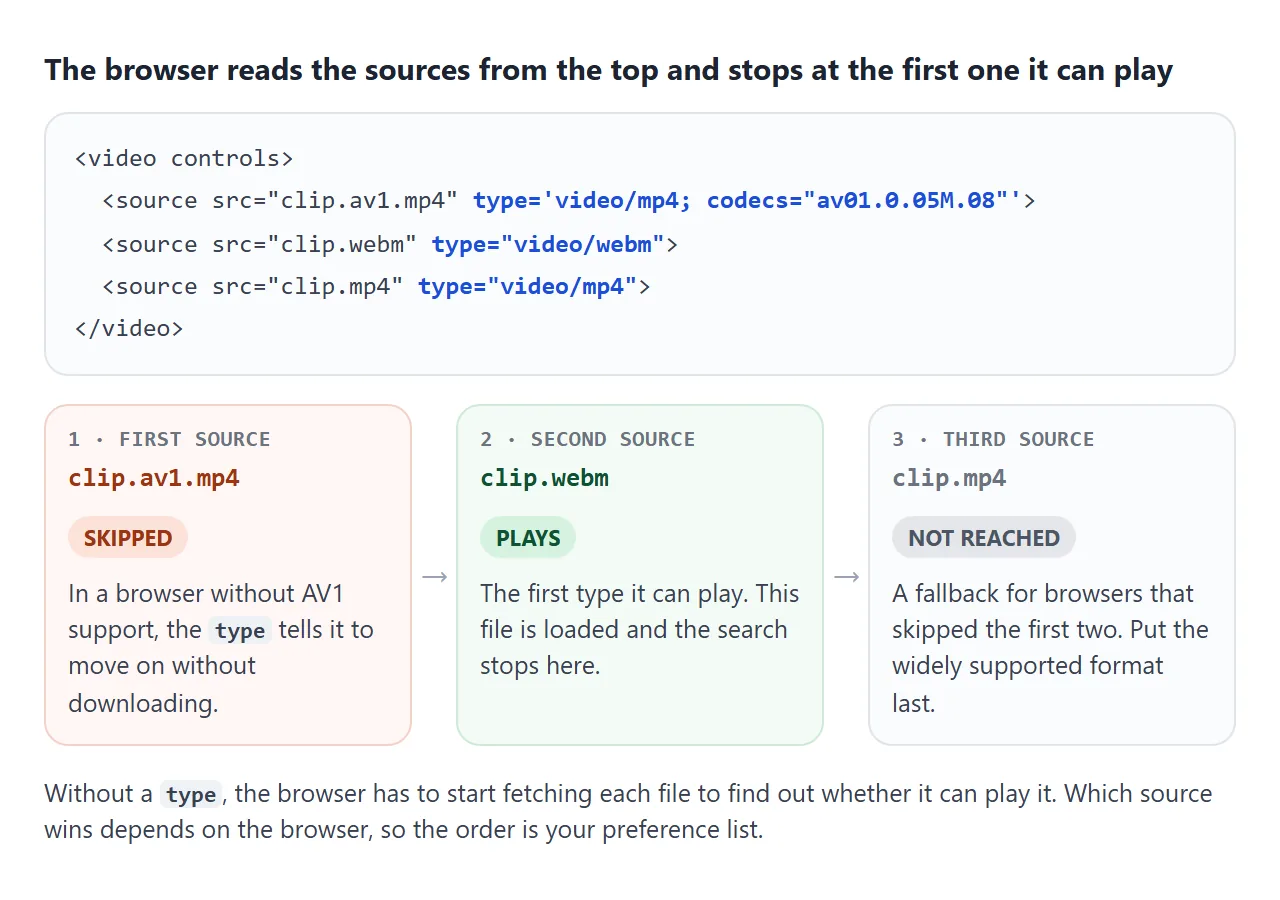
<video controls width="640" height="360" poster="still.jpg">
  <source src="clip.webm" type="video/webm">
  <source src="clip.mp4" type="video/mp4">
  Your browser cannot play this video.
</video>
Put your preferred format first and MP4 last. The text inside only shows in a browser that does not know the <video> element at all.
From a script, video.canPlayType('video/webm') answers "probably", "maybe" or an empty string. When a path is wrong, the problem is not the format at all: HTML video file not found walks through that case.
A video as a CSS-like background
CSS background-image only takes images. For a moving background, put a real <video> element behind the content and let CSS make it act like a background.
<!doctype html>
<html lang="en">
<head>
<meta charset="utf-8">
<meta name="viewport" content="width=device-width, initial-scale=1">
<title>Background video hero</title>
<style>
  body { margin: 0; padding: 14px; font-family: system-ui, sans-serif; background: #f4f5f7; color: #1d2330; }
  .hero {
    position: relative; overflow: hidden;   /* the video is cropped to this box */
    height: 290px; border-radius: 12px; background: #0f172a;
    display: grid; place-items: center; text-align: center;
  }
  .hero video {
    position: absolute; inset: 0;
    width: 100%; height: 100%;
    object-fit: cover;                      /* fill the box, crop the overflow */
  }
  .hero .shade { position: absolute; inset: 0; background: rgba(15, 23, 42, .45); }  /* keeps the text readable */
  .hero .copy { position: relative; color: #fff; padding: 0 20px; }
  .hero h2 { margin: 0 0 8px; font-size: clamp(24px, 6vw, 36px); }
  .hero p { margin: 0; font-size: 16px; opacity: .9; }
  .pause {
    position: absolute; right: 12px; bottom: 12px;
    padding: 7px 12px; border: 0; border-radius: 99px;
    background: rgba(255, 255, 255, .9); font: 600 14px system-ui, sans-serif; cursor: pointer;
  }
  .fit { margin-top: 10px; font-size: 14px; }
</style>
</head>
<body>
<section class="hero">
  <video id="bg" autoplay muted loop playsinline aria-hidden="true"></video>
  <div class="shade"></div>
  <div class="copy">
    <h2>Pages people can try</h2>
    <p>Text on top of a moving background.</p>
  </div>
  <button class="pause" id="toggle" type="button">Pause video</button>
</section>
<label class="fit">object-fit:
  <select id="fit"><option>cover</option><option>contain</option><option>fill</option></select>
</label>

<script>
  const video = document.getElementById('bg');
  const toggle = document.getElementById('toggle');

  // Respect "reduce motion": do not start moving on its own
  if (matchMedia('(prefers-reduced-motion: reduce)').matches) {
    video.autoplay = false;
    toggle.textContent = 'Play video';
  }

  // Stand-in for a real file: a live canvas animation fed straight into the video.
  // On your own page: <video src="bg.mp4" autoplay muted loop playsinline>
  const canvas = document.createElement('canvas');
  canvas.width = 640; canvas.height = 360;          // a 16:9 "video"
  const ctx = canvas.getContext('2d');
  (function draw(now) {
    const t = (now || 0) / 1000;
    ctx.fillStyle = '#1e3a8a'; ctx.fillRect(0, 0, 640, 360);
    for (let i = 0; i < 5; i++) {                    // round circles show any stretching
      ctx.fillStyle = `hsl(${180 + i * 30} 80% 60% / .8)`;
      ctx.beginPath();
      ctx.arc(320 + Math.cos(t * .6 + i * 1.3) * 230, 180 + Math.sin(t * .8 + i) * 110, 55, 0, 7);
      ctx.fill();
    }
    requestAnimationFrame(draw);
  })();
  video.srcObject = canvas.captureStream(30);

  toggle.addEventListener('click', () => {
    if (video.paused) video.play(); else video.pause();
  });
  video.addEventListener('play', () => { toggle.textContent = 'Pause video'; });
  video.addEventListener('pause', () => { toggle.textContent = 'Play video'; });

  document.getElementById('fit').addEventListener('change', (e) => {
    video.style.objectFit = e.target.value;
  });
</script>
</body>
</html>
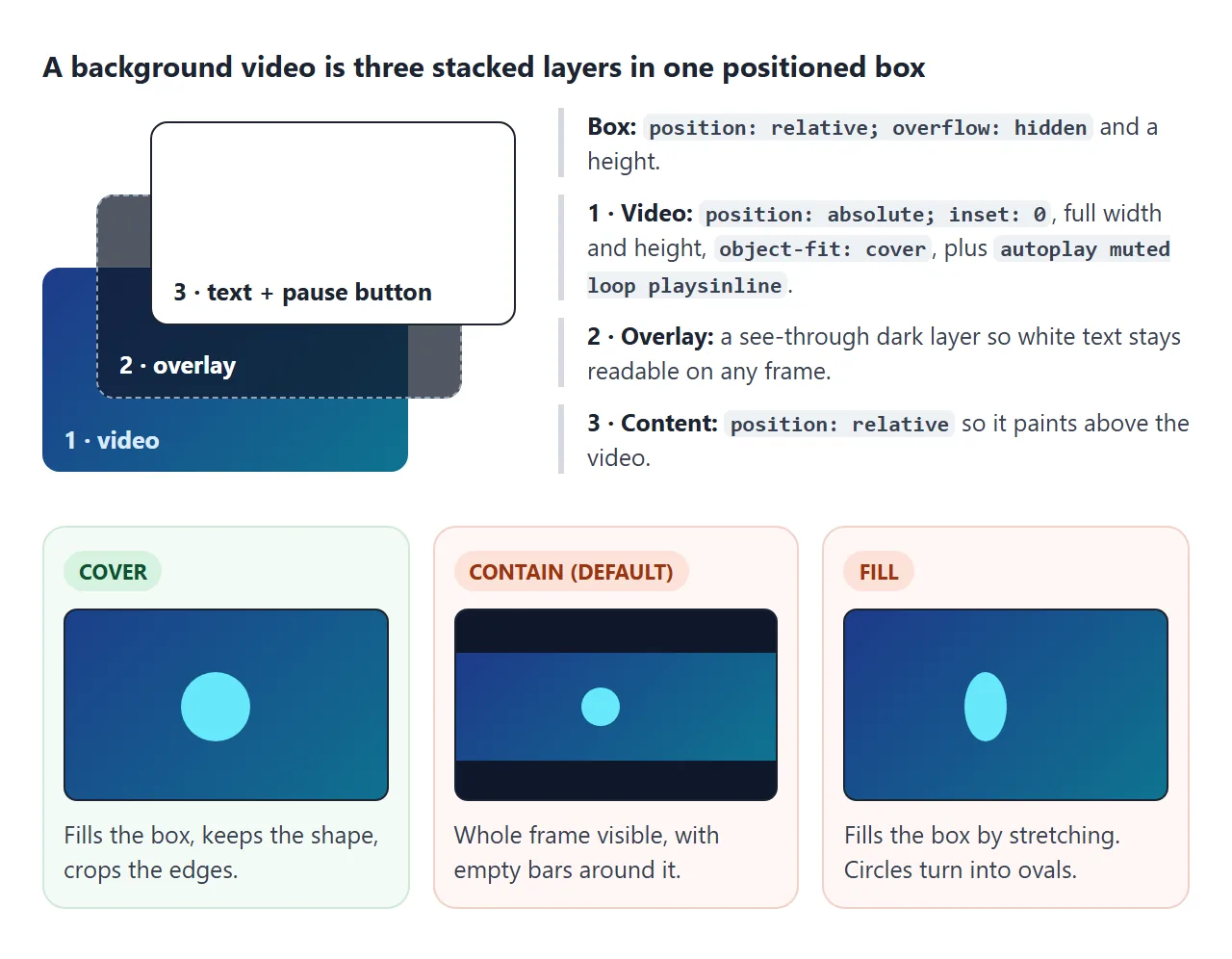
.hero { position: relative; overflow: hidden; height: 60vh; }
.hero video {
  position: absolute; inset: 0;
  width: 100%; height: 100%;
  object-fit: cover;
}
.hero .content { position: relative; }
<video src="bg.mp4" autoplay muted loop playsinline aria-hidden="true"></video>
object-fit: coverfills the box and crops what does not fit. The default for a video iscontain, which leaves bars. CSS object-fit covers all five values.autoplay muted loop playsinline– all four. Leave outmutedand the browser will usually refuse to start. Withoutplaysinline, Safari on iPhone may switch to full screen.- An overlay – a see-through dark layer keeps white text readable on light frames.
The example feeds a live canvas animation into the element with canvas.captureStream() and video.srcObject, so there is no file to loop. On your page, the file and loop do that job.
Motion that starts on its own needs a way to stop it. The pause button is ordinary video.pause(). The example also checks prefers-reduced-motion and does not start the video for visitors who asked for less motion.
When autoplay still fails, HTML video not autoplaying has the full rule. For a looping clip in an article rather than a background, see embedding a video that autoplays and loops.
Captions with track and WebVTT
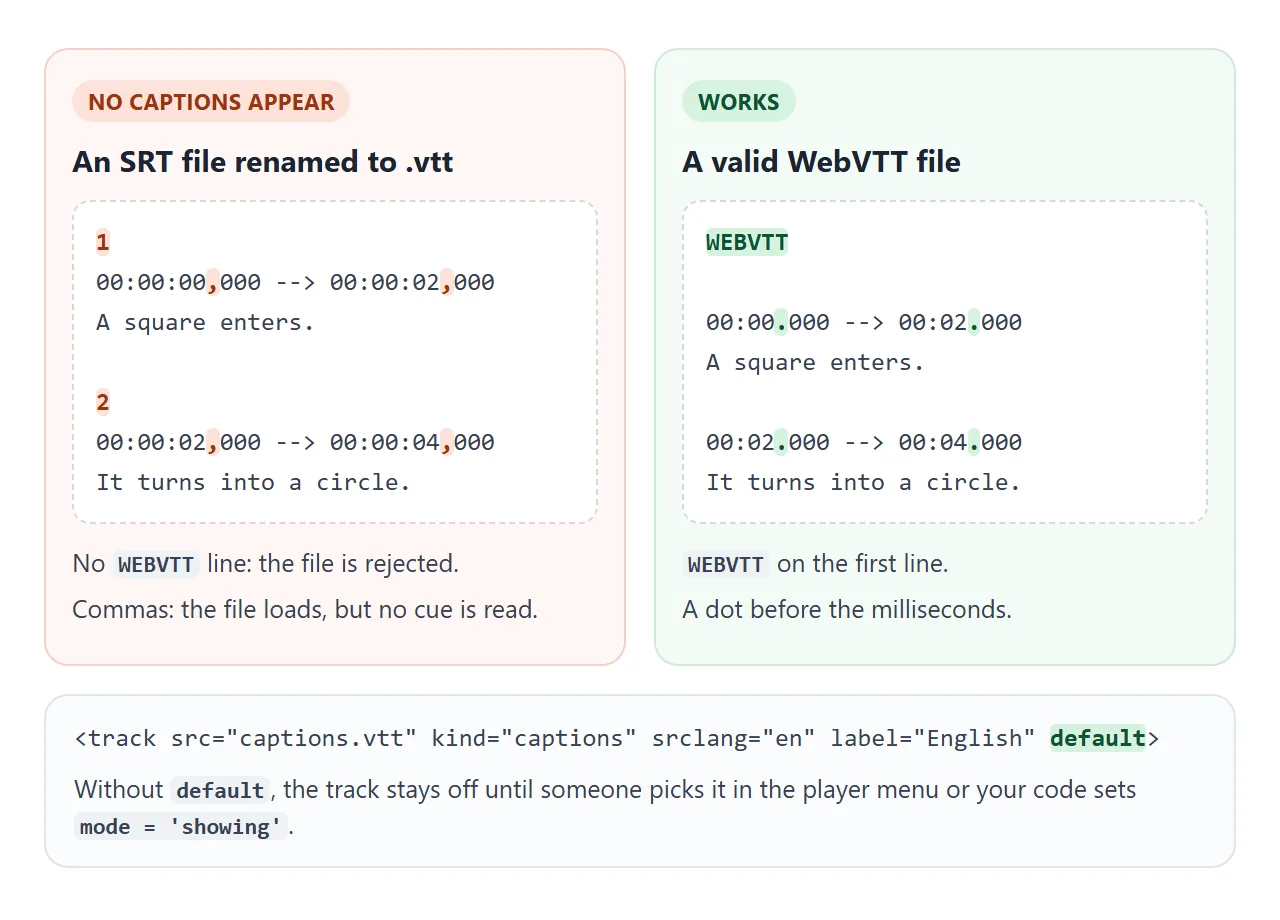
Captions live in a separate text file in WebVTT format. A <track> element inside the video points at it, and the browser draws the lines over the picture at the right times.
<video controls src="clip.mp4">
  <track src="captions.vtt" kind="captions" srclang="en" label="English" default>
</video>
kind |
Used for | Drawn on the video |
|---|---|---|
subtitles |
Translation of the dialogue | Yes |
captions |
Dialogue plus sounds, for viewers who cannot hear it | Yes |
descriptions |
Text description of what is on screen | No |
chapters |
Chapter titles for navigation | No |
metadata |
Data for your scripts | No |
srclang is the language code and label is the name shown in the player's captions menu. default switches the track on. Without it, the track stays off until the viewer picks it, or your code sets track.mode = 'showing'.
A caption file on another domain needs the crossorigin attribute on the video and CORS headers on that server. Otherwise the file is blocked.
The JavaScript API: a custom player
Leave out controls and the element shows only the picture. Your own buttons then call the same methods the built-in player uses.
<!doctype html>
<html lang="en">
<head>
<meta charset="utf-8">
<meta name="viewport" content="width=device-width, initial-scale=1">
<title>Custom video player with captions</title>
<style>
body { margin: 0; padding: 14px; font-family: system-ui, sans-serif; background: #f4f5f7; color: #1d2330; }
.player { max-width: 560px; border-radius: 12px; overflow: hidden; background: #11151c; }
.player video { display: block; width: 100%; height: auto; aspect-ratio: 16 / 9; cursor: pointer; }
video::cue { background: rgba(0, 0, 0, .75); color: #fff; }
.bar { display: flex; align-items: center; gap: 10px; padding: 8px 10px; background: #1f2937; color: #e5e7eb; }
.bar button {
min-width: 40px; height: 34px; border: 0; border-radius: 8px;
background: #374151; color: #fff; font: 700 14px system-ui, sans-serif; cursor: pointer;
}
.bar button[aria-pressed="true"] { background: #16a34a; }
.bar input { flex: 1; min-width: 0; accent-color: #22c55e; }
#time { font: 13px ui-monospace, Consolas, monospace; white-space: nowrap; }
#note { font-size: 13.5px; color: #4b5563; margin: 8px 0 0; }
</style>
</head>
<body>
<div class="player">
<video id="video" playsinline preload="metadata" width="640" height="360">
<track kind="captions" srclang="en" label="English" default>
</video>
<div class="bar">
<button id="play" type="button" aria-label="Play">▶</button>
<input id="seek" type="range" min="0" max="0" step="0.1" value="0" aria-label="Seek">
<span id="time">0:00 / 0:00</span>
<button id="cc" type="button" aria-pressed="true" aria-label="Captions">CC</button>
</div>
</div>
<p id="note">Recording a 6-second test clip in your browser...</p>
<script>
const video = document.getElementById('video');
const playBtn = document.getElementById('play');
const seek = document.getElementById('seek');
const time = document.getElementById('time');
const cc = document.getElementById('cc');
// Captions in WebVTT format. On your own page: <track src="captions.vtt" ...>
const vtt = `WEBVTT
00:00.000 --> 00:02.000
A square enters from the left.
00:02.000 --> 00:04.000
It turns into a circle.
00:04.000 --> 00:06.000
And stops at the finish line.`;
video.querySelector('track').src = URL.createObjectURL(new Blob([vtt], { type: 'text/vtt' }));
// Test clip maker: records canvas drawing into a video Blob (stands in for src="clip.mp4")
function makeClip(seconds, paint) {
const canvas = document.createElement('canvas');
canvas.width = 640; canvas.height = 360;
const ctx = canvas.getContext('2d');
const type = ['video/webm', 'video/mp4'].find((t) => MediaRecorder.isTypeSupported(t));
const rec = new MediaRecorder(canvas.captureStream(30), { mimeType: type });
const parts = [];
rec.ondataavailable = (e) => parts.push(e.data);
const start = performance.now();
const timer = setInterval(() => paint(ctx, (performance.now() - start) / 1000), 33);
paint(ctx, 0);
rec.start();
return new Promise((done) => {
rec.onstop = () => { clearInterval(timer); done(URL.createObjectURL(new Blob(parts, { type }))); };
setTimeout(() => rec.stop(), seconds * 1000);
});
}
makeClip(6.2, (ctx, t) => {
ctx.fillStyle = '#e0f2fe'; ctx.fillRect(0, 0, 640, 360);
ctx.fillStyle = '#0f172a'; ctx.fillRect(560, 60, 6, 240); // finish line
const x = Math.min(40 + t * 110, 490);
const r = Math.min(Math.max(t - 2, 0) / 2, 1) * 35; // corners round off from 2 s to 4 s
ctx.fillStyle = '#ea580c';
ctx.beginPath(); ctx.roundRect(x, 145, 70, 70, r); ctx.fill();
}).then((url) => {
video.src = url;
document.getElementById('note').textContent = 'Ready. Click the video or the play button.';
});
// --- The player: everything below works the same with a real file ---
const fmt = (s) => Math.floor(s / 60) + ':' + String(Math.floor(s % 60)).padStart(2, '0');
function render() {
const len = isFinite(video.duration) ? video.duration : 0;
seek.max = len;
seek.value = video.currentTime;
time.textContent = fmt(video.currentTime) + ' / ' + fmt(len);
}
function togglePlay() {
if (video.paused || video.ended) video.play(); else video.pause();
}
playBtn.addEventListener('click', togglePlay);
video.addEventListener('click', togglePlay);
video.addEventListener('play', () => { playBtn.innerHTML = '❚❚'; playBtn.setAttribute('aria-label', 'Pause'); });
video.addEventListener('pause', () => { playBtn.innerHTML = '▶'; playBtn.setAttribute('aria-label', 'Play'); });
video.addEventListener('loadedmetadata', render);
video.addEventListener('timeupdate', render);
seek.addEventListener('input', () => { video.currentTime = seek.value; });
// Captions on and off: the track stays loaded, only its mode changes
cc.addEventListener('click', () => {
const track = video.textTracks[0];
track.mode = track.mode === 'showing' ? 'hidden' : 'showing';
cc.setAttribute('aria-pressed', track.mode === 'showing');
});
</script>
</body>
</html>
| Member | What it does |
|---|---|
play() |
Starts playback. Returns a promise that rejects if the browser refuses |
pause() |
Pauses. To stop, pause and set currentTime = 0 |
currentTime |
Position in seconds. Set it to jump |
duration |
Length in seconds. NaN until metadata has loaded |
paused, ended |
true or false |
textTracks |
The loaded tracks. Each one has a mode |
The player listens for four events and writes the page from them:
loadedmetadata: the length is known. Set the seek bar'smax.timeupdate: fires repeatedly while playing. Move the seek bar and the time label.playandpause: switch the button icon and itsaria-label.inputon the range: setcurrentTimefrom its value.
The captions button flips textTracks[0].mode between showing and hidden. The track stays loaded, so switching back is instant. The button's aria-pressed tells screen readers whether captions are on.
When it does not work
| What you see | Cause | Fix |
|---|---|---|
| Video stays still, no error | Autoplay with sound was blocked | Add muted, or start from a click |
| iPhone jumps to full screen | No playsinline |
Add playsinline |
| Blank player, or error in the console | Format or codec the browser cannot play, or wrong server type | Offer an MP4 <source>, check canPlayType and the Content-Type header |
| Black bars around the picture | Default object-fit: contain |
object-fit: cover |
| Picture stretched | object-fit: fill in your CSS |
cover or contain |
| Captions never appear | Missing WEBVTT line, commas in times, or no default |
Fix the file, add default or set mode |
| Poster never shows | Wrong image path, or autoplay starts at once | Check the path in the Network tab, remove autoplay to test |
| Page jumps when the video loads | No width and height |
Add both attributes |
If a track file loads but no line ever appears, open it and look at the timestamps first. A file converted from SRT often keeps the commas.
Share it as a link
A page with video is hard to review from a screenshot. Nobody can press play in a picture, and an .html attachment may open as plain code on a phone.
To send the working version, paste the page into a NOS document and choose Create share link. HTML to link walks through it.
The page renders as written and its scripts run, so the people you send it to can play, seek and switch captions themselves. If you change the code later, the same link shows the new version.