The HTML <audio> tag plays sound in a page. Write <audio controls src="song.mp3"></audio> and the browser draws a player with play, a progress bar and volume. The controls attribute is what makes it visible. Without it, the element takes up no space at all.
Try the player below. The buttons call the same JavaScript methods the built-in controls use, and the box shows what the element reports back.
<!doctype html>
<html lang="en">
<head>
<meta charset="utf-8">
<meta name="viewport" content="width=device-width, initial-scale=1">
<title>Audio tag basics</title>
<style>
  body { margin: 0; padding: 16px; font-family: system-ui, sans-serif; background: #f4f5f7; color: #1d2330; }
  audio { width: 100%; max-width: 420px; display: block; }
  .row { display: flex; flex-wrap: wrap; gap: 8px; margin: 14px 0 10px; }
  button {
    font: 600 14px system-ui, sans-serif; padding: 9px 14px; border: 0; border-radius: 8px;
    background: #1d4ed8; color: #fff; cursor: pointer;
  }
  button.alt { background: #e5e7eb; color: #1d2330; }
  pre {
    margin: 0; padding: 10px 12px; border-radius: 8px; background: #fff;
    font: 13px/1.6 ui-monospace, Consolas, monospace; white-space: pre-wrap;
  }
</style>
</head>
<body>
<!-- With a real file you would write: <audio controls src="song.mp3"></audio> -->
<audio id="player" controls preload="metadata"></audio>

<div class="row">
  <button id="play">play()</button>
  <button id="pause" class="alt">pause()</button>
  <button id="jump" class="alt">currentTime = 2</button>
</div>
<pre id="out">loading...</pre>

<script>
  // Build a short WAV file in memory, so the example needs no audio file.
  function makeWav(seconds, sampleAt) {
    const rate = 22050, n = Math.floor(seconds * rate);
    const v = new DataView(new ArrayBuffer(44 + n * 2));
    const text = (at, s) => [...s].forEach((c, i) => v.setUint8(at + i, c.charCodeAt(0)));
    text(0, 'RIFF'); v.setUint32(4, 36 + n * 2, true); text(8, 'WAVE');
    text(12, 'fmt '); v.setUint32(16, 16, true); v.setUint16(20, 1, true); v.setUint16(22, 1, true);
    v.setUint32(24, rate, true); v.setUint32(28, rate * 2, true); v.setUint16(32, 2, true); v.setUint16(34, 16, true);
    text(36, 'data'); v.setUint32(40, n * 2, true);
    for (let i = 0; i < n; i++) v.setInt16(44 + i * 2, sampleAt(i / rate) * 32767, true);
    return URL.createObjectURL(new Blob([v.buffer], { type: 'audio/wav' }));
  }

  // Four soft notes, 1 second each
  const notes = [523, 659, 784, 1047];
  const src = makeWav(4, (t) => {
    const f = notes[Math.floor(t)], local = t % 1;
    return 0.3 * Math.exp(-3 * local) * Math.sin(2 * Math.PI * f * t);
  });

  const audio = document.getElementById('player');
  const out = document.getElementById('out');
  audio.src = src;

  function show() {
    out.textContent =
      'currentTime: ' + audio.currentTime.toFixed(2) + ' s\n' +
      'duration:    ' + audio.duration.toFixed(2) + ' s\n' +
      'paused:      ' + audio.paused;
  }

  document.getElementById('play').addEventListener('click', () => {
    audio.play().catch((err) => { out.textContent = 'play() failed: ' + err.name; });
  });
  document.getElementById('pause').addEventListener('click', () => audio.pause());
  document.getElementById('jump').addEventListener('click', () => { audio.currentTime = 2; });

  // The element reports its own state through events
  ['loadedmetadata', 'timeupdate', 'play', 'pause', 'seeked', 'ended']
    .forEach((type) => audio.addEventListener(type, show));
</script>
</body>
</html>
The example has no audio file. Its script writes a few seconds of sound samples and a WAV header into memory, wraps them in a Blob, and hands URL.createObjectURL(blob) to the element as its src.
That keeps it self-contained. With a real file, src="song.mp3" is all you need.
The attributes that matter
| Attribute | What it does |
|---|---|
controls |
Shows the browser's own player. Without it, nothing is drawn |
src |
The address of one audio file |
autoplay |
Asks to start on load. Usually refused when the audio has sound |
loop |
Starts again from the beginning at the end |
muted |
Starts with the sound off |
preload |
A hint: none, metadata or auto |
preload is only a hint, and the default differs between browsers. metadata is a good middle ground: the browser fetches enough to know the length, without downloading the whole file up front. none saves data when a page lists many tracks.
With loop set, the audio never reaches its end, so the ended event does not fire. If your code waits for ended, it waits forever.
One file or several: src vs source
src points at a single file. If the browser cannot play that format, you get silence. To offer alternatives, leave out src and put <source> elements inside the tag instead.
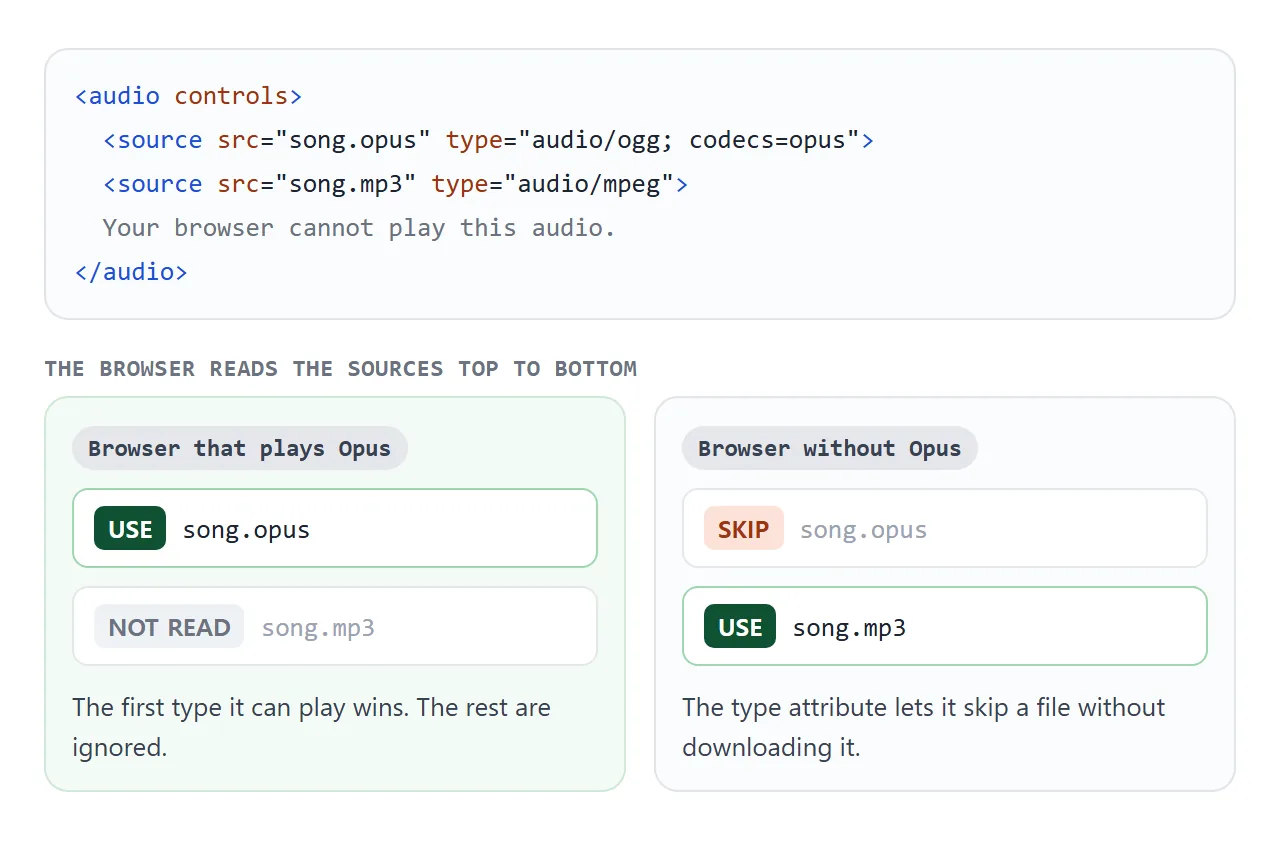
<audio controls>
  <source src="song.opus" type="audio/ogg; codecs=opus">
  <source src="song.mp3" type="audio/mpeg">
  Your browser cannot play this audio.
</audio>
Order matters: put the format you prefer first and the widely supported one, such as MP3, last.
The text inside only shows in a browser that does not know the <audio> element at all. To check a format from code, audio.canPlayType('audio/mpeg') returns "probably", "maybe" or an empty string.
Why autoplay does not work
Browsers generally block audio with sound until the visitor has interacted with the page, for example with a click or a key press. The autoplay attribute is then ignored, and calling play() from a script is refused.
play() returns a promise. When playback is blocked, the promise is rejected with a NotAllowedError. The example below tries to play on load, then again from a button.
<!doctype html>
<html lang="en">
<head>
<meta charset="utf-8">
<meta name="viewport" content="width=device-width, initial-scale=1">
<title>Autoplay test</title>
<style>
  body { margin: 0; padding: 16px; font-family: system-ui, sans-serif; background: #f4f5f7; color: #1d2330; }
  .line {
    display: flex; gap: 10px; align-items: baseline; padding: 10px 12px; margin-bottom: 8px;
    border-radius: 8px; background: #fff; font-size: 14px; line-height: 1.4;
  }
  .line b { flex: 0 0 auto; min-width: 170px; font-weight: 600; }
  .ok { color: #0f5132; } .no { color: #9a3412; } .wait { color: #6b7280; }
  button {
    font: 600 14px system-ui, sans-serif; padding: 10px 16px; margin-top: 6px;
    border: 0; border-radius: 8px; background: #1d4ed8; color: #fff; cursor: pointer;
  }
  @media (max-width: 420px) { .line { flex-direction: column; gap: 2px; } }
</style>
</head>
<body>
<div class="line"><b>1. Sound, no click</b><span id="r1" class="wait">trying...</span></div>
<div class="line"><b>2. Muted audio, no click</b><span id="r2" class="wait">trying...</span></div>
<div class="line"><b>3. Muted video, no click</b><span id="r3" class="wait">trying...</span></div>
<div class="line"><b>4. Sound, after click</b><span id="r4" class="wait">press the button</span></div>
<button id="btn">Click to play with sound</button>

<script>
  // Same WAV builder as the first example: 16-bit mono PCM in a Blob
  function makeWav(seconds, sampleAt) {
    const rate = 22050, n = Math.floor(seconds * rate);
    const v = new DataView(new ArrayBuffer(44 + n * 2));
    const text = (at, s) => [...s].forEach((c, i) => v.setUint8(at + i, c.charCodeAt(0)));
    text(0, 'RIFF'); v.setUint32(4, 36 + n * 2, true); text(8, 'WAVE');
    text(12, 'fmt '); v.setUint32(16, 16, true); v.setUint16(20, 1, true); v.setUint16(22, 1, true);
    v.setUint32(24, rate, true); v.setUint32(28, rate * 2, true); v.setUint16(32, 2, true); v.setUint16(34, 16, true);
    text(36, 'data'); v.setUint32(40, n * 2, true);
    for (let i = 0; i < n; i++) v.setInt16(44 + i * 2, sampleAt(i / rate) * 32767, true);
    return URL.createObjectURL(new Blob([v.buffer], { type: 'audio/wav' }));
  }
  const src = makeWav(1.5, (t) => 0.3 * Math.exp(-2.5 * t) * Math.sin(2 * Math.PI * 660 * t));

  function attempt(media, el, label) {
    media.play()
      .then(() => { el.textContent = 'playing (' + label + ')'; el.className = 'ok'; })
      .catch((err) => { el.textContent = 'blocked: ' + err.name; el.className = 'no'; });
  }

  // 1-3 run as soon as the page loads, before anyone clicks
  const loud = new Audio(src);
  attempt(loud, document.getElementById('r1'), 'allowed here');

  const quiet = new Audio(src);
  quiet.muted = true;
  attempt(quiet, document.getElementById('r2'), 'muted');

  // The same sound in a <video> element, for comparison
  const video = document.createElement('video');
  video.muted = true;
  video.src = src;
  attempt(video, document.getElementById('r3'), 'muted');

  // 4 runs inside a click handler, which counts as a user gesture
  document.getElementById('btn').addEventListener('click', () => {
    const afterClick = new Audio(src);
    attempt(afterClick, document.getElementById('r4'), 'with sound');
  });
</script>
</body>
</html>
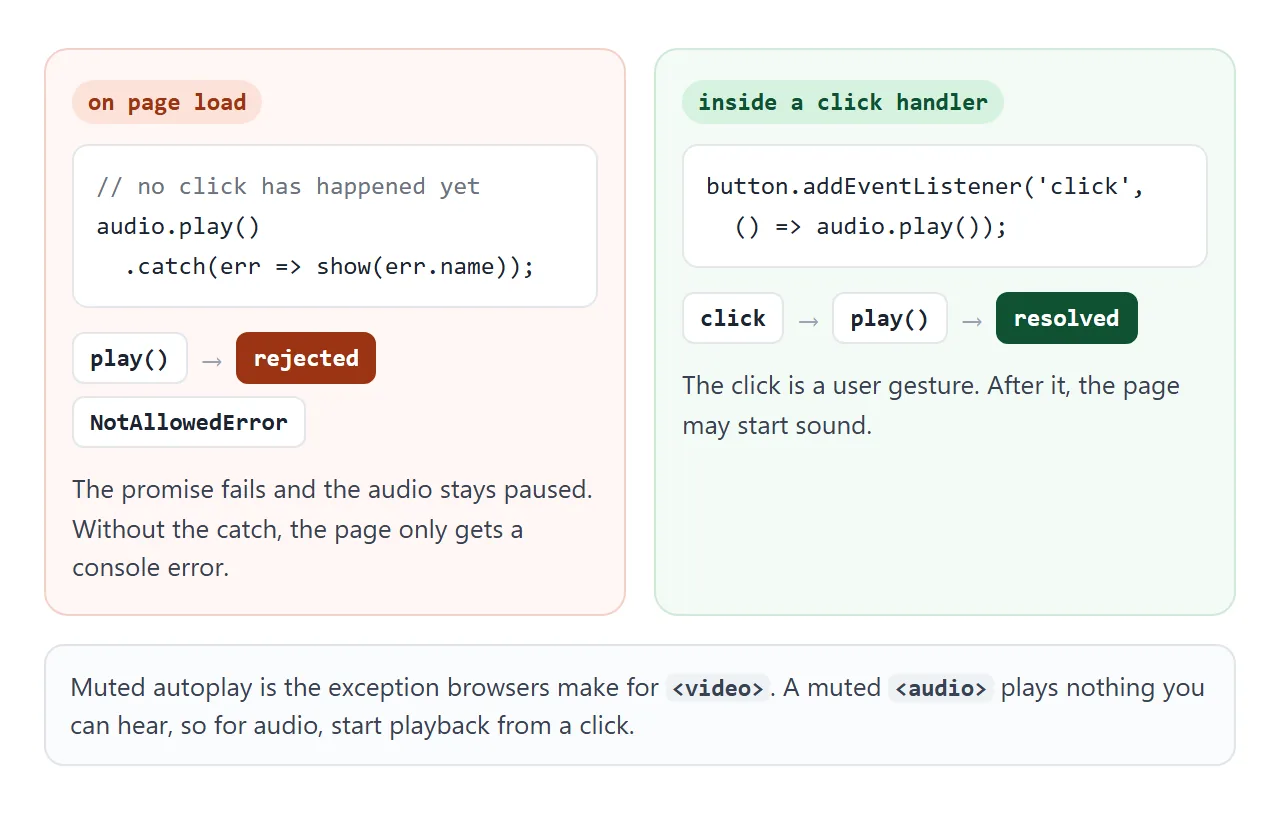
Row 3 is there for contrast. Muted autoplay is an exception browsers make for <video>, and the same sound in a muted video element starts.
Row 2 shows what your browser does with a muted <audio> element. Do not build on it: muted audio is silent either way, so for sound, start playback from a click.
The dependable pattern is to start sound from a click and handle the rejection:
button.addEventListener('click', () => {
  audio.play().catch((err) => {
    status.textContent = 'Could not play: ' + err.name;
  });
});
Video follows the same sound rule, plus the muted exception. HTML video not autoplaying covers that side.
The JavaScript API
The element you get from getElementById is a full player you can drive from code.
| Member | What it does |
|---|---|
play() |
Starts playback. Returns a promise |
pause() |
Pauses. There is no stop method: pause and set currentTime = 0 |
currentTime |
Position in seconds. Set it to jump |
duration |
Length in seconds. NaN until metadata has loaded |
volume |
From 0 to 1 |
paused, ended |
true or false |
Changes come back as events. Four cover most players:
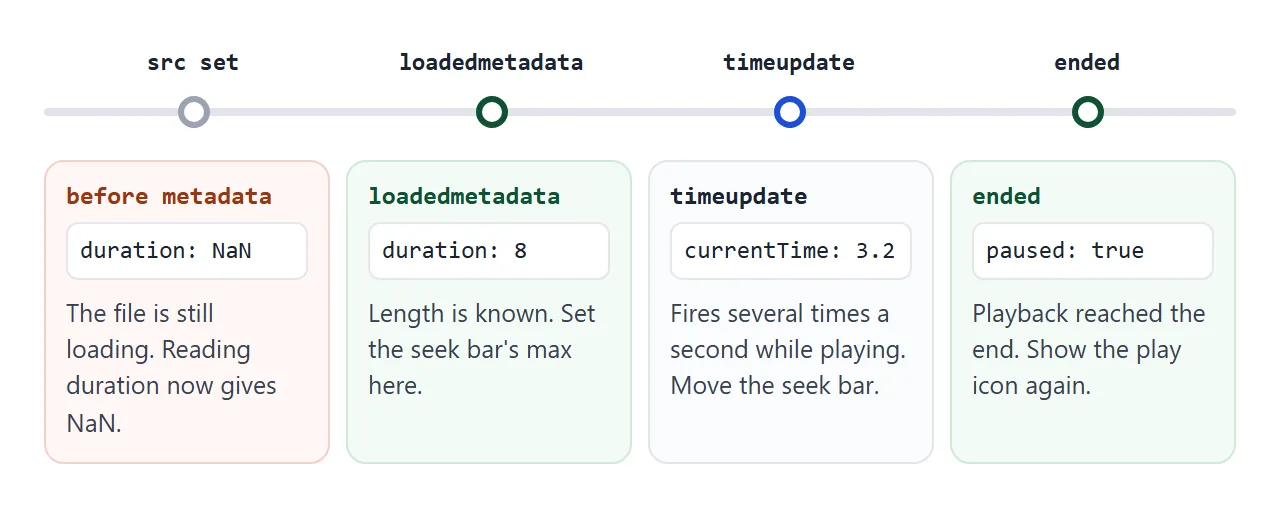
loadedmetadata: the length is known. Set up the seek bar here.timeupdate: fires repeatedly while playing. Move the seek bar and the time label.playandpause: switch the play button icon.ended: playback reached the end.
Styling the native controls
You can size and place the <audio> element like any other box: width, margin, display: block. What you cannot do with standard CSS is restyle the buttons and slider inside it. The browser draws them, and each browser draws them its own way.
For a player that matches your design, leave out controls. The element then stays hidden, and your own buttons call the API. That is all a custom player is.
A finished example: a custom player
This player has a play and pause button, a seek bar, a time label and a volume slider. The <audio> element has no controls attribute, so everything you see is ordinary HTML and CSS.
<!doctype html>
<html lang="en">
<head>
<meta charset="utf-8">
<meta name="viewport" content="width=device-width, initial-scale=1">
<title>Custom audio player</title>
<style>
body { margin: 0; padding: 16px; font-family: system-ui, sans-serif; background: #eceef1; color: #1d2330; }
.player {
max-width: 440px; padding: 16px 18px; border-radius: 14px;
background: linear-gradient(135deg, #1e293b, #334155); color: #f8fafc;
box-shadow: 0 8px 24px rgba(0, 0, 0, .18);
}
.title { font-weight: 700; font-size: 15px; } .sub { font-size: 12.5px; color: #cbd5e1; margin-top: 2px; }
.main { display: flex; align-items: center; gap: 12px; margin-top: 14px; }
.toggle {
flex: 0 0 44px; height: 44px; border: 0; border-radius: 50%;
background: #22c55e; color: #052e16; font-size: 18px; cursor: pointer;
}
.toggle:focus-visible, input:focus-visible { outline: 3px solid #93c5fd; outline-offset: 2px; }
.seek { flex: 1; min-width: 0; accent-color: #22c55e; }
.time { font: 13px ui-monospace, Consolas, monospace; min-width: 84px; text-align: right; }
.vol { display: flex; align-items: center; gap: 8px; margin-top: 12px; font-size: 13px; color: #cbd5e1; }
.vol input { width: 130px; accent-color: #e2e8f0; }
</style>
</head>
<body>
<div class="player">
<div class="title">Generated melody</div>
<div class="sub">Built in the page, no audio file</div>
<!-- No controls attribute: the element stays hidden and our UI drives it -->
<audio id="audio" preload="metadata"></audio>
<div class="main">
<button class="toggle" id="toggle" aria-label="Play">▶</button>
<input class="seek" id="seek" type="range" min="0" max="0" step="0.01" value="0" aria-label="Seek">
<span class="time" id="time">0:00 / 0:00</span>
</div>
<label class="vol">Volume <input id="vol" type="range" min="0" max="1" step="0.05" value="0.8"></label>
</div>
<script>
// WAV builder from the first example
function makeWav(seconds, sampleAt) {
const rate = 22050, n = Math.floor(seconds * rate);
const v = new DataView(new ArrayBuffer(44 + n * 2));
const text = (at, s) => [...s].forEach((c, i) => v.setUint8(at + i, c.charCodeAt(0)));
text(0, 'RIFF'); v.setUint32(4, 36 + n * 2, true); text(8, 'WAVE');
text(12, 'fmt '); v.setUint32(16, 16, true); v.setUint16(20, 1, true); v.setUint16(22, 1, true);
v.setUint32(24, rate, true); v.setUint32(28, rate * 2, true); v.setUint16(32, 2, true); v.setUint16(34, 16, true);
text(36, 'data'); v.setUint32(40, n * 2, true);
for (let i = 0; i < n; i++) v.setInt16(44 + i * 2, sampleAt(i / rate) * 32767, true);
return URL.createObjectURL(new Blob([v.buffer], { type: 'audio/wav' }));
}
const tune = [392, 440, 494, 587, 523, 494, 440, 392, 440, 494, 440, 392, 330, 392, 440, 392];
const step = 0.5; // seconds per note
const audio = document.getElementById('audio');
audio.src = makeWav(tune.length * step, (t) => {
const f = tune[Math.floor(t / step)], local = t % step;
return 0.28 * Math.exp(-4 * local) * Math.sin(2 * Math.PI * f * t);
});
const toggle = document.getElementById('toggle');
const seek = document.getElementById('seek');
const time = document.getElementById('time');
const vol = document.getElementById('vol');
const fmt = (s) => Math.floor(s / 60) + ':' + String(Math.floor(s % 60)).padStart(2, '0');
function render() {
const d = isFinite(audio.duration) ? audio.duration : 0; // NaN until metadata loads
seek.max = d;
seek.value = audio.currentTime;
time.textContent = fmt(audio.currentTime) + ' / ' + fmt(d);
toggle.innerHTML = audio.paused ? '▶' : '❚❚';
toggle.setAttribute('aria-label', audio.paused ? 'Play' : 'Pause');
}
toggle.addEventListener('click', () => {
if (audio.paused) audio.play().catch((err) => { time.textContent = err.name; });
else audio.pause();
});
seek.addEventListener('input', () => { audio.currentTime = seek.value; });
vol.addEventListener('input', () => { audio.volume = vol.value; });
audio.volume = vol.value;
['loadedmetadata', 'timeupdate', 'play', 'pause', 'ended'].forEach((type) => audio.addEventListener(type, render));
</script>
</body>
</html>
- Seek bar: an
<input type="range">. Itsmaxcomes fromduration, and dragging it setscurrentTime. - Time label: redrawn on every
timeupdate, with seconds formatted asm:ss. - Play button: calls
play()orpause()depending onpaused, and its icon follows theplayandpauseevents. - Volume: a second range input from 0 to 1, copied into
audio.volume.
The render function guards against NaN with isFinite(audio.duration), so the label reads 0:00 instead of NaN:NaN while the file loads.
When it does not work
| What you see | Cause | Fix |
|---|---|---|
| Nothing on the page | No controls attribute |
Add controls, or build your own buttons |
Silent on load, console shows NotAllowedError |
Autoplay with sound was blocked | Call play() from a click and .catch() the promise |
| The player shows but will not play | The browser cannot decode that format, or the server sends the wrong type | Offer MP3 as a <source>, check canPlayType and the Content-Type header |
| The player never starts, 404 in the Network tab | The src path is wrong |
Check the path relative to the page, and the file name's case |
Duration shows NaN |
Read before metadata loaded | Read it in a loadedmetadata listener |
ended never fires |
loop is set |
Remove loop, or do not rely on ended |
When no <source> works, the error event fires on the <source> elements, not on the audio element. Listen there, or open the browser's Network tab to see what was requested. For missing video files the same checks apply, as HTML video file not found shows.
Share it as a link
A sound page is hard to describe in a screenshot. Nobody can press play in a picture, and an .html attachment may open as plain code on a phone.
To send the working version, paste the page into a NOS document and choose Create share link. HTML to link walks through it.
The page renders as written and its scripts run, so the people you send it to can press play and drag the seek bar themselves. If you change the code later, the same link shows the new version.