To convert HTML to a Google Doc, upload the .html file to Drive, right click it, and choose Open with, then Google Docs. Drive converts the markup into document content and saves it as a new Doc beside the original file.
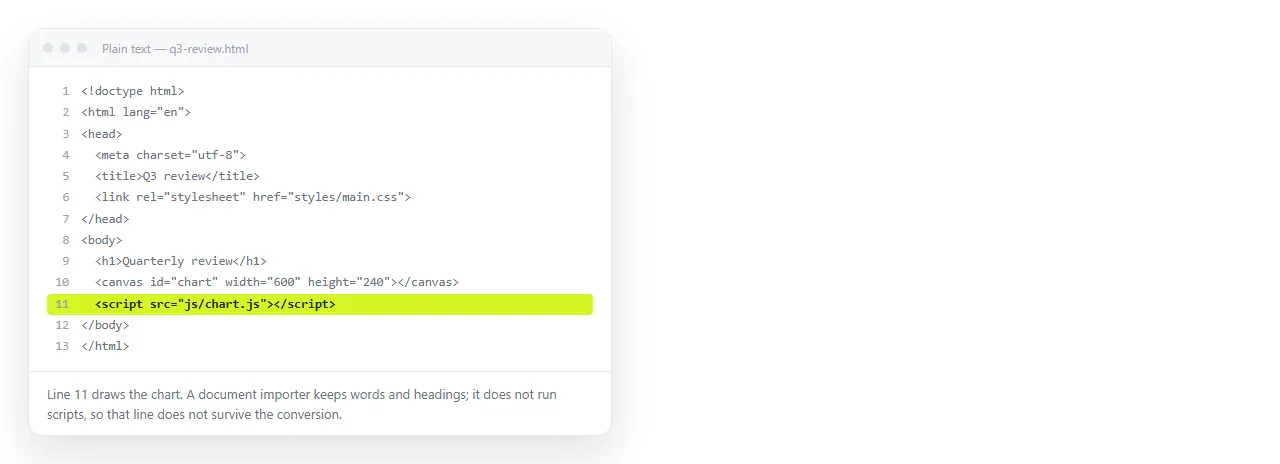
Headings, paragraphs, lists, tables, links and images come through. Styling comes through partially. Anything a script draws does not come through at all.
That last point decides most cases. If the page is a report with a live chart, converting it produces a document with a hole where the chart was.
Ways to convert HTML to a Google Doc
| Route | Structure | Visual fidelity | Charts | Effort |
|---|---|---|---|---|
| Upload to Drive, open with Docs | Good | Plain | No | Low |
| Browser, select all, paste into Docs | Fair | Closest to the page | Only if already images | Low |
| Pandoc to docx, upload, open in Docs | Cleanest | Plain, follows a template | No | Medium |
The second route surprises people. Because the browser has already computed the CSS, Docs receives the resolved appearance rather than markup it has to interpret.
None of the three run your JavaScript, so the blank chart problem is shared. Capture the charts as images before you start and the rest of the conversion is straightforward.
Route one: upload and open
- Open the file in a browser first. If images or styling are missing there, they will be missing in the document. Use the HTML file opener, a window that has never seen your project folder.
- Capture the charts. Do it now, while the page still draws them. HTML to image covers the capture.
- Drag the file into a Drive folder. It arrives as a file, not as a document.
- Right click, then Open with, then Google Docs. The converted document appears as a separate item. The original file stays where it was.
- Repair and reinsert. Wide tables, multi column sections and positioned elements all flatten. Place the chart images where the charts were.
Route two: paste from the browser
Open the page, select everything, copy, and paste into an empty Doc.
Colours, fonts, table borders and spacing usually come through, because they were already resolved by the browser. The trade is that the result arrives as direct formatting rather than as named styles, which makes a corporate template harder to apply afterwards.
Use this when the appearance matters more than the structure, and when the document is a one off.
One practical note. Paste into an empty document rather than into an existing one. Pasted styling lands as direct formatting, and mixing it into a styled document produces a file nobody can restyle afterwards.
Route three: through pandoc
When the conversion has to be repeatable, or the output must follow a template:
pandoc report.html -o report.docx
pandoc report.html --reference-doc=template.docx -o report.docx
Upload the resulting .docx to Drive and open it with Docs. Pandoc ignores your CSS on purpose and maps the markup onto document structure, so headings land on real heading styles.
This is the route to automate. The other two need a person.
Use --reference-doc when the output has to match a house style. Pandoc reads the heading and body styles from the template you give it and applies them to the converted content, so the document arrives already formatted.
What Drive does with the file you uploaded

Worth knowing, because it catches people out. Drive previews an .html file as source text rather than rendering it.
So sharing the uploaded file gives your reader a screen of code, not a page. HTML files in Google Drive covers the preview behaviour and the workarounds.
Converting to a Doc solves the preview problem and loses the design. Serving the page from an address solves both.
The same applies to Drive sharing permissions. A converted Doc has its own sharing settings, separate from the original file, so check them before sending the link to anyone outside your organisation.
When the page should stay a page
Convert if the destination needs comments, suggested edits, a shared template, or an approval trail. Those are real reasons and a Doc is the right container for them.
Keep the page if the layout carries meaning, if there is a chart or a sortable table, or if the HTML came from an assistant as a finished design that would be expensive to rebuild.
There is also a middle path that people forget. Convert a short summary into a Doc for the comments and the approval trail, and link the live page from the top of it.
Pasting the HTML into a NOS document renders it as written, dark theme, charts and scripts included, as a page of its own.

Then Share, then Share link, then Create link. The link is unlisted by default, so it opens for anyone with the address without being indexed, and the text stays clickable so corrections do not create a new version.

Quick decision
| If you need | Do |
|---|---|
| Comments and suggested edits | Convert to a Doc |
| A printed handout | Convert to a Doc, then export a PDF |
| The chart to work | Keep it as a page |
| One address that stays correct | Keep it as a page |
| Both a document and a page | Convert, and link the page from inside the Doc |
If the material is a deck rather than a document, converting HTML to Google Slides covers the equivalent path, and converting HTML to Word covers the Office side.