app-region: drag marks an area of your page that moves the app window when the user presses and drags it. app-region: no-drag cuts an area back out so buttons and inputs keep working.
Both only matter in a web app installed on a desktop operating system that has handed its title bar area to the page.
Try it first. Click the bar: the box shows which region you hit.
<!doctype html>
<html lang="en">
<head>
<meta charset="utf-8">
<meta name="viewport" content="width=device-width, initial-scale=1">
<title>Custom title bar with app-region</title>
<style>
  body { margin: 0; font-family: system-ui, sans-serif; background: #f4f5f7; color: #1d2330; }
  .titlebar {
    position: fixed;
    left: env(titlebar-area-x, 0);           /* fallback: no overlay, use the full width */
    top: env(titlebar-area-y, 0);
    width: env(titlebar-area-width, 100%);
    height: env(titlebar-area-height, 44px);
    display: flex; align-items: center; gap: 8px;
    padding: 0 10px; box-sizing: border-box;
    background: #1f3b73; color: #fff;
    -webkit-app-region: drag;                 /* dragging the bar moves the window */
    app-region: drag;
  }
  .titlebar input, .titlebar button {
    -webkit-app-region: no-drag;              /* controls must stay clickable */
    app-region: no-drag;
  }
  .titlebar b { font-size: 14px; white-space: nowrap; }
  .titlebar input { flex: 1; min-width: 0; padding: 6px 8px; border: 0; border-radius: 6px; }
  .titlebar button { padding: 6px 10px; border: 0; border-radius: 6px; background: #ffd166; cursor: pointer; }
  main { padding: 60px 16px 16px; font-size: 14px; line-height: 1.5; }
  #out { white-space: pre-wrap; font: 13px ui-monospace, Consolas, monospace; background: #fff; border: 1px solid #e1e4ea; border-radius: 8px; padding: 10px; }
</style>
</head>
<body>
<header class="titlebar">
  <b>Notes</b>
  <input placeholder="Search notes">
  <button type="button">New</button>
</header>
<main>
  <p>Click anywhere on the blue bar to see which region you hit. In a browser tab the bar does not move the window; that only happens in an installed app.</p>
  <div id="out">Waiting for a click…</div>
</main>
<script>
  const out = document.getElementById('out');
  const supported = CSS.supports('app-region', 'drag') || CSS.supports('-webkit-app-region', 'drag');

  const regionValue = (el) => {
    const cs = getComputedStyle(el);
    return cs.getPropertyValue('app-region') || cs.getPropertyValue('-webkit-app-region');
  };

  document.querySelector('.titlebar').addEventListener('pointerdown', (e) => {
    if (!supported) {
      out.textContent = 'This browser does not recognise app-region, so the bar is plain HTML here.';
      return;
    }
    // The value is not inherited: walk up to the nearest box that sets drag or no-drag
    let el = e.target;
    while (!['drag', 'no-drag'].includes(regionValue(el))) el = el.parentElement;
    out.textContent = '<' + e.target.tagName.toLowerCase() + '> own value: ' + regionValue(e.target)
      + '\nregion: ' + regionValue(el) + ' (set on <' + el.tagName.toLowerCase() + '>)';
  });
</script>
</body>
</html>
In this frame, the bar does not move the window, because the page is in a tab. The CSS is the same code an installed app would use.
What app-region does, and where
An installed web app normally opens in its own window with a title bar drawn by the browser. With the Window Controls Overlay feature, the page gets that area too. Only the window control buttons, such as minimize, maximize and close, remain, drawn as an overlay above the page.
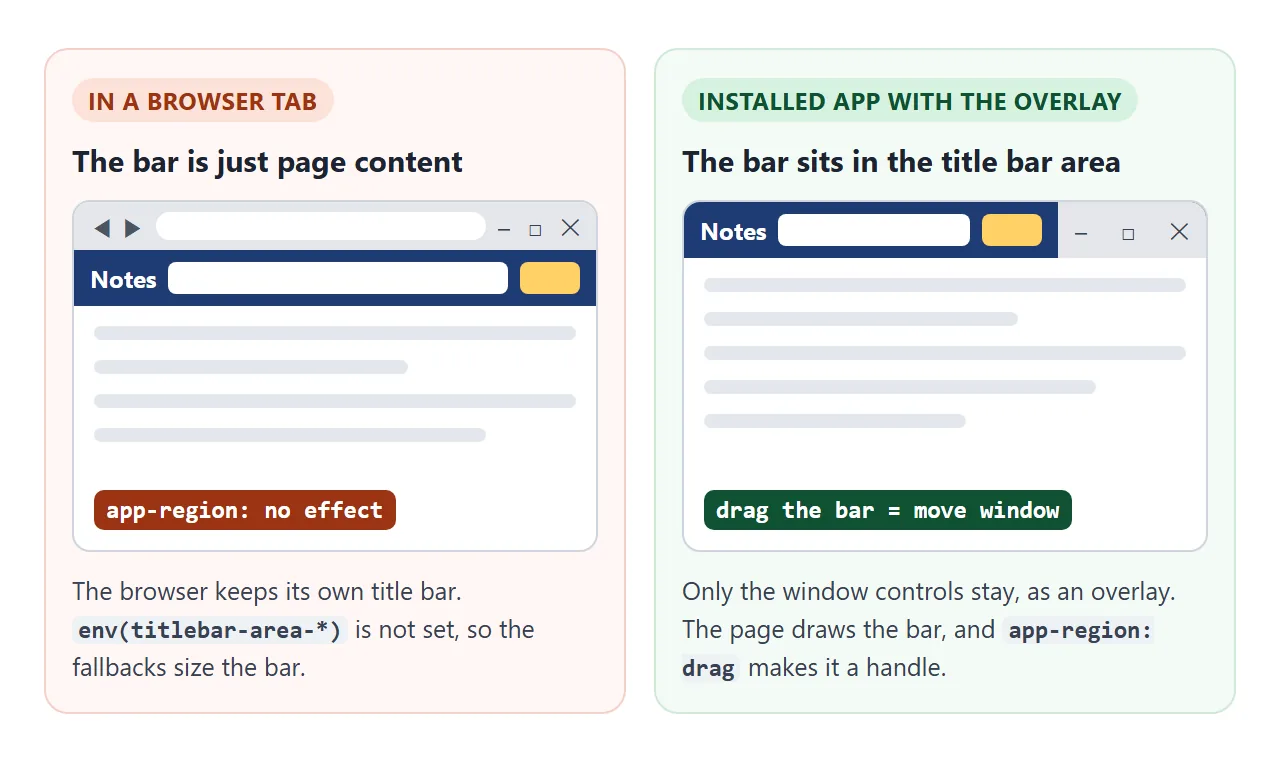
Once the browser's title bar is gone, there is very little left to grab the window by. That is the job of app-region: drag. Microsoft's Edge documentation uses it to turn an app's own title bar into a window drag handle.
In an ordinary tab the property has no visible effect. In the Chromium tested for this guide, a click on a drag region in a tab still reached the page as a normal click.
Turn on the title bar area first
app-region needs something to act on. The app has to opt in to the overlay in its web app manifest:
{
  "display_override": ["window-controls-overlay"]
}
MDN lists two conditions: the manifest asks for window-controls-overlay, and the app is installed on a desktop operating system. A browser that does not know the value moves on to the next one in the list, such as standalone.
Then place your bar with the four title bar variables. Each env() takes a fallback, used when the overlay is not there:
.titlebar {
  position: fixed;
  left: env(titlebar-area-x, 0);
  top: env(titlebar-area-y, 0);
  width: env(titlebar-area-width, 100%);
  height: env(titlebar-area-height, 44px);
}
position: fixed keeps the bar from scrolling away with the page. The window controls are on the right on Windows and on the left on macOS, so use the variables rather than a fixed margin. CSS position explains fixed positioning.
Buttons and inputs need no-drag
In web.dev's example, the whole search area is set to drag and only the search input is set to no-drag. With that CSS, the input is the only interactive part, and the rest of the area moves the window.
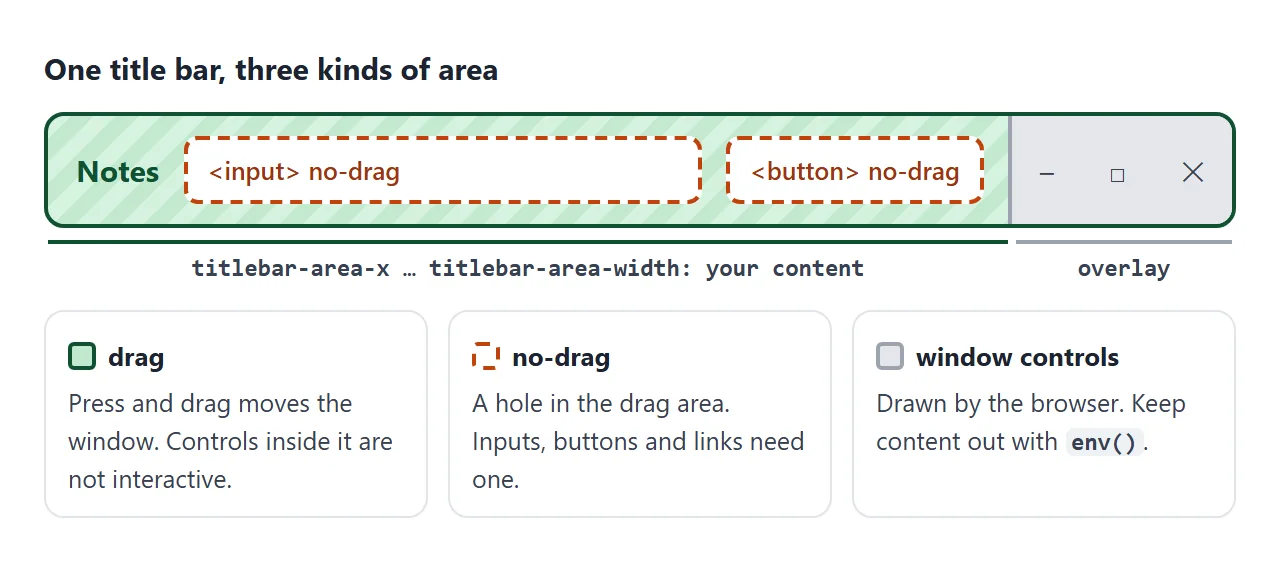
So every control inside a drag region needs its own no-drag: search boxes, buttons, menus and links. The simulation below moves a small window in place of the real one. Compare the two bars.
<!doctype html>
<html lang="en">
<head>
<meta charset="utf-8">
<meta name="viewport" content="width=device-width, initial-scale=1">
<title>app-region drag vs no-drag (simulation)</title>
<style>
  body { margin: 0; padding: 12px; font-family: system-ui, sans-serif; background: #fff; color: #1d2330; }
  .grid { display: grid; grid-template-columns: repeat(auto-fit, minmax(260px, 1fr)); gap: 12px; }
  h2 { font-size: 14px; margin: 0 0 6px; }
  .desk { position: relative; height: 170px; border-radius: 10px; overflow: hidden;
          background: linear-gradient(135deg, #cfd8e6, #e9edf3); }
  .win { position: absolute; left: 14px; top: 14px; width: 220px; background: #fff;
         border-radius: 8px; box-shadow: 0 6px 18px rgba(0, 0, 0, .18); touch-action: none; }
  .bar { display: flex; gap: 6px; align-items: center; padding: 6px; border-radius: 8px 8px 0 0;
         background: #1f3b73; color: #fff; font-size: 12px; }
  .bar input { flex: 1; min-width: 0; font-size: 12px; padding: 3px 5px; border: 0; border-radius: 4px; }
  .bar button { font-size: 12px; padding: 3px 7px; border: 0; border-radius: 4px; background: #ffd166; }
  .body { padding: 10px; font-size: 12px; color: #555; }

  /* The CSS being tested */
  .drag    { -webkit-app-region: drag;    app-region: drag; }
  .no-drag { -webkit-app-region: no-drag; app-region: no-drag; }

  .log { margin-top: 6px; min-height: 36px; font: 12px/1.4 ui-monospace, Consolas, monospace; }
  .note { font-size: 12px; color: #555; margin: 10px 0 0; }
</style>
</head>
<body>
<div class="grid">
  <section>
    <h2>A: the whole bar is drag</h2>
    <div class="desk"><div class="win">
      <div class="bar drag"><b>App</b><input placeholder="Search"><button type="button">Save</button></div>
      <div class="body">Try the search box and Save.</div>
    </div></div>
    <div class="log"></div>
  </section>
  <section>
    <h2>B: controls are no-drag</h2>
    <div class="desk"><div class="win">
      <div class="bar drag"><b>App</b><input class="no-drag" placeholder="Search"><button class="no-drag" type="button">Save</button></div>
      <div class="body">Drag by the blue bar, then use the controls.</div>
    </div></div>
    <div class="log"></div>
  </section>
</div>
<p class="note" id="note">Simulation: a page in a tab cannot move its own window, so the script moves the small window for you, using the app-region value it reads from CSS.</p>

<script>
  const supported = CSS.supports('app-region', 'drag') || CSS.supports('-webkit-app-region', 'drag');
  if (!supported) {
    document.getElementById('note').textContent +=
      ' This browser does not recognise app-region, so the simulation reads the class names instead.';
  }

  // Nearest drag / no-drag value, walking up from the element that was pressed
  function regionOf(el) {
    for (; el && el !== document.body; el = el.parentElement) {
      const cs = getComputedStyle(el);
      let v = cs.getPropertyValue('app-region') || cs.getPropertyValue('-webkit-app-region');
      if (!supported) v = el.classList.contains('no-drag') ? 'no-drag' : el.classList.contains('drag') ? 'drag' : '';
      if (v === 'drag' || v === 'no-drag') return v;
    }
    return 'none';
  }

  document.querySelectorAll('.win').forEach((win) => {
    const log = win.closest('section').querySelector('.log');
    let dx = 0, dy = 0;

    win.addEventListener('pointerdown', (e) => {
      const region = regionOf(e.target);
      if (region !== 'drag') { log.textContent = region + ': the page gets this press'; return; }
      e.preventDefault();  // in a drag region the press belongs to the window, not the page
      dx = e.clientX - win.offsetLeft;
      dy = e.clientY - win.offsetTop;
      win.setPointerCapture(e.pointerId);
      log.textContent = 'drag: the window moves; controls here do not respond';
    });
    win.addEventListener('pointermove', (e) => {
      if (!win.hasPointerCapture(e.pointerId)) return;
      const desk = win.parentElement;
      win.style.left = Math.max(0, Math.min(desk.clientWidth - win.offsetWidth, e.clientX - dx)) + 'px';
      win.style.top = Math.max(0, Math.min(desk.clientHeight - 30, e.clientY - dy)) + 'px';
    });
    win.querySelector('button').addEventListener('click', (e) => {
      if (regionOf(e.target) === 'drag') return;  // controls in a drag region are not interactive
      log.textContent = 'no-drag: Save clicked';
    });
  });
</script>
</body>
</html>
In Chromium, a child of a drag element reports none as its own computed value, as the first example shows. It is still part of the drag area: in web.dev's example, the image and label inside the draggable box move the window too.
Write both app-region and -webkit-app-region
The property started life with a prefix. web.dev notes that app-region has not been standardized, and its example writes both spellings. Do the same:
.titlebar { -webkit-app-region: drag; app-region: drag; }
.titlebar button { -webkit-app-region: no-drag; app-region: no-drag; }
On the spec side, app-region: drag appears in an example in the Window Controls Overlay draft, a WICG Community Group document. The draft does not define the property itself.
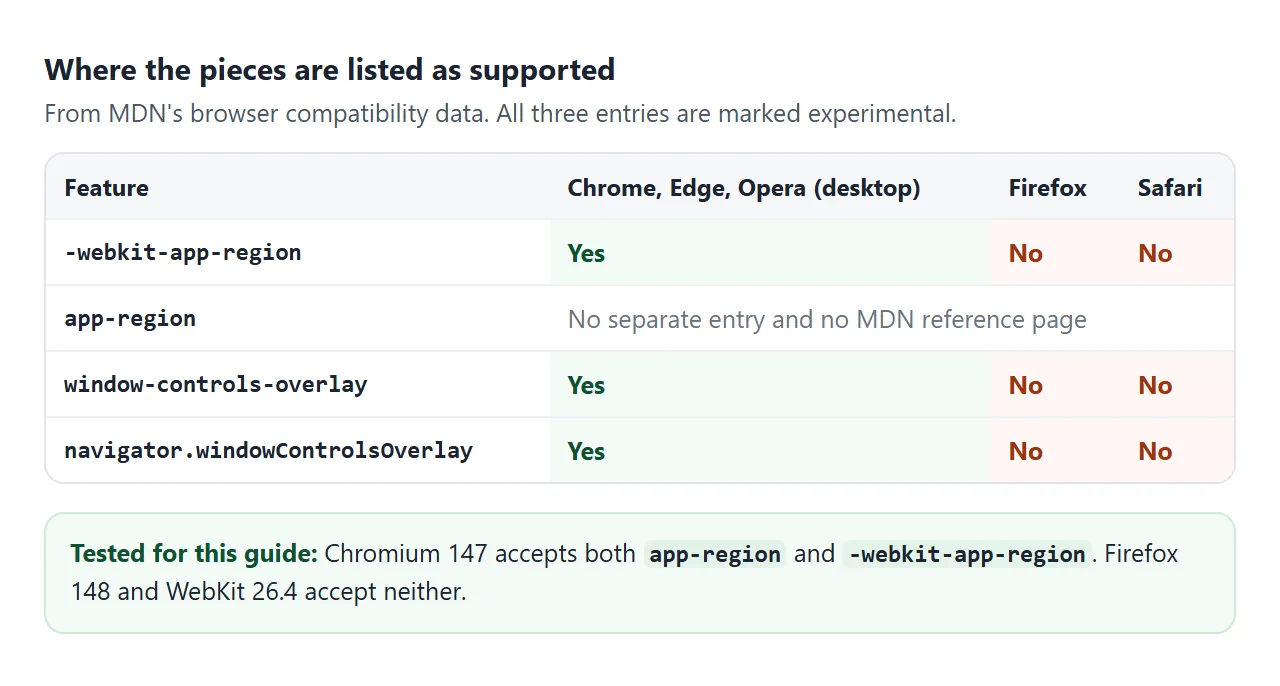
MDN has no reference page for app-region. Its compatibility data has an entry for -webkit-app-region only, marked experimental: supported in Chrome, Edge and Opera, not in Firefox or Safari. This guide gives no version numbers for it.
| Engine tested | app-region |
-webkit-app-region |
|---|---|---|
| Chromium 147 | Recognised | Recognised |
| Firefox 148 | Not recognised | Not recognised |
| WebKit 26.4 | Not recognised | Not recognised |
Where it is not recognised, the bar is still ordinary HTML and CSS. The env() fallbacks lay it out, and nothing breaks.
Detect the overlay, and a finished app shell
A media query tells you when the app is running with the overlay:
@media (display-mode: window-controls-overlay) {
  .titlebar { background: #0f5132; }
}
In JavaScript, navigator.windowControlsOverlay has a visible property and a getTitlebarAreaRect() method. Its geometrychange event fires when the user toggles the title bar or resizes the window. Microsoft's guide notes it fires very often during a resize, so debounce it.
Two limits from web.dev: the object is not available to iframes embedded inside an installed app. Navigating to a different origin brings back the normal title bar until the user returns.
This finished shell puts the pieces together: env() with fallbacks, drag and no-drag, the media query, and a debounced geometrychange listener. The checkbox previews the overlay layout by narrowing the header as if window controls took 130px.
<!doctype html>
<html lang="en">
<head>
<meta charset="utf-8">
<meta name="viewport" content="width=device-width, initial-scale=1">
<title>Installed app shell with a custom title bar</title>
<style>
body { margin: 0; font-family: system-ui, sans-serif; background: #f4f5f7; color: #1d2330; }
header {
position: fixed; z-index: 1;
left: env(titlebar-area-x, 0);
top: env(titlebar-area-y, 0);
width: env(titlebar-area-width, var(--preview-width, 100%));
height: env(titlebar-area-height, 40px);
display: flex; align-items: center; gap: 8px; padding: 0 10px; box-sizing: border-box;
background: #1f3b73; color: #fff; font-size: 14px;
-webkit-app-region: drag;
app-region: drag;
}
header button, header input { -webkit-app-region: no-drag; app-region: no-drag; }
header input { flex: 1; min-width: 0; padding: 5px 8px; border: 0; border-radius: 6px; }
header button { padding: 5px 9px; border: 0; border-radius: 6px; background: #ffd166; cursor: pointer; }
/* Only true inside an installed app with the overlay turned on */
@media (display-mode: window-controls-overlay) {
header { background: #0f5132; }
}
/* Preview: pretend the window controls take 130px on the right */
body.preview { --preview-width: calc(100% - 130px); }
.controls { display: none; position: fixed; top: 0; right: 0; width: 130px; height: 40px;
background: #e5e7eb; color: #374151; font: 14px system-ui, sans-serif;
align-items: center; justify-content: space-around; }
body.preview .controls { display: flex; }
main { padding: 56px 16px 16px; font-size: 14px; line-height: 1.5; }
dl { display: grid; grid-template-columns: max-content 1fr; gap: 4px 12px; margin: 0;
background: #fff; border: 1px solid #e1e4ea; border-radius: 8px; padding: 10px;
font: 13px ui-monospace, Consolas, monospace; }
dt { color: #6b7280; } dd { margin: 0; word-break: break-word; }
label { display: inline-flex; gap: 6px; align-items: center; margin-bottom: 10px; }
</style>
</head>
<body>
<header>
<b>Tasks</b>
<input placeholder="Filter tasks">
<button type="button" id="add">Add</button>
</header>
<div class="controls" aria-hidden="true"><span>–</span><span>□</span><span>✕</span></div>
<main>
<label><input type="checkbox" id="preview"> Preview the overlay layout</label>
<dl>
<dt>display-mode</dt><dd id="mode"></dd>
<dt>overlay API</dt><dd id="api"></dd>
<dt>title bar area</dt><dd id="rect"></dd>
<dt>header width</dt><dd id="width"></dd>
</dl>
</main>
<script>
const $ = (id) => document.getElementById(id);
const wco = navigator.windowControlsOverlay; // undefined where the API is missing
function report() {
$('mode').textContent = matchMedia('(display-mode: window-controls-overlay)').matches
? 'window-controls-overlay' : 'not the overlay mode (fallback layout)';
$('api').textContent = wco ? 'present, visible = ' + wco.visible : 'not available here';
const r = wco && wco.visible ? wco.getTitlebarAreaRect() : null;
$('rect').textContent = r ? r.x + ', ' + r.y + ', ' + r.width + ' x ' + r.height : 'none, env() fallbacks in use';
$('width').textContent = document.querySelector('header').offsetWidth + 'px';
}
// geometrychange fires often while the window is resized, so wait for a pause
let timer;
if (wco) wco.addEventListener('geometrychange', () => {
clearTimeout(timer);
timer = setTimeout(report, 200);
});
$('preview').addEventListener('change', (e) => {
document.body.classList.toggle('preview', e.target.checked);
report();
});
$('add').addEventListener('click', () => { $('add').textContent = 'Added'; });
window.addEventListener('resize', report);
report();
</script>
</body>
</html>
The preview works because an env() fallback can itself be a custom property. One class on body changes it:
header { width: env(titlebar-area-width, var(--preview-width, 100%)); }
body.preview { --preview-width: calc(100% - 130px); }
When it does not work
| What you see | Cause | Fix |
|---|---|---|
| Dragging the bar does nothing | The page is in a tab, not an installed app | Install the app with the overlay manifest entry |
| The browser title bar is still there | No window-controls-overlay in display_override |
Add it to the manifest |
| Buttons in the bar do not respond | They sit inside a drag region | Set no-drag on each control |
| Only a thin strip moves the window | No element has drag |
Set drag on the title bar |
| Content hides under the window controls | Width is hard-coded | Use env(titlebar-area-width) |
| The bar scrolls away | The bar is not fixed | Use position: fixed |
| The bar is the wrong size in a tab | env() without a fallback |
Give each env() a fallback |
Share it as a link
A title bar is easier to judge on screen than in a screenshot, especially the no-drag holes and the fallback layout. To show the working version, paste the page into a NOS document and choose Create share link. HTML to link walks through it.
The page renders as written and its scripts run, so the people you send it to can click the bar and try the preview themselves. If you change the code later, the same link shows the new version.