To hide the border and background of empty table cells, put empty-cells: hide on the table. The property only works while the table uses border-collapse: separate, which is the browser default. With collapse, empty cells are drawn no matter what empty-cells says.
Try it. The button switches the table between the two values.
<!doctype html>
<html lang="en">
<head>
<meta charset="utf-8">
<meta name="viewport" content="width=device-width, initial-scale=1">
<title>empty-cells: show and hide</title>
<style>
  body { margin: 0; padding: 20px; font-family: system-ui, sans-serif; background: #fff; color: #1d2330; }
  table {
    border-collapse: separate;  /* empty-cells only works in this mode */
    border-spacing: 6px;
    empty-cells: show;          /* the default; the button switches it */
  }
  td, th { border: 2px solid #7c8aa5; background: #e8eefb; padding: 8px 14px; }
  table.hide { empty-cells: hide; }
  button { margin-top: 14px; font: inherit; padding: 8px 14px; border-radius: 8px; border: 1px solid #b8c0cc; background: #f4f5f7; cursor: pointer; }
  code { background: #eef1f5; padding: 1px 5px; border-radius: 4px; }
</style>
</head>
<body>
<table id="t">
  <tr><th>Item</th><th>Mon</th><th>Tue</th></tr>
  <tr><td>Tea</td><td>2</td><td></td></tr>
  <tr><td>Cake</td><td></td><td>1</td></tr>
</table>
<button id="toggle" type="button">Switch to hide</button>
<p>Now: <code id="now">empty-cells: show</code></p>

<script>
  const table = document.getElementById('t');
  const btn = document.getElementById('toggle');
  const now = document.getElementById('now');

  btn.addEventListener('click', () => {
    const hidden = table.classList.toggle('hide');
    now.textContent = 'empty-cells: ' + (hidden ? 'hide' : 'show');
    btn.textContent = 'Switch to ' + (hidden ? 'show' : 'hide');
  });
</script>
</body>
</html>
Here is the whole change:
table {
  border-collapse: separate;  /* the default, shown for clarity */
  empty-cells: hide;
}
What show and hide do
The property has two keywords. It applies to table cells, both td and th, and it is inherited, so one rule on the table covers every cell.
| Value | What an empty cell looks like |
|---|---|
show |
Border and background are drawn, like any other cell. This is the initial value. |
hide |
No border and no background. The table background shows through. |
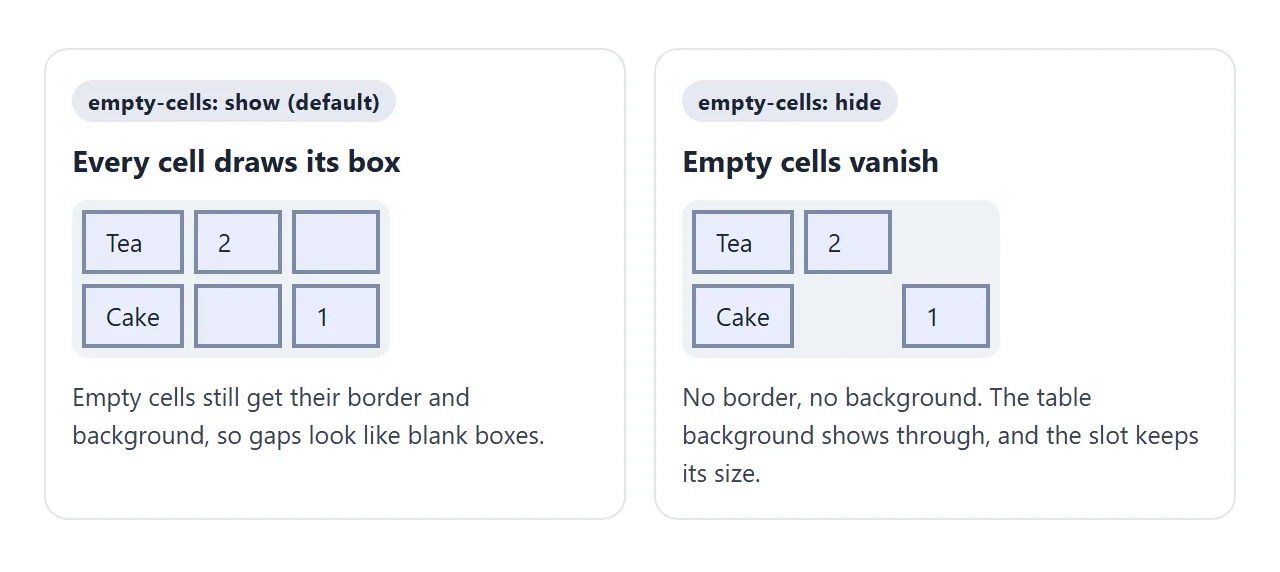
A hidden cell is not removed. It keeps its column and row, so the filled cells around it stay where they were. Only the painting stops.
It only works with border-collapse: separate
The CSS 2 spec describes empty-cells inside the separated borders model, and MDN states it plainly: the property has an effect only when border-collapse is separate.
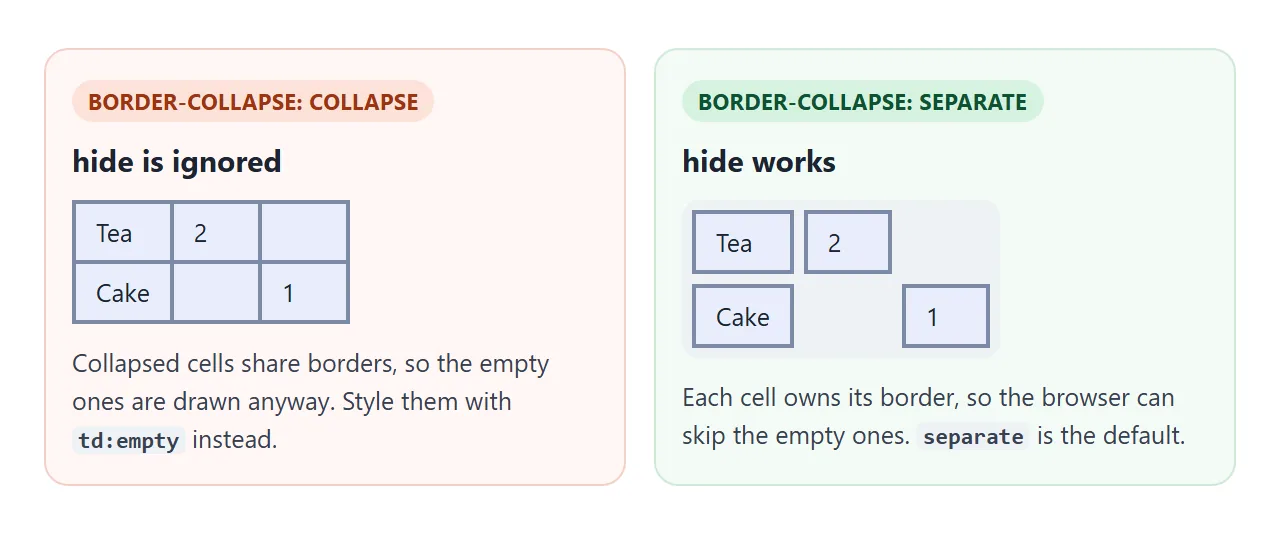
That makes sense once you picture the two models. In collapse mode, neighbouring cells share one border line, so there is no border that belongs to the empty cell alone. In separate mode each cell draws its own.
If a stylesheet you copied sets collapse, change it back:
table {
  border-collapse: separate;
  border-spacing: 6px;  /* gap between cells; also separate-only */
  empty-cells: hide;
}
Border-collapse in HTML tables compares the two models in full.
What counts as an empty cell
"Empty" is stricter and looser than it sounds. The spec says a cell is empty unless it holds floating or in-flow content, where white space that has been collapsed away does not count. Empty elements do count.
Switch the property, and then the border model, and watch which test cells change:
<!doctype html>
<html lang="en">
<head>
<meta charset="utf-8">
<meta name="viewport" content="width=device-width, initial-scale=1">
<title>Which cells count as empty</title>
<style>
body { margin: 0; padding: 18px; font-family: system-ui, sans-serif; background: #fff; color: #1d2330; }
table { border-collapse: separate; border-spacing: 6px; empty-cells: hide; }
table.collapse { border-collapse: collapse; }
th { text-align: left; font-weight: 600; padding: 6px 8px; }
td { border: 2px solid #c2410c; background: #fde2da; width: 70px; height: 26px; }
code { font-size: 13px; background: #eef1f5; padding: 1px 5px; border-radius: 4px; }
.bar { display: flex; flex-wrap: wrap; gap: 8px; margin-bottom: 10px; }
button { font: inherit; padding: 7px 12px; border-radius: 8px; border: 1px solid #b8c0cc; background: #f4f5f7; cursor: pointer; }
</style>
</head>
<body>
<div class="bar">
<button id="ec" type="button">empty-cells: hide</button>
<button id="bc" type="button">border-collapse: separate</button>
</div>
<table id="t">
<tr><th>Cell contains</th><th>Test cell</th></tr>
<tr><th><code>nothing</code></th><td></td></tr>
<tr><th><code>spaces</code></th><td> </td></tr>
<tr><th><code><!-- comment --></code></th><td><!-- comment --></td></tr>
<tr><th><code>&nbsp;</code></th><td> </td></tr>
<tr><th><code><span></span></code></th><td><span></span></td></tr>
<tr><th><code><br></code></th><td><br></td></tr>
<tr><th><code>text</code></th><td>Hi</td></tr>
</table>
<script>
const t = document.getElementById('t');
const ec = document.getElementById('ec');
const bc = document.getElementById('bc');
// flip one property at a time and show its current value on the button
ec.addEventListener('click', () => {
t.style.emptyCells = t.style.emptyCells === 'show' ? 'hide' : 'show';
ec.textContent = 'empty-cells: ' + t.style.emptyCells;
});
bc.addEventListener('click', () => {
const on = t.classList.toggle('collapse');
bc.textContent = 'border-collapse: ' + (on ? 'collapse' : 'separate');
});
</script>
</body>
</html>
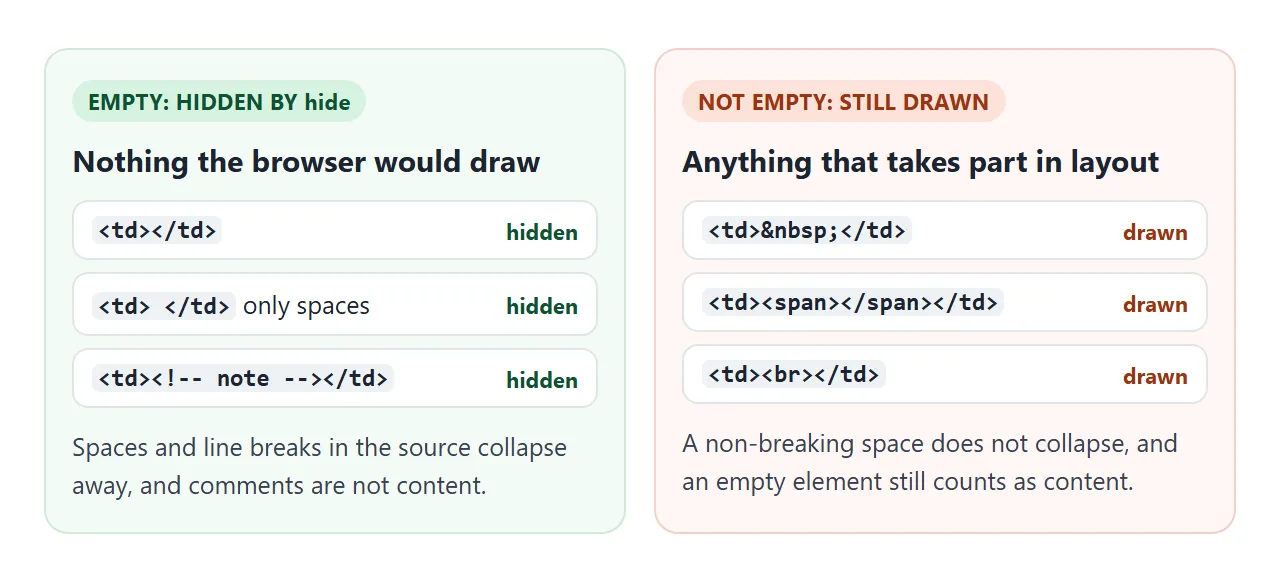
| Cell contains | Empty? | With hide |
|---|---|---|
| Nothing | Yes | Hidden |
| Only spaces or line breaks | Yes, they collapse away | Hidden |
| An HTML comment | Yes | Hidden |
|
No, it does not collapse | Drawn |
An empty <span> or a <br> |
No, elements count | Drawn |
The row matters most in practice. If a template or table generator fills blank cells with it, hide skips them. When a few blank cells stay boxed, open the source and look for one.
Clearing a cell from JavaScript
When a script empties a cell, set its text to an empty string. The cell then counts as empty again and disappears:
cell.textContent = '';        // empty: hidden
cell.textContent = '\u00a0'; // non-breaking space: drawn
Removing the content does not need any extra class or style. The browser checks the cell as it is now, so hide follows every change. Editable HTML table builds on the same kind of cell editing.
With border-collapse: collapse, use :empty instead
If the design needs collapsed borders, empty-cells is out. The :empty selector can still style blank cells, for example with a lighter background:
td:empty { background: #f3f4f6; }
It is not an exact match for empty-cells. MDN defines :empty as an element with no children, and white space counts as a child.
A cell with only spaces is empty to empty-cells but does not match td:empty. Keep those cells free of spaces, or write them as <td></td>.
MDN also notes that Selectors Level 4 changed :empty to ignore white space, and that no browser supports that change yet.
A finished example: a weekly timetable
A timetable is where hide shines. Free slots turn into open space and the bookings stand out. The empty corner th above the times is hidden too, with no extra rule.
<!doctype html>
<html lang="en">
<head>
<meta charset="utf-8">
<meta name="viewport" content="width=device-width, initial-scale=1">
<title>Weekly timetable with empty-cells: hide</title>
<style>
  body { margin: 0; padding: 16px; font-family: system-ui, sans-serif; background: #fff; color: #1d2330; }
  table {
    border-collapse: separate;
    border-spacing: 5px;
    empty-cells: hide;         /* free slots show the table background */
    background: #f1f3f6;
    border-radius: 12px;
    width: 100%; max-width: 560px;
    table-layout: fixed;       /* equal day columns */
  }
  th { font-size: 13px; color: #4b5563; padding: 4px; }
  thead th:first-child { width: 48px; }
  thead th { background: #fff; border-radius: 8px; }  /* the empty corner th is hidden too */
  td {
    height: 38px; padding: 4px; border-radius: 8px; text-align: center;
    font-size: 13px; background: #d6f2df; border: 1px solid #9fd8b2; color: #0f5132;
    cursor: pointer;
  }
  p { font-size: 14px; color: #4b5563; }
</style>
</head>
<body>
<table>
  <thead>
    <tr><th></th><th>Mon</th><th>Tue</th><th>Wed</th><th>Thu</th><th>Fri</th></tr>
  </thead>
  <tbody id="grid">
    <tr><th>9:00</th><td>Stand-up</td><td></td><td>Stand-up</td><td></td><td>Stand-up</td></tr>
    <tr><th>11:00</th><td></td><td>Review</td><td></td><td></td><td></td></tr>
    <tr><th>14:00</th><td>Design</td><td>Design</td><td></td><td>Call</td><td></td></tr>
    <tr><th>16:00</th><td></td><td></td><td></td><td>Demo</td><td></td></tr>
  </tbody>
</table>
<p>Click a gap to book it. Click a booking to free it again.</p>

<script>
  const grid = document.getElementById('grid');

  // A hidden cell is not painted, so e.target may be the table instead of the cell.
  // Find the cell under the pointer by its box.
  document.querySelector('table').addEventListener('click', (e) => {
    const cell = [...grid.querySelectorAll('td')].find((td) => {
      const r = td.getBoundingClientRect();
      return e.clientX >= r.left && e.clientX < r.right && e.clientY >= r.top && e.clientY < r.bottom;
    });
    if (!cell) return;
    // '' empties the cell, so it is hidden again (a non-breaking space would keep it drawn)
    cell.textContent = cell.textContent ? '' : 'Busy';
  });
</script>
</body>
</html>
- Separate borders with spacing:
border-spacingmakes the gaps between cells, and every cell draws its own border, so each one can have rounded corners. - Table background: it shows through every hidden slot, which gives the grid its shape.
- Clicks: the spec describes only what is painted for a hidden cell, not how it takes clicks. So the script finds the cell from the pointer position rather than trusting
e.target.
When it does not work
| What you see | Cause | Fix |
|---|---|---|
hide changes nothing |
The table has border-collapse: collapse |
Use separate, or style td:empty |
| A few blank cells are still boxed | They hold , <br> or an empty element |
Leave them as <td></td> |
| A cell comes back after clearing it | The script wrote a non-breaking space | Set textContent to '' |
td:empty misses cells that hide hides |
Those cells contain white space | Remove the spaces in the markup |
| A colour still shows where the cell was | It is the table background | Change or remove the table background |
| Clicking a free slot does not reach it | e.target is not the hidden cell |
Find the cell by its box, as in the timetable |
Share it as a link
Whether a table looks right is easier to show than to describe, and a screenshot cannot show the booking clicks.
To send the working version, paste the page into a NOS document and choose Create share link. HTML to link walks through it.
The page renders as written and its scripts run, so the people you send it to can click the timetable themselves. If you change the code later, the same link shows the new version.