hyphenate-limit-chars sets the minimums for automatic hyphenation: how long a word must be before the browser may split it, and how many characters must stay before and after the hyphen. A break that does not meet them is not used.
p {
  hyphens: auto;                 /* needs <html lang="en"> */
  hyphenate-limit-chars: 6 3 3;  /* word, before, after */
}
It only changes text that the browser is already hyphenating with hyphens: auto. Try it below. Change the three numbers and drag the width.
<!doctype html>
<html lang="en">
<head>
<meta charset="utf-8">
<meta name="viewport" content="width=device-width, initial-scale=1">
<title>hyphenate-limit-chars</title>
<style>
  body { margin: 0; padding: 14px; font-family: system-ui, sans-serif; background: #f4f5f7; color: #1d2330; }
  .controls { display: flex; flex-wrap: wrap; gap: 8px 14px; font-size: 13px; margin-bottom: 10px; }
  .controls label { display: flex; align-items: center; gap: 6px; }
  select { font: inherit; padding: 2px 4px; }
  code { display: block; font: 13px ui-monospace, Consolas, monospace; background: #fff; border: 1px solid #dde1e7; border-radius: 6px; padding: 7px 9px; margin-bottom: 10px; }
  .text {
    width: 170px; padding: 10px 12px; background: #fff; border-radius: 8px;
    border: 1px solid #dde1e7; font-size: 20px; line-height: 1.35;
    hyphens: auto;                    /* needs lang on an ancestor: <html lang="en"> */
    hyphenate-limit-chars: auto;      /* word length, before, after */
  }
  .split { font-size: 13px; margin-top: 10px; color: #374151; }
  .split b { color: #0f5132; }
  .split .short { color: #9a3412; }
  .warn { display: none; font-size: 13px; background: #fff7ed; border: 1px solid #fdba74; border-radius: 6px; padding: 6px 9px; margin-bottom: 10px; }
  @supports not (hyphenate-limit-chars: auto) { .warn { display: block; } }
</style>
</head>
<body>
<p class="warn">This browser does not support hyphenate-limit-chars, so every setting below looks the same.</p>
<div class="controls">
  <label>Word <select id="word"></select></label>
  <label>Before <select id="before"></select></label>
  <label>After <select id="after"></select></label>
  <label>Width <input id="width" type="range" min="120" max="320" value="170"></label>
</div>
<code id="css"></code>
<div class="text" id="text">We never underestimated the unbelievable acknowledgement of our extraordinary colleagues.</div>
<p class="split" id="split"></p>

<script>
  const text = document.getElementById('text');
  const ids = ['word', 'before', 'after'];
  // fill each menu with auto and 1 to 12
  ids.forEach((id) => {
    const s = document.getElementById(id);
    ['auto', 1, 2, 3, 4, 5, 6, 7, 8, 9, 10, 11, 12].forEach((v) => s.add(new Option(v, v)));
    s.addEventListener('change', update);
  });
  document.getElementById('width').addEventListener('input', update);

  // Find which words the browser split, by checking on which line each prefix ends
  function splitWords(el) {
    const node = el.firstChild, out = [];
    const lines = (a, b) => {
      const r = document.createRange(); r.setStart(node, a); r.setEnd(node, b);
      return new Set([...r.getClientRects()].filter((x) => x.width > 0).map((x) => Math.round(x.top))).size;
    };
    for (const m of node.data.matchAll(/[A-Za-z]+/g)) {
      const pieces = []; let last = 0, count = 1;
      for (let k = 1; k <= m[0].length; k++) {
        const c = lines(m.index, m.index + k);
        if (c > count) { pieces.push(m[0].slice(last, k - 1)); last = k - 1; count = c; }
      }
      pieces.push(m[0].slice(last));
      if (pieces.length > 1) out.push(pieces);
    }
    return out;
  }

  function update() {
    const v = ids.map((id) => document.getElementById(id).value).join(' ');
    text.style.hyphenateLimitChars = v;
    text.style.width = document.getElementById('width').value + 'px';
    document.getElementById('css').textContent = 'hyphenate-limit-chars: ' + v + ';';
    const words = splitWords(text);
    document.getElementById('split').innerHTML = words.length
      ? 'Split words: ' + words.map((p) => p.map((s) => '<b class="' + (s.length < 3 ? 'short' : '') + '">' + s + '</b>').join('-')).join(', ')
      : 'No word is split at this width.';
  }
  update();
</script>
</body>
</html>
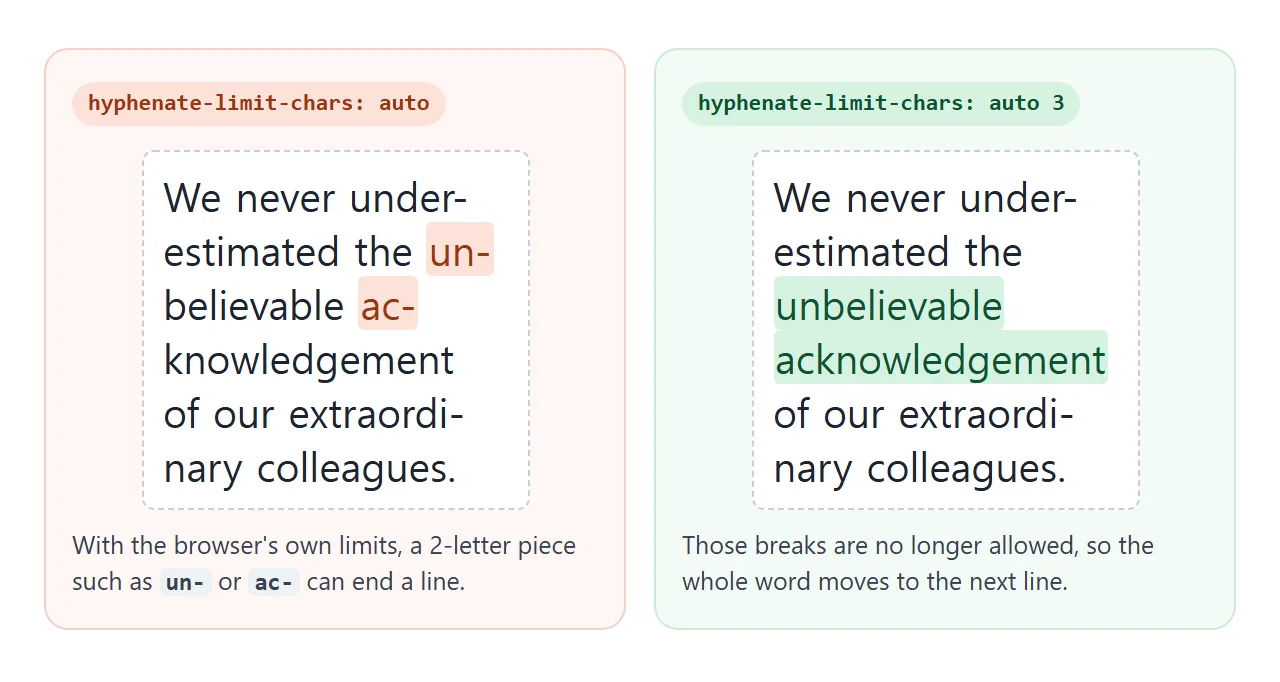
At the starting width, the default auto splits "un-believable" and "ac-knowledgement". Set Before to 3 and both words move down whole instead. The list under the text is measured from the page, so it shows what your browser actually did.
The three numbers
The property takes one to three values. Each one is a whole number or auto, in this order:
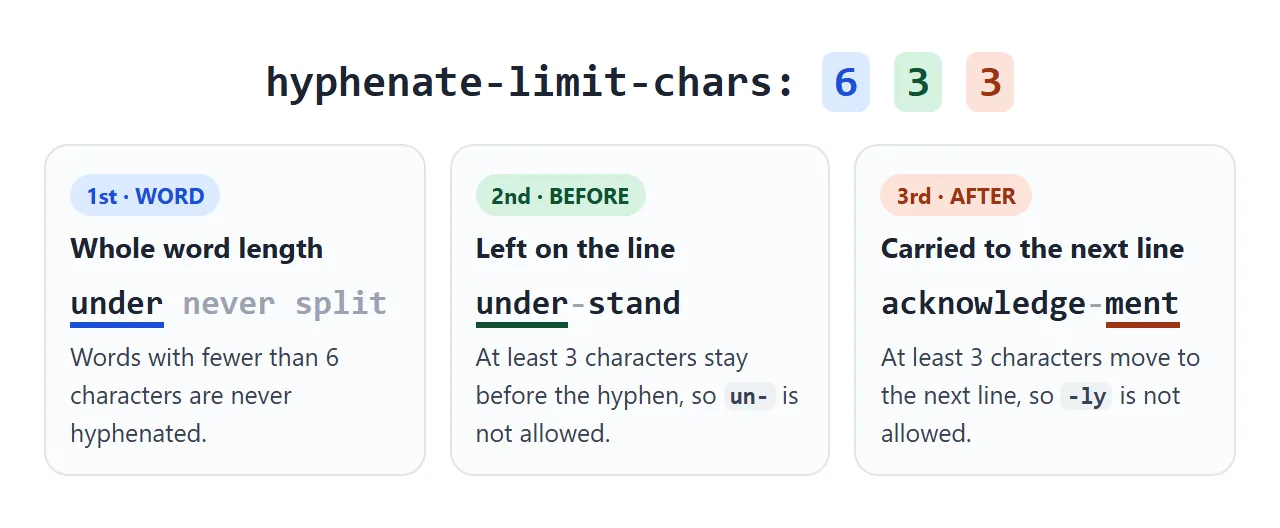
Word length. Words with fewer characters than this are never hyphenated.
Before. The minimum number of characters that stay on the line, before the hyphen.
After. The minimum number of characters that go to the next line, after the hyphen.
If a word does not meet all three, the specification says it must not be hyphenated. The browser still picks the break itself within those limits. A before limit of 9 does not mean the break lands exactly after the ninth letter.
Intra-word punctuation and nonspacing combining marks do not count towards the minimums.
Shorter forms and what auto means
You rarely need all three numbers. Missing values are filled in by two rules from the specification.
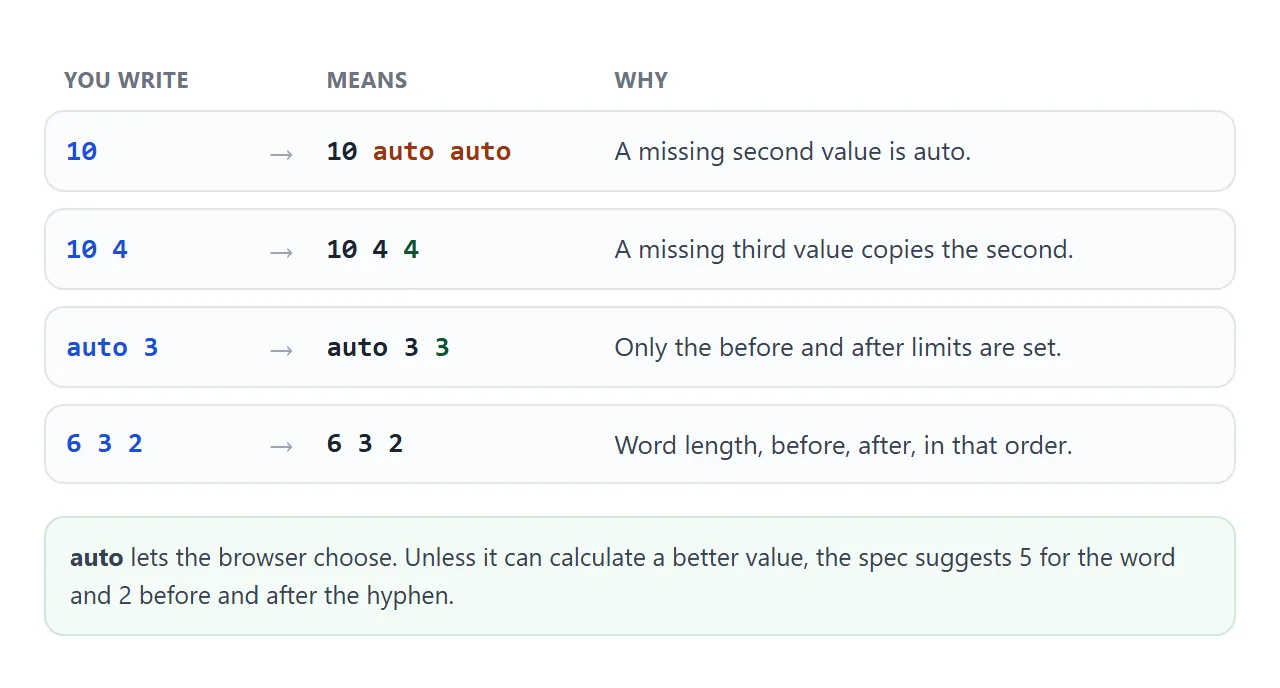
| You write | The browser reads | Effect |
|---|---|---|
auto |
auto auto auto |
The browser picks every limit (the default) |
8 |
8 auto auto |
Words under 8 characters are never split |
auto 3 |
auto 3 3 |
At least 3 characters on each side |
6 3 2 |
6 3 2 |
Word 6, before 3, after 2 |
For auto, the specification suggests 5 for the word and 2 before and after, unless the browser can calculate a better value. That is why 2-letter pieces such as "un-" can appear by default.
Our tests found one difference. With auto 5 auto, Chromium kept at least 5 characters after the hyphen, as if the third value copied the second. Firefox treated the third auto as auto. To be safe, write auto 5 5.
Some combinations rule out short words on their own. With auto 3 4, a word under 7 characters can never be hyphenated, because it cannot have 3 characters before the break and 4 after it.
Stop 2-letter pieces with auto 3
One use is removing very short pieces at a line end, or very short endings on the next line. auto 3 is enough for that. It leaves the word length to the browser and asks for 3 characters on each side.
The next example puts four values side by side on the same text and width. Drag the width and compare where each box splits.
<!doctype html>
<html lang="en">
<head>
<meta charset="utf-8">
<meta name="viewport" content="width=device-width, initial-scale=1">
<title>hyphenate-limit-chars values side by side</title>
<style>
  body { margin: 0; padding: 14px; font-family: system-ui, sans-serif; background: #f4f5f7; color: #1d2330; }
  label { font-size: 13px; display: flex; align-items: center; gap: 8px; margin-bottom: 10px; }
  .grid { display: grid; grid-template-columns: repeat(auto-fill, minmax(150px, 1fr)); gap: 10px; }
  .box { background: #fff; border: 1px solid #dde1e7; border-radius: 8px; padding: 8px 10px; }
  .box h3 { margin: 0 0 6px; font: 700 13px ui-monospace, Consolas, monospace; color: #1d4ed8; }
  .box p {
    width: var(--w, 120px); margin: 0; font-size: 19px; line-height: 1.35;
    hyphens: auto;  /* same text and width in every box */
    border-right: 1px dashed #c9cdd4;
  }
  .box small { display: block; margin-top: 6px; font-size: 12px; color: #5b6270; min-height: 2.6em; }
  .short { color: #9a3412; font-weight: 700; }
  /* the only difference between the boxes */
  .a p { hyphenate-limit-chars: auto; }
  .b p { hyphenate-limit-chars: auto 3; }
  .c p { hyphenate-limit-chars: 14; }
  .d p { hyphenate-limit-chars: 6 4 4; }
</style>
</head>
<body>
<label>Column width <input id="w" type="range" min="100" max="200" value="120"> <span id="wv">120px</span></label>
<div class="grid">
  <div class="box a"><h3>auto</h3><p>an unbelievable acknowledgement of understanding</p><small></small></div>
  <div class="box b"><h3>auto 3</h3><p>an unbelievable acknowledgement of understanding</p><small></small></div>
  <div class="box c"><h3>14</h3><p>an unbelievable acknowledgement of understanding</p><small></small></div>
  <div class="box d"><h3>6 4 4</h3><p>an unbelievable acknowledgement of understanding</p><small></small></div>
</div>

<script>
  // Same helper as the first example: which words were split, and where
  function splitWords(el) {
    const node = el.firstChild, out = [];
    const lines = (a, b) => {
      const r = document.createRange(); r.setStart(node, a); r.setEnd(node, b);
      return new Set([...r.getClientRects()].filter((x) => x.width > 0).map((x) => Math.round(x.top))).size;
    };
    for (const m of node.data.matchAll(/[A-Za-z]+/g)) {
      const pieces = []; let last = 0, count = 1;
      for (let k = 1; k <= m[0].length; k++) {
        const c = lines(m.index, m.index + k);
        if (c > count) { pieces.push(m[0].slice(last, k - 1)); last = k - 1; count = c; }
      }
      pieces.push(m[0].slice(last));
      if (pieces.length > 1) out.push(pieces);
    }
    return out;
  }

  const w = document.getElementById('w');
  function update() {
    document.body.style.setProperty('--w', w.value + 'px');
    document.getElementById('wv').textContent = w.value + 'px';
    document.querySelectorAll('.box').forEach((box) => {
      const words = splitWords(box.querySelector('p'));
      box.querySelector('small').innerHTML = words.length
        ? words.map((p) => p.map((s) => s.length < 3 ? '<span class="short">' + s + '</span>' : s).join('-')).join(', ')
        : 'no word split';
    });
  }
  w.addEventListener('input', update);
  update();
</script>
</body>
</html>
In the 14 box, "unbelievable" (12 letters) and "understanding" (13) are never split, while "acknowledgement" (15) still can be. In our tests, Chromium and Firefox did not always choose the same break points for the same word, so exact results differ between browsers.
Where it has no effect
hyphenate-limit-chars only filters breaks that automatic hyphenation offers. Three cases leave it with nothing to do:
No hyphenation. Without
hyphens: autoand alangattribute, the browser adds no hyphenation breaks of its own. CSS hyphens covers that setup.Soft hyphens. In our Chromium and Firefox tests, a word marked with
­still broke at the soft hyphen, even when the word was shorter than the limit.Words that fit. At a wide enough column, no word needs to break, so the limits have nothing to filter.
The property is inherited, so one rule on body or article covers every paragraph inside it.
Browser support and a fallback
MDN's compatibility data lists hyphenate-limit-chars in Chrome, Edge and Firefox, and in browsers built on the same engines, such as Opera and Samsung Internet. For Safari it lists only a Technology Preview build, not a released version. MDN labels it "Limited availability", not Baseline.
We confirmed it in the Chromium and Firefox builds we tested. The WebKit build we tested reported it as unsupported, and our demos show a notice there.
Browsers skip CSS declarations they do not understand, so the fallback is automatic. Hyphenation still works where hyphens: auto is supported, only with the browser's own limits. To show different CSS in that case, test for support:
@supports not (hyphenate-limit-chars: auto) {
  .note { display: block; }
}
A finished example: a narrow news column
This story uses two narrow columns, text-align: justify, hyphens: auto and hyphenate-limit-chars: 6 3 3.
<!doctype html>
<html lang="en">
<head>
<meta charset="utf-8">
<meta name="viewport" content="width=device-width, initial-scale=1">
<title>Narrow news column with hyphenation limits</title>
<style>
  body { margin: 0; padding: 14px; font-family: Georgia, serif; background: #f4f5f7; color: #1d2330; }
  .bar { font: 13px system-ui, sans-serif; display: flex; flex-wrap: wrap; gap: 6px 14px; align-items: center; margin-bottom: 10px; }
  #stat { color: #374151; }
  .page { background: #fff; border: 1px solid #dde1e7; border-radius: 10px; padding: 14px 16px; max-width: 380px; }
  h1 { font-size: 22px; margin: 0 0 8px; }
  .story {
    columns: 2 150px; column-gap: 20px;   /* two narrow columns, one on a phone */
    font-size: 16px; line-height: 1.45; text-align: justify;
    hyphens: auto;
  }
  .story p { margin: 0 0 10px; }
  /* the part this guide is about: no tiny pieces, no short words split */
  .story.limits { hyphenate-limit-chars: 6 3 3; }
  .warn { display: none; font: 13px system-ui, sans-serif; background: #fff7ed; border: 1px solid #fdba74; border-radius: 6px; padding: 6px 9px; margin-bottom: 10px; }
  @supports not (hyphenate-limit-chars: auto) { .warn { display: block; } }
</style>
</head>
<body>
<p class="warn">This browser ignores hyphenate-limit-chars. Any hyphenation here uses the browser's own limits.</p>
<div class="bar">
  <label><input type="checkbox" id="on" checked> hyphenate-limit-chars: 6 3 3</label>
  <span id="stat"></span>
</div>
<div class="page">
  <h1>Harbour reopens after repairs</h1>
  <div class="story limits" id="story">
    <p>The harbour reopened on Monday after an extraordinary restoration of the eastern breakwater, which had been undermined by successive winter storms.</p>
    <p>Engineers described the reconstruction as unusually complicated, because every replacement block had to be positioned underwater by a floating crane.</p>
    <p>Local fishermen, unable to unload their catch for eleven weeks, welcomed the announcement enthusiastically.</p>
  </div>
</div>

<script>
  const story = document.getElementById('story');

  // Which words did the browser split? Check on which line each prefix of a word ends.
  function splitWords(root) {
    const out = [];
    root.querySelectorAll('p').forEach((p) => {
      const node = p.firstChild;
      const lines = (a, b) => {
        const r = document.createRange(); r.setStart(node, a); r.setEnd(node, b);
        return new Set([...r.getClientRects()].filter((x) => x.width > 0).map((x) => Math.round(x.top))).size;
      };
      for (const m of node.data.matchAll(/[A-Za-z]+/g)) {
        const pieces = []; let last = 0, count = 1;
        for (let k = 1; k <= m[0].length; k++) {
          const c = lines(m.index, m.index + k);
          if (c > count) { pieces.push(m[0].slice(last, k - 1)); last = k - 1; count = c; }
        }
        pieces.push(m[0].slice(last));
        if (pieces.length > 1) out.push(pieces);
      }
    });
    return out;
  }

  // Widest space between two words on one line (justify stretches the spaces)
  function widestSpace(root) {
    let max = 0;
    root.querySelectorAll('p').forEach((p) => {
      const node = p.firstChild;
      for (const m of node.data.matchAll(/ /g)) {
        const r = document.createRange(); r.setStart(node, m.index); r.setEnd(node, m.index + 1);
        const rects = r.getClientRects();
        if (rects.length === 1) max = Math.max(max, rects[0].width);
      }
    });
    return Math.round(max);
  }

  function update() {
    story.classList.toggle('limits', document.getElementById('on').checked);
    const words = splitWords(story);
    const shortest = Math.min(...words.flat().map((s) => s.length));
    document.getElementById('stat').textContent = words.length
      ? words.length + ' words split, shortest piece ' + shortest + ' letters'
      : 'no word split';
    document.getElementById('stat').textContent += ', widest space ' + widestSpace(story) + 'px';
  }
  document.getElementById('on').addEventListener('change', update);
  addEventListener('resize', update);
  update();
</script>
</body>
</html>
There is a trade-off. Stricter limits give the browser fewer places to break, so more long words move down whole. In justified text, the spaces on the line they leave behind must stretch.
In our Chromium and Firefox runs of this example at phone width, the widest space was 70px with the limits on and 59px with them off.
Check your own text at the widths you care about. text-align and multi-column layout cover the other two parts of this layout.
When it does not work
| What you see | Cause | Fix |
|---|---|---|
| Changing the value does nothing | No word is being hyphenated | Add hyphens: auto and lang |
| Nothing changes, but hyphens appear | The browser does not support the property | Accept the default limits, or use @supports |
| A short word still breaks | It has a soft hyphen (­) |
Remove the soft hyphen |
| A long URL still overflows | This property only limits hyphenation breaks | overflow-wrap: anywhere |
| Large gaps in justified text | Strict limits leave fewer breaks | Lower the limits, or use text-align: start |
| The value is ignored as invalid | More than three values, or a decimal | One to three values, each auto or a whole number |
For URLs and other text without syllables, breaking long words goes through the options.
Share it as a link
Hyphenation changes with the column width, so one screenshot shows only one case. To let someone drag the width and watch the words split, send the working page.
Paste the page into a NOS document and choose Create share link. HTML to link walks through it.
The page renders as written and its scripts run, so the people you send it to can try each value themselves. If you change the code later, the same link shows the new version.