To let the browser split long words at syllables, add two things: hyphens: auto in the CSS and a lang attribute in the HTML. The second one is the part people miss. Without a language, hyphens: auto quietly does nothing.
<html lang="en">
...
<style>
  p { hyphens: auto; }
</style>
Try it below. Switch between the three values, untick the lang box, and drag the column narrower.
<!doctype html>
<!-- no lang on <html> on purpose: the checkbox adds it to the paragraph -->
<html>
<head>
<meta charset="utf-8">
<meta name="viewport" content="width=device-width, initial-scale=1">
<title>hyphens: auto</title>
<style>
body { margin: 0; padding: 16px; font-family: system-ui, sans-serif; background: #f4f5f7; color: #1d2330; }
.controls { display: grid; gap: 10px; margin-bottom: 14px; font-size: 14px; }
.controls label { display: flex; align-items: center; gap: 8px; }
.seg button {
font: 600 13px ui-monospace, Consolas, monospace; padding: 6px 10px;
border: 1px solid #c9ced6; background: #fff; border-radius: 6px; cursor: pointer;
}
.seg button.on { background: #1d4ed8; border-color: #1d4ed8; color: #fff; }
code, pre { font: 13px ui-monospace, Consolas, monospace; }
pre { margin: 0 0 12px; padding: 8px 10px; background: #1d2330; color: #e8ebf0; border-radius: 8px; white-space: pre-wrap; }
.col {
width: 170px; max-width: 100%; padding: 10px 12px; box-sizing: border-box;
background: #fff; border: 2px dashed #9aa3b2; border-radius: 10px;
font-size: 17px; line-height: 1.45;
}
.col p { margin: 0; }
</style>
</head>
<body>
<div class="controls">
<div class="seg" id="seg">
<button data-v="none">none</button>
<button data-v="manual" class="on">manual</button>
<button data-v="auto">auto</button>
</div>
<label><input type="checkbox" id="lang" checked> <code>lang="en"</code> on the paragraph</label>
<label>Column width <input type="range" id="w" min="140" max="320" value="170"> <span id="wOut">170px</span></label>
</div>
<pre id="code"></pre>
<div class="col" id="col">
<p id="p" lang="en">The committee published comprehensive recommendations on accessibility, interoperability and internationalization.</p>
</div>
<script>
const p = document.getElementById('p');
const col = document.getElementById('col');
const lang = document.getElementById('lang');
let value = 'manual'; // the default: break only at "-" and ­
function render() {
p.style.hyphens = value;
if (lang.checked) p.setAttribute('lang', 'en'); else p.removeAttribute('lang');
document.getElementById('code').textContent =
(lang.checked ? '<p lang="en">' : '<p>') + '\np { hyphens: ' + value + '; }';
}
document.getElementById('seg').addEventListener('click', (e) => {
if (!e.target.dataset.v) return;
value = e.target.dataset.v;
document.querySelectorAll('#seg button').forEach((b) => b.classList.toggle('on', b === e.target));
render();
});
lang.addEventListener('change', render);
document.getElementById('w').addEventListener('input', (e) => {
col.style.width = e.target.value + 'px';
document.getElementById('wOut').textContent = e.target.value + 'px';
});
render();
</script>
</body>
</html>
At a narrow width, manual and none leave long words sticking out of the column. auto with a language splits them and adds the hyphen at the line end. Remove lang and auto behaves exactly like manual again.
The three values: none, manual, auto
hyphens decides where a line may break inside a word. Spaces are always allowed as break points; this property is only about the inside of words.
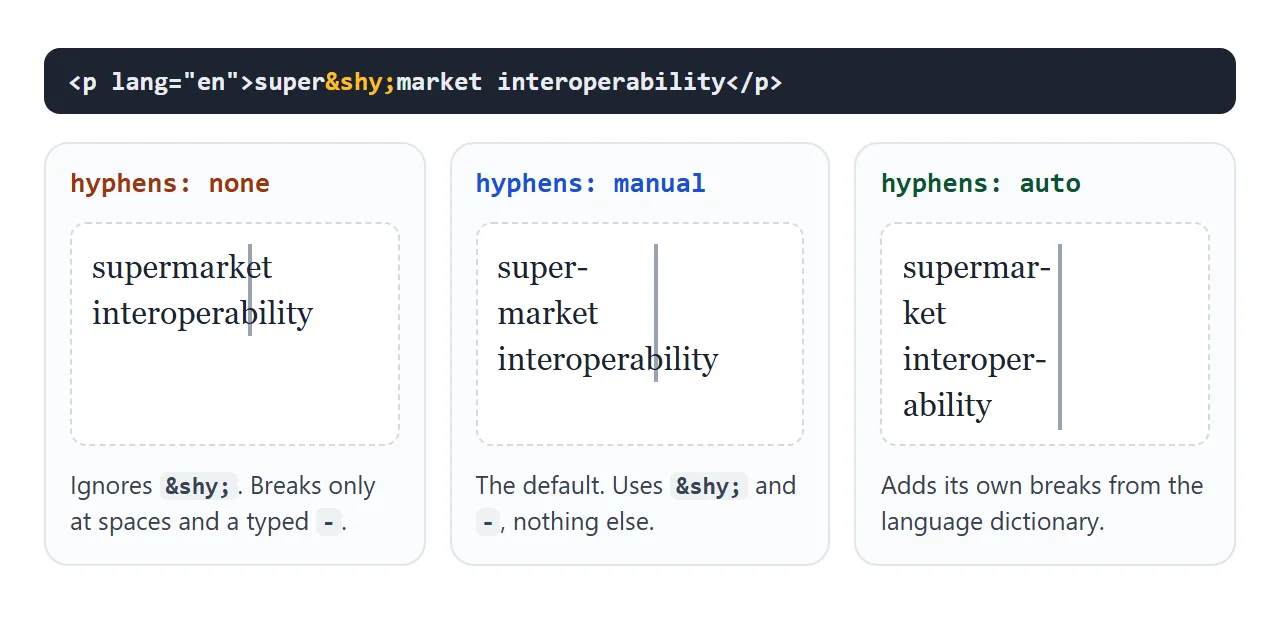
| Value | Breaks at ­ |
Adds its own breaks | Needs lang |
|---|---|---|---|
none |
No | No | No |
manual (default) |
Yes | No | No |
auto |
Yes | Yes, from a dictionary | Yes |
With every value, a line can still break right after a hyphen that is typed in the text, such as "well-known". hyphens: none only switches off the soft hyphens and the automatic breaks.
The property is inherited, so one rule on body or article covers every paragraph inside.
Why hyphens: auto needs lang
Hyphenation rules differ by language. English, German and Dutch split words in different places. The browser picks its rules from the language of the element, and that comes from the lang attribute on the element or on any ancestor.
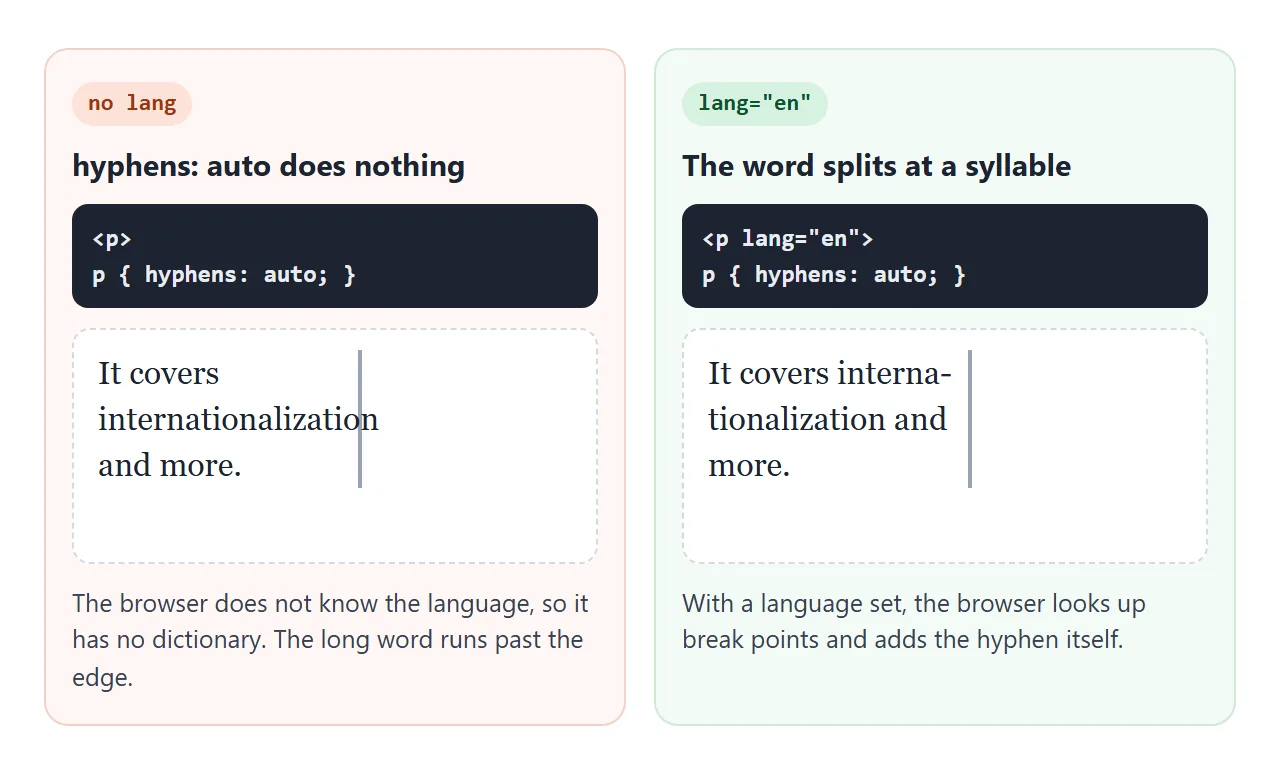
Three things to check when auto does not split anything:
Is
langset? Put it on<html>once. Alangon a wrappingdivalso works.Is the code real? A made-up code such as
lang="zz"gives the browser no rules, and nothing splits.Does the browser have rules for that language? Hyphenation dictionaries come with the browser or the operating system. If one is missing for a language,
autoleaves that text alone.
A mixed-language page can set lang per element, such as <blockquote lang="de">, and each part gets its own rules.
Soft hyphens for words you choose
A soft hyphen, written ­ in HTML, marks one spot where a word may break. While the word fits, it is invisible. When the line has to break inside that word, the browser breaks there and shows a hyphen.
<div class="tile">Photo­synthesis</div>
Soft hyphens work with the default hyphens: manual, and they do not need a lang attribute. That makes them the right tool for a few known words: product names, long headings, labels in narrow cards or grid tiles.
<!doctype html>
<html lang="en">
<head>
<meta charset="utf-8">
<meta name="viewport" content="width=device-width, initial-scale=1">
<title>Soft hyphens and hyphenate-character</title>
<style>
body { margin: 0; padding: 16px; font-family: system-ui, sans-serif; background: #f4f5f7; color: #1d2330; }
.controls { display: grid; gap: 10px; margin-bottom: 14px; font-size: 14px; }
.controls label { display: flex; align-items: center; gap: 8px; flex-wrap: wrap; }
code, select { font: 13px ui-monospace, Consolas, monospace; }
.tiles { display: grid; grid-template-columns: repeat(3, 1fr); gap: 8px; width: 330px; max-width: 100%; }
.tile {
min-width: 0; padding: 12px 8px; border-radius: 10px; background: #fff;
border: 1px solid #dfe3e8; text-align: center;
font-weight: 700; font-size: 17px; line-height: 1.3;
overflow: hidden;
}
.tile small { display: block; margin-top: 6px; font-weight: 400; font-size: 12px; color: #6b7280; }
/* the two properties this example changes */
.tile { hyphens: manual; hyphenate-character: auto; }
</style>
</head>
<body>
<div class="controls">
<label><code>hyphens:</code>
<select id="hy"><option>manual</option><option>none</option></select>
</label>
<label><code>hyphenate-character:</code>
<select id="hc">
<option value="auto">auto</option>
<option value='"="'>"="</option>
<option value='"\2192"'>"→"</option>
<option value='""'>"" (no mark)</option>
</select>
</label>
<label>Grid width <input type="range" id="w" min="300" max="540" value="330"></label>
</div>
<div class="tiles" id="tiles">
<!-- ­ marks where a word may break. It stays invisible until it is used. -->
<div class="tile">Photo­synthesis<small>Biology</small></div>
<div class="tile">Thermo­dynamics<small>Physics</small></div>
<div class="tile">Micro­economics<small>Economics</small></div>
</div>
<script>
const tiles = document.querySelectorAll('.tile');
function set(prop, v) { tiles.forEach((t) => t.style.setProperty(prop, v)); }
document.getElementById('hy').addEventListener('change', (e) => set('hyphens', e.target.value));
document.getElementById('hc').addEventListener('change', (e) => set('hyphenate-character', e.target.value));
document.getElementById('w').addEventListener('input', (e) => {
document.getElementById('tiles').style.width = e.target.value + 'px';
});
</script>
</body>
</html>
Set the tiles to none and the words stop breaking. They get clipped at the tile edge instead. Widen the grid and the words fit on one line, so the soft hyphens stay hidden.
hyphenate-character: change or hide the hyphen
hyphenate-character sets the text shown at the end of a line where a word was split. The default, auto, picks the usual hyphen for the language.
.tile { hyphenate-character: "="; }   /* any short string */
.tile { hyphenate-character: ""; }    /* break with no mark */
It applies to breaks at ­ and to breaks made by hyphens: auto. It does not change a hyphen that is typed in the text. An empty string is handy for tight UI labels where a dangling hyphen looks like a mistake.
text-align: justify with hyphens
Justified text stretches the spaces on each line so both edges are straight. In a narrow column, a long word that cannot break must move down whole. The line it left behind is short, and the browser widens its spaces to fill it.
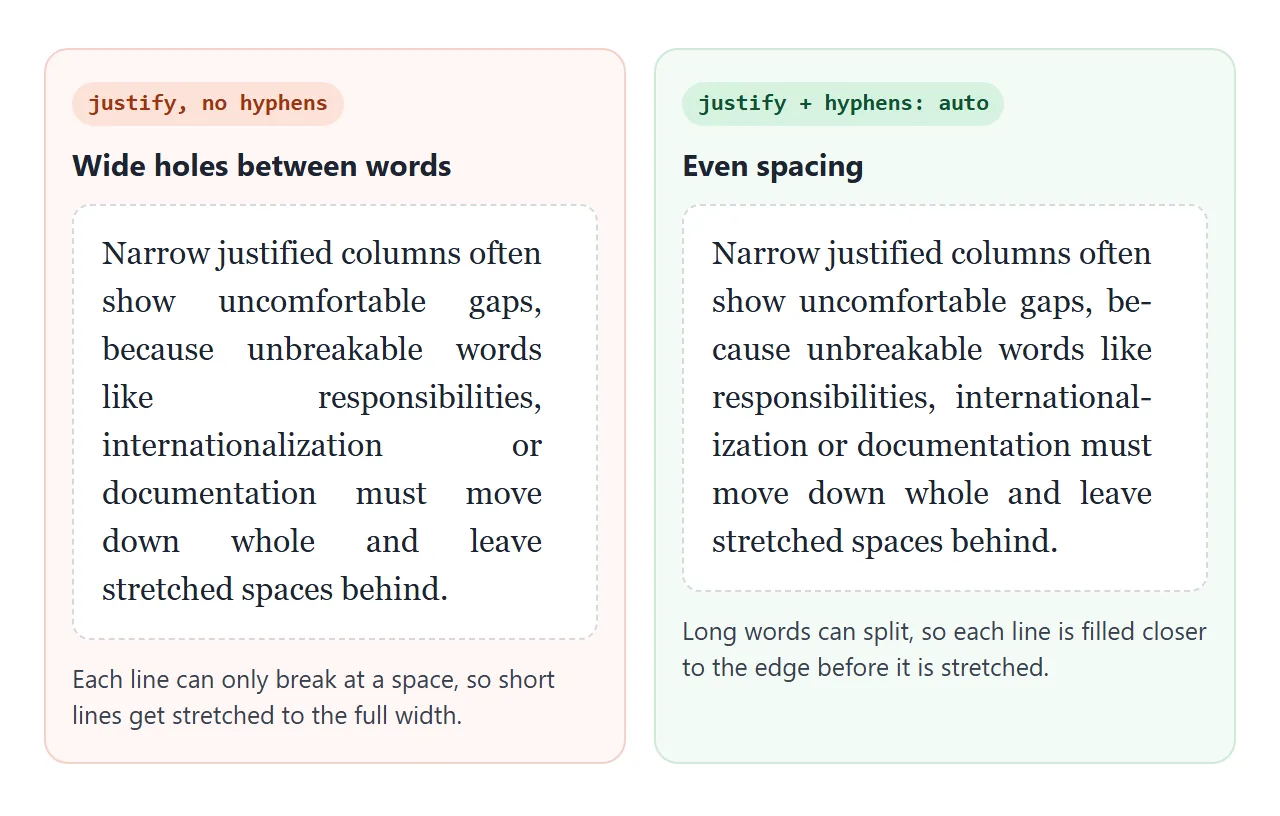
hyphens: auto shrinks those gaps, because the long word can split and fill the line. The next example measures the widest gap between two words, in pixels, as you switch things on.
<!doctype html>
<html lang="en">
<head>
<meta charset="utf-8">
<meta name="viewport" content="width=device-width, initial-scale=1">
<title>Justified column with hyphens</title>
<style>
  body { margin: 0; padding: 16px; font-family: system-ui, sans-serif; background: #f4f5f7; color: #1d2330; }
  .controls { display: grid; gap: 8px; margin-bottom: 12px; font-size: 14px; }
  .controls label { display: flex; align-items: center; gap: 8px; }
  code { font: 13px ui-monospace, Consolas, monospace; background: #e8ebf0; padding: 1px 4px; border-radius: 4px; }
  .meter { font-size: 14px; margin-bottom: 10px; }
  .meter b { font: 700 15px ui-monospace, Consolas, monospace; }
  article {
    width: 240px; max-width: 100%; box-sizing: border-box; padding: 14px 16px;
    background: #fff; border-radius: 10px; box-shadow: 0 2px 10px rgba(0, 0, 0, .08);
    font: 16px/1.5 Georgia, serif;
    text-align: justify;   /* straight left and right edges */
  }
  article p { margin: 0 0 10px; }
  article p:last-child { margin: 0; }
  article.hy { hyphens: auto; }              /* works because <html lang="en"> */
  article.last { text-align-last: justify; } /* also stretch each last line */
</style>
</head>
<body>
<div class="controls">
  <label><input type="checkbox" id="hy"> <code>hyphens: auto</code></label>
  <label><input type="checkbox" id="last"> <code>text-align-last: justify</code></label>
  <label><code>word-spacing</code> <input type="range" id="ws" min="0" max="8" value="0"> <span id="wsOut">0px</span></label>
</div>
<div class="meter">Widest gap between two words: <b id="gap">-</b></div>
<article id="art">
  <p>Narrow justified columns often show uncomfortable gaps, because unbreakable words like responsibilities, internationalization or documentation must move down whole and leave stretched spaces behind.</p>
  <p>With hyphenation on, the browser can split those words at syllables, so each line fills closer to the edge.</p>
</article>

<script>
  const art = document.getElementById('art');

  // Measure every space character and show the widest one.
  function widestGap() {
    let max = 0;
    const walk = document.createTreeWalker(art, NodeFilter.SHOW_TEXT);
    const r = document.createRange();
    while (walk.nextNode()) {
      const t = walk.currentNode;
      for (let i = 0; i < t.length; i++) {
        if (t.data[i] !== ' ') continue;
        r.setStart(t, i); r.setEnd(t, i + 1);
        max = Math.max(max, r.getBoundingClientRect().width);
      }
    }
    document.getElementById('gap').textContent = Math.round(max) + 'px';
  }

  document.getElementById('hy').addEventListener('change', (e) => { art.classList.toggle('hy', e.target.checked); widestGap(); });
  document.getElementById('last').addEventListener('change', (e) => { art.classList.toggle('last', e.target.checked); widestGap(); });
  document.getElementById('ws').addEventListener('input', (e) => {
    art.style.wordSpacing = e.target.value + 'px';
    document.getElementById('wsOut').textContent = e.target.value + 'px';
    widestGap();
  });
  widestGap();
</script>
</body>
</html>
In this 240px column, the widest gap dropped from 52px to 22px when hyphens: auto was switched on (measured in Chromium on Windows; other fonts give other numbers).
Two related properties show up in the example:
text-align-lastsets the alignment of the last line of a paragraph. With plainjustify, the last line stays at the start.text-align-last: justifystretches it too, which can leave very wide gaps on a short last line. Leave it off for body text.word-spacingadds a fixed amount to every space. In justified text the browser still stretches on top of it, so it raises the minimum gap, not the maximum.
For left-aligned text in a normal-width column, hyphenation is optional. Its main use is narrow columns, phones, and justified text. text-align covers the other alignment values.
hyphens vs other ways to break long text
hyphens breaks words at syllables and marks the break. Other properties break text in different ways, and they are easy to mix up.
| Property | What it does to a long word |
|---|---|
hyphens: auto |
Splits at a syllable and adds a hyphen |
overflow-wrap: anywhere |
Breaks anywhere, only if the word would overflow, no hyphen |
word-break: break-all |
Breaks between any two letters, no hyphen |
white-space: nowrap |
Stops wrapping altogether |
A URL or a long code string has no syllables, so hyphens: auto will not split it. Use overflow-wrap for those; breaking long words goes through the options. If you want the opposite, text that stays on one line, see white-space and nowrap.
When it does not work
| What you see | Cause | Fix |
|---|---|---|
hyphens: auto changes nothing |
No lang on the element or any ancestor |
Add lang="en" to <html> |
| Works in one language, not another | No hyphenation dictionary for that language in this browser | Mark key words with ­ |
| A capitalized word is never split | In Chromium and Firefox tests, a word starting with a capital letter was not split by auto |
Add ­ to that word |
| A URL still overflows | URLs have no syllables to split | overflow-wrap: anywhere |
"well-known" breaks even with none |
A typed hyphen is always a break point | Use ‑ (non-breaking hyphen) |
| Huge gaps on the last line | text-align-last: justify |
Remove it, keep text-align: justify |
­ shows up as text |
It was escaped as &shy; |
Write ­ in the HTML source |
Share it as a link
Hyphenation depends on the width of the column, so a screenshot shows only one case. To let someone drag the width and see the words split, send the working page.
Paste the page into a NOS document and choose Create share link. HTML to link walks through it.
The page renders as written and its scripts run, so the people you send it to can try each value themselves. If you change the code later, the same link shows the new version.