The CSS speak property says whether an element should be spoken by a speech synthesizer: speak: never keeps it silent, speak: always speaks it, and auto follows display and visibility.
It comes from the CSS Speech Module, which is a W3C Candidate Recommendation Draft. Browsers do not apply it the way the spec describes. To keep something away from screen readers today, use aria-hidden="true".
Check what your own browser does with it. The table below asks the browser, value by value, whether it understands the declaration.
<!doctype html>
<html lang="en">
<head>
<meta charset="utf-8">
<meta name="viewport" content="width=device-width, initial-scale=1">
<title>Does this browser understand speak?</title>
<style>
  body { margin: 0; padding: 16px; font-family: system-ui, sans-serif; background: #f4f5f7; color: #1d2330; }
  h1 { font-size: 17px; margin: 0 0 4px; }
  p { font-size: 14px; margin: 0 0 12px; color: #4b5563; }
  table { width: 100%; border-collapse: collapse; background: #fff; border-radius: 10px; overflow: hidden; font-size: 14px; }
  th, td { padding: 8px 10px; text-align: left; border-bottom: 1px solid #e5e7eb; }
  th { background: #eef0f4; font-size: 13px; }
  code { font-family: ui-monospace, Consolas, monospace; }
  .yes { color: #0f5132; font-weight: 700; }
  .no { color: #9a3412; font-weight: 700; }
</style>
</head>
<body>
<h1>Does this browser understand <code>speak</code>?</h1>
<p>Each row asks <code>CSS.supports()</code> about one declaration.</p>
<table>
  <thead><tr><th>Declaration</th><th>Parsed?</th></tr></thead>
  <tbody id="rows"></tbody>
</table>

<script>
  // Level 1 values (current spec) first, then the old CSS 2 values
  const tests = [
    ['speak', 'never'], ['speak', 'always'], ['speak', 'auto'],
    ['speak', 'none'], ['speak', 'spell-out'],
    ['speak-as', 'spell-out']
  ];
  const rows = document.getElementById('rows');

  tests.forEach(([prop, value]) => {
    const ok = CSS.supports(prop, value);  // true only if the browser parses it
    const tr = document.createElement('tr');
    tr.innerHTML = '<td><code>' + prop + ': ' + value + '</code></td>' +
      '<td class="' + (ok ? 'yes' : 'no') + '">' + (ok ? 'yes' : 'no') + '</td>';
    rows.appendChild(tr);
  });
</script>
</body>
</html>
What the spec says speak does
The CSS Speech Module is written for aural rendering: a page read out by a speech synthesizer instead of drawn on a screen.
speak is its on and off switch. The property is inherited, applies to all elements including ::before and ::after, and starts as auto.
| Value | Meaning in the spec |
|---|---|
auto |
Silent when display is none or visibility is not visible, spoken otherwise |
never |
Not rendered aurally, including its pauses, cues and rests |
always |
Spoken even if the element or an ancestor has display: none |
The older CSS 2 version of the property, kept in an informative appendix, used different words: normal, none and spell-out.
/* current spec wording */
.icon { speak: never; }

/* CSS 2 wording, seen in older code */
.icon { speak: none; }
Which browsers support speak
MDN's compatibility data lists Chrome as a partial implementation and notes that it does not follow the specification. It lists Firefox and Safari as not supporting speak. MDN has no reference page for the property itself, only the compatibility entry.
We ran the first demo in the three engines Playwright ships with. Chromium 147 parsed the CSS 2 values and rejected all three Level 1 values. Firefox 148 and WebKit 26.4 parsed none of them.
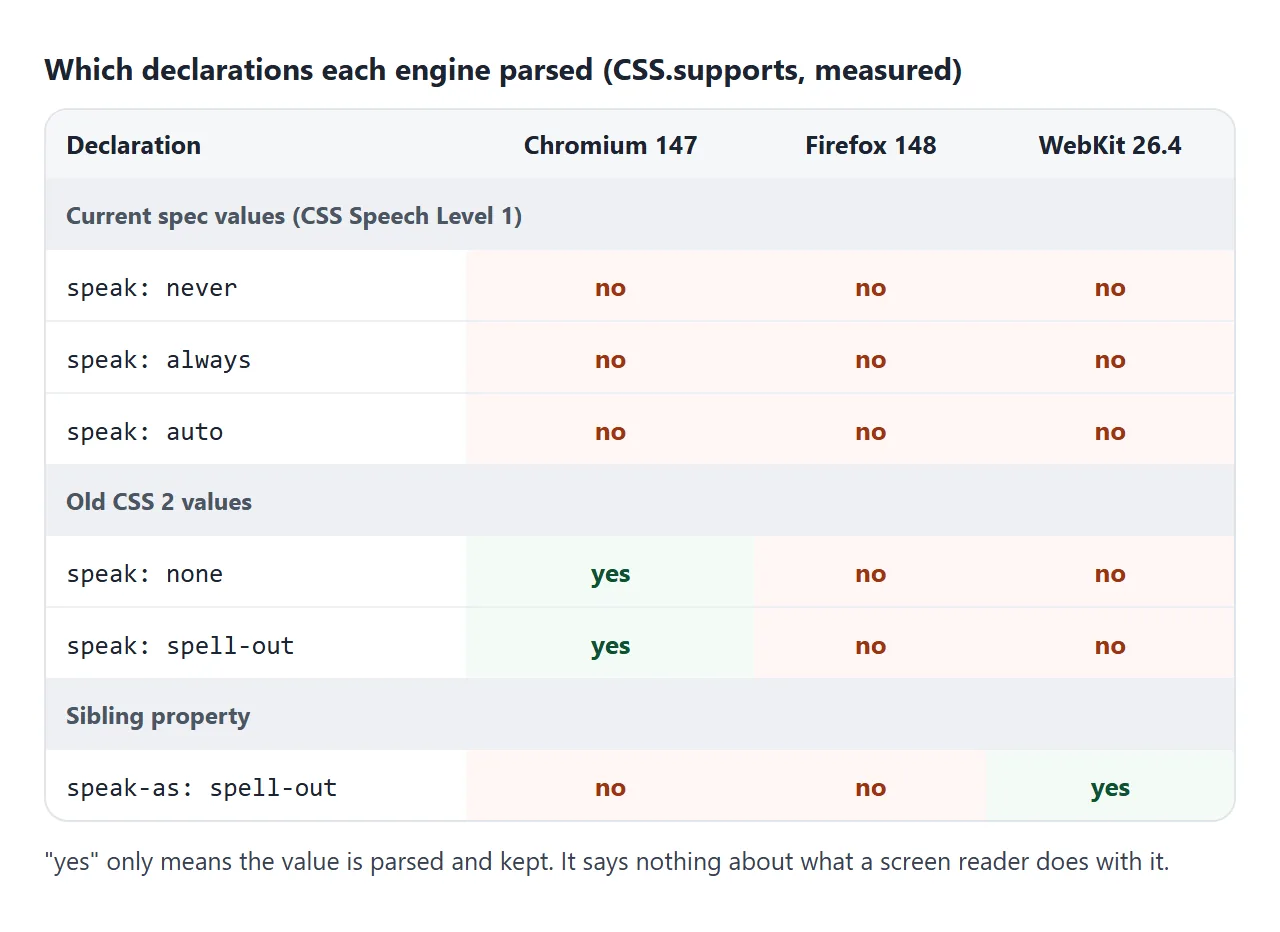
Parsing a value is not the same as acting on it. A browser can keep speak: none in its computed style and still hand the text to assistive technology, which is what the next section shows.
speak: none does not hide text from screen readers
Take an icon inside a button. The eye sees a cross and the word Close, and the screen reader should hear only "Close".
We put the icon in a span with speak: none and read Chromium's own accessibility tree through the DevTools protocol.
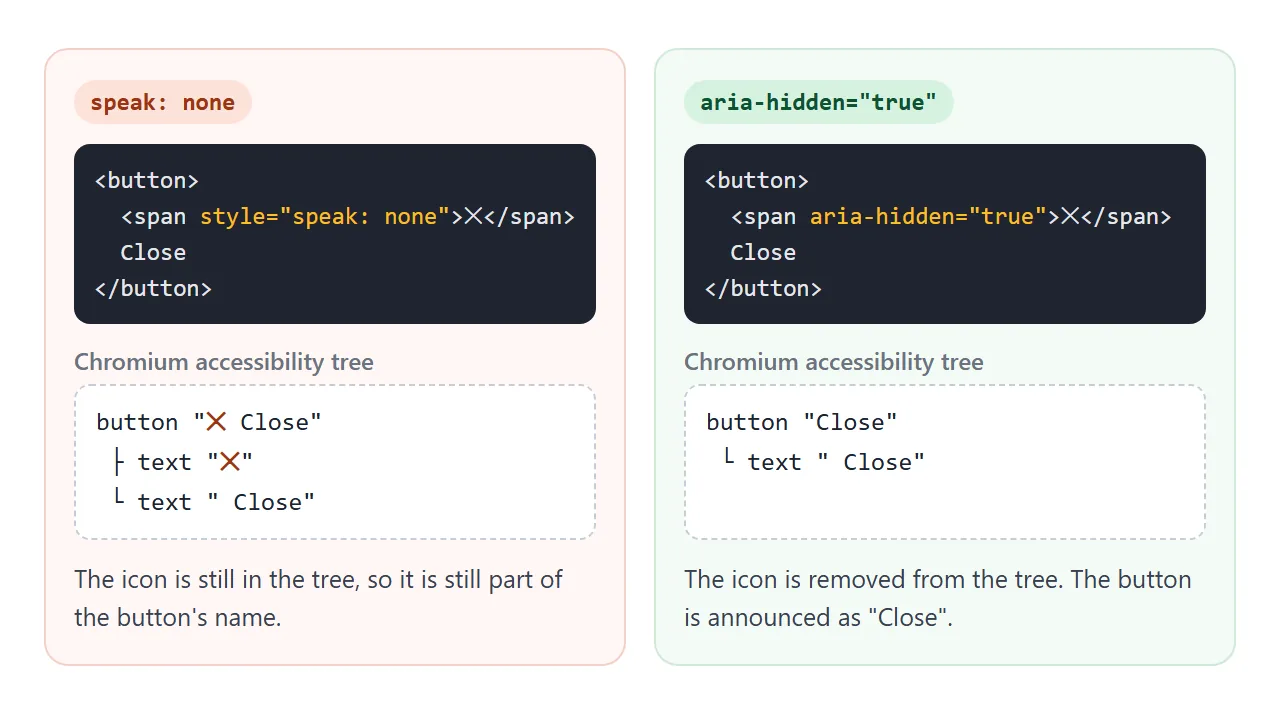
With speak: none the cross stayed in the tree and in the button's name. With aria-hidden="true" it was gone and the name was "Close". The demo builds each button's name by the ARIA rule and shows the speak value the browser computed.
<!doctype html>
<html lang="en">
<head>
<meta charset="utf-8">
<meta name="viewport" content="width=device-width, initial-scale=1">
<title>Hiding an icon from screen readers</title>
<style>
body { margin: 0; padding: 16px; font-family: system-ui, sans-serif; background: #f4f5f7; color: #1d2330; }
.row { display: grid; grid-template-columns: 1fr 1fr; gap: 12px; }
.box { background: #fff; border-radius: 12px; padding: 14px; border: 1px solid #e1e4ea; }
.box.bad { border-color: #f3d1c8; background: #fff7f5; }
.box.good { border-color: #cfe9d7; background: #f4fbf6; }
code { font: 13px ui-monospace, Consolas, monospace; }
button { font: inherit; font-size: 15px; padding: 8px 14px; border-radius: 8px; border: 1px solid #c7ccd6; background: #fff; margin: 10px 0; }
.out { font-size: 14px; line-height: 1.5; }
.out b { display: block; font-size: 12px; color: #6b7280; font-weight: 600; }
@media (max-width: 420px) { .row { grid-template-columns: 1fr; } }
</style>
</head>
<body>
<div class="row">
<div class="box bad">
<code>speak: none</code><br>
<button class="demo"><span style="speak: none">✕</span> Close</button>
<div class="out"></div>
</div>
<div class="box good">
<code>aria-hidden="true"</code><br>
<button class="demo"><span aria-hidden="true">✕</span> Close</button>
<div class="out"></div>
</div>
</div>
<script>
// The button's name, following the ARIA rule:
// children with aria-hidden="true" are left out, nothing else is.
function nameOf(button) {
let text = '';
button.childNodes.forEach((node) => {
if (node.nodeType === 1 && node.getAttribute('aria-hidden') === 'true') return;
text += node.textContent;
});
return text.trim();
}
document.querySelectorAll('.demo').forEach((button) => {
const icon = button.querySelector('span');
const out = button.parentElement.querySelector('.out');
out.innerHTML =
'<b>computed speak on the icon</b>' + (getComputedStyle(icon).getPropertyValue('speak') || '(not parsed)') +
'<b>button name</b>"' + nameOf(button) + '"';
});
</script>
</body>
</html>
If the icon should not be read, mark it aria-hidden="true". If a button has only an icon and no text, give the button a name with aria-label.
What to use instead of speak
Pick by audience: who should see the element, and who should hear it.
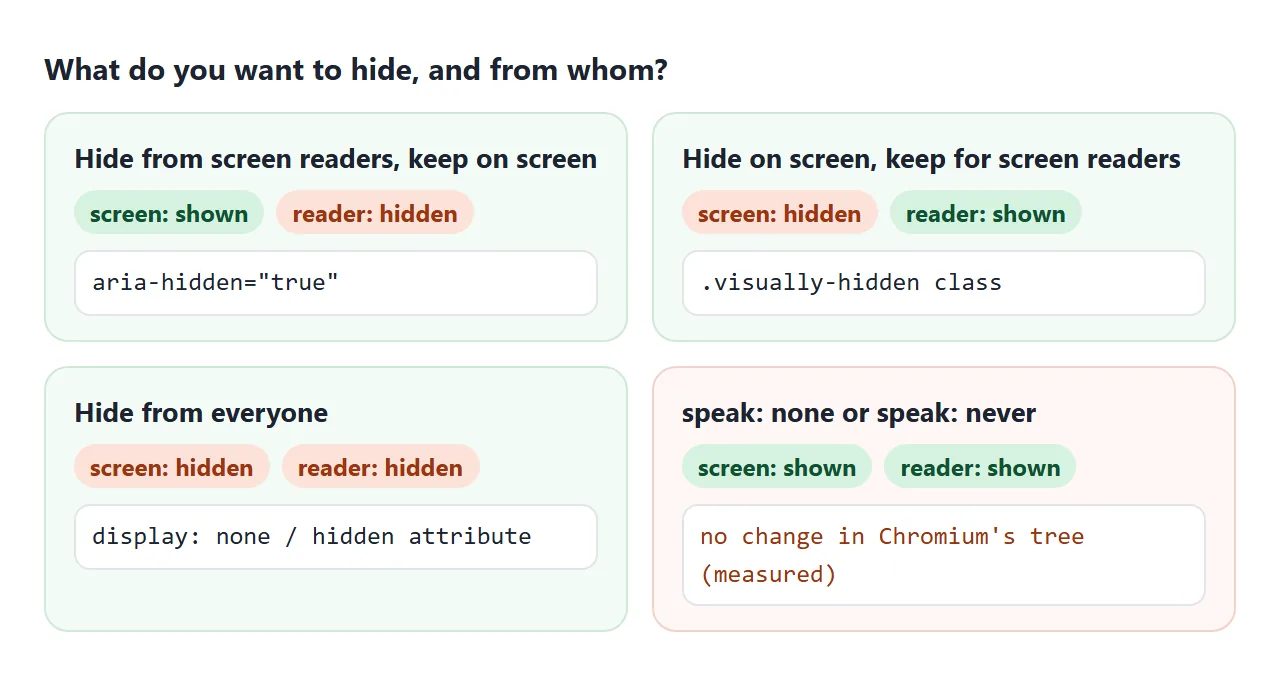
| Goal | Use | Note |
|---|---|---|
| On screen, not read | aria-hidden="true" |
Never on a focusable element |
| Read, not on screen | A visually hidden class | Text stays in the accessibility tree |
| Neither | display: none or hidden |
Removed for everyone |
A visually hidden class shrinks the element to one pixel and clips it, so it takes no space on screen but stays in the accessibility tree:
.visually-hidden {
  position: absolute;
  width: 1px;
  height: 1px;
  overflow: hidden;
  clip-path: inset(50%);
  white-space: nowrap;
}
Do not put aria-hidden="true" on a link, a button or anything else that takes focus, or on a parent of one.
MDN warns against it, because keyboard users can reach an element that screen readers are told does not exist. CSS display covers what display: none removes.
speak-as, the sibling property
The same module defines speak-as. Where speak decides whether to speak, speak-as decides how: spell-out reads letter by letter, digits reads numbers one digit at a time, and two values change how punctuation is read.
MDN marks speak-as as experimental. Its compatibility data lists Safari as the only browser that supports the property. In our test, WebKit parsed speak-as: spell-out and Chromium and Firefox did not.
A separate speak-as descriptor exists inside @counter-style. It tells assistive technology how to read a custom list marker, and MDN's compatibility data lists it for Chrome and Firefox. CSS counters covers custom markers.
Making a page speak on its own
If you want the page itself to talk, not a screen reader, the Web Speech API does it. speechSynthesis.speak() reads any string you give it, so you decide in JavaScript which parts stay silent. This is the effect speak: never describes, done in script.
<!doctype html>
<html lang="en">
<head>
<meta charset="utf-8">
<meta name="viewport" content="width=device-width, initial-scale=1">
<title>Read aloud, skipping marked parts</title>
<style>
body { margin: 0; padding: 16px; font-family: system-ui, sans-serif; background: #f4f5f7; color: #1d2330; }
article { background: #fff; border-radius: 12px; padding: 14px 16px; border: 1px solid #e1e4ea; font-size: 15px; line-height: 1.5; }
article h2 { font-size: 17px; margin: 0 0 6px; }
.note { color: #6b7280; font-size: 13px; }
.controls { display: flex; gap: 8px; margin: 12px 0; flex-wrap: wrap; }
button { font: inherit; font-size: 15px; padding: 8px 14px; border-radius: 8px; border: 1px solid #c7ccd6; background: #fff; }
#read { background: #0f5132; color: #fff; border-color: #0f5132; }
#said { background: #eef0f4; border-radius: 8px; padding: 10px 12px; font-size: 14px; min-height: 42px; }
#said b { display: block; font-size: 12px; color: #6b7280; }
</style>
</head>
<body>
<article id="story">
<h2><span aria-hidden="true">★</span> Opening hours</h2>
<p>We are open from 9 to 6, Monday to Friday.</p>
<p class="note" data-no-speech>Photo: front door, taken in spring.</p>
<p>Saturday we close at 2.</p>
</article>
<div class="controls">
<button id="read">Read aloud</button>
<button id="stop">Stop</button>
</div>
<div id="said"><b>Text sent to the voice</b><span id="text">(nothing yet)</span></div>
<script>
const story = document.getElementById('story');
const textBox = document.getElementById('text');
// Copy the article, drop the parts that should stay silent, keep the rest.
function speakableText() {
const copy = story.cloneNode(true);
copy.querySelectorAll('[aria-hidden="true"], [data-no-speech]').forEach((el) => el.remove());
return copy.textContent.replace(/\s+/g, ' ').trim();
}
document.getElementById('read').addEventListener('click', () => {
const text = speakableText();
textBox.textContent = text;
if (!('speechSynthesis' in window)) {
textBox.textContent = text + ' (This browser has no speechSynthesis, so nothing is spoken.)';
return;
}
speechSynthesis.cancel(); // stop anything already playing
speechSynthesis.speak(new SpeechSynthesisUtterance(text));
});
document.getElementById('stop').addEventListener('click', () => {
if ('speechSynthesis' in window) speechSynthesis.cancel();
});
</script>
</body>
</html>
The demo copies the article, removes anything marked aria-hidden="true" or data-no-speech, and passes the rest to SpeechSynthesisUtterance.
If the browser has no speechSynthesis, it shows the text and says nothing is spoken. The Playwright WebKit build we tested has none. Text to speech in JavaScript covers voices, rate and highlighting.
When it does not work
| What you see | Cause | Fix |
|---|---|---|
The support demo says no for speak: never |
None of the three engines we tested parses the Level 1 values | Do not rely on speak, use aria-hidden |
| A screen reader still reads the icon | speak: none does not remove it from the accessibility tree |
aria-hidden="true" on the icon |
| Text for screen readers disappeared | It was hidden with display: none |
Use a visually hidden class |
| A button is announced with no name | Its only text is inside aria-hidden |
Add aria-label to the button |
speak-as changes nothing |
Only Safari is listed as supporting it | Write the text the way it should be read |
| Read aloud does nothing | No speechSynthesis in this browser |
Check for it first and show a message |
Share it as a link
A page that reads aloud is easier to hear than to describe. A screenshot cannot speak.
To send the working version, paste the page into a NOS document and choose Create share link. HTML to link walks through it.
The page renders as written and its scripts run, so the people you send it to can press Read aloud themselves. If you change the code later, the same link shows the new version.